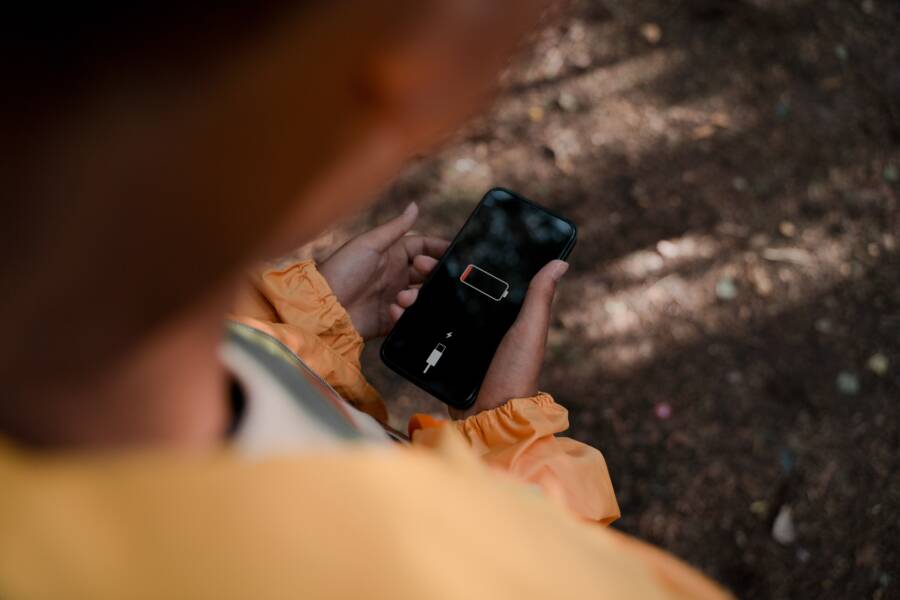
When your smartphone loses power while sitting idle, background processes are usually the cause. These hidden apps and services continue to sync data or track your location even when the screen is dark.
You can stop this unnecessary drain by adjusting your system settings and restricting background activity. This guide provides actionable steps to help your battery last throughout the day.
Identifying Background Apps That Drain Your Battery
Your battery life often suffers because apps continue to work while you are not using your smartphone. These programs sync data, update content, or check your location in the background. Finding the culprits is the first step toward extending your device longevity. You can view exactly which apps use the most power through the built-in system tools provided by your mobile operating system.
Checking Power Consumption in System Settings
You can see a detailed breakdown of your battery usage by accessing the battery menu in your settings. This list displays which apps consume the most power over the last 24 hours or the last several days.
For Android users, follow these steps:
- Open the Settings app on your smartphone.
- Tap on Battery or Battery and Device Care.
- Select Battery usage to see a list of applications sorted by the percentage of power consumed.
- Tap on any app in the list to see more details about its foreground and background usage.
For iPhone users, the process is slightly different:
- Open your Settings app.
- Tap on Battery.
- Scroll down to see the Battery Usage by App section.
- Toggle between the Last 24 Hours or Last 10 Days tabs to identify patterns.
- Tap Show Activity to see how long each app ran in the background compared to when it was on your screen.
Reviewing this list helps you spot apps that use a disproportionate amount of energy. If you see an app that you rarely use consuming a large portion of your power, it is a prime candidate for restriction.
Restricting Background Activity for Hungry Apps
Background app refresh is a feature that allows apps to update their data when you are not actively using them. While this keeps information current, it also forces your smartphone to wake up the processor frequently. Disabling this function for non-essential apps forces them to wait until you open them to fetch new data, which keeps your battery from draining while the device sits idle.
On Android, you can limit individual apps by going to Settings, then Apps. Select the specific app, tap Battery, and choose the Restricted setting. This prevents the app from running in the background entirely.
On iOS, you can manage this globally or individually. Go to Settings, tap General, then select Background App Refresh. You can turn the feature off for all apps or switch off the toggle for specific apps that do not need to update constantly.
Restricting background activity does not break the app functionality. It simply means that when you tap the icon to open the app, it might take a second or two longer to load the latest content. This small trade-off is often worth the extra hours of battery life you gain throughout the day. Focus on restricting social media, shopping, or utility apps that do not require real-time updates to function correctly.
Optimizing Connectivity and Wireless Settings
Your smartphone maintains constant contact with the world around you, but this persistent connection often comes at a high price for your battery. Radios for cellular service, Wi-Fi, and Bluetooth operate by communicating with nearby signals or devices. When these settings remain active without management, they force the processor to stay engaged even while the screen stays dark. By refining how your device handles these signals, you can significantly reduce idle battery drain.
The Impact of Always-On Location Services
Location services allow your smartphone to track your position for maps, weather updates, and local search results. Many apps request permission to access this data, often running in the background to provide real-time updates. Even when you are not using these apps, the GPS radio may wake up to verify your coordinates, which is a power-heavy process.
Each time a program requests your location, the device must power up the GPS antenna, connect with multiple satellites, and calculate your exact spot. This cycle repeats frequently if several apps hold permission to track you. You can mitigate this drain by limiting which apps access your location data.
- Open your device settings and find the privacy or location menu.
- Review the list of apps that have access to your location at all times.
- Switch settings to “While Using” for apps that do not need to track you constantly.
- Disable location access for apps that function fine without knowing your exact whereabouts.
By restricting access to only the apps you trust for navigation or specific local utility, you prevent the GPS chip from triggering unnecessarily throughout the day.
Managing Bluetooth and Wi-Fi Scanning
Smartphones feature aggressive scanning behaviors to help you connect to networks and accessories as fast as possible. Wi-Fi scanning periodically searches for open or known wireless networks, while Bluetooth scanning searches for nearby devices to pair with your headphones or smartwatches. These scans occur silently in the background, keeping the wireless chips active even when you are not actively using a connection.
You can turn off these automatic scans to save energy without sacrificing your ability to connect when you need it.
- Disable Wi-Fi scanning: Check the location or advanced network settings on your smartphone to find toggles for “Wi-Fi scanning” or “Bluetooth scanning.” Turning these off prevents the device from constantly searching for connections in the background.
- Toggle Bluetooth when idle: If you are not using wireless headphones or a smartwatch, turn Bluetooth off from the quick-settings menu before you put the phone away.
- Prioritize manual connection: Manually connecting to a known Wi-Fi network ensures your device stops looking for new signals once it establishes a link.
These small adjustments prevent your phone from wasting energy on constant environmental surveillance. You still maintain full control over your connections, but you remove the extra load that occurs when the screen is off.
Software Updates and System Maintenance
Your smartphone relies on complex interactions between hardware and software to function properly. When these systems fall out of sync or contain bugs, your battery often pays the price. Regular maintenance is the most effective way to keep your device running efficiently while it sits idle. By managing your software environment, you prevent hidden energy leaks that drain your power overnight.
Why Keeping Your Operating System Updated Matters
Manufacturers frequently release software patches that target specific energy consumption problems. These updates often address bugs where the system keeps the processor awake for no reason. When your operating system remains outdated, your phone may struggle with background tasks that newer code handles with better efficiency.
Software developers constantly refine how apps communicate with your hardware. Newer versions of your operating system include optimizations that allow the battery to enter a deeper, more power-efficient sleep state. If you skip updates, your smartphone continues to rely on older, less efficient methods for managing background processes.
Updating your device is a simple process that provides long-term benefits:
- Bug fixes: New software versions patch errors that trigger unnecessary wake cycles.
- Security improvements: Modern code runs faster and uses fewer resources to complete background verification tasks.
- Hardware optimization: Updated drivers help the battery and processor communicate better, which reduces energy waste during idle periods.
Check your settings menu today to verify if a new version is available. A quick update often resolves persistent battery issues without requiring you to change any other settings.
Clearing System Cache and Temporary Files
Your smartphone stores temporary files to help apps load faster and improve user experience. Over time, these files accumulate in a system cache that grows quite large. When this cache becomes cluttered, your device works harder to index and organize data even while the screen stays dark. The processor must exert extra effort to manage these unnecessary bits of information, which prevents the system from staying fully idle.
Most smartphones manage this cache automatically, but issues still happen during heavy use or after major software updates. If your device feels warm or drains battery while sitting on your nightstand, a cluttered cache might be the culprit.
You can maintain your system health by following these practices:
- Restart your phone weekly: A fresh reboot clears volatile memory and stops stuck background processes that linger in the cache.
- Clear app-specific cache: You can go to the app settings menu for your most used programs and select the option to clear temporary data.
- Use built-in storage tools: Many smartphones offer a storage manager that identifies large, unused temporary files. Use this tool to remove junk data that slows down system maintenance.
Regularly removing these temporary files gives your processor more room to breathe. When the system index is clean, your smartphone reaches a true idle state much faster. This reduces the total power used by background services and extends the time between charges.
Hardware Health and When to Seek Professional Help
Smartphone batteries are chemical components that degrade over time through normal use. While software adjustments often resolve idle drain, some issues originate from physical wear within the power cell. Recognizing the difference between a software bug and a hardware failure helps you avoid unnecessary troubleshooting and potential safety risks.
Signs of a Physically Degraded Battery
A battery showing physical signs of failure requires immediate attention. You should inspect your smartphone if you notice changes in the device shape or sudden, erratic behavior that persists after a full system reset.
- Physical swelling: If your screen appears lifted or the back cover bows outward, the battery is likely venting gas due to internal damage. Stop using the device immediately and keep it in a cool, fire-safe area.
- Excessive heat: While phones get warm during heavy tasks, a device that becomes hot while sitting idle or charging at low speeds indicates a short circuit or chemical instability.
- Rapid percentage jumps: Batteries that suddenly drop from 40 percent to 10 percent, or climb significantly after a reboot, have lost their ability to hold a stable charge. This behavior signals that the internal resistance has reached a point where the system can no longer calibrate capacity accurately.
If you suspect physical degradation, stop charging the device. Internal battery damage can lead to leaks or combustion if forced to accept power.
When to Replace Your Smartphone Battery
Most modern smartphone batteries retain about 80 percent of their original capacity after 500 to 800 full charge cycles. Once you cross this threshold, you will notice the phone struggles to last a full day even with background activity restricted.
You should consider a professional battery replacement under the following conditions:
- System health warnings: Both iOS and Android provide battery health menus that report the maximum capacity. If this number falls below 80 percent, you are experiencing significant performance limitations and frequent drain.
- Sudden shutdowns: Your phone turns off unexpectedly when the battery level shows 20 percent or higher. This suggests the battery cannot provide the necessary voltage to the processor during small spikes in activity.
- Chronic overheating: If the phone remains warm even after you have cleared the cache and disabled background services, the battery may be failing to regulate energy output properly.
Visit an authorized service center if your battery shows these signs. While third-party kits exist, professional technicians provide better seals and original parts that keep your device water-resistant and safe. If the replacement cost approaches half the value of a new model, an upgrade is often the more practical long-term choice.
Conclusion
You can stop unnecessary power loss by identifying apps that run in the background and adjusting your wireless connectivity settings. These simple changes ensure your smartphone preserves energy while it sits idle.
Perform a regular audit of your system settings every month to keep your battery performance consistent. This habit prevents hidden processes from creating future issues and keeps your device running efficiently.