An old phone can serve as a bedside charging dock and a clock you can read without picking it up. Put it in a stable stand, connect a charger, and use the phone’s built-in clock or charging screen saver if its software offers one. The useful setup is the one that stays readable at night, dims or turns off when you want it to, and leaves the charging cable clear of your bed.
Set it up as a display, not a second alarm project
Start with the clock display already on the phone. On Android, Google’s Clock help explains how to show a dimmed clock through the screen saver. On Pixel phones, Google’s screen saver settings also include clock choices while charging. Apple describes StandBy as a charging view that can show a bedside clock when an iPhone is placed on its side. The menu names and availability depend on the phone and its software, so look for “screen saver,” “clock,” or a charging display in its own settings or help page.
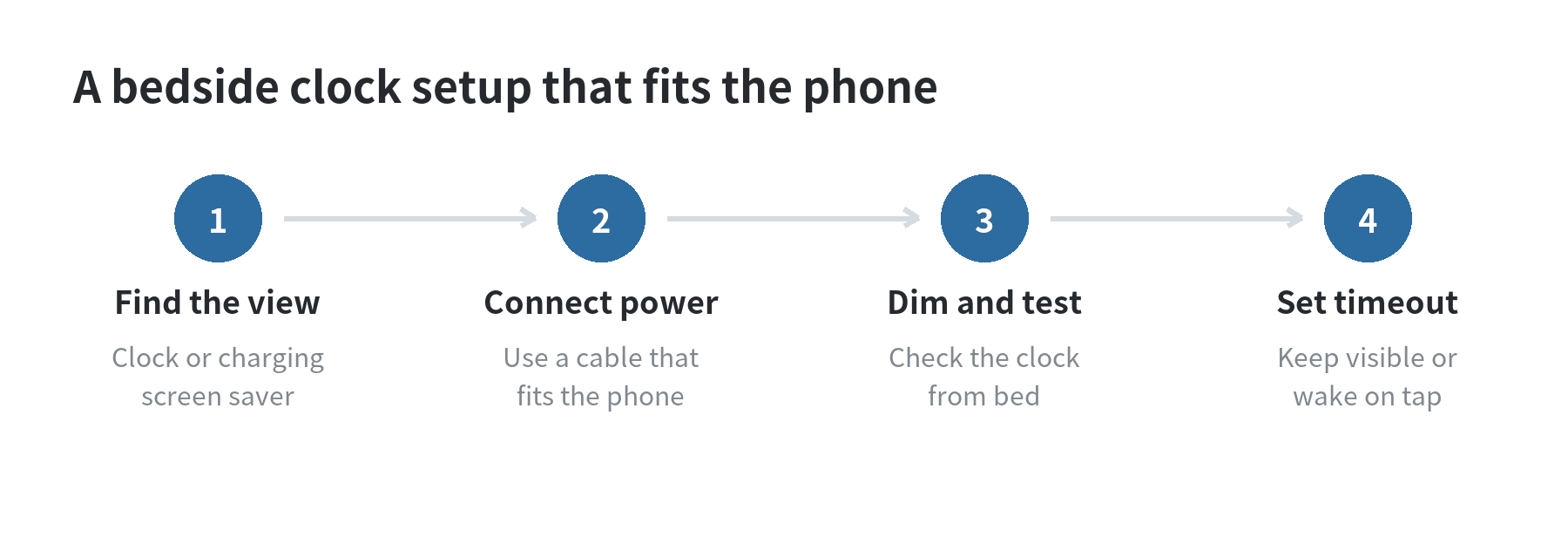
Keep the setup narrow: choose a clock face, test its brightness, and decide whether the display should remain visible or time out. A bright home screen full of notifications is harder to read as a clock and can expose incoming messages from across the room. Turn off notifications you do not want on the bedside display, or use the phone’s focus or do-not-disturb controls if they fit your routine.
Check the screen before leaving it on overnight
Try the clock in the room where it will sit. Open the clock view, dim the display until it is comfortable from your pillow, and check whether the clock remains visible after the phone has been idle. If the screen goes black, see whether the model offers a charging screen saver or an always-on setting. If it cannot keep a useful clock visible, use the display as a charging station and wake the screen when you need the time.
Screen type matters for a static clock. Apple’s OLED display guidance describes image persistence and burn-in after a high-contrast image stays on a screen at high brightness for a long time. Samsung’s OLED TV guidance likewise identifies a fixed image left on screen for a long period as a possible cause of burn-in. A clock face can stay in the same place for hours, so lower the brightness, choose a simple dim face, and let the display sleep when an always-visible clock is not essential. Those steps reduce brightness and the time a fixed image stays on screen, which are the conditions Apple and Samsung flag in their display guidance.
If the phone has an LCD, do not assume that every panel behaves the same way. Check the maker’s guidance for that model and avoid max brightness for a fixed display. If a faint image remains after you switch screens, stop using that face as an all-night display and check the manufacturer’s support instructions.
Choose a stand that keeps the cable out of the way
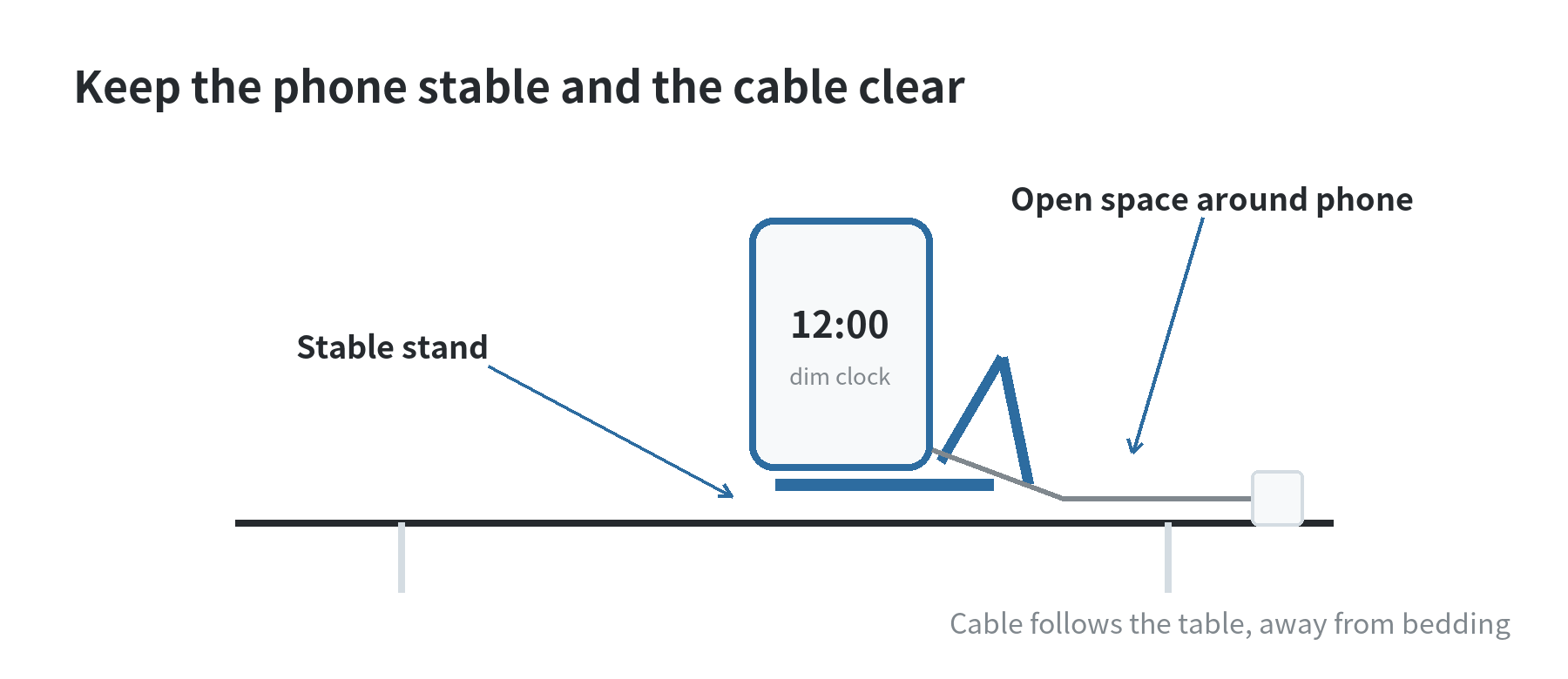
A bedside stand only needs to hold the phone at a viewing angle without covering its charging port, buttons, speaker, or ventilation openings. A simple angled stand works for portrait orientation; a wider cradle or adjustable stand can hold a phone in landscape if its clock feature needs that position. Before settling on one, place the phone in it and confirm that the screen is readable from where you sleep.
Route the cable along the nightstand instead of across the mattress or a walking path. Leave enough slack to remove the phone without pulling the charger from the wall. Keep the phone and charger on a firm, open surface rather than under bedding or against soft items that can trap heat. If the phone, cable, or adapter becomes unusually hot, disconnect it and inspect the equipment before using it again.
Make charging fit the way you use the phone
Use a charger and cable that match the phone’s port and the maker’s guidance. If the old battery no longer holds power well, keeping the phone plugged in may be convenient, but check its battery condition and charging behavior before making it a permanent fixture. Some phones offer charging limits or optimized charging settings; the feature name and options vary by model.
Set the phone where you can reach its power button and unplug the cable without lifting the stand. That matters if the screen freezes, an update restarts the device, or you want to take the phone away. Check that the outlet and cable do not sit where they can be snagged when you reach for something on the nightstand.
Before settling on a fixed setup, test it through an unplug-and-reconnect cycle. Close the clock view, reconnect power, and see which screen appears. If it opens the home screen instead, set the clock view again and check whether its screen saver has a charging trigger. Rotate the phone if its clock needs landscape, then return it to the stand. This short rehearsal shows where the time appears, how much light it gives off, and whether the cable reaches cleanly.
Keep the clock easy to read in a dark room
Use a large, plain time display with enough contrast to read at a glance. A dark background with subdued digits is a sensible starting point because it avoids lighting the whole room; adjust it from the bed rather than setting it for a bright daytime room. If the phone supports night mode or a low-light clock, test that mode after the room is dark. Google’s Android clock help documents a dimmed clock and a night-mode choice, while Pixel help describes a low-light screen saver on supported devices.
Decide what should happen when you touch the screen. A tap-to-wake display can stay dark until needed, while an always-visible clock is easier to glance at but leaves a static image on screen. If you use a screen timeout, confirm that it does not dismiss the clock view before you can read it. A short trial during an evening at home is enough to reveal whether the brightness, angle, and timeout work for your room.
What this setup does not replace
A clock display shows the time; it does not make an old phone a dependable backup for every job. If you also need an alarm, set and test it separately, and keep your primary alarm plan clear. For a dedicated alarm setup, see the site’s old-phone alarm clock guide.
The same phone can serve other single-purpose roles, but adding streaming apps, accounts, or smart-home controls creates extra setup and notifications. Keep the bedside dock focused on time and charging. If you are repurposing another old phone for a different task, the site’s dedicated audio player guide covers that separate setup.
FAQ
Can an old phone show a bedside clock without Wi-Fi?
Yes, if its built-in clock display works offline. Check the clock while the phone is disconnected from Wi-Fi, since weather, widgets, and other connected features may need network access even when the time display does not.
Should I leave the bedside phone plugged in all night?
That depends on the phone’s battery and charging features. Check the device maker’s battery guidance, use compatible charging equipment, and keep the phone on an open, firm surface where you can notice heat or a damaged cable.
What if the clock disappears when the screen locks?
Look for the phone’s screen saver, charging display, or always-on display settings. If that model cannot keep a dim clock visible while charging, use a tap-to-wake clock or let the screen turn off between glances.
Can I use a phone with a cracked screen as a bedside clock?
Skip charging a phone with cracked glass or suspected battery damage. Apple’s safety guidance says to stop using an iPhone if you suspect device or battery damage; check the manufacturer’s instructions for other models.