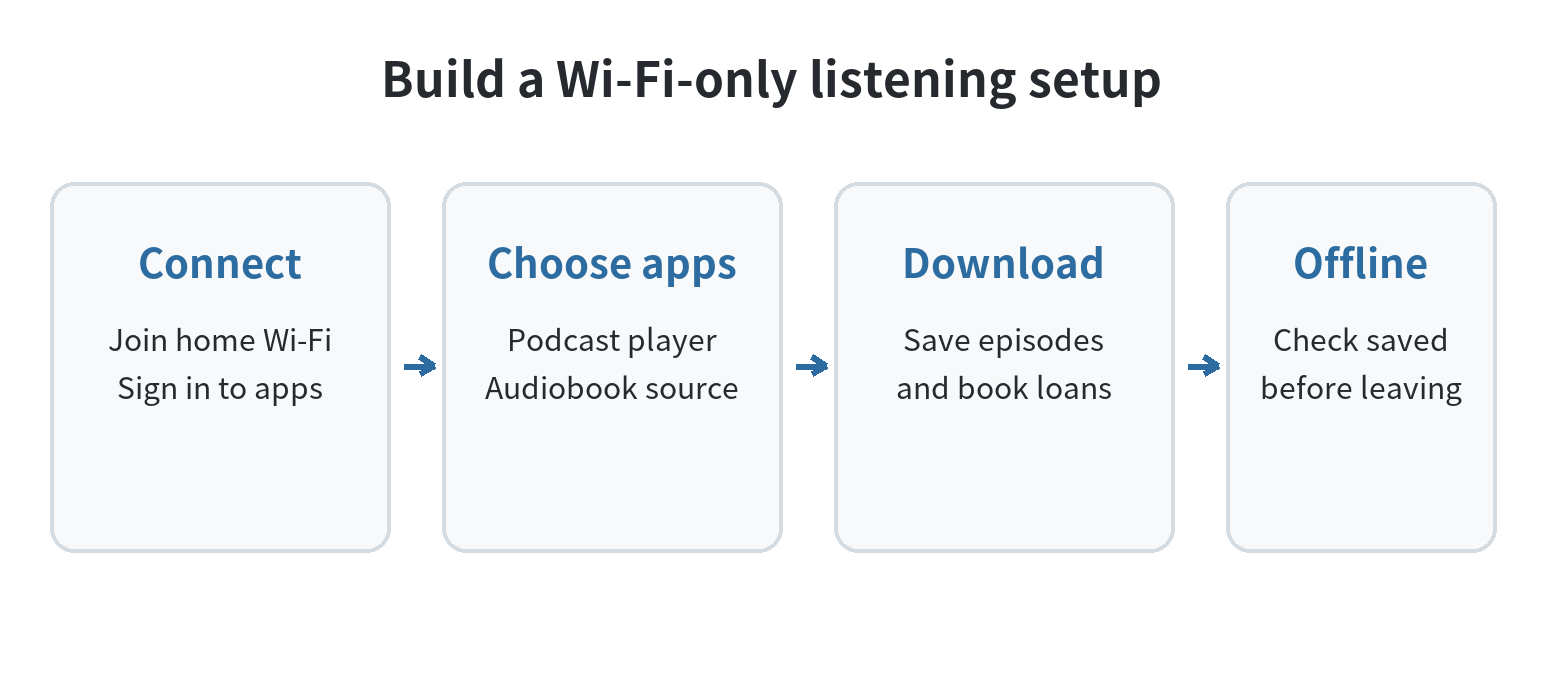
An old phone can become a dedicated podcast and audiobook player without a SIM: connect it to Wi-Fi for app setup and downloads, then play saved audio offline. Android Help separates connecting to Wi-Fi from inserting a SIM for mobile data; Apple Podcasts and Libby document playback from saved downloads without a network (Android Help; Apple Support; Libby Help, checked September 29, 2026). Keep the setup focused on audio, and check that each title is stored on the phone before you leave home.
Choose a Wi-Fi-only setup
You will need an internet connection for app installation, account sign-in, borrowing or following titles, streaming, and syncing progress. Apple Support explains that downloaded podcast episodes play without Wi-Fi or mobile service; Libby says downloaded loans work offline while streamed titles need a connection (checked September 29, 2026; September 29, 2026).
First, charge the phone and connect it to your home Wi-Fi. Sign in with the account needed for its app store and listening apps. If the device belongs to someone else, ask before changing accounts or removing data. For a device you own, review its saved photos, messages, and accounts before deciding what to keep. If you need to move accounts to another device first, see the site’s guide to transferring apps and logins from an old phone.
Use a screen lock and turn off nonessential notifications so calls, messages, and unrelated alerts do not compete with listening. Keep the charging cable nearby and choose a spot where the phone can stay plugged in during long sessions.
Install one podcast app and set its downloads
On an iPhone, Apple Podcasts can save episodes for listening offline. Open the show, touch and hold an episode, and choose Download; Apple documents that route in its episode download instructions. On Android, choose a podcast app that supports episode downloads and playback controls, then follow that app’s own help steps. Menu paths can vary by Android version and device, as Android Help notes, so use current instructions rather than guessing at a button location.
Start with a small queue instead of automatically saving every new episode. Podcasts can include video as well as audio, and video files take more local space. Apple’s download settings let you control automatic downloads, choose a limit or timeframe, and decide whether to download video; its support page also describes removing played downloads (Apple Support, checked September 29, 2026). For a Wi-Fi-only routine, leave cellular downloading off where the app offers that control.
Follow only the shows you intend to hear on this device. Save a few episodes while the phone is connected, then open the app’s downloaded section. Apple Podcasts lists downloaded episodes separately from the broader library, which makes it easier to tell what is stored locally (Apple Support, checked September 29, 2026).
Add audiobooks and keep your place
Use the audiobook source you already rely on: a library app, an audiobook app, or a purchased-audiobook app tied to your account. Libby lets you borrow and listen to library audiobooks when your library offers them. Its mobile app downloads book and audiobook loans over Wi-Fi by default, and its Shelf shows which loans are stored for offline use (Libby Help, checked September 29, 2026). Catalog access and borrowing depend on the library and card connected to the app.
Check access before loading a long listening queue. Open the audiobook app on the old phone while it is online, sign in, and find a title you can play. Apple notes that Books is not available in every country or region, while Libby’s setup asks you to choose a library and add a library card (Apple Support; Libby Help, checked September 29, 2026). That check catches account or catalog access issues before you need offline audio.
Playback tools make a spare phone useful for long-form listening. Apple Books offers chapter navigation, narration speed controls, and a sleep timer in its iPhone audiobook player (Apple Support, checked September 29, 2026). Libby has its own speed and timer controls: its help pages document custom narration speeds from 0.6–3× and sleep timers from 5–120 minutes (speed settings; sleep timer settings, checked September 29, 2026). Those ranges are app controls, not a required listening pace.
If you also listen on another device, check whether the app syncs your library or playback position and whether it needs an internet connection to do so. Apple Podcasts syncs followed shows and current play position across signed-in Apple devices when Sync Library is enabled (Apple Support, checked September 29, 2026). Libby can sync loans and reading progress after its recovery passkey or setup code is used on the other device (Libby Help, checked September 29, 2026). If the old phone will stay at home, you can leave cross-device syncing off and keep its library separate.
Test offline playback before relying on it
With Wi-Fi connected, download one podcast episode and one audiobook loan or chapter. Open the app’s Downloads or Shelf area and look for its downloaded indicator. Libby distinguishes downloaded titles from cloud-marked items that stream and require an internet connection (Libby Help, checked September 29, 2026).
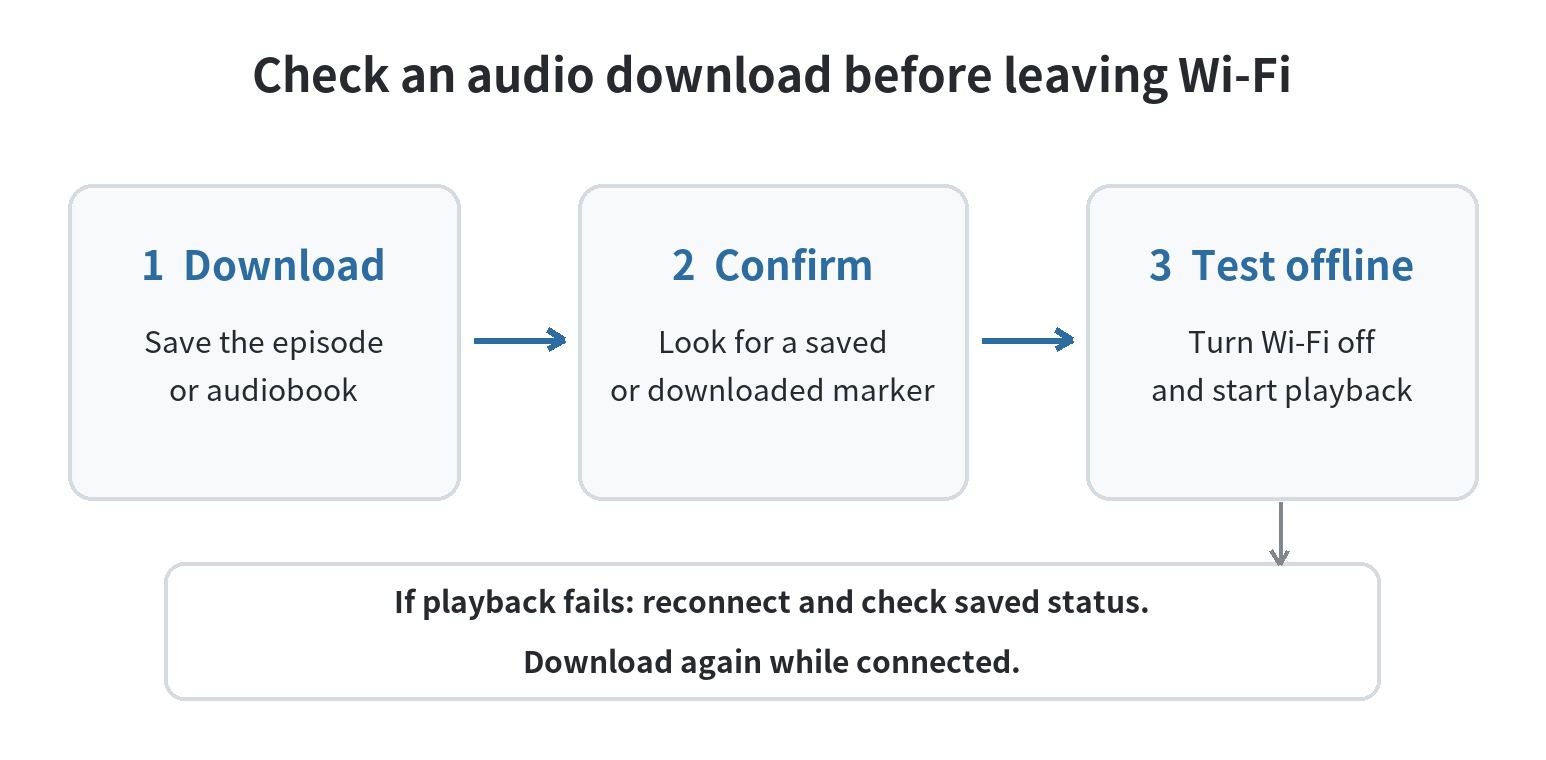
Then briefly turn Wi-Fi off and start each saved item. If one does not play, reconnect and check its download status, available storage, and account access. Do not assume that seeing a title in a library means its audio file is already on the phone. For a borrowed audiobook, remember that its loan is managed by the library app; use its Shelf to check the current status before a trip.
For a commute or flight, prepare one short episode as a quick playback check and one longer audiobook for the main session. Pair your headphones while the phone is online, then try the controls from the player screen with Wi-Fi off. Keep the phone somewhere it can be charged during a long listening stretch.
Remove episodes after listening if you want to free space. Apple Podcasts provides controls for removing a single download or played downloads; Libby’s downloaded loans remain visible on the Shelf while they are available to you (Apple Support; Libby Help, checked September 29, 2026). Keep the listening apps and their sign-in details in a place you can recover if the phone needs an update or reset.
This setup has a narrower job than a music library. If you want to repurpose a phone for downloaded songs instead, see the site’s guide to turning an old phone into a dedicated music player.
FAQ
Can I listen to downloaded podcasts with the phone in airplane mode?
Yes, if the episode finished downloading before you disconnected. Apple says its saved podcast episodes can play without Wi-Fi or mobile service; test the download once before leaving the network (Apple Support, checked September 29, 2026).
Will my audiobook listening position move to my main phone?
It can when the app supports syncing and both devices are set up for it. Libby syncs reading progress after you recover its data on the other device, while Apple Podcasts syncs current play position for signed-in devices with Sync Library enabled (Libby Help; Apple Support, checked September 29, 2026).
What should I check if an audiobook will not play without Wi-Fi?
Check that the loan is marked as downloaded, then reconnect and download it again if needed. Libby identifies cloud-marked loans as streamed titles that need an internet connection (Libby Help, checked September 29, 2026).
Last updated: September 2026.
Last updated: 2026-09