An old iPad can serve as a second screen only if it and the laptop support the same display method.
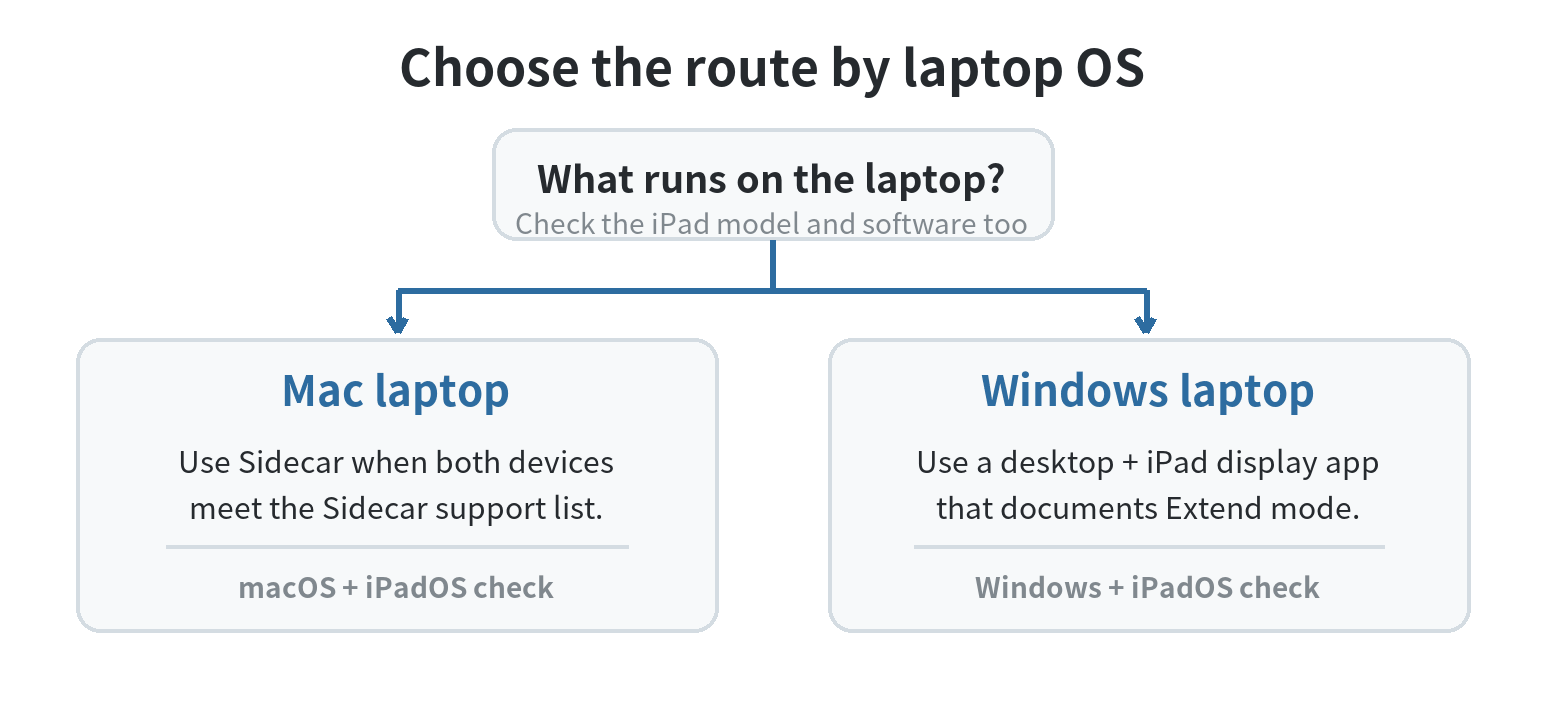
For a compatible Mac, start with Apple’s built-in Sidecar. For Windows, use an app that explicitly extends the desktop to an iPad.
Check the iPad model and software first. An older tablet may fall below the minimum even if ordinary apps still work.
Apple’s Sidecar guide, checked October 10, 2026, lists the compatibility floor.
Sidecar requires macOS Catalina 10.15 or later. MacBook Air models must be from 2018 or later.
Apple lists other Mac models from 2016 or later.
It also requires iPadOS 13 or later. Apple lists all iPad Pro models as supported.
Other supported iPads are iPad (6th generation or later), iPad mini (5th generation or later), and iPad Air (3rd generation or later).
A cable cannot make an iPad outside Apple’s supported list work with Sidecar.
Check the iPad before setting up the laptop
Find the iPad model and software in Settings > General > About.
Apple’s iPad User Guide says this screen shows the model name and iPadOS version.
Compare those details with your chosen connection method’s requirements.
On a Mac, check Sidecar compatibility before troubleshooting wireless pairing.
On Windows, check the app’s current iPadOS and Windows support pages. Windows support alone does not confirm that the app supports your iPad.
For a cellular iPad, wireless Sidecar still uses Wi-Fi, Bluetooth, and Handoff.
Apple’s requirements say the iPad must not share its cellular connection during that session.
That restriction concerns sharing the connection; it does not replace the model and software checks.
Write down the model name and software version before choosing a route. This makes it easier to match the tablet to the right support page.
If you have the model number instead of its name, use Apple’s iPad identification page to map it to a generation.
This quick fit check saves time:
- Mac laptop: the Mac and iPad must both meet Apple’s Sidecar requirements.
- Windows laptop: choose an app whose maker documents both Windows desktop and iPad support, then confirm the iPad’s system version.
- Very old iPad: if it cannot install a supported system version or the required app, it may not work as a laptop display. A cable cannot add a missing software feature.
For other ways to reuse hardware, see our guide to repurposing an old phone.
Connect a compatible iPad to a Mac with Sidecar
Sidecar extends or mirrors a Mac desktop onto a compatible iPad.
Apple’s instructions, checked October 10, 2026, require the same Apple Account with two-factor authentication on both devices.
For wireless use, turn on Wi-Fi, Bluetooth, and Handoff on both devices. Keep them within 10 meters (30 feet)
The iPad must not share its cellular connection. The Mac must not share its internet connection.
- Sign in to the same Apple Account on the Mac and iPad, and turn on Wi-Fi, Bluetooth, and Handoff.
- On the Mac, open System Settings and choose Displays. In the Add Display menu, select the iPad.
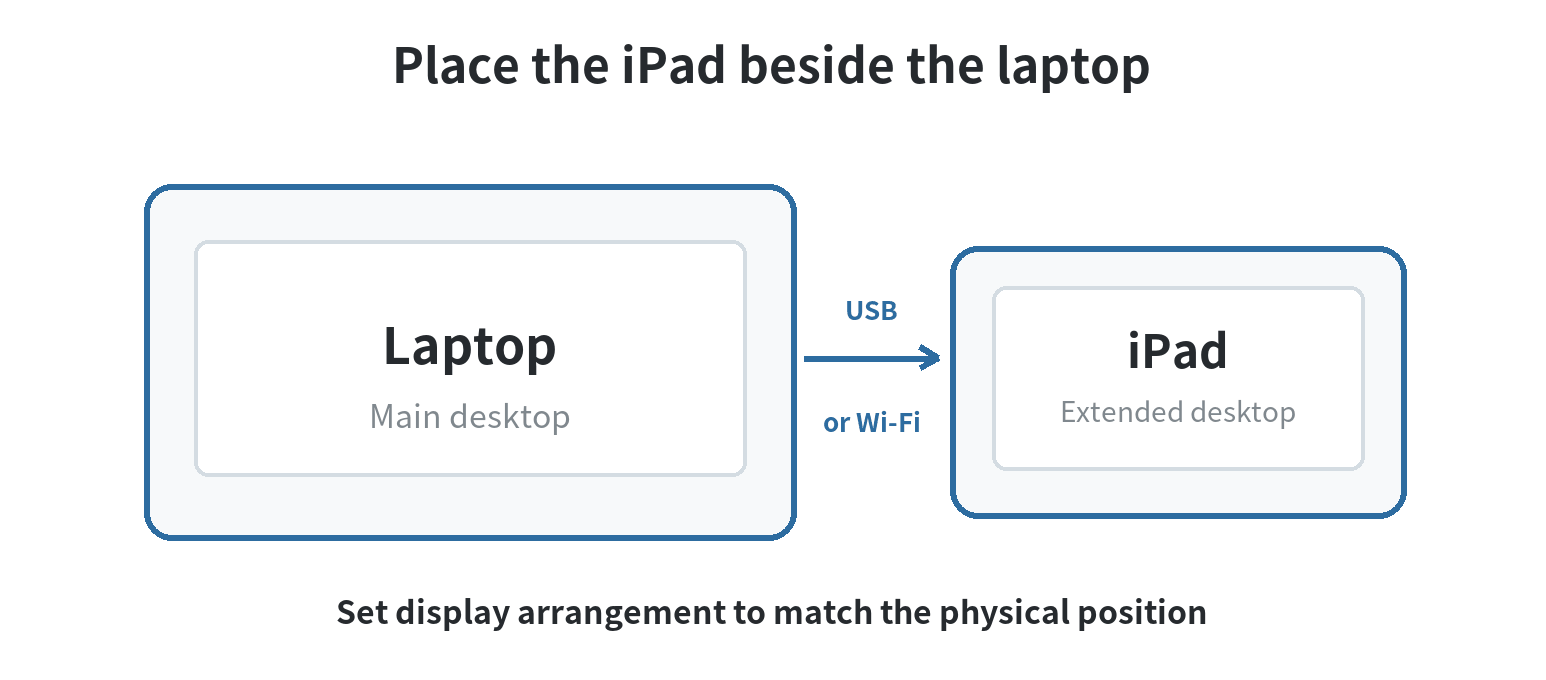
- In Displays, choose whether the iPad extends or mirrors the Mac screen. Use Arrange to place the iPad on the correct side of the laptop in the desktop layout.
- Move a window onto the iPad and test your pointer, keyboard, and any app controls you plan to use.
USB is another Sidecar option. Apple says to connect the iPad to the Mac and trust the Mac on the iPad.
A USB cable can keep the iPad charged during use. Wireless Sidecar uses Wi-Fi, Bluetooth, and Handoff.
If the iPad does not appear in Displays, confirm the model and software requirements first. Then check the shared account and connection settings.
Use Extend for separate windows on each screen. Choose Mirror when you want the iPad to show the same Mac desktop.
Use a display app with a Windows laptop
Windows’ built-in wireless projection is based on Miracast.
Microsoft lists compatible Miracast-enabled Windows and Android devices for its Wireless Display Adapter. iPad is not listed.
For an iPad, use an app whose official documentation names Windows and iPadOS support. Confirm that it can extend a computer desktop.
For example, Duet’s current help pages say its desktop software supports Windows 10 or later and its mobile app supports iPad.
Its connection instructions offer an Extend mode.
Duet’s plan guide, checked October 10, 2026, lists USB display in Starter. Wireless display connections are listed in Air and Pro.
Plan names and features can change. Check the maker’s current documentation before setting up an old tablet.
- Confirm that the iPad can install the app version the maker currently supports.
- Install the desktop component on Windows and the corresponding iPad app.
- For a wired setup, connect the iPad directly to the laptop with a data-capable USB cable. For wireless use, confirm that the app plan and current instructions support it.
- Start the connection from the desktop app and choose Extend. If the session starts in mirror mode, the app’s guide says to switch to Extend in its display mode controls; Windows’ display shortcut is Windows key + P.
The computer and iPad need compatible software on both ends. If Windows shows no extended screen, confirm both app endpoints are running.
Then check whether your connection method is included with the app version or plan you use.
Make the extra screen useful without fighting it
Put one supporting task on the iPad, such as a calendar, reference document, chat window, or editing controls. Keep the main document on the laptop.
Move the pointer across the expected display edge. If it goes the wrong way, change the screen arrangement in settings.
For writing, keep the draft on the laptop and notes on the iPad. For a walkthrough, Mirror can show the same Mac view on both screens.
Set a comfortable viewing angle with a stable case or stand. Avoid a position that makes you crane your neck or lift the tablet to read it.
Start with text and controls you can read at the iPad’s current scaling. If a window looks too small, adjust display resolution or scaling.
If the iPad battery is weak, keep it connected to power during a long session.
It remains a tablet display driven by the laptop, not a standalone monitor.
Closing the laptop app, losing the connection, or restarting either device ends the extended-screen session. Save work on the computer.
The iPad’s own apps are separate from the laptop desktop unless your chosen setup provides that feature.
When an old iPad is not a fit
If the iPad misses Sidecar’s minimum operating system or model requirement, do not keep troubleshooting Sidecar.
Check the display app maker’s compatibility information for the iPad’s system version.
Also confirm that the app supports your laptop’s operating system before installing its desktop component.
If wireless pairing is unreliable, try USB if the app supports it. A cable does not remove software requirements.
If an app offers wired and wireless modes, use a method included in your plan or license.
If neither mode supports the tablet, keep it for its own apps and synced files.
Last updated: 2026-10
FAQ
Can I open an iPad app while Sidecar is running?
Yes. Switching to an iPad app suspends Sidecar until you return to Sidecar.
Apple documents this behavior for the iPad Home Screen and App Switcher.
Can I tap the iPad to click items on the Mac?
Use a mouse or trackpad connected to the Mac for pointing, clicking, and selecting. Apple also supports Apple Pencil for select tasks.
Touch support depends on the software versions on both devices.
How do I disconnect Sidecar when I finish?
On the Mac, open Screen Mirroring in Control Center or the menu bar. Deselect the iPad.
On the iPad, tap Disconnect in the Sidecar sidebar.