Thousands of People Were Struggling With Money Until They Discovered This One Ancient Secret Hidden in Sound
>>> Unlock It Now <<<

Using your phone as a webcam for OBS streaming can simplify your setup while delivering solid video quality without buying new gear. This approach keeps your space tidy and your costs down, yet you still get crisp, reliable video for your live streams. If you’re new to OBS, know that it’s a free tool many streamers rely on, and a smartphone can be a capable camera when paired with the right workflow.
In this guide you’ll learn a clear, step by step path to getting your device online. We’ll cover how to choose between wired and wireless connections, pick a compatible app, and optimize lighting so your image looks natural on camera. You’ll see practical examples you can relate to, whether you’re streaming a game or presenting a classroom talk, and you’ll learn how to balance audio and video for a smooth broadcast.
You’ll get a simple, actionable plan plus a troubleshooting checklist to keep things running when distractions pop up. The goal is to make the process feel approachable, not overwhelming, so you can start streaming with confidence. By the end, you’ll know exactly how to turn a smartphone into a dependable OBS webcam, with steps you can repeat for future streams and quick tweaks if something looks off.
Why use your phone as a webcam for OBS streaming
Using your phone as a webcam for OBS can simplify setup while delivering solid video quality. It lets you repurpose a device you already own, which keeps costs down and frees up desk space. The workflow is approachable for beginners, yet flexible enough for more experienced streamers who want portable, high quality video. In this section, we break down the main benefits and set realistic expectations so you can decide when this approach fits your streaming needs.
Thousands of People Were Struggling With Money Until They Discovered This One Ancient Secret Hidden in Sound
>>> Unlock It Now <<<
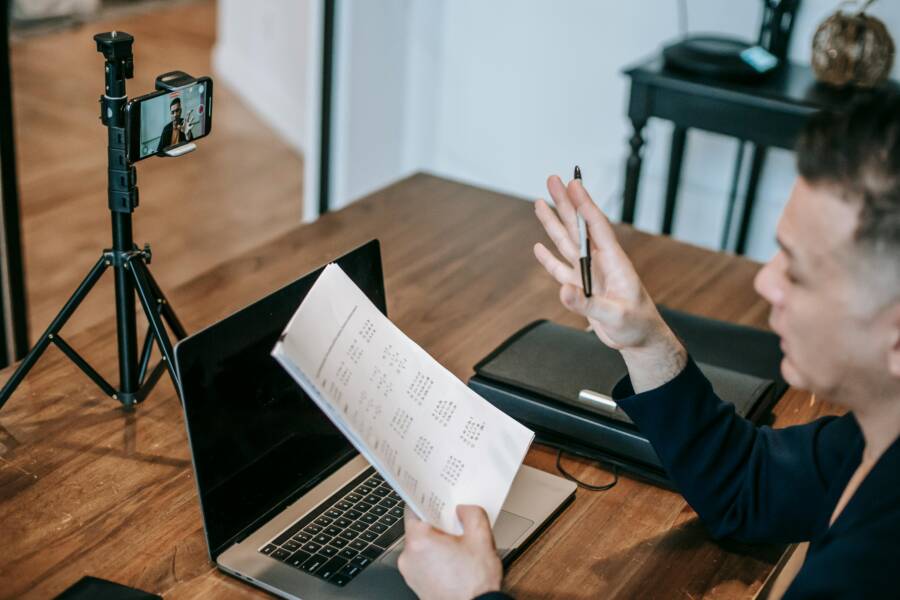
 Photo by Vanessa Garcia
Benefits for streamers and beginners
- Higher quality video for the setup you already own: A modern smartphone camera can exceed a basic webcam, especially in well lit rooms. For example, streaming from a recent iPhone or Android device often yields crisper details and better color.
- Flexible placement and framing: Mount the phone anywhere convenient—above a monitor, on a tripod, or even away from your desk—and still keep a stable feed. This means you can capture facial expressions or slides without skewing your angle.
- Familiar device, quick results: Most people already own a phone. Reusing it means zero extra gear to manage. You can test angles and lighting in minutes, then lock in your settings for future streams.
- Easy setup with step by step guidance later in the guide: You’ll learn wired versus wireless connections, app choices, and OBS configuration in simple steps. This approach minimizes friction and helps you get live quickly.
- Enhanced features without new hardware: Many phone camera apps offer focus, exposure controls, and HDR options that you can apply to improve your broadcast quality without buying a new webcam.
Quality limits and realistic expectations
- Phone model and camera capability matter: Newer devices usually perform better, but even mid range phones can deliver solid video with proper lighting and settings.
- Lighting drives quality more than you might expect: A bright, soft light source helps avoid noise and sunken shadows. Poor lighting makes even top phones look flat or grainy.
- Network and connection stability matter: Wireless may introduce occasional drops if your network fluctuates. A wired setup tends to be steadier for longer streams.
- OBS settings influence final output: Bitrate, resolution, and frame rate must align with your internet speed and hardware. Start with 1080p at 30fps and adjust as needed.
- When to choose a dedicated webcam: If you require absolute reliability in low light, or you stream long sessions daily, a purpose built webcam or camera with a capture card can offer steadier performance and more consistent autofocus.
- For deeper guidance on this topic, see the Smartphone Camera Guide from OBS or hands-on tutorials like the video that walks through OBS setup with a phone camera. https://obsproject.com/kb/smartphone-camera-guide https://www.youtube.com/watch?v=2qicSvuQkhA
How to choose your method: USB, WiFi, or NDI
Choosing the right connection for turning your phone into a webcam depends on your needs for reliability, latency, and setup simplicity. Below you’ll find practical guidance for USB wired, wireless options, and NDI based setups. Each path has its own sweet spot, so pick the one that aligns with your streaming style and environment.
USB wired for reliability
A USB connection offers the most consistent performance for OBS streaming. When you wire the phone directly to your computer, you bypass wireless interference that can cause lag or dropped frames. That stability translates into smoother video, easier autofocus, and fewer unexpected resets during a session.
- Why it helps: USB provides a dedicated data channel, which reduces jitter and latency. It also powers the phone, so you won’t run out of battery during longer streams.
- Practical tips: Keep a charger connected during longer broadcasts to maintain peak performance. If you’re using older hardware or a non-native USB port, you may need a USB-C to USB-A adapter or a powered USB hub to sustain steady power and data transfer.
- Quick setup note: Check that the app you choose supports USB output and that OBS recognizes the phone as a video source. Some apps require you to enable USB tethering or grant permission for data transfer on your phone.
 Photo by Lukas
Wireless options and trade offs
Wireless connections offer flexibility when you want to place the phone away from your desk or in a different room. They also reduce clutter and let you adjust framing without rerunning cables. However, wireless can introduce more variability in latency and frame drops.
- Pros: Easy to reposition, no cables, faster to get started in a pinch.
- Cons: Susceptible to network interference, signal loss, and distance limitations. Performance depends on your router quality and how busy your network is.
- How to minimize lag: Use a dedicated 2.4 GHz network if possible, or a 5 GHz network where available. Keep the phone close to the router or PC to reduce hop delay. If your router supports QoS, prioritize the OBS traffic to ensure stable video.
- Setup tip: Some wireless options require connecting through a desktop driver or plugin. Always verify compatibility with OBS and update apps when a new version arrives.
Apps you can use and compatibility
Many apps bring your phone into OBS as a webcam, with support across Android and iOS. Here are popular options and what to expect in terms of compatibility and setup.
- DroidCam, EpocCam, iVCam, and NDI-based solutions cover most devices. These apps typically offer both USB and WiFi modes, giving you options based on your space and network.
- Cross platform support: Most of these apps work on Android and iOS, and they usually provide a desktop client or plugin for Windows and macOS. OBS compatibility is common, but you should verify that the specific app version you’re using appears as a source in OBS.
- Updates and maintenance: Apps often receive updates for new phone models and OBS versions. Check the app store or the developer’s site for the latest release notes and driver requirements before streaming.
- Quick reference links: For step-by-step guidance on smartphone captures in OBS, see the official Smartphone Camera Guide. Also consider tutorials that compare USB and wireless methods to help you decide which path fits your setup.
If you’re exploring NDI options, consider the broader ecosystem that NDI brings to multi-camera setups and how it might fit with your current hardware. For a deeper dive into NDI based workflows, you can explore resources like how to use NDI video cameras and related tutorials.
- Smartphone Camera Guide: https://obsproject.com/kb/smartphone-camera-guide
- NDI in live productions: https://streamgeeks.us/how-to-use-ndi-video-cameras
- Additional NDI resources from OBS and partners: https://www.obsbot.com/solutions/ndi-guide?srsltid=AfmBOopHQBxwEmUmLbikbMhq_H9dPFJM39SkE4N3ClrFq-xeSbT5-KYf
In practice, start with a USB connection to verify stability. If you need to place the camera far from your PC or want more camera flexibility, test a wireless setup on a clean network, then compare the results side by side to determine what feels best for your stream. For a quick look at cross platform apps and integration, you can review several guides that compare common choices like DroidCam, EpocCam, iVCam, and NDI based tools.
- How to Use a Phone as a Webcam [7 Ways]: https://www.screencapture.com/blog/use-your-phone-as-webcam.html
- Tools To Use Your Phone As A Webcam: https://streamyard.com/blog/tools-to-use-your-phone-as-a-webcam-iphone-android
- NDI driven camera setups and OBS integration: https://obsproject.com/kb/smartphone-camera-guide
In summary, USB wired is the reliable workhorse for most people. Wireless adds freedom, but it can require more tuning. NDI brings advanced multi camera potential, best suited for more complex productions. Choose the path that matches your streaming goals, space, and comfort level with tech.
Quick start guide: setting up on Android and iPhone with OBS
Setting up your phone as a webcam for OBS can feel intimidating at first. This quick start guide focuses on practical steps for both Android and iPhone users, covering prep, installation, and the OBS setup. You’ll learn how to choose a connection method, configure video and audio, and run a fast test before going live. Follow these steps to get stable, high quality video with minimal fuss and keep your stream running smoothly.
She Pressed Play on a Strange Audio Track and Within Days Her Financial Reality Started Shifting in Ways She Could Not Explain
>>> See How It Works <<<

Photo by Vanessa Garcia
Prepare your phone and PC
Before you start, ensure both devices are ready to work together. Fully charge your phone and keep a charger handy during longer streams to prevent sudden drops. Review app permissions on both devices; grant access to the camera, microphone, and storage as required by the chosen app. Close apps you don’t need to free system resources and reduce background activity that can cause stuttering. If you’re streaming for an extended period, enable airplane mode or silent mode on your phone to avoid notifications that could interrupt the feed. A quick cooling break every 60 minutes helps prevent overheating on busy streams.
- Charge and monitor battery life for both devices.
- Grant necessary permissions in the phone’s settings.
- Close background apps and disable power hungry features.
- Keep the phone within cool air flow; avoid soft surfaces that trap heat.
A short latency test is worth doing. Place the phone where it will sit during your stream, start a test stream for a minute, and watch for overheating signs such as rapid temperature rise or reduced performance. If needed, pause to let the device cool down. For best results, keep the phone within arm’s reach so you can adjust framing quickly.
There Is a Frequency That the Wealthiest Families Have Used for Generations and Most People Will Never Know It Exists
>>> Open the Door <<<

Install apps and drivers
Begin by picking a reliable webcam app that supports both iPhone and Android devices. Download the app from the official store and install any desktop drivers or OBS plugins the app requires. On the PC side, install any companion software or drivers the app asks for. After installation, restart both devices to ensure the new components load correctly.
- Check the app store or the developer’s site for the latest version.
- Confirm compatibility with OBS on Windows or macOS.
- If the app offers USB and wireless modes, test both to gauge stability.
If you want a quick reference, the Smartphone Camera Guide from OBS provides practical setup steps and compatibility notes. It’s a reliable resource to confirm which apps and connections work best with OBS. You can also review cross platform comparisons to decide between USB, WiFi, or NDI setups. For easy access, see the Smartphone Camera Guide. https://obsproject.com/kb/smartphone-camera-guide
Connect and configure OBS
With the app installed, you’re ready to add the phone as a video source in OBS. Open OBS, create a new Scene or select an existing one, and add a Video Capture Device source. Choose your phone from the device list and set the resolution and frame rate. If you plan to use the phone’s microphone, enable audio capture for the device as well and test a quick sound check.
- Best starting point: 1080p at 30fps. Adjust if your hardware or network needs lower settings.
- If your feed lags, try lowering the resolution or frame rate first, then test again.
- Latency test tip: run a short on screen cue, like a countdown timer, and observe how closely the audio and video align.
A simple latency check helps you tune timing quickly. In OBS, enable a visible on screen cue (for example, a countdown timer) and start a brief recording or streaming test. If the cue appears noticeably sooner or later than the audio, adjust the frame rate or bitrate accordingly. If you encounter issues with the phone mic, you can switch to an alternate microphone in your OBS audio settings or use a separate USB microphone for cleaner sound.
If you want more in depth guidance on which connection method to pick, you can review these resources. They compare USB wired, wireless, and NDI based approaches and suggest practical setups for OBS. Smartphone Camera Guide: https://obsproject.com/kb/smartphone-camera-guide
Tip: Start with USB wired for reliability. If you need more space or want to place the phone farther away, test a wireless setup on a clean network and compare results. This approach lets you pick the setup that feels best for your stream and space.
Images and further reading
- For more context on using a phone camera with OBS, see additional guides that compare common apps like DroidCam, EpocCam, and NDI based
Improve video and audio quality for a pro look
Turning your phone into a capable webcam for OBS is only part of the puzzle. The other half is presenting a polished image and crisp sound that viewers trust. In this section, you’ll get practical techniques to lift video quality, stabilize framing, and keep audio in sync without cluttering a small space. Think of it as the behind-the-scenes basics that separate casual streams from broadcast-like broadcasts. You’ll find bite-sized, actionable tips you can apply right away, plus quick links to trusted guides if you want a deeper dive.
Lighting, framing, and background
In tight spaces, soft, even lighting makes a world of difference. Place a primary light source at about a 45-degree angle to your face and slightly above eye level to minimize shadows. A secondary light or a bright fill from the opposite side reduces harsh contrasts. If you only have one light, use a diffuse front light and bounce light off a white wall or a reflector to soften it. Keep the subject centered in the frame and avoid busy backgrounds that distract from you. A clean backdrop or a simple, uncluttered wall helps maintain focus on your content. For small spaces, mount the phone on a stable arm or tripod positioned just above monitor level to keep your eyes level with the camera. For more on professional lighting setups in limited spaces, see this quick guide: https://www.spielcreative.com/blog/professional-live-streaming/
Camera settings and frame rate
Audio options and synchronization
Choose the right mic strategy from the start. If your phone’s built-in mic captures acceptable voice, you can keep things simple. For clearer, broadcast-ready audio, use an external USB microphone or a dedicated audio interface and route it through OBS. The key is to keep audio and video in sync; minor delays can feel off to viewers. In OBS, enable the phone’s microphone only if you’re using the phone’s mic, otherwise select your external mic as the primary source. A quick latency test helps you align timing; record a short clip with a countdown and verify that the countdown audio matches the video action. For a straightforward method to sync mic audio in OBS, check this guide: https://squares.tv/posts/the-easiest-way-to-sync-mic-audio-in-obs
Troubleshooting, privacy, and best practices
As you fine-tune your phone as a webcam for OBS, you’ll want a clear path for quick fixes, solid privacy habits, and smart maintenance. This section covers common hiccups, protective practices, and tips to keep everything running smoothly over time. You’ll find practical actions you can apply today, plus reliable resources if you want to dive deeper.
Common issues and fixes
Most streaming issues fall into a few easy-to-feel patterns. A black screen usually means OBS isn’t receiving a valid video feed from the phone. Start by rechecking the connection method (USB or wireless) and confirm the phone shows the camera output to OBS. No sound often points to audio source misconfigurations; verify the phone is selected as the audio input or swap to a dedicated mic in OBS. Lag or stutter tends to come from high resolution, aggressive frame rate, or networking hiccups; drop to 1080p at 30fps and test stability. If you see consistent drops, try a quick latency check in OBS with a visible countdown to align timing. For smoother guidance, review the Smartphone Camera Guide from OBS. https://obsproject.com/kb/smartphone-camera-guide
Privacy and safety
Protecting your privacy starts before you go live. Cover the phone camera if you’re not streaming, and disable the mic when you don’t need it to minimize exposure. After your session, revoke any app permissions you granted for the webcam app so it cannot access your camera, mic, or storage without your say. On Android devices, review and adjust app permissions to limit access to sensitive features. These steps help keep your setup private and under your control. For practical permission management, see how to Change app permissions on your Android phone. https://support.google.com/android/answer/9431959?hl=en
Maintenance and battery tips
Overheating can throttle performance during longer streams. Place the phone in a well ventilated area and avoid soft surfaces that trap heat. Keep battery life in check by running streaming sessions on a charger when appropriate, but give the device breaks to cool if you notice warmth building up. Regularly update the streaming apps and any OBS plugins to benefit from bug fixes and performance improvements. For guidance on reducing overheating during live streams, see How to reduce overheating on your phone for the best quality live stream. https://medium.com/prismlivestudio/how-to-reduce-overheating-on-your-phone-for-the-best-quality-live-stream-6a9cc789b833
Conclusion
Turning your phone into a reliable OBS webcam boils down to a simple, repeatable workflow. Start with a USB wired setup for the strongest reliability, then try wireless if you need space or flexibility. Pick the right app, configure video at 1080p 30fps, and balance audio with a separate mic if possible. Test a quick latency and framing check before you go live, and keep an eye on lighting to avoid grainy footage.
A few practical steps to remember: charge both devices, grant the correct app permissions, and run a short live test to confirm audio and video stay in sync. If you run into issues, adjust resolution or frame rate first and recheck OBS sources. Using these moves, you can deliver solid streams with minimal hassle.
Bookmark this guide and share tips you discover along the way. Have a quick tip that helped your setup? Drop it in the comments or pass it along to a fellow creator. Your experiences can help others streamline their own smartphone to OBS workflows.
Thousands of People Were Struggling With Money Until They Discovered This One Ancient Secret Hidden in Sound
>>> Unlock It Now <<<