Good old Android tablet uses are single-purpose: keep recipes open, hold books and PDFs, display a local photo album, or show a household checklist. First check its Android version, available storage, battery condition, and Wi-Fi connection. Those limits decide which ideas will work; the tablet does not need a new SIM card for tasks that use Wi-Fi or files already stored on it.
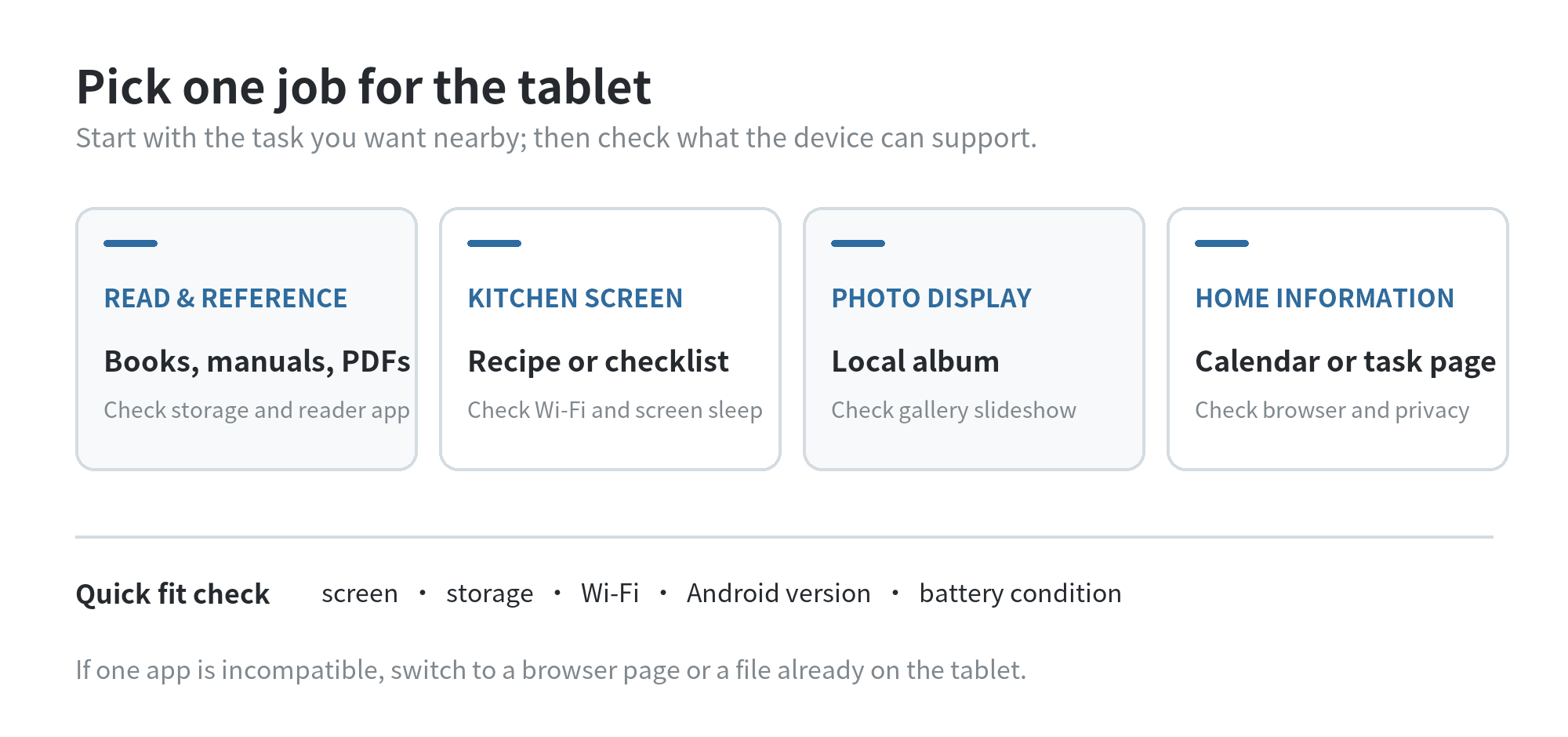
Choose a job the tablet can still handle
Open Settings, then About tablet, to find the Android version and security update date. Google lists those details under About phone or About tablet, though wording can vary by device. Google’s Android update guide also describes where to check for available system updates. Write down the model and Android version before planning around a specific app.
Then try the job with the apps already installed. Google Play says app developers set compatibility, and its app information shows compatible devices and required operating system versions. Google Play’s compatibility instructions give the check. If an app cannot install or open, switch to a browser, a saved file, or a different task rather than hunting for unofficial downloads.
Check what the screen makes comfortable. A larger tablet works well when you want a page visible from a counter or chair; a smaller screen can be easier to hold for reading. Inspect the screen, case, and charging port before you leave the tablet in a stand or connect it to power. If you see physical damage, follow the maker’s service guidance before turning the tablet into a fixed display.
Keep books, manuals, and PDFs in one place
A spare tablet can be a reading screen for books you already own, public-domain files, manuals, class notes, or downloaded PDFs. Add only a reader that is compatible with the tablet’s Android version. If you already use a reading service, check whether its current app supports this device before moving your library over.
For a simple setup, create a folder for the files you want to keep on the device, download a small selection while connected to Wi-Fi, then open each file once. Android Help describes how to find and open files on a device; this check catches a blank or damaged download before you are away from a connection. A tablet with little free storage can still hold a few manuals or reference documents if you remove files you no longer need.
Place the screen where you read, set a comfortable brightness, and turn off notifications you do not need. If the tablet will remain signed in to an account, protect it with a screen lock and avoid leaving private messages or account pages open where other people can see them. For a phone-specific reading setup, see the site’s guide to using an old phone as an e-reader; the same app-support checks still apply, but the smaller screen changes the experience.
Make a kitchen reference screen
Use the tablet to keep a recipe, appliance manual, meal plan, or grocery checklist visible while you work. Save pages you refer to as files or bookmarks so you can open them without searching through messages. A browser-based checklist can also work if the tablet stays on your home Wi-Fi and the site still runs in its browser.
Put the tablet on a stable stand away from the sink, stove, direct splashes, and hot cookware. Keep the charging cable routed so it cannot catch on a handle or get pulled onto the floor. If you are using a digital timer, test it before relying on it while cooking. Test the screen timeout on your tablet as well, then set it so the recipe stays visible for the task.
Make the screen useful at a glance: enlarge the text, open the recipe before starting, and keep the number of open tabs small. If the tablet is shared, use a separate local note or a household account for the list instead of leaving personal email or payment pages signed in.
Display photos or a household information page
A tablet can display photos saved locally or keep a calendar, chore list, or school schedule open in a browser. This setup does not depend on a special smart-home feature: it depends on whether the screen can open the file or web page you choose. Test the page in the tablet’s browser and check that its text is readable from the place where the tablet will sit.
For a photo display, copy a small album to the tablet and check how its existing gallery app handles a slideshow. Try the slideshow controls in the gallery app already on the tablet and test the display before mounting the device. A stand on a desk or shelf is easier to reach than a wall mount when you need to pause the display or reconnect power.
For a household panel, choose one page people need to see and leave it open. Avoid putting private details such as account numbers, travel plans, or personal messages on a screen in a shared room. If the page needs an account login, use a dedicated household account where available and review what information it exposes before making the screen public at home. If people will update a shared list from different devices, test editing it before relying on the tablet as the only copy. Check the stand from the usual viewing distance and leave the charging outlet reachable.
Set up the tablet without exposing old data
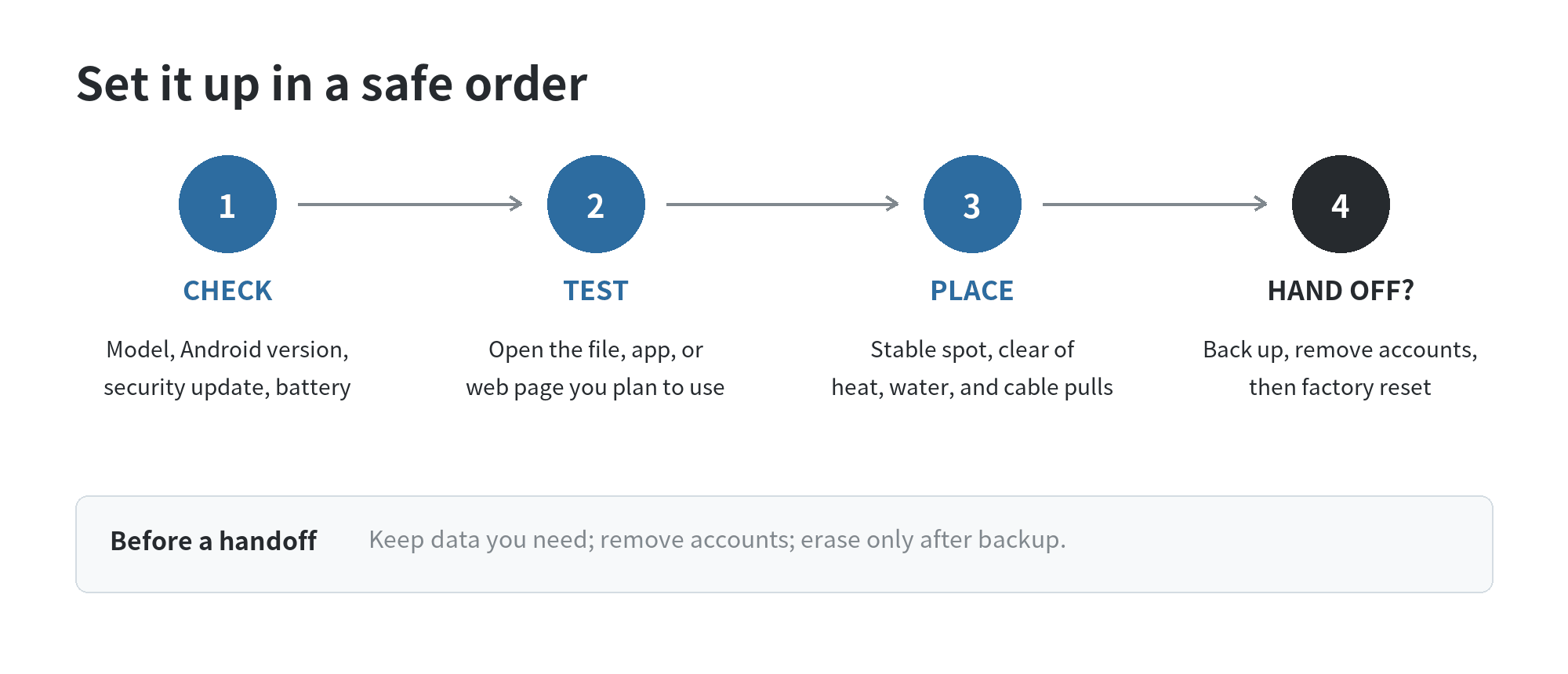
If this is still your tablet and you are keeping it, remove old downloads, check account access, and install only the apps needed for its new task. Google’s account guide says you can remove an account from the device without deleting the Google Account itself; the account remains yours for other devices. Google’s account-removal steps list several possible Settings labels because manufacturers arrange them differently.
If you are handing the tablet to someone else, back up anything you want to keep, remove your accounts, and erase the device. Google’s old Android device reset guide says to remove Google accounts before choosing the factory-reset option. Samsung also says a Galaxy tablet reset deletes personal data and notes that its menu labels can vary by model and software version; see its Galaxy tablet reset instructions. Follow the maker’s steps for your exact model and confirm you can complete setup before passing it on.
Decide when to retire the idea
A tablet is not a good fit for a role that needs an app it cannot run, a mobile connection it does not have, or a battery that cannot hold a charge safely. Keep the task small enough that a browser page or saved file can replace an unavailable app. If the tablet is too slow for a live dashboard, use it for local books, PDFs, or photos instead.
When you are done with it, use the manufacturer’s recycling or electronics collection guidance. Before recycling or giving it away, remove stored data and accounts as described above. For more steps on a different device type, the site’s old-phone data wipe and recycling guide covers the phone version of that handoff process.
FAQ
Can an old Android tablet work without a SIM card?
Yes, for files stored on the tablet and tasks that use Wi-Fi. A SIM is only relevant when the task needs cellular service and the tablet supports it; check the model’s specifications before expecting mobile data.
Why will an app not install on my old tablet?
The app may not support the tablet’s Android version, screen size, region, or device model. Google Play identifies compatible devices and required Android versions on the app’s information page, so test there before choosing the tablet’s job.
Should I factory reset a tablet that I am keeping?
No, not just to change its role. Remove unneeded files and accounts as needed; reserve a factory reset for a handoff or when you have decided to erase the device, after backing up data you want to keep.
Can I leave an old tablet plugged in as a permanent display?
Check the manufacturer’s safety guidance for your exact model, and use a stand and power setup that guidance permits.
Last updated: October 2026.
Last updated: 2026-10