What If the Only Thing Between You and the Life You Deserve Is a Hidden Wealth Code Waiting to Be Activated
>>> Open the Door <<<

How to Stop Your Phone from Vibrating Constantly (Android & iOS)
Your smartphone buzzes nonstop. Notifications interrupt meetings, shatter focus at work, and steal sleep at night. It’s frustrating when every ping demands attention.
This guide fixes that. Start with a quick win to silence vibrations right away. It covers Android and iOS step by step.
You’ll diagnose common causes, apply practical fixes, and build habits to keep it quiet. Follow the checklist at the end for lasting calm.
Identify Why Your Phone Vibrates Excessively
Vibrations can sneak up on you, especially when they arrive as a chorus of pings from different apps. In many cases, excessive vibration isn’t a sign of a serious problem; it’s a signal that there are settings or habits we can adjust quickly. This section breaks down the most common triggers and how to fix them fast, so you can reclaim calm without losing essential alerts.
What If the Only Thing Between You and the Life You Deserve Is a Hidden Wealth Code Waiting to Be Activated
>>> Open the Door <<<
Common triggers you can fix quickly
- Frequent message alerts: Messenger, SMS, and group chats can ping relentlessly. Quick fix: mute nonessential conversations or set quiet hours for groups you don’t need to monitor 24/7.
- Social media notifications: Apps like Instagram, Twitter, and TikTok often push back-to-back alerts. Quick fix: review notification settings and disable noncritical alerts, or use a daily digest instead.
- Reminders and calendar alerts: A busy day can be crowded with reminders you’ve forgotten you set. Quick fix: consolidate reminders into fewer, more meaningful alerts and silence duplicates.
- App updates or location pings: Background activity can trigger vibrations even when you’re not actively using the app. Quick fix: restrict background activity for nonessential apps and disable location updates where possible.
- System sounds and haptics: Sometimes the phone vibrates because of a default setting rather than an app. Quick fix: go to system preferences and reduce or customize vibration intensity for notifications.
If you want to understand how these little buzzes add up in real life, see how phantom vibrations can creep in even when there’s no notification. A quick read can help you spot patterns you might be missing. You can explore practical guidance from a few trusted sources that cover these scenarios, including tips on identifying which apps are truly essential and which ones can be muted for better focus. For a broader take, see resources that explain common causes and practical steps to silence unnecessary vibrations without losing important alerts.
- Find out more about phantom vibrations and quick fixes: https://www.asurion.com/connect/tech-tips/phone-vibrates-without-notification/#:~:text=Some%20of%20the%20most%20common,app%20updates%20or%20location%20pings.
- Additional practical perspectives on random vibrations and how to stop them: https://mobiletechaddicts.com/why-does-my-phone-randomly-vibrate-without-notification/
Vibration from accessibility features
Accessibility options can create extra vibrations if they’re enabled by mistake. The good news is that turning them off is simple on both major platforms, and you don’t have to give up essential comfort or accessibility.
- iPhone (iOS): Turn off system and app vibrations by disabling haptic feedback and vibration under Accessibility settings. Quick path: Settings → Accessibility → Touch → Vibration (toggle off). For context, Apple’s official guidance shows how to turn off vibration for iPhone in general and for apps, so you can tailor it precisely to your needs. Read more here: https://support.apple.com/guide/iphone/turn-off-vibration-iphd722c9100/ios
- Android: Disable vibration for notifications and system touch feedback via Accessibility settings. Quick path: Settings → Accessibility → Vibration & haptic strength → turn off or dial down. Android’s official guidance covers changing vibration settings across the platform: https://www.google.com/support/android/answer/9078946?hl=en
If you still want tactile feedback in some situations, you can keep it for calls or critical alerts while turning it off for nonessential notifications. It’s about finding a comfortable balance rather than a total purge of haptics.
Alarms, calls, and app alerts you may be missing
Alarms and persistent alerts can be easy to overlook when they compete with a flood of routine notifications. The result is a phone that still vibrates constantly, but not for the reasons you expect. Use a simple mental model to decide what to keep and what to mute.
- Alarms: Ensure they’re set to the right tone and volume, and consider using a single, reliable alarm for wake time. If you have multiple alarms, consolidate into one primary alarm and turn off any duplicates.
- Incoming calls: If you miss important calls because vibrations are overwhelmed by other alerts, keep vibration for calls but reduce vibrations for other apps. You can set different ringtones or notification patterns to differentiate critical events.
- Persistent app alerts: Some apps push repeated alerts to grab attention. Review each app’s notification category and mute nonessential alerts. For example, you might allow high-priority messages while silencing promotional notifications.
- Maintenance behavior: Build a weekly review of alerts. Check which apps still vibrate and decide if the alert is essential or if the app should be muted or uninstalled.
A practical plan to review these settings:
- List the apps you rely on most during a typical day.
- For each app, decide which alerts are essential and which can be delivered as a silent badge or daily digest.
- Turn off vibration for nonessential alerts and test for a week.
- If you notice a missed critical alert, reinstate vibration for that specific category.
- Schedule a monthly check to keep the balance.
If you want a deeper dive into how alarms, calls, and app alerts interact with vibration, you can consult support resources from major platforms that walk you through turning off or customizing vibration for iPhone and Android devices. For iPhone users, here’s a direct guide to turning off vibration on iPhone: https://support.apple.com/guide/iphone/turn-off-vibration-iphd722c9100/ios. For Android users, a quick guide to disabling vibrations for apps and notifications is available here: https://android.stackexchange.com/questions/52416/turn-off-vibration-notification-for-all-apps-at-once
As you apply these changes, remember that the goal is not to remove all reminders but to surface what truly matters. If you’ve followed these steps and still hear constant vibration, it may be worth a quick hardware check or consulting a professional to rule out a device issue. You can learn more about diagnosing vibration-related hardware concerns here: https://bostonmobilephonerepairs.com/why-is-my-phone-vibrating-randomly-heres-what-it-means-and-how-to-stop-it/
Tighten Notification Settings Across Apps
Tightening notification settings across apps helps reduce the constant vibrations that pull your attention away from what matters. The goal is to keep essential alerts while silencing noise. This section walks you through practical, app by app adjustments, so you can reap a calmer phone without missing anything important.
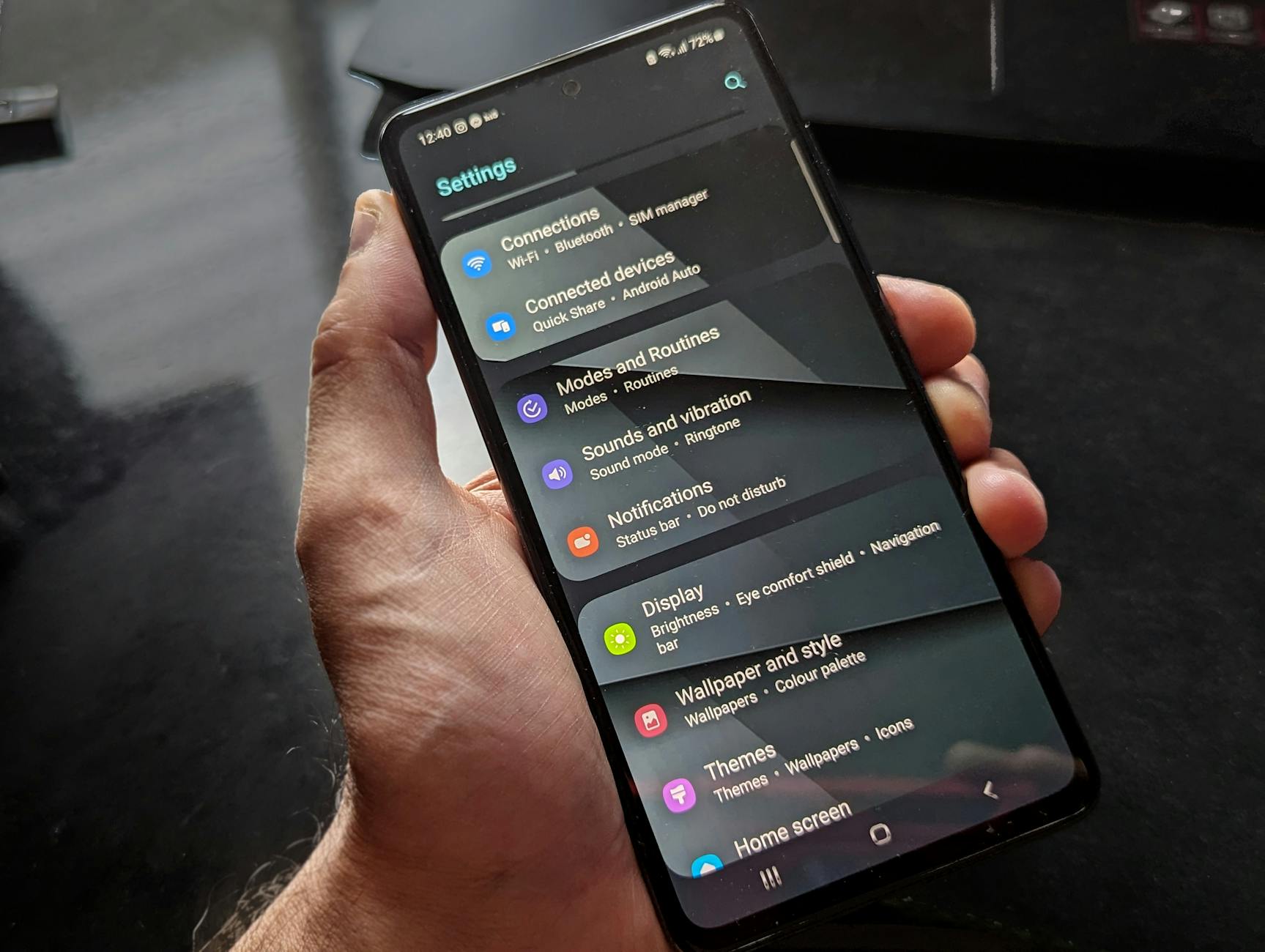 Photo by Watford London Media
Mute or customize alerts by app
You don’t have to mute every app to gain quiet. Start with your most disruptive apps and tailor vibrations to only what truly needs it.
- Messaging apps: For services like SMS, Messenger, and group chats, disable vibration for noncritical conversations. Keep a vibration for direct calls or urgent chats, but mute the rest.
- Email apps: Most email apps don’t require immediate haptic feedback for every new message. Turn off vibration for standard emails and enable it only for VIP senders or flagged messages.
- Social apps: Platforms such as Instagram, Facebook, and TikTok tend to flood your device with alerts. Turn off vibrations for nonessential notifications, and consider a daily digest or silent push for non-urgent activity.
Quick actions you can implement today:
- Open each app’s notification settings and switch off vibration for nonessential categories.
- Set high priority or VIP contacts to vibrate only when they message or call you directly.
- Enable silent badges or a summary digest instead of real-time vibrations.
If you want more depth, see how to customize per-app alerts on iPhone and Android. Apple’s guidance shows how to adjust notification settings by app on iPhone, while Android Help covers per-app vibration controls across devices. Learn more here:
- Change notification settings on iPhone
- Control notifications on Android
Tip: use a simple rule of thumb—mute everything except what you’d respond to within 10 minutes. This keeps you in the loop without the constant buzz.
Image-based quick-start example
Consider a day when you’re focused on a project. You might mute all nonessential social apps, silence promotional notifications, and leave a single chat app vibrating only for direct messages from a key colleague. This targeted approach preserves responsiveness while dramatically cutting distraction.
Do Not Disturb and Focus modes
Two powerful tools to batch control alerts are Do Not Disturb (DND) and Focus modes. They let you silence most notifications during work, sleep, or study time, while still allowing calls or messages from important people.
- How to activate and customize DND on Android: set schedules, allow exceptions, and choose which notification categories can bypass silence. Use Quick Settings to toggle DND on and off as needed. Learn more about Android Modes and DND: Limit interruptions with Modes & Do Not Disturb on Android.
- How to activate Focus on iOS: schedule Focus modes for work, sleep, or personal time, and create exceptions for people or apps. Apple’s Focus guide covers essential setup and how to allow emergencies while silencing others.
A quick side-by-side view:
- Android: Quick toggle from the notification shade, configurable modes, and per-app exceptions.
- iOS: Focus modes with nuanced controls for people and apps, plus time-based automation.
Useful resources:
- Do Not Disturb and Focus mode on Android and iPhone
- How to add exceptions to Do Not Disturb on Android
When you’re in a high-focus period, set a Focus or DND to silence everything except critical contacts. If you’re expecting an urgent message, you can temporarily lift the block for that contact or app.
Image-based quick-start example
If you work nights, create a Focus that silences social media and news apps while allowing calls from family and a work contact. It gives you a quiet environment, plus a safety net for emergencies.
Set vibration for critical alerts only
Not all alerts deserve a buzz. The idea is to tag only essential notifications with vibration, so your phone vibrates for truly important events and stays quiet otherwise.
- Tag essential alerts: Enable vibration for alarms, calendar alerts for high-priority events, and messages from people you’ve marked as critical.
- Reduce nonessential vibrations: Turn off vibration for promotional alerts, routine app updates, and non-urgent reminders.
- Sample configurations:
- Work mode: Alarms, calendar events with high priority, and direct messages from team leads vibrate. Everything else is silent.
- Personal safety: Family calls and emergency alerts vibrate; social media and newsletters stay silent.
- Travel mode: Important flight or gate updates vibrate; nonessential app alerts are muted.
Practical tip: periodically audit alert categories in each app. If you notice you still vibrate for something unimportant, adjust its priority or mute it entirely. For a deeper dive into critical alerts in Android and iOS, see resources on critical push notifications and DND overrides.
- iOS critical alerts configuration
- Android push notification DND configuration
Image-based quick-start example
Imagine a project deadline approaching. You keep vibration for alarms and a single message thread with your project lead, but you mute all social and promotional alerts. This keeps you on track without the buzz from every app.
Manage notification previews and banners
Controlling what appears on screen and how often alerts pop up makes a big difference. You can tune previews, banners, lock screen behavior, and the combination of sound and vibration.
- Preview control: Show minimal previews on the lock screen or disable previews entirely. This protects sensitive content while still signaling activity.
- Banner settings: Choose whether banners appear briefly or stay until dismissed, and decide if they show full content or just a summary.
- Lock screen visibility: For privacy, limit what notifications reveal on the lock screen. You can allow only the app icon or a short, non-sensitive summary.
- Sound and vibration mix: If you keep sounds, pair them with muted or low-intensity vibrations. In some cases, you can choose silent vibration only for certain apps.
Implementation tips:
- For iPhone users, adjust how notifications appear on the lock screen and set whether previews show when unlocked. Apple’s official guide explains how to change notification settings and how previews behave.
- For Android, use the system notification settings to manage where alerts appear and how they’re presented. Android Developers provide guidance on notification appearances and interactions.
A practical approach:
- Decide which apps should show previews on the lock screen.
- Set banners to appear briefly and stay clear of your home screen clutter.
- If your device supports it, pair important alerts with sound but keep vibration low or off for nonessential apps.
Suggested workflow:
- Start with your most frequent apps (messaging, email, calendar).
- Turn off previews for everything except urgent items.
- Test for a week and adjust based on missed critical alerts or unnecessary vibrations.
Further reading:
- Change notification settings on iPhone
- View and manage notifications on Android
Images often help you visualize these settings. If you’d like a quick look at how to balance previews and banners, check Apple’s guidance on viewing and managing notifications on iPhone.
This section is designed to give you a practical path to calmer days. The key is consistency: set up a few focused rules, test them, and adjust as needed. For additional context on silencing nonessential alerts while staying informed, consider official guidance on notification management from Apple and Google.
- Change notification settings on iPhone
- Control notifications on Android
If you’re encountering persistent vibrations despite these steps, a quick hardware check can rule out a faulty sensor or motor. You can explore common hardware-related vibration issues and fixes here.
- Diagnosing vibration hardware concerns
External links note: Each device and app can behave a bit differently. Start with these targeted adjustments and build from there.
Control Hardware and Keyboard Vibration
If your goal is a calmer phone, controlling hardware feedback is a powerful step. You can dial back or disable vibrations while keeping essential alerts intact. This section lays out practical actions to modulate vibration for keyboards, touch interactions, and system feedback on both Android and iOS. We’ll also show how to test changes and ensure you still receive critical alerts.
Turn off keyboard vibration
Disabling keyboard vibrations is one of the quickest wins when you want a quieter smartphone experience. Here are clear steps for both major platforms, plus caveats to watch for language and keyboard type.
- iPhone (iOS)
- Open the Settings app.
- Go to Sounds & Haptics > Keyboard Feedback.
- Turn off Sound and/or Haptic as desired.
- If typing still feels off, check that Vibration is enabled under Settings > Accessibility > Touch. Quick note: If you’ve installed a third party keyboard, you may need to disable keyboard feedback within that keyboard’s own settings as well. See Apple’s guidance for turning off keyboard feedback: https://support.apple.com/guide/iphone/turn-off-vibration-iphd722c9100/ios
- Android
- Open Settings.
- Navigate to System > Languages & input > Virtual keyboard (or your device’s keyboard name).
- Enter the keyboard’s settings and turn off vibration for keypresses.
- If the option isn’t visible, check Accessibility or the keyboard app’s in-app settings. If you want a broad Android reference, Google’s support covers how vibration and sound can be adjusted on many devices: https://support.google.com/android/answer/9082609?hl=en
Caveats
- Some keyboards may always enable haptics for certain languages or layouts. If you switch keyboards, test typing in a few languages to confirm the setting sticks.
- On iOS, turning off keyboard feedback may slightly affect perceived speed or responsiveness, but most users notice the improvement in quiet environments.
Reduce or disable haptic feedback for touch
Lowering haptic feedback for taps and gestures helps reduce the overall buzz without removing tactile cues entirely. Here’s how to approach this on both platforms.
- iOS
- Settings > Accessibility > Touch > Haptic Feedback (or System Haptics in newer iOS versions).
- Reduce or turn off System Haptics and adjust keyboard feedback via Settings > Sounds & Haptics > Keyboard Feedback. Tip: If you rely on haptic cues for accessibility, keep essential feedback on with a lighter setting rather than a full disable. Helpful resource on adjusting iPhone haptics and feedback: https://support.apple.com/en-us/102463
- Android
- Settings > Sound & vibration > Vibration strength (or similar) to dial down overall tactile feedback.
- If you want to preserve some cues, disable only system-level haptics and keep per-app feedback limited to critical apps. Android’s guidance covers adjusting vibration strength and related controls: https://support.google.com/android/answer/9078946?hl=en
Platform differences to note
- iOS tends to centralize haptic controls under Accessibility and Sounds & Haptics, making broad adjustments straightforward.
- Android offers more granular per-app controls in some skins, so you can tailor vibration by app if you prefer.
Adjust vibration strength and test
A quick, safe method to tune vibration is to set a modest level and test across common actions. Use this approach and keep a short checklist.
- How to adjust
- Android: Settings > Sound & vibration > Vibration strength. Slide to a comfortable level.
- iOS: Settings > Sounds & Haptics > Vibration (or Haptic strength in some versions) to lower the intensity.
- Quick test you can run
- Lock and unlock the screen to feel the system haptics.
- Type a few sentences on the keyboard.
- Open a couple of apps that usually alert you with vibrations.
- Test a notification or message from a contact you rely on.
- Checklist to confirm changes work across apps
- Alarms still vibrate clearly when needed.
- Direct messages from priority contacts vibrate, but nonessential apps do not.
- Notifications from key apps deliver a gentle buzz or silent alert as configured.
- No unexpected vibrations during Do Not Disturb or Focus modes.
A simple resource to verify vibration strength across devices: https://blog.ineedmotors.com/check-your-phones-vibration-function/
She Pressed Play on a Strange Audio Track and Within Days Her Financial Reality Started Shifting in Ways She Could Not Explain
>>> See How It Works <<<

If you want a deeper dive into Android and iPhone strength adjustments, How-To Geek covers the Android side well: https://www.howtogeek.com/830494/how-to-adjust-vibration-strength-on-android/
Disable vibration for in app actions and gestures
Many apps trigger vibrations beyond system feedback. You can selectively disable these to stop the noise without losing important cues.
- Safe default approach
- Start by turning off vibration for nonessential in-app actions first (social apps, games, shopping apps).
- Leave vibration on for critical actions like a payment confirmation or a security prompt.
- Use per-app settings when available, and rely on Do Not Disturb or Focus modes for broader control during focused work.
- Step-by-step
- Open the app’s in-app settings.
- Look for Notification or Accessibility sections.
- Toggle off vibration for nonessential actions.
- Repeat for other apps with excessive haptic feedback.
- Examples
- Messaging apps: Disable vibration for nonurgent chat updates while keeping it for direct messages from important contacts.
- Social apps: Turn off in-app haptics for push notifications that aren’t time-sensitive.
- A balanced default
- Keep vibrations for authentication prompts, high-priority reminders, and emergency alerts. Mute everything else.
If you’re unsure where a vibration originates, try a gradual audit: disable app vibrations one by one, then test after each change. You can also consult platform guides for per-app notification controls and how to implement exceptions within Do Not Disturb or Focus modes.
Test changes to ensure you still get important alerts
After making adjustments, run a quick test plan to ensure essential alerts still reach you. The aim is to preserve critical notifications while cutting noise.
- Quick test plan
- Trigger or wait for a calendar reminder and confirm the vibration is appropriate.
- Have a friend send a direct message from a priority contact and verify it vibrates.
- Send yourself a test notification from a key app (email, messaging, or calendar).
- Check a nonessential app mock notification to ensure it is quiet.
- Backup cues
- Visual indicators: ensure app badges or on-screen banners reflect messages.
- Audio cues: keep a soft notification sound for critical alerts as a secondary cue if vibration is reduced.
- Final sanity check
- Turn Do Not Disturb or Focus on and off to verify exceptions still work.
- Confirm you do not miss important alerts during忙 periods.
If you want a concise reference to keep handy, use this quick checklist:
- Are alarms audible and vibrate only when necessary?
- Do priority contacts vibrate for direct messages?
- Are nonessential apps muted for vibration?
- Do visual or audio cues still accompany critical alerts?
External resources for testing and verification:
- How to adjust notification previews and banners on iPhone: https://support.apple.com
- Android notification management and per-app vibration controls: https://support.google.com/android/answer/9078946?hl=en
This approach keeps your phone responsive to the moments that matter while eliminating the daily buzz. If you still notice stray vibrations after these steps, a quick hardware check may be warranted. Learn more about diagnosing vibration-related issues here: https://bostonmobilephonerepairs.com/why-is-my-phone-vibrating-randomly-heres-what-it-means-and-how-to-stop-it/
By methodically tuning keyboard feedback and device-wide haptics, you can reclaim quiet without sacrificing the alerts you truly rely on. If you’d like, I can tailor these steps to your exact device model and OS version.
Create Quiet Schedules and Smart Routines
A calm phone is not a dream. It’s a set of habits you can build with Do Not Disturb schedules, Focus modes, and smart automation. By aligning your phone’s behavior with your daily flow, you keep essential alerts while turning down the noise. Think of it as wiring in quiet hours and smart routines that protect your attention without making you miss what truly matters. Below, you’ll find practical, repeatable steps you can apply today, plus ready-to-use templates you can adapt to your life.
Set up Do Not Disturb schedules
Do Not Disturb (DND) schedules are the simplest way to carve out blocks of quiet time every day. The goal is to have a predictable routine that aligns with work, study, and sleep. Here’s a straightforward setup you can repeat on both major platforms.
- Create a daily quiet window
- Android: Swipe down to quick settings, open Modes or Do Not Disturb, and set a schedule that repeats every weekday from 9:00 PM to 7:00 AM. Add a separate silent window for weekends if your schedule shifts.
- iOS: Open Settings, select Focus, then add a Sleep or Work Focus with a daily start and end time. Allow calls only from important contacts during this window.
- Choose exceptions carefully
- Keep alarms and key contacts audible. Consider allowing calls or messages from a few trusted people, such as family or a supervisor.
- Weekend and event tweaks
- Create a weekend override. For Friday night to Sunday morning, switch to a relaxed schedule that still mutes nonessential apps.
- For special events, set a temporary Focus or DND profile that lasts through the event. This reduces interruptions while you stay present.
- Quick steps to test
- Enable the schedule for a day and monitor whether critical alerts still come through. Adjust as needed after a 24 hour test.
Helpful context you can explore
- Android users can schedule Do Not Disturb with automatic activations and detailed modes. This makes it easy to tailor your days (including exceptions) and keep a calm rhythm. Learn more here: https://en.androidsis.com/How-to-schedule-do-not-disturb-mode-on-Android-with-automatic-schedules
- If you’re starting from scratch, it helps to know the core options for Android modes and Do Not Disturb. See: https://support.google.com/android/answer/9069335?hl=en
Enable Focus modes during work or sleep
Focus modes are the next layer of control. They let you tailor your notifications to different parts of the day without toggling settings constantly. The key is to define distinct Focus profiles for work, rest, and personal time, then fine tune who can break through and when.
- Work Focus
- Schedule: Turn on during your core work hours. Allow only messages from teammates and essential apps like calendar reminders. Turn off nonessential social alerts.
- Behavior: Silence noncritical notifications, but keep alarms and calendar alerts visible. Consider allowing a short notification digest at set times so you don’t miss urgent updates.
- Sleep/Bedtime Focus
- Schedule: Enable after your bedtime routine and keep it on until morning. Beware of early wake-ups or shift work that may require adjustments.
- Behavior: Block social apps and news, but allow calls or messages from a small group you trust. If you use a health app for wind-down routines, let it signal gently.
- Personal Time Focus
- Schedule: Use on weekends or during downtime. Permit calls from favorites and urgent messages, while silencing everything else.
- Allow emergencies
- Always allow your top contacts or specific apps that handle emergencies. This keeps you safe without interrupting your flow.
Concrete examples you can copy
- Work focus with urgent overrides: Enable during 9 AM–5 PM, allow calls from your supervisor and messages from a project lead.
- Sleep focus with a soft landing: Enable from 11 PM to 7 AM, allow alarms and a single family contact.
- Weekend focus for leisure: Turn on Saturday and Sunday mornings, allow a direct message from your partner when needed.
Helpful resources
- For iPhone users, Focus can be scheduled and customized for work and sleep with explicit exceptions. See Apple’s guidance on Focus: https://support.apple.com/en-us/guide/iphone/iph5c3f5b77b/ios
- A solid overview of scheduling Focus on iPhone is available here: https://support.apple.com/en-is/guide/iphone/iph5c3f5b77b/26/ios/26
Side-by-side approach
- Android: Focus and DND are typically exposed in Quick Settings, with per-app exceptions and time-based automation.
- iOS: Focus modes offer nuanced controls for people and apps, plus automation options to run on a schedule.
A practical template you can adapt
- Work Focus: 9:00–12:00 and 1:00–5:00 PM; allow calls from a small set of teammates; enable essential calendar alerts.
- Sleep Focus: 11:00 PM–7:00 AM; allow alarms and a single family contact; silence all nonessential apps.
- Personal Time Focus (weekends): 10:00 AM–8:00 PM; allow urgent messages from partner; silence social and news apps.
Smart tip
- When you’re entering a high focus period, activate Focus or DND. If you expect an urgent message, temporarily lift the block for that contact or app.
Automation and smart routines to reduce vibrations
Automation makes quiet easy. With built-in tools, you can create small rules that automatically reduce vibrations and adjust alerts as your day shifts. Here are easy templates you can start with.
- Template 1: Quiet hours with smart prompts
- Trigger: Time of day
- Action: Turn on Do Not Disturb or a Focus mode; reduce vibration strength for all noncritical apps
- Exception: Keep vibrations for alarms, calls from favorites, and calendar alerts
- Template 2: Location-based quiet shifts
- Trigger: Arriving at work or home
- Action: Switch to different Focus modes
- Exception: Allow urgent messages from a select group
- Template 3: Event-driven silence
- Trigger: Calendar event flagged as busy or meeting
- Action: Enable DND for the duration of the event
- Exception: Allow a quick digest of notifications at set intervals
Ready-to-use templates you can adapt
- Workday routine
- 8:30 AM to 6:00 PM: Enable Work Focus, suppress nonessential vibrations, allow direct messages from your team lead, and show a daily digest at noon.
- Evening unwind
- 8:00 PM to 10:00 PM: Enable Sleep or Personal Time Focus, reduce vibration for all but critical alerts, and enable a soft reminder to wind down.
Where to find inspiration
- Android automation and Modes help you set up quiet hours and automation: https://support.google.com/android/answer/9069335?hl=en
- Samsung Galaxy users can use Modes and Routines to silence notifications at bedtime or during focus periods: https://www.samsung.com/us/support/answer/ANS10002538/
Test and refine
- After you set up a routine, test it for a week. Note any missed critical alerts and adjust.
- If a routine feels heavy handed, scale back by loosening one rule at a time rather than a full reset.
A quick example to illustrate how to combine these ideas
- You’re focusing on a project in the morning. Activate Work Focus at 9:00 AM, allow direct messages from your project lead, and mute nonessential apps. At noon, you get a digest summary instead of live updates. In the evening, switch to Sleep Focus and reserve vibrations for alarms and urgent calls only.
Key takeaway
- Start small with a single DND schedule and one Focus mode. Add automation gradually. The goal is consistency, not perfection.
External resources for deeper context
- How to schedule and automate Focus Modes on macOS and iOS: https://macrumors.com/how-to/schedule-focus-modes
- Set up a Sleep Focus schedule on iPhone: https://support.apple.com/guide/iphone/set-up-a-schedule-for-a-sleep-focus-iphaf56dceb4/16.0/ios/16.0
This section gives you a practical path to calmer days. Set up a few focused rules, test them, and adjust as needed. If you’d like, I can tailor these steps to your exact device model and OS version.
Troubleshooting and When to Seek Help
If vibrations keep haunting your device after trying the quick fixes, it’s time to investigate deeper. This section guides you through practical steps to troubleshoot effectively and helps you know when to seek professional support. You’ll find clear actions for both Android and iOS, plus the information you should have ready when you reach out for help.
 Photo by Kelvin Valerio
Check for software updates
Software updates often fix bugs that cause random vibrations or inconsistent haptic behavior. They can also improve control options so you can manage vibrations more precisely.
- Android quick checks
- Open Settings > System > Software Update. If an update is available, install it.
- After updating, restart your device and test vibration for common actions (unlock, typing, app alerts).
- If your phone uses a custom skin, check Settings for an update option under System or Software Updates, or visit the manufacturer’s support app.
- Quick reference: Google’s guide to changing volume, sound, and vibrate settings includes steps you can adapt after updates: https://support.google.com/android/answer/9082609
- iOS quick checks
- Settings > General > Software Update. Install any available updates.
- After updating, test vibrations in both system alerts and a few apps you use daily.
- Apple provides guidance on sounds and vibrations after iOS updates, which helps tailor your settings precisely: https://support.apple.com/guide/iphone/change-sounds-and-vibrations-iph07c867f28/ios
- Quick win to test
- If you notice improved control after an update, keep monitoring for any continued quirks. If vibrations persist, proceed to the next steps.
Tip: If you’re troubleshooting a persistent issue, a fresh start from a clean update can fix hidden software glitches. For a concrete guide to known vibration issues on Android and iPhone, you can review additional resources like this overview of common fixes: https://techpoint.africa/guide/stop-random-phone-vibrations-iphone-android/
Reset vibration settings safely
Resetting vibration settings to default can resolve conflicts without wiping your data. The goal is to reset only the vibration preferences while preserving other app and system settings. Always back up your important data before making broader changes.
- What to expect
- You’ll return vibration settings to their original state, but most apps will retain their preferences unless they rely on platform defaults.
- You may need to reconfigure per-app vibration preferences after the reset.
- Steps to reset on Android
- Open Settings, then look for System or General management, find Reset options, and choose Reset app preferences or Reset settings. This typically returns vibration controls to defaults without data loss.
- If you don’t see an exact option, you can reset individual apps’ notification settings first to reach a similar effect.
- For a broader Android reset reference, see: https://www.android.com/intl/en_in/articles/how-to-reset-android-device/
- Steps to reset on iOS
- There isn’t a single “reset vibration” button, but you can reset related settings by turning off and back on haptics, and reconfiguring Sounds & Haptics. Start with Settings > Accessibility > Touch > Vibration (toggle off then on). Then adjust via Settings > Sounds & Haptics.
- Apple’s guidance on changing sounds and vibrations can help you restore defaults if things feel off: https://support.apple.com/guide/iphone/change-sounds-and-vibrations-iph07c867f28/ios
- Backups and caveats
- Always back up your device before performing broader resets. A quick backup keeps your photos, messages, and app data safe.
- After resetting, expect to reapply a few per-app vibration preferences. That’s normal and usually quick to restore.
When to use this approach
- You’ve updated, but vibrations remain inconsistent.
- You notice a sudden shift in how haptics behave across the system.
If you’re unsure about performing a reset, consider reaching out to support first. They can guide you through a safe, device-specific process.
External help you can consider
- If you’re seeking official assistance, contacting Apple Support provides direct, device-specific guidance: https://support.apple.com/contact
- For Android devices, Google’s support can help you with per-app vibration controls and system-level settings: https://support.google.com/android/answer/9082609
If vibrations persist, contact support
When the vibrations won’t quit after all the self-help steps, it’s time to bring in the pros. Gather a short, precise package of information to speed up the troubleshooting.
What to have ready
- Your device model and OS version (Android or iOS).
- A concise description of when the vibrations occur (e.g., after unlocking, during typing, with certain apps).
- A list of apps that consistently cause vibrations and the types of alerts they generate.
- Any recent changes, such as new apps installed or a software update.
- Screenshots of notification settings or a short video showing the behavior (if possible).
How to reach help
- For Apple devices, start at Apple Support and select the area you need help with. You can initiate chat or phone support from there: https://support.apple.com/contact
- For Android devices, use Google’s support channels or your device manufacturer’s support portal for tailored assistance: https://support.google.com/android/answer/9082609
What you might be asked to do
- Run a quick diagnostic report via the support portal.
- Share logs or screenshots showing the vibration settings and Do Not Disturb or Focus configurations.
- Try a factory reset as a last resort, only after backing up data, if the technician deems it necessary.
If you’re dealing with a hardware issue, support may recommend a repair or replacement. You can learn more about diagnosing vibration-related hardware concerns here: https://bostonmobilephonerepairs.com/why-is-my-phone-vibrating-randomly-heres-what-it-means-and-how-to-stop-it/
This path helps you get a swift, accurate assessment so you can decide on the right next step. The goal is simple: quiet, reliable alerts that you can trust when it really matters. If you’d like, I can tailor these steps to your exact device model and OS version.
Conclusion
A calmer smartphone is within reach when you tune both software and hardware. By trimming per app vibrations, embracing Do Not Disturb or Focus modes, and dialing back haptics, you can keep the alerts that matter and quiet the rest. A quick habit of testing changes and reviewing your essentials weekly cuts noise and keeps you in control. Try these tweaks today and you’ll notice fewer distractions and more steady focus on your day-to-day tasks, whether you’re using a work device or a personal smartphone.
She Pressed Play on a Strange Audio Track and Within Days Her Financial Reality Started Shifting in Ways She Could Not Explain
>>> See How It Works <<<
One-page checklist you can save
- Identify essential alerts and mute noncritical ones
- Enable Do Not Disturb or Focus during work and sleep periods
- Adjust per app vibration and notification settings
- Turn off keyboard and touch haptics if not needed
- Keep vibration only for critical alerts such as alarms and direct messages
- Test critical alerts after each change and verify no misses
- Schedule a short weekly review to keep settings aligned with your routine
If you want, I can tailor these steps to your exact device model and OS version.
There Is a Frequency That the Wealthiest Families Have Used for Generations and Most People Will Never Know It Exists
>>> Open the Door <<<
