There Is a Frequency That the Wealthiest Families Have Used for Generations and Most People Will Never Know It Exists
>>> Open the Door <<<

Ever tried to focus on a meeting or a peaceful night, only to be jolted awake by unexpected calls? That moment can feel frustrating when your phone’s Do Not Disturb mode should be quiet, not loud. If you’ve noticed calls slipping through or the feature acting up, you’re not alone.
This post helps you understand why DND sometimes fails to silence calls and what to check first. You’ll learn the most common culprits, from allowed contacts and repeated calls to other focus modes that might override your settings. The goal is simple: make your phone respect your need for quiet, without missing truly important calls.
We’ll walk through easy fixes for both iPhone and Android. For iPhone, you’ll see how to adjust Focus settings so only the right people can ring through and how to disable any backup rules that sneak around DND. For Android, we cover turning off suspicious exceptions and confirming no other modes interfere. These steps come from trusted support guides and work on current devices.
A quick test helps you confirm the fix. Have a friend call while you’re in DND, and then try again from a second phone to verify everything behaves as expected. If you’ve felt interrupted by a call during a meeting or sleep, these pointers will bring back the quiet you need. Your smartphone will finally respect your time.
What If the Only Thing Between You and the Life You Deserve Is a Hidden Wealth Code Waiting to Be Activated
>>> Open the Door <<<

Second: First Steps – Confirm Do Not Disturb Works on Your Phone
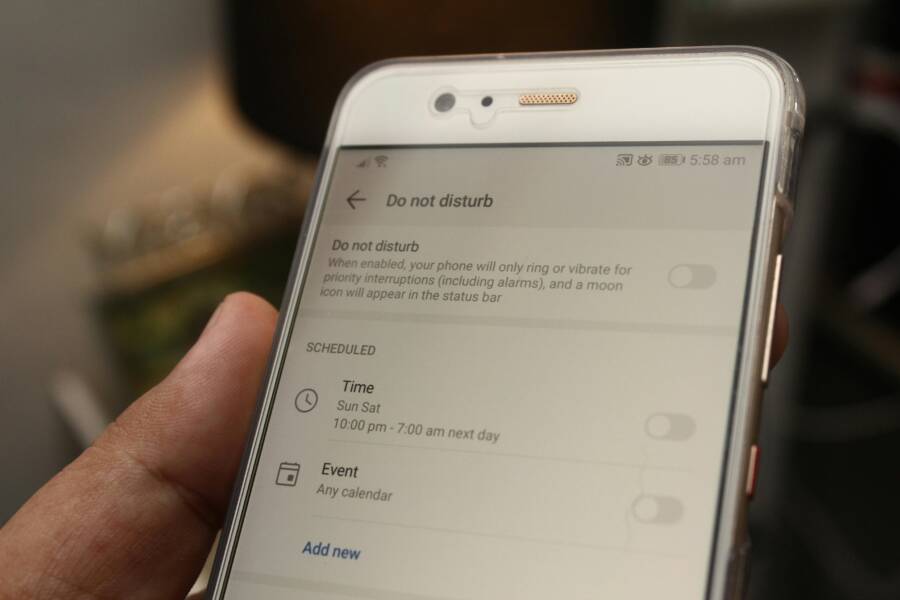
Before you dive into deeper fixes, take a quick sanity check. If DND or Focus has been misconfigured by schedules or automations, your phone might still let calls through when you expect silence. In this section, you’ll learn how to verify and disable any auto rules that could be turning DND off at the wrong times. The goal is to create a clean baseline so you can confirm later where the real trouble lies.
Turn Off Schedules That Mess with DND
Auto schedules and automations can unintentionally override your DND settings. On an iPhone, Focus can be scheduled to turn on or off at specific times, locations, or even during certain apps. If these schedules are active, your phone may momentarily stop silencing calls when you expect quiet. To check and disable them:
- Open Settings and go to Focus. Inspect any active Focus profiles and their schedules. If you see a time-based or location-based automation, either modify or disable it.
- If you notice a recurring rule that turns Focus off at a certain hour, disable that schedule so DND remains in effect when you want quiet.
On Android devices, automations can come from Digital Wellbeing or other automation apps. A common pitfall is a routine that turns off Do Not Disturb during the day or for certain events. To disable these:
- Open Digital Wellbeing and look for any schedules or Bedtime modes that interact with Do Not Disturb. Turn off or adjust them so DND stays active as you expect.
- Check any third-party automation apps you use (for example, task automation tools) and remove or modify any rules that disable DND during calls.
If you want to verify quickly, set DND to on, and then simulate a scheduled change. The phone should remain quiet throughout the scheduled window once the schedules are disabled. This simple check helps you confirm that the problem lies with a schedule rather than a broader DND setting.
 Photo by Daniel Moises Magulado
Block Allowed Contacts and Repeated Calls
When Do Not Disturb (DND) is on, you want to hear from the people who truly matter while everything else stays quiet. This section breaks down how to manage who can break through your DND and what to do about repeat calls that keep waking you. You’ll find practical steps for both iPhone and Android, plus quick checks to prevent accidental overrides by favorites, groups, or repeated-call rules.
Remove Favorites or Groups from Exceptions
If your device lets favorites or specific groups ring through during DND, you may still get calls from those lists even when you expect silence. Here’s how to scrub those exceptions so only the desired people can alert you.
- iPhone (Focus): Open Settings > Focus > choose the active Focus profile. Under Phone, Allow Calls From, ensure it’s set to a broader option like No One or All Contacts only if you truly want every non-favorite to be silenced. If a previous setup uses the Favorites list, switch away from it and confirm the change. It helps to review any linked exceptions for Messages as well.
- Android: Open Settings > Notifications > Do Not Disturb (or your device’s equivalent). Tap on your active rule and check the exceptions for calls. If you see a dedicated “Favorites” or “Contacts” group allowed, remove it or switch to a stricter option like No one or Contacts not on allowlist, depending on your device.
Why this matters: Favorites and contact groups are convenient, but they can defeat the quiet you seek. By clearing these lists, you regain control of who can bypass DND. If you still want a narrow lane for a few people, create a separate rule and label it clearly so you know it won’t creep into your main quiet windows. For iPhone users seeking more targeted behavior, see how to manage favorites and alerts in Focus by checking a trusted guide like the one on OS X Daily. How to Stop Phone Calls from Favorites When Focus / Do Not Disturb Mode is Enabled on iPhone
Image
 Photo by Watford London Media
Disable Emergency Bypass for Key Contacts
Emergency Bypass lets a selected contact ring even when DND is active. If you’re trying to silence everything except truly urgent calls, turning off this feature for key people can help avoid accidental interruptions during focus time, sleep, or important meetings.
- iPhone focus behavior: For most users, Emergency Bypass is configured per contact. Open the Contacts app, select a contact, choose Edit, then Ringtone, and toggle Emergency Bypass off if it’s on. Do the same in Text Tone if you want to silence both calls and texts from that contact during DND.
- Android equivalent: Most Android experiences don’t have a universal “Emergency Bypass” switch, but some brands offer per-contact exceptions within Do Not Disturb or Modes. If your device shows a per-contact bypass option, disable it for the contacts you want silenced during DND.
A quick reality check: emergencies can happen, so keep a couple of trusted numbers still available if you need to be reachable in a real crisis. If you want to review how emergency bypass works on iPhone, you can consult official guidance that explains how to silence or allow notifications while Focus is active. Allow or silence notifications for a Focus on iPhone
Images and notes: The image above helps visualize where to adjust Focus and DND settings on an iPhone. If you’re exploring Android, remember that exact steps can vary by brand, but the principle is the same: identify the bypass or emergency settings and disable them for the contacts that shouldn’t ring through. For those who want a deeper dive into Android’s Do Not Disturb rules, refer to Google’s Support page on Modes and DND. Limit interruptions with Modes & Do Not Disturb on Android
Fix Apps and Smart Features Letting Calls Through
If your Do Not Disturb or Focus mode still sneaks calls through, it’s usually because a third party app or a smart interrupt feature is bypassing the quiet you expect. This section helps you identify which apps might be causing the issue and how to tighten the rules so only the people you want can reach you during DND. Think of it as pruning the edges of your smartphone’s notification system, so the quiet is really quiet.
Silence Third-Party App Calls
Many apps can place calls or alert you in ways that bypass basic DND settings. Common culprits include messaging apps and VoIP services that boast call features or notifications that act independently from your system’s default silence rules. Here are practical steps to curb their influence, with quick checks you can perform on both iPhone and Android.
- WhatsApp, Telegram, and other instant messaging apps: These apps can initiate calls or notify you in a way that slips past standard DND. On iPhone, open the app, review notification settings, and set the app to silent or mute calls during focused times. On Android, go to the app’s notification controls and disable or modify in-app calling alerts within Do Not Disturb or Modes. If a setting persists, consider turning off all in-app call alerts or using “mute” for those conversations during DND windows.
- Google Voice, Skype, and other VoIP services: These often have their own alert paths. Check the app’s in-app settings and the device’s DND policy to ensure calls from these apps respect your silence window. If needed, revoke special privileges or disable call notifications altogether during Focus periods.
- Email and collaboration tools with calling features: Some tools offer call-like notifications or meeting alerts. Disable their call intents during DND by adjusting app permissions and notification channels, or set them to silent during focused hours.
Tips to keep this clean: limit exceptions to core contacts only, and periodically audit which apps have call privileges. A quick test helps too: enable DND, ask a friend to place a test call through a third party app, then verify the phone stays quiet. For iPhone users who want to tighten control over third-party app interactions, Apple’s guidance on managing Focus and notifications is a solid reference. Allow or silence notifications for a Focus on iPhone
What If the Only Thing Between You and the Life You Deserve Is a Hidden Wealth Code Waiting to Be Activated
>>> Open the Door <<<
Images: A screenshot of DND controls can help readers visualize where to find app-specific silence options.
For Android users, Google’s Modes and Do Not Disturb guidance explains how to manage third-party interruptions and keep the focus time free of unwanted alerts. Limit interruptions with Modes & Do Not Disturb on Android
If you want a broader view of how third-party apps can affect your silence rules, discussions and user questions across platforms often surface practical fixes from fellow users. These perspectives can offer quick, real-world workarounds when exact menu names differ by device.
Disable AI or Smart Interrupts
Smart interruptions use artificial intelligence to decide when to alert you. They can override DND in subtle ways, especially on devices with aggressive AI helpers or call-screening features. The goal is simple: turn off or constrain these smart behaviors during your quiet windows so they don’t wake you.
- iPhone (iOS) details without years: Focus and Call Routing can route some calls or messages around DND under certain conditions. To curb this, review Focus settings, disable any smart rules that relax silence during specific times, and ensure only your chosen contacts are allowed to ring through. If you rely on emergency bypass, keep it limited to a small, trusted set.
- Android equivalents: Many Android phones implement AI-assisted interruptions via Modes, routines, or call-screening apps. Open the Settings for Do Not Disturb or Modes and review any smart rules. Turn off automatic toggles that re-enable calls during your quiet window. If you use a helper app or a system routine, disable its DND exceptions so the system-wide rule stays intact.
A practical check after changes: set DND or Focus, then trigger a test call from a trusted contact and from a non-trusted source. The call should only ring through if you’ve explicitly allowed it. For more on iPhone Focus behavior, you can consult official guidance on silencing or allowing notifications while Focus is active. Allow or silence notifications for a Focus on iPhone
On Android, Google’s official page on Modes and Do Not Disturb provides step-by-step instructions to control how interruptions are managed. Limit interruptions with Modes & Do Not Disturb on Android
In short, if your phone keeps buzzing due to smart rules, tighten the automation. Remove or suspend routines that turn DND off, and keep the silence window clean. The aim is to keep control in your hands, with minimal reliance on AI that might misread your needs.
Images can help readers spot where smart interrupts live on their device. A screenshot of a typical Focus or DND settings screen often helps readers map the steps outlined above.
Device-Specific Fixes and Final Troubleshooting
When Do Not Disturb still sneaks calls through, the issue might be rooted in device-specific settings or lingering quirks from updates. This section zeroes in on two practical, actionable paths: quick device updates and a clear compare of iPhone versus Android behavior. You’ll learn how to refresh the software, reset focused modes, and spot the exact differences that drive silent behavior on each platform. Think of this as the final tuning pass for your smartphone, ensuring quiet windows stay quiet when you need them most.
Update Your Phone and Reset DND
Keeping your device software current is the simplest, most reliable way to fix DND issues. Start with a full backup, then install the latest iOS or Android updates. After updating, reset focus or DND settings to their default state and reconfigure them from scratch. This approach clears stubborn misconfigurations that hide in old profiles or corrupted rules.
- For iPhone, update iOS or iPadOS wirelessly and back up first. If the update doesn’t appear, use a computer to update. After updating, revisit Focus, and reapply your preferred silence rules. You can find step-by-step guidance at Apple Support.
- Help article: Update your iPhone or iPad
- Guide: Update iOS on iPhone
- For Android, check your version and install the latest OS if available. Then review Do Not Disturb or Modes settings and reset any custom rules that might override silence. Google’s support hub walks you through checking and updating Android versions and configuring interruptions.
- Help article: Check & update your Android version
- Guide: Limit interruptions with Modes & Do Not Disturb on Android
A practical tip: after updating, perform a quick test by triggering a call during DND and, if possible, with a second device. This confirms that the reset worked and the device respects silence again. For iPhone users, Apple’s Focus guidance remains a reliable reference as you reestablish your rules. Update your iPhone or iPad • Update iOS on iPhone • Limit interruptions with Modes & Do Not Disturb on Android
If you prefer broader context, Android users can review how to update their OS and apply clean DND rules with official guidance. Check & update your Android version
iPhone vs Android: Key Differences
Understanding the core differences between iPhone Focus and Android Do Not Disturb helps you tailor fixes without chasing phantom issues. Both platforms offer quiet modes, but their rule engines and bypass options differ. On iPhone, Focus is a modular system you can customize by profile, contact, and automation. Android provides Do Not Disturb with modes that can be triggered by time, event, or app, yet the naming and path to these controls vary by manufacturer.
Thousands of People Were Struggling With Money Until They Discovered This One Ancient Secret Hidden in Sound
>>> Unlock It Now <<<

- iPhone users typically control silencing through Focus. You can fine tune who can ring through, and you can disable per-contact bypass to tighten the gate. Apple’s official guidance provides a clear path to manage Focus and notifications while it remains active.
- Reference: How to turn Do Not Disturb on or off on your iPhone
- Android users work with Modes and Do Not Disturb. The exact settings location can differ by brand, but the principle stays the same: set interruptions to a strict rule during quiet windows and audit exceptions regularly. Google’s Android Help pages lay out the steps to configure and test these rules.
- Reference: Limit interruptions with Modes & Do Not Disturb on Android
In practice, a smartphone that runs on iOS tends to offer more granular control over which people bypass DND, while Android often provides broader baseline silence with quick toggles in the Quick Settings panel. If you rely on one platform more than the other, this knowledge helps you implement a more robust, device-specific strategy. For insight into how Focus compares to Android’s approach, you can explore overviews from tech outlets and user guides.
- Further reading: What the Tech? Focus and Do Not Disturb Mode; Is Apple’s iPhone Focus Mode Better Than Android?
- Quick tip: create a small, clearly labeled exception list for truly urgent cases. If you still need a lifeline for emergencies, keep a single trusted contact on a separate, clearly named rule so you don’t accidentally wake up during a focus window. For iPhone users, Apple’s official help on silencing or allowing notifications during Focus is a solid reference. What is Focus and Do Not Disturb on iPhone
Conclusion
Getting Do Not Disturb to truly silence calls on most smartphones comes down to three solid fixes and a fast test. Start by confirming there are no schedules or automations turning DND on or off at the wrong times. If Focus or Sleep modes override your quiet window, adjust or disable those rules so silence stays in effect when you need it.
Next, tighten who can bypass DND. Remove favorites or groups from exceptions, and turn off any Emergency Bypass for key contacts. This keeps urgent calls from sneaking through while you focus. Then check third party apps and smart interrupts. Silence in-app call alerts, disable repeated calls, and turn off AI driven interruptions that reenable alerts during your quiet window. These steps address the common culprits behind unexpected rings.
If you still hear bells after these checks, reset DND to a clean slate after a device update. A quick software refresh clears stubborn rules and brings you back to a reliable baseline. After updating, reconfigure your DND or Focus from scratch and run a test with a trusted contact.
Quick checklist
- Verify no active schedules or automation override DND
- Remove nonessential exceptions and disable Emergency Bypass for most contacts
- Audit third party apps and disable in app call alerts during DND
- Disable smart interruptions and ensure only intended contacts ring through
- Update your phone then test with a call from a trusted contact and a call from a non trusted source
Strong but simple steps like these work for most users. A short test after each change helps confirm you’ve fixed the issue. If you have tips that helped you, share them so other smartphone users can benefit. And tell us your phone model in the comments so we can tailor advice to your setup.
She Pressed Play on a Strange Audio Track and Within Days Her Financial Reality Started Shifting in Ways She Could Not Explain
>>> See How It Works <<<
