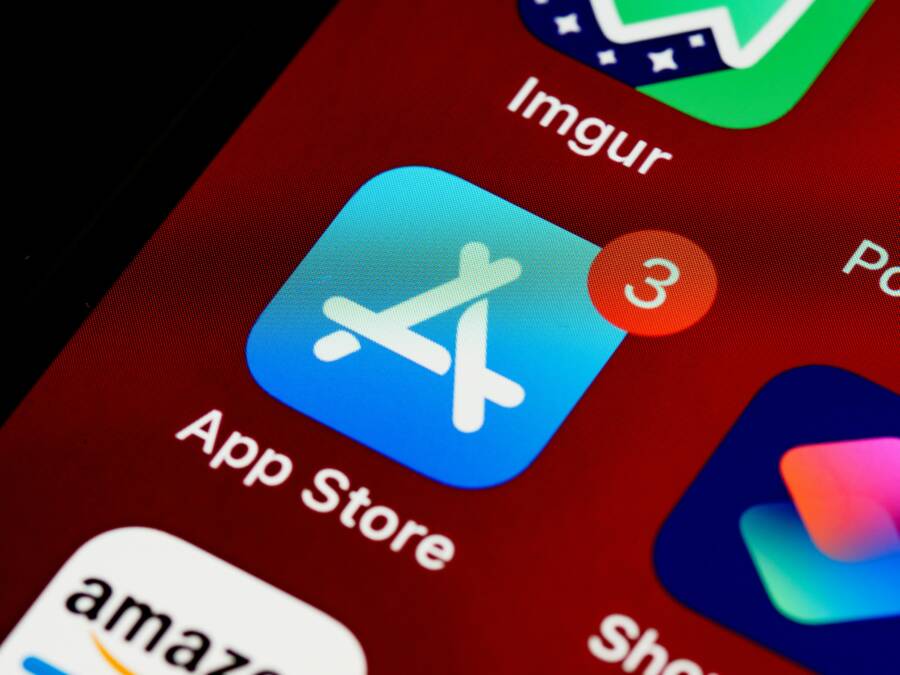
Ever stared at your home screen cluttered with red badges from email or messages? You’ve read every alert, but those numbers stick around like uninvited guests. It makes your smartphone look messy and distracting.
Badge notifications are those small numbers or dots on app icons. They show unread items, like new emails or texts. But they often get stuck due to sync glitches between the app and server, OS bugs, or notification settings.
This frustrates everyone who wants a clean setup. The good news? You can reset badge notifications easily.
In this guide, you’ll find simple steps for iPhone and Android. We’ll cover toggling settings, force-quitting apps, clearing data, and more. Plus, troubleshooting for stubborn cases and tips to prevent issues.
Get ready for a tidy, organized phone that feels fresh again. Let’s clear those badges now.
What Are Badge Notifications and How Do They Work?
Badge notifications sit right on your smartphone’s home screen as small red circles or dots on app icons. They display a number that counts unread items like emails, texts, or social updates. You spot them instantly, which saves time and keeps you in the loop. Think of them as a quick tally that pulls you back to apps with action items.
These badges rely on your phone’s operating system to sync data from apps and their servers. When everything clicks, the count updates smoothly as you read or clear items. Glitches happen, though, leaving outdated numbers that clutter your screen. Next, we’ll look at how they function on each platform.
Badge Notifications on iPhone
iPhone badges appear as red circles with a white number overlay on app icons. iOS handles them through the UserNotifications framework, which apps use to set or clear counts.
Here’s the process in action. An app server sends a push notification via Apple’s APNs (Apple Push Notification service). Your iPhone receives it and updates the badge if the app specifies a number. Open the app or mark items as read, and the badge drops to zero or adjusts.
Apps must request badge permission in settings. You control this per app under Settings > Notifications. For details on managing them, check Apple’s guide to notifications.
Badges reset automatically in most cases, but sync issues with iCloud or app bugs can freeze them. Mail and Messages apps often show the highest counts since they pull from multiple sources.
Badge Notifications on Android
Android badges work differently because they depend on your launcher (the home screen app). Stock launchers like Pixel’s show dots for any notification. Third-party ones, such as Nova Launcher, display numbers if enabled.
Developers use the NotificationBadge API or services like NotificationListenerService to update counts. A push notification arrives through Firebase Cloud Messaging (FCM). The app processes it and requests a badge update, but your launcher must support it.
Enable badges in Settings > Apps > Notifications, then per app. Some phones, like Samsung Galaxy, have built-in numeric badges via Good Lock modules. See Android’s developer docs on badges for technical steps.
Your smartphone’s notification channel settings fine-tune this. High-priority channels trigger badges faster, while low ones might skip them.
Key Differences Between iPhone and Android Badges
iPhone badges stay consistent across devices; iOS mandates uniform red pills. Android offers flexibility but less reliability since launchers vary.
| Feature | iPhone | Android |
|---|---|---|
| Appearance | Red circle with number | Dots or numbers (launcher-dependent) |
| Control | Per-app in Settings > Notifications | Settings > Apps > Notifications; launcher options |
| Sync Method | APNs push | FCM push + launcher service |
| Reliability | High, system-wide | Varies by device and launcher |
Both platforms aim for quick glances, but iPhone feels more polished. On your smartphone, badges boost engagement by nudging you to check apps. When they stick, simple resets fix them fast.
Common Reasons Badges Get Stuck and Why Reset Them
Badge notifications should be a quick prompt, not a stubborn reminder. When they freeze or refuse to clear, it’s easy to blame the device. In reality, several predictable culprits cause stuck badges on both iPhone and Android. Understanding these quirks helps you reset them quickly and prevent future frustration. Think of badges as tiny counters that rely on a steady handoff between apps, the OS, and the server. When one link in the chain breaks, the count can linger, even after you’ve read or dismissed items.
Common Causes of Stuck Badges
- Sync glitches between app data and server. Apps update their counts by talking to a central server. If the server or the app’s data cache gets out of sync, the badge may show a number that no longer exists. This is common with mail apps, messaging apps, or social feeds that pull data from multiple sources.
- Background processing delays. iPhone and Android rely on background tasks to refresh badges. If a background process is paused or restricted to save battery, the badge may not update in real time.
- Notifications settings blocked or misconfigured. If a permission or notification channel is turned off by mistake, the app can show a badge that never clears. This is especially true for apps with granular controls, where a single misstep locks the badge in place.
- Server-side delays or outages. Sometimes the issue isn’t on your device at all. If the app’s server is slow or down, the badge count can lag behind actual activity, leading to a stale badge on your home screen.
- Multiple sources with overlapping counts. Email clients or social apps that aggregate from several accounts can end up with an inflated or stuck count if one account isn’t marking items as read properly.
- Launcher or home screen quirks (Android). On Android, some launchers manage badges differently. If the launcher hiccups, the badge may stay visible even after you clear items inside the app.
- Corrupted cache or data. A corrupted cache can cause the app to think there are unread items when there aren’t. Clearing app data or reinstalling the app often resolves this.
- OS-level bugs. Occasionally a bug in iOS or Android temporarily disrupts badge updates. A software update can fix these issues, but you may need to reset badges in the meantime.
- Live activities or persistent notifications. Some apps use ongoing or live notifications that keep a badge count alive even after you engage with content. Dismissing or turning off those persistent alerts can help, but they can reappear if the content stays active.
Understanding these root causes helps you decide the best reset method. In many cases a quick toggle or a force quit is enough, but some situations require deeper fixes.
When Badge Counts Persist Across Devices
If you see a stuck badge across multiple devices, the issue is often server or account related rather than a single device fault. For example, if you use the same email or messaging account on an iPhone and an iPad, a stale badge can linger on both until the server clears the state. In these cases, you may need to refresh account connections or re-authenticate the app. If a badge sticks for a specific app, focus your steps there first.
Platform-Specific Quirks You Might Encounter
- iPhone (iOS). Badges on iOS tie closely to the UserNotifications framework. If a badge remains after you’ve read items, it’s usually a sign of a sync hiccup with the app server or a cached state that didn’t clear properly.
- Android. Android badge behavior depends on the launcher. Some launchers display dots, others show numbers. Badges may not reflect real unread counts if the launcher’s cache is stale or if the app’s notification channel is misconfigured.
- Third-party launchers. If you use a launcher like Nova or Action Launcher, the badge logic can diverge from the system’s defaults. Updates to the launcher or the app can fix misalignment, but you may need to reconfigure badge settings in the launcher itself.
For more context on iPhone badge behavior and common issues, see discussions from the Apple community where users share real-world fixes and tips. These discussions highlight how small setting tweaks or cache clears can resolve stubborn badges. Apple discussions on stuck notification badges
Quick Reset Tactics You Can Try First
If a badge is stubborn, start with the simplest fixes. They’re usually fast and nonintrusive. Try each step and check if the badge updates afterward.
- Toggle the app’s notification setting off and on. Go to Settings > Notifications, select the app, and switch Allow Notifications off, then back on.
- Force-quit the app and reopen. On iPhone, swipe up to reveal the app switcher and swipe the app off the screen; on Android, use the recent apps button and close the app.
- Restart the device. A short reboot can clear stuck background tasks and refresh badge syncs.
- Check for pending app updates. An update may fix a known bug that affects badge counts.
- Clear app cache or data (where available). In Android, you can clear cache via Settings > Apps. In iOS, you may need to reinstall the app to clear cache.
- Reauthenticate if needed. Sign out of the account in the app and sign back in to refresh server connections.
- Temporary disable the badge feature inside the app. Some apps allow you to disable and re-enable the badge, which can force a reset on the next update.
If the badge still won’t clear, move to deeper troubleshooting. The next subsections cover more targeted approaches for iPhone and Android.
Deep Dive: Platform-Specific Reset Methods
- iPhone users. If the badge persists after basic resets, consider checking iCloud sync status for the affected apps and ensuring iCloud Drive is enabled for background refresh. Clearing the app’s data by reinstalling may resolve stubborn caches that hardware resets cannot fix. You can also review the app’s own in-app settings for unread item flags or archived messages that might be treated as unread by the app. For persistent cases, Apple support discussions offer practical steps from users who faced similar issues.
- Android users. With Android, pay attention to the launcher. If you’re using a third-party launcher, test with the stock launcher to see if the badge clears there. Clearing the launcher cache or resetting launcher preferences can solve many badge issues. Some devices include built-in badge controls in the Settings or Good Lock modules, which can give you an alternative path to reset counts.
Preventing Stuck Badges in the Future
- Keep apps updated. Developers fix badge bugs in updates, and OS updates can improve how badges sync.
- Limit background activity for apps with aggressive notification needs. This reduces the chance of a mismatch between server state and the device.
- Review notification channels or badges per app regularly. A single misconfigured channel can cause persistent badges.
- Use a single primary launcher on Android to avoid conflicting badge logic from multiple launchers.
When to Seek Help
If you have tried all the above and the badge still sticks, it may be time to contact support. Provide details about the affected app, your device model, OS version, and what steps you already tried. Including screenshots or screen recordings can help the support team reproduce and fix the issue faster.
For users who want deeper technical context, reputable sources discuss badge behavior and troubleshooting on iPhone and Android. For example, see how discussions around iPhone badge issues can illuminate common edge cases and community-tested fixes. Apple discussions on stuck notification badges
If you’d like more technical guidance on Android badge handling, the Android developer documentation offers insights into the Badge API and how launcher integrations work. This can help you diagnose whether the problem is the app, the launcher, or the OS. Android badges documentation
By keeping badges clean and accurate, you reduce distraction and maintain focus on what matters. A well-managed notification system makes your smartphone feel less noisy and more responsive to your priorities. And if a stubborn badge does show up again, you now have a clear playbook to reset it fast.
Step-by-Step Guide to Reset Badges on iPhone
Badges on app icons can clutter your home screen when they misbehave. This section gives you a clear, actionable path to reset badge notifications on iPhone. We’ll start with quick fixes you can apply in seconds, then move to deeper troubleshooting for stubborn issues. Think of it as a short, practical toolkit you can pull out anytime you notice stale badges.
 Photo by Brett Jordan
Quick Fixes for Stuck iPhone Badges
When time is tight, fast wins matter. Start with simple toggles and a quick app reset to clear the slate.
- Toggle the app’s notification badge off and on. Open Settings > Notifications, pick the affected app, switch Allow Notifications off, wait a moment, then turn it back on.
- Force-quit and relaunch the app. Double-click the Home gesture or swipe up to reveal the app switcher, then swipe the app away. Reopen it to trigger a fresh badge update.
- Restart the iPhone. A quick reboot clears lingering background tasks and re-syncs badge data.
- Check for app updates. Outdated versions can mishandle badge counts; update if available.
- Reinstall the app if needed. If the cache is corrupted, removing and reinstalling forces a clean start.
If the badge still sticks, proceed to deeper steps. For persistent cases, one reliable route is to refresh app connections or reset specific settings without wiping data.
Deeper Troubleshooting for Persistent Issues
When quick fixes don’t clear the badge, you’ll want a more deliberate approach. The goal is to reestablish a clean sync between the app, iOS, and Apple’s notification service. Begin with steps that minimize risk to your data, then move to more targeted actions.
- Review iOS notification settings by app. Confirm the app has permission to show badges and that Do Not Disturb or Focus modes aren’t suppressing updates.
- Check iCloud and background refresh. A glitch in iCloud sync can leave counts stuck. Ensure iCloud Drive is enabled for background refresh and that the affected apps are allowed to refresh in the background.
- Test with a single app. Choose one with a stubborn badge, reset its settings, and monitor the result. If successful, apply the same approach to other apps.
- If needed, reset network settings. Sometimes badge data relies on stable connectivity. Resetting network settings can help, but be aware this resets Wi-Fi passwords and Bluetooth pairings.
- Consider a full data backup before deeper fixes. In rare cases you may need to remove the app and restore from a backup, or reset all settings, to fix a corrupted state.
For ongoing issues, it helps to compare behavior across devices or accounts. If the badge persists across devices tied to the same account, server-side syncing may be at fault. In those cases, re-authenticating the affected apps or waiting for a server fix can clear the issue. For further context, see discussions around iPhone badge behavior and troubleshooting.
- Apple discussions on stuck notification badges. https://discussions.apple.com/thread/255903042
- How to control notification badges on your iPhone and iPad. https://helpcenter.horizonwebref.com/en/articles/8345690-how-to-control-notification-badges-for-iphone-and-ipad
If you still see a stubborn badge after these steps, you’re likely dealing with a deeper app or launcher issue. The next section covers best practices to prevent badges from sticking in the future and how to approach more advanced fixes.
Easy Ways to Reset Badges on Android Phones Like Samsung and Pixel
Badges on app icons can clutter your home screen when they misbehave. This section delivers practical steps you can follow to reset or clear stubborn badge counts on popular Android devices, specifically Samsung Galaxy and Google Pixel. You’ll find straightforward toggles, quick app quits, and a few deeper fixes that don’t require wiping your device. Think of these methods as a fast clean-up ritual for your smartphone so you can regain a tidy, distraction-free home screen.
Reset on Samsung Phones
If you’re on a Samsung Galaxy with One UI, start with quick toggles and targeted app resets before diving deeper. First, check the per-app notification settings. Go to Settings > Notifications, choose the affected app, and toggle Allow Notifications off for a few seconds, then back on. This forces the app to re-sync its badge state with the system. If the badge persists, force quit the app and reopen it. On One UI, swipe up to reveal the app switcher and swipe the app off the screen, then launch it again.
Next, clear the app’s cache or data. Navigate to Settings > Apps, select the app, and choose Clear Cache. If the badge still clings, you may need to reinstall the app to purge any corrupted cache. In stubborn cases, a launcher reset can help; this is especially relevant on Samsung devices where the launcher manages badge logic. If you’re using a third-party launcher, try the stock launcher temporarily to see if the badge clears, then adjust your launcher settings as needed. For persistent issues, Samsung community discussions offer practical steps that mirror real-world fixes, such as clearing notifications and rechecking the badge after a brief pause. You can also refer to Samsung’s own guidance on controlling notifications for Galaxy devices. Control notifications on your Galaxy phone or tablet
If all else fails, a factory reset remains a last resort, but it should be used only after backing up data. The relevant Samsung support article explains the process and its implications. How to reset Samsung galaxy devices?
Reset on Google Pixel
Pixel users can often reset badges with a simple toggle, followed by a quick app restart. Start by opening Settings > Apps, selecting the affected app, and turning off notifications, then turning them back on after a moment. This can nudge the badge counter to refresh. If the badge sticks, force quit the app and reopen it. For a broader reset, you can perform a factory reset on the Pixel, but back up your data first as this erases all content. Google’s official guide provides the steps and cautions. How to factory reset your Google Pixel phone
While you’re troubleshooting, confirm that the device isn’t hovering in a notification backlog caused by a stalled channel. If a badge remains after app-level resets, checking in-app notification settings can help. Some Pixel users also report that re-authenticating the account within the app clears the badge more reliably than a simple toggle. If you need a quick sanity check, see related discussions on how to clear notification dots and manage unread counts. Is there a way to make notification badges display the unread count?
Extra Fixes for Any Android
If Samsung and Pixel steps don’t solve the problem, broaden your approach to general Android fixes. Start with cache management and updates, as these address many badge misfires. Clear the cache for the launcher itself if you use one, since launcher caches can keep old badge states visible even after you clear within apps. If the launcher supports it, reset its preferences to default, then reconfigure badge settings. Finally, ensure both the app and the launcher are updated to the latest version, as developers frequently fix badge synchronization issues in updates. For reference, Android community discussions and troubleshooting guides offer practical tips that align with these steps. How to fix: clear Google Play Store badge / notification (stuck)
If you use a third-party launcher, test with the stock launcher to determine where the issue lies. Some devices also include built-in badge controls or modules (for example, Good Lock on Samsung). Exploring these options can restore accurate counts without a full reset. When you suspect server-side delays, re-authenticating the affected apps or waiting for the server to realign can clear stubborn badges. For broader context, Android badge behavior varies by launcher, so a quick switch can reveal where the fault resides. For additional guidance, see Android’s developer coverage on badges and launcher integration. Android badges documentation
Tips to prevent future issues
- Keep both apps and the launcher updated.
- Limit background activity for apps with heavy notification loads.
- Review per-app notification channels regularly.
- Use a single launcher on Android to avoid conflicting badge logic.
If you still see a stubborn badge after these steps, it’s time to seek support. Provide the affected app, device model, OS version, and a list of everything you tried. Screenshots or screen recordings help the support team reproduce the issue quickly.
Smart Tips to Manage and Prevent Badge Clutter
A tidy home screen makes it easier to focus on what matters. Badge clutter can hijack your attention and create a false sense of urgency. The goal here is to keep badge counts accurate and useful, not overwhelming. Below you’ll find practical steps you can take now, plus ongoing habits to prevent buildup on both iPhone and Android.
Best practices to prevent badge clutter
Establish a clean baseline for notifications. Start by turning off nonessential badges and streamlining which apps are allowed to ping you. This reduces noise and makes the numbers you do see meaningful. For many users, a restrained approach yields a calmer home screen and faster access to important alerts.
- Review per-app badge permissions. Only enable badges for apps that truly require quick action.
- Prioritize high-signal apps. Email and messaging apps often deserve badges; everything else can wait.
- Use Do Not Disturb or Focus modes strategically. Silence low-priority notifications during work or sleep.
Regular audits prevent clutter from creeping back. A quick monthly check can keep your settings aligned with your current routines. When you adjust, consider how often you actually need a badge to surface and whether the app could rely on in-app badges or status indicators instead.
For deeper dives into platform specifics, see how iPhone and Android handle badges and where users run into trouble. Apple discussions offer real-world scenarios and fixes, while Android guidance explains launcher differences that affect badge behavior. Apple discussions on stuck notification badges
Control notifications on Android
Platform-specific strategies that really move the needle
iPhone users benefit from centralized control in iOS. When badges are noisy, a quick audit of per-app settings can restore balance. If a badge persists after updates, a short reauth or network check often resolves it.
- Toggle badge permissions off and on for problematic apps.
- Ensure background app refresh is enabled for essential apps.
- Consider temporarily disabling a badge in the app’s own settings if available.
Android users gain flexibility with launchers and notification channels. The launcher you use can dramatically affect how badges display and refresh.
- Use the stock launcher to test badge behavior before tweaking third-party launchers.
- Reset launcher preferences and clear launcher cache if badges appear outdated.
- Update both apps and launcher to ensure badge logic stays in sync.
If you’re curious about badge specifics on Android, the official documentation covers how badges integrate with launcher services and notification channels. Android badges documentation
For iOS badge behavior insights and practical tips, The Verge provides actionable guidance on taming notifications. How to tame notifications on iOS
Tools and settings that help you stay on top of badges
A few smart settings can dramatically cut down clutter without sacrificing important alerts.
- Centralize badge management in one place. Keep essential apps enabled with badges, and silence the rest.
- Use notification channels wisely. Assign high-priority channels to truly urgent apps, and lower ones to routine updates.
- Clear cache and data for stubborn apps. On Android, clearing an app’s cache can refresh the badge. On iPhone, reinstalling the app often does the same.
- Periodically refresh connections. Re-authenticate accounts in apps that show stale badges to re-sync with servers.
If you want practical Android guidance, several resources walk through step-by-step changes you can make quickly. 7 simple tips to manage your Android phone’s notifications
For iPhone-specific actions, Digital Trends covers how to control notification badges on iPhone and iPad. How to control notification badges on your iPhone and iPad
Quick win routines to keep badges honest
Adopt lightweight habits that prevent badges from accumulating.
- Do a weekly sweep of unread items. Mark items as read or archive them when appropriate.
- Set expectations with apps that frequently generate badges. If a service isn’t critical, mute or hide its badge.
- Keep your home screen uncluttered. A less crowded layout makes badges more meaningful when they appear.
If a badge stubbornly stays after trying these routines, you’re likely dealing with a deeper app or launcher issue. In that case, look to targeted troubleshooting for the culprit app or the launcher you rely on most.
When to seek help
If you’ve followed these tips and badges still act up, it’s time to reach out for support. Provide details about the affected apps, device model, OS version, and the steps you’ve already tried. Screenshots or screen recordings can speed up diagnosis.
For broader context, consider reviewing community discussions where users share practical fixes for badge quirks on iPhone and Android. Apple discussions on stuck notification badges
If you’re exploring Android badge behavior on launchers, Android developer resources offer useful explanations about how badges work with different launcher implementations. Android badges documentation
By keeping badge clutter in check, you maintain a calmer, more productive smartphone experience. When badges reflect real activity, you know exactly where to focus next.
Conclusion
Resetting badge notifications is less about a single trick and more about a quick, repeatable routine. On iPhone, toggling per app badge settings, restarting the app, and refreshing background activity solve most hiccups; if needed, a reinstall or a settings reset clears stubborn states. On Android, start with the app’s badge toggle, then force stop and restart the app, clear the launcher cache, and verify background activity is allowed. If problems linger, a launcher swap or a full app reinstall often does the trick.
Keep in mind that server side issues and launcher quirks can drive badge counts out of sync. When that happens, updating the app and the OS, reauthenticating the account, or waiting for a vendor fix usually restores accuracy. Regular checks of per app notification settings help you stay in control and prevent future clutter.
A well managed notification setup improves focus on your smartphone. With a tidy badge system, you see what truly needs your attention and skip the rest. Simple habits, like a weekly audit of unread items and a brief reset when things feel off, make a real difference for clarity and productivity.
If you try one tip today, you’ll likely notice fewer distractions and more confident device usage. Share your experience and which step worked best for you. Your insights can help others tune their own notification habits.