Thousands of People Were Struggling With Money Until They Discovered This One Ancient Secret Hidden in Sound
>>> Unlock It Now <<<

You’ve opened every app and swiped away alerts, but that stubborn red stuck notification icon still sits there on your home screen. It nags at you, making you double-check messages or emails you already handled. On your smartphone, these badges signal unread items, yet they refuse to vanish.
Stuck notification icons happen when apps glitch or settings block updates. Cache buildup, low power mode, or disabled badge options often cause the issue. They frustrate users because they create false urgency and clutter your screen.
The good news is you can fix them fast without losing data. This guide covers simple steps for both Android and iPhone devices. You’ll regain a clean home screen in minutes.
For Android phones, start by enabling badges in settings and clearing app cache. Toggle background data and restart your device if needed. Samsung users might clear launcher cache too.
She Pressed Play on a Strange Audio Track and Within Days Her Financial Reality Started Shifting in Ways She Could Not Explain
>>> See How It Works <<<

iPhone owners, disable Low Power Mode or Do Not Disturb first. Turn on app notifications and Background App Refresh. A quick restart or reset of settings often does the trick.
Common culprits include software bugs or app updates, but these proven methods work every time. Follow along, and say goodbye to those pesky badges for good. Your phone will feel fresh again.
Common Causes of Stuck Notification Badges and How to Spot Them
Stuck notification badges trick you into thinking you missed something important. They stay put even after you clear alerts or open the app. On your smartphone, these issues pop up from everyday settings or temporary glitches. Spot them by checking if the badge number matches actual unread items. You can fix most with quick tweaks.

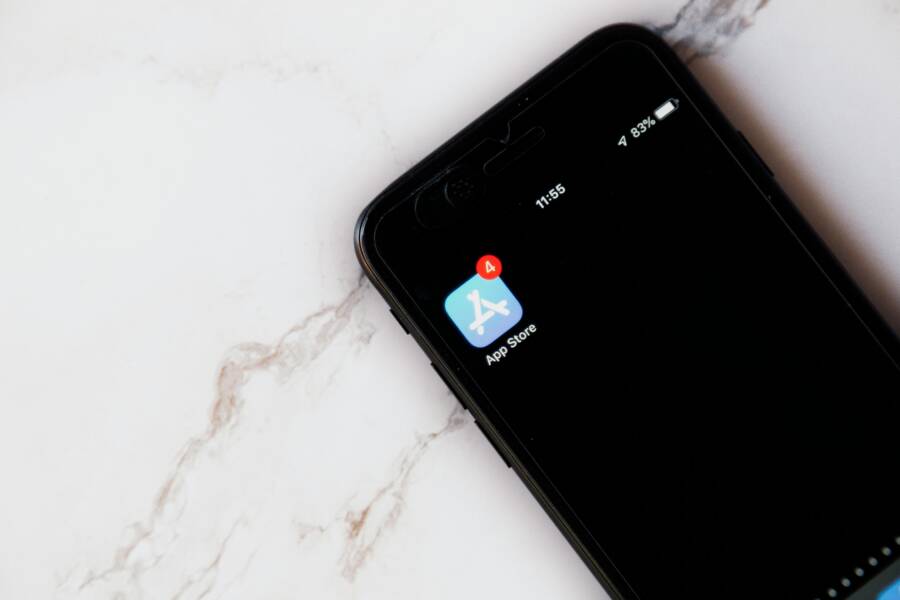
Photo by Image Hunter
App Glitches and Software Bugs
Apps sometimes fail to refresh badge counts after you handle notifications. This creates a ghost badge that lingers no matter what you do. You spot it when the number drops inside the app but stays on the icon.
On iPhone, bugs in iOS updates often cause this. Users report stuck “1”s on Phone or Mail apps with no real missed calls or emails. Check Apple’s community forums for similar cases.
Android devices face the same from app crashes or poor coding. Force-close the app and reopen it. If the badge returns right away, a bug is likely at play.
Restart your phone to test. Badges that vanish temporarily point to a software hiccup.
Disabled or Misconfigured Notification Settings
Your phone might block badges without you knowing. Go to settings and verify badges are on for the app. You spot this cause when other apps show badges fine, but one stays blank or stuck.
iPhone users, tap Settings > Notifications > [App Name] and ensure Badges is enabled. Android owners check Settings > Apps > [App Name] > Notifications > Badge notifications.
Hidden toggles like grouped notifications can fool the system. Toggle them off and on to refresh.
Cache and Temporary Data Buildup
Cache stores app data for speed, but it clogs up and freezes badge updates. Full cache acts like junk mail piling in your inbox. Clear it, and badges often reset.
Signs include slow app loading plus stuck icons. On Android, head to Settings > Apps > Storage > Clear Cache. iPhone lacks direct cache clear, so offload the app via Settings > General > iPhone Storage.
Samsung phones need extra steps for launcher cache. Badges stick here due to One UI quirks.
Battery Saver and Background Limits
Low Power Mode or battery savers halt background tasks. Your smartphone stops apps from updating badges to save juice. You notice it when badges pile up during low battery, then stick.
On iPhone, disable Low Power Mode in Settings > Battery. Turn on Background App Refresh in Settings > General.
Android’s Battery Optimization blocks apps. Go to Settings > Battery > App Optimization and set to “Don’t optimize.” Spot this if issues start after enabling saver modes.
Sync Delays from Servers or Accounts
Cloud sync lags keep badges active. Email or messaging apps wait for server confirmation. You see it with numbers that match your last sync but won’t zero out.
Log out and back in, or check account status. Wi-Fi drops worsen this. Switch networks to test. These causes cover most cases, so check one by one for fast relief.
Universal Quick Fixes to Clear Icons on Any Phone
When a stubborn notification icon won’t clear, the problem is rarely serious. Most of the time a few universal steps will reset the badge count and restore normal behavior. Think of these as a quick mental reset for your smartphone. They work whether you’re on Android or iPhone, and they’re safe to try even if you don’t know which app is causing the issue.
Restart and Update First
A simple restart often clears a ghost badge. It flushes temporary data and gives the system a fresh start. After the device reboots, verify that all apps are up to date. An outdated app can misreport unread items, causing a badge to stick around. If a particular app continues to misbehave after an update, try force closing it and opening it again. This small sequence fixes many cases fast.
- Restart your phone.
- Open the app store and update all installed apps.
- If a badge remains, force close the problematic app and relaunch.
For iPhone users, a reset of settings can help when glitches persist. If badges refuse to clear across several apps, you may consider a lightweight reset of network or notification settings, then re-enable what you need. For Android users, a quick launcher restart can also clear persistent launcher badge quirks, especially on devices with custom skins.
Check Badge Settings and Notification Permissions
Badges can be turned off or misconfigured for individual apps. The fix is to ensure the badge option is enabled and that notifications are allowed for the app.
- On iPhone: Settings > Notifications > [App] and confirm Badges is turned on.
- On Android: Settings > Apps > [App] > Notifications > Badge notifications should be enabled. If you use a launcher with its own notification controls, check the launcher settings as well.
If another app shows badges correctly but one stays blank, toggle the badge setting off and on again. This refreshes the permission state and can re-sync the counts with the system.
Helpful context: badge behavior can vary by app and OS version, so if the same app on a different device works fine, the issue is likely local to the device configuration rather than the app itself.
Clear Cache and Temporary Data
Cache bloat can stall badge updates. Clearing cache removes old data that might be telling the system there are unread items.
- Android: Settings > Apps > [App] > Storage > Clear Cache.
- iPhone: There is no direct cache control for all apps. Offload the app via Settings > General > iPhone Storage, then reinstall if needed.
If you’re using a Samsung device, clearing the launcher cache specifically can solve launcher-related badge issues. This step is quick and often resolves stubborn icons on home screens.
Tweak Battery and Background Activity
Background activity and battery savings can suppress badge updates, making a badge linger longer than it should.
- Turn off Low Power Mode on iPhone under Settings > Battery.
- Enable Background App Refresh on iPhone under Settings > General.
- On Android, set Battery Optimization to “Don’t optimize” for the affected apps. Check Settings > Battery > App Optimization.
- If you use a power-saving feature, temporarily disable it to test whether badges update normally.
After changing these settings, perform a quick restart to apply the new rules and watch for the badge to clear.
Inspect Sync and Server Delays
Sometimes the badge stays because the app is waiting for the server to confirm a read or action. This is common with email, chat, or social apps.
- Log out and back in to refresh credentials.
- Check for service outages or account issues if the badge persists across multiple apps.
- Test with a different network to rule out connection hiccups.
If the badge is tied to a cloud account, a brief wait can be enough. In many cases, the badge clears once the server catches up with your latest actions.
Special Considerations by Platform
Some stuck badges are tied to platform-specific quirks. Here are concise checks you can run based on whether you’re on Android or iPhone.
- iPhone users: If Do Not Disturb or Focus modes are active, badges can behave oddly. Turn off Focus Mode temporarily and observe whether badges clear. A quick reset of notification settings often resolves ongoing quirks. Apple’s community discussions contain real-world examples of stuck badges and practical fixes you can try. For context and user-shared experiences, see discussions about persistent app badges on iPhone.
Example resource: discussion on stuck badges and iPhone tips - Android users: If you rely on a third‑party launcher, it might manage badges differently than the system. Clear the launcher cache or switch back to the default launcher to see if the badge clears. If you’re using a device with a heavy customization layer, rechecking the launcher’s notification settings is worthwhile.
Beyond these steps, keep an eye on the app itself. Some fixes only apply to a specific app, and others are universal across the phone. If a single app keeps acting up after all the general steps, consider reinstalling the app as a last resort.
When to Seek More Help
If you’ve tried the above with no luck, you’re likely dealing with a deeper issue. Start by checking for OS updates, as minor system fixes often address badge bugs. If a global OS bug is suspected, search for reports from other users and official notices from Apple or the device maker. In rare cases, a factory reset may be the final option, but this should be a last resort after backing up your data.
For readers who want extra context from the community, a few credible discussions and tutorials cover common badge problems and practical remedies. You can read about similar experiences and proven fixes here:
- Apple community discussions on stuck notification badges
- Guides on fixing notification badges on iPhone and Android
By following these universal steps, you can usually restore normal badge behavior quickly. Your home screen will feel calmer, and you’ll save time by not chasing phantom alerts every day. If you want more nuanced guidance for your specific device, tell me your model and OS version, and I’ll tailor the steps accordingly.
Android Guide: Remove Stuck Badges Step by Step
If you’re tired of seeing a stubborn badge on an app icon, you’re not alone. Badges can stick around due to glitches, misconfigured settings, or background activity limits. This section breaks down the Android-focused steps to clear stuck notification icons, with practical tips you can apply right away. Each subsection covers a specific angle, from confirming badge settings to tackling stubborn launcher quirks. Follow along, and you’ll reclaim a clean home screen in minutes.
Enable and Reset Notification Badges Settings
Starting with the basics is often enough to reset stuck icons. Ensure app icon badges are enabled, then give your device a fresh start with a quick restart. On most Android devices, the path is Settings > Notifications > Advanced > App icon badges toggle. Turn it on, then disable and re-enable if needed. After applying the change, restart your phone to ensure the system reconfigures the badge state. If your device uses a custom skin, you may also find badge controls within the launcher settings. If you’d like a deeper dive, Samsung’s help docs walk through enabling and managing badges across Galaxy devices.
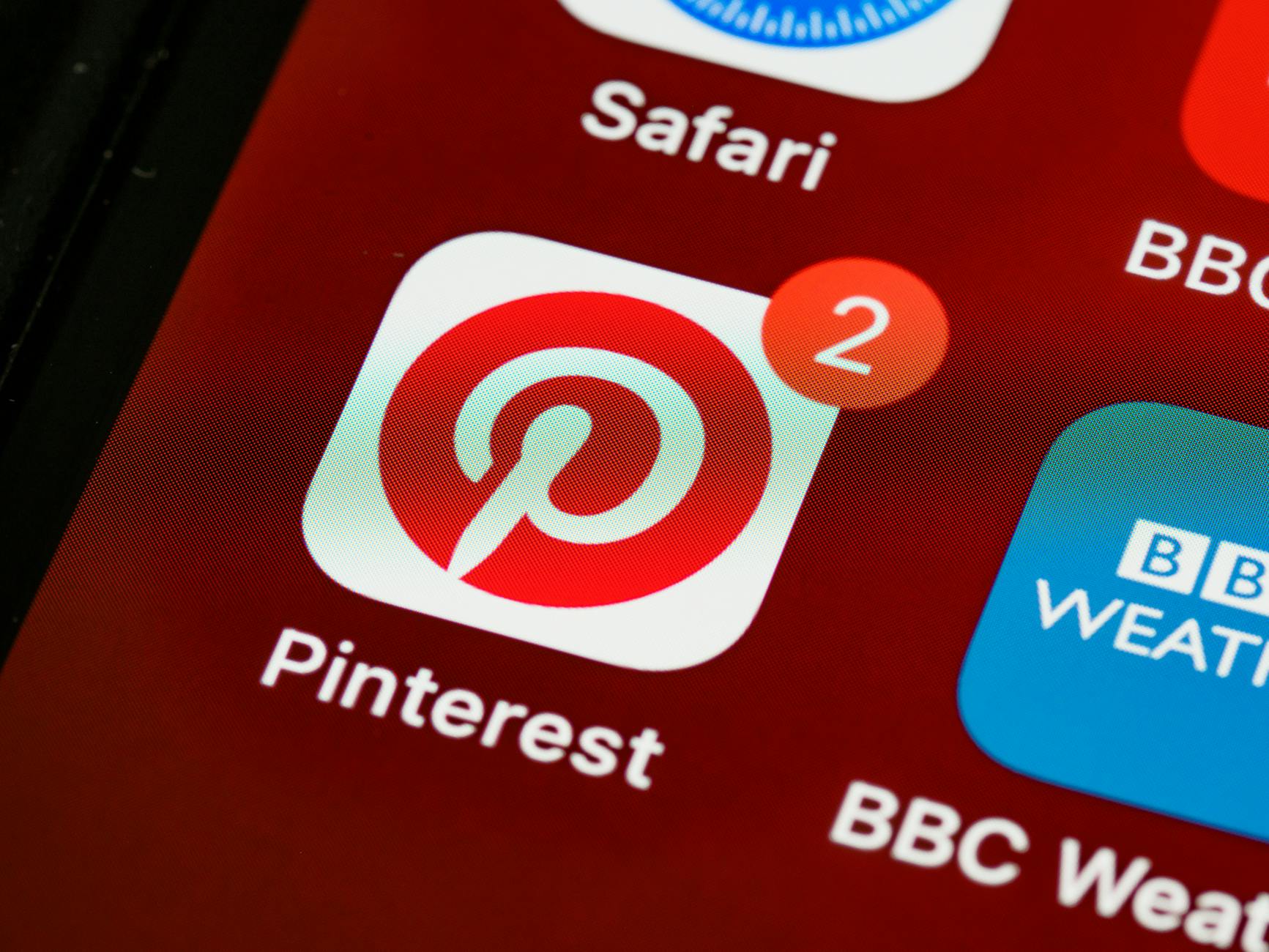 Photo by Brett Jordan
He Was Drowning in Bills and Burnout Until a Simple Daily Ritual Rewired His Brain for Wealth in Less Than a Week
>>> Start Your Shift Today <<<

For more context on badge toggles and how they interact with different launchers, you can read guides that compare stock Android badge behavior with launcher-specific options. Samsung users especially benefit from checking both the system and launcher badge switches to ensure consistency across the home screen.
External references:
- Control app notifications on your Galaxy phone or tablet: https://www.samsung.com/us/support/answer/ANS10002521/
- Samsung support: App icon badges are not appearing on Samsung phone: https://www.samsung.com/us/support/troubleshooting/TSG01108501/
Fix Badges for Apps Like WhatsApp or Messages
Certain apps push badge counts that don’t align with unread items. Long-press the app icon, open the info panel, and verify that Notifications > Badges are enabled. Do the same in the app’s own settings if available. Clear the notification panel by opening the app, marking all messages as read, then re-checking the badge status. If the badge persists, force stop the app and reopen it. Some devices also require checking if the launcher has its own notification controls that could override app level settings.
There Is a Frequency That the Wealthiest Families Have Used for Generations and Most People Will Never Know It Exists
>>> Open the Door <<<

If you still see a ghost badge after trying these steps, consider updating the app or reinstalling it as a last resort. You’ll often find that WhatsApp, Messages, or other messaging apps behave differently across devices, so a device-specific tweak may be needed. For further guidance, guides like GuidingTech’s quick fixes cover multiple Android scenarios and badge quirks.
External references:
- 6 Ways to Fix Notification Badges Not Showing on Android: https://www.guidingtech.com/top-ways-to-fix-notification-badges-not-showing-on-android/
Clear App Cache and Force Stop Glitchy Apps
Cache buildup can prevent badge counts from updating. Clear the cache for the misbehaving app and then force stop it before relaunching. Avoid clearing data unless absolutely necessary, since that resets the app to its initial state. The typical path is Settings > Apps > App Name > Storage > Clear Cache, then Force Stop. If the issue affects a system app or a launcher, show system apps and repeat the process for the launcher.
After clearing cache and restarting the app, badges should align with actual unread items. If the badge remains after a restart, repeat the process or try clearing cache for related components like the launcher. On Samsung devices, clearing the launcher cache can resolve persistent badge issues tied to the home screen.
External references:
- How to fix Android unread messages and notification problems: https://www.technobezz.com/fix-android-unread-messages-and-notification-pro
Update Software and Switch to Default Home Screen
Software updates can fix badge glitches caused by bugs in older builds. Check for OS updates in Settings > System > Software Update and also verify that all installed apps are up to date via the Google Play Store. If you’re using a skin that adds its own home screen features, try switching to the default launcher temporarily to see if the badge behavior improves. In many cases a fresh update plus a launcher reset resolves persistent issues.
If the problem continues, a minor system reset of notification settings or a full factory reset might be considered, but only after backing up data. Keeping the system current significantly reduces the chance of a recurring badge problem.
External references:
- Control notifications on your Galaxy phone or tablet: https://www.samsung.com/us/support/answer/ANS10002521/
iPhone Users: Erase Persistent Notification Dots Easily
Stubborn notification dots on iPhone icons can steal focus and make you feel like you’re always behind. This section helps you clear those persistent badges quickly and keep your home screen tidy. We’ll walk through practical, step by step fixes tailored for iPhone users, with clear checks you can perform right away. If a badge just won’t disappear, you’ll have a reliable set of actions to restore normal behavior without a full reset.
Clear from Notification Center and Toggle Badges
Pull down the screen to open Notification Center, then swipe left on the offending app and choose “Clear” or use the general clear all option if available. The goal is to confirm there are no unread items sitting in the app. Next, verify the badge setting for the app itself. Go to Settings > Notifications > [App Name] and ensure Badges is enabled. If the badge still lingers, toggle Badges off, then back on to refresh the permission state. This quick refresh often aligns the badge count with actual unread items. For some apps, a quick restart after toggling helps seal the reset. If you use a launcher on iPhone (rare but possible with jailbreak-like setups), ensure the launcher isn’t overriding system badge behavior.
- Tip: If you see a badge on multiple days or many apps, a global setting like Focus or Do Not Disturb might be affecting badges. Temporarily disable Focus to test badge behavior.
 Photo by Brett Jordan
Restart and Update Your iPhone
A simple restart often clears ghost badges caused by temporary glitches. Turn the iPhone off, wait a moment, and then turn it back on. After rebooting, check that iOS and all apps are up to date. Updates frequently fix badge misreports that appear after a software patch. If a stubborn badge persists across several apps, perform a quick settings reset as a more targeted remedy, then re-enable what you need. For iPhone users, a lightweight reset of network or notification settings can help without wiping data.
- Power off your device: hold side button and either volume button, then slide to power off.
- Power back on and head to Settings > General > Software Update to install any available updates.
- If problems continue, open Settings > General > Transfer or Reset iPhone > Reset > Reset Network Settings or Reset All Settings, then reconfigure as needed.
If you’re dealing with a stubborn app, force closing it after a restart can help. In most cases, a restart plus an update cycle resolves the issue.
For deeper guidance, you can explore discussions where users share real-world outcomes with iPhone badge issues. Apple’s community forums often have practical fixes and fresh anecdotes that mirror what you’re experiencing. See Apple community discussions on stuck notification badges for context.
App-Specific Tweaks and Reset Options
Sometimes a persistent badge is tied to a single app. Offload the app if you suspect bad data or cache issues, then reinstall it from the App Store. If you don’t want to reinstall, you can reset that app’s settings within iPhone Settings. This approach clears out misconfigured preferences without touching other apps. If a particular app remains problematic, consider a broader reset of related settings, then re-enable notifications for that app.
- Offload App: Settings > General > iPhone Storage > [App Name] > Offload App.
- Reinstall: Revisit the App Store, search for the app, and install again.
- Reset App Settings: Settings > General > Transfer or Reset iPhone > Reset > Reset Network Settings or Reset All Settings (as needed).
- After reset, re-enable: Settings > Notifications > [App Name], and turn on Badges.
If the issue spans multiple apps, a more comprehensive approach is to reset all settings. This preserves data but returns system preferences to defaults, which often clears stubborn badge glitches. After a reset, reconfigure essential settings like Wi-Fi passwords and notification preferences so your phone behaves as you expect.
For ongoing problems with specific apps, consult the app’s own support resources. Some developers publish targeted steps to fix badge mismatches within the app itself. If needed, a full device backup and a fresh install can be the last resort to restore precise badge reporting.
External references you may find helpful:
- GuidingTech: 5 Fixes if App Notifications Won’t Go away on iPhone
- Apple Community: Stuck notification badge on iPhone app
This combination of quick checks and deeper tweaks gives you reliable control over iPhone notification dots. With the right sequence, you’ll clear stubborn badges and keep your home screen looking neat, ready for the next important alert. If you’d like device-specific guidance based on your model and iOS version, share those details and I’ll tailor the steps.
Prevent Stuck Icons from Coming Back
After you clear a stuck badge, the last thing you want is for it to return the next day. This section reveals practical habits and targeted tweaks to keep those icons from creeping back onto your home screen. Think of it as a preventive approach for your smartphone, so you spend less time chasing ghosts and more time getting things done.
Start with solid, steady habits for notifications
The root of recurring badges is often how apps handle updates in the background. A few habits reduce the odds of a relapse:
- Keep badges enabled only for apps that truly matter. If an app rarely sends alerts, turning off its badge can prevent a stuck icon from becoming a habit.
- Regularly review notification permissions. Periodic checks ensure nothing slips through the cracks and triggers a phantom badge. On iPhone, you can confirm Badges under Settings > Notifications > [App]. On Android, go Settings > Apps > [App] > Notifications > Badge notifications.
- Update apps and the OS consistently. Bug fixes often address badge misreports, so enable automatic updates where possible and run a manual check if you notice odd behavior. See how system and app updates influence badge accuracy in expert guidance like Digital Trends and Android support resources.
External references:
- How to control notification badges on your iPhone and iPad: https://www.digitaltrends.com/mobile/how-to-control-notification-badges-on-iphone-ipad/
Normalize badge behavior across apps and launchers
If you use a third party launcher or a device with a heavy skin, badge behavior can diverge from the stock experience. To prevent future discrepancies, normalize the setup:
- Revert to the default launcher temporarily to test badge behavior. If the icon clears normally, the launcher may be the source of recurring glitches.
- Check both system and launcher notification controls. Some launchers keep their own badge switches, so you might need to sync these with the OS settings.
- For Samsung devices, clearing the launcher cache can curb stubborn badges tied to the home screen. This quick step often resolves recurring issues.
External references:
- Control app notifications on your Galaxy phone or tablet: https://www.samsung.com/us/support/answer/ANS10002521/
Optimize power and background activity settings
Background processing keeps badges timely, but aggressive power saving can stall updates. Tuning these preferences prevents badges from sticking around:
- On iPhone, keep Background App Refresh enabled for important apps and disable Low Power Mode during active troubleshooting. After normalizing behavior, you can re-evaluate power settings.
- On Android, set Battery Optimization to “Don’t optimize” for apps that frequently show badges. If you rely on a power saver, test whether turning it off affects badge updates.
- A quick device restart after adjusting these settings helps the system reconfigure the badge state and reduces the chance of a ghost reappearing.
External references:
- Control notifications on Android: https://support.google.com/android/answer/9079661?hl=en
Address account and server delays proactively
Some badges linger because the app is waiting for server confirmation of a read or action. To prevent reoccurrence:
- Periodically sign out and back in to refresh credentials.
- Check for service outages or account issues that impact the badge signal. If a cloud service reports problems, badges may stay out of sync until the server catches up.
- Test on a different network to rule out connectivity glitches that affect synchronization.
External references:
- Stuck notification badge on iPhone app (Ask Different): https://apple.stackexchange.com/questions/473957/stuck-notification-badge-on-iphone-app
Keep an eye on app-specific quirks
Some apps are more prone to badge misreports than others. A few targeted habits can prevent future recurrences:
- If a single app repeatedly misreports, consider updating or reinstalling that app. After reinstall, re-enable the badge in the app’s settings.
- Watch for app updates that alter notification behavior. A quick re-check after an update helps catch misreports early.
- When a stubborn app persists, resetting only that app’s settings can clear out bad preferences without affecting the rest of the device.
External references:
- 5 Fixes if App Notifications Won’t Go away on iPhone (GuidingTech): https://www.guidingtech.com/fix-iphone-app-notification-wont-go-away/
Proactive maintenance steps you can run monthly
A small monthly ritual prevents stubborn badges from returning:
- Review all apps with badges and prune those you rarely use. This reduces noise and the chance of a rogue badge.
- Clear cache for frequently used apps if you notice slow updates or delayed badge resets.
- Confirm Focus or Do Not Disturb settings are not unintentionally active. A quick toggle can reveal hidden rules affecting badges.
- Run a quick reboot of the device to refresh background services and recompile badge counts.
External references:
- Control notifications on Android: https://support.google.com/android/answer/9079661?hl=en
When preventive steps aren’t enough
If the badge returns despite following these practices, you’re likely facing a deeper issue. Consider these next moves:
- Check for OS updates and apply them. Small system fixes often resolve badge bugs.
- Look for official notices from Apple or the device maker about badge-related issues.
- If needed, perform a full backup and a clean device reset. This should be a last resort, but it can restore reliable badge reporting when everything else fails.
External references:
- Apple Community: Stuck notification badge on iPhone app: https://apple.stackexchange.com/questions/473957/stuck-notification-badge-on-iphone-app
This section arms you with practical, repeatable steps to keep notification icons from coming back. By maintaining thoughtful notification settings, clean launcher behavior, and regular upkeep, you create a smoother, less distracting smartphone experience. If you want device-specific tweaks based on your exact model and OS version, share those details and I’ll tailor the approach.
Conclusion
If a stuck notification icon has been bugging you, you now have a clear path to relief. Start with the simplest fixes, then move to targeted tweaks for your device and apps. Most of the time a quick restart, a settings check, or a cache refresh will reset the badge count and restore normal behavior on your smartphone. Each step is practical and safe, with real results.
A solid routine helps keep badges from returning. Check that only the apps you truly need show badges, keep software up to date, and review notification permissions regularly. If you use a launcher or a skin, test with the default setup to identify the source of the problem. This approach minimizes noise on your home screen and saves time.
If a badge stubbornly clings, you’re not out of luck. There are device specific fixes and app level resets that can resolve most issues. A quick app reinstall or a settings reset can clear stubborn data gaps without touching your personal content. Trust that most problems are solvable with calm, methodical steps.
Have you run through these steps yet and seen results on your smartphone? Share your experience in the comments and tell us which method worked best for you. Your feedback helps others troubleshoot faster and proves this issue is fixable.
He Was Drowning in Bills and Burnout Until a Simple Daily Ritual Rewired His Brain for Wealth in Less Than a Week
>>> Start Your Shift Today <<<