There Is a Frequency That the Wealthiest Families Have Used for Generations and Most People Will Never Know It Exists
>>> Open the Door <<<

You glance at your smartphone screen clutter. A badge screams “10” on your Messages app icon. You tap it open. Just one unread text stares back.
Notification badges tally unread items right on app icons. They let you spot urgent stuff fast. But when counts go wrong, frustration builds quick.
This glitch bugs iPhone and Android users all the time. Bad app settings hide the real tally. Focus modes block updates. Or simple glitches freeze counts in place.
Don’t worry. You can fix wrong badge counts with easy steps. We’ll cover causes first. Then quick fixes that work for most folks.
There Is a Frequency That the Wealthiest Families Have Used for Generations and Most People Will Never Know It Exists
>>> Open the Door <<<
Next comes a full iPhone guide. You’ll toggle settings and refresh badges step by step. Android gets its own clear path too.
If basics fail, try last resorts like restarts or updates. These tips clear up icons on iOS and the latest Android. You’ll glance at your home screen with trust again. Ready to dive in?
Why Badge Counts Show the Wrong Number on Phone Icons
Badge counts on your smartphone icons should match unread items. Yet they often display wrong numbers or vanish. This mismatch stems from built-in features and settings that block updates. You check Mail and see “5,” but only one email waits inside. Common triggers split by platform. Let’s break down the top culprits so you spot them fast.
Top Causes on iPhones
Focus modes top the list. They silence notifications to cut distractions, including badge updates. Do Not Disturb works the same way; it hides counts until you turn it off. Users report this after iOS updates, as seen in Apple discussions.
Mail apps only tally unread items in the Primary inbox. Items in Other or junk folders stay hidden from badges. This surprises many who expect a full count.
Badges might sit toggled off too. Check Settings > Notifications for each app. A simple switch blocks the red dot entirely. These iOS quirks freeze tallies on your home screen. (98 words)
Main Reasons for Android Phones
Notification dots often turn off in the launcher. Stock or third-party home screens control badges; disable them by mistake, and counts disappear. Tap Settings > Notifications > App icon badges to verify.
Battery savers restrict apps in the background. Adaptive Battery or deep sleep modes pause updates, so badges lag behind real unread counts.
Outdated launcher settings add trouble. Caches build up, or permissions lapse after updates. Clear launcher data or switch defaults to refresh. Samsung and Pixel users hit this most on their smartphones. Simple checks restore accuracy quick. (102 words)
Quick Fixes to Reset Badges on Any Phone
When badge counts on your home screen go wrong, a quick, practical approach can save you from hunting through settings for an hour. These fixes work whether you’re using an iPhone or an Android device, and they fit neatly into a busy day. Think of badges as tiny reminders that sometimes need a nudge to realign with reality. Below are two concise, actionable subsections you can apply right away.
Toggle Badges and Force Close the App
A simple toggle often refreshes the badge count and clears the mismatch. Start by finding the app in your device’s settings and turning off its badges, then wait a moment. Re-enable the badge setting to trigger a fresh tally. Next, force close the app from the recent apps screen and reopen it. This fast reset helps the system resync unread item counts with what’s actually in the app. If the count still looks off, try the same process for another app that shows incorrect numbers, then re-check. On iPhone, you’ll navigate to Settings > Notifications, switch off Badges for the troublesome app, then switch it back on. For Android, disable App Icon Badges in Settings > Notifications, force close the launcher, and relaunch. If you want a deeper dive with visuals, guides like GuidingTech walk through these steps and similar resets. 5 Fixes if App Notifications Won’t Go away on iPhone
Restart Your Phone and Check Basics
A quick restart clears small glitches that accumulate during the day. On iPhone, hold the side button and either volume button, then slide to power off. Wait a moment, then turn it back on. On most Android devices, press and hold the power button, select Restart, and let the device reboot completely. After the reboot, recheck your notification settings to ensure badges are allowed for essential apps. Also verify that notifications are enabled for the apps you rely on, since a disabled badge feature or muted alerts can mimic a badge problem. If problems persist, a clean start can help you spot whether the issue was temporary. For Android users, if a badge still misbehaves after a restart, it may help to review settings for the Messages app or other key apps and confirm background activity is allowed. For further context, Android’s official guidance on notification controls offers clear steps to manage how badges appear and behave. Control notifications on Android
Fix Wrong Badge Counts on Your iPhone Step by Step
When the number on a badge doesn’t reflect what’s truly waiting in an app, it can feel like a tiny roadblock on your daily workflow. This section guides you through two practical, step by step approaches that tackle common miscounts on both iPhone and Android icons. You’ll learn to identify the root causes and apply reliable fixes that restore accurate badge tallies without heavy tech jargon. Think of badges as your home screen’s quick glance, and these steps as a quick tune-up to keep that glance trustworthy.
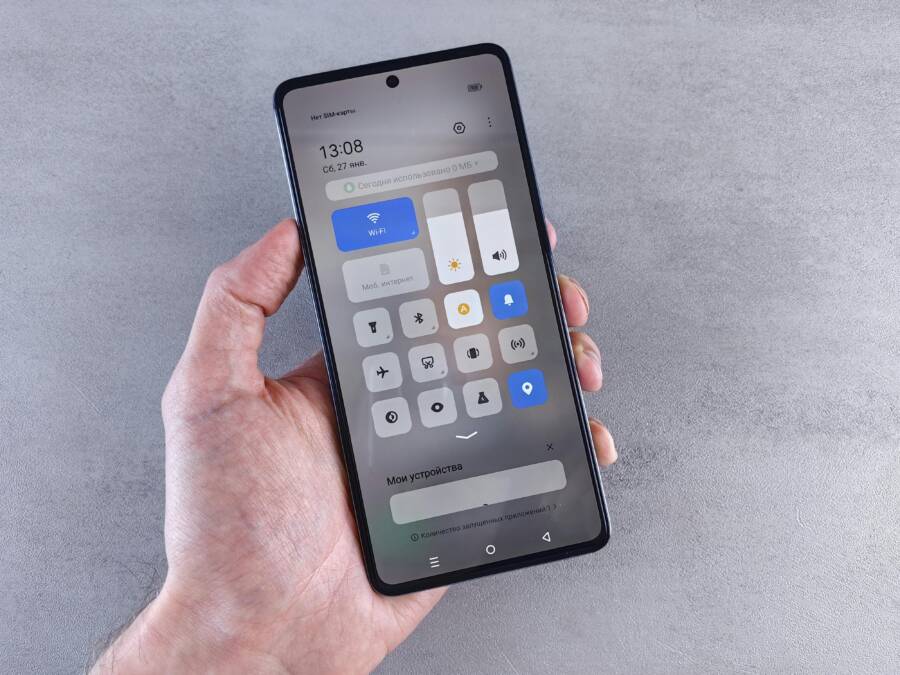
 Photo by Andrey Matveev
https://www.pexels.com/@zeleboba
Photo by Andrey Matveev
https://www.pexels.com/@zeleboba
Turn Off Focus Modes and Check Mail Settings
If your badge numbers look off after an update, Focus modes are a common culprit on iPhone. Focus can mute not just alerts but the badge updates for many apps. Start by reviewing Settings > Focus. If any Focus profile is active, switch it off for a quick test. Then move to Settings > Notifications and select the troublesome app. Ensure Badges are enabled; if they’re off, the app will never show the correct count. Don’t forget to check Mail specifically. Some mail apps only count unread messages in the Primary inbox, leaving items in Other or Junk folders out of sight on the badge. This nuance explains why the number may appear wrong even when there are unread messages. If the problem persists, a quick reference from experienced users notes that turning Focus off resolves many badge discrepancies. For a deeper dive into related iPhone badge behavior, see discussions about how Focus impacts badge updates. https://discussions.apple.com/thread/255901399
To help your readers, consider this practical checklist:
- Disable Focus temporarily: Settings > Focus, turn off all profiles.
- Verify per-app badge settings: Settings > Notifications > [App] > Badges (toggle on).
- Review Mail inbox behavior: ensure unread counts align with Primary inbox expectations.
If you want a visual walkthrough, guides like GuidingTech lay out clear steps to fix notification badges not showing correctly on iPhone. https://www.guidingtech.com/best-ways-to-fix-notification-badges-not-showing-on-iphone/
Update and Validate the Mail App and Notification Settings
Next, confirm that there are no stale settings causing the mismatch. Open the App Store and check for any app updates, focusing on the Mail app if you rely heavily on it. After updating, restart the iPhone to ensure all changes take effect. Then recheck Settings > Notifications for the affected apps and re-enable Badges if needed. If the badge still reads oddly, open the Mail app and confirm the account sync is intact and push notifications are enabled. In some cases, a minor misconfiguration sneaks in after updates, which is why a quick revalidate helps. If you want to explore more official guidance, Apple’s support threads cover common badge and notification quirks after iOS changes. https://discussions.apple.com/thread/255799013
Reader tip: a simple restart after adjusting these settings often resets the tally to reflect unread items accurately. If you’re troubleshooting multiple apps, repeat per-app checks to ensure consistency. For a broader how-to on badge issues across iPhone and other devices, Mac Observer provides actionable steps and screenshots to help you verify each setting. https://www.macobserver.com/tips/how-to/badge-count-mail-messages/
Images and real-world fixes along with user feedback confirm that focusing on Focus removal and mail settings typically resolves most badge inaccuracies quickly. A calm, methodical approach wins here, not a huge tech overhaul.
What to Do If Badges Remain Incorrect
If the badge still miscounts after turning off Focus and adjusting mail settings, consider two targeted actions. First, reset the app’s notification settings by toggling Badges off and on again and then re-enabling notifications for the app in question. Second, perform a lightweight refresh by force closing the app and launching it anew. This approach nudges the system to rescan unread states and update the badge accordingly. For stubborn cases, a broader reset of all settings is a known, though blunt, remedy. It clears personalized preferences that can subtly hide or distort badge counts. Be aware that a Reset All Settings returns iPhone to default configurations without erasing data, but you will need to reestablish Wi-Fi passwords and other preferences after the reset. If you want to see a practical walkthrough of this last resort, Apple support discussions touch on when this step helps troubleshoot notification and badge miscounts. https://discussions.apple.com/thread/255799013
Thousands of People Were Struggling With Money Until They Discovered This One Ancient Secret Hidden in Sound
>>> Unlock It Now <<<

Key takeaway: most badge issues start with Focus or per-app notification toggles. A disciplined, per-app check quickly zeros in on the root cause and gets you back to accurate counts without a full reset.
If you’re following the next section, you’ll see a more hands-on sequence for updating apps, enabling background refresh, and using a measured reset approach. This keeps your badge counts honest across both iPhone and Android ecosystems.
Solve Badge Problems on Android Phones Easily
Badge counts on app icons help you spot unread items at a glance. When Android badges misbehave, it can feel like your phone is giving you the wrong clues. The fix is usually simpler than it seems. Start with the basics and move to targeted resets if needed. This section focuses on practical steps you can take to bring badge counts back in line with reality, focusing on the launcher, background activity, and notification settings across popular Android devices.
Clear Cache, Reinstall, and Check Battery Rules
Moving through Android badge issues often starts with a clean slate. Begin by clearing the launcher cache or data. This removes corrupted badge state that may be stuck, especially after updates. If the problem sticks, uninstalling and reinstalling the launcher or affected apps can force a fresh badge tally from the ground up. Battery optimization can quietly block background updates, so make sure the launcher and the apps you care about aren’t restricted. Go to Settings > Apps & notifications > [Launcher app] > Battery and set it to not optimized, or add exceptions for key apps. A quick reboot after these changes helps lock in the new state. If you still see mismatches, inspect per-app settings for notification dots or badges. For reference, guides from GuidingTech outline common Android badge fix strategies and why launcher caches matter. 6 Ways to Fix Notification Badges Not Showing on Android and official Android guidance on badges explain how background limits affect updates. Modify a notification badge | Android Developers
- Tip: If you use a custom launcher, check its specific options for app icon badges first, as some launchers handle counts differently.
- Quick check: ensure the app isn’t set to “don’t show notifications” or restricted from background activity.
- If you’re troubleshooting multiple apps, repeat these steps for each one and verify consistency.
 Photo by Watford London Media
Battery Rules and Background Activity: Fine-Tune for Consistency
Battery rules can quietly stall badge updates in the background. Start by disabling any aggressive battery saver modes for the launcher and the apps that rely on badge updates. Look for Adaptive Battery settings and set the launcher to run without restrictions in the background. On some devices, you may need to whitelist specific apps in the battery optimization list. This is especially common on Pixel, Samsung, and OnePlus devices where OEM tweaks affect how notifications propagate to the home screen. After adjusting, monitor the badge behavior for a day or two to confirm stability. If problems recur, a deeper probe into the launcher’s own permissions and notification access can reveal hidden blockers. For a broader context, Android’s badge documentation explains how the system treats notification dots and badges, guiding you through proper setup. Android Developers: Modify a notification badge
- Pro move: keep a short list of apps that you rely on for fast badge updates and ensure they always have background permission.
- Common misstep: turning off background activity for a launcher as a blanket rule. Revisit and adjust per app.
- If you’re curious about user experiences and additional fixes, community discussions offer practical tips and real-world tweaks. Pixel Phone help thread on badge counters
Verify Launcher and Per-App Badge Settings
Not all Android launchers handle badges the same way. Start with the default launcher if possible, then compare it to a well-known third-party launcher to see if the numbers align. For the default launcher, head to Settings > Apps & notifications > App icon badges and confirm the toggle is on. Then check each app that shows a badge to ensure the permission to display badges is granted and that the app is allowed to run in the background. If a particular app still miscounts, clearing that app’s cache or storage can reset its badge state without losing data. Finally, ensure there are no pending OS updates that might affect how badges refresh after installation. If you want more step-by-step visuals, guides from GuidingTech provide practical layouts for Android badge fixes. 6 Ways to Fix Notification Badges Not Showing on Android and Android’s own badge documentation are good anchors for this process. Modify a notification badge | Android Developers
- Follow-up check: after changing launcher settings, reboot and observe a few notification events to confirm the badge updates occur as expected.
- Quick diagnostic: if a single app remains stubborn, uninstall and reinstall that app while keeping launcher settings intact.
If you’re following this section, you’ll notice a consistent theme: badge accuracy improves when you restore permissions, refresh caches, and respect background activity rules across the launcher and per-app settings.
Images and real-world fixes support these steps, with users reporting better accuracy after clearing caches and relaxing background limits. For a concise review of badge behavior across Android devices, consult developer and tech-community resources.
There Is a Frequency That the Wealthiest Families Have Used for Generations and Most People Will Never Know It Exists
>>> Open the Door <<<
Badges Still Wrong? Try These Last Steps
If you’ve poked around settings and tried the quick fixes but the badge counts still don’t line up, it’s time to fold in a few last steps. These are practical, low-risk actions that often seal the deal when the basics miss. Think of them as the final checks you run before calling it a day. The goal is simple: restore trust in what you see on your home screen, whether you’re using an iPhone or an Android phone. Let’s walk through them.
Reset app notification settings and perform a targeted refresh
When badges stay stubborn, start by resetting just the notifications for the problem apps. This avoids a full device reset while giving the system a fresh slate to re-calculate unread counts. Here’s a concise approach:
- Turn badges off for the problematic app, then turn them back on after a brief pause.
- Force close the app and reopen it to trigger a fresh check of unread items.
- Repeat for any other app that shows a miscount, then re-check all badges.
If you’re on iPhone, this means Settings > Notifications > [App] > Badges, toggle off then back on. On Android, go to Settings > Apps & notifications > [App] > Notifications and re-enable your badge option. This targeted reset often clears phantom counts without disrupting other settings. For a broader walkthrough, you can refer to guides that cover per-app notification toggles and badge behavior across devices. https://www.guidingtech.com/fix-iphone-message-notification-badge-not-going-away/
Clear launcher cache or reset launcher settings (Android)
Android badge behavior is tightly tied to the launcher. A hiccup in the launcher cache can freeze a stale badge count. If you’ve tried the per-app reset and still see wrong numbers, clearing the launcher’s cache or, in some cases, resetting launcher settings helps reset the badge state. Steps vary by device and launcher, but the general path is:
- Open Settings, find your launcher under Apps & notifications.
- Clear cache first; if needed, clear data (note this may reset home screen layout).
- Reboot the phone and reconfigure badge settings if your launcher supports them.
If you use a third-party launcher, check its badge options specifically, as some launchers handle counts differently. For a deeper dive, see guidance that explains why launcher caches matter and how to reset them. https://www.guidingtech.com/top-ways-to-fix-notification-badges-not-showing-on-android/
Verify background activity permissions and re-authorize apps
Background activity permissions can block badge updates without you realizing it. Even after you refresh a badge, a misconfigured permission can keep the count out of date. Do a quick audit:
- Confirm apps have permission to run in the background.
- Ensure the launcher or home screen has permission to post badges.
- Verify no battery optimization rule blocks the app from waking up to update its badge.
On iPhone, head to Settings > General > Background App Refresh and ensure the key apps are allowed to refresh. On Android, check Settings > Apps & notifications > [App] > Battery, and set it to allow background activity or exclude it from battery optimizations. After re-allowing these permissions, monitor badge behavior for a day or two to confirm stability. If you want an official reference on how Android manages background work for notifications, this resource helps: https://support.google.com/android/answer/6088915?hl=en
Consider a light factory reset as a last resort (with caveats)
If all else fails, a factory reset can clear stubborn badge issues caused by deep software quirks. This is a serious step. It wipes personal data and returns the device to its original state. Back up essential information first. Then, perform the reset via the device settings:
- Android: Settings > System > Reset > Factory data reset (or similar path for your model).
- iPhone: Settings > General > Transfer or Reset iPhone > Erase All Content and Settings.
After the reset, restore your apps from a backup and re-check badge behavior. Do not expect app data to transfer automatically in some cases, so be prepared to reconfigure key settings. If you’d like a reference that outlines factory reset procedures and what to expect on different devices, consult official guidance from device makers. https://www.android.com/intl/en_in/articles/how-to-reset-android-device/
https://support.google.com/android/answer/6088915?hl=en
Key takeaway: use a factory reset only when the device behaves erratically across many apps and other fixes have not helped. It resets the system to a fresh state and often resolves stubborn badge miscounts.
When to escalate or seek help
If you’ve methodically worked through these last steps and badges still misbehave, there may be a deeper issue tied to your account or a specific app’s sync. Consider these next moves:
- Check for account-wide notification issues. Sometimes logging out and back into the account resolves cross-app sync problems.
- Look for app-specific bug reports or updates that address known badge issues. Developers sometimes fix these in follow-up updates.
- Reach out to official support channels. Apple Support and Google’s Android Help Center can offer device- and app-specific guidance.
For readers who want official reference points on Android badge behavior or device reset topics, the links above provide solid starting points. They’ll walk you through the exact steps for your device and help you avoid common pitfalls.
Final note: badges are small, but their accuracy matters. A reliable badge count keeps your daily flow smooth and reduces the mental load of checking each app manually. The last steps above are designed to quickly restore trust in what you see on your home screen, whether you’re using a sleek iPhone or a feature-packed Android phone. If you’re ready, grab a moment to run through these steps and you’ll likely see a clearer, more trustworthy tally appear on your icons.
Conclusion
Smartphone badges should simplify your day, not complicate it. Start with quick toggles for badges, then move through per app and launcher settings to restore accuracy. Most fixes are simple and work fast, so you can reclaim a trustworthy glance at your home screen.
Across iPhone and Android, focus on per-app badge toggles, background activity, and launcher behavior. If a count looks off, turn badges off and back on, force close the app, then reopen it. Restart the device as a quick sanity check, and verify that the apps you rely on have permission to update in the background. These small steps fix the majority of miscounts on a busy smartphone.
If issues persist, apply the targeted steps in the order above and note any pattern. A calm, methodical approach beats a full reset, and most readers will see accurate badges again within minutes. Share in the comments which fix worked for you, and I’ll highlight common wins in a future guide. With clearer badge counts, your home screen stays uncluttered, and you can focus on what truly matters.
He Was Drowning in Bills and Burnout Until a Simple Daily Ritual Rewired His Brain for Wealth in Less Than a Week
>>> Start Your Shift Today <<<
