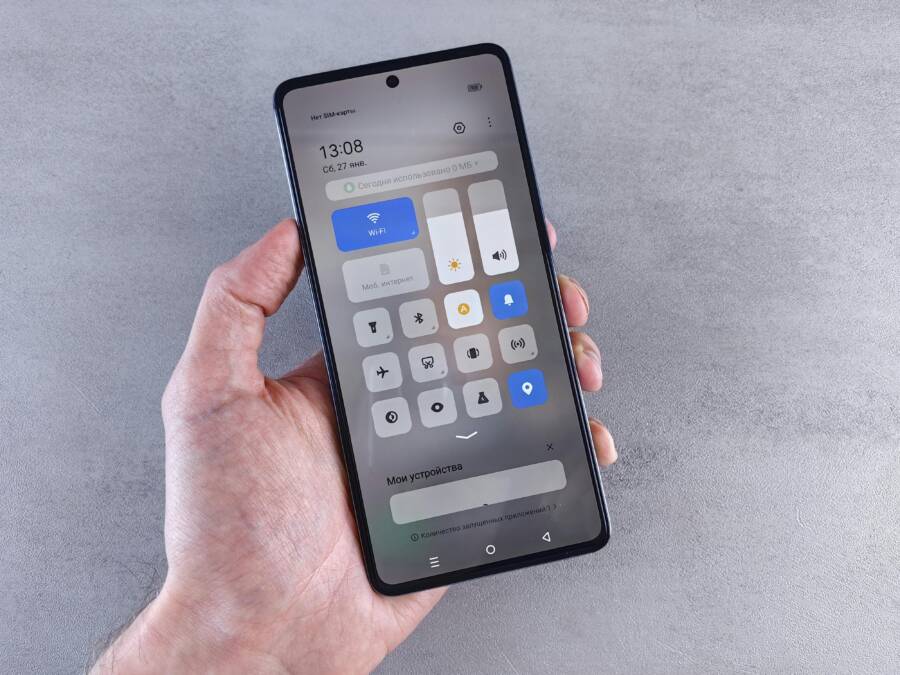
Those nagging red dots or numbers on your app icons grab your attention every time you glance at your home screen. They signal unread messages, emails, or alerts from apps you might not even care about right now. It’s distracting, isn’t it?
Icon badges are those small visual cues on smartphone app icons. They show notification counts to keep you in the loop. But they often pile up and create clutter.
Many people want them gone for good. Without badges, you cut down on stress and stay focused longer. Your screen looks clean and calm too.
The good news? You can turn off icon badges on both iPhone and Android. No need for third-party apps or complicated tricks. Built-in settings handle it all.
This guide walks you through simple steps for each platform. You’ll learn per-app tweaks and broader options where available. Get a distraction-free phone in minutes.
iPhone users can disable badges app by app through Notifications settings. Android offers even more control, like global switches on some devices. Follow along, and badges vanish fast.
Imagine unlocking your phone without that constant pull. No more unnecessary pings stealing your focus. Just a sleek, peaceful interface.
Ready to reclaim your screen?
Why Turn Off Icon Badges on Your Smartphone
Those red dots and numbers on your app icons pull you in like magnets. You glance at your smartphone, and suddenly you’re checking emails or messages you don’t need right now. Turning them off frees you from that cycle. You gain control over your attention and create space for what matters.
Icon badges aim to keep you updated. They count unread items from apps like Messages or Mail. But they often backfire. Piles of numbers create urgency where none exists. Your home screen turns into a to-do list you can’t ignore. Disable them, and you decide when to engage.
Smartphones bombard us with info all day. Badges add to the noise without adding value. Studies show constant alerts raise stress levels. People check phones over 150 times daily, often triggered by these cues. Remove badges, and you break the habit.
Here are key reasons to make the switch.
Reduce Constant Distractions
Badges grab your eyes every time you unlock your phone. That 3 on Messages or 15 on Email? It nags until you act. You lose minutes swiping through apps, only to find nothing urgent.
Think of your screen as a dashboard. Badges clutter it with false alarms. Without them, apps fade into the background. You focus on one task at a time. Work sessions stretch longer. Simple chores finish faster.
Many users report fewer interruptions after disabling badges. Your smartphone stays handy for calls or quick looks, but it stops demanding attention. You stay present in conversations or drives.
Lower Anxiety and Stress
Ever feel tense from badge overload? Those numbers build pressure. You worry about missed replies or piling inboxes. It’s called notification anxiety, and it wears you down.
A psychiatrist notes that turning off phone alerts cuts mindless scrolling and boosts mental health (Notification Anxiety: Benefits of Turning Off Notifications). Badges fuel the same issue. They create a sense of backlog, even for low-priority stuff.
On your smartphone, badges mimic urgency. Disable them, and calm returns. You check apps on your schedule. Stress drops. Sleep improves when your screen doesn’t buzz with counts at bedtime.
Key takeaway: Fewer visual cues mean less mental load. You breathe easier.
Boost Daily Productivity
Notifications steal focus. Badges do too, by tempting you to multitask. Studies link them to shorter attention spans and lower output.
One report highlights how silence from turned-off alerts sharpens productivity (The Power of Silence: Turning Off Notifications Enhances Productivity). Apply that to badges. No numbers mean no quick peeks that turn into 20-minute detours.
You batch checks instead. Open Mail once an hour. Reply to texts in blocks. Tasks complete quicker. At work or home, you achieve more with less effort.
Consider this routine: Start your day badge-free. Tackle priorities first. Your smartphone supports you, not distracts you.
Get a Cleaner, Calmer Home Screen
Cluttered icons look messy. Badges make it worse with scattered red dots. A clean screen feels fresh and organized.
Without them, colors pop. Icons align neatly. Your smartphone grid invites use, not overwhelm. It’s like tidying a desk; everything works better.
Apps still notify through banners or sounds if you want. But the home screen stays serene. Long-term users love the minimalist vibe. It sets a peaceful tone from the first unlock.
You might miss badges at first. But soon, you’ll wonder why you tolerated the mess. The change sticks because results show fast.
Step-by-Step Guide to Disable Badges on iPhone
Badges can be helpful, but they often pull focus away from the task at hand. This section gives you two practical, easy-to-follow approaches to reduce or resolve badge distractions on iPhone. You’ll learn how to hide badges temporarily with Focus modes and how to diagnose common badge problems, so your home screen stays clean and calm.

Photo by Andrey Matveev
Using Focus Modes for Temporary Badge Hides
Focus modes offer a targeted way to hide badges without changing app settings permanently. When you enable a Focus, your iPhone filters alerts and badges for selected people and apps, keeping interruptions at bay during work, study, or sleep. This keeps the screen clean while you stay in control of what you see.
To use this feature, follow these steps:
- Open Settings and tap Focus.
- Choose a Focus mode (Work, Personal, Sleep, or a custom one you’ve created).
- Tap People or Apps to select who or what can still notify you.
- Go to Options and toggle Hide badges on.
Why this works well: you get a distraction-free window without permanently disabling notifications. When you turn the Focus off, badges and alerts resume as normal, so you never miss important updates. It’s especially useful for long work sessions or winding down at night.
For quick reference, this approach works across iPhone models and iOS versions, and you can tailor each Focus to fit your routine. If you frequently switch between tasks, Focus modes offer a reliable way to reclaim your attention without editing per-app settings every time.
Fix Common iPhone Badge Problems
Sometimes badges don’t reflect reality, or they stubbornly stay on even when you’ve dismissed the content. A few common issues and fixes can restore normal behavior quickly.
Start with the basics:
- Check that the app’s badge setting is enabled in Settings for the specific app. Some apps control badges separately from general notifications.
- If a badge count seems off, try refreshing the app data. For Mail specifically, badge counts can get out of sync when accounts are added or removed, or when a server update occurs.
If badges remain stuck, try these steps:
- Review Notification settings for the troublesome app and ensure Badges are turned on.
- Restart your iPhone. A simple reboot often clears stuck badge states.
- If the issue seems isolated to Mail, verify that all accounts are configured correctly and that the “Badges” option is enabled for each account.
When badges persist despite fixes, consider checking for software updates. iOS updates often contain bug fixes for notification behavior. If needed, you can temporarily reset the app’s settings by toggling notifications off and back on, or reinstalling the affected app.
Key takeaways: badge accuracy can drift after app or iOS updates. A quick restart plus a review of per-app notification settings usually resolves it. If the problem persists, don’t hesitate to consult support threads for specific apps, such as Mail, which frequently show up in badge-related discussions.
Relevant resources:
- How to set up and customize Focus on iPhone for efficient badge management and distraction control. Set up a Focus on iPhone
- Guidance on silencing or allowing notifications for a Focus on iPhone. Allow or silence notifications for a Focus on iPhone
- General tips for addressing badge counts in mail and messages. How To Fix Badge Count of Mail and Messages No Longer …
These steps help keep your iPhone badge behavior predictable. If you want a hands-on walkthrough, Apple’s support articles walk through Focus and per-app controls in detail, and you can apply the same approach to any paired devices you manage.
Easy Ways to Turn Off Badges on Android Phones
Badges on app icons can be helpful reminders, but they often become visual clutter. If you want a calmer home screen, you can disable icon badges on most Android devices. The exact steps vary by maker and launcher, but you’ll find reliable methods for Samsung devices and for Pixel or other Android brands. Below you’ll see two clearly laid out approaches that keep your phone tidy without stripping essential alerts.
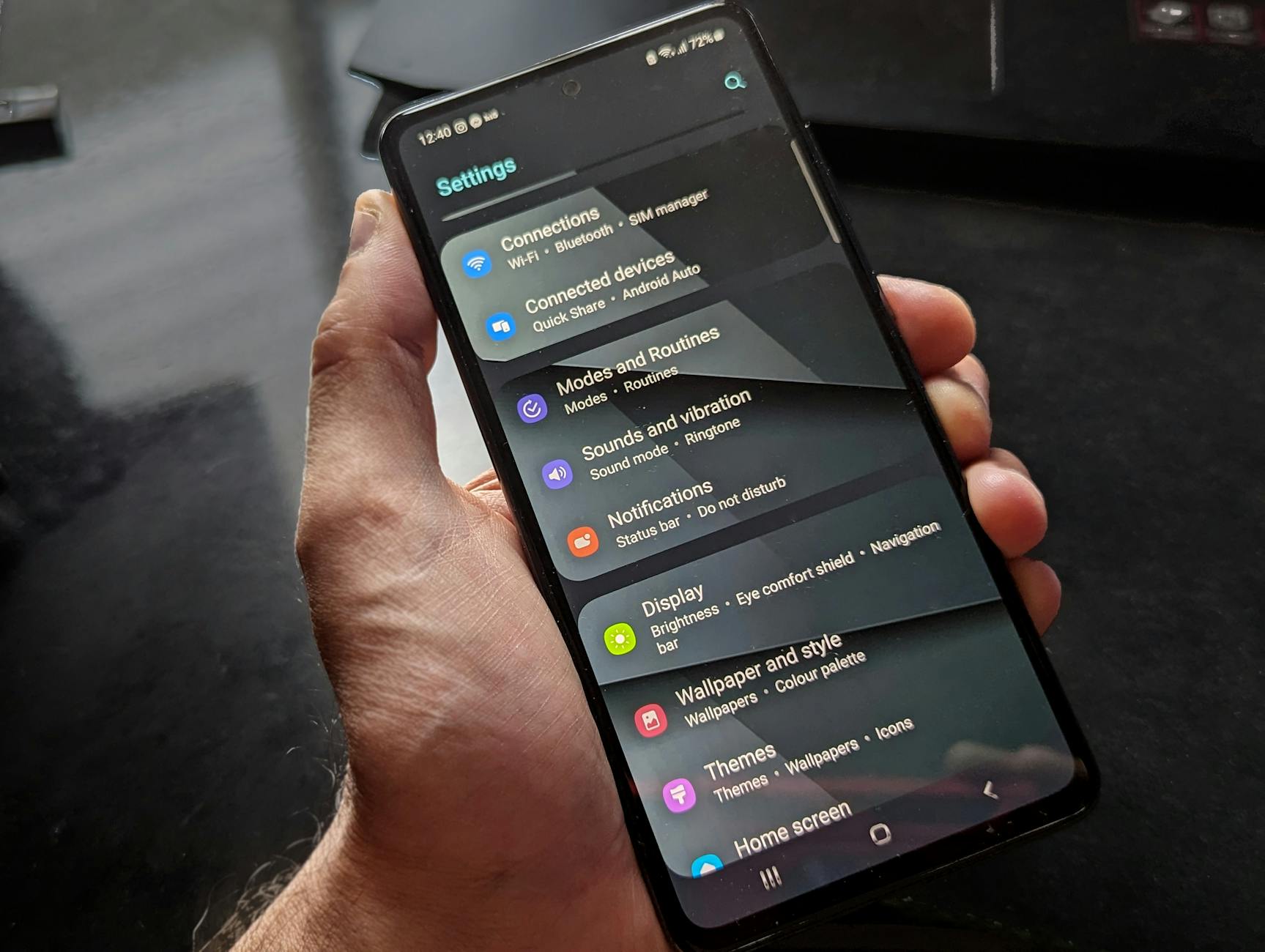 Photo by Watford London Media
Samsung One UI Badge Controls
Samsung’s One UI gives you direct control over badge visibility, either per app or globally. If you want a quick, universal off, use the global setting. For per-app tweaks, you can leave badges on for essential apps and disable them for the rest. The most straightforward path is to switch badges off at the system level so you don’t have to manage each app individually.
To disable badges, you can either long-press the home screen icon and choose “App info” to open the app’s notification controls, or go straight through Settings. In Settings, navigate to Notifications, then look for “Badge” or “App icon badges.” Toggle off the global option to remove all dots and numbers from your home screen. If you prefer to fine tune, try per-app adjustments by opening the app’s notification settings and turning Badges off there. This approach preserves important alerts while keeping the rest discreet. For quick reference, Samsung provides detailed guidance on notifications and badges in their support articles, including steps to control app notifications on Galaxy devices. Control app notifications on your Galaxy phone or tablet
Why this matters: a single off switch saves time and reduces home screen clutter. It also helps if you share a device with family members who don’t need constant reminders.
Tips for Pixel and Other Android Brands
Stock Android gives you a clean slate, and many third‑party launchers offer badge management as well. If your device isn’t a Samsung, start with the built‑in notification settings. Open Settings, then Apps & notifications, and tap Notifications. Some devices let you disable badges globally from this screen; others require you to dive into each app’s settings to turn off Badges specifically. If your launcher supports it, you may find a dedicated Badges toggle within its settings. Using a different launcher can give you a more minimal look with fewer prompts, or provide per‑app control if you only want to silence certain apps. In practice, a quick per‑app review works well: identify the apps that push unnecessary counts and switch their badges off while leaving the rest intact. This approach helps you maintain essential alerts while enjoying a calmer home screen.
For many users, opting for a badge‑free launcher is the simplest route. It keeps your home screen clean while preserving functionality. If you want a quick sanity check, remember to test a couple of apps after applying changes so you know nothing important slips through the cracks. If you want more hands‑on help, reputable guides and community forums often walk through device specific steps that are easy to adapt to your model.
Extra Tips for a Clean, Badge-Free Phone Screen
Even after you’ve turned off most icon badges, a few practical tweaks can keep your home screen clean and your attention focused. These tips help you stay organized, reduce visual clutter, and preserve quick access to the apps that truly matter. Think of your phone as a well organized workspace: every element has a purpose, and badges aren’t pulling you in every time you glance at the screen.
Use Focus and Do Not Disturb to Gate Alerts
Focus modes aren’t just for silencing notifications. They’re a smart way to hide badges during tasks that require deep work or downtime while keeping essential alerts available when you flip the switch back. By tailoring Focus to your workflow, you maintain a calm home screen without losing the ability to respond when it matters.
- Create a Work Focus that hides badges for nonessential apps.
- Schedule a Sleep Focus to keep the screen serene at night.
- Add exceptions for contacts or apps you need in specific moments.
This approach lets you reclaim blocks of time without permanently altering per-app settings. When the Focus ends, badges resume their normal behavior, ensuring you never miss truly urgent updates.
For a deeper dive, see how Apple’s Focus features help manage badge visibility and notification behavior. You’ll find setup guidance and per-app controls that fit a busy lifestyle. Set up a Focus on iPhone
Per-App Badge Calibration: Fine-Tuning What Remains Visible
If you still want badges on some apps, a targeted approach works best. Go through your most-used apps and turn badges off where they aren’t essential. Reserve badges for critical channels like Messages, Phone, or Email, where missing a notification could cause real delays.
- Start with a quick audit: which apps push non-urgent counts? Disable badges for those.
- Keep badges on for the few apps where counts truly matter to you.
- Revisit quarterly as your routines change.
This per-app strategy gives you a balanced screen: you stay informed about important items while avoiding badge overload. If a badge misrepresents an app’s activity, revisit its notification settings or refresh the app data to keep counts accurate.
If you want guidance on per-app controls and related tips, Apple provides step-by-step guidance for modifying per-app badges and other notification settings. Move apps and widgets on the iPhone Home Screen
Quick Visual Decluttering: Streamline Your Home Screen Grid
A tidy layout makes badges less intrusive. Consider organizing apps into folders by function and limiting the number of pages you show on the home screen. A simpler grid reduces eye fatigue and helps you spot the apps you actually use.
- Group communication apps, productivity tools, and media into clean folders.
- Place the most-used apps within easy reach on the first page.
- Use a minimalist wallpaper to enhance contrast and readability.
If you’re looking for inspiration on minimalist layouts, a minimalist approach to iPhone setup can be transformative. It helps you reduce distractions while keeping essential features accessible. iOS minimalist setup ideas
Smart Alternatives to Badges: Banners, Sounds, and Widgets
If you still want a signal that something changed but hate the badge itself, adjust how you’re notified. Some apps allow alternative cues like banners or sounds. Widgets can also provide a subtle, glanceable update without counting items on icons.
- Enable banners or sounds for only the most critical apps.
- Use widgets that show summaries at a glance instead of popping up badge counts.
- Reserve banners for time-sensitive items and keep silent for everything else.
This approach preserves situational awareness while reducing constant icon-based cues. It keeps you in control without reintroducing the badge habit.
Quick Fixes for Common Badge Glitches
Badges can misbehave after updates or account changes. A short diagnostic routine keeps things predictable:
- Double-check that the app’s badge settings are enabled if the app controls its own badges.
- Refresh or re-sync the app data, especially for Mail or messaging apps.
- Restart the device to clear stuck badge states.
- Update the operating system and the apps involved to fix known bugs.
If a stubborn badge persists, search for device-specific fixes. Community threads and official support often address the exact scenario you’re facing. For example, many users find relief by restarting the affected app or reconfiguring its notification options.
Practical Example: Real-World Steps You Can Try Today
- On iPhone: Create a Work Focus with Hide badges enabled and add only essential apps to allow notifications. Then, place your most-used tools on the first home screen and tuck other apps into folders. If Mail shows outdated counts, refresh accounts and verify that the Badges option is enabled per account.
- On Android: Open Settings > Apps & notifications > See all apps. Tap an app and turn off Badges if it isn’t critical. For Samsung devices, you can toggle a global badge setting in Settings > Notifications > App icon badges. If you use a different launcher, explore its badge controls for a similar effect. Control app notifications on your Galaxy phone or tablet
When It Might Be Worth Re-Enabling Badges
There are moments when badges become handy again. If you’re waiting on a time-sensitive message, enabling badges temporarily can speed up your response. The key is to switch them back to the quiet state once the urgency passes.
For a broader view on how to manage badge behavior across platforms, consider these resources that outline practical steps for both iPhone and Android users: they show how to tailor notifications and keep a clean home screen. How to set up and customize Focus on iPhone
Guidance on silencing or allowing notifications for a Focus on iPhone
Takeaways: The Path to a Calm, Productive Screen
- Focus modes offer temporary relief without permanent changes.
- Per-app badge control helps keep only the essential signals.
- A clean layout reduces visual noise and promotes focus.
- If badges fail, quick checks and updates usually restore accuracy.
For readers seeking practical inspiration on decluttering your iPhone home screen, the links above provide reliable how-tos and real-world approaches. As you apply these steps, you’ll notice a quieter, more focused smartphone, ready to support your day rather than pull you away from it.
Conclusion
Turning off icon badges on your phone is a quick, practical step that pays off in a calmer, more focused smartphone experience. On iPhone, you can disable per app badges in Settings > Notifications and, for temporary relief, use Focus modes to hide badges without losing essential alerts. For Android, a global toggle is available on Samsung devices via Settings > Notifications > App icon badges, with per app tweaks also possible, and stock Android or other launchers often support a similar approach in Apps & notifications or via the launcher settings. These easy wins reduce visual clutter, cut downtime spent checking nonurgent counts, and keep your home screen clean while preserving important signals.
If you want even gentler control, combine per app badge adjustments with a minimal home screen layout and a focused notification strategy. Return to your setup after a couple of weeks to make sure the changes still fit your routine. Share your results and any subtle gains in concentration or productivity—your experience could help others reclaim their screen time. Focus on fewer distractions and stress less with a simpler, more intentional phone experience.