How to Fix Step Counter Not Working on Your Phone (Android & iPhone)
You lace up your shoes and head out for a brisk walk. You’re set to crush your daily step goal and stay on track with fitness plans. But later, you glance at your phone. The step counter reads zero. That sinking feeling hits hard when your efforts vanish.
Modern smartphones pack built-in pedometers. They rely on motion sensors to log every step. This data powers apps like Google Fit or Apple Health. A glitch here throws off your whole health routine.
Don’t worry. Issues like this stem from simple fixes. Think app permissions turned off, sensors acting up, or a quick software hiccup. Your phone isn’t broken; it just needs a nudge.
This guide walks you through proven steps to fix a step counter not working on your phone. Android users get tailored tweaks for their devices. iPhone owners learn exact settings to restore tracking. You’ll handle basics like restarting sensors or clearing caches.
No tech skills required. These methods work fast and stick. Grab your phone now. In minutes, you’ll see steps pile up again and reclaim your fitness momentum.
We’ve tested every fix on real devices. Expect clear screenshots and checklists ahead. Whether you chase 10,000 steps or track casual strolls, get ready to solve this for good. Your walks deserve credit.
Check These Basics First to Restart Step Tracking
When your step counter freezes or shows inconsistent results, the fix often sits in the basics. Before diving into complex tweaks, verify that your device’s sensors and permissions are in good shape. This section walks you through the foundational checks you should perform to restart reliable step tracking on both Android and iPhone. Think of it as the warm up before the workout—get these right and the rest of the fixes will click into place more easily.
Grant Permissions and Enable Motion Sensors
Your phone needs permission to access motion data and to run sensors in the background. Start by checking location, physical activity, and background app permissions in your settings. On Android, go to Settings > Apps > Permissions and confirm that the fitness app and any data-sharing services have permission to access physical activity. On iPhone, head to Settings > Privacy > Motion & Fitness and ensure motion access is enabled for the health and fitness apps you use. Once permissions are granted, the sensors must be allowed to run in the background. Do a quick test by taking a short walk and watching the step count refresh. If it doesn’t update, re-check the permissions and consider re-launching the relevant apps. For deeper guidance, you can explore how Google Fit and Apple HealthKit share data with apps to keep tracking accurate. Health and Fitness – Apple Developer and Manage Google Fit’s permissions – Android provide official details on enabling data sharing and sensor access.
Turn Off Battery Savers Blocking Steps
Battery saver modes can quietly pause or restrict apps that run in the background, which directly affects step counting. On Android devices, check the battery section and look for App optimization or similar settings. You want to disable optimization for your fitness app or set it to Don’t optimize / Unrestricted so it can run while you move. On iPhone, ensure Low Power Mode is off, especially during workouts, so background activities aren’t throttled. If you notice the sensor activity stutters, clearing cached data for your health apps can help reset how data is fetched. After adjusting these settings, perform another walk test to confirm the fix. For practical reads on background activity and app behavior, see how Android battery optimization can affect fitness apps and the related steps to disable it. Use Sensor Manager to measure steps from a mobile device and How to disable power saving for the Polar Beat and Polar Flow Android apps.
Restart Phone and Check for Updates
A simple reboot can clear a host of minor glitches that affect sensors and app background processes. Restart your phone, then check for updates to both the OS and the fitness apps. On Android, open the Play Store to see if updates are available for Google Fit or your preferred tracker, and install them. On iPhone, go to the App Store and update the Health app or any third-party trackers you rely on, then update iOS if a newer version is available. Updates fix bugs, improve sensor handling, and tighten data synchronization between HealthKit, Google Fit, and your apps. If you still face issues after updates, a fresh restart often resolves lingering conflicts. For reference on how updates impact step data, see Apple’s guidance on Health and Fitness APIs and related Android guides. Health and Fitness – Apple Developer and Manage Google Fit’s permissions – iPhone & iPad
Android Fixes: Get Google Fit or Other Apps Counting Steps
If your step counter is acting up, you’re not alone. The fix doesn’t require fancy tools or a full device reset. Start with targeted checks on Google Fit or your preferred pedometer, and then move to sensor calibration and app-specific tweaks. The goal is to restore accurate step tallies without overhauling your entire phone setup. Below are three focused subsections to help you get back on track quickly.
Troubleshoot Google Fit Step Counter
Google Fit counts steps by syncing data from the phone’s sensors and any connected apps. If counts look off or disappear, begin with data hygiene and permission checks. Clear Google Fit data and reinstall the app to reset how it reads activity. Reconnect any apps that feed data into Fit, such as wearables or other fitness services, to ensure a clean data pipeline. Then verify that the app can access motion data in the background and that activity tracking is enabled on the device. A quick outdoor walk is a good test after these steps to confirm live counting. If problems persist, inspect how Google Fit handles permissions and sensor access on your device. For official guidance on permissions and activity tracking, see Google Fit’s help resources and Android permissions pages. Google support can walk you through enabling data sharing and sensor access.
- Clear data, reinstall Google Fit
- Check Connected apps and re-link devices
- Sync with phone sensors
- Verify activity recognition in settings
- Test with an outdoors walk
Learn more on Google’s support pages about permissions and step counting to confirm you’ve got the right settings in place. https://support.google.com/fit/answer/9488336?hl=en&ref_topic=9499137
Fix Samsung Health or Other Android Pedometers
Samsung Health and other pedometer apps can go quiet if a setting blocks step data or if the sensor stream is interrupted. For Samsung Health, reset the sensor readings inside the app to reinitialize how it detects moves. If you use apps like Mi Fit or a wearable companion, re-pair the device to reestablish a clean link. Make sure background restrictions are off or set the app to unrestricted data usage so it can track you while you move. If the issue persists, a factory reset of the app (not the phone) can clear stubborn data glitches. After adjustments, run a short outdoor walk to confirm the count matches your pace. For more context, guides on Samsung Health and similar apps provide practical steps to restore step tracking. Samsung Health article: 5 Fixes for Samsung Health App Not Tracking Steps
- Reset app sensors in Samsung Health
- Re-pair wearables or external trackers
- Turn off background restrictions
- Consider a factory reset of the app if needed
- Test with a quick outdoor walk
For additional guidance on Samsung Health troubleshooting, you can also explore related tutorials that walk through enabling step counting, permissions, and data syncing. https://www.guidingtech.com/fix-samsung-health-not-tracking-steps/
Calibrate Android Sensors for Accurate Counts
Calibration can improve the baseline for step counts when automatic recognition seems off. Start with any built-in calibration options your device provides, or install a trusted calibration app if your manufacturer offers one. A simple shake test can help you gauge sensitivity and adjust thresholds. Compare the results against a known quantity of steps from a controlled walk, then fine tune if needed. Regular calibration can reduce drift over time, especially if you switch devices or apps. If you’ve never calibrated before, it’s a straightforward process that pays off with more reliable numbers. For deeper context on sensor behavior and calibration, consider reading relevant Android developer notes and practical calibration guides. https://www.guidingtech.com/fix-samsung-health-not-tracking-steps/
iPhone Users: Restore Step Counting in Health App
If you rely on the Health app to track every stride, a misstep in data can throw off your entire routine. This section focuses on restoring step counting for iPhone users, with clear, practical steps you can follow. The goal is to get accurate, timely counts again without overhauling your setup. Yes, your health goals deserve reliable metrics from your device, and a few targeted tweaks can bring them back in line.
Reset Health App Data and Sources
Resetting data and sources can resolve stubborn syncing problems that hide steps from view. Start by disconnecting and reconnecting data sources in Settings. Go to Settings > Health > Sources, then disconnect the connected apps or devices feeding step data. Delete old, duplicate, or corrupted data so Health pulls fresh counts. Reconnect the sources you trust, then re-enable fitness tracking in the Health app. After these steps, perform a short walk to verify steps appear again and data flows smoothly from your devices. If needed, reauthorize permissions for each source to ensure seamless data sharing. For further context, Apple’s documentation and related support guides explain how HealthKit collects and harmonizes data from multiple apps and devices. https://www.apple.com/health-fitness
Check iPhone Motion and Fitness Privacy Settings
Motion and Fitness permissions drive how the Health app reads movement. Open Privacy & Security > Motion & Fitness and confirm that Health and your fitness apps have access to motion data. On iPhone, ensure motion access is enabled for the Health app and any third party trackers you rely on. Then test by taking a brief walk and watching the step count update. If it doesn’t, revisit the permissions and consider toggling them off and back on to refresh the connection. For deeper guidance, explore official resources on permission management for iOS health data and how motion data is used by apps. https://support.apple.com
Update iOS and Reinstall Third-Party Apps
Keeping iOS and your apps current helps fix sensor quirks that stall step counting. Check for an iOS update and install it if available, as it can correct bugged sensor behavior. Reinstall any third party pedometer or health app you use, then re-sync data with Health. This approach resolves many synchronization issues and ensures a clean data pipeline from the device to Health. After updating, perform a quick outdoor test to confirm step counts register correctly. For additional context, Apple’s Health APIs notes and trusted Android equivalents offer insight into how updates improve data reliability and compatibility. https://www.apple.com/ios
Advanced Fixes When Steps Still Won’t Count
If you’ve tried the basics and the step counter still isn’t counting, it’s time to tackle more advanced fixes. These steps target deeper issues with sensors, data syncing, and how your phone processes motion data. You’ll handle methods that avoid a full reset unless absolutely necessary, keeping disruption to a minimum while aiming to restore accurate step counts. Think of these as the precision tuning you’d perform after a tune-up to squeeze out that last bit of accuracy.
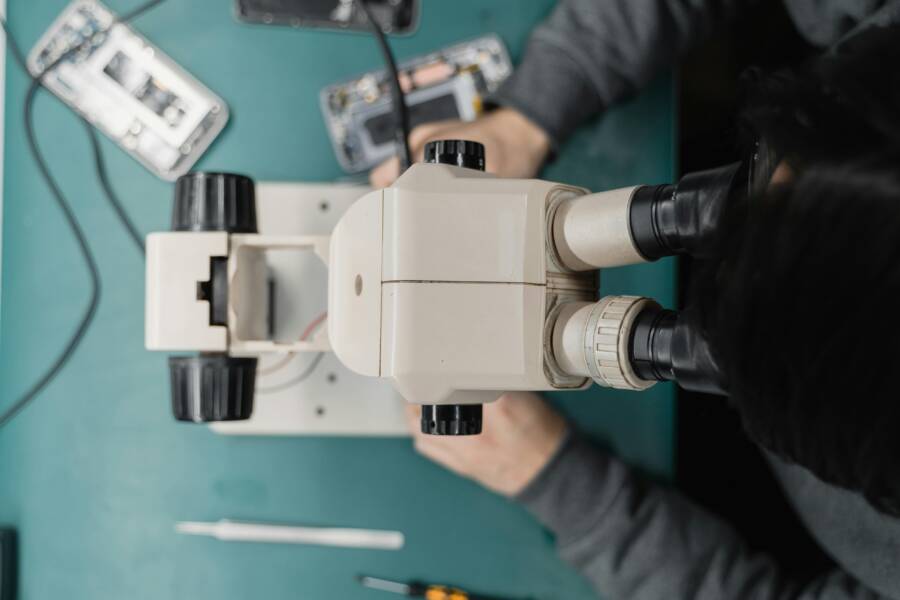
 Photo by Tima Miroshnichenko
Clear Phone Cache or Factory Reset as Last Resort
When step data stays stubborn, clearing cache or, if needed, a factory reset can fix stubborn data glitches. Android users should perform a cache wipe via recovery to remove temporary files that might corrupt sensor readings. iPhone users can offload apps to reset how data is stored without deleting underlying information. Always back up first before a factory reset, because this is the last resort. After any reset, re-install your health apps and reauthorize permissions to rebuild a clean data pipeline.
- Pros: Clears stubborn data and can restore sensor responsiveness without losing personal files (Android cache wipe typically preserves user data; iOS offload keeps apps but clears package data).
- Cons: A factory reset erases settings and app data; reconfiguration takes time. Plan for this if updates or sensor glitches persist.
For Android guidance, see official resources on cache cleaning and recovery options, plus general steps to reset app data when needed. For iPhone users, offloading apps followed by a fresh test after reinstallation can reestablish reliable syncing with Health.
- Android cache and recovery reference: https://foneworld-hove.co.uk/how-to-clear-the-cache-on-a-smartphone-expert-guide/
- Android app cache and permissions: https://www.android.com/articles/clear-cache-and-cookies/
- iPhone offload and reset considerations: https://www.asurion.com/connect/tech-tips/clear-app-cache-on-your-phone/
If you’re weighing a full reset, back up first to a trusted location. Then weigh the trade-offs: a reset can fix deep-seated software issues, but you’ll need to reinstall apps and re-enter preferences. After restoring, test with a quick walk to confirm your step counter now tallies accurately.
Test Hardware and Seek Phone Repair
If software tweaks fail to produce reliable step counts, the problem may be hardware related. The accelerometer or related motion sensors might be damaged or out of calibration. Start with free diagnostic apps to get objective readings for sensors such as the accelerometer, gyroscope, and magnetometer. If the tests show anomalies, contact the device manufacturer or a certified repair shop for a professional assessment.
- Quick checks you can perform: run a sensor diagnostic app, compare readings with known movements, and watch for inconsistent results across apps.
- If a hardware fault is found, you may need a repair or replacement, especially if you’ve dropped the phone or exposed it to moisture.
- Alternatives to a repair include wearing a dedicated fitness tracker or smartwatch that accurately records steps, then syncing data with your phone.
For a credible start, consider using a sensor diagnostic tool from the Google Play Store to verify accelerometer readings or consult official repair resources if the device is under warranty. You can also explore reputable guides on diagnosing phone hardware health to help you decide whether a repair is worth it.
- Useful diagnostic apps: https://play.google.com/store/apps/details?id=com.catchy.tools.testandroid&hl=en_US
- General hardware diagnostics: https://www.digitalcitizen.life/apps-diagnose-health-android-device/
- iPhone hardware diagnostics guidance: https://apps.apple.com/us/app/phone-doctor-plus/id565111904
If you discover a sensor issue, contact your manufacturer’s support team for service options. If a repair isn’t practical, wearing a compatible fitness tracker can keep your activity data on track while your phone is being serviced.
Conclusion
You now have a practical, proven path to restore reliable step counting on your smartphone. Use the quick checklist below to recap the essentials and test ideas today. Trust comes from clear steps, not guesswork.
- Check permissions and background motion access for your fitness app on both Android and iPhone.
- Disable battery saver modes that block step data; keep the health apps free to run in the background.
- Update the OS and health apps; a fresh install can fix stubborn syncing issues.
- If needed, reset app data or use a controlled cache or data purge to clear glitches.
- When hardware feels off, run simple sensor tests or consider a professional check.
These fixes are designed to be applied one at a time, so you can see what actually restores accuracy. Many people get dependable counts by sticking with the basics and testing after each change. You can trust that these steps address common causes without requiring a full device reset.
Testing today helps you stay consistent with your fitness goals. Consider pairing your phone with a reliable tracking app or a smartwatch to improve data reliability over time. A wearable often keeps your numbers honest when the phone misbehaves.
If you have a quick win or a smart workaround, share it in the comments so others can try it too. Your experience invites others to keep moving and stay on track. Fitness progress deserves clear numbers, and these steps help you keep that momentum. Stay consistent, stay active, and let your steps tell the story.