What If the Only Thing Between You and the Life You Deserve Is a Hidden Wealth Code Waiting to Be Activated
>>> Open the Door <<<

Picture this: you just sent a video from your phone, and the person on the other end says it looks blurry and moves like a slide show. You know the details got washed out in the transfer, and you wish there was a simple fix. There is. You don’t have to settle for low quality or long waits.
This guide shows easy, reliable ways to send large files from your phone without losing quality. You’ll learn when to use cloud storage, which transfer apps handle big files well, and how to share files directly between devices. No more guessing which method will ruin your video or photo details.
First, cloud services offer convenient sharing links and ample space, but they can slow down with very large files or tight internet. Transfer apps are often faster, with options that move original files intact. Direct shares work best when both devices are nearby and connected by a fast link. Each approach has its strengths, so you can pick the one that fits your needs.
By the end, you’ll have a clear, practical approach to sending big files from your phone that keeps every detail crisp. Expect practical steps, quick checks, and real-world tips you can apply today.
What If the Only Thing Between You and the Life You Deserve Is a Hidden Wealth Code Waiting to Be Activated
>>> Open the Door <<<
Common Reasons Large Files Lose Quality During Transfer
When you move big files from your phone, it’s easy to assume the content stays pristine. In practice, several factors can erode detail, color, or motion during transit. Understanding these pitfalls helps you pick the right method and keep your originals intact. Below are the main culprits and practical fixes you can apply right away.
Compression and transcoding happen before or during transfer
- Many apps automatically compress photos and videos to save bandwidth. This is especially common with cloud sharing or social features.
- Even if the source file is high quality, the service may re-encode the media to a different format or lower bitrate.
- The result is smaller file sizes, but visible losses in sharpness, color accuracy, or frame rate.
To avoid this, choose transfer methods that preserve the original file, such as sending the exact file type (for example, a .MOV or .MP4 with the original settings) without re-encoding. If you must compress, do it on your device before transfer using a dedicated app that lets you control bitrate and resolution, then share the compressed copy only when you’re sure it’s acceptable for your recipient.
Thousands of People Were Struggling With Money Until They Discovered This One Ancient Secret Hidden in Sound
>>> Unlock It Now <<<

The wrong transfer method for the file type
- Photos, videos, and raw files each have places where they shine. Some methods are great for quick sharing but not for keeping data fidelity.
- Cloud links can sometimes stage a lower-resolution preview in a folder view or thumbnail, while the downloaded file remains intact; other services offer true end-to-end preservation but at the cost of speed or storage usage.
- Bluetooth and NFC are simple but slow and often cause fragmentation if the connection drops or the file is large.
If you need to preserve quality, pair the file with a method designed for fidelity. For example, direct device-to-device transfers or cloud services that promise “original quality” downloads are typically safer bets for high-resolution media.
Network conditions and transfer speed
- A slow or unstable connection can force your device to retry chunks, which may introduce artifacts in streaming previews or partial file writes.
- Network congestion, weak cellular signals, or busy Wi-Fi networks can trigger timeouts that corrupt metadata or create partial files.
- Some apps chunk files into segments for transfer; interruptions in any segment can require a restart, increasing the risk of corruption if not handled gracefully.
Mitigation is straightforward: whenever possible, use a stable network. If you must rely on mobile data, consider transferring smaller batches or using a method that supports resume capabilities so dropped connections don’t force a full restart.
Storage constraints and device performance
- Large files push the limits of on-device storage and memory. A nearly full storage drive can cause write errors or truncation during transfer.
- If the phone or the recipient device runs low on space, the transfer may fail or save a partial file, which appears incomplete or damaged.
- High-resolution media requires more processing power for encoding, decoding, and writing, so older devices may struggle and introduce glitches.
To prevent issues, ensure ample free space on both ends before starting a transfer. Close background apps that grip memory, and consider transferring in chunks rather than a single megabyte-laden file.
Metadata, color spaces, and embedded previews
- Some transfers carry embedded metadata, color profiles, or thumbnails that don’t round-trip perfectly.
- When metadata is stripped or misinterpreted, viewers may show incorrect dates, geotags, or color spaces, making the file feel lower quality even if the pixels are intact.
- Preview images or thumbnails can be used by the receiving app, but the full-resolution media remains unaltered in the background.
If preserving metadata matters, choose a transfer method that explicitly maintains metadata, and avoid services that strip or rewrite metadata during the transfer.
File formats and codec compatibility
- Video files encoded with newer codecs may not play back smoothly on older devices, and some transfer apps repackage or transcode files to improve compatibility.
- Transcoding can reduce quality by lowering bitrate or changing chroma subsampling, which alters color fidelity and sharpness.
- Image files may be saved in formats with aggressive compression (like certain JPEG settings) that degrade quality when heavily edited or re-encoded.
Check compatibility before sending. If you expect a recipient to view on a specific device or app, align both sides on a format that preserves quality from end to end.
Handling raw and high dynamic range (HDR) media
- Raw image files and HDR video are especially sensitive to transfers that default to standard processing.
- Some workflows convert RAW to a more common format, which can compress dynamic range and reduce our control over exposure and sharpness.
- HDR content requires compatible displays and players; otherwise, color and brightness can appear flattened or washed out.
For professional results, keep the original RAW or HDR content intact when possible and share a version that explicitly preserves these features. If a conversion is necessary, document the intended output.
Practical tips to keep quality intact
- Use a method that supports original file transfer without re-encoding.
- Verify the recipient can access the exact file type and codec you used.
- Share large files in smaller batches if possible to reduce the chance of corruption.
- Do a quick integrity check by comparing file sizes and a sample of the content after transfer.
- Consider a two-step approach: first upload to a trusted cloud service, then notify the recipient to download the original file from there.
By keeping these factors in mind, you reduce the odds of losing detail during transfer and ensure your best work looks its best when it arrives.
If you’re curious about the most reliable options for different use cases, you can explore methods that prioritize fidelity, like direct device sharing or cloud services known for preserving original quality. For more on choosing the right approach, check guidance on reputable tech resources and transfer app behavior.
Using Cloud Storage to Share Big Files Without Compression
Sharing large files without sacrificing quality is a common need for creators, teams, and everyday users. Cloud storage offers simple, permanent links and robust controls, but the right approach depends on the file type, the recipient, and how you want to manage access. Below you’ll find practical, platform-agnostic guidance that keeps details intact while staying easy to use on a smartphone. Think of cloud storage as a digital file cabinet with secure, trackable doors you can open for others at a moment’s notice.
Google Drive Step-by-Step Guide for Android and iPhone
Want to share a high-quality file from either Android or iPhone without re-encoding? This step-by-step guide focuses on preserving the original file, cross-platform compatibility, and easy sharing.
- Install and set up: If you don’t already have Google Drive on your device, download the app from the Google Play Store or the iOS App Store. Sign in with your Google account and allow Drive to access files on your device so you can pick exact items for upload.
- Select files: Open Drive, tap the “+” or “New” button, choose “File upload” (for a specific file) or “Folder upload” (to preserve structure and multiple items). On phones with long file lists, use the search bar to locate your video, photo, or RAW file quickly.
- Upload with fidelity: Ensure you aren’t triggering any automatic compression by choosing the original file type and avoiding in-app export routines. For example, upload an exact .MOV, .MP4, or RAW image without re-encoding in the app. Monitor the progress in the bottom status bar.
- Share link or invite: After the upload completes, tap the file, and choose “Share.” You can create a shareable link or invite specific people by email. For broad access, select “Anyone with the link” can view or download. If you want to control who can edit, set permissions carefully.
- Expiration and folders: For temporary access, assign expiration dates to links or workspace folders. Keeping related files in a single dedicated folder helps recipients get everything in one place and reduces the chance of out-of-sync versions.
- Tips for smooth cross-device sharing: Use the recipient’s preferred file type and ensure they have a compatible app to open it. If you’re sending a large multi-part file, consider organizing into a folder and sharing that folder instead of forcing a single massive file.
- Quick sanity checks: Compare the original file size with the downloaded file size, and randomly sample a few seconds of video or a few frames of an image to confirm fidelity.
Notes and extras: Google Drive supports link sharing and collaboration across platforms, so you can prepare a shareable link while on Android and have a teammate on iPhone download the same high-quality copy. If you need advanced control, explore shared drives or Workspace features that let you set expirations and manage access more precisely. For reference on expiration controls and sharing options, see Google’s official guidance and related support articles.
- Related resources:
- Google Drive help: Share files from Google Drive on Android
- How to set sharing expirations on files and folders in shared drives
Dropbox and OneDrive: Fast Setup and Sharing Tricks
Dropbox and OneDrive offer streamlined ways to move large files without compromising fidelity. Here’s how to get solid results quickly on both services, with a comparison to help you decide which path fits your workflow.
- Dropbox quick steps:
- Install Dropbox on your phone and sign in.
- Locate the large file, tap Share, and choose either a link or a direct transfer option.
- For long-term sharing with heavy files, use Dropbox Transfer to send up to 100 GB in one go, with optional password protection and expiration.
- If you share a link, you can set permissions and expiration dates to guard access.
- To keep originals intact, avoid automatic in-app re-encoding by sharing the exact file rather than a compressed preview.
- OneDrive quick steps:
- Install OneDrive and sign in with your Microsoft account.
- Upload the file and select Share. Choose how recipients access the file (view or edit) and whether you want to require sign-in.
- Use password protection or link expiration on paid plans to add an extra layer of security.
- Share large video or photo files by linking directly to the original asset rather than a condensed copy.
- Organize shared items in a dedicated folder to keep track of what you’ve sent and who has access.
Why these tools work well for big files: both Dropbox and OneDrive are built to handle large assets with minimal re-encoding, provided you use their native transfer or link-sharing flows rather than third-party apps that compress content. They also give you robust controls over access and expiration, so you can keep originals intact while still making distribution convenient.
- Quick comparisons:
- Storage and access: Dropbox offers strong transfer options with large-file support, while OneDrive excels at Office-integrated workflows. Both let you share direct links with controlled permissions.
- Fidelity preservation: When you share the exact file, you avoid on-the-fly compression. Transfer features and link-based sharing are designed to keep the original asset intact.
- Large video handling: For very big sets or long-term collaboration, Dropbox Transfer and OneDrive’s sharing permissions help you manage access without cluttering others’ devices with local copies.
Practical tip: if you’re long-term collaborating with a team, set up a dedicated folder for large media and use a single transfer or link for the entire batch. This keeps track of versions and avoids missing files in scattered shares.
- Quick resources:
- Dropbox: Easily Send and Transfer Large Files
- Dropbox Transfer: Quickly send large files to anyone with Dropbox Transfer
- Dropbox Transfer for iPhone: How to Send a Large Video from an iPhone
- How to Send Large Video Files from Android: Dropbox Android guide
If you want deeper fidelity, consider using a dedicated transfer feature (such as Dropbox Transfer) over standard link sharing. This approach reduces the chance of accidental re-encoding and helps ensure the recipient receives the original file as you intended.
External references provide practical context for settings and limitations you might encounter on mobile devices. For clarity, you can review official guides on Google Drive’s sharing expirations and Dropbox’s large-file transfer capabilities, which align with the approaches described above.
Top File Transfer Apps That Keep Every Pixel Perfect
When you need to move big files from a phone without compromising quality, choosing the right tool matters. In practice, the best options preserve the exact file you captured, avoid unnecessary re-encoding, and work smoothly across devices. Below, two practical subsections guide you through reliable apps and how to use them on the go. Whether you’re sending raw video footage or high-res photos, these methods keep every pixel intact while staying easy to deploy from a smartphone.
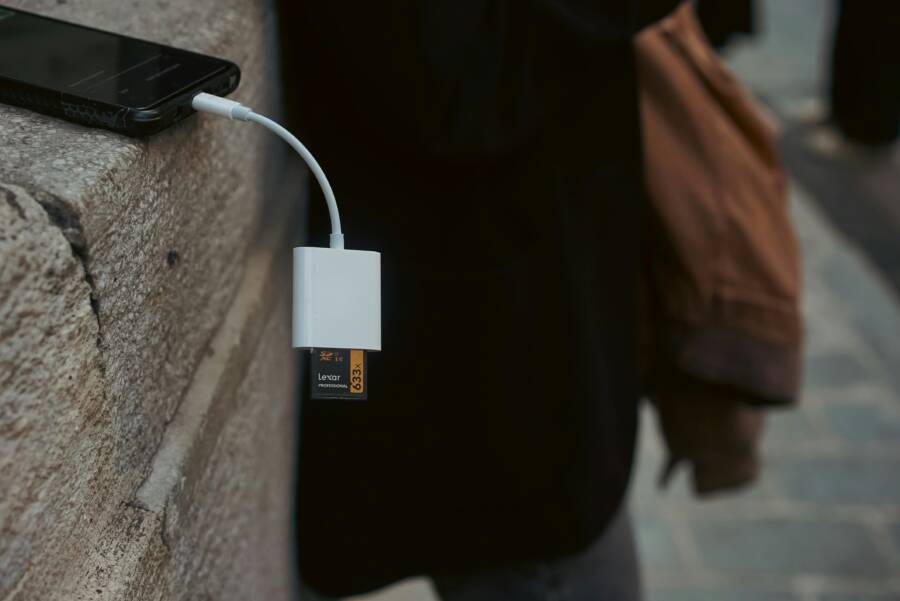
 Photo by Eyüpcan Timur
https://www.pexels.com/@eyupcan-timur-424989336
Photo by Eyüpcan Timur
https://www.pexels.com/@eyupcan-timur-424989336
Master Send Anywhere for Secure Large File Sends
Step-by-step, here’s how to use Send Anywhere on a smartphone to transmit large files while keeping fidelity intact. This approach is ideal when you want a fast, direct transfer with minimal setup.
- Open the app on your phone and grant any necessary permissions so it can access photos, videos, and documents.
- Tap to select the exact files you want to send. If you have a video shoot or a multi-part project, you can pick multiple items in one go.
- Generate a transfer code or a secure link. Send Anywhere will provide a six-digit code or a shareable link that the recipient can use to grab the original files.
- Share the code or link with the recipient. They enter the code or click the link on their device to begin the download. Your files travel directly between devices when possible.
- Offline mode and reliability: If you’re offline momentarily, the app stores the transfer request and completes once you regain network access. This makes it handy in environments with spotty connectivity.
- Speed and performance notes: On paid plans, you’ll often see faster transfer speeds because premium servers are optimized for high-volume traffic. Free usage can still perform well for many big file sends, but the best results usually come with a paid tier.
- Security details you should know: Send Anywhere uses encryption during transit and provides options to verify transfers. For a deeper read on safety practices and how data is handled, see the official support article on safety and security. If you want more background on privacy practices, the service’s privacy policy is a solid reference as well.
- Quick sanity checks: After the transfer completes, have the recipient download a sample frame or a short clip to confirm fidelity. Compare file sizes to ensure the full original is intact.
Why it fits a smartphone workflow: Send Anywhere avoids the cloud middleman for many transfers, so you retain control over the exact file you sent. It supports a range of devices and platforms, which helps when collaborators use different ecosystems. For more on safety practices and device compatibility, you can review the official safety article and device coverage pages.
There Is a Frequency That the Wealthiest Families Have Used for Generations and Most People Will Never Know It Exists
>>> Open the Door <<<

- Related resources:
- Is it safe to transfer files with Send Anywhere?
- What kind of service is Send Anywhere
- On what devices can I use Send Anywhere
- Privacy policy
- Real-time note: In 2025, Send Anywhere remains a strong option for direct, high-fidelity transfers, especially when both ends have stable connections and you want a simple workflow.
External reference: Is it safe to transfer files with Send Anywhere?
WeTransfer and Smash: No-Signup Options for Quick Shares
For fast, no-hassle transfers from a phone, WeTransfer and Smash provide straightforward paths with minimal setup. Use these when you want to send large files without creating an account or managing complex permissions. Here’s how to make them work on mobile, with practical limits and expiration details.
- WeTransfer on mobile:
- Open the WeTransfer app or the mobile-optimized website from your phone.
- Add the file or files you want to share. WeTransfer supports sizable uploads, but free limits are typically smaller than paid options.
- Choose to send a link or an email delivery to the recipient. If you opt for a link, you can share it directly in a message.
- Check the expiration settings if you’re using a paid plan. Free transfers may have default expiration and download windows you’ll want to note.
- The recipient downloads the file from the link, without requiring a login. If you’re using the app, you’ll see status updates and download activity in real time.
- Smash on mobile:
- Launch the Smash app or visit the Smash website on your phone.
- Select the files you want to send, then generate a transfer link or a direct recipient email.
- You can add password protection on some plans and enable download notifications for added security.
- Share the link or code with the recipient. They can download the exact files from their browser or Smash app.
- No-signup advantage: You don’t need an account to start, which speeds up the process for one-off shares.
- File limits and expiration:
- WeTransfer free transfers have practical size limits per transfer and time-bound download windows.
- Smash does not impose a hard cap on file size for many users, making it a popular choice for very large files.
- If you need longer access or stronger control over who can download, consider a paid plan or a transfer-specific feature.
- Best use cases:
- Quick one-off files between mobile devices.
- Light to moderate file sizes where speed matters more than long-term control.
- Scenarios where recipient tools are limited or where you want simple, browser-based access.
Practical tip: For projects with multiple parts, group related files into a folder before sending. This helps the recipient keep everything together and avoids version mismatches. If you want extra security, enable password protection on the transfer or use a short expiration window to reduce risk.
External references provide guidance on mobile experiences and expiration controls:
- WeTransfer app (iOS) help center
- WeTransfer expiry date controls
In 2025, these apps continue to deliver fast, signup-free sharing from a smartphone, making them ideal for quick, one-off large file shares. They complement more controlled workflows when you need a fast handoff without heavier setup.
Images and visual cues can help readers recognize these workflows in real life. A smartphone with a large file ready to share, or a moment of creating a link, can illustrate the ease of no-signup transfers. Consider a caption like “Sharing large media with a tap from a smartphone.” to anchor the concept.
Set Up SHAREit or Xender for Nearby Mega Transfers
When you’re near another device, SHAREit or Xender can move large files quickly without using the internet. The trick is to set up both devices correctly and pick the right transfer flow. Below is a practical, step by step approach you can follow right now.
- Install and open the apps on both phones: SHAREit and Xender are available for Android and iOS. Confirm you’re running the latest version for best speed and compatibility. For reference, SHAREit is available on Google Play and the iPhone App Store, while Xender also provides cross-platform support through its official channels.
- Enable the essential connections: both apps rely on local wireless technology. Turn on WiFi and, if prompted, enable the device to create or join a direct network. This avoids using mobile data and keeps transfers fast.
- Initiate the transfer from the sender: choose the files you want to share, then select the option to send to nearby devices. The app will generate a temporary link or show a QR code or a nearby device card to connect.
- Complete on the receiver: accept the incoming transfer, then save the files to your preferred location. Check the destination folder to confirm the full file arrives without re-encoding.
- Cross-platform tips: both tools work across Android and iOS, but performance can vary. For the smoothest experience, keep both apps updated and keep devices within a few meters of each other. If one device struggles to detect the other, try restarting the app or toggling the device’s WiFi off and back on.
- Troubleshooting common issues: if the connection drops, re-initiate the pairing from scratch, ensure both devices aren’t connected to other strong WiFi networks, and check for any permission prompts (location, storage) the apps request. If you still have trouble, try a different transfer mode within the app, such as direct device sharing instead of a created hotspot.
Why this approach works: these nearby transfers avoid cloud compression and let you preserve the original file in most cases. They’re also notably faster than Bluetooth, making them ideal for large videos and RAW photos. For quick reference, you can browse official guidance on SHAREit and Xender from their app stores and support pages.
Pro Tips to Speed Up Transfers and Stay Secure
When you need to move large files from a phone, speed and security should go hand in hand. This section breaks down practical, no-nonsense steps you can take to keep transfers quick without compromising on quality or privacy. From tying into fast local connections to choosing the right cloud or transfer app, these tips are built for real-life use on a smartphone.
1) Favor fast, local connections when possible
If both devices are nearby, skip the internet and push the files directly. Local transfers avoid data caps, reduce latency, and minimize the risk of interruptions mid-transfer.
- Use Wi-Fi Direct or a USB cable for the fastest results. Wi-Fi Direct creates a direct link between devices and typically outpaces Bluetooth by a wide margin. A USB connection to a computer can be the quickest and most secure path since nothing travels over the air.
- Keep devices close and on the same network band. If you must rely on wireless methods, keep both devices within a few meters and use 5 GHz networks when available to reduce interference and speed up throughput.
- For near-term, breaking projects, SHAREit or Xender can be effective. They are designed for quick nearby transfers and work across Android and iOS, though performance can vary by device.
Practical note: when speed matters, test a quick sample—send a short clip first to confirm the connection is stable before sending your entire batch. For a quick read on nearby transfer options, see guidance from Android on sharing nearby files and the related cross-platform tips.
2) Choose fidelity-first transfer tools with strong security
Not every transfer method respects the exact file you captured. The key is to pick tools that preserve the original file and protect it in transit.
- Prioritize apps with end-to-end encryption and no forced re-encoding. Services like Smash and Send Anywhere offer encrypted transfers and either no size limits or clear large-file support. They also provide password protection options or secure codes for recipient authentication.
- When you use cloud-based transfers, select platforms that support original file transfers and offer robust access controls. Cloud providers with dedicated transfer features let you share a direct download link or invite specific people, while keeping the original file intact.
- Avoid third-party tools that rewrite or re-encode files during transfer unless you verify the recipient gets the exact original asset.
For deeper fidelity, consider a workflow that uses a dedicated transfer feature over standard link sharing. This reduces the chance of accidental re-encoding and helps ensure the recipient receives the file as you captured it. See reputable resources on secure file sharing to shape your choices and confirm how encryption is applied in transit and at rest.
External references for secure, high-fidelity transfers offer practical context for settings and limitations you might encounter on mobile devices:
- A quick overview of secure large-file sharing and how to maintain quality during transit
- A guide to secure, portable transfer workflows that don’t require cloud intermediaries
3) Balance cloud storage versus direct transfer based on your needs
Cloud storage shines when you want a persistent, shareable link and centralized access control. Direct transfers excel when speed and fidelity matter more than long-term access control. Use the right tool for the moment.
- Cloud-first sharing: Upload the high-quality file to a cloud service, then share a link with expiration and access controls. This method preserves the original file and makes it easy to track who accessed it. It also reduces the risk of sending the wrong version by mistake.
- Direct transfer when possible: If both sides are online at the same time, a direct transfer can be faster and more reliable for very large files. This approach minimizes intermediate copies and avoids accidental re-encoding.
- Hybrid workflows: For ongoing projects, a two-step approach often works best. First upload to a trusted cloud storage location, then notify collaborators to download the exact original from there. This keeps versions aligned and simplifies auditing.
When choosing between cloud and direct transfers, consider the file type, recipient capabilities, and how you want to manage access after delivery. For example, large video batches are often easiest to share via a dedicated transfer link that offers expiration controls. On the other hand, a single high-resolution image might be best sent via a direct transfer if both devices can handle it swiftly.
External resources to help compare cloud versus direct transfer considerations can provide useful context and best practices:
- A practical guide to large-file transfers through cloud services with security controls
- A compact comparison of direct device sharing versus cloud links for large media
4) Optimize your network and devices before you start
A little preparation goes a long way. Speed and reliability improve when your environment is tuned for transfers.
- Ensure both devices are on a fast, stable network if you’re using wireless methods. Restart the router if you notice congestion or frequent drops.
- Update apps and OS versions. Developers fix bugs and improve transfer reliability with each update.
- Clear space and close background tasks. On-device storage pressure can slow encoding, writing, or decoding during transfer. Close apps that drain memory and free up disk space to prevent interruptions.
- Avoid peak network times when possible. If you control both ends, schedule large transfers for off-peak hours to minimize congestion.
A practical tip: enable background transfer options when supported, so a paused connection can resume later without starting over. For a broader look at optimizing mobile transfers, see advice from people testing fast, secure transfer workflows on modern devices.
5) Tighten security with smart sharing practices
Speed is important, but security should never be an afterthought. Use these safeguards to keep your data safe without slowing down your process.
- Use temporary access controls. Password-protected links, time-limited access, and recipient verification prevent unwanted downloads.
- Prefer direct file access over forced previews. Some services show a low-resolution preview before download. If fidelity matters, confirm recipients are downloading the original file.
- Keep metadata in check. If your workflow relies on metadata like geotags or creation dates, verify that it travels with the file. Some services may strip or alter metadata during transfer.
- Log and verify deliveries. When possible, confirm successful downloads by sample checks or integrity confirmations. A quick compare of file sizes and a sample frame or two can reveal discrepancies fast.
Security-focused guides and best practices from trusted providers can be a valuable resource as you build your workflow. Look for reputable sources that discuss secure file sharing principles, encryption standards, and access management strategies.
External references you can consult for secure sharing practices include best-practice checklists and security-focused guidance from established providers. These resources help you tailor your approach to different workflows, from personal file sharing to team-grade collaboration.
6) Quick-start checklist for your next big transfer
- Decide the right method: local transfer, cloud link, or direct transfer based on speed and fidelity needs.
- Prepare the files: keep originals intact, avoid unnecessary re-encoding, and note file formats.
- Set security controls: password protect, limit link expiration, and verify recipient access.
- Test with a small sample first to confirm fidelity and speed.
- Confirm completion: have the recipient verify a sample segment and compare file sizes.
If you want a reliable, high-fidelity workflow, start with a fast local transfer for the initial move, then use a cloud transfer to share the original file with controlled access. This approach minimizes the risk of re-encoding and keeps delivery transparent for everyone involved.
External links for quick convenience and further reading:
- Quick-share features on Android for fast local transfers
- Secure large-file transfers with no size limits for direct device sharing
By following these pro tips, you can speed up large file transfers from your smartphone while keeping quality and security intact. The right combination of fast connections, fidelity-friendly tools, responsible cloud use, and prudent security practices makes large-file work feel nearly effortless. For your next big send, choose a workflow that matches the file type, the recipient’s tools, and your security standards, and you’ll keep the pixels pristine from start to finish.
Conclusion
For sending large files without loss of quality, think in two clear paths: cloud based links for easy sharing and direct transfer apps for fast, no intermediary copies. Cloud options like Google Drive or Dropbox keep originals intact and make access control simple, while direct tools such as Send Anywhere or WeTransfer offer speedy handoffs when time matters. When fidelity is the priority, avoid apps that compress or re-encode by default, and choose methods that preserve the exact file you captured. Test a single method today to see how it feels in your workflow, then refine your setup for different file types and recipients. By pairing the right tool with solid checks and a simple sharing plan, you’ll keep every detail intact and your recipients happy.
Thousands of People Were Struggling With Money Until They Discovered This One Ancient Secret Hidden in Sound
>>> Unlock It Now <<<