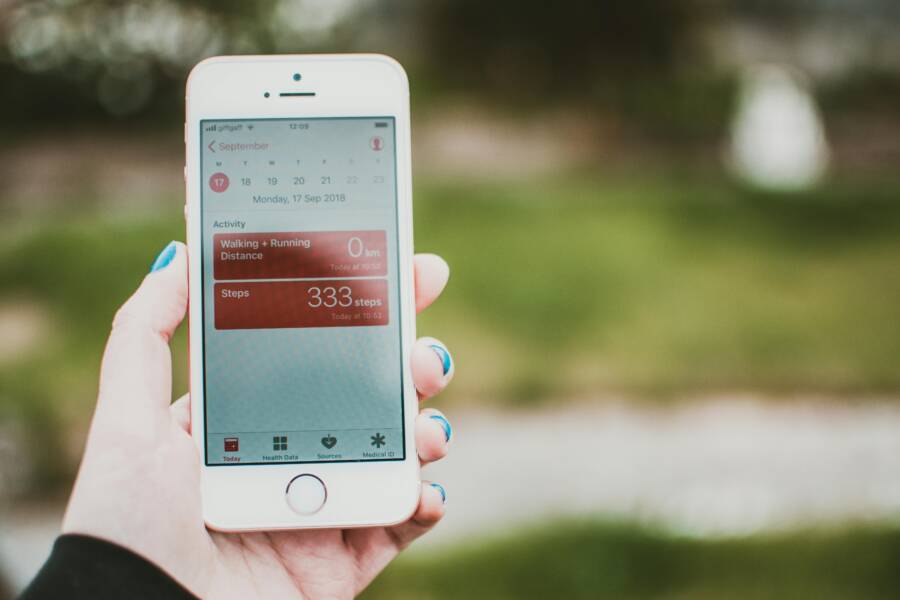
You head out for errands, meetings, and a quick walk. That’s easily 8,000 steps. But your health app stares back with zero. Pure frustration.
This glitch kills motivation. You rely on step counts to hit fitness goals, track daily movement, and spot health patterns. Without them, progress feels invisible.
Common causes stack up fast. Apps often lack permissions to access motion sensors. Software glitches from updates crash the count. Background restrictions or low battery mode block tracking too. Your smartphone’s sensors might need a reset.
Don’t worry. These fixes work for most users. You’ll restart services, check settings, and update software. Results come quick.
For iPhone users, start in Settings with Motion & Fitness toggles. Grant Health app access, then force-quit and relaunch. Test with a short walk.
Android folks, open Google Fit or your app’s permissions in Settings > Apps. Enable physical activity and location if needed. Clear cache for instant relief.
We’ll break it down step by step. Cover both platforms with screenshots in mind. Pick your device, follow along, and get steps flowing again.
By the end, your app tracks every stride. Stay consistent with goals. No more guesswork on activity levels. (278 words)
Why Your Health App Stops Counting Steps
When your health app suddenly stops counting steps, it can feel like a mystery you’re sure you’ll crack too late. The fix is usually practical and fast. Start by checking permissions, then look at sensor behavior, and finally inspect power settings that quietly block data in the background. In this section, you’ll learn how these factors interrupt step tracking and what to do to get counts moving again.
Permission Problems Block Step Data
Your health app needs two kinds of access to count steps: motion data from sensors and location data for context. If either is blocked, the app can’t translate movement into steps. On Android, verify permissions in Settings > Apps > [Your App] > Permissions and ensure “Physical activity” and “Location” are enabled. On iOS, head to Settings > Privacy & Security > Motion & Fitness and grant access to the Health app. After you grant all necessary permissions, restart the app or your phone to apply the changes. If you’re unsure, check the app’s permission page and re-approve to refresh the connection. A quick restart often resolves lingering permission hiccups and restarts counting. For Android and iOS, these paths are fairly similar, but the exact steps can differ by device and OS version. If you want a deeper dive into how permissions are handled, see the developer guidance and official setup tips for iOS and Android permissions. Learn more about permission handling and how to ensure fitness data gets through to your app.
Motion Sensors Fail to Detect Walks
Step counting depends on the phone’s sensors, mainly the accelerometer and gyroscope. Issues can arise if the sensor data is noisy, muted, or miscalibrated. Carrying the phone in a bag or deep in a pocket can dampen signals and reduce accuracy. If a calibration drift happens, counting can stall or misreport. Basic calibration tricks include rotating the phone steadily in a flat plane a few times, restarting the app, and then taking a short test walk to verify the result. If you continue to see odd readings, try calibrating the accelerometer with a trusted calibration tool and then re-test. For Android and iOS developers, there are official guidelines on how sensors should be read and processed so that step counts stay reliable. If you want practical calibration tips, one well-regarded guide covers tuning sensors for better smartphone accuracy. See a practical calibration guide.
Background Restrictions Drain Battery
Power saving can quietly starve step counting. When a device enters battery saver or low power mode, background activity is restricted to save energy. On Android, battery optimization can pause apps that monitor motion data unless you whitelist them. Navigate to Settings > Battery > Battery optimization and set your health app to “Not optimized” or “Allow background activity.” On iOS, Low Power Mode reduces background tasks and may affect motion tracking in some setups. If you notice fewer steps during the day, disable Low Power or adjust app allowances so the Health app runs in the background. To make this easier, keep a short checklist: disable battery saver during workouts, confirm background activity is allowed, and test with a focused activity to confirm data flow. If you’d like to explore how these modes work and how to best configure them, Apple and Android developer guidance provides deeper context on background data handling. For a troubleshooting read on how Low Power Mode can affect Health app tracking, you can consult community discussions and official tips. Guidance on background permissions and battery optimization and How Low Power Mode can influence Health tracking are good starting points.
Quick Fixes to Restart Step Counting Now
Struggling to get your health app to count steps again can be frustrating. These quick fixes are designed to reset the tracking without lengthy downtime. Start with the simplest option and move to the small tweaks if needed. You’ll likely see your counts rebound after a reset or a quick update. Think of these steps as tapping the reset button on a stubborn counter.
 Photo by Lisa from Pexels
Restart Your Phone for Instant Reset
Sometimes the simplest move works best. A full restart clears temporary glitches that can stop step counting. Here’s a quick 4-step routine:
- Power off your device completely.
- Wait 30 seconds to let all processes close.
- Turn the phone back on.
- Open your health app and test with a short walk.
This short reset flushes stuck sensor data and refreshes background services. It’s effective for many users, and you can try it first before other tweaks. If you still see gaps in step data, proceed to the next fixes for a deeper refresh. For more on common causes and fixes, see community discussions and official tips. Learn more about step counter reset options.
Update Your Health App and Phone Software
Software updates fix bugs, improve sensor handling, and tighten permissions. Keeping both your health app and your device OS current helps ensure step data flows smoothly.
- Check for app updates in your platform’s store: App Store on iOS or Google Play on Android.
- Check for a system update: iOS Settings > General > Software Update or Android Settings > System > Software Update.
- Install any available updates, then restart the device and re-open the health app.
Benefits of updating include bug fixes, improved compatibility with sensors, and better background data handling. A single update can resolve multiple issues caused by older code paths. After updating, test with a short walk to confirm the fix. If you want a targeted guide, see resources on updating Apple Health or Google Fit. Google Fit Not Tracking Steps? Try These 5 Easy Fixes provides practical steps that align with this process.
Clear App Cache and Data Safely
Cached data can become corrupted, causing slow performance or incorrect step counts. Clearing the app cache or reinitializing data often restores accuracy without losing personal goals.
- Android: go to Settings > Apps > Your Health App > Storage, then choose Clear Cache. If you use multiple health apps, repeat for each one you rely on.
- iOS: Offload the app to reset its local data while keeping your documents and data. Reinstall the app and sign back in.
Important: back up important health data first if needed, especially on iOS where offloading can impact offline storage. Clearing cache does not erase your long-term health history when done correctly, but always verify data in the app after the reset. After you complete this, run a short activity to confirm the counts reappear. If you’d like more detail on cache management, see guidance on clearing app cache on phones. How to clear app cache on your phone
Remember, the fastest path back to reliable step tracking is a systematic approach. Start with a simple restart, then verify updates, and finally refresh the app data if needed. If one fix doesn’t do the trick, the others usually will. For more tips on keeping health data accurate across devices, check reputable guides on Android and iOS health platforms. The most common Google Fit problems and how to fix them offers practical troubleshooting language you can apply to your device.
Adjust Phone Settings for Reliable Tracking
If you want to keep a clear picture of your activity, small tweaks to your phone’s settings can make a big difference in step counting. This section walks you through practical adjustments for both Android and iPhone users. Think of it as a quick tune-up that helps health apps read your movements more reliably, even during busy days. You’ll learn where to grant permissions, how to handle battery saving, and what to check if sensors seem off. After this, you’ll be set to test your steps with a short walk and see immediate improvements.
Android Settings to Enable Step Sensors
Your Android phone relies on sensors to translate movement into steps. The path to the right permissions can vary by device, but the core idea is the same: let the health app access motion data and, if needed, location data for context. Start by confirming permissions in Settings > Apps > [Your App] > Permissions. Ensure both Physical activity and Location are allowed. If steps still don’t register, vet battery optimization. Go to Settings > Battery > Battery optimization and set the health app to “Not optimized” or “Allow background activity.” This prevents the phone from pausing tracking during workouts. For Google Fit users, syncing tips matter too; ensure the app stays connected and up to date. If permissions were previously denied, reapprove to refresh the connection. A quick restart often clears lingering hiccups.
For a deeper dive into permissions and how they affect step data, see Google Fit’s guidance on permission handling and practical tips to ensure fitness data reaches your app. All permissions allowed but steps not counted
If you still see inconsistent counts, a common fix is recalibrating the app’s sensor reading. A practical tip is to reset the activity tracker settings within Google Fit or your health app, then perform a short test walk to confirm the changes. If you need a broader walkthrough, a complete guide to Google Fit explains sensor behavior and how to tighten data accuracy. Google Fit Not Tracking Steps? Try These 5 Easy Fixes
Keep in mind that background activity and sensor access can be affected by your device’s overall health. There are extensive guidelines on how sensors are read and processed to keep steps reliable, especially when apps use multiple data sources. If you want a technical overview, check the practical calibration and sensor-tuning approach in a trusted guide. Verifying Google Fit Physical Activity Permissions
By applying these settings, you reduce the chance of missed steps, especially during brisk walks or light runs. Always test with a short excursion after changes to confirm the app now captures your activity more accurately.
iPhone Tweaks for Health App Accuracy
On iPhone, the Health app relies on Motion & Fitness permissions and smart data sources to count steps. Start by confirming that Motion & Fitness access is enabled for the Health app. This is essential because it allows the device to feed raw sensor data into Health. Next, check Location Services. Some setups benefit from precise location data to provide contextual accuracy for movement patterns, though you should balance this with privacy and battery considerations. When permissions are in place, a quick restart of the Health app or the phone can apply the updates and refresh data flow. After that, run a short test walk to gauge whether steps are being recorded more reliably.
Additionally, review how data sources are configured in the Health app. Make sure the Health data sources are enabled and prioritized correctly, so step data from sensors is funneled into the Health app without gaps. If you notice any discrepancies after adjusting permissions, recheck the allowed apps and consider temporarily disabling other fitness apps that might compete for sensor data. A well-tuned setup helps you keep an accurate daily movement record without constant tweaking.
App-Specific Solutions for Popular Trackers
When step counts stop syncing, the fix often depends on the tracker you use. Below are practical, device-aware strategies for the most popular options. These tips focus on permissions, sensor access, and smart data sources. Try the steps in order, then test with a short walk to see improvements. If you switch between trackers, remember to recheck each app’s settings so data flows smoothly across platforms.
Fix Google Fit Step Count Issues
Google Fit relies on clear permission paths and reliable sensor data. Start by ensuring motion and activity permissions are granted and the app stays connected to your device. If steps aren’t counted, re-check the Google Fit settings and consider resetting the activity tracking baseline. For many users, a quick permissions refresh and a test walk restore accuracy.
- Grant activity tracking and location permissions in Settings > Apps > Google Fit > Permissions.
- Enable “Physical activity” and keep your device connected to Google Fit.
- If counts still lag, reset the activity tracker settings and test again with a short walk.
If you need more detail, Google’s support pages walk through permission handling and getting fitness data to the app. For a focused guide on permissions and fixes, see: https://support.google.com/fit/answer/9488336?hl=en and https://support.google.com/fit/thread/136210980/google-fit-does-not-count-my-steps?hl=en. A practical how-to article also shares quick resets that help reset tracking without a full reinstall: https://www.makeuseof.com/google-fit-not-tracking-steps-fix/.
Further calibration tips can tighten sensor reliability. If you notice inconsistent counts, recalibrate the tracker within Google Fit, then re-test with a controlled walk. Practical calibration guidance is available here: https://www.techtimes.com/articles/313094/20251202/how-fix-sensors-your-device-phone-sensor-calibration-tips-better-smartphone-accuracy.htm.
Troubleshoot Apple Health Not Tracking
Apple Health thrives on Motion & Fitness data plus well-configured data sources. Start by verifying Motion & Fitness access for Health and ensuring Location Services balance privacy with accuracy. After permissions are confirmed, restart the Health app or the entire device to apply changes, then perform a short walk to verify counts.
- Open Settings > Privacy & Security > Motion & Fitness and enable Health.
- Check Health data sources within the Health app and confirm the Health Data tab prioritizes sensor data.
- If discrepancies persist, disable other fitness apps temporarily to reduce sensor contention.
For deeper guidance, reputable guides summarize the common fixes and data source management. See sources like https://www.igeeksblog.com/fix-health-app-not-tracking-steps-on-iphone/ and instructional videos like Health App not Tracking Steps on iPhone – Fixed 2025 for practical demonstrations: https://www.youtube.com/watch?v=lp9PHfv1oic. If you want a broader overview, TunesKit offers a structured approach to solving Health app data issues: https://www.tuneskit.com/fix-ios/health-app-not-tracking-steps-on-iphone.html.
Other Apps Like Samsung Health or Pedometer
When you rely on alternatives, start with the basics that work across apps: confirm permissions, ensure background activity is allowed, and clear any stale data caches. If a tracker still misses steps, try re-syncing your accounts or reinstalling the app. Some trackers handle motion data slightly differently, so a small workflow change can restore reliable counts.
- Review app-specific permissions for motion, location, and background activity.
- Ensure the app is kept up to date and remains connected to the device’s sensors.
- If issues persist, clear the app cache or reinitialize the data within the app.
If you want a quick path to troubleshooting across several trackers, the Google Fit and Apple Health guidance above provides solid, practical steps that often apply to other apps too. For a concise cross-platform rundown, check the Google Fit tips and related fixes here: https://support.google.com/fit/answer/9488336?hl=en and the general Google Fit troubleshooting article: https://www.makeuseof.com/google-fit-not-tracking-steps-fix/.
Prevent Future Step Tracking Problems
To keep your step counts reliable over time, build a simple, repeatable routine. This section shows practical steps you can take now and as new updates roll out. Think of it as a weekly health tech check: a quick audit that protects data accuracy before issues creep in.
 Photo by Jakub Zerdzicki
Set and test robust permissions
Clear, correct permissions are the foundation for accurate tracking. Make it a habit to review motion data, activity, and location access for your health apps every few weeks, especially after OS updates or new app installs.
- For Android: Settings > Apps > Your Health App > Permissions. Enable “Physical activity” and “Location” as needed, then confirm background activity is allowed.
- For iPhone: Settings > Privacy & Security > Motion & Fitness. Ensure Health has access, and review related data sources in the Health app.
Why this matters: permissions are the doorway for sensor data. When they’re misconfigured, steps can show up late or not at all. If you want a deeper dive, see Google Fit’s guidance on managing permissions and how it helps fitness data reach the app. Manage Google Fit’s permissions
Calibrate and validate sensors regularly
Sensors drift over time and can be affected by how you carry the phone. A quick calibration check now and then keeps counts honest.
- Do a short calibration walk after making changes to sensor settings.
- If counts seem off, re-test after a restart of the health app.
- When in doubt, run a controlled test with a known distance or time and compare results across apps.
Tip: if you use an accessory like a watch, ensure it’s syncing correctly, as cross-sensor data helps validate counts. For Android users, a practical calibration guide can be helpful. See their calibration tips for better smartphone accuracy. How to calibrate sensors for better accuracy
Manage power and background activity proactively
Battery saving modes are the quiet culprit behind missed steps. Create a buffer rule that keeps motion tracking active during workouts and daily activity.
- On Android, add the health app to your “Not optimized” list or allow background activity.
- On iPhone, review Low Power Mode and adjust if it affects sensors during workouts.
How to stay ahead: after any OS update, recheck these settings. If you switch devices or move between work and home networks, a quick check helps you avoid gaps in data. For more context, see Android’s guidance on background permissions and battery optimization. Guidance on background permissions and battery optimization
Keep data sources aligned across apps
Different apps may pull data from the same sensors. Align data sources so steps aren’t duplicated or lost in transit.
- In the Health or Google Fit ecosystem, ensure data sources are enabled and prioritized correctly.
- If you notice discrepancies, disable conflicting apps temporarily to see if counts stabilize.
- Consider keeping one primary tracker and using others for supplemental context.
Helpful reference: managing data sources and permissions helps prevent misreporting. You can explore Apple and Google guidance on data prioritization to keep steps consistent. Manage Health data on your iPhone, iPad or Apple Watch – Apple Support
Plan for updates and cross-device syncing
OS updates, app updates, or switching devices can unset previously working permissions or data paths. Create a simple quarterly routine:
- Check for updates to the health app and your device OS.
- Reconfirm permissions and data sources after major updates.
- Verify step counts with a short walk to confirm data flow.
If you use multiple trackers, test one app at a time after updates to identify which one causes issues. This approach minimizes downtime and keeps your data smooth.
For cross-platform fixes and best practices, you can reference Google Fit’s permissions guidance and common fixes. Manage Google Fit’s permissions and a practical troubleshooting overview. Google Fit Not Tracking Steps? Try These 5 Easy Fixes
Quick audit checklist you can follow
- Permissions verified for motion and location
- Sensor calibration checked after updates
- Background activity allowed for the health app
- Primary tracker data sources prioritized correctly
- Short test walk confirms data flow
Keeping this checklist handy helps you catch problems early and stay motivated. If you want more tips on reliability across devices, look at Google Fit and Apple Health best practices. Google Fit Not Tracking Steps? Try These 5 Easy Fixes and Manage Health data on your iPhone, iPad or Apple Watch provide solid guidance.
By establishing these habits, you reduce the chance of future step tracking problems. The goal is to have counts that reflect real activity, not a guessing game. With consistent checks, your health data stays accurate as your phone and apps evolve.
Conclusion
If your health app stops counting steps, you now have a clear path to reliable data. Start with quick resets and small adjustments, then verify updates and data sources. The goal is simple: every step should reflect real movement.
Key fixes recap
- Confirm permissions for motion data and location, then refresh the connection with a quick restart.
- Check battery settings and background activity to keep tracking alive through workouts.
- Recalibrate sensors if you notice odd readings, and test with a controlled walk to validate results.
- Update both the health app and the phone OS, then clear caches if needed.
- Align data sources so one tracker stays central and others add context without duplicating steps.
Now is the time to test. Do a short walk after each change and compare counts to what you felt you did. When counts align, you gain confidence and stay motivated toward daily goals. A small, steady habit of checking permissions and settings keeps your smartphone data trustworthy, even as apps and devices evolve.
Healthy data habits pay off. Consistency beats perfection, and a simple weekly check helps you spot drift early. If you run into stubborn gaps, repeat the sequence from the top and keep notes of what works. Your steps become clearer, and your progress becomes easier to measure.
If this guide helped, share your experience in the comments. Your tips can help others solve the same issue. Here’s to more accurate tracking, steady progress, and health wins you can trust.