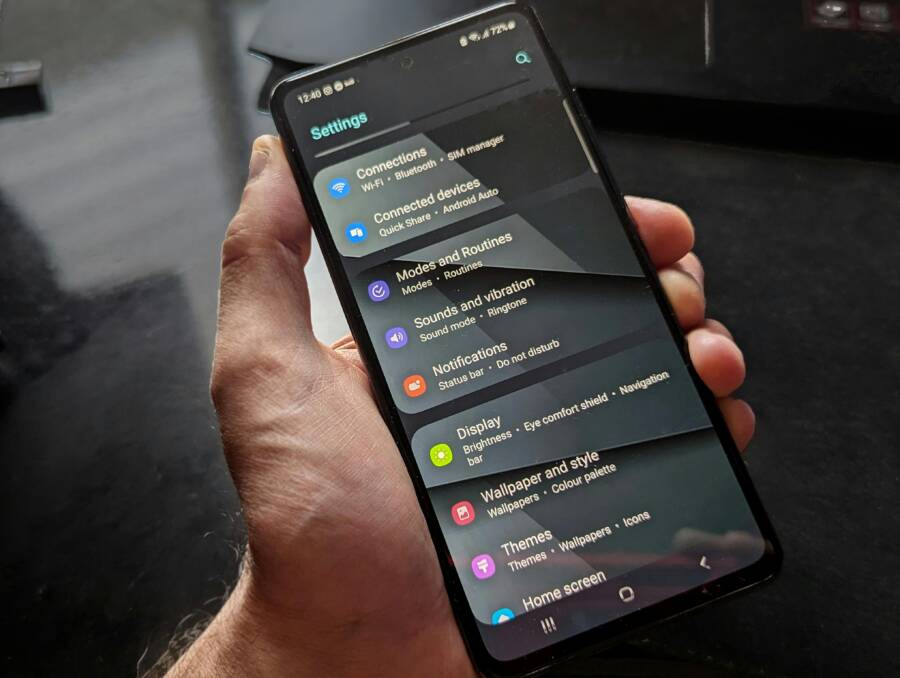
Why do notifications stop buzzing when you need them the most? If your phone seems quiet while messages pile up, you’re missing timely updates.
You’ll walk through a simple, quick checklist: verify app notification settings, review Do Not Disturb, check battery optimization, and confirm system updates. By the end, you’ll know how to restore reliable notifications from apps you rely on, with actionable steps you can follow today.
Fix notifications not working on your phone by checking system and app settings
When notifications disappear or arrive late, it can throw off your daily routine. This section walks you through a practical, no-nonsense checklist. You’ll verify that Do Not Disturb and Focus modes aren’t silencing alerts, confirm each app has the right permissions, check sound and lock screen settings, and ensure key apps can display on-screen banners. By the end, you’ll have a clear path to reliable notifications on both Android and iPhone.
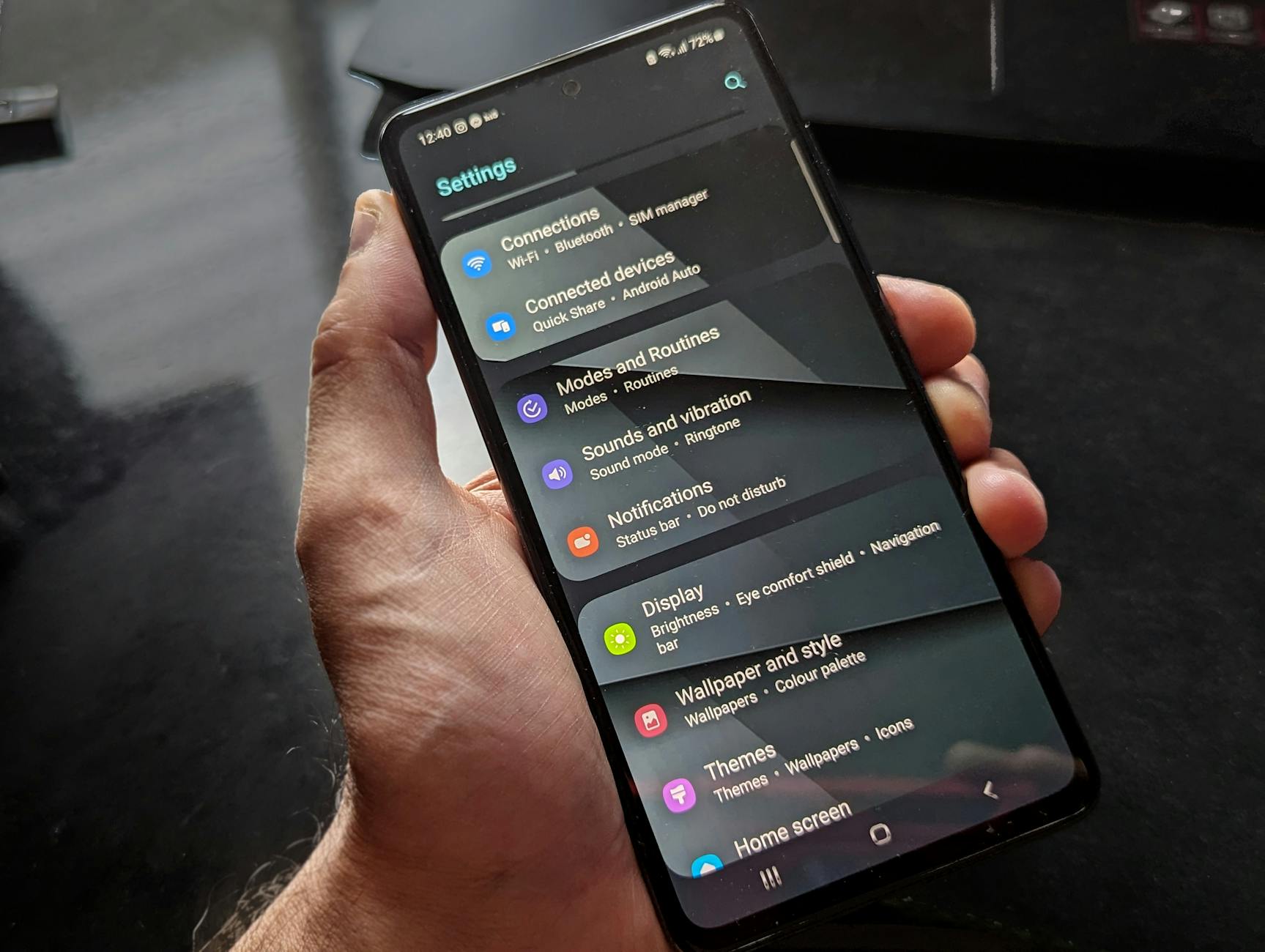 Photo by Watford London Media
Verify Do Not Disturb and Focus modes are off
Do Not Disturb on Android and Focus modes on iPhone silence alerts from all or most apps. They’re designed to give you blocks of quiet time, but if they’re left on, you may miss messages and reminders when you actually need them. Quick checks:
- Android: Swipe down from the top of the screen to access Quick Settings. Look for the “Do Not Disturb” tile. If it’s highlighted, tap it to turn off. If you use Modes, review the rules to confirm they aren’t blocking essential apps. Some devices let you set exceptions for calls or messages; make sure your important apps are allowed.
- iPhone: Open Control Center by swiping down from the top-right of the screen, or up from the bottom on older models. Tap Focus or Do Not Disturb and ensure it is off. If you have a schedule, disable it or adjust it so it doesn’t block notifications during your active hours.
Sanity check: double-check any scheduled rules. On Android, you can manage Do Not Disturb schedules in the settings under Sounds or Notifications. On iPhone, Focus modes can be scheduled; if a schedule is active during work hours, notifications for critical apps may still be silenced. If you find active rules, disable them temporarily to confirm whether notifications return.
Helpful links:
- Android: Limit interruptions with Modes & Do Not Disturb on Android
- Apple: Turn Do Not Disturb on or off on your iPhone
Review app notification permissions and alert styles
Each app must be allowed to send notifications. If an app is blocked at the system level, you won’t see alerts no matter what you do inside the app. Steps to verify and adjust:
- Android:
- Settings > Apps & notifications > See all apps > [App name] > Notifications.
- Ensure notifications are allowed and that the app isn’t muted by a global setting.
- Check alert style options. Depending on your device, you can choose banners, alerts, or other display methods.
- If a particular app appears muted in the system or has permission restrictions, re-enable them. You may also need to grant runtime permissions for notifications if prompted.
- Tip: Some Android skins let you customize per-app notification channels; ensure the channel is active and not silenced.
- Quick sanity test: open the app and trigger a notification manually if possible, or use a built-in test notification if the app provides one.
- iPhone:
- Settings > Notifications > [App name].
- Ensure Allow Notifications is on. Pick alert styles such as banners or alerts and enable sounds and badges as desired.
- If a specific app isn’t showing notifications, re-enable it here and revisit in-app settings.
- Some apps offer in-app notification controls that can override system settings; verify both sides.
- Quick sanity test: send a test notification from within the app if available, or simulate a notification by performing a typical action that would trigger it.
Edge case to watch for: a system-wide mute in an app, such as a “Mute this app” setting accidentally turned on inside the app itself. In that case, flipping the in-app mute off restores alerts even if system-level notifications are allowed.
Recommended references:
- Android notification runtime permission
- Change app permissions on your Android phone
- iPhone change notification settings for apps
Check sound, vibration, and lock screen settings
Sound and vibration are easy to forget until a critical alert goes missing. Confirm these settings are aligned with your expectations and test them.
- Android:
- Settings > Sound > Notification sounds. Choose a distinct sound so you can identify alerts quickly.
- Vibration: Ensure vibration is enabled for notifications if you rely on tactile feedback.
- Lock screen: Settings > Notifications > Lock screen presentation. Decide whether to show all, some, or none of your alerts on the lock screen.
- Test: Send a test notification from a trusted app or have someone message you so you can hear and feel the alert.
- iPhone:
- Settings > Sounds & Haptics. Confirm a tone is chosen for notifications and that the volume is up.
- Settings > Notifications > [App name] > Sounds. Toggle Sounds on if you want audible alerts.
- Lock Screen visibility: Ensure the app is allowed to show previews on the lock screen if you rely on quick glances.
- Test: Reply to a message or trigger a calendar reminder to confirm the sound and visual cue appear.
Tips:
- Use a unique notification tone for critical apps like messaging and calendar so you can distinguish them at a glance.
- If you often mute your phone during meetings, consider a dedicated set of alerts for essential apps that always override silences.
References for deeper setup:
- Change notification settings on iPhone
- Use notifications on your iPhone or iPad
Confirm important apps can show on the screen
For high-priority apps, you want on-screen banners or alerts that grab attention even when you’re using another screen. This is crucial for messaging and calendar alerts.
- Enable on-screen banners for key apps:
- Android: Settings > Apps & notifications > [App] > Notifications > Allow notification dot, banners, and other alert styles. Some devices offer a “Pop-up” or “Heads-up” option for high-priority alerts.
- iPhone: Settings > Notifications > [App] > Allow Notifications. Choose how banners appear (temporary or persistent) and ensure the Lock Screen and Notification Center options are enabled for visibility.
- Urgency and priority settings:
- Ensure urgency levels are not disabled for these apps if your device supports per-app urgency controls.
- Check whether any Do Not Disturb exceptions apply to these apps only; adjust as needed so important alerts bypass quiet modes.
- Quick validation:
- Send a test notification from each key app. Confirm it appears as a banner or alert, shows on the Lock Screen, and plays a sound if you enabled it.
Real-world tip: set up a simple priority list for your typical day. For example, keep messaging, calendar, and reminders as high priority, while social media or news apps can remain lower priority.
Suggested readings:
- Change notification settings on iPhone
- Turn notifications on or off for a specific app on your iPhone
- Use notifications on your iPhone or iPad
In this section you’ve learned how to verify and adjust the system and app layers that control notifications. If you still don’t see alerts after these checks, the next steps will focus on deeper troubleshooting, including software updates and potential battery optimizations that might be dimming or delaying notifications. You can continue with those steps in the next section of this guide.
Tackle background activity and battery settings that can mute alerts
Background activity and battery settings often quietly mute notifications you rely on. If alerts seem unreliable, a quick audit of how apps run in the background and how the system conserves power can make a big difference. You’ll learn practical steps to exempt important apps, enable background refresh, and understand how power saving modes affect delivery. This section covers both Android and iOS, with clear steps you can follow today.
Disable aggressive battery optimization for key apps
Battery optimization can quietly kill background tasks for apps that need to stay reachable, like messaging or calendar apps. Exempting these apps lets them run in the background and deliver notifications promptly. Here’s how to approach this on Android and iPhone.
- Android
- Open Settings and search for Battery or Battery optimization.
- Find the list of apps and locate the ones you depend on for alerts, such as messaging or calendar apps.
- Set the app to “Don’t optimize” or “Unrestricted” depending on your device. Some manufacturers label this as “Not optimized” or “No restrictions.”
- Ensure Background data is enabled for the app. If your device has per-app battery optimization settings, confirm the exact app is excluded.
- Check for a separate per-channel control if your device uses notification channels. Make sure the channel for critical alerts remains active.
- Quick test: trigger a notification in the app or send a message to yourself to verify it arrives without delay.
- If you’re using a Samsung device, you may also need to add the app to “Never sleeping apps.” For Xiaomi devices, select “No restrictions.” These options vary by brand.
- Helpful link: Android battery optimization guides and per-app exemptions.
- iPhone
- iOS relies on a different approach to background activity. While there isn’t a universal “battery optimization” toggle like Android, you’ll want to ensure the app isn’t blocked from running in the background.
- Go to Settings > Battery and review Battery Health and Battery Usage. If an app shows unusually high background activity or is restricted, adjust accordingly.
- For specific apps, check Settings > General > Background App Refresh and confirm the app is allowed to run in the background.
- If you’re enabling Background App Refresh, consider limiting it to Wi-Fi or enabling it for essential apps only.
- Quick test: send a message to yourself, or prompt a reminder in the app to verify timely delivery.
Real-world nuance: some devices show a separate “power savings” or “energy saving” mode that can affect background activity. If you notice a delay in alerts after enabling a power-saving feature, revisit the app’s exemption status and recheck the global setting.
External references for deeper setup:
- Android battery optimization guidance for specific apps: https://droidinsights.dev/articles/turn-off-battery-optimization-android
- How to turn off battery optimization for an app: https://support.google.com/pixelphone/thread/299966895/turn-off-battery-optimization-for-an-app?hl=en
Allow background refresh and data usage
Background refresh ensures apps can fetch new data and deliver notifications even when you’re not actively using them. Enabling this feature is especially important for messaging and calendar apps. If data saver is on, you may need to adjust it as well.
- Android
- Open Settings > Apps & notifications > See all apps > [App name] > Mobile data & Wi-Fi.
- Ensure Background data is enabled and that the app is allowed to use data in the background.
- Then go to Settings > Apps & notifications > Special access > Background activity (name may vary by device) and confirm the app is allowed to run in the background.
- If the device has Data Saver, turn it off for the app or add the app to allowed list so it can fetch data in the background.
- Quick sanity check: ask the app to fetch new data or send a test notification.
- iPhone
- Settings > General > Background App Refresh. Ensure it is on and set to either Wi-Fi or Wi-Fi & Cellular Data, depending on your needs.
- For critical apps, you can turn on Background App Refresh specifically for that app if you don’t want it on for everything.
- Data usage matters: if you have Low Data Mode enabled, consider allowing background activity for essential apps.
- Quick test: trigger a background fetch by performing an action in the app that would normally update.
Important nuance: Some carriers and devices implement data saver differently. If you notice delays, check your device’s data saver settings and ensure essential apps are not blocked.
External references for deeper setup:
- iPhone Background App Refresh overview: https://casebx.com/blogs/settings/iphone-background-app-refresh
- Apple guidance on battery performance and background behavior: https://www.apple.com/batteries/maximizing-performance/
Check power saving modes during use
Power saving modes exist to extend battery life, but they can also mute or slow down notifications. Do not leave extreme power saving modes on while you test notifications. If a mode is too aggressive, you may miss alerts even from apps that are otherwise healthy.
- Quick toggle guide for Android
- Pull down the quick settings panel. Look for Power Saving, Battery Saver, or Ultra Power Saving mode.
- If active, turn it off temporarily to see if notifications improve.
- Some devices have adaptive power saving that can kick in automatically. Check Battery or Device Care settings to disable aggressive rules while troubleshooting.
- After testing, you can decide if you want a lighter power saver that keeps essential apps active.
- Quick toggle guide for iPhone
- Open Control Center or Settings to locate Low Power Mode.
- Toggle Low Power Mode off during testing to confirm it isn’t suppressing notifications.
- If Low Power Mode keeps turning on automatically, review Focus modes or Shortcuts that might re-enable it.
Tips to keep in mind
- When you test, keep a short window where all the modes above are off. That gives you a clean baseline to compare against.
- If you rely on certain alerts during travel or long meetings, consider configuring exceptions so those alerts always come through.
External references for deeper setup:
- iPhone power saving and performance tips: https://www.apple.com/batteries/maximizing-performance/
- iOS background app refresh question and guidance: https://discussions.apple.com/thread/254963561
In this section you’ve learned how to identify and adjust the background activity and power settings that can mute alerts. If you still don’t see notifications after these checks, you’ll proceed to more advanced troubleshooting steps in the next sections, including testing with fresh app installations and verifying system updates.
Keep your OS and apps up to date to resolve notification issues
Keeping your device software fresh is one of the most reliable ways to fix missing or delayed notifications. Updates patch bugs, improve security, and often add fixes that directly impact how alerts are delivered. In this section, you’ll find clear, step by step instructions for both Android and iPhone users to update the operating system and apps. I’ll also share practical tips to enable automatic updates so your smartphone stays current with minimal effort.
Update your OS and all apps to latest versions
Staying current means more than just the core OS. App updates fix notification bugs and improve compatibility with new system features. Here’s how to handle updates without breaking your flow.
- Android OS updates
- Open the Settings app.
- Tap System (or About phone) > System Update.
- Check for updates and install if available.
- After the OS update, open the Google Play Store, go to My apps & games, and update all apps. If you don’t see updates, tap Update all.
- Turn on automatic updates to keep everything current: Google Play Store > Settings > Network preferences > Auto-update apps, and choose Over any network or Over Wi-Fi only.
- Quick tip: Some devices show updates in different paths like “Software update” or “Device update.” If you don’t see the option right away, search the Settings search bar for “update.”
- For more guidance, see: How to update your Android phone on Android’s official site and Google Help on updating Android version.
- iPhone iOS updates
- Open Settings > General > Software Update.
- If an update is available, tap Download and Install.
- Your device may ask you to enter your passcode and agree to terms. Continue with the on-screen prompts.
- Update apps: Open the App Store, tap your profile icon at the top of the screen, and update all, or enable automatic updates in Settings > App Store > App Updates.
- Enable automatic app updates: Settings > App Store > Automatic Updates. Leave the phone plugged into power and connected to Wi-Fi for best results.
- Quick tip: If you’ve got several critical apps, consider updating them one by one to verify notifications behave as expected after each step.
- For deeper steps, see Update iOS on iPhone and Update your iPhone or iPad from Apple Support.
- Quick sanity check
- After updates, reboot your device and trigger a notification from a key app to confirm delivery is timely.
- If you rely on one or two apps the most, test those first to avoid chasing an intermittent issue across many apps.
- External references
- Android OS updates and best practices: https://www.android.com/intl/en_in/articles/update-android-phone/
- Check & update your Android version: https://support.google.com/android/answer/7680439?hl=en
- Update iPhone or iPad: https://support.apple.com/guide/iphone/update-ios-iph3e504502/ios
- Update your iPhone or iPad wirelessly: https://support.apple.com/en-us/118575
- Why updates matter for notifications
- Updates fix bugs that block or delay alerts.
- New permission models or background execution rules are often included in updates.
- Security patches reduce the risk that background processes are blocked by protective measures.
Reset notification settings if things get stuck
Sometimes the simplest path back to reliable alerts is to reset notification preferences to defaults. This approach preserves your data and apps while clearing misconfigurations that can stop alerts from arriving.
- Android reset path
- Restart the device to clear temporary glitches.
- Reset app preferences: Settings > System > Reset options > Reset app preferences. This restores all disabled apps, notifications, and background data without removing any data.
- If a particular app is misbehaving, reset its notification settings within the app and then re-enable system permissions: Settings > Apps & notifications > See all apps > [App] > Notifications.
- Revisit Do Not Disturb rules and Focus-like features to ensure no broad blocks linger.
- Optional: Clear cache for the problematic apps (see the following subsection) if behavior persists.
- Helpful guide: Reset notification settings on Android without data loss.
- iPhone reset path
- Restart the iPhone to clear transient hiccups.
- Check Focus and Do Not Disturb schedules: Settings > Focus or Settings > Do Not Disturb.
- Revisit per-app notification settings: Settings > Notifications > [App], ensure Allow Notifications is on and the alert styles are correct.
- If a global change is needed, you can reset all settings without erasing content: Settings > General > Transfer or Reset iPhone > Reset > Reset All Settings. This returns system settings to defaults but keeps data and apps intact.
- Quick test: trigger a notification from a trusted app to confirm delivery.
- For a detailed walkthrough, see articles on resetting iPhone settings without data loss.
- External references
- How to reset iPhone settings without losing data: YouTube guides linked in expanded resources.
- How to reset Android settings and permissions: Android Help and manufacturer support pages.
Reinstall or clear cache for problem apps
If a particular app is still missing notifications, a targeted refresh can help. Clearing cache or reinstalling the app clears corrupted temp data that may block alerts, while keeping your account data intact in most cases.
- When to clear cache
- Android: Clear cache from Settings > Apps & notifications > See all apps > [App] > Storage > Clear cache. This removes temporary files but leaves your data untouched.
- iPhone: Clear cache is app specific. Some apps offer an in-app option to clear cache or data. Others require offloading the app to reclaim space while preserving documents and data. Go to Settings > General > iPhone Storage > [App] and choose Offload App if available.
- Quick test: open the app after clearing cache and trigger a notification.
- When to reinstall
- If clearing cache does not fix the issue, uninstall and reinstall the app. This ensures a fresh install and clean permission setup.
- Before reinstalling, you typically won’t lose account data if it’s cloud-synced or linked to a login. If the app stores data locally, back it up if possible.
- After reinstall, grant all requested notification permissions and test the alert by performing a typical action that would generate a notification.
- Cross-platform notes
- Android cache clearing can fix timing and display issues without touching app data.
- iPhone users should consider Offload App for a quick clean, then reinstall to ensure fresh integration of system services.
- Supporting references
- How to clear app cache on your phone: https://www.asurion.com/connect/tech-tips/clear-app-cache-on-phone/
- Clear your cache on iPhone: https://support.apple.com/guide/iphone/clear-your-cache-and-cookies-iphacc5f0202/ios
- How to manually update apps from the App Store: https://support.apple.com/en-us/102629
- Practical tip
- Start with the most critical apps first, such as messaging and calendar. If those deliver reliably, you can broaden the refresh to other apps.
This section shows you practical, data-safe ways to bring back reliable notifications. If you still face issues after these steps, you’ll move to deeper checks that address how your device handles background activity and power use in everyday life. The next section explores those areas with concrete actions you can take today.
Test, verify, and know when to seek help
A solid testing plan helps you confirm that notifications travel from the app to your screen. Use a structured approach that covers messages, reminders, and system alerts. Schedule tests after each change to verify delivery. If you’re testing on a real smartphone, you’ll spot issues faster and avoid chasing ghosts.
 Photo by Daniel Moises Magulado
Run a structured notification test across apps
Set up a simple test plan that includes three categories: messages, reminders, and system alerts. Keep the window tight so you can see the effect of each change.
- Messages: Send a chat message from each messaging app you rely on. Confirm banners, sound, and vibration occur as configured. Check the lock screen previews if you depend on them.
- Reminders: Create a calendar or task reminder and wait for the alert. Verify it lands on time and with the desired notification style.
- System alerts: Trigger a test alert from the device’s settings or a weather/app update notification. Ensure it appears and uses the correct sound or vibration.
Timing is critical. After you make any setting change, test again in a fresh 2–3 minute window. If a change doesn’t show results, revert and retry with a different angle. For extra confidence, use one of these reliable testing resources:
- How to send a test push notification to your mobile. https://doc.batch.com/guides-and-best-practices/message/push-notifications/how-to-send-a-test-push-notification-to-your-mobile
- How to Test Push Notifications. https://testgrid.io/blog/testing-push-notifications/
- How to debug and test mobile push notifications. https://sendbird.com/developer/tutorials/mobile-push-notifications-tester
Tip: Keep a small log. Note the app, the action that triggered the notification, the exact delivery time, and whether it appeared as a banner, on the lock screen, or in the notification center.
Common fixes you can try quickly
If your phone still isn’t delivering alerts after a test, try these quick actions. They each take about 1–2 minutes and can restore normal behavior in many cases.
- Restart the device. A quick reboot clears stuck processes that could block alerts.
- Toggle Do Not Disturb or Focus off and on. A fresh state often resolves missed notifications.
- Check a single app’s permission. Re-enable notifications, sounds, and badges if any of these got turned off.
- Update one app at a time. Open the app store or Google Play and install pending updates for critical apps first.
- Clear a single app’s cache or data. If the app supports in-app clearing, do that before a full reinstall.
Useful references for quick fixes:
- How to fix notifications not working on Android and iPhone. https://www.wikihow.com/How-to-Fix-Notifications-Not-Working-on-Android-iPhone
- What to do when Android notifications are not working. https://educative.io/answers/what-to-do-when-android-notifications-are-not-working
- Android notification issues? Try these simple fixes. https://www.androidpolice.com/android-notification-problems-fixes/
When to contact support or your carrier
Some issues go beyond settings and require expert help. Look for persistent outages, carrier level blocks, or hardware problems. Before you call, gather details so support can diagnose quickly.
- Signs you should seek help:
- Repeated outages across multiple apps and services.
- Carrier-level blocks or SIM issues that stop data or calls, which indirectly affect notifications.
- Hardware problems like a non-working speaker or defective vibration motor.
- What to collect before you contact support:
- Your device model, OS version, and recent updates.
- A concise list of affected apps and the exact symptoms (timing, banners, sounds).
- The steps you already tried and the results.
- Network type (Wi-Fi, cellular) and any recent changes to your data plan.
Helpful reference links:
- If you see SOS or No Service on iPhone. https://support.apple.com/en-us/ios
- What to do if you are not receiving call or other notifications. https://support.google.com/pixelphone/thread/119539630/how-do-i-clear-carrier-setup-erroneous-notification?hl=en
- What to do if you are not receiving notifications. https://www.wikihow.com/Why-Am-I-Not-Getting-Notifications
If you still can’t get dependable alerts after reaching out, you may need deeper checks on device-level network behavior or a hardware evaluation. The next steps cover advanced scenarios that impact delivery, including carrier configurations and deeper OS-level issues.
Conclusion
Fixing notifications on your phone is usually quick and reversible. By tuning system and app settings, checking background activity, and keeping software fresh, you can restore reliable alerts without a full reset. A few focused checks now save you time later and help your smartphone stay responsive when it matters most.
Recap
- Verify Do Not Disturb or Focus modes are off and review per app permissions.
- Ensure background refresh, data usage, and battery settings don’t block alerts.
- Update the OS and critical apps, then reset specific notification preferences if needed.
- Test with a structured plan to confirm delivery across messages, reminders, and system alerts.
Printable checklist
- Do Not Disturb/Focus off and schedules disabled
- Per-app notification permissions enabled
- Sound, vibration, and lock screen settings set for key apps
- Important apps allowed to run in background and use data
- Power saving modes not suppressing alerts
- OS and essential apps updated
- Fresh test: messages, reminders, and a system alert delivered
- If issues persist, consider reinstalling problematic apps or resetting settings
Bookmark this page and keep it handy as a quick reference. Most fixes are fast to apply and easy to reverse, so you can return to trouble-free notifications whenever you need them.