
Have you ever sent a video from your smartphone only to see a blurry, compressed version arrive on the other end? Many apps shrink files by default, and slow transfers can wipe out detail you worked hard to capture.
This guide explains why quality slips and how to stop it in its tracks. You’ll learn practical steps for shooting, saving, and sharing that keep your video crisp, whether you’re texting, emailing, or posting.
By the end you’ll have a clear, repeatable workflow for sending high quality video from your phone without sacrificing detail. We’ll cover file formats, compression settings, and reliable transfer methods you can apply right away, using everyday tools on your smartphone.
What determines video quality on a smartphone
When you shoot with a smartphone, a handful of settings and capabilities shape what finally lands in your gallery or on a share screen. Understanding these factors helps you plan ahead so your clips stay sharp, vibrant, and true to life. Below are two essential subsections that break down the core ideas in practical terms you can apply today.
Resolution, bitrate, and frame rate explained
Video quality starts with three basic knobs: resolution, bitrate, and frame rate. Each one affects how your footage looks and how big the file is.
- Resolution is the number of picture elements in each frame. Higher resolution means more detail. Common options are 1080p (Full HD) and 4K. 4K captures more detail but creates larger files and can tax slower devices during editing or playback. For quick sharing, 1080p often strikes a good balance between clarity and file size.
- Bitrate is the amount of data packed into each second of video. Higher bitrate preserves more detail, especially in fast motion or complex scenes, but it also makes larger files. If you’re filming sports or bustling city scenes, a higher bitrate helps prevent blocky artifacts.
- Frame rate defines how many frames appear each second. The most common choices are 30 fps and 60 fps. 30 fps is smooth for most casual content; 60 fps adds extra fluidity for action or slow motion look. Recording at 60 fps does not always improve perceived quality if the lighting is poor or the codec compresses aggressively.
When you compare setups, think of it as a trade-off between detail and file size. For many users, shooting at 1080p with 30 fps and a moderate bitrate yields reliable results for sharing via chat apps or email. If you want to archive footage for editing later, or you anticipate heavy color grading, 4K with a higher bitrate is worth the extra storage and processing power. For streaming or quick social posts, 1080p at 30 or 60 fps with a balanced bitrate can deliver a clean result without bogging devices down. In the background, codecs like HEVC (H.265) vs H.264 influence file size for the same quality; HEVC typically reduces size while preserving detail, though compatibility varies by app and device. Learn more about how bitrate and resolution interact in video quality.
A practical tip: if you plan to edit later, shoot in the highest native resolution your phone supports and choose a bitrate that preserves detail without producing unwieldy files. For casual sharing, start with 1080p, 30 fps, and a mid-tier bitrate and adjust based on how your files behave when you upload to your preferred platform. If you want a quick overview of the tradeoffs between bitrate and resolution, this guide offers a concise explanation. Video Bitrate vs Resolution: What Matters More for Video Quality
For readers who want a deeper dive into codecs, HEVC versus H.264 can make a difference in both quality and size. HEVC often delivers the same visual quality at a smaller file size, but it may not be as broadly supported on older devices or all apps. If you’re unsure, you can test both options and compare results in a short clip you share with friends for feedback. A quick explainer on the topic is available here. HEVC vs H.264: A Detailed Comparison and another short breakdown on how to use HEVC in practice. HEVC and its role in modern video playback
If you want a simple performance frame of reference, many creators aim for 1080p at 30 fps with a bitrate that keeps detail but avoids unnecessary bloat. For projects requiring top quality from the phone, 4K at 60 fps with a higher bitrate is a solid goal, provided your storage and processing power can handle the files. A practical look at how bitrate and resolution influence streaming and storage is available here as well. Video Bitrate vs Resolution: 4 Key Differences and Their Role in Video Streaming
Key takeaways
- Start with the basics: resolution, bitrate, and frame rate.
- Use 1080p, 30 fps as a reliable default for sharing.
- Move to 4K or 60 fps only when storage, editing, and audience needs justify it.
- HEVC can shrink file size with similar quality, but check app compatibility.
Color, HDR, and audio quality
Beyond the basics of resolution and frame rate, how a video renders color, how well it handles brightness ranges, and how clean the sound is all shape the viewing experience.
- Color depth refers to how many colors your video can display. Most smartphones record in 8-bit color, which is sufficient for everyday content. Some devices offer higher color depth or more accurate color profiles, which helps when you color grade later.
- HDR (High Dynamic Range) expands the range between the brightest whites and darkest blacks. HDR can add detail in both shadows and highlights, but not all phones or apps support it. If you enable HDR on a device that doesn’t display it or on an app that doesn’t support it, you might not see the intended benefits.
- Audio quality matters as much as the picture. Poor audio distracts from good visuals and can ruin a video even if the picture is sharp. Built-in mics on phones are convenient but limited by distance, wind, and room acoustics.
Practical tips to improve color and sound in phone videos:
- Use natural light when possible. If you’re indoors, avoid harsh overhead lights that cast unflattering shadows.
- Record in a quiet environment. If you must film in a noisy space, consider a small external microphone or a lavalier mic that plugs into the headphone jack or USB-C/Lightning port.
- Check white balance before filming. Most phones show a quick WB indicator; adjust it for consistent color, especially in mixed lighting.
- If HDR is available and supported by your phone and the target platform, enable it for scenes with bright skies and dark interiors. Otherwise, shoot in standard dynamic range and avoid extreme contrasts.
- For color accuracy, shoot in a neutral scene with real colors and avoid strong color casts from artificial lights. Then adjust in post with a basic LUT or color correction if you’re editing.
If you want to explore why color depth and HDR choices matter for smartphone video, reputable buying guides highlight how different devices handle color and HDR in real-world use. For example, HDR-capable phones can dramatically improve dynamic range on certain scenes, but the impact depends on your display and the platform you share to. Best Smartphones for Video and Best Phone for HDR in the USA offer guidance on models that balance color, HDR, and overall video quality.
Good audio keeps viewers engaged. The difference is immediate when the voice is clear and the background is controlled. If you’re recording without an external mic, try these quick fixes:
- Get close to the subject and point the mic toward the speaker.
- Reduce wind noise with a windscreen or by shielding the mic from gusts.
- Use a simple internal mic technique: keep a steady distance from the subject and avoid sudden microphone proximity changes.
- Consider lightweight accessories like a compact lavalier or a simple shotgun mic that plugs into the phone.
To see practical audio improvement ideas and examples, check out quick tips from creators who focus on mobile video. 5 Proven Tips to Improve Audio Quality of Phone Videos and a broader guide on smartphone audio recording strategies also provide useful perspectives. Improve Audio Recorded On A Smartphone
Bringing color, HDR, and audio together creates videos that feel polished and professional. Start with good lighting, aim for steady audio, and choose color settings that align with how you plan to share. When you match these elements, your final clip looks better and sounds clear, no matter the platform.
Key takeaways
- Color depth and HDR depth vary by device; use HDR only if both your phone and the platform support it.
- Good audio is not optional; it should be prioritized alongside sharp visuals.
- Simple in-camera improvements, plus a small external mic if possible, yield immediate gains.
External resources
- For a deeper dive into how HDR and color impact real-world video, see the updated buying guides and camera reviews. The Best Phone for Video Recording
- If you want a concise explanation of how color and dynamic range interact, this overview is helpful. Breaking Down Bitrate vs Resolution: Understanding Their Roles
In the next sections, we’ll translate these concepts into a practical workflow for shooting, saving, and sharing high quality video from your phone. You’ll learn step by step how to choose settings, save optimally, and use reliable transfer methods that preserve detail from click to share.
Prep your phone to capture high quality video
Shooting great video on a phone starts long before you press record. It’s about choosing the right settings, creating ideal lighting, and making sure you have enough power and storage to finish the shoot without scrambling at the last minute. In this section we’ll cover practical, ready-to-apply steps so your clips stay crisp from capture to share.
 Photo by cottonbro studio
Use the highest native settings and avoid excessive compression
Choosing the right in-camera targets is the fastest path to better video. Start by selecting the highest native resolution your device supports. If you plan to edit later or crop during post, shooting in the phone’s top resolution helps preserve detail. However, high resolutions create large files, so balance needs carefully.
- Pick the highest resolution you can reliably play back and edit on your device. For most phones, 1080p at 30 fps is a practical default that preserves clarity without ballooning file sizes. If you have the storage and the editing workflow demands it, 4K can be worth it for future-proof projects.
- Set the bitrate to a level that preserves detail without creating unwieldy files. Higher bitrates maintain texture in fast motion and complex scenes, but they also take more space and processing power.
- Consider the codec. HEVC (H.265) compresses more efficiently than H.264, which means similar quality at smaller file sizes. Test playback on your target devices and apps to confirm compatibility.
- Favor formats that are widely supported by your editing apps and sharing platforms. MP4 with an H.264 or HEVC video stream and AAC audio is a reliable baseline.
Why it matters: excessive compression hides subtle textures, color, and motion detail. If you avoid compression, you keep more latitude for color grading and post adjustments. If you need to share quickly, you can still export a lower rate later for delivery, but start with the highest quality you can manage.
- Practical tip: shoot a short test clip in your chosen settings and upload it to a platform you’ll use often. Compare the file on your phone and on a computer. If it looks noticeably better in your editor, you’ve found a good balance.
External resources
- Learn how bitrate and resolution interact to affect quality: Video Bitrate vs Resolution: What Matters More for Video Quality
Key takeaways
- Start high, then dial down if needed. Use the highest native resolution with a balanced bitrate.
- HEVC can save space, but ensure compatibility with your audience’s devices.
Lighting and stability tips
Great video starts with solid lighting and steady frames. The best results come from simple, repeatable setups you can recreate in any location.
- Lighting basics: aim for soft, directional light coming from in front of you. A window works well during the day; if you shoot indoors at night, a small LED panel or a ring light provides even illumination with minimal shadows.
- White balance matters. Check your camera’s WB indicator and set it to a neutral light source. If you move between rooms, lock WB so colors stay consistent.
- Stabilization solutions: a lightweight tripod with a phone mount is a game changer. If a tripod isn’t available, lean on a sturdy surface or use a monopod as a quick fix.
- For moving shots, a gimbal smooths out jitters and keeps motion fluid. If you’re new to gimbals, practice basic three-axis stabilization with short walks before attempting longer takes.
Practical setup ideas
- Sit at a comfortable distance from the subject and frame them with some headroom. This reduces the need for tight crops during editing.
- Use a three-quarter lighting setup: key light at about 45 degrees, fill light on the opposite side, and a subtle backlight to separate you from the background.
- Wind and ambient noise can ruin a clean take. When possible, film in a quiet space and shield the mic from direct wind.
Educational resources
- For a deeper look at stabilization strategies, see practical tips from professional gear guides: Lighting & Stabilization for video – Affordable Options and Tips
Key takeaways
- Stable footage wins over complexity. A simple tripod or solid surface can dramatically improve results.
- Light matters more than you think. Soft, even lighting makes color and detail pop.
- Practice with a gimbal if you plan action shots, but don’t rely on it for every clip.
Storage, battery, and audio
A good shooting session depends on planning ahead. Running out of storage, dying batteries, or muffled audio can derail your entire project.
- Storage: use a high-capacity, fast microSD card or rely on cloud backups as you go. If your phone supports it, enable internal storage management to avoid accidental deletions during a shoot.
- Power: keep a portable power bank charged and ready. If you’re shooting longer than an hour, plan for pauses to recharge or swap batteries if your device supports removable packs.
- Audio: an external microphone can dramatically improve sound quality. A compact lavalier or a small shotgun mic that plugs into the phone helps capture clearer dialogue and reduces room echo.
Practical tips
- Before you start, check available storage and delete unneeded files. A clean slate speeds up editing later.
- If you’re away from power, budget your runtime with shorter takes and plan recharges between scenes.
- If you can, route audio input through an external mic. Even a modest microphone will outperform the built-in mic, especially in noisy environments.
External resources
- For guidance on connecting external mics to smartphones, see RØDE’s guidance: How To Connect An External Microphone To A Smartphone
Image and caption
- If you’re illustrating this subsection with visuals, a compact setup showing a phone on a small tripod with a lavalier mic highlights the workflow. Photo by cottonbro studio
Key takeaways
- Plan storage and power before you shoot. External mics are worth the extra gear when possible.
- A clear audio path improves perceived quality more than you might expect.
- Shorter takes reduce file fragmentation and simplify editing.
External links
- For additional microphone options and how to pair them with phones, see Engadget’s roundup: The best mobile microphones for 2025
In the next sections, we’ll translate these principles into a practical workflow you can apply right away. You’ll see how to choose settings with confidence, store and back up your footage, and share high quality videos without the typical compression bottlenecks.
Share without losing quality
Sharing high quality video from your phone can feel like a math problem. On one side you want to preserve every detail, on the other you face platform limits, compression, and slow transfers. The good news is there are reliable ways to move large files intact. This section covers practical options for cloud storage links, direct transfers, and how to avoid automatic compression that saps detail. Use the method that fits your workflow, whether you’re sending family memories, clips for a client, or a quick video for social media.
Cloud storage and sending links
Cloud storage is the simplest way to share videos without degrading quality. When you upload the original file to a cloud service, you can share a link that points to the unedited version or to a high quality, downloadable copy. Here are the core approaches and how to use them well.
- Google Drive: Upload your video in its original file type and share a link with the recipient. Set permissions so they can view or download, not just preview. For large files, avoid forcing a preview; choose “Anyone with the link can view” or add specific people. If you need to preserve a particular file format for editing later, keep the file as MP4 with an H.264 or HEVC stream, and let the recipient download the file rather than a compressed preview.
- iCloud Drive: Upload to iCloud Drive and share a link with either view or download permissions. iCloud’s link sharing typically respects the original file size, especially when the recipient downloads directly from the link. For collaborative work, enable “Can view and download” so the recipient gets a full copy.
- OneDrive: Store the video in your OneDrive and generate a share link. Choose “Anyone with the link can view and download” if you want to ensure the full file travels to the other end. For sensitive work, restrict access to specific people and require sign-in.
- File types and preservation: MP4 is widely compatible and maintains a good balance of quality and size for sharing. If you shot in HEVC or another advanced codec, confirm the recipient’s device can play back the format. If needed, you can re-encode to a broadly compatible MP4 to avoid playback issues on older devices.
- Permissions and expiration: Use permissions to prevent unwanted changes. If you’re sending to a client or collaborator, set an expiration date on the link after they’ve downloaded. This reduces the chance of accidental re-shares while preserving the original file in its entirety for the duration of the project.
- Quick tips for quality: always upload the highest quality version you have available, then share the link rather than an embedded video. This lets the recipient download the file at full quality instead of watching a compressed streamer.
If you want to understand the nuances of choosing a storage option and preserving quality across platforms, these practical guides offer deeper insights into bitrate, resolution, and compatibility when sharing large video files. For example, a detailed look at how to preserve quality through cloud sharing and compression considerations can help you pick the right tool for the job. Links you might find useful include videos and guides that break down best practices for cloud transfers and high quality links.
- External resources to consider:
- How to send videos without losing quality: detailed guidance on cloud and compression considerations. https://www.videoproc.com/resource/how-to-send-videos-without-losing-quality.htm
- How to share large video files without losing quality: practical steps for cloud links and permissions. https://drime.cloud/blog-posts/how-to-share-large-video-files-without-losing-quality-a-proven-guide
- How to send videos without losing quality: a step-by-step cloud sharing approach. https://drime.cloud/blog-posts/how-to-share-videos-without-losing-quality-a-step-by-step-guide
Takeaway: cloud links are your friend for preserving quality. They minimize platform compression because the recipient downloads the file directly rather than watching a compressed version in-app.
Direct transfers and local options
When you need speed or you’re sharing with someone nearby, direct transfers can be faster and more reliable than cloud links. Here are the top local options and when to use them.
- AirDrop (iPhone to iPhone or iPad): AirDrop transfers are fast and preserve the file in its original form. It’s ideal for nearby teammates or family members with Apple devices. To ensure a smooth handoff, both devices should be awake, within a few meters, and have AirDrop set to receive from Contacts or Everyone as appropriate. If you’re sending from iPhone to a Mac, AirDrop still works seamlessly, often with no size limit you’d encounter in email.
- Nearby Share (Android to Android and cross-OS compatibility): Nearby Share speeds up transfers between Android devices and now works with iOS in some configurations. It’s a solid option when both parties are within range and have a stable connection. For best results, enable it from your quick settings, choose “Your devices only” or “Contacts,” and confirm the file receives without compression on the receiving end.
- Cable transfers: A direct USB-C or Lightning connection can be the most reliable way to move a video with no compression. This method is especially useful when you’re transferring large 4K files or when the recipient needs the file immediately without cloud delays. Use a high-quality cable, ensure both devices are trusted, and copy the file as a straightforward file transfer rather than attempting to “share” in-app.
When to pick each option:
- Choose AirDrop for quick, on-the-spot transfers between Apple devices, especially for longer clips or projects you’ll edit later.
- Use Nearby Share for fast transfers between Android devices or mixed ecosystems where air-based proximity sharing is practical.
- Pick a cable transfer when you’re working with very large files, need immediate results, or encounter flaky Wi-Fi in the area.
Ensuring the file arrives intact:
- Before sending, verify the file plays in full on the sender device.
- After transfer, have the recipient verify file integrity by playing or downloading and checking the file size and duration.
- If the recipient needs a backup copy, consider also sending a cloud link as a secondary option. This provides redundancy without forcing a re-upload on a slow network.
If you want to dive deeper into how to optimize each transfer method for reliability and speed, these sources offer practical guidance on setup and troubleshooting. They cover device compatibility, permissions, and best practices for maintaining quality during local transfers.
- External resources to consider:
- Android Quick Share and AirDrop interoperability updates (for cross-OS transfers). https://blog.google/products/android/quick-share-airdrop/
- How to share long videos on iPhone with built-in features. https://support.apple.com/guide/iphone/share-long-videos-iph1c81f302d/ios
- How to connect external mics and improve audio during mobile transfers and filming. https://rode.com/en-us/about/news-info/how-to-connect-an-external-microphone-to-a-smartphone
Takeaway: for nearby sharing, local transfers avoid cloud bottlenecks and keep the original file. AirDrop and Nearby Share are the fastest paths, while cables provide rock solid reliability for very large videos.
Beware of automatic compression in apps
Many apps compress videos automatically when you share, and that compression can ruin the crispness you worked to capture. To keep quality high, know the common traps and how to sidestep them.
- Messaging apps compress by default: apps like WhatsApp and iMessage often shrink videos to fit sending limits. This can dramatically reduce detail, color, and motion clarity. When you must send a video, consider two approaches: share the original file via a cloud link or use a shareable high quality link that points to the full file in cloud storage.
- Social platforms compress too: posting a video directly to social apps typically triggers compression to fit streaming parameters. If you want to maintain control over quality, upload to cloud storage and send a link, or export a version optimized for the platform with minimal compression.
- File size limits and formats: when apps force a smaller size, you can counter with a high quality link or by sending the file as a downloadable attachment through a cloud service. MP4 remains the most compatible container, but check whether the platform supports HEVC or other codecs still accepted by the recipient.
- How to avoid compression in practice: for critical clips, skip in-app sending. Use cloud storage links that preserve the original file or provide a direct download option. If you must send via an app, choose the highest available quality setting and a format the recipient can easily open, then share a separate link to the original file for download if possible.
User-friendly tips to reduce quality loss:
- Send the file as a downloadable item from a cloud link rather than as an embedded video in the chat.
- Confirm the recipient can access the original file size and format by testing with a short video first.
- When in doubt, provide both a high quality link and a smaller version for quick viewing. The link guarantees access to the full quality.
If you want a concise primer on how different apps handle video quality and practical workarounds, these resources offer clear paths and real-world tips for preserving quality when sending videos through popular platforms.
- External resources to consider:
- How to send original quality videos in WhatsApp. https://macrumors.com/how-to/send-original-quality-photos-videos-whatsapp
- Guide to Telegram and sending without compression. https://telegram.tips/blog/send-without-compression/
- How to share videos without losing quality using a file link approach. https://www.youtube.com/watch?v=airJYV65NYw
Key takeaways
- Don’t rely on in-app sending if you need full quality. Use cloud links or downloadable files when quality matters.
- Check platform compatibility and provide recipients with the original file alongside a viewable version.
- Always test sharing flows with a short clip to confirm quality remains high after transfer.
External resources
- For deeper background on HDR, color, and their impact on video sharing, see buying guides and camera reviews that compare devices and codecs. https://www.digitalcameraworld.com/buying-guides/best-phone-for-video-recording
- A compact explanation of how color and dynamic range interact. https://cloudinary.com/guides/video/bitrate-vs-resolution
In the next sections, you’ll see how to assemble these approaches into a practical workflow for your everyday sharing. We’ll translate the concepts into concrete steps you can apply right away, from choosing the right settings on your phone to validating the final delivery on the recipient’s end.
Verify quality after sending
After you’ve sent a video, it’s worth taking a quick moment to confirm the quality made it through intact. This section helps you verify what the recipient actually gets and how to spot or fix issues before they derail a project. Think of it like unboxing a shipment: you want to make sure every detail is present, precisely as you captured it.
Check key quality indicators
Start by validating the essentials: resolution, frame rate stability, color accuracy, and audio sync. Look for artifacts such as banding or blockiness that signal compression or encoding problems. If you notice any of these red flags, you’ll know exactly where to focus your fixes.
- Resolution and frame rate: Confirm the final file matches what you intended to deliver. If you aimed for 1080p at 30 fps, the recipient should see consistent sharpness and smooth motion. If the clip looks soft or stutters, you’re dealing with a potential re-encode or bitrate issue.
- Color accuracy: Compare the original scene with the delivered file. Subtle shifts in hue or clipped highlights can ruin a shot, especially in scenes with strong reds or blues. If color looks off, you may need to re-export with a calibrated color profile or adjust white balance in post.
- Audio sync: Play the video from start to finish and listen for any lag between the dialogue and the action on screen. Desync is a common symptom of mismatched containers or streaming transcodes.
- Artifacts to watch for: banding, where gradients appear as distinct steps; blockiness in fast motion; pixelation in dark areas. These issues usually point to aggressive compression or a too-small bitrate.
Pro tip: when you do a quick quality check, test on a device similar to what your recipient uses. A quick smartphone test can reveal how well the file scales from a computer screen to a smaller device, where compression and rendering differences are most noticeable. For deeper understanding of how to measure video compression quality, you can explore practical guides like How to Measure Video Compression Quality: A Quick-Start Guide.
If you want a broader view on how bitrate and resolution interact, there are approachable resources that explain the tradeoffs and how they show up in real-world playback. For example, you’ll find clear explanations in articles about bitrate vs resolution, and how codecs influence file size and quality.
Key takeaways
- Always verify resolution, frame rate stability, color accuracy, and audio sync after sending.
- Watch for banding and blockiness as early indicators of compression issues.
- Do a quick check on a device similar to your recipient’s setup to catch mismatches early.
If quality drops, how to fix
When you spot quality loss, you don’t have to start from scratch. Use fast, practical steps to salvage the delivery while keeping the original intent. The goal is to restore detail and fidelity without adding excessive turnaround time.
- Re-export with higher bitrate: On your editing or exporting app, increase the target bitrate so the encoder has more data to preserve motion, color, and textures. This is often enough to reduce artifacting in faster scenes.
- Choose a better format or codec: If your current export uses a highly compressed path, switch to a more efficient option such as MP4 with an H.264 or HEVC (H.265) stream and AAC audio. HEVC can maintain quality at lower bitrates, but confirm recipient compatibility before switching.
- Use a different transfer method: If the issue crops up during sending, try a cloud link for direct download rather than in-app streaming. This approach helps keep the file intact and avoids platform-driven recompression. For background reading on preserving quality through cloud sharing, see guidelines that cover cloud transfers and compression considerations.
- Test before sending again: Export a short test clip with the new settings, then share it through the same method to confirm the quality improvement. If your test looks clean, you’re ready to resend the full clip.
Practical approach example: you shot a long interview at 4K 60 fps, but the recipient only needs a 1080p version for quick review. Re-export a 1080p version at a higher bitrate, then share via a cloud link to preserve the detailed 1080p render without forcing a heavy download on slower networks. This keeps the intended look intact while staying practical.
If you want deeper guidance on fixing quality after transfer, you can consult resources that compare re-export strategies and cross-device compatibility. For instance, articles that discuss how to avoid quality loss when transferring between devices and platforms provide practical steps you can apply right away.
Key takeaways
- When quality drops, re-export with a higher bitrate and a broadly compatible format.
- If possible, switch transfer methods to avoid platform-induced compression.
- Always verify the updated version before notifying the recipient.
External links for further reading
- How to measure video compression quality (practical guidance) — https://www.intopix.com/blogs/post/How-to-Measure-Video-Compression-Quality
- How to remove unwanted artifacts from video clips (techniques for post-processing) — https://lite14.net/blog/2025/02/19/how-to-remove-unwanted-artifacts-from-your-video-clips
- VidChecker and QC tools for automated checks (professional-grade options) — https://telestream.net/vidchecker/specs.htm
By following these checks and fixes, you ensure your video keeps its clarity from the moment you press send to the moment it lands in your recipient’s hands. This careful approach protects the storytelling you captured with your smartphone and helps you maintain a professional standard in every share.
Smart workflow and tools to maintain quality
Maintaining high video quality from your phone comes down to smart choices in apps, export formats, and a repeatable sending process. This section helps you pick friendly editing tools and reliable formats, then shows a lean three step workflow to move files without sacrificing detail.
Recommended apps and formats
Choosing the right editing and export tools matters as much as the hardware you used to shoot. Look for apps that feel intuitive and preserve quality through the final export. For editing, these options are popular across iPhone and Android users because they strike a balance between ease of use and control:
- iMovie (iPhone and Mac): Simple timeline edits, solid export options, great for quick projects.
- CapCut: User friendly with powerful trimming, transitions, and speed controls; exports clean MP4 files.
- InShot: Handy for social ready cuts, aspect ratio presets, and straightforward exports.
- FilmoraGo or Wondershare options: Strong templates and reliable performance on mobile.
- Descript: Useful if you want to add captions or quick transcripts during editing.
When you export, stick to widely compatible containers and codecs to maximize playback on any device. A dependable baseline is MP4 with an H.264 or HEVC (H.265) video stream and AAC audio. If you work with higher end devices or need smaller file sizes, HEVC can cut the data while keeping detail, but confirm the recipient’s device can play it. For quick archival or later editing, keep the original high resolution and a faithful bitrate to preserve color and texture.
Practical bitrate guidance
- For 1080p video, aim for 8–12 Mbps for steady movement and good color. If there’s a lot of motion, go higher, around 12–20 Mbps.
- For 4K video, start around 40–60 Mbps and adjust based on motion complexity. You’ll need more storage, but you’ll keep fine detail.
- If you’re unsure, test a short clip at the chosen settings and compare playback on a computer and a phone.
External resources to broaden your choices and confirm current recommendations:
- Best mobile video editing apps for 2025, including beginner friendly and pro options
- You can verify widely supported formats and codecs with Android and iOS guidelines
Image suggestion
- A compact setup showing a phone on a small tripod with a mic can illustrate the editing and shooting workflow. Photo by cottonbro studio.
Photo by cottonbro studio
Key takeaways
- Start with familiar, user friendly editing apps to preserve a smooth workflow.
- Export MP4 with H.264 or HEVC for broad compatibility; choose HEVC only if recipients can play it.
- Use modest bitrates for 1080p and higher bitrates for 4K to keep motion and color intact.
A quick 3 step sending workflow
Consistency wins when you need to deliver high quality video fast. Follow this concise, repeatable three step process to protect detail from capture to recipient.
- Capture with high settings
- Shoot at the highest native resolution you anticipate needing. If you plan to edit later, 4K at 30–60 fps can be worth it; for quick sharing, 1080p at 30 fps is reliable.
- Keep a balanced bitrate to preserve detail without creating unwieldy files. Use HEVC if your devices and apps support it.
- Check lighting and audio during capture so you don’t have to fight these in post.
- Prep files for sharing
- Save the original high quality export in MP4 with H.264 or HEVC and AAC audio. If you shot in a higher codec, keep a version in that format for archival and create a backup in MP4 for compatibility.
- If you’ll share via cloud links, consider naming conventions and a short description to help recipients understand what they’re downloading.
- For client work, compress only after you confirm the recipient’s platform can handle the higher quality version.
- Share via quality preserving method, verify once delivered
- Cloud links: Upload the original file and share a direct download link. This avoids inline playback compression and gives the recipient control over the download quality.
- Direct transfer: Use AirDrop for Apple devices or Nearby Share for Android devices when possible. Cables are best for very large files or when no network is available.
- Verification: After sending, ask the recipient to download and play the file. Confirm the resolution, audio sync, and overall quality. If it doesn’t meet expectations, re-export with adjusted bitrate or a more compatible codec and resend.
External resources you might find helpful for the three step approach
- How to send large video files using iPhone and Android
- LucidLink and similar services for smooth local like transfers
Practical tips to smooth the workflow
- Always keep a fallback option. If a recipient has trouble with a format, share a downloadable cloud version as a backup.
- Test a short clip first. A quick test helps you confirm the end-to-end delivery preserves quality and avoids surprises.
- Document your steps. A simple checklist ensures you don’t skip a critical export or test.
Image suggestion
- A clean desk setup with a phone, laptop, and a small mic can visually reinforce the idea of preparing a high quality video for sharing. Photo by Plann
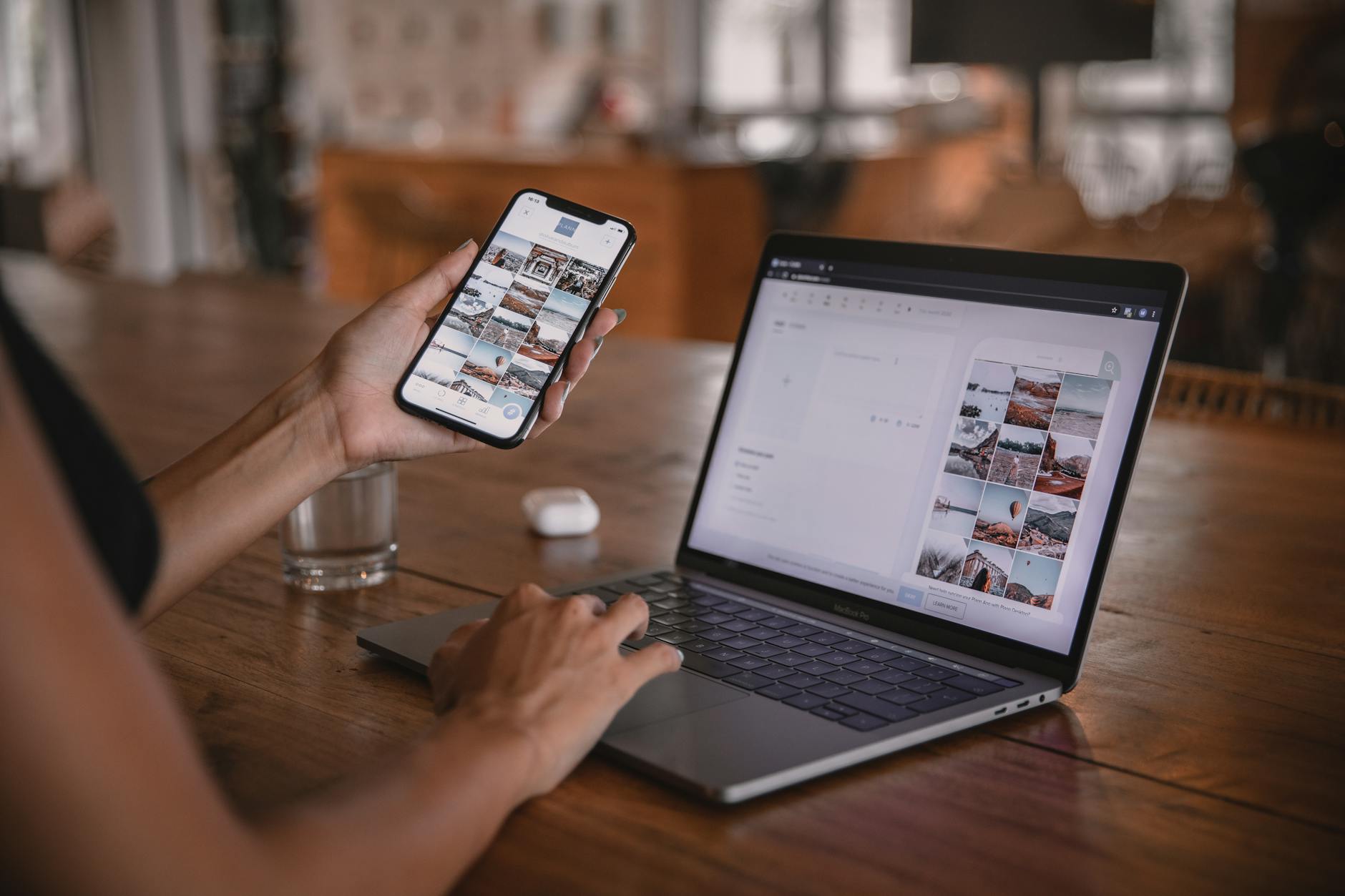
Photo by Plann
Key takeaways
- Follow a simple three step workflow to reduce errors.
- Pick share methods that preserve file integrity, not just speed.
- Verify delivery with the recipient to catch issues early.
External links for further reading
- How to send large video files on iPhone and Android in 2025
- How to share long videos without compression on Android and iPhone
In the next parts, you’ll see how to handle post delivery verification and quick fixes if quality slips. You’ll gain a practical, repeatable system you can apply to every video you shoot with your phone.
Conclusion
Sending high quality videos from a smartphone comes down to a simple, repeatable workflow. Start with the highest native settings you can edit comfortably, then share using cloud links or direct transfers to avoid in app compression. For quick nearby transfers, AirDrop or Nearby Share keep the original file intact, while cables offer rock solid reliability for very large clips.
When quality matters most, favor MP4 with H 264 or HEVC and keep backups in cloud storage. If a platform compresses the file, supply a downloadable link to the full version and a ready to view version for quick sharing. A quick test clip lets you verify that the delivery preserves color, detail, and sound before you send the final version.
Give the workflow a try on your next project and share your results. If you run into a snag, revisit the export settings and the transfer method to dial in the best balance of speed and fidelity. Your audience will notice the difference.