Ever felt a phone that vibrates but never rings is more than just annoying, it makes you late and stressed. A small tremor of hope comes from knowing you can fix this without selling your next vacation to tech support. This guide walks you through simple checks, quick fixes, and smart habits to recover normal notifications.
A lot can cause a phone to skip the ring. It might be a misbehaving app, a silent or do not disturb mode, or a software hiccup that blocks calls from coming through. You’ll see common scenarios such as missing calls from family during a busy day, or important work alerts that don’t sound at all. By tackling the problem step by step, you gain control again.
We cover quick checks you can do right away, then dive into software and app troubleshooting. You’ll learn OS specific fixes for iPhone and Android, plus when to back up data before making changes. The goal is to restore your smartphone’s ability to alert you with sound, while keeping your data safe and your settings intact.
If the issue persists after basic steps, the post explains when it’s time to seek professional help and what information to bring to a visit. You’ll get a practical checklist that helps you decide whether a repair is worth it or if a replacement is a smarter move. With clear steps and plain language, you’ll be back to hearing alerts you can trust.
Quick checks to restore ringing in minutes
If your phone vibrates but won’t ring, you’re not out of luck. Small settings tweaks can bring back audible alerts in minutes. This section covers fast checks you can perform on both iPhone and Android, with clear, step-by-step steps to get you hearing calls again. Along the way, you’ll learn what to do if the phone still vibrates but stays quiet after you turn things off. A quick test with a friend on a separate line can confirm you’re back to normal.
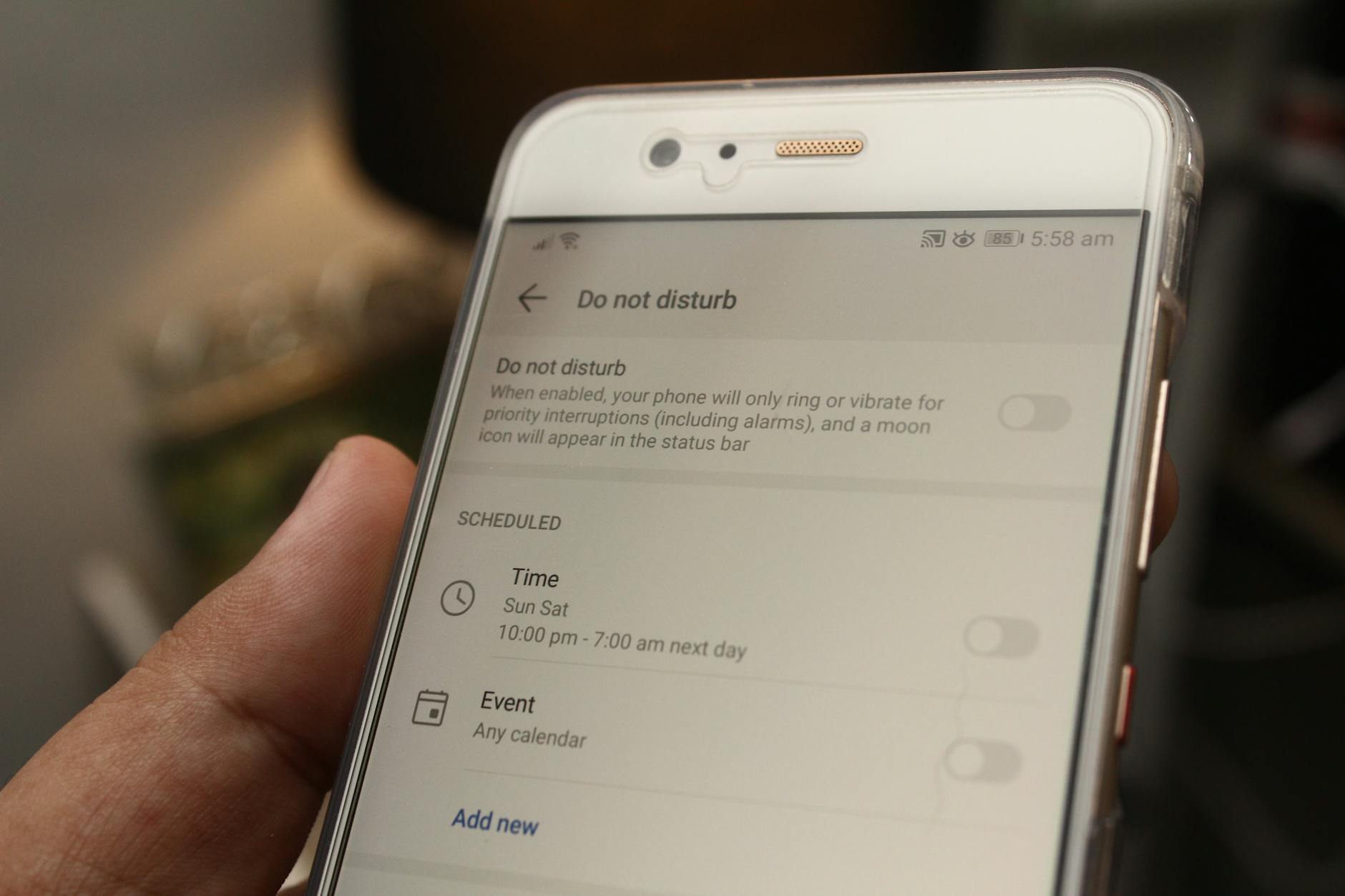 Photo by Daniel Moises Magulado
Verify Do Not Disturb and Silent modes
Do Not Disturb and silent modes are the usual culprits behind missed rings. On iPhone, look for the crescent moon icon in the status bar or Lock Screen. For a quick check, open Control Center (swipe down from the top-right) and tap the Focus button, then turn off Do Not Disturb. If the phone still won’t ring, ensure Focus or DND isn’t set to apply to calls from favorites or repeated callers. On Android, verify that Silent or DND modes aren’t active. Access quick settings by swiping down from the top of the screen and toggle Silent or Do Not Disturb off. If a call still doesn’t ring, review any app-specific notification settings that could mute call alerts. For iPhone users, you can learn more here: https://support.apple.com/en-us/105112. For Android users, see the official guidance here: https://www.google.com/android/answer/9082609?hl=en.
Check volume, ringtone, and app sounds
Ringer volume might be turned down or a quiet ringtone selected. On iPhone, press the volume buttons while a call screen is open to raise the ringer, or go to Settings > Sounds & Haptics and adjust Ringer and Alerts. Make sure Change with Buttons is enabled if you want physical buttons to control the ringer. Check that the correct ringtone is selected in Settings > Sounds & Haptics > Ringtone. Also verify that vibration is not masking the ring by temporarily turning off vibration under the same menu. On Android, open Settings > Sound and adjust the Ring and Music, video, games, and other media volumes separately if your device supports it. You can test tones by calling yourself or asking a friend to call while you switch ringtones. For iPhone guidance: https://support.apple.com/en-us/105112. For Android volume and sound settings: https://support.google.com/android/answer/9082609?hl=en.
Test the phone with a real call and compare audio channels
A real call is the fastest test. Have someone call you from another line and listen for the ring. Note where you hear it: speaker, earpiece, or a connected Bluetooth device. If the sound comes from a Bluetooth device, your phone may be routing audio there by default. To rule out routing issues, disconnect Bluetooth devices temporarily and check if the call rings through the phone speaker. If the call goes to voicemail rather than ringing, confirm that Do Not Disturb isn’t still blocking calls, and verify the phone isn’t in a do not disturb exception list for unknown callers. If you still don’t hear a ring, try a different ringtone to rule out a corrupted sound file. For a general sound test, you can use a quick online check here: https://www.verizon.com/support/troubleshooter/audio-issues/. You can also perform a simple speaker test at https://www.onlinemictest.com/sound-test/ and https://fixmyspeakers.com/posts/how-to-test-if-your-speaker-is-working-properly.
Software and app checks to rule out conflicts
If your phone only vibrates and won’t ring, software and apps are often at fault. This section guides you through targeted checks that can reveal misbehaving software, rogue settings, or background processes quietly muting alerts. You’ll learn how to test in safe environments, spot recently installed or updated apps that may cause trouble, and verify whether a system refresh or a clean boot helps isolate the culprit. The goal is to identify conflicts without wiping data or overhauling your device.
Boot into safe mode and test notifications
Booting into safe mode temporarily disables third party apps, making it easier to see if a background app is causing the issue. On Android, the exact steps vary by device, but you can start by holding the Power button, then selecting Power off and choosing Reboot to Safe Mode, or following your manufacturer’s guidance. In safe mode, test incoming calls to confirm whether the ring returns. If it does, a third party app is likely the culprit and you can start removing apps one by one to isolate the offender. If the problem persists in safe mode, move to OS level checks and consider a reset. For Android guidance, see the official steps: https://support.google.com/android/answer/7665064. You can also learn more about finding problem apps by rebooting to safe mode here: https://support.google.com/android/answer/7665064?hl=en.
If you’re on a Windows PC phone companion scenario, perform a clean boot to rule out software conflicts that could affect how notifications arrive on your PC or paired devices. A clean boot starts Windows with a minimal set of drivers and startup programs, making it easier to see if a background service is interfering with call alerts. After testing, reenable services one by one to locate the conflict. For a practical reference, you can review the safe mode approach for Android as a template for cross-device checks: https://support.google.com/android/answer/3094742.
Review notification settings and recent updates
Notification channels and system level controls can mute or silence alerts without you realizing it. On iPhone, inspect each app’s notification settings by going to Settings > Notifications, then select apps one by one to confirm that alerts are allowed, sounds are enabled, and that Do Not Disturb or Focus rules aren’t shadowing calls from certain contacts. On Android, open Settings > Apps & notifications > See all apps, pick a messaging or calling app, and check its Notification settings. Ensure the channel for calls isn’t muted and that “Do Not Disturb” exceptions aren’t hiding important alerts. Also review the system-wide Do Not Disturb options for both platforms. For reference, see Apple’s guidance on resetting or reviewing notification behavior and related settings: https://support.apple.com/en-us/105112. For Android, explore the official notification settings guidance: https://www.google.com/android/answer/9082609?hl=en. If you recently updated either OS, look for new permissions or changed defaults that could affect ringtone playback.
Reset or refresh notification settings
If misconfigurations run deep, a light reset of notification settings can clear stubborn quirks without a full device reset. On iPhone, you can reset all settings which returns system settings to defaults while keeping your data intact. Go to Settings > General > Transfer or Reset iPhone > Reset > Reset All Settings. This action resets network, keyboard, home screen layout, and location settings but does not erase content. On Android, you can reset app preferences to restore default notification behavior by going to Settings > System > Reset options > Reset app preferences. This re-enables disabled apps and notification channels without deleting personal data. Always back up your data before performing resets. For iPhone guidance, see Apple’s reset instruction: https://support.apple.com/guide/iphone/reset-iphone-settings-iphea1c2fe48/ios. For Android, you can review the process at https://support.google.com/android/answer/7665064. If you’re unsure, a partial refresh of notification settings often fixes muted alerts without a full reset.
OS specific fixes for iPhone and Android
If your goal is to restore audible alerts quickly, start with targeted, OS specific steps. This section provides concise, practical fixes for iPhone and Android users, so you can identify whether the issue is a simple setting, a recent update, or something that needs deeper attention. You’ll find clear steps, quick tests, and reliable references to official guidance to keep you moving. A quick reminder: back up before making substantial changes, especially when updating or resetting. Your smartphone holds valuable data, and a safe approach saves time in the long run.
iPhone users: verify sound output, Do Not Disturb, and software updates
First, check where audio is routed. If you’ve paired a Bluetooth device, the phone might be sending the ring there by default. Go to Settings > Bluetooth and disconnect any active devices, then test a call to hear the phone itself. Next, verify Do Not Disturb is off. On iPhone, open Control Center and ensure Focus or DND isn’t filtering calls from favorites or repeated callers. If the problem persists, run a software update by going to Settings > General > Software Update. If issues remain after updates, consider resetting all settings as a last resort, but back up first. To back up, use iCloud or a computer with iTunes/Finder. For official guidance on sound and vibration, see Apple’s Change iPhone sounds and vibrations and Silence iPhone pages, and the related reset instructions.
Relevant resources:
- Change iPhone sounds and vibrations
- Silence iPhone
- Stop, mute, and change message notifications on iPhone
- If you hear no sound or distorted sound from your iPhone
Android users: fix sound, notification channels, and Do Not Disturb
Begin by confirming the notification channel for calls is allowed to sound. Some apps use individual channels and a misconfigured channel can mute the ring. Open Settings > Apps & notifications > See all apps, select your calling or messaging app, and check its Notification settings. Make sure the channel for calls isn’t muted and that Do Not Disturb rules aren’t silencing important alerts. If you updated recently and the issue started afterward, you may revert the update or reset app preferences. When in doubt, a safe reboot can clear transient glitches. If the problem persists, consult official guidance on Do Not Disturb behavior and notification channels to align with your device, with hands-on steps from manufacturers.
Helpful references:
- Galaxy help for vibrating and notification settings
- Android Do Not Disturb behavior guidance
- Pixel phone settings to avoid missed calls
- Android notification settings overview
Test with different ringtones and vibration settings
After adjusting settings, test with multiple ringtones and confirm that vibration is enabled for calls if you rely on it. On iPhone, switch between ringtones in Settings > Sounds & Haptics > Ringtone and toggle Vibration off and on to confirm the difference. On Android, try altering the ringtone in Settings > Sound and test with a quick call or a friend’s ring. If you still hear nothing, try a different vibration pattern or enable vibration for calls in the accessibility or sound settings. A quick test with a real call confirms whether the changes took effect. Useful tests and guides can be found at trusted sources, including online sound tests.
When to back up data and seek professional help
Backing up before making larger changes is a smart precaution. It protects your photos, messages, and app data in case something goes wrong during fixes or updates. This section outlines simple backup plans for both iPhone and Android, covering cloud and local options. It also explains clear indicators that you’ve reached the point where a professional should handle the repair. Think of backups as a safety net that lets you try fixes with confidence, knowing your data has a safe harbor.
Back up before making larger changes
Before you dive into fixes that affect system settings or install updates, set up a reliable backup for both iPhone and Android. For iPhone, you can back up with iCloud to keep a wireless copy in the cloud or back up to a Mac or PC using Finder or iTunes. For Android, use Google Drive for cloud backups or connect the device to a PC to copy files locally. Having a recent backup makes it possible to restore your data if something goes wrong. For step-by-step guidance, see the official iPhone backup resources from Apple and the Android backup overview from Google.
- iPhone cloud backup: https://support.apple.com/en-us/108366
- iPhone full backup guidance: https://support.apple.com/en-us/118426
- Android backup overview: https://www.google.com/android/answer/9082609?hl=en
If you prefer a quick read from expert guidance, consider a practical Android backup overview like the WIRED guide or a PC-based approach from trusted providers, then choose the method that fits your workflow. For extra reassurance, a reputable how-to video can help you visualize the steps as you go.
Know when to seek professional help
Some symptoms point to hardware issues or deeper software faults that a quick home fix won’t resolve. Indicators include persistent no ring even after checking Do Not Disturb, a flaky speaker or microphone, sudden notification failures across multiple apps, boot loops after updates, water exposure, or devices that won’t complete startup. A technician will inspect the hardware for speaker or relay problems, check the charging and jack areas, and run diagnostics for the motherboard. Data safety measures typically include backing up first, then performing service with minimal data access, and using secure data handling practices. If you suspect hardware fault, it’s wise to consult a professional promptly. For reference and further guidance, see no-sound repair discussions and official checklists:
- No sound and vibration troubleshooting: https://www.ifixit.com/Answers/View/875287/No+sound,+vibration,+restart+when+a+try+to+start+music,+video+etc
- Practical repair perspectives: https://owlrepairs.com/phone-vibration-not-working-repair/
Conclusion
Fixing a phone that only vibrates and won’t ring comes down to quick checks, a few targeted settings tweaks, and knowing when to back up or seek help. Start with Do Not Disturb, sound settings, and a real call test to confirm the basic behavior. If the problem surfaces after an update or a new app, Safe Mode or a quick reset of notification settings often clears the issue without risking your data. By following these steps, you can restore reliable alerts and avoid missing important calls on your smartphone.
If you keep notes of what you tried and what worked, you’ll build a simple reference you can reuse in the future. And if you run into stubborn issues, you’ll know when to bring in help before data or hardware gets caught in the middle. Your smartphone should wake you with sound when a call comes in, not leave you in the quiet.
Printable quick-checklist
- Verify Do Not Disturb or Silent mode is off on both devices and networks.
- Check ringer volume and confirm the correct ringtone is selected.
- Ensure vibration is enabled for calls if that matters to you.
- Test with a real incoming call from another line.
- Check Bluetooth routing and disconnect any connected audio devices.
- Review notification settings for the calling app and reset app preferences if needed.
- Boot into Safe Mode to rule out third party apps.
- Back up data before any major changes or resets.
- If issues persist, note model, OS version, and recent updates for a technician.
Save this checklist for later reference and print it if you prefer a physical reminder. If you try these steps, share your results, ask questions, or leave a comment. Your feedback helps others with the same problem and keeps our smartphone guides practical and easy to follow.