Missing important calls can be more than a small annoyance. It happens when your phone stays silent at the worst times, from urgent work alerts to family emergencies. This quick guide helps you spot the common culprits and get your calls ringing again.
You’ll learn simple checks you can do right away, without deleting apps or resetting everything. We cover the most frequent causes like volume settings, silent modes, and misbehaving apps. The steps work for most Android and iPhone users, and you’ll see how small tweaks make a big difference.
Think of this as a practical, buyer-friendly how to guide for your smartphone. We break down the what, why, and how so you know what to fix first and what to skip. By the end you’ll have a reliable plan to restore the normal ring, with problems solved one by one.
Follow along as we walk through quick fixes, smart habits to prevent silent calls, and when to seek deeper help. The goal is a fast, clear path to restore dependable call alerts, without turning your device into a mystery. Stay with me and you’ll get your phone back to ringing like it should.
Check Basic Sound Settings on Your Phone
Before jumping into deeper fixes, take a quick tour of the core sound controls. Most silent calls come from a simple setting misfire rather than a hardware issue. In this section, you’ll confirm your ringer and notification paths are active for incoming calls and that no broad mute is masking the ring. You’ll also see how to test the changes so you know right away whether you’re closer to a solution.
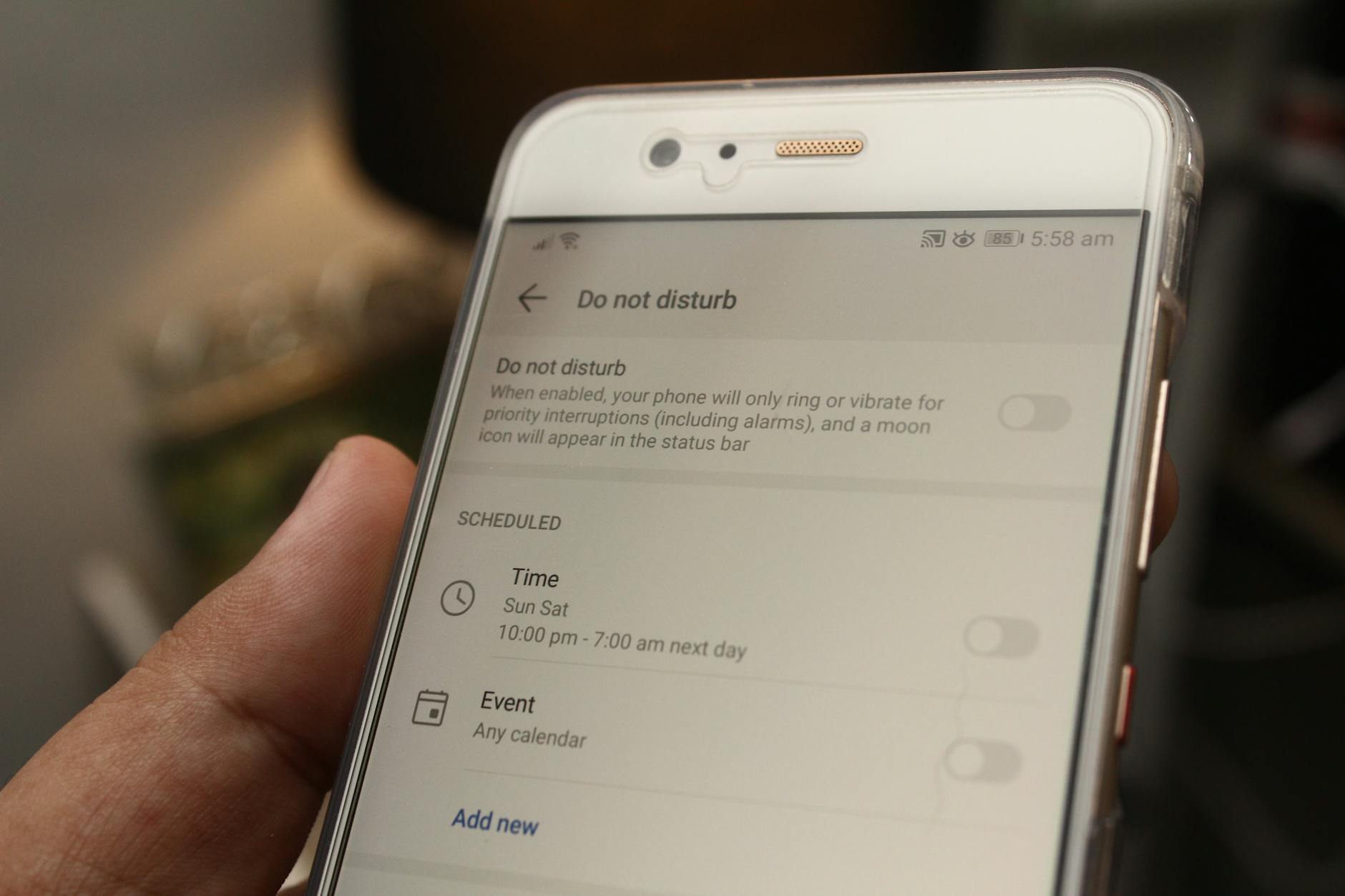 Photo by Daniel Moises Magulado
Raise the Ringer Volume Right Now
If calls aren’t ringing, the first step is to verify the ringer is audible. On Android, you can raise the volume by pressing the physical volume buttons and then tapping the settings icon to adjust specifically the Ringtone and Notification volumes, ensuring they aren’t tied to a very low level. You can also go to Settings > Sound to fine tune the ringer and notification volumes separately. On iPhone, use the side buttons to lift the overall volume or open Settings > Sounds & Haptics to confirm that the Ringer and Alerts volume is high enough. When you test, ask a friend to call you or use a quick call test from another line. It’s common to find the media volume is louder than the ringer, which can fool you into thinking the phone is louder than it actually is for incoming calls. For reference, see how Android and iPhone manage their volume controls here: Change the volume, sound, & vibrate settings and Change your ringtone & volume settings.
Turn Off Silent Mode or Vibrate Only
Silent or vibration-only modes mute the ring. On Android, check the physical ring/vibrate switch if your device has one, and confirm in Settings > Sound that the ringer is enabled and not set to vibrate only. On iPhone, flip the side switch to enable ring mode, then verify in Settings > Sounds & Haptics that the Ringer and Alerts are set to a volume you can hear. It’s also worth checking if any Focus or Do Not Disturb settings are suppressing calls, as these can override a loud ring. Test by calling yourself after each change to feel the difference. If you need a quick reference, explore Android’s silent/vibrate options and iPhone’s ring switch guidance here: Limit interruptions with Modes & Do Not Disturb on Android and Turn on or schedule a Focus on iPhone.
Disable Do Not Disturb or Focus Modes
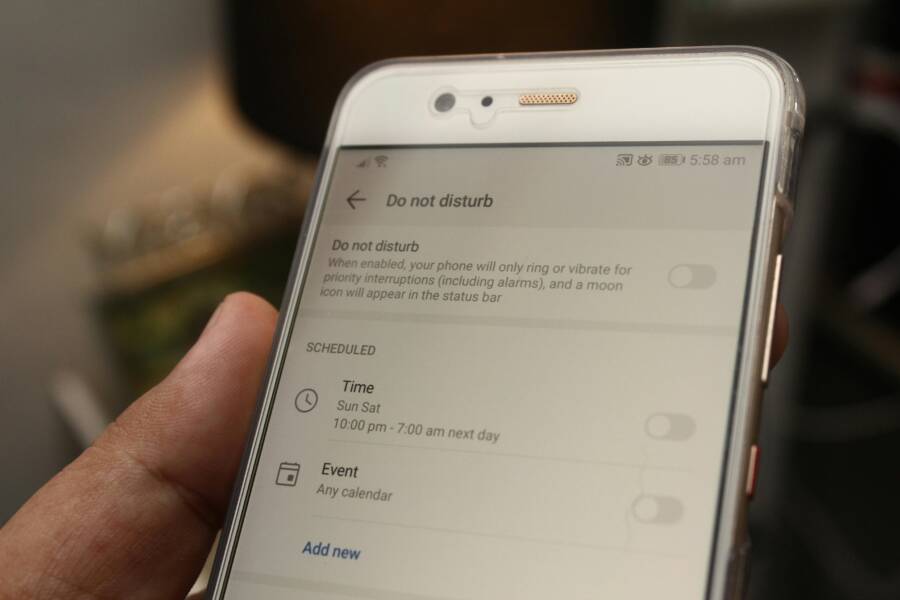
Do Not Disturb on Android and Focus on iPhone can silence calls even when the phone is technically on. On Android, swipe down to quick settings and toggle Do Not Disturb off, or configure it so certain people or calls can still come through. You can also schedule DND to automatically turn off at specific times or when you’re at home. On iPhone, open Control Center and turn off Focus, or go to Settings > Focus to adjust which calls are allowed. If you frequently miss calls from favorites or important contacts, set those exceptions so they ring through even when Focus or DND is active. After adjusting, run a test call to confirm your device rings normally again. For Android, see the official guidance on DND and Modes: Limit interruptions with Modes & Do Not Disturb on Android. For iPhone, see the Focus guidance: Turn on or schedule a Focus on iPhone and the DND article: How to turn Do Not Disturb on or off on your iPhone.
Try Simple Software Restarts and Updates
If your phone isn’t ringing for incoming calls, a quick software reset can clear out minor glitches without wiping your data. This approach treats the issue like a small bug in a busy workflow rather than a hardware failure. Start with a force restart to refresh the device’s brain, then test the behavior. If the problem persists, boot into safe mode to rule out third party apps, and finally install any available software updates. These steps are safe, require no reset to factory settings, and can save you time before deeper troubleshooting.
Restart Your Phone the Right Way
A proper reboot can solve many silent ring problems. For Android devices, a force restart often resets stuck processes and clears transient errors. The exact method varies by model, so if you don’t see the standard restart option, follow your manufacturer’s guide or use the power button to force a restart. On iPhone, a force restart is a quick way to recover from frozen software behavior and can help restore normal ring behavior if the device is unresponsive. After reboot, test by having someone call you or use a quick test from another line. If the phone still won’t ring, try booting into safe mode to isolate apps that might be interfering with the dialer. You can review official steps here for iPhone force restarts: Force restart iPhone and for Android safe mode: Find problem apps by rebooting to safe mode on Android.
Warnings and quick tips:
- Save any unsaved work before restarting.
- If you have a device with a physical ring/vibrate switch, ensure it is set to the normal ring position after reboot.
- If the issue remains after a restart, move to testing in safe mode to check for app conflicts: How to enter safe mode on Android.
- If you use a cleaning or optimization app, disable or uninstall it temporarily to see if it’s the culprit.
Install Latest Software Updates
Software updates fix known issues that can affect calling behavior, including the dialer, notification routing, and ringtone handling. Start by checking for the latest OS version on your device. On Android, go to Settings > System update to see if an update is available. On iPhone, open Settings > General > Software Update to check and install the newest iOS version if it’s ready. In addition to the OS, update the dialer or phone app if an update is listed in your app store or device settings. Benefits are clear: bug fixes, performance improvements, and tighter security all help ensure incoming calls ring reliably again. If you’re unsure how to update, Apple’s guidance covers wireless and wired update options for iPhone, iPad, and Mac workflows: Update your iPhone or iPad. Android users can reference general update steps here as well: Update iOS on iPhone and Android update basics: Update the Android OS (adjust as needed for your device).
Tips to maximize success:
- Charge your phone to at least 50% before starting updates so the process isn’t interrupted.
- Back up important data if you haven’t recently done so; updates can rarely cause unexpected issues.
- After updating, restart again to ensure all changes are applied correctly.
- After installation, verify that the ringer and notifications still function by placing a test call.
If you want more formal guidance on keeping your iPhone current, explore Update your iPhone or iPad and consider checking for iOS compatibility notes that affect older devices. For Android users, a quick check on the official update page can confirm the process for your specific model, ensuring you don’t miss a crucial patch. Regular updates are a practical, low-effort habit that keeps calls ringing as they should.
Fix Notification and App Glitches
When calls fail to ring, it can feel like your smartphone has gone quiet at the worst moment. This section tackles two quick, practical remedies you can apply today. First, verify that the phone app has the right permissions and notification settings. Then, ensure your default ringtone is healthy and properly assigned. These tweaks are designed to be non-destructive and work across most Android and iPhone devices. After you complete them, run a quick test to confirm the alert comes through as it should.
Review Phone App Permissions and Notifications
Permissions and notification settings control whether the dialer can alert you to incoming calls. On Android, check that the phone app has the necessary permissions and that notifications are enabled. Navigate to app info, then Notifications, and re-enable if needed. On a Mac or Windows PC, this path isn’t needed, but your device may reset these settings during an update, so a quick confirm helps. On iPhone, open Settings, tap Notifications, and ensure the Phone app is allowed to send sounds and alerts. If notifications were paused or silenced, re-enable them and test by asking someone to call. If you still don’t hear a ring, consider reviewing related help articles on Android permissions and iPhone notification management.
- Android permissions reference: https://support.google.com/android/answer/9431959?hl=en
- iPhone notification management: https://support.apple.com/en-us/120681
- Change notification settings on iPhone: https://support.apple.com/guide/iphone/change-notification-settings-iph7c3d96bab/ios
For a quick sanity check, keep a note of what you changed and test with a real call or a dedicated test number. If you’re using a smartphone in a busy environment, you might also review Do Not Disturb or Focus settings to ensure they aren’t masking calls in the background. This is a common pitfall that can hide the ring from view until you adjust the rules.
Set or Reset Your Ringtone
Your ringtone is the familiar cue that a call is incoming. Start by selecting a default ringtone that you can clearly hear in noisy environments. In Android, go to Settings > Sound > Ringtone and choose a sound you can easily distinguish. In iPhone, open Settings > Sounds & Haptics > Ringer and Alerts, then pick a tone with good contrast against background noise. After setting a new tone, test by calling from another line and tuning the volume so the ring sits above other sounds. If a tone seems to skip or stutter, delete it and re-add or select a different one. This approach helps confirm the issue isn’t a corrupted audio file. If problems persist, revisit the app settings to ensure the correct ringtone path is in use.
- For iPhone ringtone changes, see guidance on changing the default sound: https://macrumors.com/how-to/change-iphone-default-notification-sound
- If you need official steps from Apple on notification sounds, you can reference: https://support.apple.com/en-us/120681
- Android ringtone change reference: https://support.google.com/android/answer/9431959?hl=en
Tips to keep this process smooth:
- Use a simple, high-contrast tone for your default ringtone.
- Test across different contacts to verify consistency.
- If you rely on third-party ringtones, ensure they are properly stored in the device’s media library and not corrupted.
- Keep the volume comfortable but clearly audible, so you won’t miss calls in real-life situations.
If the ringtone still won’t play, consider creating a fresh user profile or testing a minimal setup with only essential apps installed. A clean baseline helps confirm whether the issue is with the dialer itself or a broader system glitch. For more on iPhone audio settings, you can explore Apple’s official resources linked above, and for Android, the Android Help center offers deeper steps if needed.
- Apple change notification sounds reference: https://macrumors.com/how-to/change-iphone-default-notification-sound
- Apple support on notifications: https://support.apple.com/en-us/120681
Handle Hardware Issues and Last Resorts
If your phone still won’t ring after trying software tweaks, the issue may be hardware related. This section covers practical steps to address common hardware culprits and outlines when it’s time to seek professional help. You’ll learn how to safely check the speaker, microphone, and connectivity paths, plus what to do when a device needs more than a quick fix. Think of it as a clear, step-by-step path from quick DIY checks to informed decisions about repair.
Clean Speakers and Check Connections
Dust and debris can muff le the speaker or block sound paths, turning a reliable phone into a quiet device. Start with a soft brush or a gentle blast of compressed air at the speaker grill to remove loose particles. Use a small, clean brush to dislodge any buildup around the mesh, then wipe carefully with a microfiber cloth. Test with a call while Bluetooth is off and the SIM is in place to confirm the speaker path is clear. If you have trouble hearing a ring, plug in headphones and listen for the ringtone through them, which helps determine whether the issue is the speaker or a broader sound path. For extra guidance on safe cleaning, see reputable tips on cleaning smartphone speakers and related parts. You can also explore practical steps from consumer-focused outlets that emphasize gentle brushing and avoiding liquid immersion. Link to safe cleaning methods
Run Diagnostics or Factory Reset
If a hardware fault isn’t obvious, a quick diagnostic can reveal hidden problems that aren’t visible to the eye. On Android, use a trusted diagnostics app to test the speaker, microphone, internal sensors, and other components. For iPhone, Apple’s support tools or a reputable diagnostics app from the App Store can help identify issues without guessing. If a fault appears and you’re comfortable, you can perform a factory reset as a final step after backing up data. This should be a last resort because it erases apps and settings, but it often resolves stubborn issues that software-only fixes miss. If you’re unsure, start with a backup and consult official guidance on resetting devices. Helpful reference points include how to factory reset Android and iPhone devices and the importance of backing up data before a reset.
Know When to Get Professional Repair
Some problems require an expert by design. Water exposure, obvious drops, or unusual heating can indicate internal damage that DIY steps won’t fix. If you notice corrosion, screen anomalies, speaker distortion, or inconsistent call alerts after basic checks, it’s time to book an authorized service or an official repair center. When you talk to the tech, bring clear details: when the issue started, whether it followed a drop or water exposure, and what you’ve already tried. This helps the technician diagnose faster and propose the most cost-effective repair. If you’re unsure whether your device is worth repair, compare the cost of service with the device’s value and possible replacement options. For authoritative repair guidance, consider the manufacturer’s service network and trusted third-party repair providers.
Conclusion
If your phone still misses calls after trying the quick checks, these concrete steps help you finish the job fast. A clear plan keeps a smartphone ringing reliably, and you can finish with confidence rather than guesswork.
- Summary of fixes: raise the ringer volume, turn off silent or vibrate only modes, disable Do Not Disturb or Focus, restart the device, update software, review app permissions and notifications, set a reliable ringtone, and run basic hardware checks.
- Test calls now: after each change, have someone call or use a test number to confirm the result. This confirms the fix and prevents drift back to silent alerts.
- Prevention tip: set a weekly update check and review key settings so future bumps don’t catch you off guard.
- Quick habit: if a problem recurs, start by checking settings first before digging deeper.
- Final nudge: keep a simple checklist handy so you can restore normal ring quickly whenever needed, and stay proactive about updates and permissions.
If you stick to these steps, you’ll keep your smartphone alert for calls and avoid missed moments. Stay curious, stay prepared, and you’ll keep the line open whenever it matters most.