Check Core Volume Settings on Your Phone
When your ringtone is too quiet, the solution often lies in the basic volume controls and how they’re set across different sound categories. This section walks you through the core volume settings you should check first, with simple, actionable steps for both Android and iPhone. After these checks, you’ll be ready to run our quick baseline test to confirm your changes have the desired effect.
Understand Ringtone, Media, and System Volume
Ringtone volume, media volume, and system volume control different sound aspects on your phone. Ringtone governs alert tones when someone calls or messages arrive. Media volume affects music, video, and apps that play sound. System volume covers system sounds like keyboard clicks and notification prompts. It’s common to experience a loud video or game while the ringtone stays quiet because only one of these sliders is lowered.
- Ringtone: The audible alert for incoming calls and some app alerts.
- Media: Music, podcasts, videos, and in-app audio.
- System: UI sounds, button taps, notification previews.
For example, you can have a loud song playing at full volume while the ringtone is muted or set very low. That happens when the media slider is up but the ringtone slider is off. Always verify each slider independently to avoid surprises.
How to check quickly:
- On many phones, press the volume buttons and look for separate sliders on the screen.
- Open your sound settings to review each category side by side.
- Test a sample ring tone in Settings to hear how it will sound in real use.
If you want official guidance, see Android’s approach to changing volume and ringtone settings and Apple’s guidance for adjusting alarms and alerts. Android users can learn from the Pixel support article on changing volume and ringtone settings, which covers how to adjust the overall volume and fine tune ringtones. Apple users can review how to adjust the volume on iPhone and what affects ringtone and alert levels. For direct links, see:
- Android: Change your volume & ringtone settings https://support.google.com/pixelphone/answer/14852487?hl=en
- Android: Change volume, sound and vibrate settings https://support.google.com/pixelphone/answer/2819577?hl=en-AU
- iPhone: Adjust the volume on iPhone https://support.apple.com/guide/iphone/adjust-the-volume-iphb71f9b54d/ios
- iPhone: How to set and change alarms on your iPhone https://support.apple.com/en-us/118444
Adjust Ringtone Volume on Android and iPhone
This subsection provides straightforward, platform-specific steps to raise the ringtone volume without affecting your media playback.
Android
- Open Settings and find Sound or Sound & Vibration.
- Locate Volume and you will see separate sliders for Ring/Notifications, Media, and Alarms.
- Drag the Ring/Notifications slider up to increase the ringtone volume.
- If available, tap More or the three-dot menu to explore advanced sound settings or Do Not Disturb exemptions.
- Action tip: after you adjust, press a volume button and tap the On-screen slider to test.
Note: Path names may vary by device and Android version. Common routes include Settings > Sound > Volume, or Settings > Apps & notifications > Notifications > Notification sounds, depending on the brand. For a quick test, play a ringtone sample within the settings screen after changing the slider.
- Quick reference link: Change your volume & ringtone settings https://support.google.com/pixelphone/answer/14852487?hl=en
iPhone
- Use the side volume buttons to adjust the overall volume first.
- Go to Settings > Sounds & Haptics.
- Under Ringtone and Alerts, drag the slider to increase or decrease the volume. An alert will play as you adjust, so you can hear the effect in real time.
- Test by asking someone to call you or by using a notification test from a trusted app.
If Attention Awareness is on, it can slightly lower alert sounds on some iPhones. If you still have trouble, try a quick comparison test with a standard ringtone and a notification sound.
- Quick reference link: Adjust the volume on iPhone https://support.apple.com/guide/iphone/adjust-the-volume-iphb71f9b54d/ios
- Alternate guidance: Notification volume on iPhone, in case notifications seem quieter than calls https://discussions.apple.com/thread/254891689
Test after changes:
- Play a ringtone at different levels.
- Play a video or song to confirm media volume isn’t affected unexpectedly.
- Ensure the ringtone is clearly audible in both quiet and noisy environments.
Test with Different Audio to Confirm Baseline
After you adjust the settings, verify your baseline with a quick audio test. Use a ringtone and a media audio to confirm the volume levels feel balanced for your daily use.
- Ringtone test: Set the ringtone to a mid-high level and simulate a call.
- Media test: Play a short video or song to confirm media volume remains comfortable.
- Quick repeatable check: Reopen the volume controls and confirm the ringtone slider still reads as intended.
A small, repeatable test helps catch any inconsistencies right away and prevents you from chasing issues later.
Key takeaways:
- Keep ringtone, media, and system volumes distinct and checked.
- Android and iPhone have separate controls; adjust each as needed.
- Run a quick audio test after changes to confirm your baseline.
For further reading, you can reference official support guides from Google and Apple that outline how to adjust these settings on their respective devices. These resources provide step-by-step visuals and language that can help when you revisit the issue later.
Disable Do Not Disturb and Focus Modes That Lower Alerts
When your ringtone still sounds weak after adjusting the basics, one culprit is DND or Focus modes quietly silencing alerts. These modes are designed to reduce interruptions, but they can override your ringtone volume in unexpected ways. In this section, you’ll get clear, step by step guidance to turn off these modes and confirm your alerts return to normal during testing.
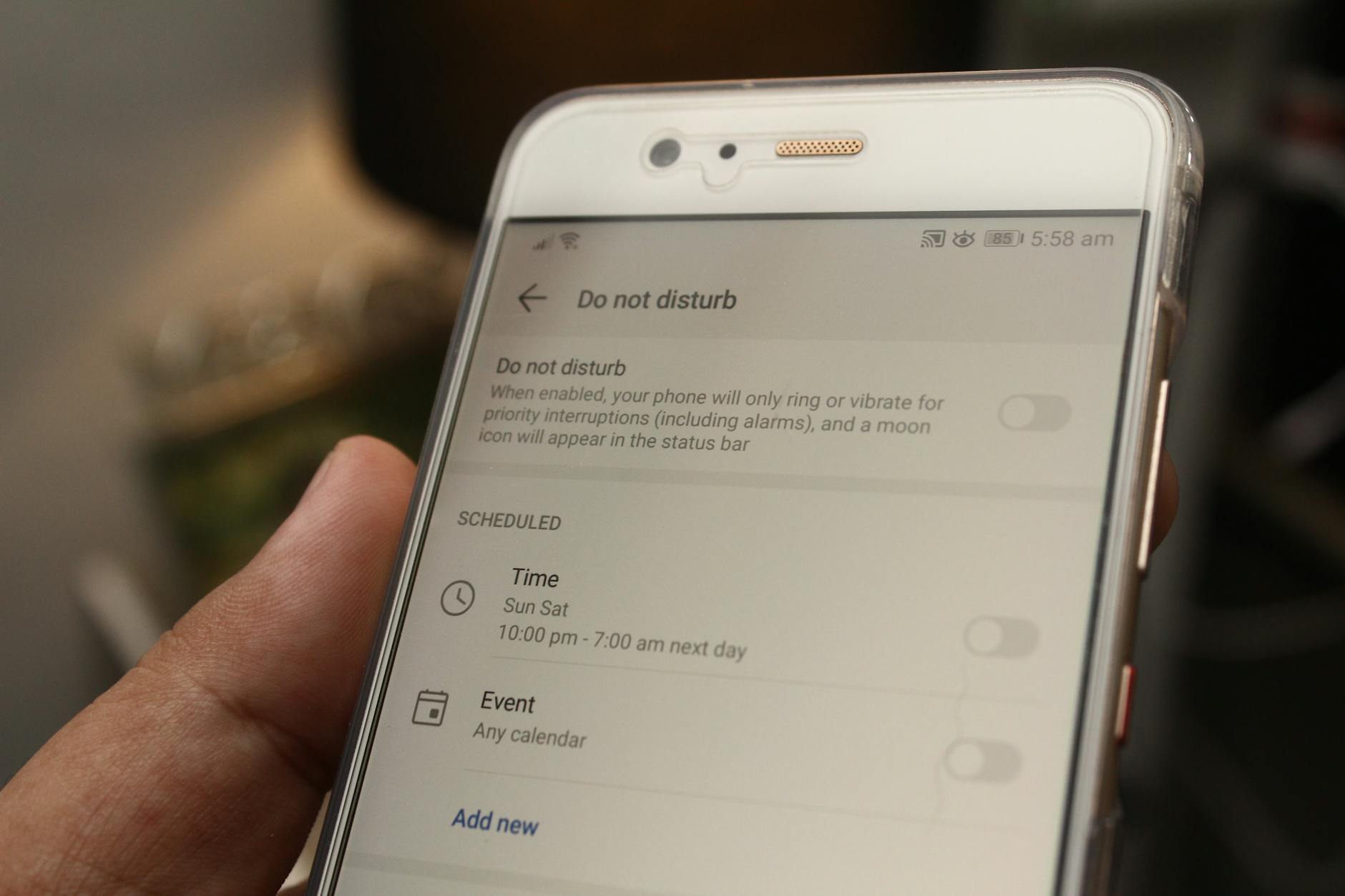
Photo by Daniel Moises Magulado
Turn Off Do Not Disturb and Focus Modes
Simple, quick actions to disable DND and Focus modes on both Android and iPhone. Use the quick access panel for speed, then verify in the Settings app. Remember to turn DND off to restore normal ringtone loudness during testing.
- Android
- Pull down the notification shade to open Quick Settings.
- Look for the Do Not Disturb or Focus icon and tap it to turn off.
- If you don’t see it, open Settings > Sound & Vibration > Do Not Disturb, then toggle off.
- Confirm by lowering and raising the volume, then test a ringtone.
- iPhone
- Swipe down from the top-right (iPhone X and later) or swipe up (earlier models) to access the Control Center.
- Tap the Focus or Do Not Disturb icon to disable it.
- Alternatively, go to Settings > Focus or Settings > Do Not Disturb and switch off.
- After turning off, test by triggering a call or a notification sound.
- Quick test reminder
- After you disable, play a sample ringtone in Settings or ask someone to call you to confirm the loudness return.
Helpful links for quick reference:
- Android: Limit interruptions with Modes & Do Not Disturb on Android https://support.google.com/android/answer/9069335?hl=en
- How to turn Do Not Disturb on or off on iPhone and Android https://www.asurion.com/connect/tech-tips/be-present-how-to-turn-on-your-phones-do-not-disturb-feature/
Review Focus Mode Schedules and Exceptions
Focus modes can silence calls or notifications based on schedules, apps, or contacts. It’s common to miss a call because the mode hides all alerts except those you’ve explicitly allowed. Here’s how to check and adjust Focus settings so calls come through when you need them.
- Android
- Open Settings > Digital Wellbeing & Notifications > Focus or Do Not Disturb.
- Check any active schedules and disable them temporarily, or adjust exceptions.
- In the DND settings, choose who can interrupt you (everyone, favorites, or specific contacts) and under what conditions.
- iPhone
- Open Settings > Focus.
- Review each Focus profile (Do Not Disturb, Driving, Sleep, etc.).
- For each, adjust People and Apps allowed to interrupt. You can allow calls from everyone, Favorites, or specific contacts.
- Turn off any time-based automation you don’t need.
Why this matters: even if your ringtone is loud, a silent Focus rule can mute incoming calls. By removing schedules or widening exceptions, you regain control over when you hear alerts.
Additional guidance you can consult:
- How to Add Exceptions to Your Phone’s Do Not Disturb Mode (and Why You Absolutely Should) https://lifehacker.com/how-to-add-exceptions-to-your-phones-do-not-disturb-mod-1847712694
- Limit interruptions with Modes & Do Not Disturb on Android https://support.google.com/android/answer/9069335?hl=en
Temporary Workarounds When You Expect Calls
If you know you’ll need your phone to be loud for a while, use quick, low-effort workarounds. These help you stay reachable without fully disabling all protections of Do Not Disturb.
- Enable broad call allowances during busy periods
- Android: In Do Not Disturb settings, set “People” to allow calls from Everyone during the window you need.
- iPhone: In Focus > Do Not Disturb, customize the allowed callers to include Everyone for short intervals.
- Create a short, repeatable testing window
- Set a timer or reminder to re-enable strict DND after you finish testing.
- Quick check: once you’ve disabled DND, place a test call or send a test alert to confirm the ringtone is audible.
- Use impulse-based testing
- When testing, temporarily lower media volume or mute apps that might distract you, then listen for the ringtone at a normal level against background noise.
Real-world tip: if you often switch modes, keep a dedicated quick-access shortcut on your home screen or in your quick settings so you can toggle DND and Focus modes without digging through menus.
External references for further setup ideas:
- How to turn Do Not Disturb on or off on iPhone and Android https://www.asurion.com/connect/tech-tips/be-present-how-to-turn-on-your-do-not-disturb-feature/
- How to Add Exceptions to Focus Modes (general guidance) https://lifehacker.com/how-to-add-exceptions-to-your-phone-s-do-not-disturb-mod-1847712694
By walking through these steps, you’ll quickly determine whether DND or Focus Mode is the real culprit behind quiet ringtones. When you test with DND off, you’ll know if the baseline volume is back to normal and if you need to adjust the ringtone slider again.
Diagnose App Related and Ringtone Specific Issues
If your ringtone is still quiet after checking the basics, the issue might be tied to how apps manage sound or how a third party tone interacts with your device. This section breaks down common app related causes and how to verify them. You’ll learn practical checks for app level volume, how to test without leaving your smartphone in a fragile state, and when a third party ringtone app could help or pose risk. Follow these steps to pinpoint the source and restore a clear, reliable alert sound.
Change or Reinstall Your Ringtone
Sometimes the simplest fix is the most effective. Pick a new tone or reset to the default to confirm the problem isn’t caused by a corrupt file or an incompatible format. Here’s how to approach it.
- Android
- Open Settings > Sound and Vibration > Ringtone.
- Choose a new tone from the built-in list or install a trusted file. If you’re unsure, select the default option to test baseline loudness.
- If you suspect corruption, delete the current file and re-add a fresh copy from a reliable source. Ensure the file is in a compatible format (commonly MP3 or OGG).
- After selecting a new tone, press a volume button to confirm the on-screen slider reflects the change and test with a call or notification.
- Quick check: Use the Settings sample ringtone to hear how the tone sounds at various volumes.
- iPhone
- Go to Settings > Sounds & Haptics > Ringtone.
- Tap the current ringtone to choose a different one or revert to the default.
- If you suspect corruption, delete the problematic tone and re-import a clean file from a trusted source.
- While adjusting, an alert will play so you can hear the effect in real time.
- Tip: If you frequently switch tones, keep a small library of reliable ringtones on your device to avoid repeat testing.
Why this matters: a damaged or incompatible file can mask the real volume setting. If the new tone plays clearly, you’ve isolated the issue to the file itself rather than the device.
Supportive resources:
- Android: Change your volume and ringtone settings https://support.google.com/pixelphone/answer/14852487?hl=en
- iPhone: Adjust the volume on iPhone https://support.apple.com/guide/iphone/adjust-the-volume-iphb71f9b54d/ios
- Zedge guide: How to Change the Ringtone on Android & iPhone https://blog.zedge.net/how-to-change-the-ringtone/
Check App Volume vs System Volume
Not every app respects the phone’s main volume the same way. Some apps control their own volume, which can make a loud system setting still leave you with a quiet ringtone inside the app or while the app is active. Here’s how to verify and align these levels.
- Independent app controls
- iOS: Some apps offer per-app volume controls or audio ducking options. If an app seems to overpower or drown out alerts, check its internal settings for volume or sound effects.
- Android: Many apps have their own volume or playback gains. Open the app’s own settings and look for a “Volume,” “Sound,” or “Audio” section to adjust independently.
- Quick checks you can perform
- Open a music, video, or messaging app and raise its playback volume to its maximum.
- Then open the system sound controls and confirm the ringtone slider is set to a level that should be audible in typical environments.
- Return to the app and play a sample sound to ensure no drastic mismatch exists between app and system levels.
Helpful references:
- Independent app volume control in iOS for iPhone https://discussions.apple.com/thread/254788364
- How to set different volume levels for each app https://techwiserai.pages.dev/posts/how-to-set-different-volume-levels-for-each-app
- Set different volume levels for multiple apps on Android https://android.stackexchange.com/questions/92530/set-different-volume-for-multiple-apps-running-at-the-same-time
Tips to avoid conflicts:
- If an app’s sound is critical for you, consider keeping it in a separate playback mode with a predictable volume baseline.
- If you must use multiple apps at once, test a ringtone while the app is in use to confirm alerts remain audible.
Consider Using a Third-Party Ringtone App
A third party ringtone app can simplify finding and managing tones, but it brings both benefits and risks. It can offer broader sound libraries and easier management across contacts, yet it may introduce security concerns or conflicts with system volume.
- When a third party app might help
- You want more tone options than the built-in library.
- You need per-contact ringtones or more precise control over alert types.
- You’re troubleshooting a recurring issue with a specific file type or format.
- Risks to consider
- Some apps may request extensive permissions or come from untrusted sources.
- They could override system volume in unexpected ways or fail to respect OS sound profiles.
- Updates or app changes can reset settings or create new conflicts.
- How to choose a safe app
- Pick apps with good reviews and clear permission explanations.
- Prefer apps from reputable developers with recent update history.
- Read reviews about reliability and any reports of audio conflicts.
- How to adjust within the app so it won’t clash with system volume
- Set the app’s own volume to a comfortable level and avoid auto-ducking that lowers alerts.
- Disable any in-app “media playback” modes when you only need a notification tone.
- Test by triggering both a call and a notification while the app is running.
Recognize when to avoid third party options:
- If your device security is a priority, skip apps that request broad permissions or access to personal data.
- For most users, sticking with trusted sources minimizes risk while still delivering better tone variety.
Useful reads:
- What are third-party apps and are they dangerous? https://comparitech.com/blog/information-security/what-are-third-party-apps/
- How to stay safe while using third-party apps https://www.mcafee.com/learn/what-are-third-party-apps/
- Ringtones and app risks on iPhone discussion https://discussions.apple.com/thread/1161549
Practical takeaway: a safe third party app can be a solid helper if you choose carefully and keep settings tight. If you’re unsure, start with a reputable library first and test the app in a controlled scenario before relying on it for daily alerts.
Engage and test:
- After installing or updating any third party ringtone app, run a quick test by triggering a call and a notification while the app is active.
- Compare with your built-in ringtones to ensure there is a clear difference and improved audibility.
- Keep a short list of trusted tones that you know work well in both quiet and noisy environments.
External references for setup ideas:
- How to turn Do Not Disturb on or off on iPhone and Android https://www.asurion.com/connect/tech-tips/be-present-how-to-turn-on-your-phones-do-not-disturb-feature/
- How to Add Exceptions to Focus Modes https://lifehacker.com/how-to-add-exceptions-to-your-phone-s-do-not-disturb-mod-1847712694
By evaluating app behavior, you’ll identify whether the culprit is an app-specific setting, a file issue, or a broader system configuration. A smartphone is a powerful tool, and with the right tweaks you’ll regain reliable ringtone loudness without sacrificing convenience.
Tackle Hardware, Firmware, and Cleanliness Issues
If the ringtone on your smartphone remains quiet after you’ve checked the basics, it’s time to look at the hardware, software, and cleanliness factors that can quietly sabotage sound. This section covers practical steps to address three common roots of the problem: a blocked speaker, outdated firmware, and the last resort of a factory reset. Each step blends clear instructions with actionable testing so you can confirm improvements along the way.
Clean the Speaker Grille and Test External Speakers
Dust, lint, and grime can block the small vents that let sound escape from your device. A clean speaker grille can restore the clarity and volume you expect from a ringtone. Here are safe, simple methods to clean without risking damage.
- Gentle brush approach: Use a soft, dry brush with light strokes to loosen debris from the grille. A clean, dry toothbrush or a small cosmetic brush works well. Be careful not to press hard into the holes.
- Dry microfiber wipe: Lightly wipe across the surface to remove loosened dust. Avoid soaking the area with liquids.
- Compressed air (if available): A quick blast from a can of compressed air, held at a safe distance, can expel dust from the openings. Use short bursts and keep the can upright to prevent moisture from escaping.
- Test after cleaning: Play a spoken audio sample and then a ringtone to compare the before-and-after difference. Listen for clearer tone, less muffling, and consistent volume.
While you clean, keep in mind that the speaker might be used by other components, like alarms or notification tones. If you test with headphones and the sound is still subdued, the issue may lie elsewhere. You can also test external speakers or a Bluetooth headset to determine if the problem is the internal speaker or the entire audio path. For extra reference on safe cleaning methods, see guides that cover cleaning dust and moisture from phone speakers safely. External sources offer practical, device-specific tips you can adapt to your model.
Tips to maximize success:
- Do not insert objects into the speaker holes.
- Work in a well-lit area so you can spot dust in hard-to-see spots.
- Re-test in a quiet room to catch subtle changes in volume.
If you want a quick how-to reference on safe cleaning, you can check these guides for context and additional methods:
- How to Clean Dust & Water from a Phone Speaker: 5 Easy Ways https://www.wikihow.com/Clean-a-Phone-Speaker#:~:text=Cleaning%20Phone%20Speakers%20Safely
- How to Clean a Phone Speaker at Home — Step-by-Step Guide for Android and iPhone Users https://www.paiinternational.in/blog-details/how-to-clean-a-phone-speaker-at-home-step-by-step#:~:text=Find%20a%20clean%2C%20dry%20brush
- How to Clean Phone Speakers Safely at Home (Easy Tips) https://www.onethreadapp.com/blog/how-to-clean-phone-speakers/
If you’re curious about hardware limits, also consider that some devices integrate the speaker with other components, and signs of wear or a blown speaker can appear as crackling or distorted tone. In such cases, professional service may be required, especially if the device is still under warranty.
Update Firmware and Check for Known Bugs
Software updates often include fixes that address audio problems, including ringtone behavior. Keeping your device up to date helps ensure you’re not fighting a bug that a simple patch can resolve. Here’s a straightforward approach to staying current and safe.
- Why updates help: Updates can fix audio drivers, improve power management for the speaker, and resolve conflicts with apps that affect sound. An outdated OS may not handle new ringtone formats or notification logic as smoothly as the latest version.
- Back up before updating: A quick backup protects your data if something goes wrong during the process. You can back up photos, messages, apps, and settings depending on your platform.
- Simple update checks:
- Android: Open Settings > System > Software Update. If an update is available, download and install it. After updating, restart the phone and test ringtone volume again.
- iPhone: Open Settings > General > Software Update. If an update is available, tap Download and Install. After the device restarts, test the ringtone with a call or alert.
Platform-specific notes:
- Some devices require a longer charge time or a stable Wi-Fi connection to complete updates. Always ensure you have enough battery or plug in during the update.
- If your device prompts you to back up before updating, complete the backup first. It reduces risk if the update process needs to roll back.
Where to look for guidance and verification:
- Android: Change your volume & ringtone settings https://support.google.com/pixelphone/answer/14852487?hl=en
- Android: Change volume, sound and vibrate settings https://support.google.com/pixelphone/answer/2819577?hl=en-AU
- iPhone: Adjust the volume on iPhone https://support.apple.com/guide/iphone/adjust-the-volume-iphb71f9b54d/ios
- iPhone: How to set and change alarms on your iPhone https://support.apple.com/en-us/118444
A quick tip: after updating, test with a normal ringtone and a media sample. If the ringtone volume still feels off, you’ll know the issue lies elsewhere.
Factory Reset as Last Resort
If all else fails, a factory reset can clear stubborn glitches or misconfigurations that hide in software. Treat this as a last resort because it erases personal data and resets settings. Before you reset, back up your data and prepare to restore afterward.
- When a reset might help: If the device behaves oddly across multiple apps, or if volume changes seem tied to a specific profile or background service, a reset can clear the misbehavior. It’s particularly useful after experimenting with multiple customization apps or mods.
- Risks to consider: All personal data, apps, and settings are erased. You will start from a clean slate, so you’ll need to reinstall apps and restore data from your backup.
- Back up first:
- Android: Use Google Drive or a local backup to save photos, messages, apps, and settings.
- iPhone: Use iCloud or a computer backup to save your data.
- How to perform a factory reset:
- Android: Settings > System > Reset options > Erase all data (factory reset). Follow the prompts to confirm and reset. After the reset, you’ll be guided to restore from a backup during setup.
- iPhone: Settings > General > Transfer or Reset iPhone > Erase All Content and Settings. Enter your passcode, confirm, and the device will reset. Set up as new or restore from a backup.
Important reminders:
- A reset deletes data. Make sure you’ve completed a reliable backup before starting.
- After the reset, test the ringtone early in setup to see if the baseline sound has improved.
- If you’re unsure about any step, consult the official guidance for your device family:
- iPhone: How to factory reset your iPhone, iPad, or iPod touch https://support.apple.com/en-us/108931
- Android: Reset your Android device to factory settings https://support.google.com/android/answer/6088915?hl=en
If you do proceed with a reset, plan a lightweight reconfiguration path. Reinstall only essential apps first and test the ringtone volume in a couple of stages. This helps you isolate whether a newly installed app reintroduces the issue.
Key takeaways for this section:
- Regular firmware updates can resolve hidden sound issues.
- Always back up before updating or resetting.
- Use a factory reset only after trying all safer options.
References and quick-checks:
- For iPhone users, Apple’s official reset and backup guidance provides the clearest steps to preserve data.
- For Android users, Google’s support articles cover backup preparation and how to reset devices safely.
If you want to keep reading, the next sections dive deeper into per-app sound behavior, the role of notification channels, and how to tailor audio alerts for different scenarios. You’ll walk away with a practical toolkit to ensure your ringtone is reliably audible, no matter where you are or what you’re doing.
Conclusion
Most quiet ringtones boil down to simple causes: volume settings or Do Not Disturb modes. Start by confirming ringtone, media, and system volumes are each set at appropriate levels, then disable any DND or Focus rules that might mute alerts. If the issue persists, try changing the ringtone file or testing with a different app and, as a last resort, consider a firmware update or reset. A quick baseline test after every change helps you verify results and prevents a cycle of guesswork.
Quick checklist
- Verify separate volume sliders for Ringtone, Media, and System
- Turn off Do Not Disturb or Focus modes and re-test
- Change or re-install the ringtone and test again
- Update firmware if available, and back up first
- If all else fails, reset as a last resort
If this guide helped, share what worked for you in the comments or tell us what you tried first. Your feedback helps others fix their smartphone faster.