What If the Only Thing Between You and the Life You Deserve Is a Hidden Wealth Code Waiting to Be Activated
>>> Open the Door <<<

If your phone screen won’t rotate, you’re not alone. A stuck orientation can throw off everything from video viewing to navigation, making everyday use awkward. This guide explains in plain terms what causes the problem and how to fix it quickly, without techy jargon.
You’ll learn how to tell if the issue is software related or a hardware sensor hiccup. We cover quick checks you can do right away, simple software tests, and practical steps to adjust settings on both iPhone and Android devices. Real world examples show how a tiny setting or a minor update can restore smooth rotation.
By the end, you’ll know when to try a reset, when to update or reinstall apps, and when a professional check is needed. This process is safe when done carefully, and it’s written to be doable for someone who’s just aiming to get back to a normal, responsive smartphone experience. If you’re dealing with a stubborn orientation lock, you’ll find clear steps to diagnose and fix the issue, plus tips to prevent it from happening again.
Start with the basics: check rotation settings and quick tests
Before diving into deeper troubleshooting, validate the basics. A quick pass to confirm whether auto rotate is enabled and whether any orientation lock is active can save you from chasing a software bug. This section walks you through where to find the relevant controls on iPhone and Android, how to recognize the icons, and how to perform swift checks in a few common apps to confirm the behavior.
He Was Drowning in Bills and Burnout Until a Simple Daily Ritual Rewired His Brain for Wealth in Less Than a Week
>>> Start Your Shift Today <<<

Verify auto rotate and orientation lock
Auto rotate and orientation lock are the first things to confirm when a phone screen won’t rotate. Here’s how to check them on both major platforms and what to look for in the status bar or Control Center.
iPhone
- Locate the Portrait Orientation Lock icon in Control Center. On newer iPhones, swipe down from the top-right corner to open Control Center and look for a lock icon with a small circular arrow surrounding it. If the icon is highlighted, Portrait Orientation Lock is on.
- To toggle it off, tap the icon. The screen should respond to rotation when you rotate the phone from portrait to landscape.
- Quick tip: test both portrait and landscape in several apps. Safari or Messages often rotate smoothly in landscape when allowed.
- If rotation still fails after turning off the lock, try a different app to rule out an app-specific issue. Support articles from Apple show the exact steps and visual cues in Control Center and how to disable the lock if needed. For a visual guide, see Rotate your iPhone screen.
Quick reference: the rotation icon in Control Center is a small lock with a circular arrow around it. When it’s off, the circle looks unfilled or gray and rotation should occur freely.
Android
- Swipe down from the top of the screen to open the Quick Settings shade. Look for the Auto-rotate icon. It may say “Auto-rotate” or show a rotate symbol; the text may vary by brand.
- If Auto-rotate is off, tap the icon to turn it on. The screen should rotate when you switch orientation.
- Some devices use a separate “Lock screen rotation” toggle or have it labeled as “Rotate off.” Make sure the primary Auto-rotate is enabled.
- Quick tip: verify rotation in a mix of apps, like the camera, browser, and video player. If one app ignores rotation, the issue might be app-specific rather than a system setting.
- If you’re unsure where the toggle lives, you can find guidance that covers quick access to the feature in Android’s Quick Settings and related controls.
For a deeper dive into iPhone orientation controls and troubleshooting steps, Apple’s guide is a reliable reference. It covers how to rotate the screen and what to do if it doesn’t work, including app-specific behavior and how to re-check orientation across different contexts. Rotate the screen on your iPhone or iPod touch explains these controls in detail.
In addition, if you’re using a Pixel or another Android device, Google’s support pages outline how to Find accessibility services in Quick Settings and how to adjust orientation behavior across different scenarios. This can help you tailor your quick access to rotation options when needed.
- Rotate your iPhone screen: https://support.apple.com/en-ca/guide/iphone/change-or-lock-the-screen-orientation-iph3badf94ec/ios
- Rotate the screen on your iPhone or iPod touch: https://support.apple.com/en-ca/118226
- Turn off auto rotate and related controls on Android: https://support.google.com/android/thread/328783183/turn-off-auto-rotate?hl=en
- Find accessibility services in Quick Settings: https://support.google.com/accessibility/android/answer/12637487?hl=en
If you want a quick, practical path to verify orientation behavior, perform the following steps:
- Open Control Center or Quick Settings.
- Confirm Auto-rotate is enabled.
- Rotate the device to landscape and back to portrait.
- Open two different apps to see if both respond to the change.
Use quick settings to test rotation on Android and iPhone
Testing rotation using quick access controls is fast and repeatable. Those controls are designed to help you confirm whether the problem lies with the system or a particular app.
- Android quick settings
- Swipe down from the top to expose Quick Settings. Tap Auto-rotate to toggle it on or off. If it’s already on, keep it on for the test; if it’s off, switch it on and then rotate the device to see if the screen flips orientation.
- After testing, return to Auto-rotate off if you usually rely on manual orientation. This helps avoid leaving your phone in the wrong mode by mistake.
- iPhone Control Center
- Swipe down from the top-right corner on iPhone X and later (or up from the bottom on older models) to reveal Control Center. Tap the Portrait Orientation Lock button to toggle it off or on.
- Re-check orientation by rotating the device. If you see no change, try a different app to confirm it’s not an app-specific issue.
When you test, keep this in mind: some apps do not support landscape mode. In those cases, you may see the app stay in portrait even with Auto-rotate enabled. If multiple apps rotate normally but one app resists, that’s a strong sign the problem is app-related rather than a device-wide setting.
If you’re uncertain how to re-enable after testing, follow the same path you used to test, but flip the toggle back to its preferred state. This avoids accidentally leaving the phone in the wrong mode and helps you resume normal use quickly. For a quick refresher on the official steps, consult Apple’s Rotate the screen guide and Google’s quick settings article.
- Rotate your iPhone screen: https://support.apple.com/en-ca/guide/iphone/change-or-lock-the-screen-orientation-iph3badf94ec/ios
- Find accessibility services in Quick Settings: https://support.google.com/accessibility/android/answer/12637487?hl=en
Do a simple rotation test with an app
Even after you confirm the basic toggles, a simple rotation test across a few apps can reveal whether the issue is system wide or app specific.
- Camera app
- Open the camera, rotate your phone to landscape orientation, and observe whether the viewfinder automatically adjusts. Some cameras are optimized for portrait capture, but most support landscape to enhance framing when shooting video or panoramas.
- Web browser
- Open a web page and rotate the device to landscape. Look for how the layout responds. A well-optimized site should adjust content and loaded media without requiring a reload.
- Video player
- Play a video and rotate to landscape. A good player should switch to full screen in landscape automatically. If it stays in portrait, note whether the device shows a rotation prompt or if the app has its own orientation rules.
If one app behaves differently from the rest, note that as app-specific behavior rather than a system problem. Apps sometimes lock orientation for usability or due to orientation handling within the app code. If you see consistent, system-wide failure across multiple apps, that points to a device or OS issue that may require more in-depth troubleshooting.
- If you want to verify orientation responsiveness in a web context, you can explore device orientation events and how browsers detect orientation changes. See Detecting device orientation on MDN for a neutral, developer-focused perspective, which can help you understand what to expect when a tab or page uses orientation-based features. https://developer.mozilla.org/en-US/docs/Web/API/Device_orientation_events/Detecting_device_orientation
- If you’re curious about app-specific orientation behavior and how to test across devices, a practical quick-reference discussion on how to detect rotation of Android phones in the browser can be insightful. https://stackoverflow.com/questions/1649086/detect-rotation-of-android-phone-in-the-browser-with-javascript
- For a general, vendor-agnostic view on changing orientation in mobile testing, a guide from BrowserStack covers how to switch between portrait and landscape across mobile devices. https://www.browserstack.com/support/faq/mobile/test-session-mobile/how-do-i-change-the-orientation-from-portrait-to-landscape-on-mobile-devices
These tests give you a fast read on whether the issue is behavioral or systemic. If all apps rotate normally and the problem remains only in certain apps, you can target app updates or reinstallation. If the problem persists across several apps and the home screen, you’re more likely facing a sensor or OS issue that may require deeper diagnostics or a service visit.
- MDN: Detecting device orientation – Web APIs: https://developer.mozilla.org/en-US/docs/Web/API/Device_orientation_events/Detecting_device_orientation
- Stack Overflow: Detect rotation of Android phone in the browser with JavaScript: https://stackoverflow.com/questions/1649086/detect-rotation-of-android-phone-in-the-browser-with-javascript
- BrowserStack: How do I change the orientation from portrait to landscape on mobile devices: https://www.browserstack.com/support/faq/mobile/test-session-mobile/how-do-i-change-the-orientation-from-portrait-to-landscape-on-mobile-devices
This section gives you practical, actionable steps you can perform today. With a clear check of auto-rotate and orientation lock, plus quick tests across apps, you’ll know whether you’re dealing with a simple setting or something that needs a closer look.
Rule out common software problems
When a phone screen won’t rotate, the cause is often software related rather than a broken sensor. Start by ruling out common culprits that can hide in plain sight. This section covers app level orientation locks, glitches after updates, and how safe mode or uninstalling apps can reveal the real problem. Think of it like a quick triage for your smartphone. It helps you decide whether to adjust settings, restart, or remove a troublesome app.
App level orientation locks
Some apps lock orientation inside the app itself. If a single app stays stubbornly portrait while others rotate normally, the issue is likely app-specific rather than a device-wide setting. Look for an orientation icon or a lock feature inside the app. Many video players, games, and certain browsers let you force landscape or portrait independently of system settings.
- How to spot it:
- Open the app and look for a rotate icon or a lock symbol often located near playback controls or in the app’s settings.
- If you spot an orientation lock inside the app, toggle it off or select the orientation you prefer.
- Practical checks:
- Close and reopen the app after changing the in-app setting.
- Try a different app to confirm whether the issue is isolated to one program or affects multiple apps.
- Quick verification:
- If several apps rotate normally but one stays stuck, treat it as app-specific. If many apps misbehave, the problem is more likely system wide.
Helpful resources:
- Automatically Toggle iPhone Orientation Lock for Specific Apps
- How to automatically enable or disable screen rotation for specific iPhone apps
- How to Automatically Lock Your iPhone’s Orientation for Specific Apps
Software glitches after updates
OS updates can temporarily affect sensors and auto-rotate behavior. A glitch might appear after a core update or a minor patch. The fix is usually simple: update to the latest version, read the release notes, and give the device a restart to clear the glitch.
- What to do:
- Check for any recent OS updates and review the release notes for notes about orientation or sensor behavior.
- Restart your device to refresh system services and reinitialize hardware drivers.
- If the issue started right after an update and persists after a restart, look for follow-up patches or known issues from the manufacturer.
- Keep steps concise:
- Update, then restart. If needed, recheck rotation across apps to confirm whether the problem is resolved.
External guidance:
- General guidance on screen rotation issues after updates
- Official troubleshooting pages from Apple and Google about orientation and sensors
Test in safe mode or after uninstalling apps
Booting into a safe mode on Android or performing a clean boot on iPhone can help identify troublesome software. If rotation works in safe mode but not normally, you’ve likely found a conflicting app or service. The next step is to identify the offender and remove it.
- How to proceed:
- Android: boot into Safe Mode to disable third-party apps temporarily. Use your phone as you normally would and test rotation. If it works, a third-party app is the culprit.
- iPhone: a full clean boot isn’t as straightforward as Android, but you can simulate the effect by disabling or removing recently installed apps and testing rotation again.
- What to do next:
- If rotation improves in safe mode, review recently installed apps. Remove or update them one by one to find the offender.
- If rotation remains unreliable even in safe mode, the problem might be deeper in the OS or hardware and may require further diagnostics.
Helpful resources:
- How to Boot Android in Safe Mode and disable it with ease
- Find problem apps by rebooting to safe mode on Android
In short, ruling out app-related causes quickly saves time. If the problem disappears in safe mode, you’ll know to focus on the apps rather than the device itself. If it persists, we move to deeper diagnostics in the next sections. For context on orientation behavior across contexts, you can explore how browsers detect device orientation and how to test orientation in different environments.
Inspect hardware and sensors for issues
If the screen rotation still misbehaves after software checks, it’s time to look at the hardware and sensor health. A faulty accelerometer or gyroscope, a tiny crack near the edge, or moisture exposure can all disrupt orientation changes. This section guides you through practical checks you can perform and when to seek professional help. Remember, small issues in the sensors can manifest as big oddities in rotation, so a methodical approach pays off.
Thousands of People Were Struggling With Money Until They Discovered This One Ancient Secret Hidden in Sound
>>> Unlock It Now <<<

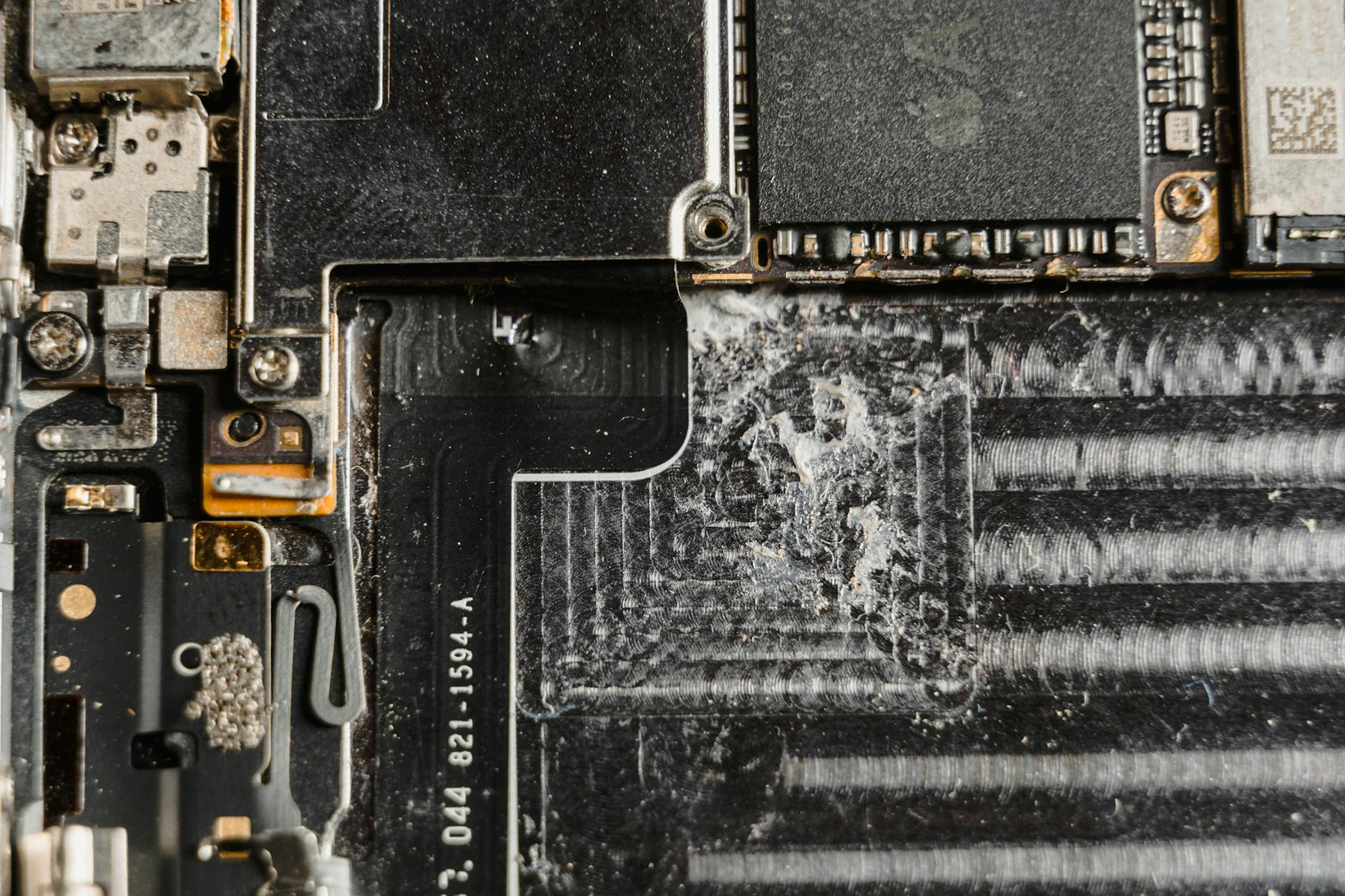
Photo by Tima Miroshnichenko
Test accelerometer and gyroscope
The accelerometer and gyroscope tell the device how it’s moving and which way is up. If these sensors misreport, the phone may not rotate correctly. Use built in tests or third party sensor apps to check responsiveness as you move the device in different directions.
- How to test:
- On iPhone, look for a sensor test app such as SensorScope or iDiagnosis to run a quick check of accelerometer and gyroscope behavior. These apps provide live readouts as you tilt or rotate the phone.
- On Android, open a sensor testing app like Sensor Test to observe graphs for accelerometer and gyroscope data while you move the device.
- How to interpret results:
- If the graphs respond smoothly to each motion, the sensors are likely healthy.
- If you see delayed responses, erratic spikes, or no data for one axis, the sensor or its driver may be faulty.
- What to do next:
- If a sensor is flaky, try a full device restart to reinitialize system services. If the issue persists, a factory reset is a last resort after backing up data.
- Consider professional diagnostics if the sensor readings remain inconsistent across apps. In some cases, a hardware repair or part replacement is needed.
- Quick reference resources:
- SensorScope: Phone Diagnostics on the App Store
- Sensor Test on Google Play
If you want a quick at-a-glance test while you’re out of the house, run a short check with one of the recommended apps and compare results across both accelerometer and gyroscope. If the readings are stable in one app but not another, the issue could be app-specific or related to how that app handles orientation rather than a device-wide sensor problem. For broader context on what to expect from web and app tests, you can review MDN’s device orientation concepts and practical tests.
- SensorScope: Phone Diagnostics on App Store: https://apps.apple.com/us/app/sensorscope-phone-diagnostics/id6742356515
- Sensor Test on Google Play: https://play.google.com/store/apps/details?id=ru.andr7e.sensortest&hl=en_US
- MDN: Detecting device orientation: https://developer.mozilla.org/en-US/docs/Web/API/Device_orientation_events/Detecting_device_orientation
Check for case or screen protector interference
A snug case or thick screen protector can push or cover sensors near the edges, especially around the bezel, and this can throw off rotation. A tight fit may also slightly deform the display area so the sensors don’t register orientation changes as expected.
- What to inspect:
- Look for cases that press against the top or bottom edges where the accelerometer is often located.
- Check edge areas behind a thick edge of a screen protector that could cover the proximity or ambient light sensors affecting calibration.
- How to test:
- Remove the case and any screen protector, then perform a rotation test in several apps.
- Reinstall the case or a slimmer protector and test again to see if the behavior changes.
- Practical takeaway:
- If rotation improves after removing the case or protector, you’ve identified an interference issue. Consider a lighter case or a film protector that avoids covering sensor zones.
- Quick tips:
- Some brands provide official guidelines on case compatibility with sensor placement. If you’re unsure, check the manufacturer’s support pages for sensor-safe accessories.
If you want a quick read on how accessories can impact auto rotate and related settings, a few help guides discuss common interference causes and practical fixes. For example, guidance specific to iOS devices covers how to handle rotation issues after adding a case or screen accessory, and Android-focused articles discuss how to adjust protective gear with sensors in mind.
- How cases can affect iPhone orientation issues: https://www.guidingtech.com/top-ways-to-fix-auto-rotate-not-working-in-iphone/
- Auto Rotate not working on iOS 26 and related fixes: https://www.tenorshare.com/ios-26/ios-26-auto-rotate-not-working.html
Look for physical damage or moisture indicators
Visible damage and moisture indicators are red flags. A drop or crack near the edges can affect sensor alignment or internal connections. Water exposure can impact the sensors and the circuit paths that control orientation.
- What to check:
- Inspect for cracks around the corners or near the camera module, along the bezel, or where the glass meets the frame.
- Look at moisture indicators in the SIM tray area and near ports. A soaked indicator usually means water exposure, which can corrode sensor circuits.
- Moisture indicators:
- SIM tray moisture stickers are designed to change color if water has entered the phone. If you see color changes, avoid using the device further and seek professional service.
- What to do if damage is suspected:
- If you notice obvious physical damage or the moisture indicators have changed color, stop using the device. Schedule a professional assessment as soon as possible.
- Do not attempt DIY fixes that involve opening the phone or resealing ports. Internal damage can worsen quickly and void warranties.
- When to seek help:
- If the sensors appear miscalibrated after a drop, or if water exposure is suspected, a qualified repair technician should examine the device. They can verify sensor alignment, replace a faulty component, or perform a board-level diagnosis if needed.
For context on water damage indicators and proper handling after exposure, you can review videos and guides from reputable sources. These references explain what the indicators look like and how professionals assess moisture-related issues.
- iPhone water damage indicator overview: https://www.youtube.com/watch?v=UTYSSkkf9_A
- How to know if your SIM tray is water damaged: https://www.quora.com/How-do-I-know-if-my-phone-SIM-card-tray-is-water-damaged
This section helps you connect the dots between hardware health and rotation performance. If you notice a sensor reading that’s off after a physical incident or moisture exposure, the prudent move is a professional evaluation. A quick diagnosis can save time and prevent further damage to your device.
What to do next if it still won’t rotate
If you’ve already checked the basics and the issue persists, it’s time to move beyond quick tweaks. This section groups practical at home steps, a clear path for resetting settings, and when to seek professional help. The goal is to restore orientation without losing data and with minimal downtime. Keep in mind that some fixes are device specific, and a patient, methodical approach usually pays off.
Soft fixes you can try at home
Start with gentle, non-invasive steps. These remedies are quick, reversible, and protect your data. They often resolve stubborn rotation issues without touching the core system.
- Do a soft reset
- For most devices, a simple restart refreshes system services and drivers that handle orientation. If your phone feels sluggish, this small step can clear quirks that sneak in after updates or heavy app use.
- Clear cache for affected apps
- Apps sometimes cache orientation data oddly. Clearing the cache in a few suspect apps can restore normal behavior. This is especially useful for video players or camera apps that frequently manage rotation.
- Run quick OS checks
- Check for any pending system updates. A minor patch can fix an orientation hiccup. Also review app updates that occurred just before the problem started.
- Back up before deeper steps
- If you plan more invasive actions, back up your data first. A safe copy protects photos, messages, and app data in case you need to reset or replace hardware later.
- Test across apps
- Open several apps in both portrait and landscape modes. If most rotate and one doesn’t, note whether the issue is global or app-specific. This helps decide the next move.
If you want a few reliable references on basic fixes, you can start with official guidance around rotating the screen. For example, Apple and Google offer straightforward steps to re-check orientation and related controls. You’ll find practical walkthroughs that mirror the steps above and help you compare behaviors across apps.
- Rotate your iPhone screen: https://support.apple.com/en-ca/guide/iphone/change-or-lock-the-screen-orientation-iph3badf94ec/ios
- Find accessibility services in Quick Settings: https://support.google.com/accessibility/android/answer/12637487?hl=en
Reset settings or perform a factory reset
When simple resets don’t cut it, resetting can clear stubborn misconfigurations. There are two tiers of resets to consider: resetting specific settings and performing a full factory reset. Each option has tradeoffs, particularly around data.
- Reset network settings
- This option clears saved Wi‑Fi networks, Bluetooth pairings, and related preferences. It’s useful if connectivity changes were tied to rotation behavior or if a network app’s settings affected how your device handles orientation.
- Reset app preferences
- This restores default settings for all apps without deleting personal data. It can fix apps that have overridden orientation expectations or permission prompts that block rotation.
- Factory reset
- This returns the phone to its original state, removing all data and apps you’ve added. It’s the most exhaustive option and should be considered only after trying less drastic steps. Always back up first.
- What you should know before you reset
- Data loss is possible with a factory reset. Back up contacts, photos, messages, and app data. If you’re unsure, start with the lighter options (network settings or app preferences) and move up if needed.
- Simple steps you can follow
- Back up your device to the cloud or a computer.
- Navigate to Settings > General or System > Reset (paths vary by device).
- Choose the reset type: Network settings, App preferences, or Factory data reset.
- Follow on-screen prompts and test rotation after the reset.
If you’re seeking guidance that mirrors real-world steps, manufacturer support pages offer practical, device-specific instructions. They also emphasize backing up data before any reset and provide warnings about data loss. For a broader, vendor-agnostic view on reset options, you can consult general guidance from major platforms.
She Pressed Play on a Strange Audio Track and Within Days Her Financial Reality Started Shifting in Ways She Could Not Explain
>>> See How It Works <<<

- Reset Android device to factory settings: https://support.google.com/android/answer/6088915?hl=en
- Reset iPhone settings to their defaults: https://support.apple.com/guide/iphone/reset-iphone-settings-iphea1c2fe48/ios
- How to reset your Android phone without losing data: https://www.techlicious.com/tip/how-to-reset-android-phone-without-losing-data/
Remember, these resets are about restoring reliable sensor and software behavior. If the rotation issue disappears after a reset, your problem was likely a software glitch. If it persists, a hardware check is more likely needed.
Seek professional help or consider replacement
If software fixes fail, it’s time to consider hardware health and professional options. A trained technician can diagnose sensors, calibration, and structural issues that small tweaks can’t fix.
- When to visit a repair shop
- If the accelerometer or gyroscope shows irregular readings across multiple apps and tests, hardware calibration or replacement may be necessary.
- Visible damage, after a drop, or signs of moisture near internal components are strong signals to seek an expert.
- What a technician will test
- Sensor responsiveness (accelerometer, gyroscope)
- Internal connections and board traces around the sensor area
- Calibration alignment for orientation
- Case and screen assembly fit that could affect sensor placement
- Typical costs
- Minor sensor calibrations or firmware recalibration can be modest. More involved fixes, such as replacing the sensor module or the display assembly, can range higher depending on model and labor.
- How to decide between repair and replacement
- Compare repair quotes with the cost of a new device, especially if the phone is several years old or has other issues such as battery wear or screen damage.
- If the device is still under warranty or covered by an extended plan, repairs may be more economical. Outside of warranty, a careful cost-benefit helps you decide.
- Finding the right help
- Look for reputable, authorized service centers. They use OEM parts and provide transparency about what needs replacement.
- If you prefer at-home options, reputable repair networks can guide you to qualified technicians and provide price ranges before work begins.
For readers weighing repair versus replacement, it helps to review general guidance from trusted sources on the costs and benefits of repairing versus buying a new device. This can clarify whether a repair makes sense for your situation.
- Why you should repair your phone vs buying a new one: https://www.asurion.com/connect/tech-tips/repair-vs-replace-your-phone/
- The cost-benefit of repairing vs. buying new phones: https://www.ifixomaha.com/blog/repair-vs-buy-new-phone
- How to find a repair shop near you: https://www.consumerreports.org/electronics-computers/cell-phones/where-to-get-a-samsung-phone-repaired-a8415739859/
If you’re facing a stubborn orientation issue after a fall or moisture exposure, a professional evaluation is wise. A quick check can rule out hidden damage and prevent further problems. In many cases, a calibrated repair or part replacement restores reliable rotation without you shopping for a new device.
Tips for choosing a shop or service:
- Read recent customer reviews and ask about OEM parts.
- Request a diagnosis first and a written estimate before any work.
- Confirm whether the repair affects water resistance or warranty terms.
- Phone Repair Guide – Swappa: https://swappa.com/repair/phone-repair-guide?srsltid=AfmBOop63cQJr1NSq6HwV4KNdVxGHfhvdztSatFjUMVUfCMgzzmZIXwv
- iBroken style service options: https://www.ubreakifix.com/repairs
- Consumer Reports on repair options: https://www.consumerreports.org/electronics-computers/cell-phones/where-to-get-a-samsung-phone-repaired-a8415739859/
This section helps you decide your next move with clarity and calm. If the hardware check confirms a sensor issue, a professional path is the most reliable route to restore full rotation. If you’re unsure, start with a visit to a trusted repair shop for a diagnostic before making any purchase decisions. For context on how these choices play out in real life, you can explore practical guides that compare repair outcomes and replacement scenarios.
Conclusion
Most screen rotation issues come from settings and software checks. A quick pass through auto rotate, orientation lock, and a few app tests can fix many problems on a smartphone without touching hardware. If rotation works in some apps but not others, you’re looking at an app or software quirk, not a device-wide fault.
Safety first matters. Back up your data before deeper steps, and reset only when needed. If tests show stable sensor readings across apps and the issue persists across multiple tasks, seek professional help to check sensors or the display assembly.
Smartphone owners benefit from a calm, methodical approach. A little patience with software tweaks often restores smooth rotation, saving time and money in the process.
Checklist
- Verify Auto-rotate and Portrait Orientation Lock are set correctly
- Run rotation tests in several apps (camera, browser, video player)
- Test in Safe Mode or after uninstalling recent apps
- Check for OS or app updates and restart your device
- If problems continue, consider professional diagnostics or repair
He Was Drowning in Bills and Burnout Until a Simple Daily Ritual Rewired His Brain for Wealth in Less Than a Week
>>> Start Your Shift Today <<<