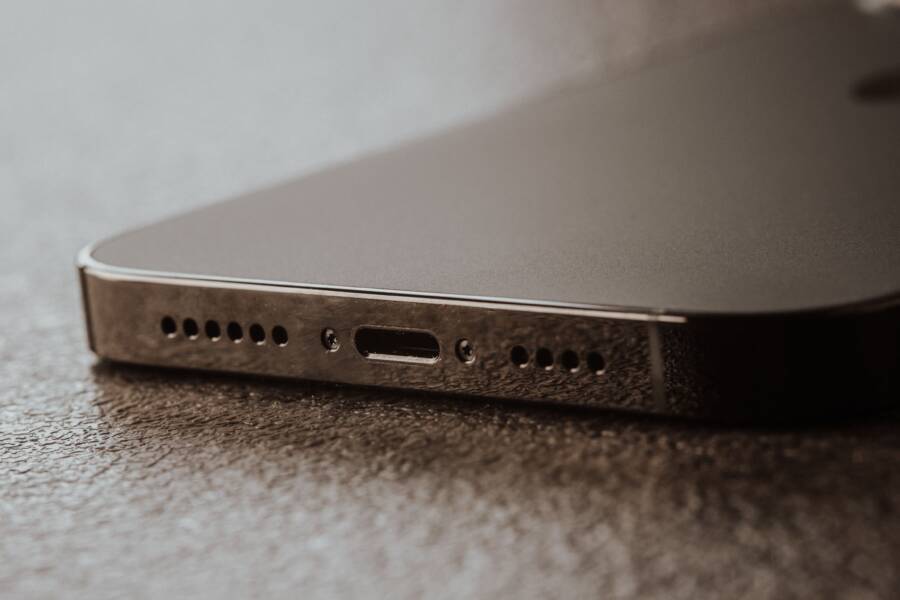
A smartphone speaker that lowers its own volume is almost always caused by a software glitch or a sensor interference issue. You don’t need a professional repair shop to solve this. Most of the time, a few simple adjustments to your device settings or a quick cleanup will fix the problem.
If your audio keeps dropping, the issue usually stems from internal software conflicts or the way the device detects its surroundings. By identifying the root cause, you can stop the volume from fluctuating and restore your audio to its proper levels.
Follow the steps below to troubleshoot your settings and get your speaker working correctly again.
Quick Software Checks to Stabilize Your Smartphone Audio
Your smartphone includes built-in settings designed to protect your hearing, but these can sometimes interfere with your media experience. If the volume drops without your input, checking these software configurations is a logical first step. These features monitor output levels to prevent long-term ear damage when you use headphones or high-volume settings. While helpful, they can become overly sensitive or miscalculate the volume output, causing an automated reduction.
Disabling Automatic Volume Limiting Features
Many smartphones include volume limiters that activate when the system detects sustained high-decibel audio. These safety tools often trigger after you connect wired or Bluetooth headphones. If you find the volume dropping while using a specific device, you should check these restrictions first.
To disable these limiters on an Android device, follow these steps:
Open your device Settings menu.
Select the Sound and Vibration section.
Tap the three-dot menu icon in the corner to find Media Volume Limit.
Toggle the limit switch to the off position.
On an iPhone, the process focuses on headphone safety. You can adjust this by navigating to Settings and tapping Sounds and Haptics. Select Headphone Safety and toggle off the Headphone Notifications or Reduce Loud Sounds options. These settings act as a safety net, but turning them off lets you control the maximum output manually. If the volume stops fluctuating after you disable these, the software was simply trying to protect your hearing based on its programmed limits.
Updating or Clearing App Cache for Media Players
Individual apps sometimes struggle with audio processing, which leads to erratic volume behavior. A buggy app might override your system volume settings or fail to communicate correctly with the hardware. If your volume only dips while using a specific music or video app, the problem likely exists within that application rather than the smartphone itself.
Clearing the cache is a common fix for persistent app issues because it removes temporary data that may be corrupted. On Android, go to Settings, choose Apps, and find your media player in the list. Tap Storage, then select Clear Cache to wipe temporary files. This does not delete your login information or saved media, but it forces the app to reset its audio interface.
You should also check for app updates regularly. Developers frequently release patches to fix audio bugs and improve compatibility with new software versions. Visit the Google Play Store or Apple App Store to see if an update is available for the app you use most. Keeping your media players current ensures they follow the system volume commands instead of creating their own rules. If these steps do not stop the automatic volume changes, your smartphone may have an issue with sensor interference or background processes that require further investigation.
Physical Interference and Sensor Issues Affecting Volume
Your smartphone relies on precise hardware interactions to maintain audio quality. Sometimes, physical objects block components or trigger sensors that interpret your environment incorrectly. These issues can force the system to lower the volume without your permission. Before assuming the device is broken, inspect the exterior for simple obstructions.
Checking Your Case and Screen Protector for Blockages
A protective case provides safety, but an ill-fitting one creates constant pressure on your physical buttons. If the edge of the case sits too tightly against the volume rocker, it may accidentally trigger a press. This mimics the action of holding down the volume button, causing the sound level to drop slowly or remain stuck at zero.
Remove your case entirely to see if the issue persists while the phone is bare. If the volume fluctuations stop, the case is the culprit. You can often fix this by trimming the plastic or rubber near the buttons with a sharp blade. Sometimes, a simple shift in the case position provides the necessary clearance to stop the interference.
Check your screen protector as well. If the protector covers the proximity sensor or interferes with the screen edges, it might cause the system to misinterpret touch inputs. A misplaced protector can register ghost touches near the volume slider. Realigning or replacing a damaged screen cover often restores normal functionality to your interface.
Cleaning the Speaker Grille and Sensor Areas
The speaker grille acts as an exit point for sound, but it also collects lint, dust, and grime over time. When debris accumulates, it restricts airflow and can muffle the audio signal, which might cause the system to struggle with output intensity. You should clean these areas gently to ensure clear, unobstructed sound.
Use a soft-bristled toothbrush to clear the grille without pushing dirt further into the hardware. Gently brush the speaker openings while holding the phone at a downward angle so debris falls out. Avoid using liquids, compressed air, or sharp metal objects that could puncture the delicate internal mesh or damage the speaker driver.
You must also clean the sensor housing, which is often located near the top of the display. If dust or oil covers the ambient light or proximity sensors, the device may believe it is pressed against your ear or in a dark space. This causes the software to lower the volume as a precaution during phone calls or media playback. Wipe the entire front bezel with a clean, dry microfiber cloth to keep these sensors functioning as intended.
Advanced Troubleshooting Steps When Simple Fixes Fail
If you have already checked your settings and cleaned your device, yet the volume still dips on its own, a deeper conflict might exist. Persistent audio issues often stem from software processes that run hidden in the background. These next steps allow you to isolate the source of the problem by testing your system in a controlled state or resetting specific configurations.
Using Safe Mode to Find Conflicting Apps
Safe Mode acts as a diagnostic environment for your smartphone. When active, it temporarily disables all third-party apps you have downloaded. Only the pre-installed software that came with your phone runs during this session. This setup helps you determine if a specific app is responsible for hijacking your volume controls.
To enter Safe Mode on most Android devices, follow these steps:
Press and hold the physical power button on your phone.
When the power menu appears on the screen, tap and hold the Power Off icon.
A prompt will appear asking if you want to reboot into Safe Mode.
Select OK or Confirm to proceed.
Once your phone restarts in this mode, watch your volume levels. Play media or listen to audio for a period similar to how you usually experience the drop. If the volume stays consistent, a third-party app is the culprit. You should then restart your phone normally and begin uninstalling recently added apps, starting with music players, equalizers, or system tools that have access to audio settings. If the volume still drops in Safe Mode, the issue is likely tied to the core operating system or hardware.
Resetting System Settings for Audio Consistency
Sometimes the internal files that manage how your smartphone routes audio become misaligned. A full factory reset wipes your personal data, but a system settings reset only affects your preferences and network configurations. This process is often enough to resolve persistent glitches in the audio subsystem without losing your photos, contacts, or messages.
You can reset these preferences through your system menus to restore default behavior:
Open the Settings app on your smartphone.
Navigate to the System or General Management menu.
Select Reset or Transfer/Reset options.
Choose the option labeled Reset All Settings or Reset Network Settings.
Resetting network settings is particularly effective if your volume drops occur specifically during Bluetooth or Wi-Fi streaming. This action clears saved Wi-Fi passwords, paired Bluetooth devices, and mobile data configurations. Your phone will restart, and you will need to reconnect to your wireless accessories. Once finished, test the audio output again. Most background routing errors clear up after this step because the phone rebuilds its connection protocols from scratch. If this still does not fix the issue, you have effectively ruled out most software causes and should consider checking for a damaged speaker component or a pending system update.
When to Contact Professional Support for Speaker Repairs
You should contact a professional repair shop when software troubleshooting and basic physical inspections fail to fix your speaker. Sometimes the issue is a damaged hardware component that requires specialized tools and technical expertise to replace. If you have exhausted all self-service options, it is time to seek expert assistance.
Hardware Failures Requiring Professional Attention
Smartphone speakers are sensitive components that experience wear over time. If you notice persistent crackling, distorted audio, or complete silence regardless of your settings, a hardware fault is likely present. A blown speaker diaphragm or a detached internal connection requires a technician to open the device casing safely. Attempting this process without professional tools often leads to further damage to the display or internal motherboard.
Water damage also creates complex repair needs. Even if your device is rated for water resistance, seals can degrade after drops or long-term heat exposure. Moisture inside the casing causes corrosion on the speaker contacts, which creates erratic volume behavior that simple cleaning cannot resolve. A technician can evaluate the extent of the corrosion and determine if a simple part replacement restores your audio quality.
Identifying When Repairs Exceed Your Skill Level
Not every technical issue is a candidate for a do-it-yourself fix. You should prioritize professional service if you lack the proper tools, such as precision screwdrivers, suction cups, or non-conductive pry tools. Opening a modern smartphone often involves heating the adhesive around the screen, which carries a risk of permanent hardware damage if performed incorrectly.
Consider professional support in these specific scenarios:
You have performed a full factory reset on your smartphone, yet the volume remains unstable.
The physical speaker grille or housing shows visible signs of a puncture or structural crack.
Your device recently suffered a heavy impact or a fall that coincided with the start of your audio issues.
You have already confirmed that the problem is not software-related through multiple diagnostics.
Professional technicians provide a diagnostic report that clarifies whether the speaker driver or the logic board audio chip is the source of the trouble. If the cost of the repair exceeds the value of the device, they can also provide guidance on whether a replacement is more practical. Relying on an authorized service provider also preserves your warranty status, which is a major advantage if your smartphone is still covered by the manufacturer.
Conclusion
Most volume fluctuations on your smartphone are temporary glitches related to software settings or minor physical obstructions. You can often restore normal audio by adjusting your volume limiters, clearing app caches, or removing a case that interferes with your buttons.
Stay consistent by keeping your operating system and applications updated to the latest versions. These patches resolve known bugs that frequently cause audio routing errors. If you follow these troubleshooting steps, you will likely fix the volume issue without needing professional help.