A crackling phone speaker is usually caused by debris in the grille, temporary software bugs, or internal hardware damage. You don’t need to replace your smartphone immediately because most sound issues have simple fixes you can perform at home.
Start by checking your audio settings and cleaning the speaker port. These basic steps often resolve the distortion without professional help. If the problem persists, follow this guide to identify the source of the noise.
Common Reasons Your Smartphone Audio Distorts
Audio distortion often stems from simple, avoidable issues. When your smartphone sound turns scratchy or thin, the cause is frequently a physical obstruction or a minor software error. Identifying the root cause is the first step toward restoring clear audio quality.
Physical Damage and Debris Buildup
Your smartphone speaker grille acts as a magnet for tiny particles. Over time, lint, dust, and microscopic debris settle into the small mesh covering the speaker. When you increase the volume, the speaker cone moves rapidly to produce sound. If debris blocks these movements, the air cannot flow properly, which causes the hardware to vibrate against the trapped particles. This physical interference creates the crackling or muffled noise you hear.
Moisture represents another hidden danger. Humidity or accidental exposure to liquids can cause debris inside the grille to clump together, forming a semi-solid barrier that is harder to clear than dry dust. Even if the device is rated for water resistance, the speaker mesh remains susceptible to residue buildup. If you suspect debris is the culprit, check the speaker area under a bright light. Avoid using sharp tools, as these often damage the delicate driver components behind the mesh. Instead, use a soft-bristled brush to gently sweep away surface particles.
Software Glitches and Audio Settings
Sometimes the hardware is perfectly fine, but the instructions it receives are faulty. An outdated operating system can lead to bugs in the audio driver software, which then misinterprets sound files. If your smartphone runs an older version of its software, it may struggle to process modern, high-bitrate audio formats. Updating your device often resolves these compatibility gaps by patching known audio bugs.
Incorrect equalizer settings also strain your speaker hardware. Many users boost the bass levels in their music app or system settings to get a fuller sound. While this works on large speakers, it forces a tiny phone speaker to move beyond its physical limits. When the driver attempts to recreate frequencies it cannot handle, the output becomes distorted and harsh.
Follow these tips to rule out software issues:
Reset your audio equalizer settings to default to see if the distortion stops.
Check for system updates in your settings menu and install any pending patches.
Test the audio using a different app to confirm if the distortion is global or limited to a single program.
Restart your device to clear any temporary processes currently conflicting with your audio output.
If the sound remains clear in some apps but crackles in others, the issue is likely a software conflict rather than a failing component. Adjusting your settings often prevents the hardware from overextending during playback.
Easy Steps to Clean and Fix Your Speaker
A dirty speaker port is a frequent source of distorted audio. Before you assume the hardware is failing, perform a physical inspection of your smartphone. Most crackling issues arise from simple blockages that you can remove with the right tools. Keep your movements gentle to protect the internal components from accidental harm.
Safe Cleaning Methods for Speaker Grilles
You should prioritize safety when working near the delicate speaker mesh. Pushing debris deeper into the port often causes more damage than the initial blockage. A soft-bristled toothbrush is your most effective tool for this process. Use a brand-new, clean brush to gently sweep the grille surface in a circular motion. This loosens dried lint or dust trapped in the small holes.
Adhesive putty works well for pulling out debris that remains stuck after brushing. Press a small, clean piece of the putty firmly over the speaker opening. Lift it away slowly to let the adhesive pull out any lingering particles. Avoid using needles, toothpicks, or paper clips, as these items easily puncture the thin speaker membrane behind the grille. If you struggle to clear the opening, consider using a can of compressed air. Keep the nozzle several inches away from the smartphone to avoid forcing moisture or dust further inside the chassis.
Testing Your Audio After Cleaning
Once you finish cleaning, you must verify that the audio quality returned to normal. Play a neutral, high-quality audio file or a specific test tone to check the results. Avoid testing with bass-heavy music initially, as low frequencies often exaggerate remaining distortion. A clean, mid-range tone helps you hear if the rattling or crackling sounds are truly gone.
Many users find that testing across different volume levels provides the most accurate feedback. Start at a low volume and slowly increase it to the maximum setting. If the sound remains clear throughout the entire range, your cleaning process succeeded. If you still hear crackling, the issue might involve internal hardware failure or a deeper software conflict. Documenting which specific volume levels trigger the distortion also helps if you decide to contact professional support later. This systematic check confirms whether your home maintenance solved the problem or if further technical inspection is necessary.
How to Troubleshoot Software and Settings
Audio problems on your smartphone often hide in the configuration menus. When you rule out physical damage, you must examine how your device processes sound. Many common issues trace back to active audio enhancements, background apps, or system bugs that interfere with normal playback.
Checking Equalizer and Sound Profiles
Many modern devices include built-in equalizers that allow you to adjust bass, mid-range, and treble levels. While these tools offer a way to customize your listening experience, they often cause distortion when set to extremes. Pushing the bass or treble sliders to the maximum forces your smartphone hardware to move outside its intended range. This causes the speaker to clip, creating a harsh, crackling sound during playback.
Start by navigating to your sound or audio settings menu to view the equalizer configuration. If you see custom presets enabled, reset them to the default or flat setting. This removes any artificial amplification that pushes the speaker beyond its physical limits. If the crackling stops immediately after the reset, one of your previous adjustments was the culprit.
Consider these points when adjusting your sound profile:
Disable third-party audio apps that run active overlays on your system sound.
Turn off software-based virtualization or wide-sound effects that process audio in real-time.
Avoid using volume boosters, as these apps often force the audio driver to output signals that the physical components cannot handle.
Restoring these settings to their original state allows the hardware to operate naturally again. If the distortion continues after returning everything to the default settings, a software conflict or an app-level error is likely affecting your system audio.
Using Safe Mode to Identify App Issues
If you notice crackling only when using specific apps, a software conflict is the likely cause. Smartphone operating systems allow third-party programs to interact with the audio driver, but poorly coded apps sometimes create glitches. Booting your device into safe mode helps you determine if a downloaded app is responsible for the distortion.
Safe mode forces your smartphone to run only the factory-installed software while disabling all user-installed applications. Follow these steps to enter this mode:
Press and hold the power button until the power-off menu appears on the screen.
Long-press the power-off icon or the restart option if your model requires a specific gesture.
Select the prompt to reboot into safe mode and wait for the phone to restart.
Once in safe mode, test your speakers by playing a high-quality video or audio file. If the sound is clear and free of crackling, a third-party app is causing the distortion. Restart your phone normally to exit safe mode, then begin uninstalling recently added apps one by one to find the source of the conflict. Start with apps that frequently access your microphone or audio output, such as video editors, communication tools, or music players. If the speaker crackles even in safe mode, the issue is likely related to the system software or the hardware itself, which may require a factory reset or professional repair.
Knowing When to Seek Professional Repairs
Even with careful maintenance, some audio issues require the hands of a trained technician. You should seek professional help if the crackling persists despite your best efforts to clean the grille and reset the software. Persistent hardware failure often points to a damaged speaker diaphragm or a faulty internal connection that requires a specialized repair.
Identifying Signs of Hardware Failure
Hardware issues often exhibit distinct patterns that software resets cannot fix. If you hear a constant static noise even when no audio plays, the amplifier circuit inside the smartphone likely has a malfunction. This static often sounds like white noise or a rhythmic clicking that ignores volume adjustments.
Physical signs also suggest deep hardware damage. Look closely at the speaker mesh for any signs of liquid corrosion or physical deformation. If you recently dropped the phone, the impact might have dislodged the internal speaker housing or cracked the speaker cone. You can test for these issues by observing the following signs:
The speaker produces sound only from one side or produces distorted audio at all volume levels.
You notice a rattling sensation when you hold the device during playback.
The audio quality fails to change when you perform a factory reset.
When to Use a Professional Repair Service
If you decide to seek assistance, choose a service provider authorized by the manufacturer to maintain your warranty status. Third-party shops may offer faster repairs, but they often use parts that lack the quality of official components. Contacting the manufacturer is the safest route if your device remains under the original coverage period or an extended protection plan.
Before you drop off your smartphone, take a few precautions to protect your data. Back up all photos, contacts, and documents to a cloud service or an external drive. Disable any security locks or find-my-device features that might prevent the technician from testing the speaker after the repair. Sharing specific details about when the crackling occurs helps the technician diagnose the problem quickly, which saves you both time and money during the inspection process.
Conclusion
Most speaker issues stem from minor debris or incorrect software settings. You can often restore audio clarity by cleaning the grille with a soft brush and resetting your equalizer to default values. These simple home repairs save time and prevent unnecessary stress.
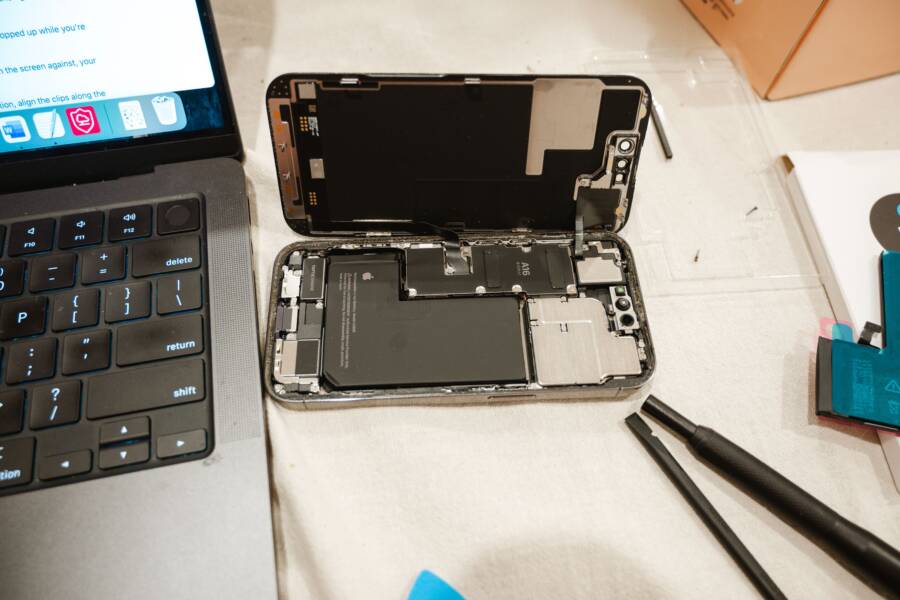
If your audio remains distorted after these steps, internal hardware damage is likely the cause. Do not attempt to open the casing yourself, as this often voids your warranty and risks further harm to the device. Contact an authorized service center to inspect your smartphone for professional repairs. They have the tools to handle delicate components and can verify if your speaker needs a replacement.