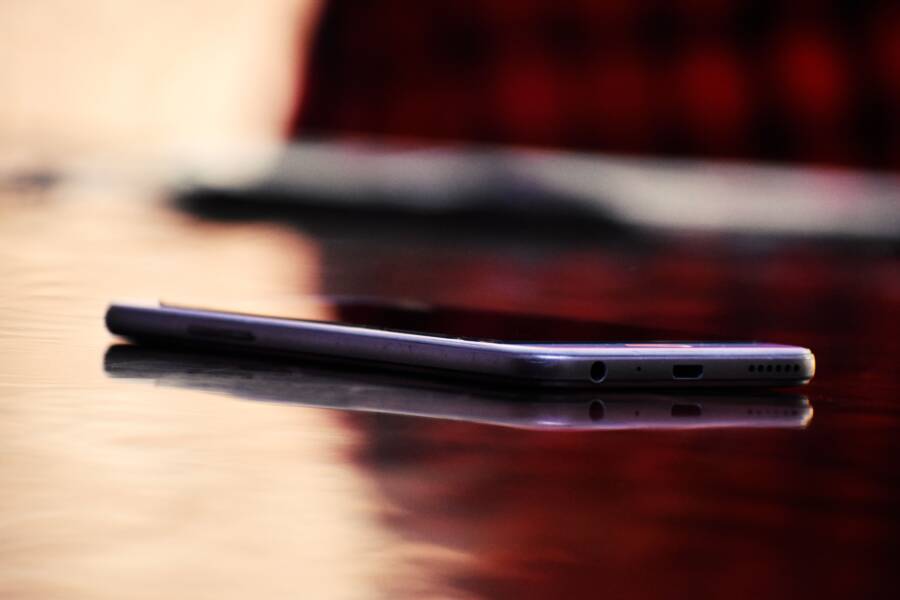
If your voice sounds muffled or distant during video calls, the culprit is likely a physical blockage or a simple software glitch on your smartphone. You do not need professional repairs for most audio issues, as they usually stem from dirt in the microphone port or incorrect app permissions.
Start by checking your device for debris or a poorly fitted case that might cover the mic holes. Once you clear any physical obstructions, you can move through software settings to restore clear sound quality. This guide helps you identify the exact cause and resolve it without extra help.
Why Your Smartphone Microphone Sounds Muffled
Most muffled audio issues happen because the tiny holes on your smartphone housing become blocked. Sound waves need a clear path to reach the sensitive internal membrane of the microphone. When debris sits in these openings, it acts like a wall, absorbing your voice before it gets processed.
Common Physical Blockages
Dust, pocket lint, and dead skin cells often collect in the small microphone port at the bottom of your smartphone. Even a thin layer of grime restricts airflow and changes the frequency response of your recordings. You might notice your voice sounds hollow or distant even when you hold the device close.
Cases and screen protectors also frequently interfere with sound. If your protective case does not align perfectly with the microphone hole, it traps sound waves inside the cover.
Protective cases that shift over time often partially cover the secondary noise-canceling mic.
Adhesive screen protectors sometimes slip and overlap the primary speaker or mic port.
Stubborn lint inside the port stays hidden until you use a bright light to inspect it.
Moisture and Environmental Factors
Liquid exposure creates immediate audio problems. Water drops sitting inside the microphone mesh prevent sound from passing through entirely. If your smartphone recently came into contact with rain or humidity, the internal mesh might remain saturated with moisture.
High humidity levels also affect how the microphone captures your voice. If you notice the issue occurs only in specific environments, environmental moisture is a likely suspect.
Internal Component Failure
While physical blockages are common, some issues involve internal hardware wear. Microphones inside a smartphone consist of fragile components that degrade over several years of use. If the internal diaphragm sustains physical shock from a drop, it may lose its ability to vibrate clearly.
You can distinguish between a blockage and hardware damage with simple tests. If the audio sounds consistently distorted across every app, including voice memos and phone calls, the issue is often physical. If the audio is clear in one app but muffled in another, check your software settings or app permissions.
Comparison of Audio Issues
If you rule out physical obstructions and the audio quality does not improve, the cause usually lies within the software configuration. Focus on cleaning the port first, as it solves most common problems without requiring technical intervention. Once the hardware is clean, your smartphone should transmit clear audio again.
Step by Step Guide to Cleaning Your Microphone Ports
Restoring clear audio on your smartphone often requires nothing more than a quick cleanup of the microphone ports. Debris buildup is a frequent issue that blocks sound waves from hitting the internal sensor. You can easily remove these obstructions with a few common household items and a bit of patience. Always power off your device before starting to prevent accidental button presses or damage to the internal electronics.
Removing Dirt from the Speaker Grille
When you notice muffled audio, check the small mesh openings on the bottom or side of your smartphone. Dust and pocket lint tend to accumulate here, especially if you carry your device in a bag or a pocket. Use a specialized tool to pull these particles out without pushing them deeper into the housing.
Sticky tack is an excellent choice for this task because it grabs debris without leaving residue behind. Press a small, clean ball of adhesive putty firmly against the microphone grille. Pull it away slowly to lift out dust trapped in the mesh. Repeat this process until the putty comes away clean.
If you prefer using a brush, choose one with very soft bristles. A clean, unused makeup brush or an anti-static electronics brush works well. Gently sweep the bristles across the opening while holding your smartphone upside down so gravity helps the dirt fall out. Do not use toothpicks or metal needles, as these can easily puncture the delicate microphone membrane inside the port.
Checking Your Phone Case Design
A poorly designed or ill-fitting case is a common cause of muffled microphone performance. Many cases feature small holes that must align perfectly with the microphone and speaker ports on your device. If the case shifts or if the manufacturer used imprecise measurements, the edges of the plastic or silicone might partially cover the opening.
This partial obstruction traps sound waves, causing your voice to sound distant or hollow during calls. Test this by removing the case entirely and recording a test message to yourself. If the audio quality returns to normal, your case is likely the culprit.
Inspect your case for these common design flaws:
Thick material that creates a deep, narrow tunnel over the microphone hole.
Misaligned cutouts caused by a stretched or loose-fitting frame.
Accumulation of debris inside the lip of the case that presses against the mic opening.
If you find that the case is blocking the mic, consider switching to a slimmer model or a brand known for precision cutouts. Some users choose to carefully widen the existing hole with a small file, though this often ruins the structural integrity of the case. Removing the obstruction or replacing the cover usually provides an immediate improvement in call clarity for your smartphone.
Adjusting Software Settings for Better Audio Clarity
Software settings often dictate how your smartphone processes incoming and outgoing sound. If your microphone hardware is clean but your voice still sounds muffled during calls, the issue usually resides in a digital signal filter. Modern devices prioritize noise reduction to help you communicate in busy environments, yet these algorithms sometimes misidentify your own voice as background noise. Adjusting these internal configurations can restore natural audio levels and improve your overall call quality.
Managing Background Noise Suppression Features
Smartphones use noise suppression software to remove wind, traffic, and chatter from your audio stream. When this feature acts too aggressively, it cuts frequencies that make your voice sound clear and resonant. You might experience this as a robotic or thin sound during video meetings. Many communication apps include their own audio processing layers that sit on top of your system settings, which can cause conflict if both are active.
You can modify these settings within most popular video conferencing applications to find a better balance:
Open your meeting app and find the Settings or Audio menu.
Look for an option labeled Noise Suppression or Background Noise Removal.
Switch this setting from High or Auto to Low or Off.
Join a test call to see if your voice sounds more natural without the heavy filter.
If you use a third-party app for calls, check its specific audio preferences first. Disable any additional signal processing features if the audio sounds muffled compared to standard phone calls. This allows your smartphone to transmit more of your natural vocal range, which usually provides a clearer experience for the person on the other end.
Testing Your Mic with Voice Memos
Determining whether your muffled audio comes from a specific app or a hardware fault requires a simple diagnostic test. The built-in Voice Memos app is the perfect tool for this because it records raw audio without the interference of filters or data compression used by communication apps. This test isolates your hardware and confirms if the microphone captures clear, full-spectrum sound.
Follow these steps to conduct an accurate test:
Open the Voice Memos app on your smartphone.
Place the phone in a quiet room and hold it at a normal distance, roughly six inches from your mouth.
Record a short sentence while speaking at a normal conversational volume.
Play the recording back through your device speaker or a pair of high-quality headphones.
If the audio sounds clear and crisp in this recording, your microphone hardware works correctly. You can then conclude that any muffled sound during calls is a result of app-specific settings or network congestion. If the recording still sounds distant, muffled, or distorted, the issue is likely a persistent hardware obstruction or an internal component failure. Knowing this helps you decide whether to adjust your software configuration or contact a professional repair technician for physical inspection.
When to Seek Professional Help for Your Smartphone
Sometimes, your best efforts at troubleshooting fail to resolve muffled audio. If you have cleaned the microphone ports and adjusted your software settings, the issue might stem from deeper hardware failure. Seeking professional repair is the logical next step when you lack the specific tools or technical experience to safely open your device. Attempting to repair internal components without professional training often voids your warranty and risks creating more permanent damage to your smartphone.
Recognizing Persistent Hardware Issues
You should consider professional service if the microphone fails across every app on your device. When internal hardware sustains impact from a drop or long-term water exposure, the damage is rarely something you can fix at home. If voice memos sound distorted, phone calls remain unusable, and video apps cannot pick up your voice, the microphone membrane is likely torn or disconnected from the logic board.
Watch for these specific signs that require professional intervention:
The microphone works only when you press firmly against the device casing.
Audio volume is extremely low even when you speak directly into the port.
The device suffered a significant drop or liquid spill just before the audio issues began.
You notice rattling noises coming from inside the housing when you move the phone.
Understanding Repair Options and Warranty Coverage
Your first stop should be the manufacturer support center. Most modern devices include a limited warranty that covers manufacturing defects. If the microphone failed due to internal component degradation rather than user-inflicted damage, the manufacturer may replace the unit or repair the internal hardware for free.
Contact a service center before trying any invasive DIY repairs. If a professional technician confirms the hardware failure is covered under your warranty, taking the phone apart yourself will invalidate that protection. Ask for a written estimate if the device is out of warranty. Sometimes the cost of repairing a damaged microphone is close to the trade-in value of an older smartphone, making a hardware upgrade a more cost-effective choice than a repair.
Preparing Your Device for Service
Before handing over your smartphone to a technician, protect your personal information. Always back up your data to the cloud or a computer to prevent loss during the repair process. Turn off features like Find My Phone or activation locks, as these prevent technicians from running full diagnostic tests on your hardware. If possible, remove your SIM card and any SD cards to keep your data local and secure. Providing a clean device without its protective case allows the technician to immediately inspect the ports and chassis for physical trauma.
Conclusion
Most muffled audio issues on a smartphone come from simple physical obstructions. Cleaning the microphone port with adhesive putty or a soft brush often restores your sound quality immediately. You should always start with these hardware checks before adjusting any software settings.
If your audio remains poor after cleaning, verify that your case is not blocking the microphone holes. Removing the case during a test call helps you confirm if the accessory is the true cause of the problem. Following these steps usually fixes the issue without needing professional repair services.
Do you notice a difference in sound quality after cleaning your device today? Regular maintenance ensures your microphone stays clear and functional for every call.