He Was Drowning in Bills and Burnout Until a Simple Daily Ritual Rewired His Brain for Wealth in Less Than a Week
>>> Start Your Shift Today <<<

Ever wake up to a ping from social media in the middle of the night and feel your energy drain for the rest of the day? You’re not alone. Those quick sounds can sabotage sleep quality and make mornings feel rough.
This quick guide shows you how to turn off notification sounds at night on your phone, without losing important alerts. Whether you’re on Android or iPhone, you’ll find simple steps that fit your device and your routine. The approach works on most smartphones and uses built in settings you already rely on.
We’ll walk through practical, screenshot friendly steps so you can see exactly what to tap, when to do it, and how to test that you’ve got it right. You’ll learn to set a silent window for the hours you sleep and still receive urgent alerts when they matter. Think of this as a small change with big payoff for focus, rest, and daily energy.
By the end, you’ll have a reliable night time setup that fits your lifestyle. No complicated tricks, just clear actions you can apply tonight. Ready to sleep better and wake up sharper, with fewer distractions from your smartphone.
He Was Drowning in Bills and Burnout Until a Simple Daily Ritual Rewired His Brain for Wealth in Less Than a Week
>>> Start Your Shift Today <<<
Set Up Do Not Disturb on Android Phones for Bedtime Silence
Silencing your phone at night helps you fall asleep faster and stay asleep longer. Android devices offer flexible Do Not Disturb settings that you can tailor to your bedtime routine. Below are three concise, practical subsections that walk you through turning on DND, scheduling it, and refining who can still reach you. Use these steps as a quick reference so you can implement bedtime silence tonight.
Enable Do Not Disturb in Under a Minute
If you want immediate peace tonight, this quick setup is all you need. Here are the exact steps:
- Swipe down from the top of your screen to open Quick Settings.
- Tap the Do Not Disturb icon. If you don’t see it, swipe left or right to reveal more tiles or tap the pencil/edit icon to add it.
- You’ll see a few options: Total silence, Alarms only, or Priority only. Choose Total silence for complete quiet, or Priority only if you still want urgent alerts.
- If you prefer using Settings, go to Settings > Sound & vibration > Do Not Disturb > Turn on now.
- You’ll notice a small DND icon in the status bar when it’s active. A quick test call or text should confirm that sounds are silenced.
- Test tips: Ask a friend to text you while DND is on, then verify no notification sound plays. If you need emergency access while sleeping, consider adding a trusted contact.
With these simple steps, bedtime silence is on in moments. For most devices, the Do Not Disturb toggle lives right in Quick Settings, so you can turn it off just as quickly in the morning.
If you want more depth on how DND works and how to customize it further, check the official Android help article on limiting interruptions and managing Do Not Disturb. It covers what gets silenced and how to access modes from the notification shade. You can read more here: https://support.google.com/android/answer/9069335?hl=en
Schedule Silence Automatically Each Night
A scheduled silent window removes guesswork and keeps your nights consistent. Here’s how to set it up step by step:
- Open Settings > Sound & vibration > Do Not Disturb.
- Tap Schedules (or Add more schedules).
- Choose Add bedtime or create a custom time, for example 10:00 PM to 7:00 AM.
- Select the days you want the schedule active. Common options are Weekdays, Weekends, or every night.
- Pick your preferred interruption behavior: Total silence or Priority only.
- For weekends, you might set 11:00 PM to 9:00 AM with the same interruption rules, but you could allow a few priority notifications if that suits your routine.
- Save the schedule. Your device will automatically switch into Do Not Disturb during the chosen hours, and it will exit at the end of the window.
A quick note on time zones: if you travel across time zones, your schedule follows the device clock. If you want a fixed local silence window regardless of location, keep your device set to the home time zone or adjust as needed. For more details, see the setup guide on Do Not Disturb schedules and bedtime options. Helpful reference: https://support.google.com/android/answer/9069335?hl=en
Allow Calls from Favorites Only
If you want to silence most alerts but still hear important calls, configure DND to allow certain people. This keeps you protected from noise while staying reachable for emergencies.
- Open Settings > Sound & vibration > Do Not Disturb.
- Under People (or Calls, depending on your device), choose Calls from and then select Contacts only or Favorites/Starred depending on what you use.
- You can add exceptions for messages or calls from specific apps if needed, like alarms or health alerts.
- In some phones, you’ll also see a feature called Conversations that lets certain contacts override DND and ring through if you’ve marked them as trusted. Enable this if that suits you.
- Test the setup by having a friend call or text during the Do Not Disturb window. Your phone should ring only if the caller is in your allowed list.
- Remember, even with exceptions, you still benefit from a quiet night because most interruptions stay silenced.
If you want a quick reference on fine-tuning exceptions and conversations, see guides from major sources that explain how to add exceptions to Do Not Disturb on Android. For a practical walkthrough, this article provides clear steps and examples: https://lifehacker.com/how-to-add-exceptions-to-your-phones-do-not-disturb-mod-1847712694
You now have a straightforward, reliable bedtime silence routine on Android. It’s flexible enough to fit a busy life, yet simple enough to use without thinking about it every night. If you’d like to tailor this further, consider a dedicated bedtime routine that pairs DND with a morning wake-up alarm and a quick health check to start your day refreshed. For broader guidance on setting up Do Not Disturb modes, you can read more from trusted sources like Asurion: https://lifehacker.com/how-to-add-exceptions-to-your-phones-do-not-disturb-mod-1847712694
Silence iPhone Notifications at Night with Focus Mode
Nighttime is for rest, not a constant flow of ping sounds. Focus Mode on iPhone gives you a simple, reliable way to mute notifications while still allowing urgent alerts. By using Sleep Focus, you can create a quiet window that aligns with your bedtime, and you can customize who and what can break through. This section covers how to activate Sleep Focus, schedule it, and fine tune who can reach you during quiet hours.
Activate Sleep Focus for Instant Quiet
If you need immediate quiet tonight, this quick setup gets you there fast.
- Open Settings and tap Focus.
- Choose Sleep from the list of Focus modes.
- Turn on Sleep with a single switch. You should see the Sleep Focus icon appear in the status bar, signaling that notifications are paused.
- On the Lock Screen, only the essentials remain visible. Your screen stays quiet, and banners or sounds are suppressed for most apps.
- You can still allow time sensitive alerts if there’s something you must not miss. This keeps critical notifications from being entirely blocked.
- For a straightforward quick test, ask someone to send a message or call while Sleep is active. If you don’t hear a notification, you’ve set it up correctly.
If you want broader guidance, Apple’s support article explains how to set up a Sleep Focus schedule and what it blocks, including how to allow certain alerts when needed: https://support.apple.com/guide/iphone/set-up-a-schedule-for-a-sleep-focus-iphaf56dceb4/16.0/ios/16.0
Schedule Your iPhone to Mute Every Night
A scheduled quiet window makes nightly silence effortless. Set it once and let it run automatically.
- Open Settings and go to Focus > Sleep.
- Tap Add Schedule or Schedule, then choose a time. For example, 11:00 PM to 7:00 AM.
- Pick the days you want the schedule active. You can cover every night or just weekdays.
- Choose your interruption behavior: Total silence or Alarms only. If you rely on alarms, Alarms only keeps the alarm sound while silencing everything else.
- If your routine changes with weekends, adjust the schedule accordingly, or set a single nightly window that stays consistent.
- Save the schedule. Sleep Focus will automatically engage at the set time and disengage at the end of the window.
For a deeper look at setting a sleep schedule and what to expect, see Apple’s guide to Sleep Focus schedules in Health on iPhone: https://support.apple.com/guide/iphone/set-up-a-schedule-for-a-sleep-focus-iphaf56dceb4/17.0/ios/17.0
Customize Who Can Reach You During Quiet Hours
Even during quiet hours, you might need to hear certain people. Tailor who can break through while Sleep Focus is on.
- In Sleep Focus settings, tap People.
- Under Calls From, choose Favorites, All Contacts, or All In Messages, depending on how strict you want the rule to be.
- You can also allow calls from recently contacted people or from specific groups.
- For messages, you can permit messages from Favorites or specific contacts if you want urgent text access.
- The Conversations feature lets trusted people override Sleep Focus in specific situations. Enable this if you want certain contacts to reach you regardless of the mode.
- Test the setup by having a trusted contact call or message during Sleep Focus. If it rings through, you’ve configured it correctly.
If you want practical steps on managing exceptions and conversations, Apple’s Sleep Focus guidance covers how to tailor these allowances to fit real life: https://support.apple.com/guide/iphone/set-up-a-schedule-for-a-sleep-focus-iphaf56dceb4/16.0/ios/16.0
You now have a practical, consistent nighttime setup that keeps distractions low while preserving access for the people that matter. If you want to refine further, you can pair Sleep Focus with a morning routine that gradually eases you into the day. For additional context on Sleep Focus, Apple’s help articles are a solid reference: https://support.apple.com/guide/iphone/set-up-a-schedule-for-a-sleep-focus-iphaf56dceb4/17.0/ios/17.0
Handle Samsung and Other Brands Plus Quick Fixes
No matter your brand, night time alerts can spill into sleep. The goal here is to give you practical, brand-aware steps that keep your phone quiet when you need it most, without missing urgent notices. We’ll cover Samsung specifics first, then quick fixes you can apply on other brands as well. The idea is to build a reliable night routine that stays simple and effective.
What If the Only Thing Between You and the Life You Deserve Is a Hidden Wealth Code Waiting to Be Activated
>>> Open the Door <<<

Samsung-Specific Night Mode Steps
Samsung phones offer flexible controls that make bedtime quiet easy to manage. Start by opening Settings and navigating to a combination that silences distractions without losing essential alerts. For many devices, the path looks like Settings > Notifications > Do Not Disturb, with options to turn Do Not Disturb on manually, schedule it, or place it beside other quick controls for fast access. If you want a hands-off approach, set up a bedtime routine that mutes most notifications automatically. A useful option is the grayscale setting during night hours which reduces visual stimulation and helps curb late-night scrolling. Always test after changes: run a quick message or call while DND is active to confirm there’s no sound, then cancel the mode to ensure you can resume normal use in the morning.
If you suspect a color display feature or visual mode is contributing to the issue, Samsung’s guidance shows how Bedtime and related features can affect color and notifications. For further details, see Samsung’s troubleshooting guide on grayscale and related display modes: https://www.samsung.com/us/support/troubleshooting/TSG01200647/
Beyond the core steps, you can tighten the setup with a dedicated bedtime routine. Use Do Not Disturb alongside a focused window, so alarms still wake you while all other alerts stay silent. Consider creating exceptions for trusted contacts or critical apps so you don’t miss anything urgent. Regular testing helps you confirm the setup remains effective as you install fresh apps or update software. If you want a quick visual reference, you can also explore tutorials that walk through grayscale and bedtime configurations for Samsung devices.
For a quick comparison of how to reach similar results on other brands, you can review platform-specific guides that outline nightly interruption controls, schedules, and exceptions. This helps you keep your smartphone quiet at night with confidence and clarity.
Troubleshoot Stubborn Notifications and Pro Tips
Even with Do Not Disturb and Focus modes in place, some alerts still slip through. This section helps you identify stubborn issues and apply practical, battle-tested tweaks. Think of it as the fast lane to a truly quiet night while keeping the important messages reachable.
Common culprits that keep notifications sneaking through
Several everyday settings can undermine your nighttime quiet. Start with the basics and rule out each possibility one by one.
- App-specific sounds: Some apps override system DND or Focus with their own notification sounds. Check each frequently used app to confirm it’s silenced during your sleep window.
- Repeated or missed calls: Some phones allow repeated calls to bypass DND for emergencies. If you don’t want this, disable “repeat calls” in the DND or Focus settings.
- Exceptions: A lone contact or app may be allowed to break through. Review your allowed lists and tighten them if needed.
- Time zone quirks: Travel can shift schedules. Make sure your device clock and DND schedule align with your current location.
- System updates: New OS versions can reset or alter notification behavior. After an update, recheck your bedtime rules to ensure they’re intact.
If you still hear sounds at night, it’s worth revisiting the Android and iPhone help guides. For Android users, the official settings guide explains how to limit interruptions with Modes and Do Not Disturb: https://support.google.com/android/answer/9069335?hl=en. On the iPhone side, Apple’s Sleep Focus guidance covers how to silence notifications while still allowing essential alerts: https://support.apple.com/guide/iphone/set-up-a-schedule-for-a-sleep-focus-iphaf56dceb4/16.0/ios/16.0
Pro tips to tighten your night mode without losing essentials
These practical tips help you stay in control without overcomplicating your setup.
- Create a strict bedtime window: Set a precise start and end time for Do Not Disturb or Sleep Focus. A consistent window makes mornings less jarring.
- Use “Alarms only” when alarms are critical: If you rely on alarms but don’t want other sounds, this option keeps your wake-up routine intact while silencing everything else.
- Fine-tune conversations and calls: Permit only trusted contacts or specific groups. This keeps urgent messages accessible without clutter.
- Pair DND with a lightweight morning routine: A gentle transition from silent to alert helps you wake up with intention, not panic.
- Test regularly: A quick mock call or message during the quiet window confirms your rules work as expected.
For a deeper dive into Android configuration, Asurion’s guide provides clear steps to set up Do Not Disturb and manage exceptions: https://www.asurion.com/connect/tech-tips/set-up-do-not-disturb-android/. If you’re curious about Google’s official explanations of interruption controls, their Android Help pages are a solid reference: https://support.google.com/android/topic/7651002?hl=en&ref_topic=7651296
Quick troubleshooting flow you can repeat tonight
If you’re in a rush, follow this concise checklist to verify your setup works by morning.
He Was Drowning in Bills and Burnout Until a Simple Daily Ritual Rewired His Brain for Wealth in Less Than a Week
>>> Start Your Shift Today <<<
- Confirm DND or Sleep Focus is active: Check the status icon on the home bar.
- Review exceptions: Look at calls from favorites or specific apps. Remove any that aren’t essential.
- Run a test: Have a friend text or call during your sleep window. Confirm there’s no sound for non-exceptions.
- Check alarms: Ensure alarms still ring even when notifications are silenced.
- Reboot if needed: A quick restart can fix minor glitches after a settings change.
If you want a practical reference for Android and iPhone setups, see guides that walk you through the steps and show where to find the right controls. For Android, the official limits on interruptions by Modes & Do Not Disturb are useful: https://support.google.com/android/answer/9069335?hl=en. For iPhone, you can review how to Allow or Silence notifications for a Focus on iPhone: https://support.apple.com/guide/iphone/allow-or-silence-notifications-for-a-focus-iph21d43af5b/ios.
When you should consider a broader approach
If stubborn alerts persist across devices or after multiple OS updates, you may need a broader approach. Some users find that a dedicated nightly routine, pairing DND or Sleep Focus with a physical charging station and a minimal home screen helps reduce temptation and accidental taps. In persistent cases, checking the device’s accessibility settings for unintended sound or flash behavior can uncover overlooked options. A practical resource with added tips on silencing iPhone notifications at night is available at WebTrickz: https://webtrickz.com/silence-iphone-notifications-at-night/
Quick reference you can keep handy
- Android: Use Do Not Disturb with a tight bedtime window and tight exceptions. Regularly review app permissions and notification access. Helpful official guidance: https://support.google.com/android/answer/9069335?hl=en
- iPhone: Use Sleep Focus with a scheduled window and tailored conversations. Helpful official guidance: https://support.apple.com/guide/iphone/set-up-a-schedule-for-a-sleep-focus-iphaf56dceb4/16.0/ios/16.0
- Extra reading: If you want additional tips on silent night routines, a practical overview is available here: https://webtrickz.com/silence-iphone-notifications-at-night/
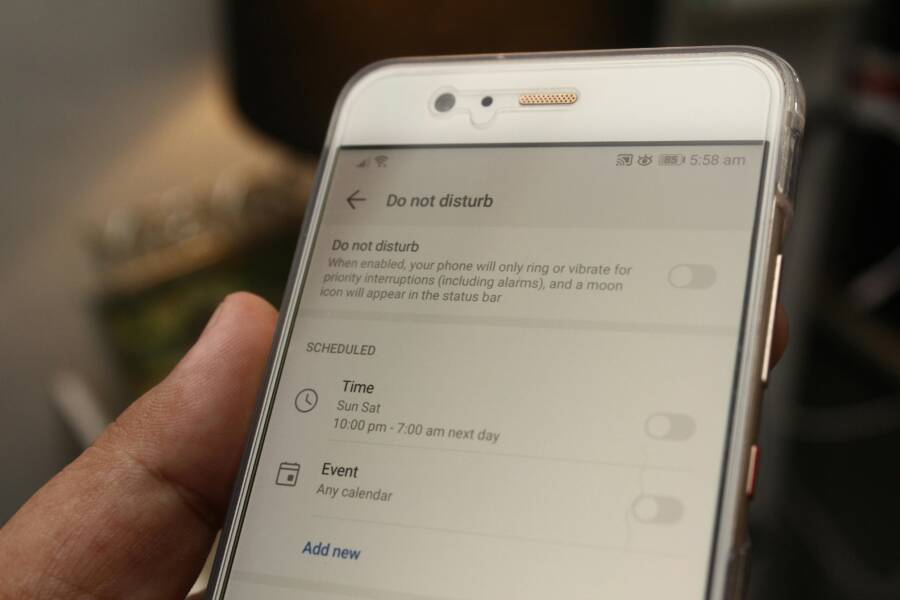
Images can illustrate the setup in a clear, visual way. The photo below shows a smartphone in Do Not Disturb settings, which aligns with the topics covered in this section.

Photo by Daniel Moises Magulado
Conclusion
Turning off notification sounds at night is a small change with a big payoff for rest and focus. On Android, you can use Do Not Disturb in a quick mode, or set a bedtime schedule to silence alerts automatically. For urgent needs, open the DND settings and allow calls or messages from trusted contacts. On iPhone, Sleep Focus offers a simple way to mute most alerts, with a scheduled window and specific people or apps allowed to break through if needed. Try both approaches to see which fits your routine.
A quick recap helps you act tonight. If you want instant quiet, enable Do Not Disturb or Sleep Focus now. If you prefer a hands-off routine, set a nightly schedule that matches your typical bedtime. For a balanced setup, choose who can reach you during quiet hours and keep alarms audible. A quick test with a friend will confirm the rules are working.
Smartphone users should pick one clear method and stick with it for a week. Check back for updates, as OS changes can tweak how these modes work. If you have a favorite tip or a tweak that improved your sleep, share your results in the comments.
Thanks for reading. A calmer night leads to sharper mornings and better energy all day. Sweet dreams and here’s to better rest.
What If the Only Thing Between You and the Life You Deserve Is a Hidden Wealth Code Waiting to Be Activated
>>> Open the Door <<<