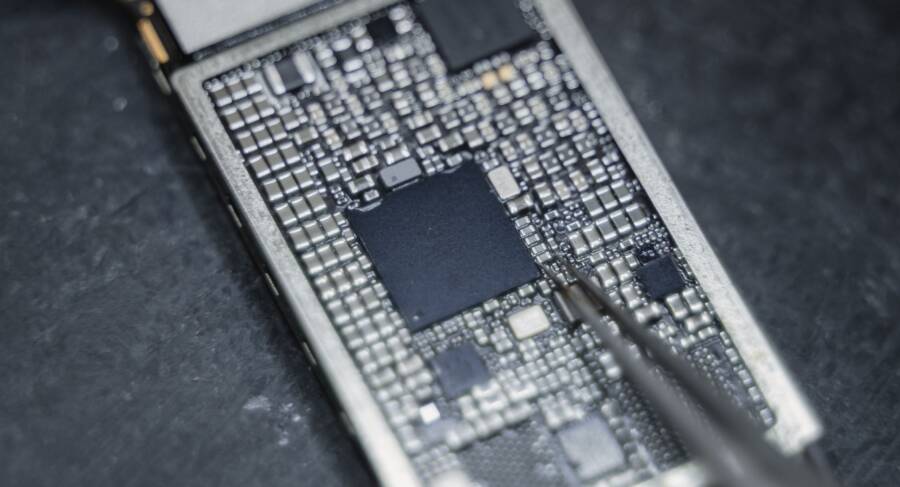
A thin or weak phone speaker is often caused by debris blocking the grille, software glitches, or incorrect audio settings. You can resolve most of these issues by cleaning the speaker ports, restarting your device, or checking your equalizer settings.
Modern smartphones often collect lint and dust that muffles sound over time. If your hardware is clean, internal settings might be the culprit. Follow these troubleshooting steps to restore your audio clarity.
The First Step: Clean Your Speaker Grills Safely
A muffled or thin sound from your smartphone speaker often stems from trapped debris. Lint, dust, and grime build up inside the tiny holes of the speaker grille over time. This blockage prevents air from moving freely, which reduces sound quality and volume. Cleaning these ports is a simple maintenance task that fixes many audio issues. Follow these methods to remove debris without damaging the delicate hardware.
Choosing the Right Tools for Debris Removal
You need the correct implements to dislodge buildup without pushing it further inside. A soft-bristled toothbrush works best for most users because the fibers are gentle yet effective at grabbing lint. Gently brush the grille in a downward motion to pull particles out rather than pressing them deeper. If you use compressed air, keep the can at least six inches away from your device. High-pressure air directed too closely can tear the fragile speaker membrane behind the grille. Adhesive putty provides a safer alternative for sticky residue. Simply press the putty lightly against the speaker holes and lift it away to pull out trapped dust. Never use needles, paperclips, or other sharp metal objects. These items can easily puncture the protective mesh or damage the sensitive components located just beneath the surface.
Avoiding Common Cleaning Mistakes
Your smartphone contains complex internal electronics that react poorly to improper cleaning techniques. You must avoid using water or liquid solvents to clear the speaker grilles. Even a tiny amount of moisture can travel past the mesh and cause short circuits on the motherboard. Liquid damage often results in permanent failure that simple cleaning cannot fix. Additionally, you should apply very little pressure when working on the grille area. Forceful scrubbing or pushing tools into the ports often compacts the debris into a solid layer. Once this layer forms, it becomes much harder to remove and may muffle your audio permanently. Always work with a light touch and avoid introducing any foreign substances to the internal cavity of your phone.
Adjusting Software and Sound Settings
Software configurations often dictate how your smartphone processes audio signals before they reach the hardware. If your physical speaker is clean but the output remains thin, you are likely dealing with a software conflict. Incorrect equalizer settings or hidden accessibility filters can strip away the bass and mid-range frequencies, leaving your audio sounding sharp or hollow. Adjusting these parameters usually restores a full, balanced sound profile quickly.
How to Reset Audio Settings to Default
Custom equalizer presets are a common source of thin audio. If you previously experimented with sound profiles to boost treble for podcasts, you might have inadvertently lowered the frequencies required for music. Resetting these settings forces the device to return to its original, factory-balanced output.
To reset your audio settings, follow these steps:
Open the Settings app on your smartphone.
Locate the Sounds and Vibration or Sound menu.
Look for an option labeled Sound Quality and Effects or Equalizer.
If you see custom bars or sliders, tap the Reset button to return them to the center or flat position.
Disable any virtual surround sound modes, as these sometimes create a hollow effect on small internal speakers.
If your specific model does not feature a simple reset button, manually move all equalizer sliders to the middle setting. Once the equalizer is flat, play a known song to test if the depth returns to the audio. Often, this simple adjustment eliminates the thin quality caused by aggressive high-frequency boosts.
Checking Volume Limits and Accessibility Options
Smartphone accessibility features exist to assist users with specific needs, yet they can muffle audio for general listeners. Settings designed to protect hearing or support hearing aids often compress the dynamic range of the audio output. This compression makes sound appear weak or metallic because it removes the nuances between quiet and loud parts of a track.
Check these settings to ensure no filters remain active:
Hearing Aid Mode: This feature boosts specific frequencies for compatible hardware. If it is on, turn it off to see if the sound profile improves.
Volume Limiters: Some regions include software limits to prevent hearing loss. Check your sound settings for a Volume Limit or Headphone Safety toggle and ensure it is not restricting the output gain.
Mono Audio: If your phone is set to output mono sound instead of stereo, you might lose the spatial depth of the recording. Verify that the mono toggle is set to off in your accessibility menu.
These settings are frequently overlooked during general troubleshooting. You should verify that no hearing enhancement tools remain enabled if you do not require them. Once you disable these specialized filters, your phone should produce its natural volume and frequency range again.
Troubleshooting Software Glitches and System Updates
Sometimes your smartphone hardware is perfectly clean, but your audio still lacks depth or volume. Software glitches often interrupt the way your device processes sound signals. When background processes stall or system files become fragmented, audio output suffers. A simple reset addresses these invisible errors by forcing the operating system to clear its temporary storage and reload essential drivers.
The Power of a Simple Device Restart
A system restart acts as a clean slate for your smartphone. During operation, your phone accumulates temporary data files in its cache. These files help apps load faster, but they can also become corrupted over time. If a conflict occurs within the audio driver or a background app, the speaker output might sound thin, distorted, or quiet.
When you power off the device, you clear the RAM and force the operating system to stop all active processes. Upon rebooting, the software loads fresh, clean versions of your system files. This process effectively kills any stuck tasks that were interfering with your audio signal.
Most people use their phone for days or weeks without a full shutdown, but this leads to performance lag. You should restart your smartphone at least once a week to keep the internal software responsive. If your speakers suddenly sound weak, follow these steps to see if a refresh solves the issue:
Press and hold the power button until the shutdown menu appears on the screen.
Select the Power Off or Restart option.
Wait for the phone to turn off completely.
Let the device sit for at least thirty seconds to ensure all capacitors have discharged.
Turn the phone back on and test the audio with a familiar song or video.
This minor step resolves a surprising number of sound issues because it eliminates background software conflicts. If the audio quality improves after the restart, a temporary system glitch was the primary cause. If the sound remains thin, you can focus your troubleshooting on deeper system settings or pending updates. Always try this quick fix before you attempt more involved repairs, as it requires no technical skill and poses no risk to your data.
Determining If It Is a Hardware Failure
Physical speaker issues often look like software bugs, but certain behaviors reveal the truth. If you have cleaned your grille and reset your settings, the problem might reside in the internal components of your smartphone. A damaged speaker membrane or a disconnected cable requires more than a simple toggle change. Distinguishing between a temporary glitch and permanent hardware damage helps you decide if you need a professional repair or a device replacement.
Testing Your Speaker with Diagnostic Apps
You can use specialized apps to isolate whether your speaker is physically capable of reproducing a full range of sounds. These tools play back specific frequency sweeps, often called sine waves, which test the mechanical response of the hardware. If you hear rattling, static, or no sound at all during these specific tests, your speaker likely suffers from a torn cone or a failed coil.
Many diagnostic tools allow you to perform a simple A/B test to confirm your findings:
Download a reliable frequency generator app from your official app store.
Set the frequency to a mid-range value, such as 440 Hz, and play it through your main speaker.
Listen for consistent, clear output without distortion.
Plug in a pair of wired or Bluetooth headphones and repeat the test.
If the test tone sounds perfectly clear through your headphones but remains distorted or silent through the speaker, you have isolated the issue to the physical hardware. Headphones use an entirely separate audio path and output driver, so they rarely experience the same physical failure as a smartphone speaker. When this hardware-specific failure occurs, standard software fixes will not provide a solution. You should consider visiting an authorized repair shop to get an expert opinion on replacing the component. A technician can open the phone to verify if the contact pins are loose or if the speaker module itself is dead.
Conclusion
Most thin or weak audio issues on your smartphone stem from simple blockages, incorrect equalizer settings, or temporary software glitches. You can usually restore full sound quality by cleaning the speaker ports, resetting audio preferences to default, and performing a full device restart. These routine steps often fix the problem without the need for technical intervention.
If you complete these troubleshooting steps and the audio remains distorted or quiet, the issue likely involves a physical component failure. In this case, contact an authorized repair technician to prevent further damage to the internal hardware. Always handle your device with care and avoid using sharp tools near the sensitive speaker mesh.
To keep your audio crisp in the future, gently wipe your speaker grilles with a soft brush during your weekly maintenance routine. This habit prevents debris from building up and muffling your sound.