Enter expected monthly income in EveryDollar, assign it to bills, spending, savings, or future expenses, then adjust until “Left to Budget” is zero. Zero-based budgeting means every planned dollar has a job; it does not require spending all the cash.
EveryDollar is where you build and monitor this plan; you choose the categories and amounts to fit your pay and bills.
Gather your numbers before creating categories
Use take-home pay, not gross salary, so the budget matches deposits in your account. If pay varies, start with an amount supported by recent pay records rather than a possible bonus. Enter separate expected paychecks as separate income lines, as described in EveryDollar’s setup instructions (checked September 30, 2026).
Next, collect bills and regular obligations from your statements, bill notices, and calendar. Include rent or mortgage, utilities, insurance, minimum debt payments, subscriptions, and costs that arrive less often than monthly. An annual registration or a seasonal expense can be divided into monthly contributions in a fund, so the cost is visible before the due date.
Make a short list of categories you will actually review. Separate groceries from household supplies if you need to make decisions about them independently; group small purchases when you do not track them separately. Avoid a single “miscellaneous” line that hides where money is going.
Build the first EveryDollar budget in a workable order
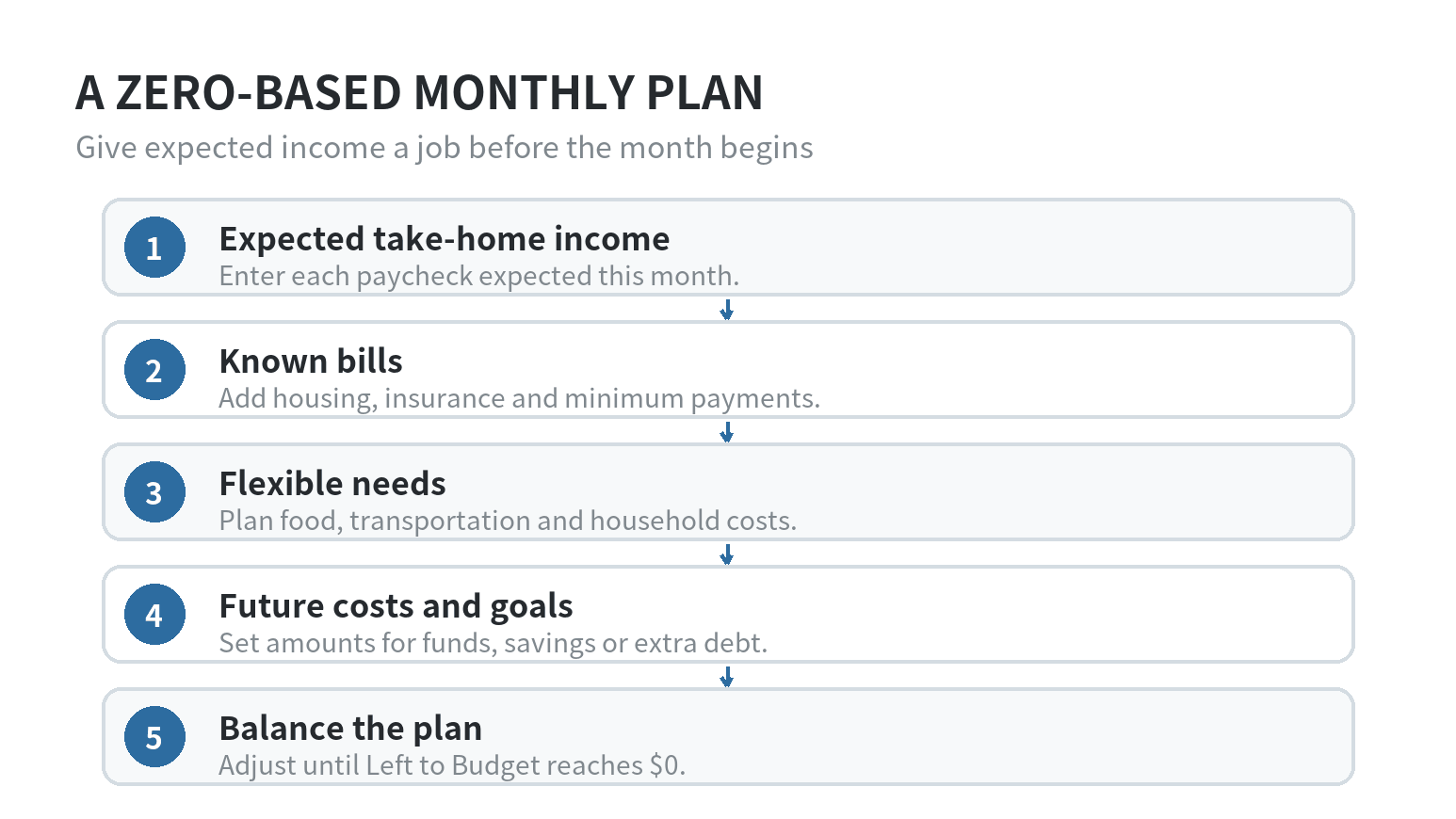
EveryDollar’s getting-started instructions say to enter expected monthly income, add planned amounts to budget items, and assign the income until “Left to Budget” is zero. The same instructions describe manual transaction entry in the free version and bank-connected imports in Premium. EveryDollar’s setup instructions lay out those steps (checked September 30, 2026).
- Enter income. Add the pay you expect to receive during the month. If your pay arrives twice, separate income lines can help you see which bills each deposit needs to cover.
- Assign fixed obligations. Put in housing, insurance, minimum debt payments, and other bills whose amounts or due dates are already known.
- Plan variable essentials. Set amounts for food, transportation, utilities, and household needs based on your records. If an amount is uncertain, mark it for review instead of disguising the uncertainty inside a larger category.
- Give future costs a place. Add a fund for expenses such as annual fees, car maintenance, gifts, or school costs. A fund keeps a future bill visible in this month’s plan.
- Assign what remains. Decide how the remaining planned income will be used, such as extra savings, an extra debt payment, or flexible spending. Adjust the plan until the amount left is zero.
When the plan does not balance, look for an omitted bill or an estimate that exceeds available income. If you cannot cover every planned item, change the plan before treating the shortfall as solved.
Try the setup with a sample $4,200 month
The figures below are an invented example, not a suggested household budget or a national average. Suppose your household expects $4,200 in take-home income. You enter $1,500 for housing, $450 for groceries, $160 for utilities, $300 for transportation, $170 for phone and internet, $250 for insurance, and $250 for minimum debt payments. Those assignments total $3,080, leaving $1,120 to plan.
Now assign $400 to a future-expense fund, $500 to a savings goal, $120 to personal spending, and $100 to dining out. The four assignments use the remaining $1,120, so Left to Budget reaches zero. If the $400 fund is intended for a $1,200 annual bill, three monthly contributions of $400 would cover that bill, assuming the first contribution is made with enough time before it is due. Change the example amounts to match your own bills and pay.
The layout makes tradeoffs visible. If a utility bill rises, decide which flexible category or goal will change. If income is higher than planned, enter the actual amount and assign the difference a job. Revise estimates that repeatedly miss the actual amount.
Choose categories that make decisions easier
Use categories to answer practical questions. Keep groceries distinct from restaurants if you want to compare food spending with your plan. Group small household items if separate lines would not change a decision. A category should be specific enough to guide a choice and broad enough that you will keep using it.
For irregular expenses, name the future bill rather than labeling the category “savings.” “Car repairs” or “annual memberships” identifies what the money is for. EveryDollar’s Fund help page explains that a Fund balance can reflect a planned addition even if no money has moved in your bank account (checked September 30, 2026). If you want cash in a separate account, make and record that transfer separately; EveryDollar’s transfer instructions say to track both sides of a bank-to-bank move (checked September 30, 2026). If someone else shares the budget, agree on category names and who records each purchase. The budgeting app overview compares app styles if you are still deciding whether a phone-based workflow suits your household.
Track spending without confusing imports with categorizing
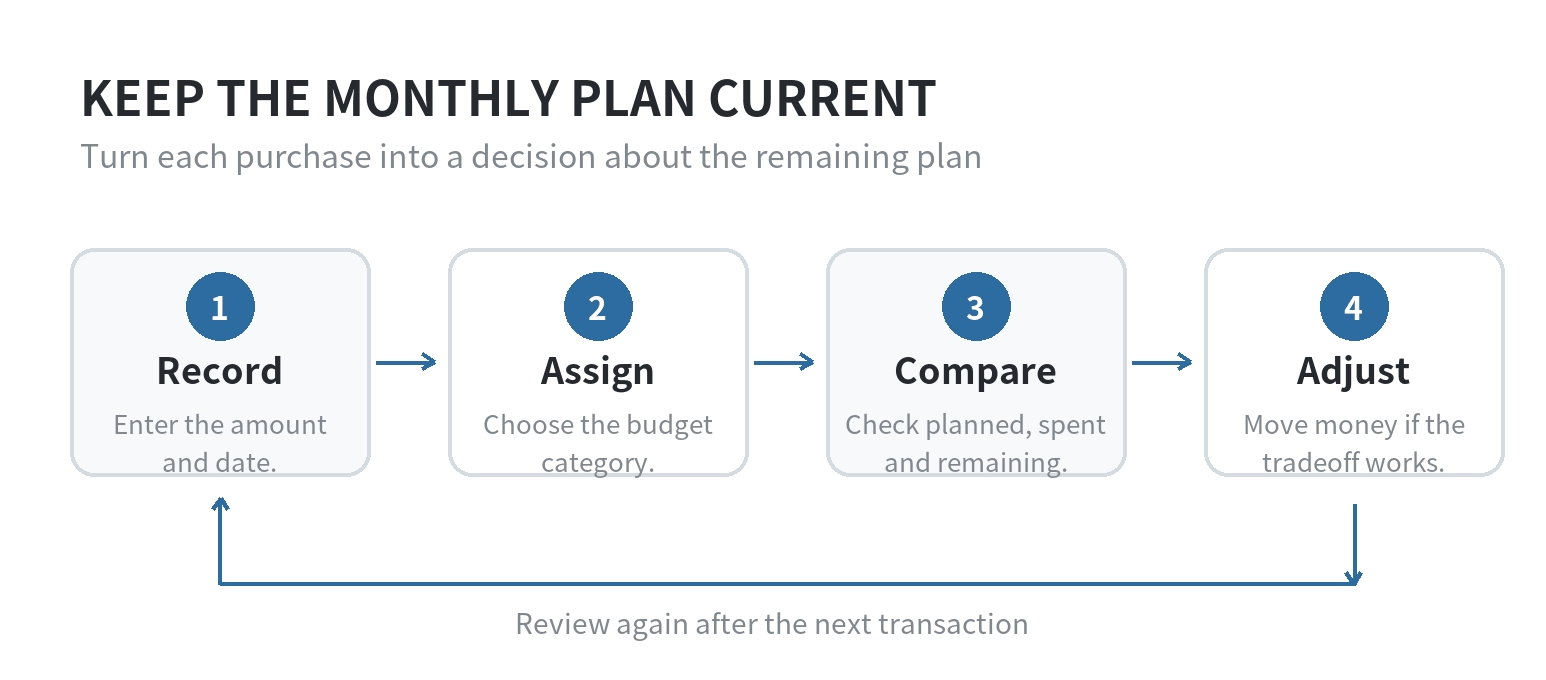
EveryDollar’s free version allows manual transaction entry. Premium can import transactions from connected accounts, but EveryDollar says the user still selects the appropriate budget item for each transaction. Its categorization help page describes that distinction (checked September 30, 2026). An imported transaction is a record to review, not a completed budget decision.
Record each purchase under the category that reflects what you bought. Split a receipt when the distinction matters, and correct duplicates or wrong assignments so the remaining amount is meaningful.
Compare spent and remaining amounts before using more money in a flexible category. If groceries are ahead of plan, check what remains in dining out or another flexible line. Move money only when you are willing to reduce that category or revise the overall plan.
Use paycheck planning for timing, not as a second budget
Premium’s Paycheck Planning tool places paycheck and expense dates on a timeline, while the monthly budget remains where you track income and expenses. EveryDollar’s help page says the tool reflects the planned amounts from the monthly budget. It also says line-item amounts scheduled across dates are divided evenly, so the feature does not let you assign a custom dollar amount to each individual date. The Paycheck Planning FAQ describes the limits (checked September 30, 2026).
If rent is due before your second paycheck, add the due date and pay dates to the timeline and check whether money is available beforehand. If the schedule looks short, review the starting cash buffer, another bill’s timing, or the planned amount. The timeline exposes a calendar mismatch; it does not replace the category plan.
EveryDollar’s official page currently lists the paid plan as EveryDollar Premium at $79.99 per year or $17.99 per month. The EveryDollar plan and pricing page and US iOS listing show those current options (checked September 30, 2026); confirm the amount and renewal term presented for your account before starting a paid subscription. The free version supports a manual workflow, so the useful comparison is whether automatic imports and the extra planning tools fit the way you manage your budget.
For a broader phone-based monthly workflow, see the monthly budgeting with a phone guide. Here, update the plan with actual income and decide where remaining dollars should go.
FAQ
Can I use EveryDollar if I do not connect a bank account?
Yes. EveryDollar’s free version supports manually adding transactions, so you can enter purchases yourself and assign them to budget items. The official manual transaction instructions describe that option (checked September 30, 2026).
What should I do when my income changes during the month?
Update the budget with the income you actually receive, then assign the difference to a category before relying on the new balance. If income is lower than planned, reduce or move planned amounts so the remaining plan reflects the money available.
Does a fund in EveryDollar move money into a separate account?
A Fund tracks money toward a future expense in your budget, and its balance can change when you plan a contribution even if your bank balance has not changed. If you want cash kept separately, make that bank transfer separately and record both sides in the budget. EveryDollar explains this distinction in its Fund balance help page and its transfer instructions (checked September 30, 2026).
Is the monthly budget enough if I am paid more than once a month?
The monthly budget shows the full month’s plan, while Paycheck Planning can show the dates when income and expenses are expected. EveryDollar says its Paycheck Planning works with current-month dates and planned budget amounts; it does not replace transaction tracking in the budget (checked September 30, 2026).
Last updated: September 2026
Last updated: 2026-09