A Rocket Money budget works best when you treat its transaction feed as a draft, then check the income, bills, and category limits against your own records. Its budget setup guide says the app estimates a starting budget from linked-account activity; you still need to correct miscategorized spending and account for costs that do not show up in that feed.
Its current plans are Free, Premium, and Premium+. Free includes basic budgeting; Premium adds custom budget categories and other tools, while Premium+ is a separate higher tier, according to Rocket Money’s plan and feature pages. Rocket Money says Premium pricing can vary by platform and over time, so check the price and billing terms displayed for your account before making a plan decision. Pricing details were checked on September 30, 2026.
Start with take-home income, not a target percentage
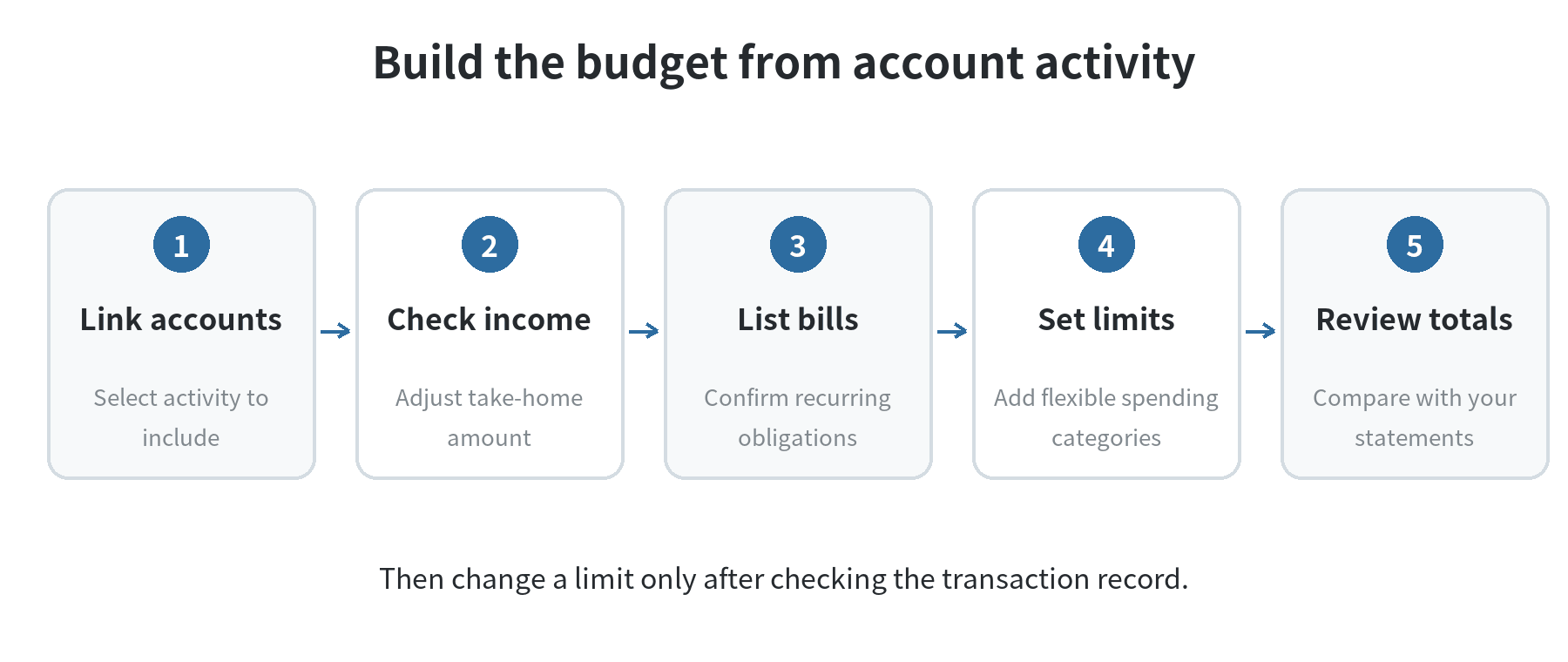
Link the checking account or card activity you want to track, then review the income estimate Rocket Money builds from those transactions. Its budget setup guide says it identifies paychecks from linked accounts and lets you adjust the monthly income figure. Use take-home money that actually reaches your budget, not gross salary, and remove anything that is not spendable income.
If pay varies, use a conservative amount you can count on for the month. Keep extra or irregular income outside the plan until it arrives. If your paycheck dates and due dates matter more than the monthly total, keep a separate pay-date calendar: a monthly budget can show that the arithmetic works while missing a cash shortfall before payday. The Consumer Financial Protection Bureau’s cash-flow worksheet tracks money week by week for that reason.
Separate bills from flexible spending
Rocket Money’s setup separates income, bills and utilities, and spending categories. Check the bill list before accepting it: the app suggests recurring charges from linked transactions, and you can add a bill it missed or remove an item that does not belong there. Put rent, insurance, minimum debt payments, and other obligations in the bill area if that is how you want to plan them.
Keep each expense in one place. If a utility is already counted as a bill, do not also include it in a broad “household” category. A category limit should cover flexible purchases such as groceries, fuel, dining, or personal spending. That separation makes the remaining amount easier to read and avoids treating one charge as two expenses.
Set category limits from your own transactions
Start with recent statements rather than a general rule. The Consumer Financial Protection Bureau recommends looking back over spending and including less frequent costs, savings contributions, and miscellaneous expenses in its spending assessment. Rocket Money also proposes category amounts using prior spending, and its budget guide says those amounts can be edited.
Here is a made-up example to show the arithmetic, not a recommended budget: a household with $3,600 in monthly take-home pay might assign $1,450 to housing, $430 to other bills, $500 to groceries, $300 to transportation, $250 to irregular costs, $400 to savings and debt goals, and $270 to personal spending, using the categories in the CFPB monthly budget worksheet. Those lines add to $3,600; the worksheet compares income with spending. Replace every figure with your own statements and obligations.
| Budget line | What belongs there | Where to get the limit |
|---|---|---|
| Bills | Rent, insurance, recurring payments | Current bill amounts and due dates |
| Flexible categories | Food, transport, household purchases | Transaction history and your planned cap |
| Irregular costs | Annual renewals, repairs, gifts | Past statements or a known upcoming bill |
Do not hide a large one-time expense by raising an unrelated limit. If a car repair lands in “transportation,” the category may look like ordinary weekly driving cost. Use a distinct category if your plan supports it, or add a note to the transaction so the month’s total remains understandable.
Choose a level of detail that helps you make a choice. If separating groceries from household supplies would change what you do next, make them separate lines. If you would handle both from the same pool, one category is easier to review. Start with categories that match the names and patterns in your statements, then split a category when its total stops answering the question you have.
Also decide whether a limit is a monthly spending cap or a paycheck-by-paycheck plan. Rocket Money’s monthly budget groups activity by month; it does not replace a calendar of when money arrives and when a bill is due. If rent is due before your next paycheck, the account balance and pay dates matter alongside the monthly total. The CFPB cash-flow worksheet carries the balance from one week into the next, which makes that timing visible.
Correct categories before changing the budget
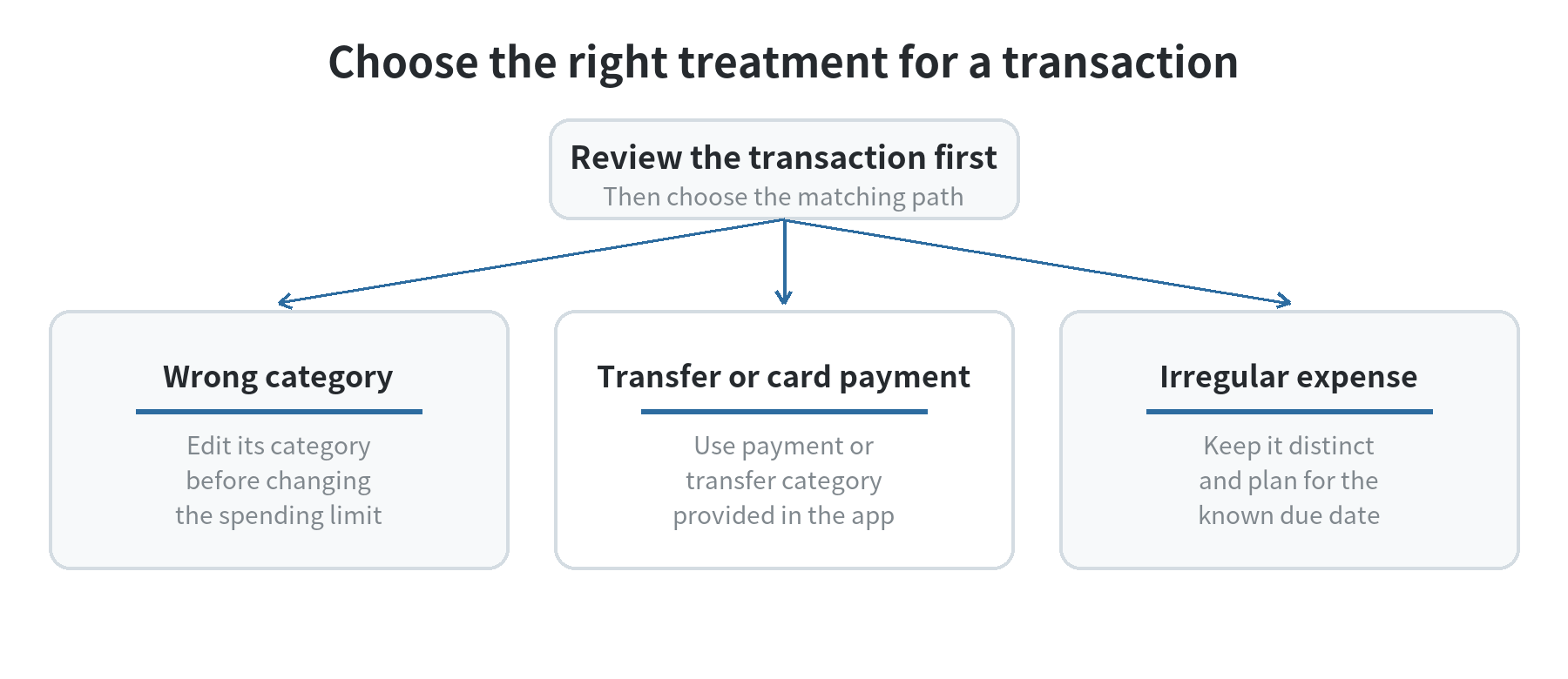
Automatic labels save entry time, but Rocket Money’s category help page says a transaction can land in the wrong category. When that happens, open the transaction and change its category. Premium members can also create custom budget categories; the current help page lists that as a Premium feature.
Check three cases during a review: a purchase assigned to the wrong category, a recurring bill that appears both as a bill and spending, and a refund or transfer that changes a total. Rocket Money’s guide to credit-card payments and transfers says internal transfers do not affect spending or income totals and card payments should be categorized to prevent double-counting; review those labels instead of treating every line in an account feed as a new purchase.
If the category is correct and the limit is already used, keep the transaction visible. Decide whether the purchase was a one-time exception or whether the plan no longer matches the month you are having. For a genuine overage, adjust the plan for the remaining days or move a limit from another flexible category. Do not raise the cap simply to make the displayed total look balanced; the gap is information about the original plan.
Review the gap between the plan and the account
At the end of the month, compare Rocket Money’s totals with your bank and card statements, consistent with the CFPB’s advice to compare category totals with take-home pay. A difference can point to a missing account, a cash purchase, a pending transaction, a transfer, or a category that needs correction. Update the record first; then decide whether the limit itself needs to change.
For an irregular expense, look at more than the current month. Divide a known annual bill by the months remaining before it is due and set aside that amount in your own savings plan; record the contribution as a budget line so it is not mistaken for money left over. If the app’s monthly view does not help you time those deposits around paydays, pair it with a calendar or the CFPB cash-flow worksheet.
The useful outcome is a plan that matches what cleared your accounts and what is due next. Rocket Money can organize transactions and show category totals, but it cannot know about cash spending or bills in accounts you have not connected. A quick statement check keeps the limits grounded in your actual month.
Budgeting starts in the mobile app, while Rocket Money’s help page says website budget setup is available to Premium members. That gives you a simple way to begin from the phone without first building every possible category. If you need a custom category, check the current plan details because Rocket Money lists that tool under Premium.
Before relying on a total, ask three questions: Is the account included? Is the transaction counted once? Does the limit reflect the amount you can spend after required bills? If one answer is no, fix that input before making a larger change to the plan. The budget is more useful when each number has a clear source in your records.
For a broader category framework, see how to plan a monthly budget with your phone. If you are comparing budgeting methods and apps, the site’s overview of budgeting apps covers that wider question.
FAQ
Can I include a cash purchase in my Rocket Money budget?
Yes. Rocket Money says Premium users can add a cash or unlinked-account transaction manually in the mobile app, and the entry appears in the budget.
What should I do if my income changes during the month?
Revise the income figure when the deposit arrives, then check bills and category limits again. For income that arrives on different dates, track the starting and ending balance by week as shown in the CFPB cash-flow budget worksheet.
Can I split one Rocket Money purchase across two categories?
Yes, the mobile app can split one transaction across multiple categories. Rocket Money’s split-transaction guide says you can divide it by amounts or percentages and assign each part to a category.
Where can I check Rocket Money’s current subscription price?
Check the Membership details shown in your Rocket Money account before deciding. Rocket Money says Premium pricing varies over time and across platforms; the amount shown for your account is the one to compare with your budget.
Last updated: 2026-09