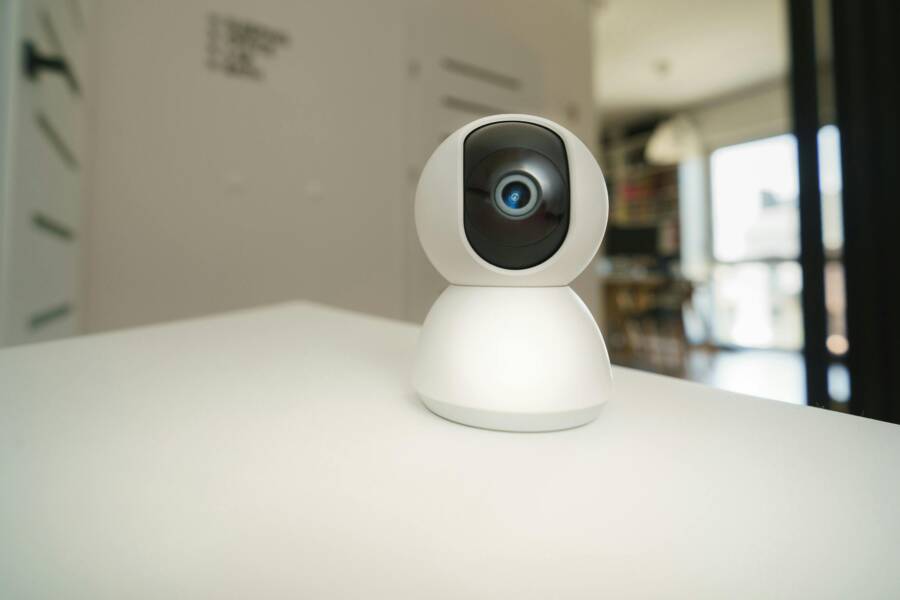
Strengthen connectivity and device health
Smart home systems rely on a stable network and healthy devices. When your phone runs home automation apps smoothly, you get faster responses, fewer hiccups, and better overall reliability. This section walks you through practical steps to strengthen both your Wi Fi and the health of connected devices, so your smart home stays responsive.
Check Wi Fi performance and phone network
- Assess signal strength: If your phone shows full bars but you still notice delays, test near the router and in rooms with smart devices to compare results. Look for weak spots where the signal drops or fluctuates.
- Run a quick speed test: Use an app like Speedtest to measure download and upload speeds. Compare results on your phone when you’re close to the router versus farther away. Consistent speeds indicate a healthy connection.
- Test both bands: Many routers broadcast 2.4 GHz and 5 GHz networks. Devices may connect to either band. Check that your phone can switch between bands and that devices like cameras and door locks aren’t stuck on a slow band.
- Note outages: Check with your internet service provider for outages in your area. Even small outages can affect smart devices, causing delays or failures to respond.
- Simple checklist readers can follow:
- Is your phone connected to Wi Fi or cellular data? If Wi Fi, which band (2.4 or 5 GHz)?
- Do speeds look reasonable on a quick test near the router?
- Do you notice outages or service interruptions in your area?
- Are smart devices responsive when the phone is on the same network?
- Quick reference link: for reliable speed testing, consider Speedtest by Ookla as a starting point. https://www.speedtest.net/
- If you want more options to gauge performance on mobile, OpenSignal offers mobile speed testing as well. https://play.google.com/store/apps/details?id=com.staircase3.opensignal&hl=en_US
Create a dedicated IoT network for smart devices
- Why segment the network: A separate IoT network reduces interference from phones, tablets, and laptops. It also helps keep smart device traffic organized and easier to manage.
- How to set up a separate network: Many routers offer a “Guest Network” or “IoT Network” feature. Create a dedicated SSID for smart devices and password-protect it. This keeps your main network clean and helps prevent a single device from hogging bandwidth.
- Common router interfaces: Look for sections labeled “Guest Network,” “IoT Network,” or “Mesh/Node settings” in your router’s admin page. If you use a modern ASUS or similar router, you’ll find steps to enable an IoT network in the support guides. ASUS provides detailed instructions for IoT networks and guest networks. https://www.asus.com/us/support/faq/1053540/ and https://www.asus.com/us/support/faq/1042732/
- Adapters and hubs help: If you have devices that are hard to wire, consider powerline adapters or USB-to-Ethernet hubs to connect devices with a stable wired-like connection. This can dramatically improve reliability for cameras and sensors.
- Keeping traffic organized: Put high-priority devices on the IoT network first, like security cameras and door locks. Keep guest devices separate from your main user devices to minimize interference.
- Additional guidance: IoT devices benefit from a predictable network path. A dedicated network makes it easier to monitor that path and spot issues quickly. A practical article on setting up a separate IoT network is available from IOT For All. https://www.iotforall.com/secure-your-home-set-up-iot-devices-on-separate-network
- Practical takeaway: If you’re using a popular router, check for a “Guest Network Pro” or IoT network option and follow the vendor’s steps. For example, ASUS provides guidance on guest and IoT network setups. https://www.asus.com/us/support/faq/1042732/
Improve network reliability and fix outages
- Reboot the router: A quick reboot can clear simple glitches, refresh connections, and sometimes restore full device responsiveness.
- Check for outages: If several devices slow down or fail to respond, verify whether the issue is on the ISP side. Most providers have outage trackers on their sites.
- Test on a stable connection: Move a device or phone closer to the router for a test. If performance improves, you may need to address coverage gaps rather than run everything on one AP.
- Signs the network is the culprit: Delayed commands, apps that fail to respond, or cameras freezing are common indicators that the network is stressed or unstable.
- Don’t overload the network: A lot of cameras, smart bulbs, and other IoT devices can saturate bandwidth. If you have many cameras, consider lowering their update frequency or using a separate IoT network to alleviate traffic.
- Short, practical steps you can take:
- Reboot your router and any mesh nodes.
- Run a speed test from different rooms to map coverage gaps.
- Check with your ISP about any known outages in your area.
- Move or rotate devices to improve signal where possible.
- External reference on guest networks: If you’re setting up guest Wi Fi networks, consider vendor guidance such as T Mobile’s article on guest Wi Fi setup for home networks. https://www.t-mobile.com/home-internet/the-signal/speed/setting-up-guest-wi-fi-network
By following these steps, you’ll create a stronger foundation for your home automation apps. A reliable Wi Fi network and thoughtfully separated IoT devices translate to faster responses, fewer disconnects, and more dependable control from your smartphone.
Keep software and devices up to date
Keeping your phone, home automation apps, and smart devices up to date is a cornerstone of reliable smart home control. Updates bring bug fixes, security patches, and new features that can improve performance and fix annoyances you might be experiencing. In this section, you’ll find a practical, plain‑spoken plan to stay current without introducing new problems. A well‑timed update routine helps your smartphone stay in sync with cameras, sensors, and hubs, so commands land quickly and devices respond predictably.
Update apps and firmware quickly and safely
Regular updates are a two step process: the phone app and the device firmware. Both need attention to keep your system responsive. Here’s a simple plan you can use now.
- Enable auto updates on your phone and for critical devices when available. This minimizes the risk of running outdated software.
- Check for updates monthly. A quick one‑hour window once a month is enough to catch important fixes without overloading your schedule.
- Install updates one at a time. After each update, reboot the device and test a few basic commands to verify things still work. This helps you catch incompatibilities early before they compound.
- Reboot after updates. A restart ensures new code starts cleanly and isn’t fighting with old processes.
- Test a few everyday tasks. For example, lock and unlock the door, turn lights on and off, and trigger a routine from the smartphone.
Why this matters: firmware updates fix security gaps and improve reliability. Skipping updates can leave vulnerabilities and create odd glitches that ripple through your automations. For trusted guidance on safe firmware updates, see best practices from industry sources and vendor support pages. If you’re curious about testing methods and a safer update workflow, you can start with this overview on secure OTA updates and practices. https://stormotion.io/blog/updating-iot-devices/
When you’re ready to expand beyond a single brand, remember that many vendors publish step‑by‑step update checks. For example, guidance on updating hub devices and connected components is widely available from major brands and tech publishers. https://fordewind.io/how-iot-firmware-updates-can-make-or-break-a-smart-home-ecosystem/
If you use a hub or gateway, confirm you’re applying updates to the hub first, then to the connected devices. This sequence often prevents compatibility hiccups during a rollout. For a concrete example from a popular hub platform, check the manufacturer’s update page. https://www.samsung.com/us/support/answer/ANS00080485/
A quick reminder: after updating, test the core routines you rely on daily. If something doesn’t respond as expected, roll back if possible or hold off on the next update until you identify the cause.
Check compatibility and ecosystem choices
Smart home one‑brand ecosystems can deliver smooth experiences, but mixing brands may introduce friction. Before buying new devices, use this quick guidance to keep compatibility on track.
- Do one ecosystem when possible. A single, well‑supported platform reduces the odds of a device or app not playing nicely with others.
- Consider Matter compatible setups. Matter aims to unify control across ecosystems, so you can mix and match devices that share the standard.
- Use a quick buying checklist to avoid buyer’s remorse:
- Is the product Matter compatible or tied to a specific ecosystem?
- Does the device support OTA updates and have a straightforward app or hub integration?
- Are there clear routines or automations that rely on the device?
- Can you test compatibility with your current setup before fully committing?
- Is customer support reliable if you run into integration issues?
For a high‑level look at Matter ecosystems and how they enable cross‑brand control, see an overview of Matter ecosystems. https://docs.silabs.com/matter/2.7.0/matter-ecosystems/
If you want to understand what Matter is and how it fits into your home, Google’s Matter resources offer practical explanations and starter guides. https://developers.home.google.com/matter/overview
Before making new purchases, you can consult a variety of perspectives on the best multi‑brand hubs and systems. A recent buying guide highlights top options and what to expect from a central hub. https://www.pcworld.com/article/582873/best-smart-home-system.html
A simple Matter compatibility list shows which devices and brands are on the path to cross‑compatibility. https://matter-smarthome.de/en/overview-products-compatible-with-matter/
Finally, a quick primer from the Google Home side explains how Matter works across platforms. https://developers.home.google.com/matter
Use a central hub to coordinate devices
A central hub can unite devices from different brands under one roof, boosting reliability and making automation easier to manage. Think of the hub as the traffic cop that keeps signals from multiple devices from colliding.
- Why a hub helps: It creates a single, predictable path for commands and status updates. A hub reduces the chance that a device misses a command due to network quirks or protocol gaps.
- How it works in plain terms: You pair each device with the hub, and the hub sends all instructions in one place. The hub then talks to the devices using their preferred language, but under a single umbrella.
- Common hub examples and their approach:
- Hubs that support multiple brands and standards tend to be forgiving for beginners.
- Look for hubs with a straightforward setup, a clean dashboard, and good customer support.
- Simple setup guidance:
- Pick a hub compatible with your main devices and preferred ecosystem.
- Add devices one by one and test each connection before moving on.
- Use the hub’s automations to centralize scenes and routines rather than linking devices directly to the phone app.
- A few reliable hub options for multi‑brand setups: check the latest roundups for 2025 to compare features and price. You can start with a broad overview of top hubs. https://www.slashgear.com/1847194/best-smart-home-hubs/
If you want a more curated list, a technology guide that tests multiple hubs can help you choose the right fit for a mixed device lineup. https://www.pcworld.com/article/582873/best-smart-home-system.html
For readers who prioritize compatibility and future‑proofing, a Matter‑focused hub path can reduce future headaches. See an overview of Matter compatible devices and the ecosystem approach. https://matter-smarthome.de/en/overview-products-compatible-with-matter/
In practice, a well‑chosen hub translates to fewer disconnects, smoother automations, and faster responses on your phone. The hub acts like a traffic controller, keeping devices from stepping on each other’s toes and ensuring commands reach the right device every time.
External guidance and practical tips on hub selection and setup can help you make a confident choice. A current roundup on reliable hubs provides a starting point for beginners. https://www.cnet.com/home/smart-home/best-google-smart-home-devices/
If you’re exploring the hub route, keep your expectations realistic. A good hub simplifies control and improves reliability, but it’s not a magic fix for every issue. The right hub, paired with a sane device lineup, can keep your smartphone experience smooth and predictable.
Troubleshoot automations and routines
When your home automation routines misfire, it can feel like the whole smart home ecosystem is letting you down. The goal here is to isolate issues, verify each trigger and action, and confirm outcomes in a repeatable way. Below is a practical, step by step approach to diagnosing and fixing automations, with a focus on timing, cloud versus local control, and a methodical way to test each routine. A simple log of results helps you see patterns over time.
 Photo by Jakub Zerdzicki
Test each automation one by one
Testing each routine in isolation makes it easier to pinpoint where things go wrong. Treat each automation as a small project with a single trigger and a single primary action. Here’s a simple, repeatable method you can follow:
- Identify the exact trigger: Note the device, event, or condition that should start the automation (for example, “motion detected by Front Hall Sensor” or “ sunset time”).
- Confirm the expected action: Document what should happen when the trigger fires (for instance, “turn on porch light to 100%” or “start a camera recording”).
- Execute step by step: Initiate the trigger manually when possible, or wait for the natural trigger, and observe whether the action occurs.
- Validate the result: Check if the action executed exactly as intended and within the expected time frame.
- Log every result: Create a simple log entry for each test with date, time, trigger name, action outcome, and any notes about delays or anomalies.
- Example log entry: “Test 1 — Trigger: Motion at Front Door; Action: Porch light ON at 100%; Result: Success; Time: 8:02 PM; Notes: Light came on within 2 seconds.”
Practical tips
- Run tests at different times of day to catch time-based issues.
- If you rely on a hub or gateway, test both direct device commands and hub-mediated commands.
- Use a consistent naming convention for logs so you can spot patterns quickly.
- When you identify a failing automation, test the trigger and action separately to determine which side needs attention.
For additional guidance, see resources that explain automations troubleshooting and setup in Google Home and similar ecosystems. You can explore how to manage automations and find the latest editor improvements in Google Home here: https://support.google.com/googlenest/answer/16214649 and learn more about managing automations in Google Nest here: https://support.google.com/googlenest/answer/15765771?hl=en.
Review timing, clocks, and conditions
Timing problems are a frequent culprit. A small clock drift or a conflicting condition can prevent an automation from firing, or cause it to run at the wrong moment. Approach timing like a digital metronome you can tune.
Key areas to check
- Clock synchronization: Ensure the hub, on-device clocks, and your phone are aligned. Even a few minutes of drift can disrupt scheduled triggers.
- Time zone accuracy: Verify that the time zone set on your hub, phone, and any dedicated devices matches your local zone. A shift of just one hour can derail routines around sunrise, sunset, or bedtime scenes.
- Conflicting conditions: Routines with multiple conditions may fail if one condition is not consistently true. For example, a motion sensor plus a presence condition may block an automation if the presence state fluctuates during testing.
- Edge cases: Sunset calculations, sunrise offsets, and day-light saving time transitions can cause misfires if not accounted for in automations.
Practical steps
- Verify device clocks: Check the system clock on the hub or central controller and compare it with your phone’s clock. If a mismatch exists, correct it and re-test.
- Confirm time zones: In the hub’s settings, ensure the correct time zone is selected. If you use a local server or a DIY hub, confirm the time zone at the system level.
- Recheck conditions: Review each condition in the automation. Remove any ambiguous states and simplify where possible. If a condition depends on another device’s state, verify that the state updates reliably.
- Align daylight saving changes: When DST shifts occur, revisit automations that rely on sun-based triggers or time offsets and adjust accordingly.
- Test after changes: Run the automation again and note improvements or ongoing delays. Keep a log to track the impact of each adjustment.
Small changes can yield big improvements. A one-minute adjustment to a trigger or a minor correction to a condition often eliminates a week of frustrating troubleshooting. For background reading on timing issues and how they show up in real-world setups, see community discussions about timed automations in Home Assistant here: https://github.com/home-assistant/core/issues/148717.
Diagnose cloud versus local control issues
Cloud dependence adds convenience but can introduce delays or outages that ripple through routines. Local control can often restore speed and reliability when the cloud goes offline or slows down.
What to look for
- Cloud outages: If your routines run fine when you are on your local network but fail when you’re away, a cloud issue could be at fault.
- Latency and reliability: Cloud-based commands may have higher latency, especially during peak times. Local control reduces this delay.
- Privacy and resilience: Local control minimizes reliance on external servers, which can boost privacy and keep routines working when the internet is unstable.
Simple testing approach
- Enable local control where possible: If your devices support local automations (for example, a local hub or a Home Assistant setup running on a local server), test with local executions enabled.
- Compare outcomes: Run the same routine with cloud control and with local control. Note the difference in execution speed and reliability.
- Document improvements: If local control improves consistency, you have a strong case for leaning into a hub-centric or local-first setup.
For further reading, see discussions about cloud versus local control and practical implications for reliability. Helpful perspectives include OpenSource platforms that explore local-first setups, such as Home Assistant, and general cloud versus local considerations: https://opensource.com/article/20/11/cloud-vs-local-home-automation.
If you want to understand how cloud outages can affect your devices, you can read about real-world scenarios and how some homeowners shift to local control for greater reliability: https://creators.yahoo.com/lifestyle/story/what-really-happens-when-you-run-your-smart-home-without-the-cloud-124017393.html.
Finally, consider the role of a central hub in coordinating devices. A hub can reduce reliance on cloud services by managing local commands more efficiently. Learn more about hub coordination and multi-brand setups here: https://www.slashgear.com/1847194/best-smart-home-hubs/.
Putting it into practice
- If cloud issues are suspected, temporarily switch a routine to local execution and monitor if performance improves.
- Maintain a balance: use cloud for features that truly benefit from it, but rely on local control for critical automations like door locks and alarm services when feasible.
- Keep a close eye on firmware updates and app versions, as they can alter how local and cloud paths behave.
In practice, a well-configured system with robust local control can deliver faster responses and greater resilience. The goal is confidence that your smartphone commands translate into reliable action, even when the internet wobbles.
Images used in this section are intended to support the concept of a connected home. If you’d like, I can add more visuals illustrating timing charts, cloud vs local diagrams, or testing logs to further boost reader engagement.
Secure your smart home
A secure smart home starts with solid account protection and smart network design. When your accounts and devices stay locked down and your devices run on a clean, segmented network, your home automation apps on your phone respond faster and stay reliable. This section covers practical steps you can take now to guard access, reduce exposure, and minimize disruptions to your routines.
Protect accounts and devices
Strong passwords and multi-factor authentication are your first line of defense. Use unique, long passwords for each account, and avoid reusing credentials across devices or apps. Default passwords are a common source of breaches; changing them to strong, private ones dramatically lowers risk and the chance of disruptions to your automations when you least expect it.
- Create robust passwords: Aim for 12 or more characters with a mix of letters, numbers, and symbols. Avoid obvious patterns or personal details.
- Enable two-factor authentication (2FA): Whenever possible, add a second verification step. This keeps unauthorized users from taking control even if a password is compromised.
- Turn off default credentials: Many devices ship with shared or known defaults. Change these during setup, and if the device supports it, rotate credentials periodically.
Why this matters: when a hacker gains entry through a weak credential, they can disrupt routines, view or alter camera feeds, or unlock doors. Strong passwords and 2FA limit the exposure, making it far less likely a single breached account derails your entire smart home.
- Use reputable password managers: They help you generate and store unique credentials without reusing passwords.
- Regularly review connected apps and devices: Remove anything you no longer use or recognize.
- Watch for phishing attempts: Many compromises begin with a targeted link or fake login page. Always check the URL and avoid entering credentials on unfamiliar sites.
For additional guidance on strong passwords and best practices, see resources from trusted security authorities. For example, official guidance on strong passwords and access controls can help shape a routine you can trust. https://www.cisa.gov/audiences/small-and-medium-businesses/secure-your-business/require-strong-passwords
If you’re curious about the risks of default passwords and how to avoid them, a practical overview helps translate the risks into concrete steps you can take today. https://specopssoft.com/blog/default-password-risks/
And when you’re setting up a new device, consider secure practices that align with typical home setups. A solid primer on protecting smart homes from common threats offers straightforward steps you can adopt right away. https://bellahomes.us/5-ways-to-protect-your-smart-home-from-hackers/
If you want a quick high-level read on keeping devices safe while you automate, a concise guide covers the essentials without overwhelming you. https://www.emazzanti.net/how-to-keep-your-smart-homesafe-and-sound/
To reinforce the habit, keep a simple checklist handy:
- Use unique, strong passwords for every account.
- Enable 2FA on all services that offer it.
- Replace default credentials during setup.
- Regularly audit devices and permissions.
By locking down access and credentials, you reduce the risk of disruptions to your phone and home automation apps. You’ll gain more consistent control and fewer surprises when you reach for the app after a long day.
Isolate devices on a separate network
Network segmentation is one of the most effective ways to protect smart devices while improving performance. When your IoT devices share a network with your phone and computers, they compete for bandwidth and can create a domino effect if one device is compromised or misbehaves.
- Why segment the network: A dedicated IoT network isolates devices that chatter a lot, like cameras and smart speakers, from personal devices. This reduces interference and makes it easier to spot issues early.
- A simple setup for beginners: Many modern routers offer a “Guest Network” or an “IoT Network” setting. Create a separate SSID for smart devices and apply a strong password. Keep your primary network for personal devices and work.
- How to identify the right area in your router: Look for sections labeled “Guest Network,” “IoT Network,” or “Mesh/Node settings” in the admin panel. If you use a well-known router brand, vendor guides often walk you through enabling an IoT network.
- When a wired option helps: If you have devices that can be wired, use wired connections or adapters to reduce wireless interference. Powerline adapters or USB-to-Ethernet hubs can bring a more stable link to cameras and sensors.
- Practical routing tips to improve reliability:
- Place high-priority devices, like door locks and security cameras, on the IoT network first.
- Keep guest and personal networks separate to minimize cross-traffic.
- Monitor traffic on the IoT network to catch unusual spikes that could indicate a misbehaving device.
Concrete setup references you can follow:
- Look for official guidance on IoT networks from router makers, including step-by-step instructions for creating a dedicated IoT or guest network. https://www.asus.com/us/support/faq/1053540/ and https://www.asus.com/us/support/faq/1042732/
- A practical article that covers how to set up an IoT network with clear steps and examples. https://www.iotforall.com/secure-your-home-set-up-iot-devices-on-separate-network
- A trusted guide on network segmentation and security practices for smart homes. https://www.bitdefender.com/en-us/blog/hotforsecurity/network-segmentation
- Real-world best practices for network segmentation and IoT isolation. https://makeuseof.com/how-segment-home-network-to-maximize-data-security
If you’re starting from scratch, a simple rule of thumb helps. Treat your IoT devices as a separate subnetwork with its own router or a dedicated VLAN on a capable main router. This keeps the “chatty” devices away from work devices and personal gear, making your home setup more predictable and easier to troubleshoot.
- Quick wins:
- Enable QoS (Quality of Service) to prioritize critical devices on the IoT network.
- Disable WPS on your primary router to reduce an attack vector.
- Regularly update firmware on both your main router and IoT devices.
A well-thought-out network layout translates to faster, more reliable automation from your phone. It also makes it easier to see what’s causing any hiccups, since traffic flows are easier to observe on a segmented setup.
External guidance and practical tips on hub selection and setup can help you make a confident choice. A current roundup on reliable hubs provides a starting point for beginners. https://www.cnet.com/home/smart-home/best-google-smart-home-devices/
If you’re exploring the hub route, keep expectations realistic. A good hub simplifies control and improves reliability, but it’s not a magic fix for every issue. The right hub, paired with a sane device lineup, can keep your smartphone experience smooth and predictable.
Reset and get help when needed
When home automation behaves oddly, reset is often the simplest first step. This section helps you decide between soft resets and a full factory reset, and it gives you practical, data-safe procedures to bring your smart home back to reliable operation. You’ll learn to verify results, minimize disruption, and reconfigure devices efficiently so your smartphone controls stay responsive.
Soft resets and quick checks
Soft resets are your friendly nudge to get things moving again without wiping your setup. They are ideal when you notice a delay, a single command fails, or an app glitches. Start with a quick loop of tests to confirm what changed after the reset.
- Restart the app: Close the home automation app completely, then reopen it. Log back in if needed and re-run a few basic commands like turning on a light, arming a simple scene, or querying a camera status.
- Reboot the hub or bridge: A short power cycle clears temporary software hiccups. After the hub comes back online, test essential routines to confirm they trigger correctly.
- Re-test a few commands: Check at least three core actions in a row to ensure stability. If one command misbehaves again, note the time, device, and condition it ran under.
- Avoid data loss: Before any reset, confirm you’ve saved routine configurations or noted key device settings. If a device stores data locally, a soft reset should not erase it. If your setup relies on cloud backups or app-provided exports, consider exporting important routines or scenes as a precaution.
- Quick kitchen‑sink checklist to use now:
- Is the phone connected to the home network or cellular data when testing? If on Wi Fi, which band is in use?
- Do basic commands work after the app restart and hub reboot?
- Are any devices showing as offline in the app after the reset?
- Do you notice any repeatable patterns when failures occur (time of day, specific scenes, or a particular device type)?
- Helpful reference: for quick speed checks on your network from a mobile device, a fast test can reveal whether your phone’s network path is the bottleneck. See Speedtest by Ookla for a reliable baseline: https://www.speedtest.net/
If you want extra mobile testing options, OpenSignal offers additional ways to gauge mobile performance that can affect app responsiveness when you’re away from Wi Fi: https://play.google.com/store/apps/details?id=com.staircase3.opensignal&hl=en_US
Soft resets are the fast lane to stability. They’re low risk and often restore the smooth, real‑time feel you expect when you reach for your phone to control lights, locks, or cameras.
Factory reset and reconfiguration tips
If soft resets don’t restore reliability, or if you’re moving a device to a new hub, a full factory reset may be needed. This step clears the device back to its original state, so you can reconfigure with a clean slate. Use a factory reset sparingly and follow a deliberate reconfiguration plan to avoid downtime.
- When to consider a factory reset: If a device consistently misbehaves after updates, if you’re replacing a hub, or if you’re moving to a new ecosystem, a factory reset helps eliminate stubborn conflicts.
- Safe reconfiguration mindset: Treat the reset as a fresh install. Keep a list of existing automations and a map of device pairings so you can restore routines quickly.
- Simple re-pairing checklist:
- Reset the hub or device to factory defaults, following the manufacturer’s instructions.
- Re-add the hub to your app first, ensuring the hub is detected and online.
- Pair devices one by one. Test each device after pairing before adding the next.
- Rebuild automations in a staged way, starting with essential scenes (lights, door lock, camera).
- Run a full routine test and confirm all triggers and actions execute as planned.
- Document changes and save a backup of your configuration if the platform supports it.
- Data safety during a reset: Most hubs and devices preserve user data in the cloud or on the device itself. If you rely on local control, back up any custom scenes or workflows where possible. If you use a cloud backup feature, run a quick export prior to resetting.
- Practical provider guidance:
- For SmartThings hubs and related devices, you’ll sometimes need to delete the hub from the app before factory resetting. This helps avoid error codes during setup. More details and steps are provided in official support resources. https://www.samsung.com/us/support/answer/ANS00048958/
- If you’re using a hub that supports multiple brands, verify the reset sequence and reconfiguration steps from the manufacturer. Detailed guidance is available from hub vendors to prevent setup errors. https://aeotec.freshdesk.com/support/solutions/articles/6000253816-complete-factory-reset-steps-for-smartthings-hubs
- For device‑specific reset instructions, consult the vendor support pages or the product manual. If you’re starting from scratch with a new hub, plan for a staged installation so you can confirm each device comes back online in a known state.
- Quick reconfiguration mindset: after a reset, don’t rush. Reconnect and test in short blocks. Start with the most critical devices like door locks and security cameras, then bring in lights, sensors, and presence devices. This reduces the risk of cascading failures as you rebuild routines.
A well‑planned factory reset can save hours of frustration. You’ll end up with a cleaner network and a more predictable automation setup. If you want a practical reference on factory reset steps for popular hubs, check SmartThings hub reset and reconfiguration resources and compare with the general reset guidance from reputable vendors. https://www.samsung.com/us/support/answer/ANS00048958/ and https://aeotec.freshdesk.com/support/solutions/articles/6000253816-complete-factory-reset-steps-for-smartthings-hubs
- Quick start after a factory reset:
- Reconnect the hub to the internet first.
- Add essential devices one at a time, verifying connectivity as you go.
- Recreate core automations before adding less critical devices to limit troubleshooting scope.
- Enable/verify local control for critical routines to improve resilience during future outages.
In practice, a carefully executed factory reset followed by a structured reconfiguration minimizes downtime and reduces the chance of repeat issues. When you finish your reconfiguration, you’ll notice quicker responses and fewer random glitches in your daily routines.
External links and vendor guidance can provide a safety net during reconfiguration and help you avoid common missteps. For example, official support pages offer step by step reset and rejoin instructions for SmartThings hubs, while vendor documents help you plan a clean reintroduction of devices into your ecosystem. https://www.samsung.com/us/support/answer/ANS00048958/ and https://aeotec.freshdesk.com/support/solutions/articles/6000253816-complete-factory-reset-steps-for-smartthings-hubs
If you’re starting fresh with a new hub or moving devices to a new network, a well‑documented plan is worth its weight in time saved. A simple, repeatable reset and reconfiguration workflow keeps you in control and ready for the next update. You can reference vendor reset guides and keep a running checklist handy for fast execution when needed.
Conclusion
Fixing home automation apps on your smartphone is mostly practical and affordable. Start with small, repeatable steps, then build up to more involved fixes if needed. A stable Wi Fi setup, a tidy device ecosystem, and up to date software make a big difference in how reliably your automations run.
Action plan you can start today
- Check your network: confirm solid Wi Fi near the router and in rooms with smart devices. If needed, run a quick speed test on your smartphone to map coverage gaps.
- Separate high priority devices: put cameras, locks, and hubs on a dedicated IoT network to reduce interference.
- Update in stages: enable auto updates for apps and critical devices, then reboot after each update and verify a few core commands work.
- Test one automation at a time: verify triggers and actions individually, then log results to spot patterns.
- Use local control where possible: test routines that run on a hub or local server to improve speed and reliability.
Why this helps: most issues boil down to a weak network, outdated software, or misconfigured routines. These fixes are within reach for most households and don’t require expensive equipment. Saving this guide keeps a ready reference for future hiccups.
A quick reminder to test one fix at a time. If problems persist after trying the basics, seek help from the vendor support pages or user communities. A fresh set of eyes can identify edge cases you might miss.