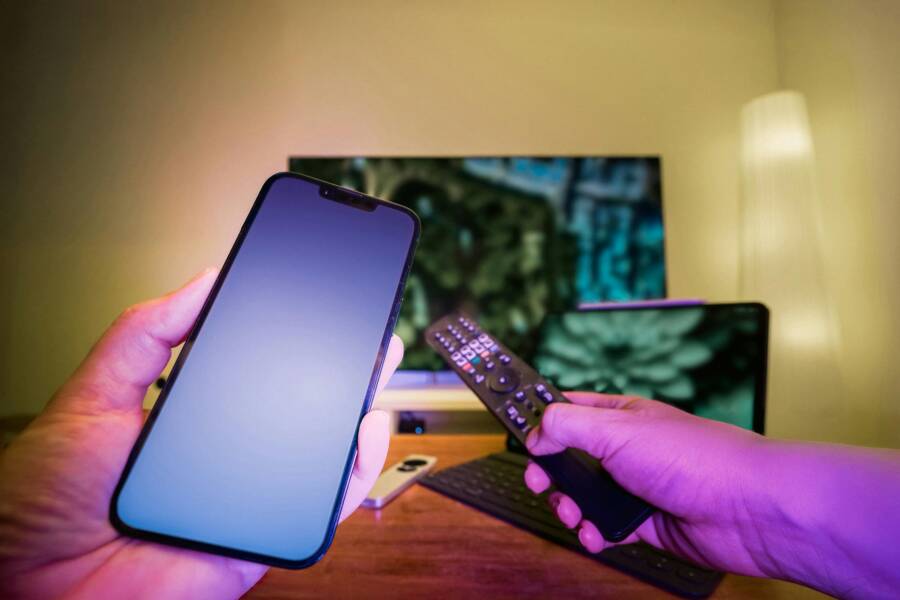
Ever tried to control your smart TV from your phone and nothing happens, leaving you staring at a frozen screen of frustration? This guide breaks down the common culprits behind the issue and shows simple fixes you can try in minutes.
You’ll learn why the smart TV app control not working from phone often comes down to network mismatches, outdated software, or minor settings tweaks. We’ll walk through straightforward steps that work for most brands, from Samsung to LG and Roku, so you can regain remote-like control without tech headaches.
Follow the steps in order and test after each one. The goal is clear: quick, reliable fixes that turn your phone back into a capable remote, with no jargon and no guesswork for you. If you’re ready, start with the basics and you’ll likely be back to effortless control in no time.
Check These Basics First to Get Your Phone Connected
When your phone tries to act as a remote and it won’t play ball, the quickest path to a fix is often something simple. Start here to confirm the basics are solid before you dive into deeper troubleshooting. These checks help you rule out wifi, device, and network mismatches that commonly derail smartphone control of smart TVs.
 Photo by Jakub Zerdzicki
Confirm Same Wi-Fi Network on Phone and TV
To work as a remote, your phone and TV must share the same Wi-Fi network. Start by checking the TV’s network settings and then verify your phone’s connection.
- On the TV, go to Settings > Network & Internet and confirm the Wi-Fi is on and connected. Note the network name (SSID).
- On your phone, open the Wi-Fi settings and verify you’re connected to the same SSID. If you see two networks with the same name, check for band differences.
- If the TV is on a 2.4 GHz network and your phone is on a 5 GHz network, switch one device to match the other. Some routers create a single network name for both bands, while others separate them. If you’re unsure, log into your router and disable band separation or create a single network name for both bands.
- After ensuring both devices share the exact same network, test the app again.
Why this matters: discovery and control signals can fail when devices are on different networks or different bands. A quick network realignment often restores instant communication. If you still have trouble, try temporarily turning Wi-Fi off and on again on both devices to refresh the connection.
Learn more about common wifi and remote app issues here:
- Why is the app saying I’m not on wifi when both the tv and my phone is on wifi. (Google TV Help)
- Learn how to fix problems with the Google TV virtual remote (Google support)
Test TV Response with Physical Remote
A simple test with the TV’s own remote helps isolate whether the issue is the TV itself or the phone app. If the TV responds reliably to the remote, the problem is likely with the phone app or network setup. If the TV doesn’t respond to the remote either, there may be a deeper TV issue or a hardware fault.
- Point the physical remote at the TV and press basic commands like Power, Volume, and Channel. If the TV reacts consistently, the TV’s tuners and firmware are functioning.
- If the TV is unresponsive to the remote, note any indicator lights or on-screen messages. Look for a stuck IR sensor, a deactivated remote sensor, or a failed firmware update.
- If the TV responds to the remote but not to the phone app, focus your troubleshooting on the app, the phone, and the network. If both fail, the TV may need a service check.
Why this matters: a working TV with a nonfunctioning app usually points to app configuration, network issues, or permissions. A TV that ignores both remote and phone signals hints at hardware or firmware problems that require a more in-depth fix.
If you want to explore related tips, you can review the Google TV guidance on using the virtual remote and network checks:
- Learn how to fix problems with the Google TV virtual remote
- How to control a TV without a remote (Samsung guidance)
Restart Devices and Re-Pair for Instant Results
When the smart TV app on your phone stops responding, a quick restart and fresh pairing often collapse the issue. Think of this as rebooting a camera app on your phone after a glitch: it clears temporary errors and reconnects the two devices. In this section, you’ll follow a precise restart sequence and then re-pair your phone with the TV so you get instant results.
 Photo by Jakub Zerdzicki
Full Restart Sequence for Phone, TV, and Router
A clean restart resets every layer that can affect your connection. Run this sequence in order, testing after each step to spot the bottleneck.
- Force-stop the control app on your phone
- Android: Open Settings > Apps > [Your TV Remote App] > Force Stop.
- iPhone: Double-press the home button or swipe up to view recent apps, then swipe the TV remote app off the screen. If you’re using a dedicated app that supports background activity, close it fully by swiping away.
- Tip: If the app is stubborn, reboot the phone entirely. A full restart guarantees a clean slate.
- Restart the TV
- Use the remote to navigate to Settings > System > Restart. If the TV won’t respond, unplug the power cord for 30 seconds, then plug back in. This is a safe reset that clears minor firmware hiccups.
- While the TV restarts, avoid pressing any buttons on the panel to prevent accidental state changes.
- Reboot the router
- Unplug the router, wait 30 seconds, then plug it back in. Let the network settle for a minute.
- If you use a mesh or tri-band network, ensure all nodes reconnect smoothly. A quick check that the TV and phone will see the same network will save time later.
- Reconnect and test
- After all devices come back online, reconnect your phone to the router (if you changed networks during the reset).
- Open the control app and test basic commands like navigation, volume, and input switching.
- If the app still doesn’t respond, repeat the restart with a longer wait between steps to ensure the network has stabilized.
Why this helps: a full restart clears cached settings, resets the pairing state, and refreshes network discovery. This approach fixes many cases where the app seems to freeze or fail to send commands.
If you want a deeper dive into restarting specific devices, you can reference guidance from reputable sources:
- How to restart a Google TV device
- How to restart Android TV or Google TV
Reset and Re-Pair for a Fresh Connection
If the restart sequence doesn’t restore control, a re-pairing of the phone to the TV often resolves lingering pairing or discovery issues. This method ensures the two devices recognize each other anew, reducing miscommunication that can cause lag or missed commands.
- Initiate pairing on the TV
- On Google TV or Android TV devices, go to Settings > Remotes & Accessories > Add Accessory.
- If you’re using a Roku device, enable Bluetooth pairing in Settings > System > Bluetooth. For Samsung or LG, use their Smart View or corresponding remote pairing option.
- Start pairing from your phone
- Open the control app and look for a “Pair” or “Connect to TV” option. On many platforms this is labeled as “TV nearby” or “Cast, connect & control.”
- If the app prompts you to select the TV, choose the correct device from the list.
- Complete the on-screen prompts
- A code may appear on the TV screen. Enter or confirm it on your phone as required.
- Accept any prompts on the TV to grant permissions or allow the phone to control input, volume, and power.
- Verify the connection
- Once paired, test a quick sequence: power on, navigate to a menu, and adjust volume.
- Confirm that on-screen text input and navigation respond promptly to your phone.
- Alternate pairing methods
- If one method fails, try a different approach. For Google TV, you can pair via the Google TV app by tapping TVs nearby and following the on-screen steps. For Samsung and LG, Smart View or built-in remote features often provide a reliable path to pairing.
- Bluetooth pairing can also work when Wi-Fi based control stalls. Enable Bluetooth on both devices and pair through the TV’s Bluetooth settings.
If you want extra guidance on specific pairing flows, consult these resources:
- Cast, connect & control your TV with the Google TV app
- How to turn on Bluetooth pairing and connect your phone to your Roku device
- How to connect mobile device and TV with Smart View
By restarting and then re-pairing, you re-establish a clean, direct link between your smartphone and TV. This approach minimizes the chance of miscommunication and reduces the time you spend fiddling with settings.
References and extra reading:
- Fix problems with your Google TV device
- How to connect mobile device and TV with Smart View
- How to turn on Bluetooth pairing and connect your phone to your Roku device
If you’d like, I can tailor these steps to your specific TV brand and model.
Update Software and Fix Permissions on Your Phone
When your TV control from your phone stops working, the fix is often simpler than it seems. The most effective path is to ensure both devices are on the latest software and that the app has the right permissions to operate. In this section, you’ll learn how to update TV firmware and the remote app, plus how to grant the necessary permissions on your phone. These steps apply to most major brands, including Samsung, LG, Google TV, Roku, and Apple TV ecosystems.
Update TV Firmware and Remote App
Keeping your TV firmware current is a foundational step. Firmware updates fix bugs, improve device communication, and often resolve control quirks with companion apps. There are three reliable ways to update most smart TVs: over the internet automatically, via a network-assisted manual update, or using a USB drive when network options fail. Here’s how to approach the process for popular platforms.
- Samsung (Tizen)
- Auto update: On the TV, go to Home > Settings > Support > Software Update and enable Auto Update. The TV will install updates in the background as they become available.
- Manual network update: Navigate to the same path and choose Update Now. Follow on-screen prompts if an update is detected.
- USB update: If the TV can’t reach the internet, download the correct firmware file from Samsung’s support site, copy it to a USB drive, insert it into the TV, then select to install via Software Update.
- Useful resource: Update the software on your Samsung smart TV or monitor. https://www.samsung.com/us/support/answer/ANS10002051/
- LG webOS
- Auto update: Settings > All Settings > Support > Software Update, turn on Auto Update.
- Manual network update: Settings > All Settings > Support > Software Update > Check for Updates > Download and Install. If prompted, power the TV off and on again after the download.
- USB update: Download the firmware for your model from LG’s support site, extract to a USB drive named LG_DTV, and insert it into the TV. The TV will show USB UPDATE READY, then you can install.
- Helpful guide: How to update an LG Smart TV. https://www.lg.com/us/support/help-library/lg-tv-how-to-update-an-lg-smart-tv–1430510575535
- Google TV / Android TV
- Auto update: Many devices update automatically; enable System update in Device Preferences or About.
- Manual network update: Settings > Device Preferences > About > System update or Check for update > Network update.
- USB update: Go to the maker’s support site, download the exact firmware, copy to a FAT32 USB drive, insert into the TV, and use the Local/USB update option under System update.
- Reference: Chromecast & Google TV firmware versions and release notes. https://support.google.com/chromecast/answer/7124014?hl=en
- Roku
- Auto update: Roku devices typically update automatically when connected to the internet.
- Manual check: Home > Settings > System > System update > Check now.
- USB: Some Roku TVs support USB-based updates, but many models do not. Check the manufacturer guidance for your exact device.
- Quick setup guide: How to update the software on your Roku streaming device. https://support.roku.com/article/208755668
- Quick tips that apply to all brands
- Know your exact model number before downloading firmware from the official site.
- Use only the manufacturer’s official support site to download firmware.
- If you’re using USB, format the drive as FAT32, place update files in the required folder, and run the update exactly as instructed.
- Do not power off the TV during a firmware installation.
- If you’re cautious, search release notes and user forums for any reported issues with a new update before installing.
- If you want model-specific steps, share your exact brand and model number and I’ll tailor the instructions.
Why firmware updates matter: a lot of control issues stem from mismatched software between the TV and the control app. A fresh firmware lets the TV properly recognize the phone’s commands, handles pairing more reliably, and supports newer features in the remote app. If you’re unsure which update path to take, start with the auto-update option and then move to a manual method if the TV never pulls an update automatically. For many users, a single firmware refresh makes the difference between a sluggish remote and a responsive one.
If you’d like a tailored path for your exact model, I can map out the precise menu names and props for your TV brand and year.
For deeper brand-specific guidance and the latest official steps, these sources can be handy references:
- Samsung support: Update the software on your Samsung smart TV or monitor. https://www.samsung.com/us/support/answer/ANS10002051/
- LG support: How to update an LG Smart TV. https://www.lg.com/us/support/help-library/lg-tv-how-to-update-an-lg-smart-tv–1430510575535
- Google TV / Chromecast: Chromecast & Google TV firmware versions and release notes. https://support.google.com/chromecast/answer/7124014?hl=en
- Roku support: How to update the software on your Roku streaming device. https://support.roku.com/article/208755668
Pro tip: if you’ve updated the TV but the phone still doesn’t pair, a quick re-pair often finishes the job. You’ll find more on re-pairing in the next subsection.
Grant App Permissions and Handle OS Changes
Smart TV remote apps rely on a handful of permissions to function smoothly. When the OS on your phone updates, those permissions can shift or reset. This makes re-authorizing the app a quick, low-effort fix that pays off fast.
On Android devices, common permission requests for TV remote apps include access to the local network, microphone for voice commands, and occasional location data to help identify devices on the network. On iOS, the same apps typically request local network access, microphone, and sometimes notifications for quick access.
- Android permissions you’ll commonly see:
- Local network or WiFi: to discover and connect to the TV on the same network.
- Microphone: for voice control when supported by the app.
- Location: sometimes used to assist device discovery on some versions of Android.
- Storage or media: for saving remote configurations or media shortcuts.
- iOS permissions you’ll typically encounter:
- Local network access: to detect and control TVs over WiFi.
- Microphone: for voice-enabled features.
- Notifications: to push quick controls to your lock screen or notification center.
If you’re seeing permission prompts but the app still won’t connect, a quick disable and re-enable of permissions can clear stale settings. Then try re-launching the app and attempting to pair again.
Tips to make permissions count:
- Grant the app access to the local network when prompted. This is essential for discovery and control.
- When the OS asks for microphone access, consider enabling it if you plan to use voice commands.
- If you’ve recently updated the OS, revisit the app’s permissions to confirm nothing got reset during the update.
- If the app still won’t connect after permissions are set, reinstalling the app is a simple, effective reset. This clean slate eliminates misconfigurations carried over from before the update.
Screenshots can help guide you through this step. If you’re following along on a phone, capture the permission screens during the first setup. This way you have a reference if you need to walk through it again later.
- Android permission screens typically show a first prompt for “Local network access” with a toggle. If you miss it, the app may appear to be online but won’t discover the TV.
- iOS permission prompts are often a one-tap decision. If you denied it earlier, you’ll need to go to Settings > [App Name] and enable “Local Network” and “Microphone” if you plan to use voice control.
If permissions are correct and you still face issues, the reinstall tip often resolves stubborn bugs. Uninstall the app, reboot the phone, then reinstall from the Google Play Store or Apple App Store. After reinstall, open the app and re-pair with the TV. This fresh setup mirrors a brand-new connection and eliminates lingering glitches.
For reference on default permission expectations and setup, see these guidance resources:
- Apple support: Set up the Apple TV Remote on your iPhone or iPad. https://support.apple.com/en-us/108778
- Apple support: Use your iPhone, iPad, or Apple Watch as a remote for Apple TV 4K. https://support.apple.com/guide/tv/iphone-ipad-apple-watch-a-remote-atvb701cadc1/tvos
If you’re using an Android or iOS device and want brand-specific permission steps, tell me your phone model and OS version and I’ll tailor the instructions with exact screens and clicks.
By keeping firmware current and ensuring permissions stay aligned with OS changes, you’ll regain reliable control from your phone in minutes. If you’re ready for the next advance, we’ll walk through common pairing scenarios and quick tests to confirm everything is working as it should.
Solve Network Blocks and Account Glitches
When a smart TV app on your phone refuses to connect, the issue usually hides in the network setup or account permissions. You want a solution that’s quick, repeatable, and easy to follow. In this section, we’ll tackle two common trouble spots: router configurations that block device-to-device communication and account-related glitches that prevent pairing or control from your smartphone. After you finish these steps, you’ll have a clearer path to smooth, responsive control.
Adjust Router Settings for Device Communication
Many connection hiccups start at the router. Features like client isolation and band separation can keep your phone and TV from seeing each other, even when both devices are on the same home network. The goal here is to let devices talk to one another without exposing the network to unnecessary risk.
Key actions to consider
- Look for AP isolation or client isolation in your router’s settings. If this feature is enabled, it can prevent your phone from reaching the TV. Disable it if you have explicit permission to do so and you’re comfortable with the change.
- Enable a unified SSID for 2.4 GHz and 5 GHz bands. Many devices perform better when they roam between bands under a single network name, which helps the phone discover and control the TV more reliably.
- If you must keep separation, ensure the two networks aren’t treated as completely isolated islands. Some routers allow you to enable seamless roaming or smart connect, which can bridge the gap between bands without compromising security.
- Verify the router’s firmware. An outdated router can mismanage device discovery protocols used by TV remotes and companion apps. A quick firmware update often resolves this.
Practical note: the easiest way to test the impact of these changes is to temporarily disable AP isolation, then try the phone remote again. If it works, you’ve identified the bottleneck. If not, re-enable isolation and proceed with the next steps.
Why this matters: when devices cannot see each other, the phone’s control signals never reach the TV. In many homes, a single small tweak to the network setup fixes the problem immediately. If you’re unsure about a setting, reference your router’s manual or the manufacturer’s support site for exact steps.
If you want a quick reference on how network tweaks affect device pairing, these resources offer practical guidance:
- What is the TP-Link Smart Connect feature and how to enable it?
- Combine 2.4GHz and 5GHz bands under a single SSID
- How to Set Up Your Router With Separate Network Names (SSIDs) for Each Band
Beyond the basics, you may find that some routers require more precise steps to disable client isolation or to implement a single SSID. For brands like Netgear, TP-Link, and other popular models, the exact menu names vary, but the concept remains the same: enable smooth device-to-device communication while keeping security intact. If you’d like, I can tailor the instructions to your exact router model and firmware version.
Links to help you dive deeper:
- https://www.tp-link.com/us/support/faq/2595/
- https://community.netgear.com/discussions/home-wifi-routers-nighthawk/combine-2-4ghz-and-5ghz-bands-under-a-single-ssid/1521520
- https://www.vicohome.net/how-to-create-separate-2-4ghz-and-5ghz-wifi-ssids-on-your-router/
- https://makeuseof.com/how-set-up-router-separate-network-names-ssids-for-each-band
If you’ve made router changes, give the phone app a fresh test. Reconnect to the network and try a few commands like navigate or adjust volume. A small network adjustment can unlock immediate control without touching the TV.
Takeaways:
- AP isolation can block inter-device communication; turning it off often restores control.
- A single SSID across bands helps phones and TVs locate and talk to each other more reliably.
- Keep router firmware current for best compatibility with smart home devices.
Verify Accounts and Disable Interfering Apps
Account mismatches and certain apps can sabotage the link between your phone and the TV. The fix is often simple: confirm you’re signed into the right account and temporarily remove or disable anything that might interfere with the remote connection. You’ll want a clean, interference-free pairing path for reliable control.
What to check
- VPNs and proxy services: any VPN on your phone can complicate discovery and local network control. Turn VPNs off while testing your TV remote. If the app works without the VPN, you’ve identified a potential blocker; you can re-enable VPN later and test with selective routing if needed.
- Account matching: ensure the account you use on the TV app matches the account on the TV itself. Some features require a linked or shared account to function, especially when there are multiple profiles in the household.
- Other control apps: if you have multiple remote apps installed, they can compete for control or create conflicting pairing states. Temporarily disable or uninstall extra remote apps to confirm they aren’t siphoning signals away from the primary app.
- Guest or secondary networks: if your TV is connected to a guest network or a network with strict isolation rules, the phone app may not see the TV properly. Move the TV and phone back to the main network for testing.
Why this matters: authentication and permissions drive how the phone can communicate with the TV. A mismatch or a conflicting app can block pages from loading, misdirect commands, or delay responses. A clean slate is often the fastest way to verify connectivity.
Practical steps to follow
- Disable any active VPNs, then relaunch the TV remote app and attempt a connection.
- Sign out of the TV app on both devices, then sign back in with the same account. If you use a household account, ensure it’s the primary one recognized by the TV.
- Temporarily remove or disable other remote apps. Reinstall the primary app after testing.
- If your TV uses a companion service for features like voice commands, ensure that service is active and linked to the same account.
If you’re not sure where to look for these options, here are common spots to inspect:
- Your phone’s app settings for the control app
- The TV’s account and log-in area in Settings
- Any router or network-level security that might require a specific device to be whitelisted
When these checks pass, re-test the connection by sending a simple command from your phone. If it still fails, you’ve narrowed the problem to a physical connection or a deeper pairing issue, which we’ll cover in the next steps.
Organizing a smoother setup often requires a blend of network clarity and clean account management. A smartphone that starts with a solid, conflict-free pairing is more likely to stay responsive through routine use. If you want brand-specific tips, tell me your TV model and phone OS, and I’ll tailor the steps to match.
Further reading and practical references:
- Cast, connect & control your TV with the Google TV app
- How to turn on Bluetooth pairing and connect your phone to your Roku device
- How to connect mobile device and TV with Smart View
By keeping a tight lid on network blocks and account glitches, you’ll cut down on frustrating retries. Your smartphone will regain reliable control, and you’ll spend less time chasing the issue. If you’re ready for the next set of fixes, we’ll move into more advanced pairing scenarios and quick tests to confirm everything is working as it should.
Brand-Specific Fixes and Last-Resort Steps
In this section, you’ll find focused, brand-specific fixes that often resolve stubborn smart TV control issues from your phone. Think of these as last-resort steps when generic troubleshooting hasn’t done the trick. We’ll cover quick wins for Samsung, LG, and Google TV, then move to Roku, Fire TV, and Apple TV, followed by advanced options for hot spots, resets, and bug reporting. If you’re following this guide as you test, use your smartphone to try each fix and observe how the TV responds.
 Photo by Jakub Zerdzicki
Samsung, LG, and Google TV Quick Wins
When the basics fail to deliver, a few brand-specific tweaks can restore fast, reliable control. These quick wins address common quirks like Smart View compatibility, continuous pairing prompts, and local network discovery. Start with the simplest checks and move down the list if needed. Your smartphone is a powerful tool here; a quick retry after each step helps you confirm which fix actually worked.
- Check for an active TV remote pairing and correct app version
- Samsung: Open the Smart View or Quick Share app, confirm the TV is listed, and ensure both the TV and phone are on the same Wi-Fi. If the app shows pairing prompts repeatedly, reselect the TV and re-pair from the app’s pairing screen.
- LG: On the LG ThinQ app, verify the TV is connected under Remotes & Accessories. If the app doesn’t show the TV, remove and re-add the device from the app’s device list.
- Google TV: In the Google TV app, use the “TV nearby” option to pair. If you don’t see your device, refresh the network or re-run the pairing flow from the app.
- Confirm the TV and phone are on compatible network bands
- Samsung and Google TV devices often perform best when the phone and TV are on the same band (2.4 GHz or 5 GHz). If one device is on a separate band, switch the other device’s Wi-Fi to match.
- LG devices can be sensitive to network segmentation. If you use a guest network or strict isolation, move the phone and TV to your main network for testing.
- Update the TV’s firmware and the companion app
- If you haven’t updated in a while, perform a firmware check on the TV. Then update the remote app on your phone to the latest version.
- If updates aren’t available, a quick restart of both devices and re-opening the app often resolves lingering pairing prompts.
Why this helps: brand-specific quirks often stem from mismatched app versions or subtle network incompatibilities. These quick wins are designed to reestablish a clean handshake between the TV and your smartphone, without diving into deeper settings.
If you’d like to see brand-specific steps tailored to your exact model, I can map out the precise menu names and options. For deeper reading on official guidance, see these references:
- Samsung support: Update the software on your Samsung smart TV or monitor. https://www.samsung.com/us/support/answer/ANS10002051/
- LG ThinQ app setup and TV registration: https://www.lg.com/us/support/help-library/lg-thinq-how-to-register-your-tv-with-lg-thinq–20153095986130OLT
- Google TV firmware context and support: https://support.google.com/chromecast/answer/7124014?hl=en
Roku, Fire TV, Apple TV Solutions
These platforms rely heavily on stable app integration and consistent discovery across devices. If you’re using a smartphone as a remote, specific settings matter more than you might think. Here are practical steps to optimize the trio of Roku, Fire TV, and Apple TV for reliable control.
- Roku: Ensure your Roku device is on the latest software and that the phone’s remote app has permission to access the local network. If pairing fails, try removing the device from the app and re-adding it, then test navigation and input commands.
- Fire TV: Check that the Fire TV and the phone are on the same network and that the Fire TV’s Remote App support is enabled. Rebooting the Fire TV and re-pairing from the app often clears stubborn pairing issues.
- Apple TV: Use the Apple TV app as a remote if you have the option, and verify the iPhone is on the same network. If voice commands aren’t responding, re-enable Siri and ensure the app has the necessary local network permission.
Key settings to confirm
- Local network access: both the TV and phone must be discoverable on the same network.
- App permissions: allow the control app to access the local network and, if supported, microphone for voice commands.
- Pairing prompts: accept any on-screen codes or prompts quickly to complete the handshake.
If you want detailed brand-specific links, these references provide official guidance and troubleshooting steps:
- How to update the software on your Roku streaming device. https://support.roku.com/article/208755668
- Cast, connect & control your TV with the Google TV app (for Google TV devices)
- How to connect mobile device and TV with Smart View (Samsung) https://www.samsung.com/ae/support/tv-audio-video/how-to-connect-tv-and-mobile-device-with-smart-view/
Photo by Jakub Zerdzicki
Advanced Troubleshooting and Support Options
When standard fixes don’t stick, it’s time to go deeper. This section covers advanced tests you can run to verify the root cause, plus practical avenues for getting help if the problem still persists. You’ll test the phone’s hotspot behavior, perform targeted resets, and know when to report bugs with clear, useful details.
- Hotspot test: If your home network is unstable, try using your phone as a temporary hotspot and connect the TV and phone through that tethered network. If the control app works over the hotspot, the issue likely lies with your home router or Wi-Fi configuration.
- Reset and test: A targeted reset can clear stubborn settings without a full factory reset. On many TVs, you can perform a soft reset or reset network settings. On phones, clearing the app cache and data can remove corrupted configurations.
- Report bugs: If everything seems up to date and your devices still misbehave, collect logs and screenshots from the app and OS. Share these with the app’s support team or the TV manufacturer. A clear bug report speeds up a fix.
To keep you oriented, here are quick test steps you can perform with your smartphone in hand:
- Test the TV’s response while the phone is acting as a hotspot. If control returns, you’ve isolated the problem to your home network. If not, the issue may be with the app or the TV’s network handling.
- Capture a short video of the pairing process and the commands that fail. This helps the support team see the exact behavior.
- Reproduce the issue after each change. Note which change fixed or did not affect the situation.
If you want to explore official troubleshooting paths for specific devices, these resources can help:
- How to restart a Google TV device
- How to update your Roku software
- Cast, connect & control your TV with the Google TV app
Remember, the goal is a stable, responsive connection between your smartphone and your TV. If the problem continues after these steps, you’ll have a solid set of data to share with support and a clear path to a service check if needed.
Conclusion
Fixes for a smart TV control that won’t respond to your phone come down to simple, repeatable steps. A quick check of the basics, a full restart and fresh pairing, then updates and permissions often restore a smooth connection. Most households solve the issue with these moves.
Checklist to try now
- Confirm both devices on the same Wi-Fi network and, if possible, the same band.
- Restart the control app, the TV, and the router, then re-pair your phone with the TV.
- Update the TV firmware and the remote app, and recheck app permissions on your phone.
- Verify accounts and disable interfering apps or VPNs briefly to test the connection.
- If needed, apply brand specific fixes for Samsung, LG, or Google TV, then re-test.
Prevention that pays off
- Keep firmware and apps up to date to avoid compatibility glitches.
- Grant local network and microphone permissions when prompted.
- Use a single SSID across bands to help your phone locate the TV quickly.
- Regularly reboot both devices after major OS updates to keep pairing reliable.
This approach delivers faster control and fewer irritations, helping you keep entertainment simple at home. A dependable phone remote means less time fiddling with settings and more time enjoying shows, games, and workouts. If you’ve found a fix that worked for you, share your experience in the comments and subscribe for more practical troubleshooting tips. Your feedback helps others get back to easy, enjoyable viewing faster.