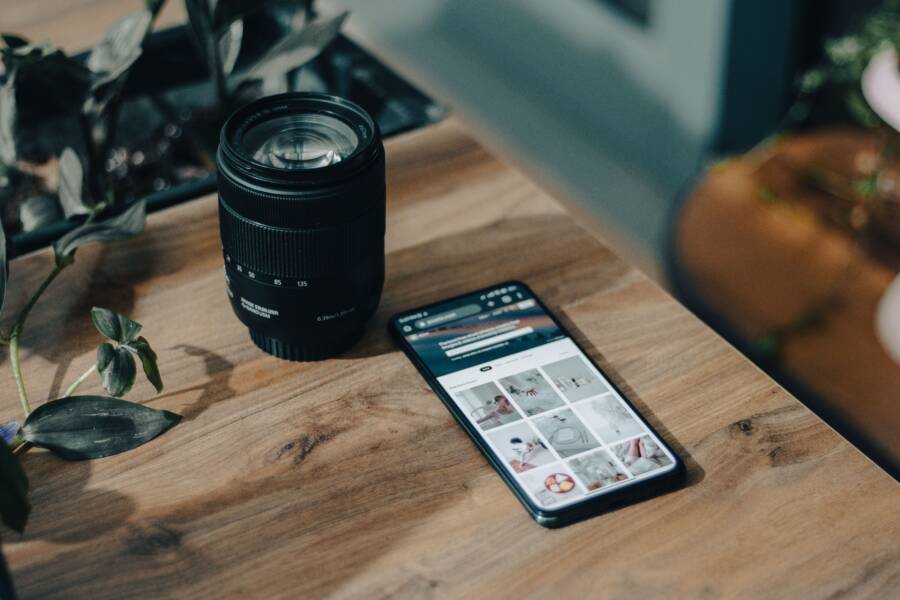
If your phone camera keeps resetting to default settings, it is usually because of aggressive auto-mode optimizations or persistent app permissions. You can fix this by adjusting the camera settings or using a third-party application that prioritizes manual controls.
Most modern smartphones prioritize speed and simplicity. The native camera software often wipes manual changes because it assumes the average user wants a quick, balanced shot. This behavior is a software preference rather than a hardware defect.
You can often lock in your preferences by disabling automatic scene detection or specific AI enhancements. For more control, try switching to a manual-first third-party camera app that saves your configuration between sessions.
Why Your Smartphone Camera Forgets Your Manual Settings
Many users notice their camera settings revert to defaults shortly after they adjust them. This happens because the camera app treats manual changes as quick fixes rather than permanent configurations. The software designers prioritize a reliable, automatic experience for every photo you take. When you close the app or leave the camera idle, the system assumes you want to return to its optimized baseline.
The Conflict Between Auto-Processing and Manual Control
Smartphone software relies heavily on scene optimizers to produce standard, pleasing images. These systems adjust white balance, ISO, and shutter speed in real-time based on the light they detect. When you manually override these settings, you essentially fight the automated logic built into the camera application.
The software treats manual input as a temporary layer on top of its active processing. It does not save these changes as a profile for future use. The app is programmed to clear these overrides to prevent accidental errors that might ruin future photos. If you leave your shutter speed high or your ISO low, the camera software assumes those were situational needs for a specific shot. It resets them to ensure your next photo does not look underexposed or blurry by mistake.
Common Software Triggers That Reset Your Camera
Your device manages its memory by closing background processes to save battery. Camera applications often bear the brunt of these management tasks. If you move away from the camera app to check your email or messages, the system often kills the camera process to free up space. When you reopen the camera, it launches fresh, which clears any previous manual adjustments.
Several common actions force this system reset on almost every smartphone:
Closing the app entirely by swiping it away from the task switcher.
Switching from the back camera to the front lens, which forces a software re-initialization.
Allowing the screen to lock or the device to enter sleep mode for more than a few minutes.
Opening a different application that requests camera access, such as a social media or scanning app.
These behaviors originate from the aggressive power-management features baked into mobile operating systems. The software decides that maintaining an active manual state consumes too much overhead. By returning to default settings, the smartphone keeps the interface predictable for users who might forget they left the camera in a specialized mode. If you need to keep your settings active, you must look for apps that explicitly include a “keep settings” or “preserve last state” toggle in their configuration menus.
How to Fix a Phone Camera That Won’t Keep Manual Settings
Fixing a camera that ignores your saved preferences requires a few simple adjustments within your smartphone software. Most manufacturers hide these options deep in the camera settings menu. Once you find them, you can force the device to remember your preferred mode or configuration between sessions.
Adjusting Native Camera Settings and Preservation Options
Your smartphone often includes a dedicated menu for persistent settings. Look for a section labeled “Settings Preservation” or “Capture Settings” inside your camera app’s gear icon. Many modern devices, particularly those running recent versions of iOS or Android, include toggles that specifically prevent the camera from resetting every time you close the app.
When you open this menu, you usually find a list of camera modes and features. You can enable preservation for these items:
Camera Mode: This forces the app to reopen in the last mode you used, such as Video or Pro.
Creative Controls: This keeps filters, aspect ratios, or lighting adjustments active.
Exposure Adjustment: This prevents the shutter speed or ISO from returning to auto-mode.
You must manually toggle these switches to the “on” position. If you leave these off, the system defaults to the basic, automated configuration every time you exit. Check this menu every time the system undergoes a major software update, as updates occasionally revert these preferences to factory defaults.
Using Third-Party Camera Apps for Better Control
Native camera apps are often too restrictive for power users. If your default app keeps resetting despite your best efforts, you might consider professional-grade alternatives. Apps like Adobe Lightroom, ProCam, or Filmic Pro allow you to create and save specific presets for every scenario.
These apps treat your manual settings as the primary configuration rather than a temporary override. They provide a stable environment where your chosen shutter speed, aperture, and white balance stay locked until you decide to change them. Unlike stock software, these tools don’t aggressively clear your background data to save power. They prioritize your creative workflow over system-wide battery optimization.
If you struggle with the limitations of a standard smartphone lens, third-party apps also offer:
Custom white balance locks that don’t shift during filming.
Persistent manual focus zones that ignore moving objects.
Detailed histogram overlays to track exposure in real time.
You can set up your ideal configuration once and store it as a profile within the app. Then, you simply load that profile whenever you need to capture a shot. This approach gives you full authority over your equipment, making your results consistent and predictable every time you hit the shutter button.
Troubleshooting Persistent Camera Issues on Your Device
If your camera settings reset even after you adjust the software preferences, internal file corruption or background conflicts might be to blame. Most smartphones store temporary camera data to help the application load faster. Occasionally, this data becomes outdated or inconsistent with your current system version. Clearing these files removes the corrupted instructions, forcing the device to rebuild its configuration using the latest software parameters. This process does not delete your personal photos, videos, or private data, as those files remain in your main storage gallery.
Clearing App Cache and Data for a Fresh Start
You can often resolve configuration errors by clearing the system cache of your camera app. When you reset these temporary files, the application forgets the previous, buggy state and reverts to a clean, default operation mode. This action allows the camera to re-read your settings correctly, which prevents it from reverting to factory defaults every time you exit.
Follow these steps to clear your camera data on most modern devices:
Open your device settings menu and navigate to the application manager or apps list.
Locate the native camera application in the list of installed programs.
Tap on storage or usage details to find the clear cache and clear data buttons.
Select clear cache first to remove temporary files.
Choose clear data if the issue persists, as this resets the app configuration to its original state.
Restart your smartphone to ensure the system processes the changes.
After completing these steps, the camera app will essentially start as if it were newly installed. You will likely need to re-enable your preferred settings, such as grid lines or resolution, once you open the camera again.
When to Perform a Full Software Reset
A factory reset is the final option for users who cannot find a solution through app management or software updates. You should only consider this path if the camera consistently crashes, refuses to save manual settings, or displays error messages that prevent normal photography. A full reset erases all custom settings and restores the smartphone to its original out-of-the-box state.
Perform a factory reset only after you exhaust every other troubleshooting method because it requires you to back up your data to avoid permanent loss. If you rely heavily on manual photography and the device continues to ignore your input after a reset, you may have a persistent firmware bug. In these rare cases, check the manufacturer support page for a firmware patch or contact customer support. Before you initiate this process, verify that your important photos are synced to the cloud or saved on an external drive. Resetting is a drastic measure, but it serves as the most effective way to eliminate deep-seated software conflicts that interfere with your camera performance.
Best Practices for Pro-Level Photography on Your Phone
Achieving professional results with your smartphone depends on how well you control the light and stability of your shots. While modern software manages many variables automatically, manual adjustments give you the power to capture scenes exactly as you intend. Consistent results come from mastering a few core techniques that help you bypass the aggressive default processing of your device.
Stabilize Your Shots for Sharpness
Even the most advanced lens struggles to produce a clear image if your hands shake during the exposure. Stability is the most important factor in mobile photography, especially when shooting in low light or using long shutter speeds. Using a tripod is the most effective way to eliminate blur, but you can also improve your results with simple physical adjustments.
Hold your phone with both hands and tuck your elbows against your chest to create a solid base. If you cannot use a tripod, lean against a wall or place the device on a stable surface like a table. You should also use the self-timer function for long exposures to prevent any vibrations caused by your finger touching the screen. These small steps ensure that your smartphone hardware captures the full detail of your subject without motion artifacts.
Master Exposure and Focus Locking
Automatic exposure often jumps between bright and dark areas, which ruins the mood of your composition. You can take charge by tapping on your subject on the screen to set the focus point. Most devices then allow you to slide your finger up or down to adjust the brightness manually before you snap the photo.
Once you find the perfect exposure balance, keep it locked so the camera does not hunt for a new target. Long-press on the focus area until an “AE/AF Lock” indicator appears. This forces the camera to ignore changes in the scene, such as someone walking through the frame or a flicker of light. Keeping these settings locked provides a stable foundation for consistent shots during a long shoot.
Optimize Your Workflow for Consistent Results
Professional photography is about repeating successful processes rather than relying on luck. If you frequently shoot in specific environments, you should create a standard routine for your equipment settings. You can save time and improve image quality by following these practices every time you start a session:
Clean your lens with a microfiber cloth before you begin because smudges create haze.
Use a grid overlay to ensure your horizon lines are straight and your subject follows the rule of thirds.
Switch your smartphone to airplane mode if you want to prevent incoming notifications from interrupting your focus or causing the app to reset.
Check your resolution and file format settings to make sure you capture images in high-quality modes like RAW if your phone supports them.
Consistency allows you to build a recognizable style across your portfolio. By managing these variables, you prevent your device from forcing its own default choices onto your creative work. You gain total command over your images by treating your phone as a precise optical instrument rather than just a simple point-and-shoot tool.
Conclusion
Your smartphone camera often defaults to auto-mode because its software prioritizes speed and convenience over custom configurations. While native apps frequently reset your manual changes to preserve system resources, you can regain control through dedicated settings menus or by installing third-party camera software.
Most manufacturers provide a preservation feature within the camera settings that keeps your selected mode or exposure levels active between sessions. You should enable these options to prevent your device from reverting to factory presets every time you close the app.
Keeping your software updated remains the most important step for long-term stability and performance. Manufacturers regularly release patches that fix bugs affecting camera memory and state preservation. Consistent updates ensure your phone hardware continues to follow your creative lead rather than defaulting to generic settings.