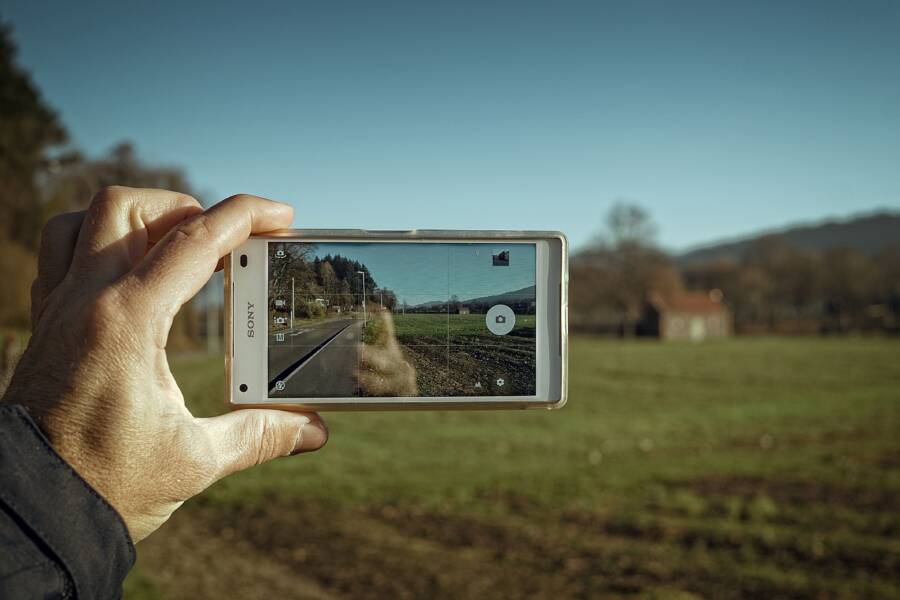
A shaking camera preview usually happens because the internal mechanism that keeps your images steady has hit a physical limit. This problem is almost always a hardware sensitivity issue rather than a software bug. External vibrations from items like motorcycle mounts or heavy machinery often interfere with the delicate components inside your smartphone.
If your preview screen appears to vibrate or jump, the optical image stabilization hardware is likely struggling to compensate for these high-frequency movements. You can often stop the shaking by removing the phone from the source of the vibration. Understanding how this stabilization hardware interacts with your environment helps you keep your camera functioning correctly.
Understanding Why Your Camera Preview Vibrates
A shaky or vibrating camera preview often signals that the device is struggling to manage incoming physical motion. While your smartphone is designed to handle handheld movement, it possesses physical limitations. When these limits are exceeded, the camera software and hardware components enter a feedback loop. This results in the jittery, vibrating image you see on your screen.
The Role of Optical Image Stabilization
Optical Image Stabilization (OIS) functions like a tiny, high-tech suspension system for your camera lens. Most modern smartphones include this technology to keep your photos and videos steady. Small motors inside the module detect minute hand movements. These motors then physically shift the lens or sensor in the opposite direction.
By moving counter to your hand tremors, the system keeps the image projected onto the sensor stable. This allows you to capture clear shots even when your grip isn’t perfectly still. However, this suspension system is meant to counteract small, organic movements rather than violent shaking. When the camera receives input beyond its mechanical range, the stabilization components can get trapped in an erratic movement cycle.
Identifying External Factors That Cause Shaking
Your smartphone camera works best when it faces predictable, human-like motion. High-frequency vibrations from external sources often confuse the sensors and move the lens components past their intended range. Mounting your device to a motorcycle or bicycle handlebar is the most common trigger for this issue.
The engine of a motorcycle creates constant, high-frequency vibrations that transfer directly into the phone frame. These vibrations are too fast for the stabilization system to counteract effectively. As the OIS tries to compensate for the rapid engine hum, the lens assembly vibrates wildly. This creates a feedback loop that degrades your image quality and can eventually damage the internal motors.
Consider these common scenarios where external vibrations affect your camera:
Mounting a phone to a motorcycle mirror or handlebar mount.
Attaching a device to an e-bike frame or vibrating heavy machinery.
Resting a phone on a surface with powerful audio speakers.
If you notice the vibration starting right after you attach your smartphone to a motorized mount, remove it immediately to protect the hardware. Using a vibration-dampening mount or a case specifically designed to absorb high-frequency energy can help prevent this issue in the future.
Simple Steps to Stop Camera Shaking
Fixing a jittery camera preview often starts with your software settings. While physical damage is a common culprit, internal glitches can occasionally cause the image processing system to struggle. Addressing these errors can restore functionality without requiring repairs.
Clear the Cache and Force Restart Your Apps
Software hangs occur when temporary files conflict with your camera operations. If the application memory becomes corrupted, the viewfinder might flicker or vibrate as it attempts to process the live feed. A simple app restart often resolves these minor software conflicts.
For iPhone users, swipe up from the bottom of your screen and hold to open the app switcher. Find the camera app, swipe it upward to close it completely, and then relaunch it. If the issue persists, perform a force restart by pressing the volume up button, then the volume down button, and finally holding the side button until the Apple logo appears.
Android users should go into the device settings to clear the specific cache files. Follow these steps to reset the application state:
Open your Settings menu and select Apps or Application Manager.
Locate the Camera app in the list and tap on it.
Choose Storage and select Clear Cache.
If the problem continues, select Force Stop to terminate all background processes for that app.
Relaunching the camera after these steps allows the software to reload its core files. This process often fixes temporary jitters that appear immediately after an update or during heavy multitasking.
Use Vibration-Dampening Mounts
Standard plastic mounts for your smartphone are rigid, meaning they transfer every high-frequency vibration directly to the device chassis. When you attach a device to a motorcycle, bicycle, or heavy equipment, these micro-vibrations overwhelm the delicate internal springs of the optical image stabilization system. Standard mounts offer no buffer, which forces the lens mechanism to compensate until it hits its mechanical limit.
Dampening mounts include rubber bushings, silicone inserts, or spring-loaded arms to absorb this energy. These materials act as a mechanical filter that prevents engine pulses from reaching the smartphone. By separating the phone from the source of the vibration, you keep the lens assembly within its natural, safe operating range.
If you ride frequently, invest in a mount specifically labeled as vibration-dampening or OIS-friendly. These products significantly reduce the risk of permanent damage to your camera module. Proper isolation is the best way to maintain sharp focus and a steady preview while moving, as it lets the internal stabilization hardware do its job without interference.
When Should You Seek Professional Repair?
Sometimes your smartphone camera issues go beyond simple software adjustments. If you have exhausted all troubleshooting steps and the camera still fails to function, the problem is likely permanent hardware damage. Knowing when to stop trying DIY fixes saves you from causing further accidental harm to the device. Professional technicians have the tools and parts required to replace damaged optical image stabilization modules.
Signs the OIS Hardware is Damaged
You can often identify physical damage by listening to your phone during camera operation. If you hear a faint buzzing, clicking, or grinding noise coming from the camera module, the internal motors are likely struggling to move the lens. These sounds indicate that the mechanical components are physically obstructed or that the gears have stripped.
Another sign is a complete inability to find focus. If the image remains blurry regardless of how far you are from your subject, the OIS sensor may be stuck in a fixed position. The preview might jump erratically or fail to stabilize at all. You should avoid attempting to shake or tap the phone to fix these symptoms. Physical force rarely resolves internal mechanical failures and often makes the situation worse by damaging other delicate components. If your device exhibits these behaviors, it is time to schedule a service appointment with an authorized repair center.
Checking Your Warranty Options
Before you spend money on professional repairs, check if your device remains under warranty or has active insurance. Many manufacturers provide coverage for manufacturing defects that affect internal camera performance. If the shaking started without any obvious impact or external vibration, a warranty claim might cover the cost of the repair.
You can verify your status through the manufacturer website by entering your device serial number or IMEI. If you have a protection plan from your carrier or a third-party provider, verify the deductible and terms before visiting a repair shop.
Avoid opening the smartphone yourself if it is under warranty. DIY repair attempts often void your manufacturer coverage immediately. If you have a warranty or insurance, the authorized service provider is the safest option because they use genuine parts and calibrated tools. Professional service ensures that your device maintains its dust and water resistance seals, which DIY repairs often compromise.
Best Practices for Stable Smartphone Photography
Achieving sharp photos requires a steady hand and proper technique. While modern smartphones pack sophisticated stabilization hardware, you can improve your results by adopting consistent physical habits. Small adjustments to how you hold your device often eliminate minor motion blur before it even starts.
Maintain a Solid Grip
Your physical posture determines the stability of your smartphone. Use both hands whenever possible to distribute the weight evenly. Position your elbows close to your ribcage to create a stable, human-sized tripod. This simple stance reduces the arc of movement your body naturally makes while standing.
If you are shooting for a long period, lean against a wall or a sturdy object. This provides extra support that keeps your torso still. You should also tap your shutter button gently. Pushing the button too hard often jerks the device at the exact moment the camera captures the image.
Use Exposure Controls to Shorten Shutter Time
Motion blur occurs because your shutter remains open too long. If you shoot in low light, the smartphone sensor gathers light slowly, which increases the chance of blur. Manually adjusting your settings often prevents this problem.
Open your camera app settings and look for the exposure slider. Lowering the exposure value causes the camera to choose a faster shutter speed. While your image might look darker, it will be much sharper. You can always brighten the shadows later with editing software.
Launch your camera app.
Tap the screen to set your focus point.
Slide the sun icon downward to reduce light intake.
Snap your photo while the shutter speed remains fast.
Utilize Timer Features for Stationary Shots
The act of touching your screen often introduces vibration. A built-in timer delay fixes this issue by letting the device settle before the camera fires. Most smartphones offer a two-second or ten-second timer option within the camera interface.
Set a three-second timer when you are using a tripod or propping your phone against a solid surface. This delay ensures that the physical movement from your finger disappears before the lens captures the scene. Using this method is essential for sharp long-exposure photos or night mode shots. Always check that your subject remains still during the countdown to ensure the best clarity.
Conclusion
Software adjustments offer a quick path to resolving minor glitches, but hardware protection remains the most effective way to keep your smartphone camera steady. Vibration from motorized mounts often exceeds the physical limits of internal image stabilization modules, which leads to permanent mechanical failure.
Use vibration-dampening mounts whenever you attach your device to a vehicle or heavy machinery. This simple physical buffer prevents high-frequency energy from reaching delicate lens components. Protecting your hardware today keeps your camera functional for future shots, allowing you to get back to capturing crisp, clear photos without the distraction of a shaking preview.