What If the Only Thing Between You and the Life You Deserve Is a Hidden Wealth Code Waiting to Be Activated
>>> Open the Door <<<

Switching phones can feel risky when contacts and calendar events don’t transfer, but it doesn’t have to be stressful. This guide shows quick, reliable ways to move contacts and calendar across Android, iPhone, or mixed setups so you stay connected. Whether you’re upgrading or switching ecosystems, these simple steps save time and keep you organized from day one.
Backup Your Contacts and Calendar First
Before you move to a new phone, take a moment to back up everything that keeps you connected. Your contacts and calendar events are the backbone of daily life on a smartphone. A robust backup prevents missing calls, messages, or important appointments during the transition. Think of this step as sealing a door in a busy hallway — it keeps the rhythm of your day intact while you switch devices. The goal is a smooth transfer with no surprises, no data gaps, and no last-minute scrambling.
Sync Contacts with Google or iCloud
Start by choosing a reliable cloud sync for your contacts. On Android devices, the simplest path is to use Google Contacts. Open the Contacts app, go to Settings, and enable Google sync. This creates a live connection between your device and your Google account, so any new contact saved on the phone automatically appears in your Google Contacts and vice versa. On iPhone, you’ll rely on iCloud. Go to Settings, tap your name, select iCloud, and toggle on Contacts. This ensures your address book lives in the cloud and stays current across devices. After enabling sync, test the setup by adding a test contact, then confirm it appears on the cloud account and syncs back to the phone. Regularly review your sync status to catch any hiccups early.
Tips for reliability:
He Was Drowning in Bills and Burnout Until a Simple Daily Ritual Rewired His Brain for Wealth in Less Than a Week
>>> Start Your Shift Today <<<

- Use a strong, consistent account for syncing across devices.
- Leave the sync toggle on for ongoing protection.
- Periodically verify that recent updates show up in the cloud.
Optional test ideas:
- Create a temporary contact with a unique nickname.
- Edit an existing contact’s phone number and observe the update flow.
- Remove a test contact and confirm it reproduces across devices.
Backup Calendar Events Securely
Calender data is equally critical. For Google Calendar users, open the Calendar app, go to Settings, and ensure Calendar sync is enabled for your account. This keeps events synchronized across Android devices and the web. For iCloud users, go to Settings on the iPhone and toggle Calendar on. This locks calendar data to your Apple ecosystem, ensuring events appear on every device signed in with your iCloud account. In addition to sync, export an ICS file as a manual backup option. Finding this option usually involves going to the calendar app’s sharing or export area or using your calendar’s web interface. After enabling sync, confirm that recent events show up on both the mobile device and the cloud. Finally, check your phone storage to confirm backups are accessible offline if needed. A quick periodic export to ICS gives you a portable copy you can store somewhere safe.
What If the Only Thing Between You and the Life You Deserve Is a Hidden Wealth Code Waiting to Be Activated
>>> Open the Door <<<
Transfer Contacts and Calendar on Android Phones
Moving to a new Android phone can be effortless if you use the right transfer method. This section walks you through three practical options to migrate your contacts and calendar events quickly and reliably. The goal is to have your address book and schedule ready on day one, with minimal setup after you power on the new device. Whether you prefer a guided setup, hands-on control, or a one-tap transfer, these approaches cover the most common real-world scenarios. As you read, think about which path fits your routine and carrier, so you can start using your new phone without missing a beat.
Use the Quick Setup Wizard
Power on your new phone and sign in with your Google account. The device usually prompts you to restore from a backup during the initial setup. Choose the backup that contains your previous contacts and calendar data, and the system will pull these items automatically. This method is fast because it wires your new device directly into your cloud account, so changes on one device appear on all linked devices in near real time. After setup, verify that your contacts show up in the Contacts app and your events appear in the Calendar app.
- Tip: If you run into a hiccup, ensure your Google account is the primary sync source on both devices. You can test the flow by adding a test contact or event and confirming it appears across devices.
- Additional reliability steps include keeping syncing enabled and periodically verifying that new items appear as expected.
- For enhanced coverage, you can also explore Google’s support article on switching to a new Android device for official guidance and troubleshooting steps. Switch to a new Android device
Manual Sync After Setup
If you prefer more control after you finish the initial setup, you can trigger a manual sync and confirm everything is in place. On Android, go to Settings > Accounts > Google > Sync now. This forces a fresh pull from Google servers for contacts and calendar data. Open the Contacts app and the Calendar app to verify the latest entries are visible and up to date. If something is missing, repeat the sync or double-check that you are connected to the right Google account.
- After performing a manual sync, scroll through your contact list and skim your upcoming events to confirm there are no gaps.
- If you use multiple Google accounts, repeat the sync steps for each account to ensure every entry is accounted for.
- For additional reassurance, consider enabling calendar and contact sync across all your devices with Google Contacts and Google Calendar, which keeps data consistent wherever you work.
- If you want a deeper dive, explore Google’s guidance on syncing Google Contacts across devices to ensure you’re not duplicating data by accident. Sync Google Contacts with your mobile device or computer
Samsung Smart Switch Method
Samsung Smart Switch is a popular choice for Samsung fans who want a quick, all-in-one transfer. Install the Smart Switch app on your old phone and connect the two devices via a cable or over Wi‑Fi. In the app, select Contacts and Calendar to transfer. This method is particularly fast and reliable for moving a large portion of data, and it works even if you’re switching to a new Galaxy device. Once the transfer completes, double-check that all critical entries have migrated and that your calendar events appear correctly on the new phone.
- Quick tip: If you’re moving from an older Android to a Samsung Galaxy, Smart Switch is often the smoothest path because it handles both contacts and calendar data in a single flow.
- If you encounter any issues, consult Samsung’s Smart Switch help resources for device compatibility notes and troubleshooting steps. Transfer content with Samsung Smart Switch
Easy iPhone to iPhone Transfers
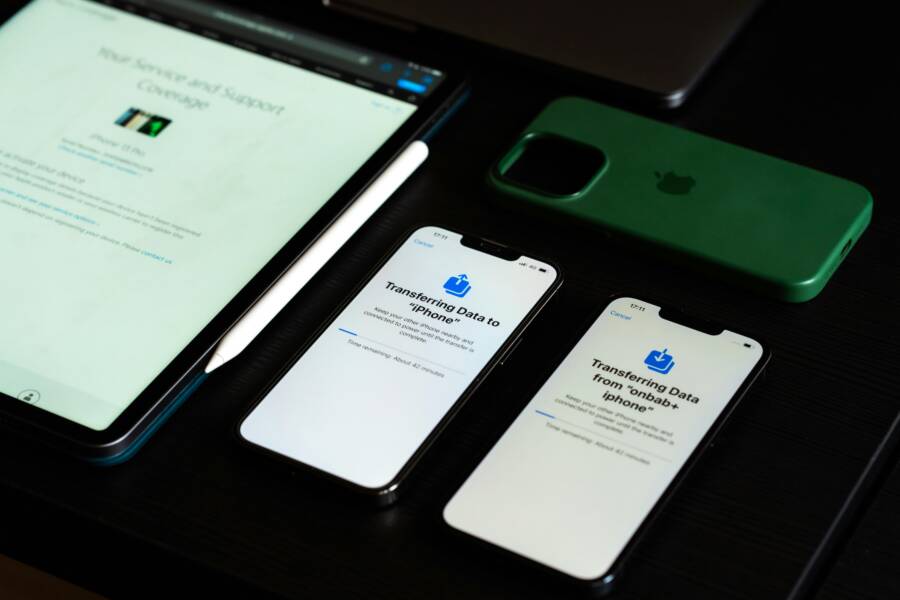
Moving to a new iPhone should feel seamless, not chaotic. This section covers three reliable paths to transfer your essentials—contacts and calendar events—so you can pick the method that fits your setup and preferences. Whether you prefer a quick wireless start, a direct cable handoff, or an iCloud based restore, you’ll have your most important data ready on day one.
 Photo by Sami Abdullah
Quick Start with iCloud Backup
If you want a fast, hands off approach, Quick Start uses what you already store in iCloud to bring over your contacts and calendar. Place your old iPhone near your new one and follow the on screen prompts to set up. The transfer uses a wireless connection, so there’s no cable to fumble with. You’ll sign into your Apple ID on the new device and choose to restore from your iCloud backup as part of the setup flow. The result is a near identical mirror of your old device on the new one, including all saved contacts and calendar events. For a guided setup, Apple’s step by step instructions walk you through the process end to end. If you prefer to see it in Apple’s own words, start here: Use Quick Start to transfer data to a new iPhone or iPad.
- Quick start is ideal when both iPhones are on compatible iOS versions and you have a stable Wi Fi connection.
- Ensure Bluetooth is on and your old device stays near the new one during the transfer.
- After setup, do a quick check in Contacts and Calendar to confirm everything synced correctly.
Direct Cable Transfer
A direct cable transfer is often the most reliable choice when you want a complete handoff without juggling networks. Connect the two iPhones with a cable, then choose transfer from iPhone during the setup prompts. The transfer runs quickly, especially for large contact lists and calendar data, because it moves data directly rather than over the cloud. If you’re upgrading to a model that uses a different connector, Apple provides wired transfer options using the appropriate cable. You can read the official wired transfer guidance here: Use a wired connection to transfer data to a new iPhone or iPad.
- This method preserves the exact structure of your calendars and the latest contact updates.
- It works even when the old device has a slow or unstable internet connection.
- For best results, keep both devices charged and close at hand during the transfer.
iCloud Sync Restore
If you already rely on iCloud, restoring your data to a new iPhone via iCloud is a smooth path. Sign in with the same Apple ID on the new device, then opt to merge or replace data during the setup. Merging keeps data from both devices in one place, while replacing will overwrite what’s on the new device with the contents of iCloud. This method is particularly convenient if you want to pick up exactly where you left off across multiple devices. Apple provides a detailed guide to this process here: Transfer data from your previous iOS or iPadOS device to your new iPhone or iPad.
- Merging is ideal if you use multiple devices and want a unified address book and calendar.
- Replacing makes sense if the new device should reflect a single, clean slate from your iCloud backup.
- After restoration, confirm that new entries appear in both Contacts and Calendar on the new iPhone.
Links referenced in this section provide official guidance to help ensure a smooth transition and minimize data gaps. For additional context on each method, you can review Apple’s step by step instructions and troubleshooting pages.
What If the Only Thing Between You and the Life You Deserve Is a Hidden Wealth Code Waiting to Be Activated
>>> Open the Door <<<
Cross-Platform Transfers: Android to iPhone or Vice Versa
Moving contacts and calendar events between Android and iPhone can feel tricky, but there are reliable methods for both directions. This section outlines practical, proven paths for each scenario so you can pick the approach that fits your setup. Whether you’re starting fresh on iOS or moving from Android to a new Android device later, you’ll keep your schedule and people at your fingertips.
From Android to iPhone with Move to iOS
When you’re upgrading to an iPhone, Apple’s Move to iOS app is designed to make setup smooth. Install Move to iOS on your Android device and begin during the iPhone’s initial setup. The app creates a private Wi-Fi link between the two devices and transfers your contacts and calendar data, among other items. This method keeps your information intact and minimizes post-setup syncing.
- Prepare both devices: connect to power and ensure Wi-Fi is on. If you prefer a cable, you can use a USB-C to Lightning setup for faster transfers.
- During the iPhone setup, choose the Move to iOS option and follow the on-screen steps to pair the devices and start the transfer.
- After the process finishes, verify that your contacts and calendars on the iPhone reflect the Android data, then open the Calendar app to confirm all events migrated.
If you run into issues, Apple and Google provide guides to help you troubleshoot. For the official directions, see Move from Android to iPhone or iPad. You can also review Move content manually if the automatic transfer isn’t possible. Move from Android to iPhone or iPad • Move content manually from your Android device to your iPhone or iPad
iPhone to Android Using Google
Transferring data from iPhone to Android is straightforward when you start with Google’s tools. Export your iPhone contacts to iCloud first, then ensure they show up in Google Contacts. From there, enable calendar sync with Google Calendar on both devices so events stay up to date. Once everything is in Google, your Android phone can pull the latest data automatically.
- Start by exporting iPhone contacts to a format that Google can read, then import to Google Contacts.
- Open Google Calendar on the web, export any calendars you need as ICS files, and import them into Google Calendar.
- On the Android device, sign in with the same Google account. Check Contacts and Calendar to confirm items appear properly.
If you prefer a guided route, Google offers instructions for switching to an Android device and transferring data. For more details, see their official guidance on copying apps and data from an iPhone to a new Android device and related transfer articles. Copy apps & data from an iPhone to a new Android device • Transfer data from an iPhone to a Pixel
Export and Import Files Manually
Manual export and import remain a sturdy fallback when automatic transfers aren’t possible or when you want precise control. Export contacts as a .vcf (VCF) file and calendars as an .ics file, then share or upload these files to the target device or cloud storage. On the new device, import the files into the appropriate app (Contacts for VCF, Calendar for ICS) and verify that all entries are present.
- For contacts, a VCF file preserves names, numbers, emails, and notes in a portable format.
- For calendars, an ICS file captures event details like title, time, location, and reminders.
- Share methods include email, cloud storage, or a direct transfer via USB or cable if supported by your devices.
This approach is a solid fallback when cloud sync isn’t practical or when you’re dealing with a mix of accounts. For reference on exporting from iPhone, iOS, or Android devices, see How to Export Contacts From iPhone, iOS, or Android Device. If you need broader guidance on converting to VCF or ICS, explore additional resources as needed. How to Export Contacts From iPhone, iOS, or Android Device
Troubleshoot Common Transfer Issues
During a phone switch, you may run into small snags with contacts and calendar data. This section covers practical fixes that quickly resolve duplicates and sync hiccups, so you stay connected without spinning wheels. Think of it as a focused toolkit you can draw from when your new device needs a little coaxing to mirror your old one. We’ll keep things concrete, actionable, and easy to follow whether you’re using Android, iPhone, or a mixed setup. And yes, a smartphone often benefits from a tidy, repeatable routine for moving data.
Fix Duplicate Contacts
Duplicate contacts are more than clutter; they can slow you down when you try to message someone or schedule a meeting. Start with the built-in merge tools in your Contacts app. On devices with Google Contacts, open the app, tap the account at the top, and use the Merge duplicates option to combine similar entries. If you’re on iPhone, look for the “Get rid of duplicate contacts” guide from Apple and follow the steps to merge or hide duplicates. For a quick reference, see Apple’s guide on merging or hiding duplicates in iPhone contacts and Google’s Android merge instructions. These steps reduce confusion and keep your address book clean.
- Quick check: after merging, verify the single, correct entry appears across both your device and the cloud.
- Pro tip: regularly review duplicates after large imports to prevent clutter from building up again.
- If you’re unsure where duplicates come from, review the sources of each contact and consolidate via the primary account you rely on for syncing.
- For official guidance, explore Apple’s merge duplicate contacts article and Google’s Android merge duplicates feature.
Links referenced for this topic:
- Get rid of duplicate contacts on iPhone: https://support.apple.com/guide/iphone/merge-or-hide-duplicate-contacts-iph2ab28320d/ios
- Merge duplicate contacts – Android: https://support.google.com/contacts/answer/7078226?hl=en&co=GENIE.Platform%3DAndroid
Resolve Sync Failures
Sync failures can stall a smooth transfer. Start with a simple reset: toggle sync off, then back on. This often clears temporary authentication or connection issues. If problems persist, clear the app cache or re-launch the app so it reloads with fresh data. On iOS, confirm iCloud is signed in with the same Apple ID on all devices and that Contacts and Calendars are enabled. On Android, verify the Google account is the primary sync source and run a manual sync if needed. If issues continue, check the status pages for iCloud and Google services and apply steps from their official troubleshooting guides.
- After a reset, test with a new entry and confirm it appears across devices.
- If you use multiple accounts, repeat the process for each one to ensure complete coverage.
- When in doubt, consult the official support resources for iCloud and Google Calendar sync errors.
Helpful links:
- If your iCloud Contacts, Calendars, or Reminders won’t sync: https://support.apple.com/en-us/102543
- Fix sync problems with the Google Calendar app – Android: https://support.google.com/calendar/answer/6261951?hl=en&co=GENIE.Platform%3DAndroid
Conclusion
Moving contacts and calendar data between devices can be simple when you follow reliable backups and tested transfers. Recap the key paths you used, from Google and iCloud syncing to dedicated transfer apps or manual exports. A solid backup before you start keeps your life on track if anything goes wrong.
Regular backups matter. Set a routine to back up both contacts and calendars so you stay protected during every phone upgrade. After you finish a transfer, test by adding a quick contact and a new event to confirm they appear on the new device and in the cloud.
Aim to test at least one method before you need it. Run small transfers between devices you own or borrow, so you know what to expect when you upgrade your smartphone. This habit saves time and reduces stress on the big day.
If you found this guide helpful, share your experience in the comments. Your tips can help others move data with confidence and keep their data safe on new smartphones.
She Pressed Play on a Strange Audio Track and Within Days Her Financial Reality Started Shifting in Ways She Could Not Explain
>>> See How It Works <<<
