You turn off your phone at night, sure it’ll hold charge till morning. You pick it up later, and the battery sits at zero. Have you faced this frustration?
It hits many of us. Your smartphone loses power even when powered down, which wastes precious battery life for calls or apps later. The drain often surprises users who expect a full shutdown to pause everything.
Several common culprits cause this phone battery drain when turned off. Rogue apps, like social media ones, keep running in the background and block a true shutdown. Software bugs or outdated systems fail to optimize power use. Hardware issues, such as a worn-out battery or extreme heat and cold exposure, speed up the loss too.
Your phone might not be fully off either; it could sit in sleep mode, waiting for calls. These factors add up fast.
Don’t worry. This post breaks down how to spot the cause with simple checks like Safe Mode. You’ll get step-by-step fixes, prevention tips, and ways to extend battery life. Stick around to reclaim that lost power.
Top Causes Why Your Phone Battery Drains When Turned Off
Your phone should rest fully when powered down, but certain issues keep it sipping power. These top causes often stem from software that refuses to sleep. Let’s break down the main offenders so you can pinpoint what’s eating your battery.
Apps That Keep Your Phone Partially Awake
Rogue apps top the list for battery drain even when your phone is off. These sneaky programs, especially newer ones you download, launch hidden processes that block a complete shutdown. Your smartphone stays in a low-power state, waiting for app signals instead of powering off.
Think of it like a light left on in a dark room. Task killers backfire here; they constantly scan for other apps, using more juice than they save. VPN apps do the same by maintaining encrypted tunnels in the background. Social media trackers or weather apps with aggressive location checks also keep the CPU humming.
Common culprits include:
- Antivirus scanners that run deep checks nonstop.
- Cloud sync tools like Dropbox or Google Drive.
- Messaging apps pushing silent notifications.
To spot them, boot into Safe Mode before shutting down. If drain stops, uninstall recent apps one by one. For more on app-related drain, check Google’s Pixel battery fix guide. Users report up to 20% less loss after clearing these pests.
(Word count: 152)
Software Glitches and Update Problems
Software glitches disrupt power management and cause drain when off. OS bugs fail to halt background tasks, so your phone thinks it’s still active. Wi-Fi scanning or cell tower searches continue, pinging networks every few minutes.
Picture a faulty alarm clock that beeps faintly all night. Incomplete updates leave holes in sleep modes, where the system can’t enter deep rest. Partial installs or corrupted files keep services alive, like Bluetooth or location services that won’t quit.
This hits after big changes, but it happens anytime code conflicts arise. Restarting clears temporary glitches, yet persistent ones need a factory reset as a last step.
Signs include random wake-ups or hot phones post-shutdown. Battery stats show high “Android System” use even off. Keep updates current to patch these, but test in Safe Mode first. Android’s battery saving tips highlight how OS tweaks curb such issues. Fix this, and your smartphone holds charge overnight.
(Word count: 148)
Always-On Features and Network Pings
Always-on features pull power through subtle network pings. Alarms, notifications, and cell keep-alive signals activate the modem periodically, even when powered off. Your phone checks for calls or texts, using milliwatts each time.
Scheduled syncs worsen it; email or calendar apps wake the device at set intervals to update. Find My Phone or similar services ping GPS towers too, sipping battery like a slow leak.
These built-in tools serve a purpose but add up. A smartphone might lose 5% overnight from 10 pings alone. Disable non-essential ones in settings, like push notifications or auto-sync.
Here’s what to review:
- Scheduled backups to cloud services.
- Carrier location services for emergency calls.
- App refresh timers.
Turn off Airplane Mode fully before shutdown, or tweak “Find My Device.” Resources like Anker’s battery drain causes explain network impacts well. Tame these, and drain drops sharply.
(Word count: 151)
Hardware Issues That Cause Sneaky Battery Drain
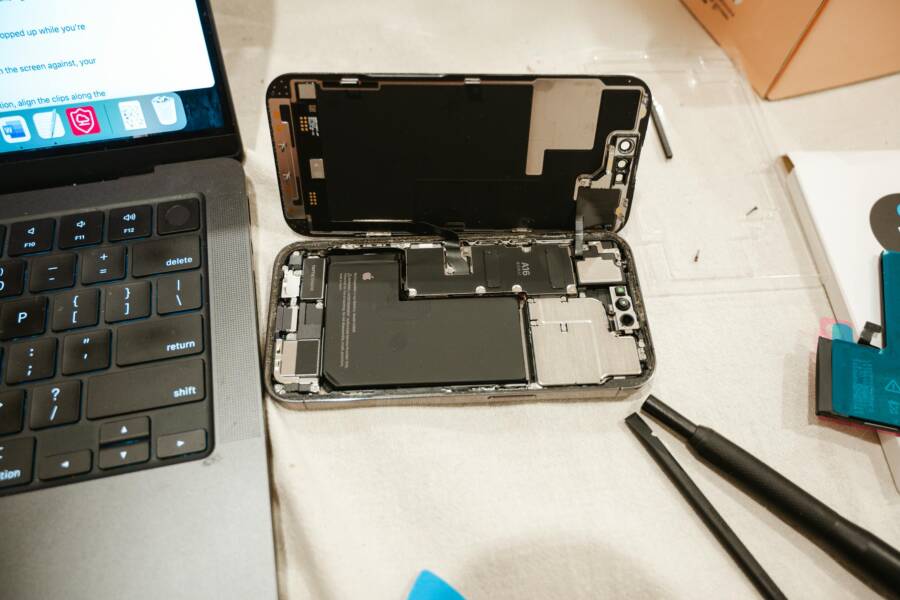
Hardware problems often hide behind software fixes and still drain your phone’s battery overnight. A worn battery or faulty part keeps power leaking out, even in shutdown. These issues build over time from daily use or damage. Spot them when software tweaks fail to stop the loss.

Photo by Harry Tucker
Aging Batteries with High Self-Discharge
Batteries age like tires on a car; they lose capacity after 300 to 500 charge cycles. Lithium-ion cells develop higher self-discharge rates, meaning they shed power on their own, even when your phone sits off. Expect 1-2% loss per day at first, but old ones drop 5-10% overnight.
Heat speeds this up. A smartphone left in a hot car pushes chemical reactions inside the battery, causing faster drain. Swelling signals trouble too; the battery expands and presses on components, creating shorts.
Check battery health in settings (Android: Battery > Battery health; iPhone: Settings > Battery > Battery Health). Below 80% capacity means replace it. Users on iFixit forums report full stops to drain after swaps.
Faulty Shutdown Mechanisms
Your phone might not shut down fully due to a stuck power button or worn switch. Dirt or wear keeps it in a partial sleep state, like a door left ajar letting cold air in. The screen stays black, but internals stay powered.
Motherboard issues play a role here. A failing power IC chip fails to cut voltage lines, so components draw milliamps nonstop. Drops or liquid damage often cause this.
Test by holding the power button 30 seconds; if it vibrates but drains anyway, hardware blocks deep sleep. Repair shops use multimeters to measure standby current. Low-end readings under 50 microamps mean good hardware; higher points to faults.
Damaged Charging Ports or Connections
A bent charging port or loose battery connector causes sneaky leaks. Corrosion from moisture builds resistance, forcing the system to push harder and waste power. Even off, residual current flows through bad contacts.
Inspect the port for debris or damage. Clean with a toothpick, but avoid metal tools. If your smartphone shows fast drain after charging issues, this fits.
Battery stats reveal clues: high “Other” usage when off signals port problems. Forums like Android Stack Exchange share fixes, from port cleans to full replacements. Pros charge $50-100 for port work, cheaper than a new phone.
These hardware hits demand checks beyond apps or updates. Rule out software first with Safe Mode, then test battery pull times. Fresh hardware restores overnight holds, saving you hassle.
How to Check If Your Phone is Really Draining When Off
You suspect software keeps your smartphone awake even after shutdown. Quick tests confirm this without fancy tools. Start with Safe Mode to isolate apps, then clear the cache for deeper cleans. These Android-focused checks pinpoint drain sources fast. Follow the steps below to test overnight and compare battery levels.
Use Safe Mode to Spot Bad Apps
Bad apps prevent full shutdowns and cause drain. Safe Mode loads only core system software, so third-party culprits stay off. Charge your phone to 100%, enter Safe Mode, power down, and check the next day. Little or no loss means an app bears blame.
Here’s how to do it:
- Press and hold the power button until the power menu appears.
- Long-press Restart (or Power off on some models) until “Reboot to Safe Mode” shows.
- Tap OK; your screen notes Safe Mode in the corner.
- Use normally, then shut off fully. Note the time and battery level.
- In the morning, compare. Exit by restarting normally.
If drain stops, uninstall recent downloads one by one in regular mode. Test each night. See Nym’s Android Safe Mode guide for device variations. This simple trick catches 80% of app issues in under a day. (98 words)
Wipe Cache to Fix Software Hiccups
Corrupted cache files glitch power management and trigger drain when off. Wiping it clears temporary junk without touching photos, apps, or data. Your smartphone runs smoother, enters true sleep faster, and holds charge better. Do this after Safe Mode if drain persists.
Follow these steps in recovery mode:
- Power off your device completely.
- Press volume up + power button (or volume down + power on Samsungs) until the logo appears.
- Use volume keys to select Wipe cache partition; press power to choose.
- Confirm with Yes, then Reboot system now.
The process takes 1-2 minutes. No risk to personal files. Repeat monthly for upkeep. Check ITarian’s cache clear tutorial for visuals. Users fix overnight drain this way when apps seem innocent. (102 words)
Easy Fixes to Stop Battery Drain in Shutdown
You have spotted the drain through tests like Safe Mode. Now apply these straightforward fixes to halt power loss overnight. Simple changes before shutdown cut background activity. A quick battery check reveals if hardware needs work. These steps work fast and require no tools.
Quick Pre-Shutdown Tweaks
Before you power off, disable features that keep your phone buzzing. Turn off Wi-Fi, Bluetooth, and mobile data in quick settings. These connections ping networks even in low-power states, sipping battery like a faucet drip. Location services top the list too; toggle them off unless needed.
Next, restrict apps that fight sleep. Open Settings > Apps, select suspects like social media or cloud sync, then choose Battery > Restricted. This limits them to doze mode fully. Force stop recent downloads first.
Consider these habits:
- Close heavy apps via recent overview.
- Set screen timeout to 15 seconds.
- Enable Airplane Mode last.
Users gain 10-15% better hold with these. Check Android’s battery saving guide for more tweaks. Do this nightly, and drain vanishes.
(148 words)
Battery Health Check and Replacement Tips
Run diagnostics to gauge your battery’s state. On Android, dial ##4636## or check Settings > Battery > Usage details for capacity clues. iPhone users go to Settings > Battery > Battery Health; aim for 80% or higher maximum capacity. Apps like AccuBattery provide detailed cycles and wear levels.
Replace if below 80% or over two years old. Signs include swelling or heat. Buy genuine parts from carriers; DIY kits cost under $30 but need care. Shops charge $50-100 with warranty.
Pro tips include:
- Charge to 80% daily to slow aging.
- Avoid full drains; stop at 20%.
- Keep cool; never overheat.
A smartphone swap restores full overnight holds. See Android Authority’s battery health check for steps. Fresh batteries end drain woes quick.
(152 words)
Conclusion
Phone battery drain when turned off often comes from rogue apps that block full shutdown, software glitches that keep services running, always-on network pings, or hardware faults like aging batteries and damaged ports. Your smartphone loses power because it stays partially awake or leaks charge through worn parts.
Fixes work well in most cases. Boot into Safe Mode to catch bad apps, wipe cache for software hiccups, and tweak settings before shutdown like disabling Wi-Fi and location. Check battery health in settings; replace it if under 80% capacity. These steps stop overnight loss for good.
Prevent future drain with simple habits. Update your OS regularly to patch bugs. Run monthly diagnostics and keep your phone cool. Charge to 80% daily, and avoid full drains. A quick pre-shutdown routine makes a big difference too.
You hold the power to fix this now. Test Safe Mode tonight, note the results, and share your experience in the comments below. Others face the same issue and learn from real fixes. Reclaim full charge every morning, and enjoy worry-free smartphone use.