Thousands of People Were Struggling With Money Until They Discovered This One Ancient Secret Hidden in Sound
>>> Unlock It Now <<<

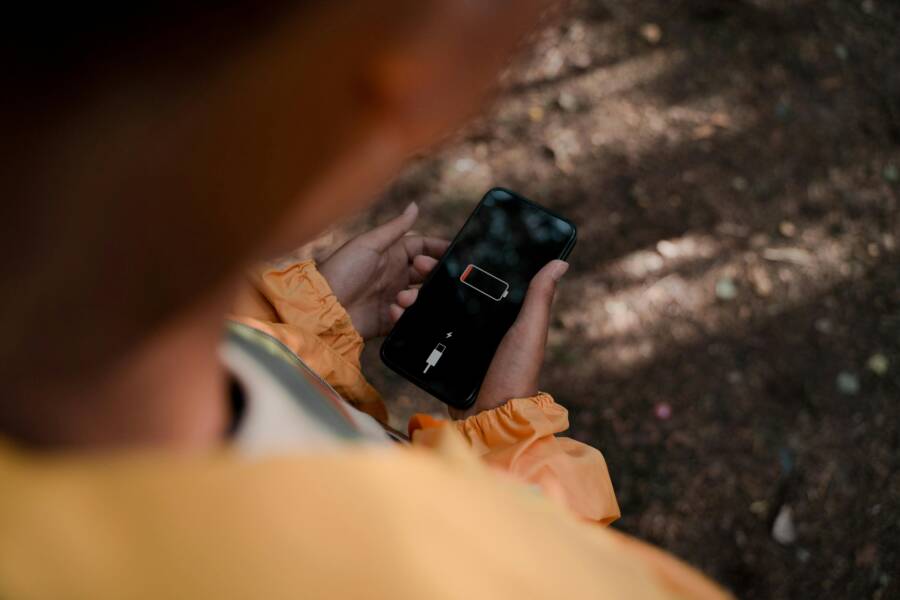
You’ve felt it before. Your phone dies way too fast in a basement, elevator, or rural area with spotty coverage. That poor signal forces your device to hunt for cell towers nonstop, which spikes power use and kills the battery in hours.
Here’s why it happens. Smartphones amp up their radio power to connect when bars drop low. This constant search drains the battery much faster than normal calls or apps.
This post shares simple steps to cut that drain and stretch your battery life. These tips work on both Android and iPhone, no tech skills needed.
You’ll learn quick fixes like flipping on Airplane Mode in weak spots, switching to Wi-Fi Calling, tweaking network settings for better efficiency, and more. Follow these, and you’ll keep your phone powered up longer, even in dead zones. Ready to save juice? Let’s dive in.
Thousands of People Were Struggling With Money Until They Discovered This One Ancient Secret Hidden in Sound
>>> Unlock It Now <<<
Why Poor Signal Causes Fast Battery Drain on Your Phone
Your phone fights hard to stay connected when signal strength fades. The cell radio inside ramps up its transmit power to reach distant towers or punch through obstacles like thick walls. This boost alone chews through battery life at a rapid pace, often two or three times faster than normal use.
That effort does not stop there. Your smartphone keeps scanning for stronger signals in the background, a process that wakes the modem repeatedly. Picture a flashlight sweeping a dark room nonstop; it stays lit far longer than a steady beam. This activity heats up the device and keeps key components active, pulling extra juice even when idle.
Weak 4G or 5G connections worsen the issue since they demand high power output compared to reliable Wi-Fi or older 3G networks. Crowded areas or remote spots trigger endless searches, turning a full charge into a few hours of life.
Signs Your Battery Drain Comes from Weak Signal
Spot these clues to confirm weak signal as the culprit. They appear most in elevators, basements, or rural drives where bars drop to one or zero.
- Rapid battery drops in low-signal zones: Your percentage falls 20% or more in an hour with no heavy app use.
- Phone runs warm or hot: Feel the back or edges; heat builds from the overworked radio, even on standby.
- Mobile network leads battery stats: “Cell standby,” “Mobile network service,” or “No Cellular Coverage” eats 30% or more of your charge.
Check these stats yourself with quick menu dives. Both Android and iPhone show clear breakdowns.
On Android:
- Swipe down and tap the gear for Settings.
- Select Battery.
- View the graph for the last day or 10 days, then tap Battery usage by app or similar.
- Scan for Mobile network service, Cell standby, or Android System near the top; tap for details on signal searches.
On iPhone:
- Open Settings.
- Tap Battery.
- Review the 24-hour or 10-day graph.
- Look for No Cellular Coverage or Cellular with high percentages; background activity points to signal hunting.
Test it fast. Toggle Airplane Mode on for 30 minutes in a weak spot. If battery drain slows sharply, poor signal drives the problem. Flip it off after to reconnect. This simple swap proves the link without extra tools.
Use Airplane Mode and Wi-Fi to Stop Signal Hunting
Weak signals make your phone chase towers without rest. This drains the battery fast. Switch to Airplane Mode or Wi-Fi to break that cycle right away. Both options cut power use by shutting down the hungry cell radio. You save hours of life with these easy moves.
Step-by-Step Guide to Airplane Mode
Airplane Mode kills all wireless signals at once. Your smartphone stops hunting for bars. Power stays steady until you need to reconnect.
Turn it on fast like this:
On iPhone:
- Swipe down from the top-right corner to open Control Center.
- Tap the airplane icon (it turns orange).
- Wait 30 seconds. Check your battery graph; the drop should slow or stop.
On Android:
- Swipe down twice from the top of the screen for Quick Settings.
- Tap the Airplane Mode tile (it highlights).
- Wait 30 seconds. Feel the phone cool down as the radio rests.
To turn it off, tap the icon again. Signals return in moments.
Test the savings yourself. Go to a low-signal spot like a basement. Note your battery level. Flip on Airplane Mode for 30 minutes with light use. Compare the drain to before. Many users see 20-50% less drop in that time. It proves the cell radio guzzles power.
Keep Airplane Mode handy for elevators or long drives through rural areas. You control when the hunt starts again.
Why Wi-Fi Beats Weak Cell Signal Every Time
Wi-Fi sips power compared to cell service, especially when signals fade. Your phone needs less effort to reach a nearby router. Data shows cellular can pull up to 600 mW on weak links, while Wi-Fi stays around 30 mW.
Consider these power draws for common tasks:
| Task | Cellular Power (mW) | Wi-Fi Power (mW) |
|---|---|---|
| Emails (5 receive/read, 2 reply) | ~450 total | ~105 total |
| YouTube streaming (720p) | High on 4G/5G | Lowest |
| Standby | 2x more on 5G vs 4G | Much lower |
Weak cell forces boosts to connect far-off towers. Wi-Fi talks to routers steps away. This gap grows in spotty zones. Your smartphone lasts longer on Wi-Fi even for video or browsing.
Stick to known good networks. Home routers or trusted cafes work best. Skip public spots with weak encryption.
Turn off cell data too for max savings:
- On iPhone: Go to Settings > Cellular > Cellular Data (toggle off).
- On Android: Settings > Network & internet > Mobile network > Mobile data (toggle off).
Now Wi-Fi handles everything. Calls? Enable Wi-Fi Calling in settings first (search “Wi-Fi Calling” in your phone’s app). Texts and apps flow smooth. Battery holds steady twice as long in dead cell zones.
Pair this with Airplane Mode when no Wi-Fi sits nearby. You pick the low-power path every time.
Enable Low Power Mode and Tweak Network Settings
Your phone keeps draining fast in weak signal spots even after Airplane Mode or Wi-Fi tricks. Built-in power modes and network tweaks fix that next. These changes calm the cell radio without cutting all connections. You gain hours of extra life on a single charge. Let’s look at the best options for iPhone and Android.
How Low Power Mode Fights Signal Drain
Low Power Mode cuts the cell radio’s workload right away. It limits background checks and high-power network use that spike in poor coverage. Your smartphone stops chasing weak towers as much, which saves real battery.
On iPhone, this mode drops full 5G to LTE on models like iPhone 12 and 13. It also pauses email fetch, app refresh, and auto-downloads that wake the radio. The result? Less constant scanning and transmit boosts.
Android’s Battery Saver does the same. It restricts app data over cell and lowers network activity. Both modes let your phone idle the radio more often.
Turn it on two ways: manual or auto.
Manual activation keeps you in control:
For iPhone:
- Open Settings > Battery.
- Toggle Low Power Mode (or Power Mode on iPhone 15+).
- Or swipe down from top-right for Control Center and tap the battery icon.
- Say “Hey Siri, turn on Low Power Mode” for hands-free.
For Android:
- Go to Settings > Battery.
- Tap Battery Saver and select Turn on now or schedule it.
Auto activation works without thought:
- iPhone kicks in below 20% battery and turns off above 80%.
- Android prompts or auto-starts based on your low-battery threshold.
Users see solid gains in weak areas. Expect 20-40% less drain from radio tasks alone. Pair it with dimmed screens for even more. Test it in a basement; watch the battery graph flatten.
He Was Drowning in Bills and Burnout Until a Simple Daily Ritual Rewired His Brain for Wealth in Less Than a Week
>>> Start Your Shift Today <<<

Switch to 4G Only for Better Battery in Weak Areas
5G looks fast but guzzles power in spotty zones. Your smartphone blasts stronger signals to hold the connection, which drains twice as quick as 4G. Lock to 4G/LTE for steady, low-power links that last.
This tweak skips 5G’s aggressive searches. 4G holds up better indoors or far from towers with less effort.
Find the path in settings:
On iPhone:
- Open Settings > Cellular > Cellular Data Options.
- Tap Voice & Data.
- Select LTE (or 4G on some carriers).
On Android (steps vary by brand):
- Go to Settings > Network & internet > Mobile network.
- Tap Preferred network type or Advanced.
- Choose 4G or LTE preferred.
Restart your phone after the switch. It clears any stuck 5G mode and locks the change. Wait 30 seconds post-reboot; bars stabilize on 4G.
You lose peak 5G speeds but gain battery. In tests, 4G cuts standby drain by 30% or more in weak spots. Calls and data stay reliable. Flip back to 5G in strong areas via the same menu.
There Is a Frequency That the Wealthiest Families Have Used for Generations and Most People Will Never Know It Exists
>>> Open the Door <<<

Try this on drives or in buildings. Your smartphone runs cooler and lasts longer.
Monitor Usage Reset Connections and Build Good Habits
You have quick fixes like Airplane Mode and network tweaks under control. Now track what drains your battery most and reset stuck connections. These steps help you spot signal issues early, refresh your smartphone’s network, and form routines that keep drain low over time. Regular checks turn one-time saves into lasting battery gains.
Spot Signal Hogs in Your Battery Stats
Battery stats screens act like a dashboard for power thieves. They list apps and services by usage percentage, with signal-related items often topping the chart in weak zones. Dive in to pinpoint and tame them.
On Android, the screen shows a vertical list or graph. Top entries like Mobile network service or Cell standby grab attention first, maybe at 25-40% usage. A bar graph below highlights peaks during low-signal times. Tap any item for a breakdown: time awake, data sent, and signal scans.
iPhone’s view stacks apps horizontally with battery bars. No Cellular Coverage or Cellular jumps out if it hits 30% or more, split into foreground and background use. The timeline graph spikes during spotty coverage, confirming the hog.
Sort these lists by tapping “Sort by battery use” or viewing the default top-down order. Top three items demand action first.
Act on signal hogs this way:
- Cell standby or Mobile network service leads? Toggle Airplane Mode for 10 minutes, then off. This resets scans without data loss.
- High background use? Force stop the service (Android: Settings > Apps > see all > Mobile network > Force stop) or limit background refresh (iPhone: Settings > General > Background App Refresh > Off).
- Uninstall or restrict rarely used apps in the top five.
Check stats weekly in elevators or rural spots. Users cut drain by 25% just by targeting these. Your smartphone stays efficient when you stay vigilant.
Quick Resets That Refresh Your Signal
Stuck signals mimic weak coverage and spike power use. Simple resets clear glitches fast, often restoring bars and slowing drain.
Start with a full restart. It flushes temporary files and reboots the radio.
Android restart:
- Press and hold the power button.
- Tap Restart.
- Wait 30 seconds for full boot.
iPhone restart:
- Press and hold volume up (or down) plus side button.
- Slide to power off.
- Wait 30 seconds, then press side button to restart.
Next, quick Airplane toggle mimics a soft reset for the modem. Flip it on for 15-30 seconds in weak areas, then off. Your phone reconnects fresh, often grabbing better towers. Tests show this drops immediate drain by 15-20%.
Clear cache if resets fall short, especially on Android where network apps build junk.
Clear network cache on Android:
- Settings > Apps > See all apps.
- Tap the three dots > System apps.
- Find Phone services or Network settings > Storage > Clear cache.
- Restart.
iPhone skips direct cache clear but benefits from offloading: Settings > General > iPhone Storage > Offload Unused Apps.
Build the habit: Reset weekly or after long weak-signal sessions. Pair with battery checks. Your phone holds charge better, and you avoid surprise deaths. Stick to it, and weak signals lose their grip.
Test These Tips and Track Your Battery Wins
You now hold solid fixes for weak signal drain. Put them to work and measure the gains. Track battery use before and after each tip to spot real improvements. Your smartphone runs longer when you confirm what saves the most power. Simple checks build proof and fine-tune your routine.
Check Built-in Stats for Quick Wins
Start with your phone’s battery screen. It shows exact drain from signal hunts and flags drops after tweaks like Airplane Mode or 4G lock.
Run a test cycle like this. Pick a weak spot, note your battery level, apply a tip for 30-60 minutes, then check stats.
On Android:
- Go to Settings > Battery > Battery usage.
- Tap the graph for details on cell standby or mobile network.
- Compare peaks before and after; look for 20-40% less use.
On iPhone:
- Open Settings > Battery.
- View the 24-hour list for cellular or no coverage entries.
- Note if background activity falls after Low Power Mode.
Review weekly. High cell use drops signal as the main hog. Users cut standby drain by 25% or more with these views alone. Feel the phone stay cooler too. This dashboard proves your changes stick.
Top Apps to Pinpoint Signal Drain
Apps dig deeper than built-in tools. They track wake-ups, temps, and trends tied to poor coverage. Pick one, test in low-signal zones, and watch battery hold steady.
Here are standout options for Android (iPhone has fewer but AccuBattery works via TestFlight):
| App | Key Tracking Features | Best For |
|---|---|---|
| Battery Guru | Wake-ups from signal searches, app hogs, real-time stats, alarms | Detailed daily checks |
| AccuBattery | Capacity trends, background drain logs | Long-term signal impact |
| Greenify | App hibernation in weak areas | Stopping extra wake-ups |
Install Battery Guru first. It spots device wake-ups linked to cell radio work. Run it for a day in spotty coverage, then apply Wi-Fi Calling. Stats show clear drops in power use. Free versions handle basics; pro adds history without ads.
Test resets too. Toggle Airplane Mode, check the app graph post-toggle. Drain slows as scans stop. Pair apps with phone stats for full proof. Your routine sharpens, and battery lasts hours longer in tough spots. Track one week; share your wins in comments below.
Conclusion
You now know how to fight battery drain from poor signal. Flip on Airplane Mode in dead zones, switch to Wi-Fi Calling for steady connections, enable Low Power Mode to calm the cell radio, lock to 4G over 5G, and check battery stats weekly. These steps cut power use by 20-50% in weak spots and keep your smartphone running cool.
Pick one tip today, like Airplane Mode during your next basement stay or rural drive. Your smartphone will last hours longer right away. Stick with them, and you’ll see big savings on every charge.
Test these in your toughest signal spot this week. Share your battery wins in the comments below. What tip worked best for you?
What If the Only Thing Between You and the Life You Deserve Is a Hidden Wealth Code Waiting to Be Activated
>>> Open the Door <<<
