
You’ve felt that sting. Your phone shows 30% battery, but it suddenly shuts off. No warning. Just black screen when you need it most, like during a call or mid-work.
This happens to tons of people. Phone die at 30% tops forums and support chats. It skips important texts, kills meetings, or strands you without maps. Your smartphone acts up because its battery gauge loses sync.
The real reasons? A mismatched battery reading tricks the phone into thinking it has more juice left. Cold weather slows the battery’s chemistry, or heat forces a safety shutoff. An old battery below 80% health can’t hold steady power either. Software glitches or power-hungry apps speed up the drop.
Don’t worry. You can fix this without a tech degree. Simple steps like recalibrating the battery or updating your OS often solve it fast.
In this guide, we break it down. First, the top causes behind your phone die at 30%. Then, easy checks for battery health and temperature tweaks. Next, step-by-step fixes, from restarts to app closes. We wrap with tips to keep your battery strong long-term. Stick around, and your phone stays on when you count on it.
Why Your Phone Suddenly Shuts Down at 30 Percent
Your phone hits 30% battery, but then it blacks out without notice. This frustrating glitch tricks you into thinking you have time left. In reality, the device cuts power to protect itself. Common triggers include worn batteries, software errors, and sneaky power drains. Pinpoint these causes to stop the surprise shutdowns.
Battery Gets Weak with Age and Use
Lithium-ion batteries power most smartphones, but they wear out like tires on a long drive. Over hundreds of charge cycles, tiny chemical changes build up inside. The battery holds less charge overall, and its voltage drops faster than normal.
Picture this: at true 80% capacity, your phone shows 30% because the gauge relies on voltage levels. When voltage dips too low, the phone shuts down to avoid damage, even if the screen claims more power remains. Devices over two years old often face this first, especially with daily heavy use.
Spot the signs early. Your battery drains quicker during the day. It takes longer to charge fully. Or you notice random restarts. Check your battery health in settings; below 80% means replacement time draws near. For more on lithium-ion wear, see this TechTimes breakdown.
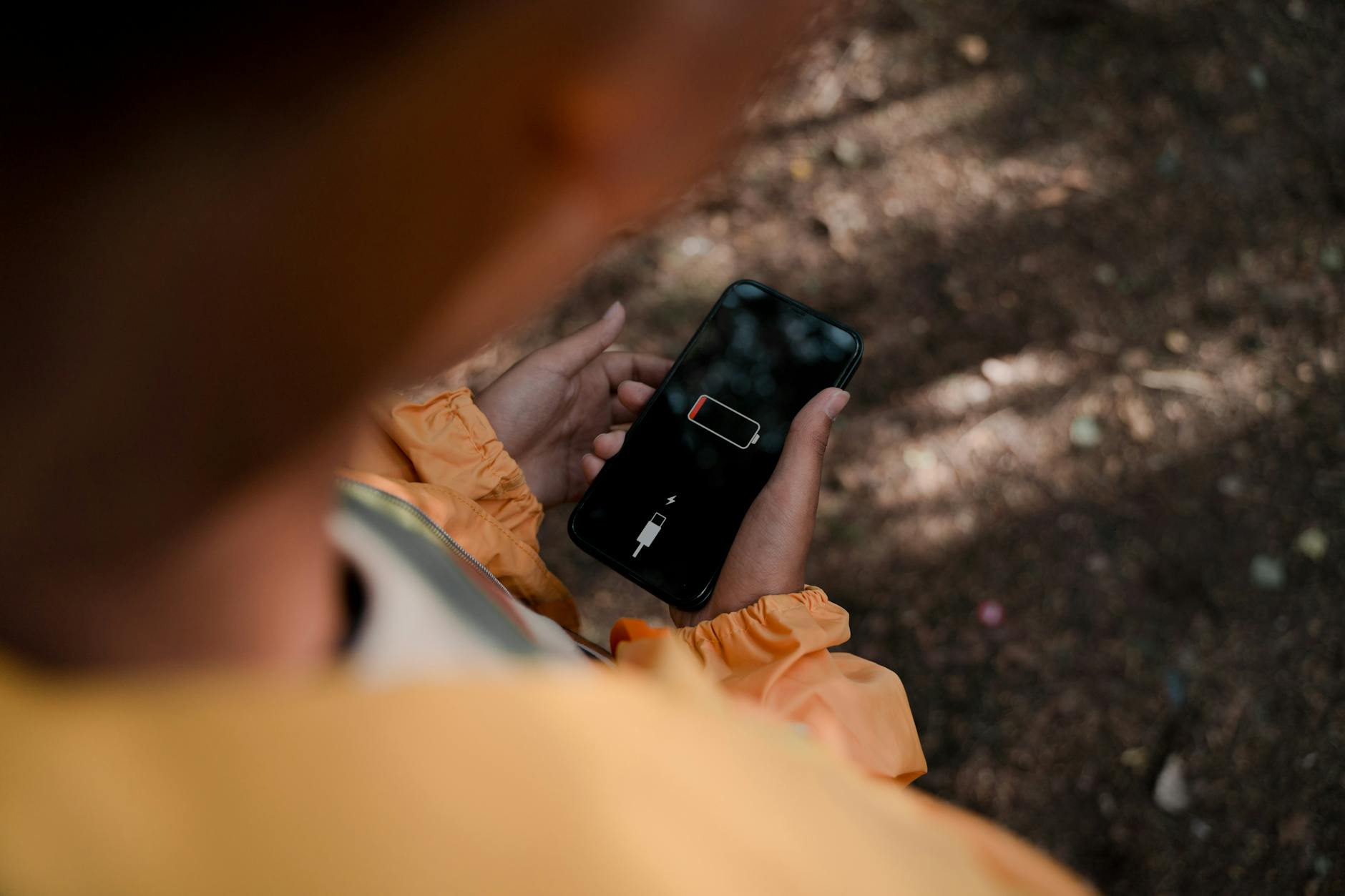
Photo by Ron Lach
Software Mixes Up Battery Readings
Your phone’s software tracks battery levels, but glitches throw it off. A botched update or corrupted cache files lead to inaccurate readings. The system reports 30% when real power sits much lower.
This mismatch happens after OS tweaks reset stats wrong. Temporary files clog the process, so the percentage lags behind true drain. Users report this on forums like Android Stack Exchange, where devices reboot to reveal the real low level.
A force restart often hints at the fix. It clears junk data and resets the gauge. Test it: hold power and volume down until the logo appears. Watch if percentages stabilize after.
Apps Run Wild in the Background
Apps keep working even when you forget them. They sync emails, back up photos, or check locations in the background. On a stressed battery, this spikes drain and triggers early shutdowns at 30%.
Take Google Photos: it uploads pics over Wi-Fi without notice. Or fitness trackers ping GPS constantly. Social apps scan for updates too. These tasks pull power fast, dropping voltage below safe limits.
Review your battery stats to catch culprits. Go to settings, find battery usage, and sort by drain. Close or restrict high users. Limit background refresh for non-essentials. This cuts hidden power theft right away.
Weak Signals Force Extra Work
Poor Wi-Fi or cell coverage turns your phone into a power hog. The device cranks up its radio antennas to hunt for bars. This constant search burns through battery at double speed.
In dead zones, like elevators or rural spots, expect faster drops. Your smartphone works overtime to stay connected, which stresses the power system. Voltage plummets, and boom: shutdown at what looks like 30%.
Switch to airplane mode in weak areas to test. Or toggle data off when signal fades. These steps ease the load and keep power steady.
Bugs from New Software Updates
Fresh OS updates promise speed, but they sometimes spike battery use. Bugs make apps run hotter or re-index files nonstop. Your phone drains quicker, leading to false 30% shutdowns.
Popular Android and iPhone models see this post-update. Background processes ramp up as the system learns new habits. For details, check Android Police’s list of reasons.
Wait a few days for patches. Meanwhile, restart daily and watch usage stats. Most glitches fade as the phone optimizes. If not, roll back if your model allows.
Quick Fixes to Stop the Sudden Shutdowns
Sudden shutdowns at 30% drain your patience fast. Good news: most stem from simple glitches you can fix in minutes. Try these steps now. They target software hiccups and power leaks in your smartphone. Start with a restart, then hunt rogue apps, and fine-tune settings. Your phone should hold steady after.
Restart and Clear the Cache
A force restart wipes temporary glitches that mess with battery readings. It clears the cache, which holds old data on power levels. Think of it as resetting the odometer on your car’s gas gauge. The phone then recalculates stats from scratch based on current voltage and usage. This often snaps inaccurate percentages back in line.
Follow these exact steps for your device.
For iPhone:
- Press and quick-release volume up.
- Press and quick-release volume down.
- Hold the side button until the Apple logo shows (about 10 seconds). Ignore the slide-to-power-off screen. This works on iPhone 8 and later. Older models need different combos; check Apple’s force restart guide for details.
For Android (most devices, like Samsung or Pixel):
- Hold the power button and volume down together.
- Keep holding until the screen goes black and the logo appears (10-30 seconds).
- Release and let it boot up.
Your smartphone grabs a fresh battery snapshot during reboot. Test it over a day. If shutdowns stop, you nailed a software snag.
Close Power-Hungry Background Apps
Apps running silent in the background suck power like a hidden faucet drip. They sync data or track location without you noticing. Close them to free up juice and steady voltage drops.
First, check which apps drain most. On iPhone, go to Settings > Battery. See the list of top users over the last day or 10 days. High screen time or background activity flags culprits.
On Android, open Settings > Battery > Battery usage. It shows percentages per app. Sort to spot offenders.
Common power thieves include:
- Social media like Facebook or Instagram, which fetch notifications nonstop.
- Maps apps such as Google Maps, pinging GPS even idle.
- Video streamers or email clients that preload content.
Force stop them with these moves.
iPhone steps:
- Double-click Home (or swipe up from bottom and hold on newer models).
- Swipe up on app cards to close.
Android steps:
- Tap the recent apps button (square or three lines).
- Swipe away or tap “Close all.”
For stubborn ones, go to Settings > Apps > [App name] > Force stop. Repeat daily. Watch battery stats drop less wildly. As ZDNet explains, this reveals and reins in the real drains.
Tweak Settings for Better Battery Life
Hidden settings quietly burn power. Turn them off to cut waste and prevent false low readings. Your smartphone runs cooler and lasts longer.
Start with background refresh. On iPhone, hit Settings > General > Background App Refresh. Set to Wi-Fi or Off. Android users go to Settings > Apps > [App] > Battery > Optimize or Restricted.
Disable location services unless needed: iPhone Settings > Privacy & Security > Location Services > turn off or per app. Android: Settings > Location > App permissions.
Stop Wi-Fi scanning: Android Settings > Location > Wi-Fi scanning toggle off. It saves radio power hunts.
Ditch auto-brightness: Settings > Display & Brightness (iPhone) or Display (Android). Slide manual and lower it.
These changes add hours. For iPhone tips, Apple’s battery page covers background activity tweaks. Test in real use; your 30% mark holds firm.
How to Check Your Battery Health and Next Steps
Quick fixes help, but they don’t tell the full story. Your phone might shut down at 30% because the battery itself has lost capacity. Check its health to see the real state. Most devices show this info right in settings. Low numbers confirm if you need a swap. Follow these steps for your model, then decide your next move.
View Battery Health on iPhone
Apple makes it simple to spot battery wear. Your iPhone tracks maximum capacity and peak performance. Head to Settings > Battery > Battery Health & Charging. There, you see the Maximum Capacity percentage. This compares current full charge to when new. Above 80% counts as good; below signals replacement time.
Look for Peak Performance Capability. It notes if power limits kick in to prevent crashes. If it says the battery is degraded, expect those early shutdowns. For exact details on what each reading means, Apple’s battery guide breaks it down.
Test after a full charge overnight. Drain it normally and watch for drops. iOS updates sometimes refresh these stats too.
Check Battery Health on Android Phones
Android varies by brand, but core steps work across Samsung, Pixel, and others. Open Settings > Battery > Battery health or Usage details. Some show a direct health score. Samsung users tap Diagnostics or Device care for a full report.
No built-in percentage everywhere? Dial ##4636## in the phone app. This pulls a hidden menu with battery info like level and temperature. Or use Settings > About phone > Battery information.
Third-party apps help if needed. Try ones from the Play Store that scan without junk. Tom’s Guide outlines reliable methods for most devices. Note the health score or cycle count. Under 80% matches those sudden 30% blackouts.
Run the check weekly. Charge to 100% first for accuracy.
Understand Your Results and Take Action
Battery health below 80% explains most surprise shutdowns. The cells can’t deliver steady voltage, so your smartphone cuts power early. At 70% or less, drains speed up too.
If health looks solid (85%+):
- Software caused the issue. Keep using quick fixes.
- Monitor for a week.
If low (under 80%):
- Back up data now.
- Visit an authorized shop for a battery swap. Costs run $50-100 for most models.
- Apple Stores handle iPhones fast; carriers do Androids.
New batteries restore full life. Avoid cheap fixes; they shorten lifespan. Charge habits matter post-swap: unplug at 80-90% most days. Your phone runs reliable again soon. Track changes in settings to confirm.
Prevent Your Phone from Dying at 30 Percent Again
You fixed the shutdowns, but they can return without good habits. Build routines now to keep voltage steady and capacity strong. These steps protect your battery over time. Your phone lasts longer between charges, and that 30% mark stays reliable.
Charge to 80 Percent Most Days
Full charges to 100% stress lithium-ion cells. They build heat and speed wear. Stop at 80% instead to cut strain.
Use built-in tools for this. On iPhone, go to Settings > Battery > Charging Optimization. It holds at 80% until you need full power. Android devices like Pixel offer Adaptive Charging in Settings > Battery. Samsung phones have similar Protect Battery limits.
Keep it simple: plug in at 20% and unplug at 80%. Tests show this doubles battery lifespan. For iPhone details, check Apple’s optimized charging guide. Charge overnight only when needed.
Store and Use at Safe Temperatures
Heat kills batteries fast. Cold slows them too. Keep your phone between 32°F and 95°F.
Leave it out of hot cars or direct sun. Don’t charge under blankets or pillows. In winter, warm it indoors before use.
Smartphones shut down early in extremes to save cells. A case helps shield from heat. If it gets too warm, pause heavy tasks like gaming. Cool spots extend life by years.
Turn Off Unneeded Features Daily
Background tasks drain power quietly. Review them weekly to stay ahead.
Lower screen brightness manually. Set it to 30-50% for indoor use. Shorten auto-lock to 30 seconds.
Disable always-on display if your phone has it. Toggle off Bluetooth and NFC when idle. These small cuts add hours daily.
On Android, use Battery Saver mode. It limits apps smartly. Track changes in battery stats. Over time, your phone holds charge better.
Update Software and Apps Right Away
Old software wastes power on bugs. New versions fix drains and improve readings.
Check weekly: iPhone Settings > General > Software Update. Android Settings > System > System Update.
Update apps too. They patch inefficient code. Enable auto-updates over Wi-Fi to stay current.
Patches often target voltage glitches. Your 30% stays accurate. Google’s Pixel tips cover battery-saving updates.
Watch Charge Cycles and Plan Ahead
Batteries last 500 full cycles before big drops. Track yours to act early.
Note health monthly. If it hits 85%, ease heavy use. Plan a swap at 80%.
Avoid deep discharges to zero. Charge habits matter most. Follow these, and shutdowns fade for good. Your smartphone runs smooth for years.
Conclusion
Worn batteries, software glitches, and background apps cause most phones to shut down at 30%. Weak signals and temperature swings add to the problem. Your smartphone protects itself by cutting power early, even when the screen says otherwise.
Quick fixes like force restarts, closing power-hungry apps, and tweaking settings often solve it right away. Check battery health in your phone’s settings to confirm capacity above 80%. Adopt habits such as charging to 80% and avoiding extreme heat or cold. These steps keep voltage steady and extend life.
Most issues fix with simple actions you can take today. Start with a restart or app review now. Your phone holds charge as expected.
Share your experience in the comments. Did a restart fix your 30% shutdowns? Check our guides on battery optimization and smartphone maintenance for more tips.
Take control. Follow these steps, and surprise blackouts stop for good.