Ever run a file transfer from your phone to PC that stops halfway and leaves you staring at a door that won’t quite shut? You’re not alone. A quick transfer should feel smooth, but plenty of little glitches can stall a move, from a flaky USB cable to a stubborn MTP driver or a momentary software hiccup. This guide gives you a practical, step by step path to get back to normal and finish the job without fuss.
In plain terms, a halfway failure usually comes down to three things: hardware, software, and the connection between them. A worn or charging only USB cable can look fine but refuse to transfer data. The MTP driver on Windows or the way macOS handles iPhone and Android links can misbehave after updates or with certain apps. The result is a transfer that starts with confidence and quits midway, leaving corrupted folders, partial files, or a beach ball of doom. The good news is most issues are predictable and fixable with a few targeted checks.
What you’ll gain from this article is a clear, practical checklist you can follow in minutes. You’ll learn quick tests you can run with your phone and PC, along with fixes that address the most common culprits. We’ll cover both Android to Windows and iPhone or Android to macOS paths, so you know what to try no matter what devices you’re using. You’ll also see alternative methods for moving files, like wireless options, in case you need a fast workaround.
This guide keeps things simple: start with quick checks, apply step by step fixes, explore alternative methods, and finish with prevention tips to reduce future hiccups. You’ll learn when to seek help, and how to document the problem so tech support can help fast. By the end, you’ll be able to troubleshoot efficiently and keep that file transfer moving from phone to PC without unnecessary delays. If you’re ready, let’s walk through the essentials and restore reliable file transfer today.
Common reasons file transfers stop halfway
When a file transfer from phone to PC stalls midway, it usually points to a few familiar culprits. Start with quick tests to isolate the issue, then apply targeted fixes. This section highlights the three most common reasons and how to verify them fast.
 Photo by Karola G
Bad USB cable or loose USB port
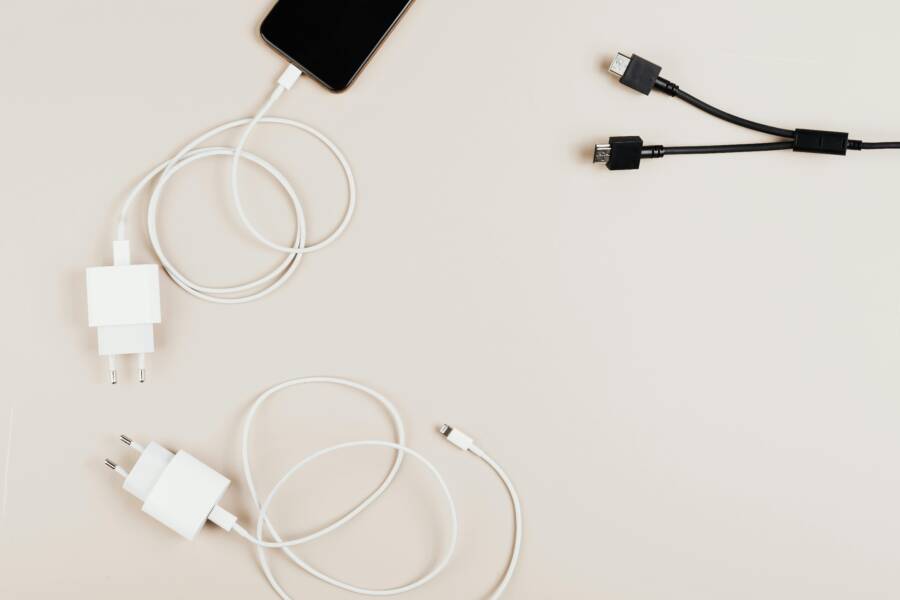
Charging cables often lack data wires, so they charge but won’t transfer data. Signs of a bad cable or a loose port include a sudden disconnect, a transfer that never starts, or the computer not recognizing the device at all. Quick tests: swap the cable for a known good one, try a different USB port, and avoid USB hubs. Remember, cable quality matters for data transfer; a cable that looks fine can still carry no data.
Wrong USB mode or driver issues
Phones must be in File Transfer or MTP mode for Android when connected to a PC, not just charging. If the mode is wrong, the PC may see the device but not permit file transfers. Driver problems are another frequent blocker. Outdated or corrupted MTP drivers can halt transfers midstream. Quick fixes: update or reinstall drivers on the PC, and if needed, grab the latest USB drivers from the phone or motherboard manufacturer.
Recent updates and device quirks
OS updates on Windows, macOS, or the phone can introduce quirks that interrupt transfers. A quick check is to see if an update occurred recently and pause or roll it back if needed to test the transfer again. For example, after a Windows update, a previously smooth Android transfer might stall. Roll back the update or postpone it briefly, then re-test with a fresh cable and port.
Fast checks you can perform in minutes
When a file transfer stalls between your phone and PC, you can rule out many issues with three quick checks. These fast tests help you identify whether the problem is a bad cable, a wrong connection mode, or a hardware path like a USB hub. Use them in sequence to isolate where the error lies and keep your transfer moving without long delays.
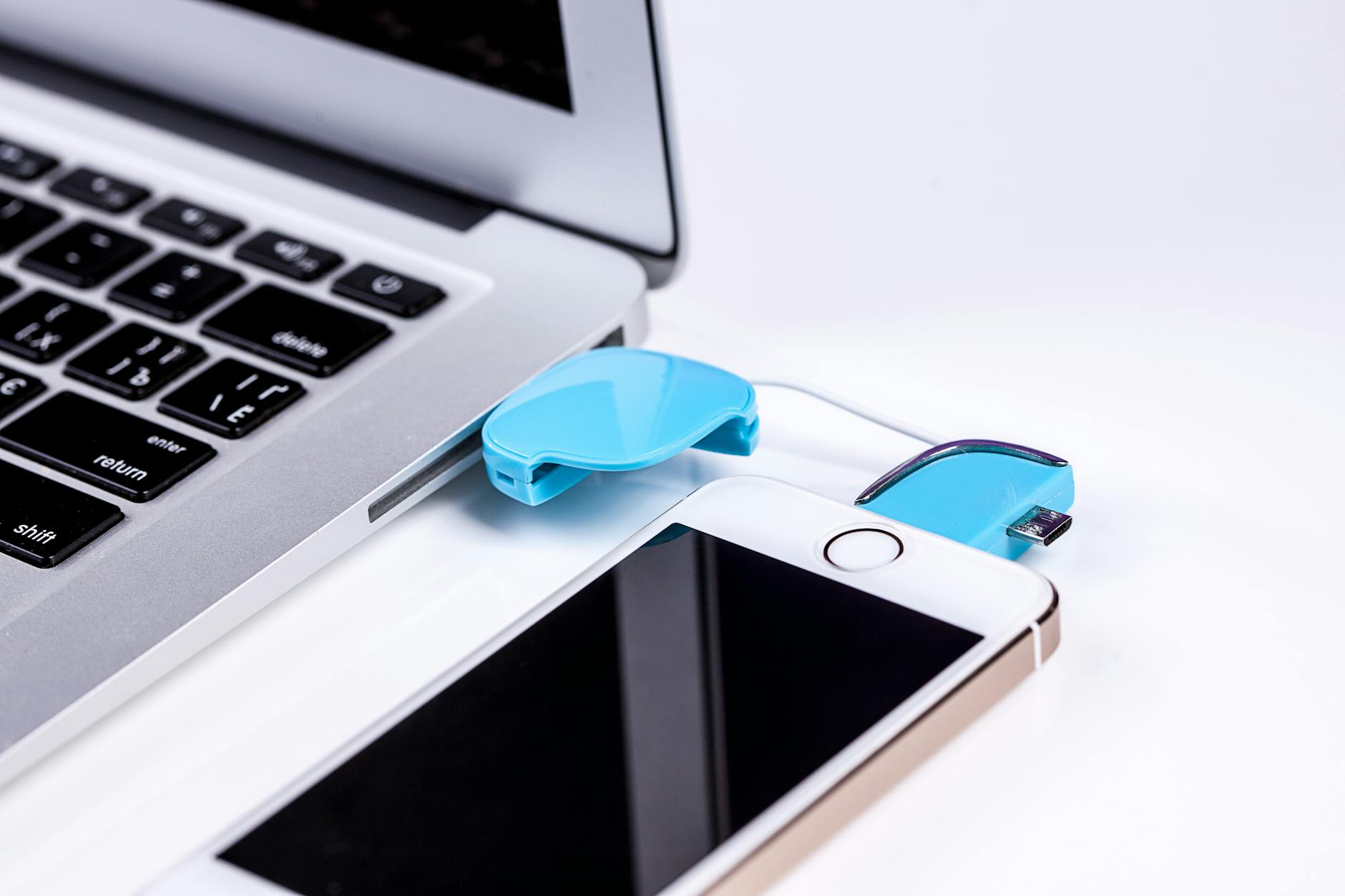 Photo by Pixabay
Test different cables and ports
Try three quick checks to pinpoint cabling or port issues. First, swap in a second data cable to see if the transfer starts and completes. If it does, the original cable was likely faulty or only charged devices. Next, move to a different USB port on the PC to rule out a failing port. If the transfer resumes, you’ve identified a port problem. Finally, connect the phone directly to the PC without a hub. If it works, the hub was the bottleneck. If nothing changes, move to the next section.
Verify USB connection mode on the phone
Android devices must be in File Transfer or MTP mode to move files to a PC. When you connect, pull down the notification shade and look for the USB options. Select File Transfer or MTP, then confirm the change if prompted. iPhone users should ensure the device is unlocked and you approve the computer when asked to trust the connection. Once connected, check File Explorer on Windows or Finder on Mac for the device listing to confirm a proper link.
Avoid USB hubs and test a direct connection
Hubs can disrupt data signaling or power delivery, which interferes with transfers. If a hub is your only option, try using a powered hub and keep the connection length short. But first, test a direct cable connection to the PC. A straightforward, direct link often resolves most mid transfer stalls and gives you a baseline to compare against any hub-based setup.
Step by step troubleshooting for Windows and macOS
When transfers fail partway, a calm, methodical approach saves time. Below are targeted, platform specific steps to identify and fix the most common culprits. Start with the simplest checks and move to driver and settings tweaks. You’ll learn how to confirm the correct connection mode, rule out hardware faults, and verify that software updates aren’t to blame. Whether you’re moving files from a smartphone or another device, these steps apply to both Windows and macOS users. Ready to get the transfer moving again? Let’s dive into practical fixes you can apply in minutes.
Update or reinstall USB drivers and MTP on Windows
Update or reinstall the MTP driver when a phone connects but refuses to transfer. Open Device Manager and expand Portable Devices or USB controllers. Look for entries like “MTP USB Device.” Right click and choose Update driver, then Search automatically for updated driver software. If that fails, uninstall the device and reconnect the phone to reinstall fresh drivers. After reconnecting, test a small file transfer. If Windows still doesn’t recognize the device, try a different USB port or cable and verify the phone is in File Transfer or MTP mode. A quick test with a known good cable often resolves the issue.
Restart devices and run built in troubleshooters
A soft reset can clear minor glitches without losing data. Restart both the phone and the computer, then reconnect and retry the transfer. On Windows, run the Hardware and Devices troubleshooter from Settings > Update & Security > Troubleshoot. On macOS, use the built in Disk Utility or Safe Mode to test the connection. Expect the troubleshooter to detect the problem and offer a fix or a recommended action, such as updating drivers or changing a setting. This quick check often restores a clean link.
Check for and manage recent updates
Recent updates can subtly affect how devices talk to each other. On Windows, open Settings > Update & Security > View update history to see what was installed recently. On macOS, go to System Settings > General > Software Update and review recent items. If you suspect an update caused the problem, roll it back or pause updates temporarily. After updating, test a fresh transfer with a different cable to confirm the issue is resolved.
Test with another PC or another phone
Swapping devices helps identify the source of the problem. If the transfer works on a second PC, the issue sits with the original computer. If it fails on the second PC as well, the culprit is the phone or cable. Use a different phone to rule out a faulty device, or a different USB cable to confirm where the fault lies. This simple test often saves hours of troubleshooting.
Alternative methods and smart workarounds
When a USB cable and driver combo stalls a transfer, it’s smart to have a few reliable alternatives ready. These methods let you keep moving even if a plug and play path falters. The goal is to preserve your time, protect file integrity, and keep the workflow intact across devices. Below are practical options that work in most real-world scenarios. Each approach includes quick steps you can follow, so you can pick the right method for your situation. You’ll find a mix of cloud, wireless, and direct transfer tips to fit different setups and devices, including smartphones.
Cloud storage and transfer apps as a fallback
Cloud storage and transfer apps shine when a direct cable transfer stops mid flight. Use cloud syncing to back up files from your smartphone and then access them on your PC, or employ transfer apps that move files without a wired link. Common services like Google Drive, iCloud, OneDrive, and Dropbox offer cross‑platform access and straightforward steps. Quick plan: 1) upload or sync files from your smartphone, 2) access or download on your PC, 3) verify integrity with a sample file. This approach is especially helpful for large batches or when you’re working on multiple devices. Photo by cottonbro studio: Person holding a smartphone in front of a laptop showcasing various app icons, highlighting digital connectivity.
Wireless transfer options
Wireless transfers give you flexibility when USB pathways hit a snag. Bluetooth is slow for large sets but handy for small files and quick shares. Wi Fi Direct or local sharing features can move folders much faster, especially on busy networks. Expect speeds that vary with device capabilities, but large batches may still take minutes rather than hours. A simple use case: send a folder of vacation photos from phone to PC over Wi Fi Direct, then organize them on the computer. This section covers practical expectations and how to choose the right option for your file size and device mix.
Direct wireless or cross platform transfer tips
When moving files wirelessly, stability matters as much as speed. Stay within a few feet of devices to reduce signal dropouts, and limit interference from other wireless gear. Use reputable apps with good reviews and regular updates. If a transfer stalls, pause, re‑select the destination, and retry. For cross platform work, prefer tools that support both ecosystems with robust security and resume capabilities, so you don’t lose progress if the connection fluctuates. This approach minimizes downtime and keeps your smartphone workflows flowing.
Prevention and long term habits to avoid future halts
A reliable transfer process relies on good habits and a simple, repeatable routine. By embedding preventive checks and automatic safeguards into your workflow, you reduce the chance of stalls and protect your files over time. Think of this as a small daily maintenance routine for your smartphone and PC that pays off with fewer interruptions and faster, calmer transfers. The goal is to keep data moving smoothly from device to computer, even when hardware or software moments momentarily misbehave.
Establish a reliable backup plan
Set up a straightforward backup routine that runs whenever you connect your device. Create a dedicated PC folder structure, for example a top-level folder named after the date and device, with subfolders for photos, videos, and documents. Enable automatic backups for new transfers where possible, and schedule a weekly sanity check to verify file integrity. Practice restoring a small sample file to confirm backups are usable. Keep 2–3 separate backups in different locations if feasible to guard against a single point of failure. Use a trusted cloud copy for extra protection and verify it periodically. For quick wins, automate the process with built‑in tools or a lightweight app, and document any recurring issues so you can address them quickly. A smartphone should feel like a well‑organized library, not a jumble of unsorted files.
When to seek professional help and data recovery options
If you’ve lost confidence in a data transfer, it’s time to map out options before more damage happens. This section outlines practical paths for protecting your files, whether you’re dealing with Android or iPhone to Windows or macOS. You’ll see when offline backups matter, when to call a pro, and how to weigh DIY tools carefully. The goal is to preserve your data while moving forward with the right solution.
Data recovery options and safe practices
When data might be at risk, start with offline backups to minimize further loss. Use cloud sync or an external drive to create fresh copies of your most important files. If the data appears irretrievable, consider professional recovery services with a solid track record and transparent pricing. DIY recovery tools can be helpful for minor losses, but they carry a risk of overwriting data or voiding warranties, so use them cautiously. Always document the steps you take and stop using the devices if you suspect data is corrupted.
 Photo by Tima Miroshnichenko
Conclusion
A smooth file transfer from a smartphone to your PC comes down to three steady habits: quick checks, reliable cables, and a solid backup plan. Start with a simple triage: try a different data cable and port, confirm the device is in File Transfer or MTP mode, and restart both devices. If the problem persists, update or reinstall the MTP drivers and test with another PC or another phone to isolate the culprit. These fast checks prevent wasted hours and keep your workflow moving.
Keep cables that clearly support data transfer, not just charging. A sturdy direct connection often resolves mid transfer stalls, and avoiding USB hubs can remove a hidden fault path. Pair this with a straightforward backup routine that runs automatically when you connect. A reliable backup protects your files if something goes wrong and makes recovery painless.
If issues recur, have a plan for alternatives like cloud sync or wireless transfers, so you’re never stuck waiting for a fix. Remember to document the steps you took and the results you saw; this makes future troubleshooting faster and smarter. Your smartphone data should feel portable, not precarious. Bookmark this guide so you can move files quickly next time a transfer balks.