Slow file transfer speeds from a smartphone to a computer can turn a quick clip of data into a time sink. You’re not alone if a 1 GB file seems to crawl rather than fly, especially when you’re juggling cables, wireless signals, and different devices. This guide lays out a clear, step by step path to faster transfers that you can test as you go.
First, understand the basics. USB transfers tend to be faster than wireless in many setups, but the exact speed depends on the cable, port, phone, and computer you’re using. Android phones and iPhones connect to Windows and macOS in different ways, so you’ll want to tailor fixes to your setup. The goal is steady, reliable speeds you can measure by benchmark tests after each fix.
We’ll cover three core areas: USB improvements, wireless optimization, and built in OS tools. Along the way you’ll learn practical steps that work for a wide range of devices and apps. After applying each fix, try transferring a 1 GB file and compare the results to see how much you gained. This practical approach helps you stay in control and get back to work quickly, whether you’re using a smartphone, a laptop, or both.
Identify the main reasons your phone to computer file transfer is slow
When transfers crawl, a few common culprits tend to stand out. This section breaks down the most frequent bottlenecks and explains how to verify and fix them quickly. You’ll learn practical checks you can perform in minutes and see real improvements after each step.
Check USB mode and cable health
Android devices should be in File Transfer (MTP) or Transfer files mode for transfers to PCs. If you see just Charging or Photo Transfer, switch modes right away. On iPhones, there isn’t a special mode to select; a standard Lightning or USB-C cable plus the Files app on your computer is all you need.
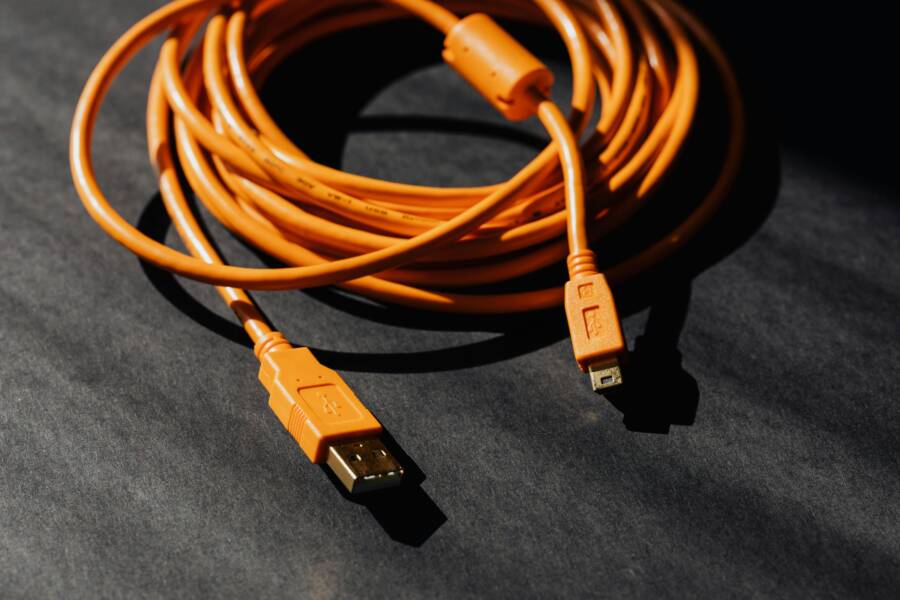
Start with a high quality cable. Worn or cheap cables slow data dramatically. Test different ports on both the phone and computer, and avoid USB hubs during the transfer. USB 2.0 cables or ports can drop speeds from gigabits per second to a trickle.
Quick steps you can follow:
- Connect the phone, check the notification about USB mode, and select File Transfer (MTP) or Transfer files.
- Try a fresh, high quality cable. If possible, use a different USB port on the computer.
- Move away from hubs or adapters and plug directly into the computer.
- Reboot devices if the transfer still seems slow, then test again.
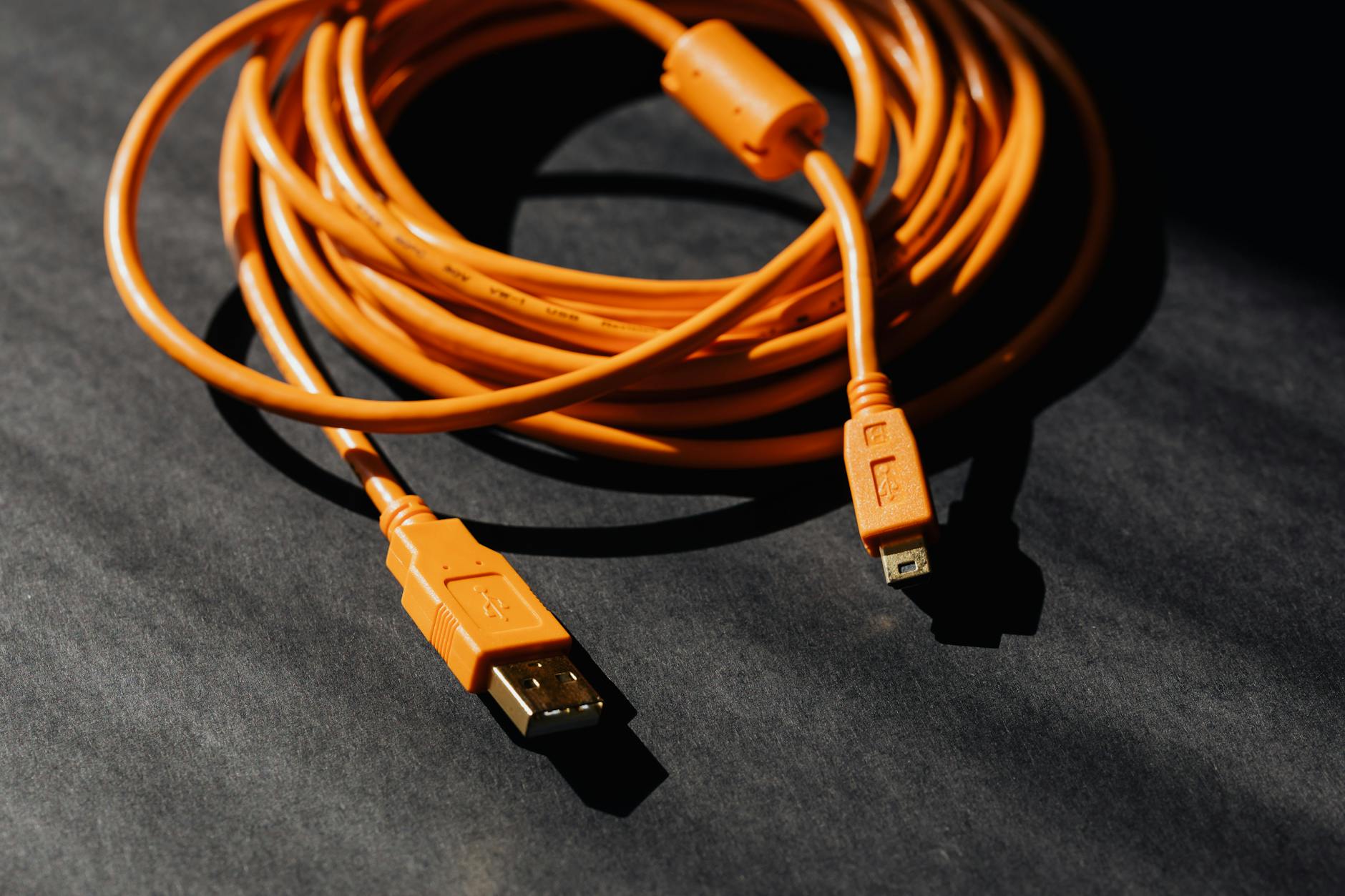 Photo by Karola G
Evaluate Wi Fi strength and interference
Wireless transfers are convenient but they can suffer from distance and obstacles. The farther you are from the router, the more walls the signal has to pass through, the slower the transfer becomes. Competing networks on the same channel can also cut speeds.
Switch to the 5 GHz band when possible. It offers more bandwidth and less interference than 2.4 GHz, especially in dense neighborhoods or busy offices. Keep both devices within line of sight if practical to maximize signal clarity.
Simple tests to run:
- Move the devices closer to the router and re-run the transfer.
- If your router supports it, try a different channel or a wired-backup to verify the baseline speed.
- Disable nearby devices that might be creating interference, like microwaves or cordless phones, during the test.
Review apps, background processes, and device performance
Background apps and limited storage are common speed killers. When many apps run at once or storage is nearly full, the system competes for CPU, memory, and disk access, which slows transfers.
Close unnecessary apps before starting a transfer, and clear caches that accumulate over time. Avoid enabling battery saver modes during a transfer, as they often throttle performance. Outdated apps or OS versions can also cause hiccups when moving large batches of data.
Quick pre-transfer checklist:
- Close all nonessential apps.
- Clear app caches and temporary files.
- Ensure there is ample free storage on both devices.
- Check for pending OS or app updates and install if available.
- Restart devices to clear memory and reset network states.
Consider file size and type
Very large files take longer to move, especially over wireless, Bluetooth, or OTA methods. When appropriate, split large files into smaller chunks, compress where feasible, or transfer in batches. Some file types or metadata can affect efficiency, so consider archiving a large group of items into a single ZIP when practical.
A straightforward example helps: transferring a 1 GB video will take longer than moving thousands of small photos totaling 1 GB. In many wired setups, the difference is clear and immediate, while wireless transfers show more noticeable gains with batching.
For a quick comparison, think of it as moving a single large box versus many small boxes. The single box may take longer to load and unload if the path is obstructed, while smaller boxes are easier to carry in a single trip.
[End of section content]
Fast USB transfers how to
When you need to move files quickly from your phone to a computer, the right setup makes all the difference. This section focuses on practical, repeatable steps to squeeze more speed out of USB connections. You’ll learn how to choose the right cable, set the proper transfer mode, and optimize the hardware path so data moves with less wait time. Think of this as a fast lane for your files, with clear checkpoints you can test as you go.
Choose the right cable and enable File Transfer on Android
High quality cables matter more than you might expect. Use a USB-C to USB-C cable when both devices support it, or USB-C to USB-A if your computer lacks USB-C ports. Prefer cables rated for USB 3.0/3.1 or higher; they carry data much faster than USB 2.0. Shorter cables tend to perform better because they reduce signal loss.
On Android, after you connect the phone, pull down the notification shade and choose File Transfer (MTP) or Transfer files. Some devices require you to unlock the phone first or confirm the connection on-screen. Once the mode is set, your computer should recognize the phone as a drive, ready for fast transfers.
 Photo by Pixabay
Connect iPhone or iPad with proper cable and mode
For Apple devices, a reliable Lightning to USB-C or Lightning to USB-A cable is essential. Ensure you’re using a cable that supports data transfer, not just charging. On first connection, you’ll be asked to trust the computer; accept to proceed. Then use Finder on Mac or File Explorer on Windows to access the device and copy files.
Avoid charging-only cables or adapters. If the device isn’t showing up, try a different port or a different cable. After you establish a trust relationship, transfers can run smoothly and quickly, with the computer handling the data like any other external drive.
Update drivers and avoid USB hubs
Keeping drivers current helps prevent slowdowns. On Windows, open Device Manager and update the USB controllers and any Android device drivers. On macOS, system updates typically include USB improvements, but you can check for software updates as well. Plug the device directly into a computer port rather than a hub to maximize speed. If a hub is necessary, use a powered one and test multiple ports to find the fastest path. Check power management settings that might throttle USB, and disable any that slow transfers down during the move.
If speeds still lag, try a different USB port on the computer and reboot both devices. These steps often clear up recognition issues that can masquerade as slow transfers.
Organize data and perform clean transfers
Plan transfers in manageable batches rather than moving everything at once. A stable file manager helps you avoid accidental interruptions. Keep the destination drive healthy with free space; SSDs perform best when there is headroom and are less prone to fragmentation. For a repeatable process:
- Prepare a batch of files and note the total size.
- Open the phone’s storage on the computer and select the batch.
- Copy to a dedicated folder on the destination drive.
- Verify the transfer and repeat with the next batch.
Transferring in chunks reduces the chance of a failed transfer and helps you monitor progress. This approach works whether you’re moving photos, videos, or larger project files from your smartphone to your computer.
Boost wireless transfers with smart app choices
Wireless file transfers can save time, but only if you choose the right app and understand its strengths. In this section, you’ll learn which options consistently deliver solid speeds, how cross‑platform support affects performance, and what security steps keep your data safe. We’ll also outline quick usage notes so you can pick a tool and start transferring right away.
Top transfer apps and how to use them
When speed matters, certain apps stand out for cross‑platform support and reliable performance. Quick Share, AirDroid, Send Anywhere, and SHAREit are common picks, each with its own sweet spot. Quick Share is built into many Android devices and Windows PCs, offering fast nearby transfers without data leaving your local network. AirDroid adds remote access features and flexible cross‑device management, which is handy if you juggle multiple devices. Send Anywhere excels for large files or transfers across different ecosystems, using a simple key or link approach. SHAREit delivers impressive local speeds but requires caution due to past security concerns; always download from official stores and avoid shady forks.
Setup is straightforward: install the app on both devices, ensure they’re on the same network or use a direct link, and follow the on‑screen prompts to pair. Expect fast local transfers on a strong Wi‑Fi network, but speeds can drop if your network is crowded or the devices are far apart. For safety, stick to well‑known brands and keep the apps updated.
 Photo by cottonbro studio
- Cross‑platform compatibility matters most. Look for apps that support Android, iOS, Windows, and macOS.
- Speed expectations vary with network quality. On the same Wi‑Fi, you can often see tens of MB per second; cloud‑based transfers depend on internet speed.
- Security notes: use encryption where available, avoid shady apps, and disable features you don’t need.
Improve home network for faster wireless transfers
A strong home network is the invisible accelerator for wireless moves. Start with the basics: place the router in a central, open location away from walls and metal objects. Elevation helps; a shelf rather than a floor works well. If possible, connect devices to a 5 GHz network to minimize interference from neighbors and smart home gadgets.
Other quick wins include reducing network congestion and keeping firmware up to date. A modern router firmware can boost stability and throughput, especially on mesh systems that blanket large homes with a consistent signal. For large spaces, consider a mesh setup to eliminate dead zones and keep speeds steady across rooms.
To gauge progress, run a quick speed test on both devices at the same time and compare results to your baseline. A simple approach is to use a built‑in speed test app or a trusted website, then move a large file and recheck. If speeds remain patchy, you may need to re‑seed your Wi‑Fi channel or switch to wired backhaul in a mesh configuration.
- 5 GHz wins on distance and interference: keep devices within line of sight when possible.
- Minimize interference: turn off nearby devices like microwaves or cordless phones during tests.
- Firmware first: update the router to ensure optimal performance and security.
Using direct transfer methods like AirDrop, Nearby Share, and Windows features
Direct transfer methods can bypass typical network slowdowns and deliver quick results. AirDrop leverages nearby Apple devices to move files rapidly over a short distance, without cloud storage. Nearby Share offers a similar, cross‑platform approach for Android and Windows, using a proximity‑based connection to transfer without the internet. Windows supports Phone Link for Android, which integrates messaging and file sharing through a single app, streamlining transfers from PC to phone and back.
Common speeds on direct transfers are influenced by device hardware and the immediate network environment. Within a few meters on a stable Wi‑Fi or Bluetooth path, you can see noticeably faster results than cloud or mobile data transfers. Enable each method in advance:
- AirDrop: On Apple devices, open the Control Center, enable AirDrop, set visibility to Contacts Only or Everyone, then share from the file menu to the nearby device.
- Nearby Share: On Android, pull down the quick settings, enable Nearby Share, choose Your Contacts or Anyone nearby, then select the target device on the share sheet. On Windows, enable Nearby Sharing in Settings and share from the file menu.
- Windows Phone Link: Install and pair via the Phone Link app on both devices, follow the prompts to connect, then drag and drop files through the app.
Typical speeds for direct transfers are fast when devices are close and on strong hardware, but real world results vary with device generation and app version. Direct methods minimize setup complexity and avoid cloud delays, making them ideal for quick, repeatable transfers.
Photo by cottonbro studio
Leverage built in OS tools and features for speed and reliability
When you want quick, reliable transfers, built in tools often beat third party apps. They’re tightly integrated with the OS, reduce setup friction, and tend to work without extra network dependencies. In this section we cover practical ways to use Phone Link and Nearby Sharing on Windows, explain AirDrop and iCloud basics for Apple devices, and outline a straightforward OS level troubleshooting flow. The goal is to give you fast, repeatable steps you can test right away.
Phone Link and Nearby Sharing options
Phone Link on Windows paired with Android offers a smooth way to move files without hunting for third party apps. Set up is simple: install Link to Windows on your phone and Phone Link on your PC, then pair via a QR code. Once connected, you can pull up recent photos and copy or drag files directly from your PC into the phone storage, or vice versa. For many users, this creates a near seamless transfer experience within the same local network. If you’re transferring small to medium batches, this method is often faster than emailing or cloud uploads.
Nearby Sharing provides a quick wireless path between nearby devices. On Windows, enable Nearby Sharing in Settings, then share from the file menu. On Android, enable Nearby Share in Quick Settings and select the target device. Speeds are influenced by network quality and device hardware, but the benefit is speed without cables. Keep devices within close range and on a stable network for best results. Practical tip: turn off Bluetooth and other nearby devices that might introduce interference during a test run.
AirDrop and iCloud basics
AirDrop is Apple’s fast, local transfer method. It works best between nearby iPhone, iPad, and Mac devices without needing internet. To use it, enable AirDrop in Control Center, choose who can see you, and share from the file menu to the nearby device. Expect near-instant transfers for reasonably sized files when devices are close and on supported hardware.
When larger files or cross‑platform sharing is needed, iCloud Drive serves as a reliable fallback. Upload the file to iCloud from one device and access it on another. The speed depends on your internet connection and iCloud status, so it’s not ideal for multi‑gigabyte batches on slow networks. A key caveat: if you’re offline or have a slow connection, transfers will stall. For quick access to big files, aim to keep both devices on a solid network and use local transfers when possible.
Troubleshooting common OS level issues
A lean troubleshooting flow helps you spot where slowdowns originate. Start with the basics and move methodically to avoid chasing symptoms.
- Reset network settings on both devices to refresh connections.
- Reinstall or update USB and device drivers on the computer; check Device Manager or System Settings for updates.
- Test with another device to determine if the issue is device-specific or environment-related.
- If the problem persists, run a fresh transfer using a different cable or port, and consider a wired backup to isolate wireless variables.
- Verify there is ample free storage and that no background processes hog system resources during the transfer window.
If you still see slow speeds, compare results against a known good setup, such as another phone or computer on the same network.
Final tips and a quick transfer speed checklist
As you near the end of your transfer task, a tight, repeatable routine helps you lock in real gains. These final tips summarize quick wins and give you a practical checklist you can run through in minutes. Think of this as your speed-boost playbook for both USB and wireless transfers.
Quick-win overview: pick the right path first
- For large batches or ultra-reliable speed, start with a wired USB connection. A good USB cable and a direct port path nearly always outperform wireless for big transfers.
- For small, quick moves or when you’re in motion, wireless can save time. Use fast local options and keep devices on the same network to minimize delays.
- Always test with a small file first. A quick 5–10 MB test confirms your connection path before you commit to bigger transfers.
Final checklist to maximize transfer speed
- Prepare devices
- Update both phone and computer software to the latest version.
- Close nonessential apps to free up CPU and memory.
- Ensure there is ample free storage on both devices.
- Optimize the connection path
- USB path: use a high quality USB 3.0/3.1 or USB-C cable, plug directly into a computer port, and avoid hubs.
- Wireless path: switch to a 5 GHz network, keep devices within line of sight if possible, and minimize nearby interference.
- Verify transfer mode and permissions
- Android: set the phone to File Transfer (MTP) or Transfer files.
- iPhone: ensure a trusted connection and use Finder or File Explorer for transfers.
- Confirm access rights on both devices so files can be written to the destination.
- Speed sanity checks
- Run a quick benchmark after every fix.
- Compare results against a known good setup if you have one.
- Safety and data integrity
- Copy to a dedicated folder and verify after each batch.
- If a transfer stalls, pause, recheck the cable or port, and retry with a fresh segment.
When to switch methods mid‑task
- If you hit a plateau on wired transfers, a brief wireless test can reveal if the bottleneck lies in the cable, port, or device power management.
- If you’re moving a huge archive, consider splitting into batches and using the fastest reliable path available for each batch.
Quick reference transfer speed expectations
- USB wired: real world speeds vary, but using quality cables and USB 3.x ports typically yields the best long-term reliability for large files.
- Wireless: speeds depend on network quality and proximity. Expect faster local transfers on 5 GHz networks and with close devices, especially for medium to small batches.
Practical tip: the right tool for the job
- Use built‑in OS tools when possible for reliability and simplicity.
- For bulk Android to PC moves, a dedicated transfer app can smooth out interruptions, but test with a small batch first.
- Direct methods like AirDrop or Nearby Share reduce setup friction and avoid cloud waits, but are best when devices support them well and are close by.
Micro-rituals that keep transfers smooth
- Before starting, unplug unnecessary USB devices to minimize contention.
- Keep devices cool during large transfers; heat can throttle performance on some phones.
- If you frequently transfer, bookmark the quickest path you tested as your default routine.
This structured approach gives you a fast, repeatable way to squeeze more speed from both USB and wireless transfers. With the right cable, the proper mode, and a lean testing habit, you’ll move files from your smartphone to your computer with less waiting and more confidence.
Conclusion
Fast, reliable transfers come from a simple mix of the right path and steady testing. Use a high quality USB cable and a direct port for large file moves, keep the phone in File Transfer mode, and update drivers on the computer for the best baseline speed. When wireless is your path, switch to a 5 GHz network, test with devices close together, and choose trusted apps or built in OS tools to minimize delays. For quick wins, try direct transfers first, then switch to wireless if you’re moving smaller batches or need mobility. If you’re using a smartphone, run a small test file first after each change and log the results—this builds a reliable, repeatable routine. Share your results and any tweaks you discover to help others boost speed as well.