Struggling with ringtones blasting over your media can ruin any video binge or podcast session. It happens because many phones link ringtone volume to the overall sound controls, so a call can spike while music or a video stays quiet. This guide shows practical steps to keep ringtone alerts from overpowering your media on both Android and iPhone.
You’ll learn simple, reliable tweaks that work on most smartphones. On Android, you’ll discover options to adjust ringtone and media levels without losing control of calls, plus quick workarounds if the default settings feel stuck. On iPhone, there are clear paths to reduce the impact of alerts while keeping calls audible. The goal is consistent audio so you can enjoy media without constant volume battles.
Whether you’re catching up on a movie, a livestream, or a game, the fixes summarized here stay practical and actionable. Expect quick checks you can perform in under a minute, plus longer tweaks for those who want finer control. By the end, you’ll have a smoother balance between ringtones and media, with your phone behaving like a well tuned tool rather than a disruptive device. This approach works across most smartphones, and you’ll find common threads you can apply regardless of brand. Ready to take back control of your sound? The upcoming sections walk you through Android tips, iPhone steps, and final testing so you know the changes took hold. Stay tuned for the concrete settings and a quick checklist you can bookmark.
Why Ringtones Get Too Loud Compared to Media Volume
Ringtone and media loudness often pull in different directions on smartphones. When a call comes in, the device may raise the overall sound level to ensure you hear it, even if you’re watching a video or listening to a podcast. This mismatch can feel like a sudden jolt in audio and ruin the moment. In this section, you’ll learn why this happens and how to keep ringtones from overpowering media. We’ll cover the most common triggers and practical fixes you can apply today.
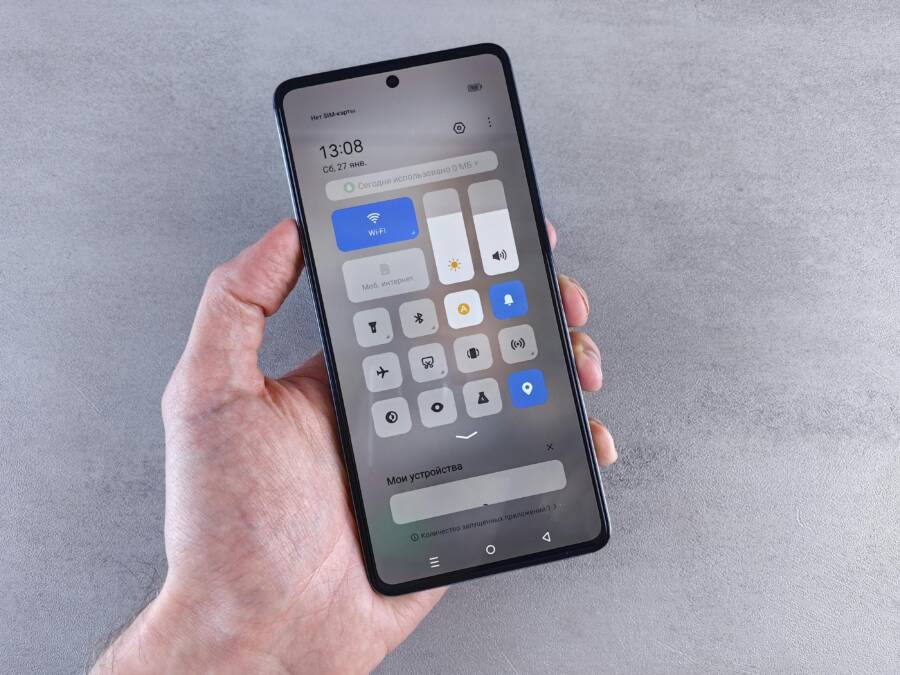
 Photo by Andrey Matveev
Spot the Difference in Volume Sliders
Understanding where each volume control lives helps you balance sound quickly. Here are the key sliders and where to find them.
- Ring: Controls the loudness of incoming calls and alarm sounds.
- Notifications: Sets alert tones for messages, app alerts, and system prompts.
- Media: Regulates music, videos, games, and any content you play.
Where to find them:
- On Android devices, you’ll typically access these sliders in the quick settings panel or through Settings > Sound and vibration > Volume. Quick tests often involve pressing a volume button, then tapping the on-screen Menu to adjust the individual sliders. This is especially useful when media playback and incoming calls need separate tuning.
- On iPhone, the same controls live in the Settings app under Sounds & Haptics. You’ll find separate sliders for Ringer and Alerts and for Media. A fast check is to open Settings, tap Sounds & Haptics, and adjust the Ringer and Alerts slider while playing a video to hear the difference.
When you’re testing, try this quick demo:
- Play a song or video at a comfortable volume.
- Change the Ringer and Alerts slider while the media keeps playing.
- Make a test call or have someone call you to confirm calls stay audible without blasting media.
This separation is the baseline for keeping media from being drowned out by alerts. If you’d like to see how other devices present the controls, Apple’s and Google’s official guides provide step by step visuals you can follow. For Android users, the general approach is to adjust Media volume independently from Ring volume in the volume panel, then save the setting so it sticks across apps. For iPhone users, keep the Ringer/Alerts separate from Media and test with both media playback and a simulated alert. See more details in the linked official guides below.
- Official Android help: Change volume, sound, & vibrate settings
- Pixel help: Change your volume & ringtone settings
- Samsung how-to: Sounds, vibrations, and notifications on Galaxy devices
Photo by Andrey Matveev — provided above
Common Triggers for Volume Imbalance
Ringtone loudness that overruns media isn’t a mystery flaw; it has practical triggers you can address. Here are the most common culprits and the quick fixes you can apply.
- Calls interrupting media: When a call arrives, the system may boost overall volume to ensure you don’t miss the ring. The fix is to separate ring volume from media volume and verify that the media playback remains at your chosen level during a call. On Android, check the dedicated sliders in the volume panel and ensure “Media” stays where you want it when a call rings. On iPhone, keep the Ringer and Alerts slider distinct from Media and test a call while media plays to confirm the balance.
- Notification pings: Frequent alerts can push volume up during media playback. Reducing notification sounds or setting them to a softer tone can help, as can enabling Do Not Disturb during media sessions. You can also customize quiet hours so alerts occur at a predictable level when you’re enjoying content.
- Software glitches: Occasionally a bug or a background app can reset volume priorities. The fixes are straightforward: restart the device, check for system updates, and review individual app notification settings. If a glitch persists, a reset of app preferences or a clean cache refresh can restore expected behavior. In some cases, uninstalling problematic apps or updating them to the latest version resolves the imbalance.
- Quick tips to test: after adjusting the sliders, play media at a comfortable level, then trigger a notification and a call to verify both streams behave as intended. If you notice a replaying issue, revisit the volume panels and reapply the separation between media and alerts.
- Longer-term fixes: consider creating a routine that keeps your phone projecting media loudly only when you actively engage with it. A simple habit is to confirm the media volume before starting a video, podcast, or game and then adjust the ringer only if an incoming call is expected.
These patterns are common across many smartphones and appear in official support guides for both Android and iPhone. If you notice persistent imbalances, start with the basic volume separation, then explore specific app permissions and notification controls. You’ll often find the root cause is a single setting misaligned with your preferred playback experience. For deeper reading, the guides linked below provide official steps you can trust.
- Android official: Change volume, sound, & vibrate settings
- Galaxy help: Sounds, vibrations, and notifications on Galaxy devices
- Pixel help: Change your volume & ringtone settings
- Apple support: Adjust the volume on iPhone
Photo by Andrey Matveev — provided above
Links and sources:
- Android Help: Change volume, sound, & vibrate settings
- Pixel: Change your volume & ringtone settings
- Galaxy: Sounds, vibrations, and notifications on your Galaxy phone
If you’d like additional context on how these controls interact across different Android skins, the Samsung community and Android Police coverage offer practical, device-specific notes you can apply to your setup. For readers using iPhone, Apple’s support pages show how to manage ringer versus media behavior in iOS across various versions.
- Apple support: Adjust the volume on iPhone
- Apple discussions: How to separate ringer volume from notifications
- Mac Forums: Adjust ringer and notification volume separately from apps
This section gives you a practical map of where each control lives and why it matters. The next sections will translate this into a straightforward, repeatable setup you can apply on both major platforms without guesswork.
Easy Fixes for Android Phones
Balancing ringtone loudness with media playback on Android can be a quick fix away. This section compiles practical, step-by-step adjustments that keep calls audible without drowning out your music, videos, or podcasts. You’ll learn to separate ringer from media, use app-specific controls, and apply device-specific tweaks that work across most Android phones.
Tweak Built-in Volume Sliders
Android devices store sound in distinct channels, and knowing where each slider lives makes a big difference. The goal is to adjust Ring and Media independently, so an incoming call never shouts over your content.
- Swipe down to open the quick panel and locate the volume controls. You should see sliders for Ring, Media, and often Notifications.
- Adjust the sliders so that Ring is clearly audible for calls but Media remains at your preferred level during playback. This separation is essential for a calm listening experience.
- If your device offers a Settings path, go to Settings > Sound and vibration > Volume and confirm the volume panel shows separate sliders for Ring and Media. On many devices, you can expand theVolume panel from the quick settings and adjust the categories individually.
- Test during different scenarios: play media at a comfortable level, then change the Ring slider while the media continues. Have a test call to ensure calls stay audible without blasting your video or music.
- For quick reference, follow the official guidance that explains how to change volume and vibrate settings on Android. If you want more device-specific steps, Pixel and Galaxy support pages offer precise paths to the same outcome.
- Official Android help: Change volume, sound, & vibrate settings
By keeping the Ring and Media controls separate, you create a stable baseline. The changes feel subtle in real life but prevent those jarring loud alerts while you’re focused on content. If you want a deeper dive into how different Android skins handle volume, the linked guides provide practical, device-tailored instructions.
Common Triggers for Volume Imbalance
Even with separate sliders, certain events can nudge the system back toward loud alerts. Understanding these triggers helps you implement targeted fixes that stick.
- Calls interrupting media: When a call arrives, the system may increase overall volume to ensure the ring is heard. The fix is to verify Media stays at your chosen level during a call and the Ring control remains separate.
- Notification pings: Constant alerts can raise the perceived loudness during playback. Consider softening notification tones or using Do Not Disturb during media sessions. Quiet hours can help, too.
- Software glitches: Rare bugs or background apps can reset priorities. A restart, check for updates, and review app notification settings often restore balance. If needed, reset app preferences or clear cache for a clean slate.
- Quick testing practice: after adjusting the sliders, play media, trigger a notification, and simulate a call to verify both streams behave as intended.
- Long-term habit: make a quick routine of confirming media volume before starting playback, then only adjust the Ring volume if you expect a call soon.
These patterns are common across many Android devices and are covered by official support guides. If an imbalance persists, start with the basic separation and then explore per-app notification controls. A stubborn issue may trace back to a single app’s alert settings.
- Android official: Change volume, sound, & vibrate settings
- Galaxy help: Sounds, vibrations, and notifications on Galaxy devices
- Pixel help: Change your volume & ringtone settings
Test tips and routine checks help you lock in the right balance so media stays clear even when alerts arrive.
Use App Volume Control for Auto-Switches
If you juggle a lot of apps that each demand a different audio level, app-specific volume control can save the day. This approach lets you automate volume changes for media, notifications, and calls based on what you’re doing.
- Install an app volume control tool that supports per-app volume management. Look for options that don’t require root access and work on the latest Android versions.
- Grant the required permissions so the app can adjust audio streams in the background. This usually includes accessibility, overlay, and notification access.
- Create a profile for your typical scenarios. For example, set Phone high for calls and restore the old level when you’re finished, while lowering Messages or other messaging apps.
- Establish rules for other apps. If you frequently watch videos while a messenger ping is common, set those apps to a lower volume during playback and raise their level when you’re not actively watching.
- Benefits include consistent audio without manual tinkering. It’s a simple setup that pays off during long sessions with mixed content.
- A practical guide to individual app volumes on Android (no root required)
- A beginner’s guide to volume control on Android
Several Android users find that app-specific volume tools deliver the clearest separation without interfering with calls. If you want a quick path to try this, a popular approach is to use a dedicated app to control per-app volumes and test the results in a few minutes.
- How to Have Individual App Volumes on Any Android (no root) — YouTube tutorial
- A Beginner’s Guide to Volume Control on Android — Accessible Android
After you set up per-app volumes, test by playing media and triggering alerts from different apps. If you notice an app reverts to a higher level, revisit the profile and tighten the rule. The goal is a predictable audio environment where media stays readable and calls remain effective.
Samsung Phone Special Settings
Samsung devices offer a few extra knobs to fine tune volume behavior. If you’re a Samsung user, you can push the balance further with per-app sound controls.
- Open Settings and go to Notifications.
- Tap Advanced and then look for App categories. Within this area you can find options to assign different sound profiles to groups of apps.
- Choose the option for Sound per app and configure it so critical apps (for example, your media players or video apps) stay at a comfortable level while alert-heavy apps (like messaging) stay more subdued.
- Make a quick test by playing media and having a notification come in. Adjust as necessary to keep the soundscape stable.
- If you want more community-tested guidance, several Samsung and Android forums discuss per-app sound behavior and how to tune it for Galaxy devices.
- Separate volume settings for msg notifications & ring tone on Galaxy devices — Android Central forums
Per-app sound controls on Samsung phones can be a big help when you need predictable audio across a mixed-media session. Use them to complement the standard volume sliders, especially if you rely on rich media apps alongside chat and social apps.
Quick Testing Checklist
- Verify Media stays at the set level when you receive a call.
- Confirm Notifications don’t nudge Media upward during playback.
- Test with different apps and content types (music, video, games) to ensure consistent behavior.
- Revisit settings after system updates, as some devices reset volume priorities.
- Keep a short routine: check media first, then adjust ringer only if a call is anticipated.
If you want to dive deeper into per-app volume concepts, the referenced guides offer step-by-step instructions. Mixing these approaches gives you a robust setup that survives everyday use and software updates.
- Android official: Change volume, sound, & vibrate settings
- Pixel help: Change your volume & ringtone settings
- Galaxy help: Sounds, vibrations, and notifications on Galaxy devices
- Apple support: Adjust the volume on iPhone
This section gives you a practical map of where each control lives and why it matters. The next sections will translate this into a straightforward, repeatable setup you can apply on Android devices without guesswork.
Quick Steps to Balance Ringer on iPhone
Balancing ringer volume with media on an iPhone keeps you in control of every sound moment. When a call comes in, you want to hear it clearly, but not at the expense of your video, podcast, or game. The following quick steps focus on practical adjustments you can apply right away. They’re designed to be easy to scan and implement, so you can test and fine tune in minutes. If you’re juggling multiple apps, these steps translate well into everyday smartphone use.
Adjust Ringer with Side Buttons
Pressing the volume up or down while the screen is off should adjust your ringer only, not your media. On iPhone, you can preload a test to hear how the change affects calls without interrupting current playback. Start by lowering the Ringer volume a notch and then test with a simulated alert while media remains at its current level. If you notice the media rising, recheck that the Media slider isn’t tied to the same control as Ringer in Settings. This separation keeps each sound stream predictable and avoids jarring transitions during a show or game. For a quick check, play something at a comfortable level, then adjust the Ringer slider while the video keeps playing and listen for the difference. Apple’s official guidance on sounds and haptics confirms how these controls can operate independently, helping you avoid clashes with alerts. You can read more on changing iPhone sounds and vibrations here: https://support.apple.com/guide/iphone/change-sounds-and-vibrations-iph07c867f28/ios
Fine-Tune in Sounds Settings
Go to Settings > Sounds & Haptics to fine-tune how your iPhone handles ringer and media. Here you can adjust the Ringer and Alerts slider separately from the Media slider. This gives you a crisp boundary: calls stay audible, while media stays comfortably at your chosen level. If you rely on vibrations, you can adjust haptics to make alerts feel less intrusive while keeping a strong phone cue during a call. After you tweak, test with a video or music track and have a call come in or send a test alert to confirm the balance. For a broader view on per-app notifications and how to customize sounds, Apple’s notification settings guide is helpful: https://support.apple.com/guide/iphone/change-notification-settings-iph7c3d96bab/ios
Manage App Notifications Separately
If specific apps ping loudly, you can tame them without dulling essential alerts. Open Settings > Notifications and review apps one by one. For critical apps like a video player or a messaging app you use during media sessions, keep sounds enabled but choose softer tones or set shorter notification previews. If an app offers in-app sound controls, use them to keep the alert level lower during media playback. This approach prevents a sudden ping from interrupting a video while still letting important messages get noticed. If you want to dive deeper into app-level sound controls on iPhone, Apple also covers how to customize notification sounds for individual apps here: https://support.apple.com/en-us/120681
Notes and additional context:
- When testing, run through common scenarios: music, a podcast, a video, and a call. Confirm that ringer alerts stay audible without overpowering your media.
- It helps to keep Do Not Disturb enabled during long media sessions and resume normal alerts afterward if you don’t anticipate calls. Apple’s official guidance on notification management can guide you through enabling and customizing these settings: https://support.apple.com/guide/iphone/adjust-the-volume-iphb71f9b54d/ios
External references and further reading:
- Change iPhone sounds and vibrations: https://support.apple.com/guide/iphone/change-sounds-and-vibrations-iph07c867f28/ios
- Adjust the volume on iPhone: https://support.apple.com/guide/iphone/adjust-the-volume-iphb71f9b54d/ios
- Turn notifications on or off for a specific app on your iPhone: https://support.apple.com/guide/iphone/change-notification-settings-iph7c3d96bab/ios
Extra Tips to Keep Volumes in Check
Balancing ringtone loudness with media playback takes a small set of reliable habits. Below are practical, ready-to-use tips you can apply today to keep alerts from overpowering your videos, music, or games. Think of these as a toolbox you can mix and match depending on your daily routine and the apps you rely on. A few smart tweaks can turn chaotic volume spikes into a steady, pleasant listening experience on any smartphone.
Use Do Not Disturb and Focus Modes to Quiet Interruptions
Do Not Disturb (DND) and Focus modes are your first line of defense. They silence needless alerts during media sessions while still letting through essential calls or messages when you want them.
- Android: Create a DND profile that silences notifications while media is playing, then schedule it for your typical viewing times. You can also allow calls from specific contacts so you don’t miss emergencies. Limit interruptions with Modes & Do Not Disturb on Android
- iPhone: Use Focus modes to silence nonessential alerts during media sessions. Allow calls from favorites or repeated callers so you don’t miss important moments. Apple’s guidance on setting up focus modes is a solid reference: change notification settings on iPhone
Quick tip: turn on DND or Focus before starting a movie or game, then test a simulated alert to confirm you still hear what matters. This keeps your media clean while preserving access to critical communications.
Leverage Per-App and Global Volume Strategies
Your phone splits sound into different streams, but not every device handles them the same way. A balanced setup uses both per-app controls and global volume awareness.
- Android users can benefit from per-app volume tools that adjust each app’s output automatically when you launch it. This is especially helpful for long sessions that mix video, music, and chat apps. A practical approach is to set a higher media level for watching and lower levels for messaging, then let a background app handle the changes automatically. For more background on per-app volume management, see guides like “How to Set Specific Volume for Different Apps on Android.”
- iPhone users should keep Ringer and Alerts separate from Media. This separation helps ensure calls stay audible even when you’re immersed in content. If an app’s notifications feel loud, adjust that app’s alerts in Settings > Notifications and, if needed, choose softer tones or shorter previews.
Helpful reference for Android: “How to Set Specific Volume for Different Apps on Android.” For iPhone app notification control, explore Apple’s guidance on per-app notification settings.
Quick App-Specific Tweaks for Common Scenarios
Certain app types tend to push volume in unexpected ways. A few targeted tweaks can prevent drama during playback.
- Media players and streaming apps: keep Media volume steady and avoid allowing the app to automatically boost alerts. If an app frequently produces banner or notification sounds, consider turning off those sounds within the app if possible.
- Messaging and social apps: set quieter notification tones or switch to previews that don’t disrupt playback. If you must stay connected, create a temporary focus mode during media sessions.
- Games running in the background: some games emit audio cues that clash with media. Use Do Not Disturb or per-app volume controls to minimize interference.
If you want a deeper dive into per-app volume concepts on Android, a few practical guides offer step-by-step paths. This can be especially useful on devices with heavy skin customizations.
- Android official: Change volume, sound, & vibrate settings
- Pixel help: Change your volume & ringtone settings
Quick Testing Routine That Sticks
A reliable testing routine makes sure the changes hold up across apps and content types.
- Step 1: Play music or a video at a comfortable baseline.
- Step 2: Adjust the Ring and Media sliders separately to confirm they stay distinct.
- Step 3: Trigger a test alert and a call to ensure the balance remains stable.
- Step 4: Switch between apps that frequently alert and those that are media-heavy.
- Step 5: After a system update, repeat the test to catch any changes in behavior.
If you notice any drift, recheck the separation between ring and media controls. Some devices reset these priorities after updates, so a quick retest keeps your setup reliable.
Quick Tips for Special Cases
- If you accumulate many alerts, Do Not Disturb during media sessions plus scheduled quiet hours can reduce noise without missing essential events. Android’s guidance on modes helps you tailor this behavior: Limit interruptions with Modes & Do Not Disturb on Android
- For iPhone users, Do Not Disturb and Focus settings are complemented by app-level tweaks. When you need to hear a call clearly, open Settings > Sounds & Haptics and keep media separation intact. Apple’s resources offer a clear path: Change notification settings on iPhone
A few simple habits can dramatically reduce the number of times you reach for the volume rocker during a session. Think of it as creating a quiet zone during media time, while still preserving access to the moments that truly matter.
Samsung-Specific Fine Tuning
If you’re using a Samsung Galaxy device, you get extra levers to fine tune how alerts sit with media.
- Use App sound per app to keep media apps at a comfortable level while notifications stay subdued. This is a useful complement to the standard volume sliders.
- Test with a video and a notification at the same time to dial in the right balance. Samsung’s guidance on Do Not Disturb and sound controls can guide you through the settings: Use Do not disturb mode on your Galaxy phone
This approach helps when you rely on rich media apps alongside chat and social apps. It ensures a stable listening environment across a busy day.
Quick Reference: Where to Start
- Separate Ring and Media: Start by ensuring these two streams have independent controls. If your device doesn’t show two distinct sliders, look for per-app or advanced sound settings.
- Set Do Not Disturb for steady playback: Schedule quiet sessions and allow essential calls.
- Tweak app notifications: Soften tones or reduce previews for apps that interrupt media.
- Do a quick, repeatable test: Media playback, a notification, and a test call should all work smoothly together.
If you want more device-specific guidance, the official support pages for Android and iPhone cover the exact steps you’ll need. A careful mix of these techniques usually yields a predictable, pleasant audio balance across activities.
- Android official: Change volume, sound, & vibrate settings
- Apple support: Adjust the volume on iPhone
This section provides a practical, repeatable setup you can apply on most smartphones without guesswork. The next part translates these ideas into a concise checklist you can bookmark for quick reference.
Conclusion
Balancing ringer and media on a smartphone comes down to three solid fixes: separate volume sliders, per app controls, and clear iPhone settings. Keep the Ring and Media sliders independent so alerts never hijack your videos or music. This simple split prevents sudden jumps in loudness during shows, games, or podcasts.
Leverage app level controls when you juggle many programs. If a single app keeps pushing volume up, tune its in app alerts or use Do Not Disturb during media sessions. On iPhone, keep the Ringer and Alerts separate from Media in Settings to maintain a crisp boundary between calls and playback.
Test early and test often. Play media at a comfortable level, adjust the ring and media sliders, then trigger a notification and a simulated call to confirm the balance holds. If something drifts after a system update, run the quick checks again. A quick routine today saves frustration tomorrow.
Share your experience in the comments and subscribe for more practical tweaks. With these tweaks, your smartphone delivers a steady, pleasant audio experience across movies, music, and games. Enjoy balanced audio, and let your device stay out of the way when you need it most.