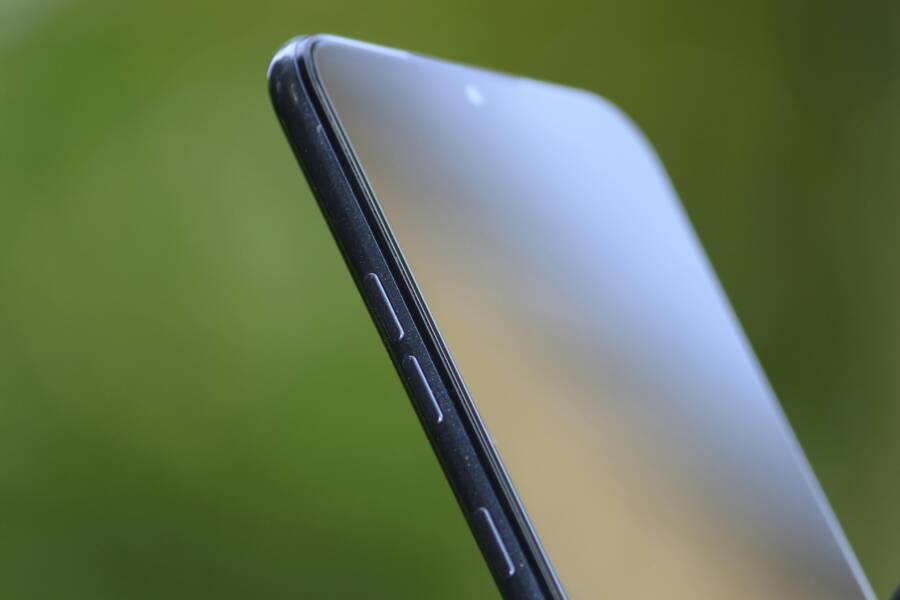
If your phone’s volume keeps jumping up and down on its own, you’re not alone. This common issue can be annoying when you’re listening to music or watching a video, and it isn’t always obvious what’s causing it.
Several factors can trigger this behavior, from Bluetooth devices connecting and disconnecting to buttons getting pressed by a case or dirt. Software features like adaptive sound on Android or Sound Check on iPhone can also play a role, along with occasional glitches that a quick restart or safe mode can fix.
This guide walks you through practical, easy steps to stop the volume from changing by itself on your phone. You’ll start with fast checks you can do in minutes and move to deeper fixes for both Android and iPhone, so you can get back to a smooth, predictable listening experience with your smartphone.
Common Causes Behind Volume Fluctuations on Your Phone
When your phone volume changes on its own, it can feel like a mini mystery. In many cases the cause is simple and fixable with a quick check. This section breaks down the most common culprits and how to verify them quickly. Think of your smartphone as a tiny orchestra: a stray trigger can shift the balance, but most issues are easy to spot and correct.

Photo by Ornán Rodríguez Velázquez
Stuck or loose hardware buttons and protective cases
A tight or damaged case can press volume buttons without you realizing it. Debris under a button or a loose button itself can read input as if you were turning the dial, especially when you’re moving or using headphones. Worn or misaligned physical buttons can also cause erratic changes because the switch isn’t returning to a neutral position.
How to check at home:
- Remove the case and any screen protectors. Clean around the volume keys with a soft brush or compressed air.
- With the case off, press the volume buttons while playing audio to see if the volume level changes on its own.
- Shake the phone gently and listen for any button sticking or fluttering input.
A simple test can reveal if the case is pressing the keys or if the hardware itself is flaky. If you notice changes only when the case is on, a snug or poorly designed case is likely the culprit. If the behavior persists with the case removed, the issue might be deeper inside the device or tied to software settings. For a related walk-through, see how a case button problem has been discussed in user forums. Learn more about case-related button issues and keep an eye on reputable device support pages for your model.
Connected devices and Bluetooth remote control
Bluetooth devices sit in the background like quiet conductors, and they can push volume changes to your phone. A paired headset, car system, or wireless speaker can send volume commands or re-route the audio profile without you actively using them. Some remotes can adjust volume even when not in use, especially if they maintain an active connection or wake up with activity.
What to test:
- Turn off Bluetooth entirely and observe if the volume still jumps.
- Disconnect any recently paired devices, then re-test.
- Forget previously paired accessories in Bluetooth settings to remove lingering profiles.
- If you use car Bluetooth, disconnect the phone from the car’s system and test again.
If the issue stops after a Bluetooth off or device disconnection, you’ve found the culprit. Some readers have reported across platforms that residual Bluetooth behavior can cause volume surges after reconnects. For reference on Bluetooth volume behavior, you can explore the community discussions and official support notes linked in this guide.
Accessibility and audio features that auto adjust
Many phones include features that adjust volume automatically, sometimes without obvious prompts. Adaptations like adaptive volume, sound normalization, or built-in equalizers can change how loud or how the device behaves with audio content. These features are meant to improve listening but can feel disruptive if they trigger unexpectedly.
How to verify and disable:
- On Android, look for adaptive sound or auto volume in Settings > Accessibility or Sound. Turn these off to see if the problem stops.
- On iPhone, check for Sound Enhancer or auto volume-like options in Accessibility > Audio/Visual settings, and disable anything that auto-adjusts.
- After turning off, test with a few different apps (music, video, calls) to confirm consistency.
If you notice the volume changes occur only in certain apps or content types, an app-level setting or accessibility service may be the root cause. Some devices offer quick toggles in the Control Center or Quick Settings to disable audio adjustments on the fly, which can speed up testing.
Software bugs and OS updates
Software updates can introduce new audio features, bug fixes, or even unintended glitches that shift volume behavior. It’s common for a patch or a firmware update to temporarily affect how audio surfaces during the first days after release. Checking official release notes and applying the latest patch can resolve many of these issues.
What to do:
- Check for the latest OS update and install it. Vendors regularly release fixes for reported audio issues.
- If the problem started right after an update, look for rollback options or known-issues advisories from the manufacturer.
- Back up your data before attempting a rollback or factory reset so you can restore your apps and settings.
If you’re unsure, search the manufacturer’s support pages or user forums for notes about volume-related bugs after the same update. Hardware team forums often show a rapid cadence of reports and fixes.
Third‑party apps and automations
Apps that control audio or automate tasks can unexpectedly alter volume. Equalizers, automation tools, remote-control apps, or even launchers with audio hooks can override system volume without you noticing.
How to troubleshoot:
- If the issue started after installing a new app, try booting in Safe Mode (Android) or perform a clean uninstall of recently added apps, then test again.
- Review app permissions that affect sound or accessibility services; temporarily disable those permissions to see if the problem clears.
- Reinstall apps one by one if Safe Mode tests point toward a culprit.
If Safe Mode stops the behavior, you’ve pinpointed the offending app. Uninstall or replace it with a lighter option to avoid similar issues in the future.
Quick reference: practical checks you can perform now
- Remove the case and inspect for stuck buttons.
- Disable Bluetooth, then re-test across several audio apps.
- Turn off adaptive volume and sound normalization.
- Reboot into Safe Mode to isolate third‑party apps.
- Check for available OS updates and apply if present.
For further reading and troubleshooting steps, see these related resources:
- Bluetooth volume behavior and Android settings: Bluetooth volume defaults to maximum on each new connection
- iPhone Bluetooth auto-increase volume discussions: Prevent Bluetooth Auto-Increasing Volume On Connect
- General guidance on disabling absolute Bluetooth volume: How to Disable Bluetooth Absolute Volume on Android
If you’d like, share your phone model and the first time you noticed the problem. I’ll tailor the steps to your device and point you to the most relevant official guides.
Quick, universal fixes you can try first
When volume seems to change by itself, the easiest path is to test a few quick, safe fixes first. These checks don’t require any special tools and can reveal whether the problem comes from hardware, software, or a specific setting. Think of these as the warm-up rounds before diving into deeper troubleshooting. Try them in order and note what happens after each step. If one fix stops the issue, you save time and avoid more invasive actions later.
 Photo by Brett Jordan
Remove the case and test the buttons
A case or screen protector can press against the volume keys and cause unexpected changes, especially when you’re moving around or plugging in headphones. This is one of the most common culprits you can rule out in minutes.
What to do:
- Remove the case and any screen protectors from your phone.
- Clean around the volume buttons with a soft brush or a tiny blast of compressed air to dislodge dust or lint.
- While the case is off, play audio and press the volume buttons gently to see if the level changes on its own.
If you notice changes only when the case is on, switch to a better-fitting case or a different model. If the behavior persists with the case removed, the cause is likely deeper, possibly a stuck button inside the chassis or a software setting. For additional context on how cases can influence button input, you can explore related discussions and guides, such as user-tested explanations of case-related button issues. Learn more about case-related button issues
Restart the device to clear glitches
A full restart is a fast, low risk fix that clears temporary software glitches, resets active processes, and reinitializes hardware interfaces. It often resolves odd volume behavior without touching any settings.
What to do:
- Hold the power button and choose Restart (not Shut Down) to reboot cleanly.
- If your device doesn’t show a restart option, power off completely, wait 15–30 seconds, then turn it back on.
- After the reboot, test volume across a few apps (music, video, calls) to confirm stability.
What you should observe:
- The volume slider should respond predictably to hardware buttons.
- Audio levels should remain steady across apps and notifications.
- If you still see jitter, note whether it happens only after certain actions, like plugging in headphones or connecting Bluetooth. This helps narrow down the issue.
Restarting resolves a surprising number of issues because it clears rogue processes and re-synchronizes audio services. For a broader look at how rebooting devices helps in troubleshooting, you can check general guidance from support communities and tech guides. Restart guidance for device issues
Disconnect Bluetooth accessories and test again
Bluetooth devices can silently push volume changes through remote controls or profile updates. Even when you aren’t actively using them, a nearby headset, car system, or speaker can influence the phone’s audio path.
What to test:
- Turn off Bluetooth completely in Settings.
- Reconnect nothing; then test the volume with several apps to see if it still jumps.
- If you recently paired a device, forget it in Settings > Bluetooth so the system doesn’t default to it.
- If you use a car or home speaker, temporarily disconnect the phone from that system and test again.
What you’re looking for:
- If the volume stays stable with Bluetooth off, the culprit is likely a lingering or misbehaving Bluetooth profile.
- If the issue continues, the cause might be a software setting or app rather than Bluetooth hardware.
If you’ve seen this behavior tied to specific devices, it helps to review device-specific notes and support threads. You can explore discussions on Bluetooth volume handling and how to disable features like absolute Bluetooth volume on Android for a quicker path to stability. How to turn off Bluetooth absolute volume on Android and How to disable Bluetooth Absolute Volume on Android
Accessibility and audio features that auto adjust
Many phones include automatic adjustments to enhance listening, but these can feel like the volume is acting on its own. Features such as adaptive volume, sound normalization, or equalizer safeguards can override what you expect.
How to verify and disable:
- Android: Settings > Accessibility or Sound > look for Adaptive Sound, Auto Volume, or similar options. Turn them off and test.
- iPhone: Settings > Accessibility > Audio/Visual, check for options that auto-adjust or enhance sound, and disable anything that changes volume automatically.
- After turning off, test with a few different apps to confirm consistent behavior.
If these changes only occur with certain apps, the issue could be an app-level setting or a specific audio profile. Some devices offer quick toggles that apply system-wide or per-app, which can speed up testing. For deeper dives into relevant accessibility controls and auto adjustments, see community discussions and official notes linked in related guides. Why Does My Volume Keep Going Up By Itself? iPhone & Android
Software bugs and OS updates
Software updates can bring new audio features and fixes, but they can also introduce temporary glitches that affect volume behavior. A patch after release may address the issue quickly.
What to do:
- Check for the latest OS update and install it. Vendors regularly push fixes for audio problems.
- If the problem began after an update, search for known issues and potential rollback notes from the manufacturer.
- Back up data before attempting any rollback or factory reset so you can restore apps and settings.
If you’re unsure, look up official notes from the device maker or user forums for posts about volume-related bugs after the same update. Hardware and software teams often share quick follow-ups as problems are identified. For a broader look at Bluetooth and OS interactions, you can reference related guidance from support pages and tech blogs. Phone Volume Decreases Automatically: Compete Guide
Third‑party apps and automations
Apps that control audio or automate tasks can unexpectedly alter volume. Equalizers, automation tools, or remote-control apps can override system volume without you noticing.
What to test:
- If the issue started after installing a new app, try Safe Mode (Android) or uninstall recent apps to see if the problem stops.
- Review app permissions that affect sound or accessibility services; temporarily disable those permissions to test.
- Reinstall apps one by one if Safe Mode points to a culprit.
If Safe Mode stops the behavior, you’ve found the offender. Remove the app or replace it with a lighter option to avoid similar issues. For additional context on safe testing practices and app interactions with audio, you can explore guidelines and community discussions about app-based volume control. Fix a Stuck Button on Your Smartphone or Tablet
Quick reference: practical checks you can perform now
- Remove the case and inspect for stuck buttons.
- Disable Bluetooth, then re-test across several audio apps.
- Turn off adaptive volume and sound normalization.
- Reboot into Safe Mode to isolate third‑party apps.
- Check for available OS updates and apply if present.
If you’d like, share your phone model and when you first noticed the problem. I’ll tailor the steps to your device and point you to the most relevant official guides. For a quick overview of common Bluetooth and OS interactions, see these reference resources: Bluetooth defaults during connection and volume behavior across devices, such as Android and iPhone guides, help pages, and community threads. Bluetooth volume defaults to maximum on each new connection | Prevent Bluetooth Auto-Increasing Volume On Connect | How to Disable Bluetooth Absolute Volume on Android
If you’ve already tried these quick fixes and the issue remains, move to the more involved steps in the next sections. The goal is a steady, predictable listening experience across your favorite apps and content on your smartphone.
Platform specific fixes: Android vs iPhone
When volume changes feel out of your control, the fix is often platform specific. Android and iPhone handle audio paths, Bluetooth routing, and accessibility features in different ways. Below you’ll find clear, actionable steps tailored to each platform. Follow the Android guidance first if you’re on an Android device, then switch to iPhone steps to verify you’ve covered all bases. This approach helps you quickly identify whether the issue is hardware, software, or a setting.
 Photo by Andrey Matveev
Android: Safe Mode and app management
Safe Mode lets you run Android with only the core apps active. This helps you determine if a third party app is triggering volume changes. If the problem goes away in Safe Mode, a recently installed app is likely the culprit. You can then disable or uninstall suspect apps and test again.
How to boot into Safe Mode:
- Press and hold the power button, then tap and hold Power off until Safe Mode appears. Confirm to reboot into Safe Mode.
- In Safe Mode, play audio across a few apps. If the volume stays steady, proceed to a step-by-step removal of recent apps.
- Restart normally to exit Safe Mode and confirm the fix.
Steps to disable or uninstall recently added apps:
- Go to Settings > Apps or Apps & notifications.
- Tap the newest or recently updated apps one by one and select Disable or Uninstall.
- After each removal, test audio in multiple apps to see if the issue returns.
If Safe Mode eliminates the issue, you’ve identified the culprit. Reinstall apps one at a time to confirm which one reintroduces the bug. For more on Safe Mode methods across devices, see Android community guides such as How to enter Safe Mode on Android devices. You can also view general Safe Mode guidance here: https://www.androidauthority.com/how-to-enter-safe-mode-android-801476/
Android: Sound settings and adaptive features
Many devices ship with adaptive sound, auto volume, and sound enhancements that adjust volume without you noticing. Turning these off often restores predictable behavior.
Common places to disable these features:
- Settings > Sound > Advanced (or Sound Enhancements)
- Settings > Accessibility (look for options like Adaptive Sound, Auto Volume, or similar)
- Quick Settings toggle options for audio adjustments on some devices
Path examples:
- Settings > Sound > Advanced
- Settings > Accessibility > Audio/Visual
- Quick Settings: toggle off auto adjustments when playing media
Turning off features that automatically adjust volume is usually enough to stop the jumps. After turning off, test across different apps and content types to confirm stability. If you need to dive deeper, you can review topics on turning off adaptive sound in Pixel devices: https://support.google.com/pixelphone/thread/309286081/how-to-turn-off-adaptive-sound?hl=en
Android: Clean up Bluetooth routing and media outputs
Bluetooth routing is a frequent source of volume drama. A connected headset or car system can push volume changes or re-route audio without you actively using it.
Key tests:
- Turn off Bluetooth entirely in Settings and test across multiple apps.
- Disconnect any recently paired devices, then test again.
- In Bluetooth settings, forget devices you no longer use to remove stale profiles.
- If you drive with a car stereo, temporarily disconnect the phone from the car system and test.
If the volume stays steady with Bluetooth off, the culprit is a lingering profile or a misbehaving device. For more on Bluetooth volume behavior, see resources on Bluetooth volume defaults during connection, such as Pixel phone guides: https://support.google.com/pixelphone/thread/17878937/bluetooth-volume-defaults-to-maximum-on-each-new-connection?hl=en
Android: Quick reference for practical checks
- Remove the case and inspect for stuck buttons.
- Disable Bluetooth, then re-test across several apps.
- Turn off adaptive volume and sound normalization.
- Reboot into Safe Mode to isolate third party apps.
- Check for OS updates and apply if present.
If you need more context on Bluetooth behavior and how to disable absolute Bluetooth volume on Android, see discussions and guides like How to Disable Bluetooth Absolute Volume on Android: https://www.businessinsider.com/tech-reference
iPhone: Control Center behavior and button control
Control Center can sometimes be the source of volume fluctuations. You can adjust how it affects hardware buttons to prevent accidental changes during playback.
What to check:
- Ensure Change with Buttons is turned off to stop the iPhone from changing volume via the side buttons during media playback.
- Check Control Center settings to see if any volume-related options are enabled that could override playback volume.
- Test by starting playback, then opening Control Center to adjust or observe whether changes occur from there.
Where to find these settings:
- Settings > Control Center
- Settings > Accessibility > Audio/Visual (look for options that affect how controls behave)
- Test by playing music or video and using the control strip to adjust volume
iPhone: Disable audio features and reset if needed
iPhone includes features that can automatically adjust audio, such as Sound Check, EQ, ducking, and certain accessibility settings. Turning these off often stabilizes volume.
What to disable:
- Sound Check: Settings > Music > Sound Check
- EQ: Settings > Music > EQ (set to Off or a neutral EQ)
- Ducking and accessibility features that auto-adjust sound: Settings > Accessibility > Audio/Visual
Quick paths to locate these features:
- Settings > Music for Sound Check and EQ
- Settings > Accessibility > Audio/Visual for auto adjustments
- After turning off these features, test playback across different apps to confirm consistency
If you’re unsure which feature caused the issue, turn off a set of options one by one and test. This method helps pinpoint the exact setting affecting volume behavior. For related guidance on iPhone audio controls and accessibility options, see Apple support notes and community discussions.
Images and visuals can help readers quickly grasp where to navigate. Consider pairing each platform section with a screenshot showing the relevant menus.
Prevention tips and knowing when to seek help
Prevention and early detection save time and prevent headaches. This section gives practical habits you can adopt to keep your volume stable and clear signs that it’s time to seek help. Think of it as a maintenance checklist you run every few weeks or after a major update. A calm, methodical approach helps you stay in control of your phone’s audio behavior, whether you’re listening to music, taking calls, or watching videos on the go.
Preventive habits you can adopt
Small, consistent habits pay off. Build these into your routine and you’ll reduce the chances of random volume shifts.
- Routine checks after updates: After any OS or app update, take a few minutes to test playback across several apps. Verify that music, podcasts, and video volumes stay steady as you switch between apps. If you notice any drift, recheck the settings and consider disabling features that auto-adjust volume temporarily to see if stability returns. For iPhone users, it helps to review audio controls after an update and ensure features like Sound Check or EQ aren’t altering playback unexpectedly. Apple provides guidance on adjusting volume and audio settings that can be helpful during this testing phase. Adjust the volume on iPhone
- Keep cases and accessories clean and properly fitted: A case or screen protector that presses on the volume keys can cause subtle changes during daily activity. Remove the case, wipe around the buttons, and reattach to see if the issue returns. If you find the problem only when the case is on, switch to a case with better key clearance or a different model. For broader context on how cases can influence button input, see user discussions and official guides on case-related issues. Learn more about case-related button issues
- Regular Bluetooth health checks: Bluetooth devices can quietly push volume changes via remote controls or profile updates. Periodically disconnect and re-pair devices to ensure clean profiles. If you notice changes after reconnects, you may have residual Bluetooth behavior at play. Turn Bluetooth off to test and reintroduce devices one by one. If the issue correlates with a car system or a particular headphone, check the device’s settings and firmware updates. For a quick reference on how Bluetooth can affect volume, review official support notes and community discussions. Bluetooth volume defaults to maximum on each new connection
- Tidy up accessibility and audio features: Many devices include auto-adjust features like adaptive volume or sound normalization. While these are meant to improve listening, they can cause jumps. Disable auto adjustments in Settings, then test across apps. On iPhone, review Accessibility > Audio/Visual for any auto-adjusting options. On Android, look under Settings > Accessibility or Sound for similar controls. After turning off, test with music, video, and calls to confirm stability. If you want deeper context on how these controls work, Apple and Google provide thorough guidance on their respective platforms. Adjust audio settings on iPhone
- Keep software current, but audit updates wisely: Manufacturers push fixes for known audio issues in OS updates. Install the latest patches, but if you notice the problem began after a specific update, search for known-issues advisories and consider rollback options if available. Always back up your data before attempting a rollback or factory reset. For general guidance on handling updates and audio behavior, explore device maker notes and trusted tech guides. Phone volume decreases automatically: complete guide
By embedding these checks into your weekly phone routine, you reduce the chances of unpredictable volume shifts. If you encounter a recurring quirk, you’ll be able to narrow it down quickly with a methodical approach.
When to contact support or a repair
Knowing when software fixes stop helping is crucial. Some volume issues point to hardware or deeper software conflicts. The moment you notice persistent, unexplained changes that survive after you have tested typical adjustments, it’s time to escalate.
Watch for these clear signs that software alone can’t fix the problem:
- Consistent volume drift across many apps or when connected to different audio devices, even after you have disabled auto-adjust and reset the device.
- Volume buttons feel physically stuck, loose, or respond inconsistently during normal use, with no obvious external cause.
- The issue reappears after a factory reset or after you update to the latest OS, suggesting a broader hardware-or-firmware fault.
- Unusual behavior such as the volume jumping up during calls, while using headphones, or when the device is idle, which does not align with typical app-level controls.
If you observe any of these signs, contact the device maker or visit a store for diagnostics. Start with the official support channel for your brand to ensure you get device-accurate guidance. For quick access, you can reach Apple and Samsung support pages:
- Apple: Contacting Apple
- Samsung: Contact Us | Official Samsung Support US
If the device is still under warranty or eligible for service, you may qualify for a repair or exchange. When you speak with support, have these details ready:
- Your model and OS version
- A short timeline of when the issue started
- A description of the steps you’ve already tried
- Any recent changes, like new apps or Bluetooth devices
If the issue looks hardware related, be prepared to visit a service center or schedule a home visit if your brand offers that option. For those with Galaxy devices, Samsung’s service locator and repair options provide a clear path to evaluation. If you’re outside the US, check your regional support page for the fastest route to service. Repair Services – Samsung US | Contact Us – Samsung US
For Apple users, Apple’s support and store network give you options such as in-person diagnostics and, if needed, a repair. If you prefer online routes, Apple’s support site is a reliable starting point. Contacting Apple
If you’d like, share your device model and the first time you noticed the problem. I’ll tailor the steps to your device and point you to the most relevant official guides.
Conclusion
Most volume quirks on a smartphone boil down to a quick, repeatable set of checks. Start with hardware basics like removing cases and testing the volume keys, then rule out Bluetooth or adaptive sound features before diving into software fixes. If the issue sticks, Safe Mode, recent app removals, and a fresh OS update often restore stability without a full reset. A small, steady routine of this testing pays off in fewer interruptions and more predictable listening.
If you still see odd changes after these steps, share your model and what you tried. I’ll tailor the guidance to your device and point you to official guides that fit your setup. And remember, regular maintenance—keeping software current and cleaning around the buttons—helps keep your smartphone audio smooth over time.