If you’ve ever tried to turn on a smart light and nothing happens, you’re not alone. A lot of these hiccups come from simple quirks like Wi Fi glitches, old software, or a setup step that slipped through the cracks. On a busy day it’s easy to miss a tiny detail, yet the fix is often straightforward and fast.
This guide cuts through the noise with a clear, practical approach. You’ll learn why your phone or smart devices won’t connect and how to fix it quickly. We’ll focus on common trouble spots like your Wi Fi network, firmware updates, and how you set up devices in apps like Google Home or Alexa.
You’ll get a practical, step by step checklist that covers the most frequent causes. Most issues boil down to three things: your network, software, and setup. By working through these in order, you’ll resolve most problems in one sitting.
Along the way, you’ll see how a phone connection to smart home gear improves with simple tweaks, like using the same Wi Fi band, keeping devices nearby, and keeping apps up to date. The fixes are designed for everyday users, so you won’t need special tools or advanced tech know how. Before you know it, your smart home responds like it should, and you’ll regain that fluent, responsive experience you expect from a connected life.
Quick Restart and Basic Checks to Restore Connection
When smart home devices won’t respond, a quick restart and a few basic checks can often clear the logjam. This section provides a practical, step by step approach to get your phone, router, and smart devices talking again. You’ll learn exactly what to power down, the order to bring everything back up, and how to confirm the connection is solid before moving on. Think of it as giving your smart home a fresh cup of coffee—just enough reboot to wake everything up without diving into deeper settings.
Restart Your Phone, Router, and Smart Devices
A clean restart resets temporary software issues that can block communication between your phone and smart devices. Start with these steps in the exact order to maximize the chance of a smooth reconnection.
- Power off your smartphone. Hold the power button and choose shut down. If you use a shortcut to wake the device, ensure all apps are closed first.
- Power off the router. Unplug the power cable and wait 30 seconds. This pause lets the device clear its memory and resets its internal state.
- Power down smart devices one by one. This includes Google Home or an Alexa device, and any connected devices like lights or a thermostat. Turn them off completely and wait 30 seconds before turning them back on.
- Power on devices in the right order. Start with the router, wait about 60 seconds for it to boot, then bring back your smart speakers, followed by lights and thermostat.
- Test the connection. Use your phone to check if voice commands or app controls work. If something still isn’t responding, move closer to the router to test proximity effects.
If you’re using Google Nest or a similar ecosystem, you can also perform a network restart from the app. For Google Nest devices, restarting the network can fix many hiccups by refreshing the connection across the whole setup. See more guidance on how to restart Google Nest or Google Wifi devices here: https://support.google.com/googlenest/answer/6272001?hl=en. If you need a full reset, consider factory resetting your Google Home as a last resort: https://www.asurion.com/connect/tech-tips/how-to-factory-reset-your-google-home/. For Alexa, a simple reboot of the Echo device usually solves most issues: https://www.amazon.com/gp/help/customer/display.html?nodeId=G508510. If you prefer a broader reset approach, this guide covers resetting Alexa devices and why it helps: https://reolink.com/blog/how-to-reset-alexa/. After a restart, re-test your phone’s connection to the smart home ecosystem and look for a steady, responsive reply from devices.
- When testing, focus on speed and reliability. If a device responds slowly or intermittently, note whether the issue is with one device or the entire network. If you own multiple hubs, test each one individually to identify a potential fault area.
- Pro tip: keep a simple checklist handy. A consistent restart order reduces confusion during busy days and helps you reproduce the fix when friends or family run into the same issue.
Images can illustrate the sequence nicely, such as a clean setup with a modern router and smart speaker. This image fits well after the heading to set the scene:
 Photo by Jakub Zerdzicki
Boost Your Wi-Fi Signal for Reliable Links
A strong, stable network makes all the difference. If signals drop or devices frequently disconnect, it’s time to tune the network environment. Here are practical steps to improve coverage and ensure your phone maintains a reliable link to smart home devices.
- Check your signal bars on the phone. A quick glance at the status bar tells you whether the device is connected and how strong the link is. If you see only one or two bars, you’re likely dealing with a marginal connection.
- Move closer to the router or access point. Even a small shift toward the hub can yield a noticeably stronger signal, especially for devices at the far end of the home.
- Use a Wi-Fi analyzer app to troubleshoot. These tools map signal strength and identify crowded channels. Android users can try “WiFi Analyzer” and similar apps, while iPhone users can explore iOS equivalents. A robust analyzer helps you see which channels are crowded and where interference comes from: https://play.google.com/store/apps/details?id=abdelrahman.wifianalyzerpro&hl=en_US, https://discussions.apple.com/thread/255583823, https://www.netspotapp.com/wifi-analyzer/wifi-analyzer-apps-android.html.
- Favor 2.4 GHz for smart home devices when needed. Many smart home accessories maintain stronger, more reliable connections on the 2.4 GHz band due to its longer range and better wall penetration. If your router supports a separate 2.4 GHz network, consider using that for devices like smart bulbs, thermostats, and hubs.
- Be mindful of interference and channel selection. If your space has many networks nearby, you might benefit from switching to a less congested channel. Some routers offer auto channel selection, while others require manual adjustment. Use a Wi-Fi analyzer to verify which channels are least crowded.
- Consider a dedicated access point or mesh system for larger homes. If you consistently hide the dead zones behind brick or thick walls, a mesh network can blanket the space with reliable coverage for all smart devices.
If you want deeper guidance on signal optimization, these resources provide practical insights:
- WiFi Analyzer apps reviews and Android guidance: https://play.google.com/store/apps/details?id=abdelrahman.wifianalyzerpro&hl=en_US
- iOS discussions on the best WiFi analyzer apps for iPhone: https://discussions.apple.com/thread/255583823
- A practical overview of Android WiFi analyzer tools: https://www.netspotapp.com/wifi-analyzer/wifi-analyzer-apps-android.html
In many homes, a modest signal boost solves the problem. The goal is to maintain a consistent signal level that keeps all devices reliably connected. When you see steady bars on your phone and stable responses from smart devices, you know you’re back to a smooth, responsive smart home experience.
External references provide deeper context on how to optimize the network and ensure compatibility across devices. For instance, you can verify how to check GHz usage and set up the right bands for your gear at https://www.meter.com/resources/how-many-ghz-wifi. If you’re curious about factors that influence Wi-Fi coverage and best practices for maximizing throughput, MakeUseOf has a practical guide on using a Wi-Fi analyzer to boost your connection: https://makeuseof.com/how-use-wifi-analyzer-to-boost-wifi-connection. And if you’re considering a dedicated network approach, Nest Wifi or Google Wifi guides cover step by step restart processes that can help in tandem with your router checks: https://support.google.com/googlenest/answer/6272001?hl=en.
- Quick tip for iOS users: if a device still misbehaves after a restart, turning off Bluetooth on your phone and re-enabling it can sometimes clear cross-interference with some smart devices.
- For Android users, verify that you’re not connected to a guest network that blocks device-to-device communication. Guest networks often isolate devices and prevent your phone from controlling smart home gear.
In short, improve signal strength where possible, verify which band each device uses, and keep a lookout for interference. A fast, stable connection is the backbone of a dependable smart home, and it often starts with a few simple tweaks in the right order.
Additional reading and tools to help you optimize your setup:
- Restart guidance for Google Nest devices: https://support.google.com/googlenest/answer/6272001?hl=en
- How to reset or reboot Alexa devices: https://www.amazon.com/gp/help/customer/display.html?nodeId=G508510
- General reset and troubleshooting tips for smart speakers: https://reolink.com/blog/how-to-reset-alexa/
Images can complement this section as well if you want to show signal strength or a well labeled home network setup:
Photo by Jakub Zerdzicki
Key takeaways from this section:
- A methodical restart can fix most quick connection issues.
- Strong, consistent Wi-Fi coverage is crucial for reliable smart home performance.
- Use Wi-Fi analysis tools to identify and reduce interference, then align devices to the best bands.
Update Apps and Phone Software to Fix Bugs
Keeping both your apps and your phone’s software current is one of the fastest and most reliable ways to fix bugs that block your phone from connecting to smart home devices. Software updates bring bug fixes, security improvements, and better compatibility with other devices in your ecosystem. In this section, you’ll learn practical steps to update apps and OS versions on both Android and iPhone, plus a reminder to keep device firmware up to date. By staying current, you reduce the chance of interference and improve overall reliability for your smartphone as a control hub.
Find and Install App Updates Fast
App updates often include fixes that directly impact how your phone talks to smart home gear. Here’s how to search for and install updates quickly, plus how to enable automatic updates so you’re protected without lifting a finger.
- Android: Open Google Play and check for updates. You can update apps individually or in bulk. If you want to automate this, turn on automatic updates so your apps stay current as new versions roll out. For a quick how-to, see “How to update apps on Android” in Google Play Help. You can also explore the broader topic of updating all apps with this community discussion if you run into auto-update hiccups. https://support.google.com/googleplay/answer/113412?hl=en-GB
- iPhone and iPad: Open the App Store and go to your account to review pending updates. You can update individually or enable automatic updates so apps stay current without manual checks. If you’re updating manually, Apple’s guide covers the exact steps. https://support.apple.com/en-us/102629
- Quick tip: If you notice a particular app lags after an update, try closing it completely and reopening. If the problem recurs, uninstall and reinstall the app as a last resort, then recheck your smart home controls.
- Auto-update safety: Automatic updates are convenient, but you may want to review update notes for critical fixes or breaking changes. Both Google Play and the App Store provide release notes so you know what the update changes before enabling automatic updates.
- Practical checklists: After updating, open the app that controls your smart home devices and run a quick test. Confirm that commands execute promptly and that device status reflects in the app without delay.
If you want a deeper dive into updating apps across platforms, these official resources are handy:
- How to update apps on Android: https://support.google.com/googleplay/answer/113412?hl=en-GB
- Update apps from the App Store on iPhone: https://support.apple.com/guide/iphone/update-apps-iph98709f167/ios
In practice, keeping apps current often resolves minor communication quirks. A smartphone that runs the latest app versions tends to interact more reliably with smart home platforms like Google Home or Apple HomeKit.
Check Firmware and OS for Your Devices
Firmware and operating system updates ensure the underlying software stack is compatible with your smart home devices. When firmware of hubs, speakers, or sensors is out of date, the chance of mismatched protocols rises. Here’s how to verify and apply updates for both your phone and your smart home gear.
- Android OS updates: In Settings, check for system updates to ensure your device is on the latest Android version and security patches. When a new update is available, follow the on-screen steps to install it. For a detailed guide, check “Check & update your Android version.” https://support.google.com/android/answer/7680439?hl=en
- iOS updates: iPhone and iPad users should regularly check for iOS or iPadOS updates. Wireless updates are common, but you can also update via a computer if needed. Apple provides step-by-step instructions in “Update your iPhone or iPad.” https://support.apple.com/en-us/118575
- Device firmware for smart home hubs and assistants: Many hubs and assistants auto-update, but you can often trigger a manual check. For Google Nest and Google Home devices, follow the Nest support guidance to ensure both the app and hardware have the latest firmware. https://support.google.com/googlenest/answer/9335964?hl=en
- Nest and Google Home app updates: Keeping the Nest and Google Home apps current helps maintain smooth setup and device discovery. If you use Android, there’s guidance tailored to upgrading the Google Home app. https://support.google.com/googlenest/answer/7653738?hl=en
- Apple device software: Update your Apple software across devices to ensure compatibility with HomeKit accessories and the latest security standards. https://support.apple.com/guide/personal-safety/update-your-apple-software-ips4930e3486/web
Why this matters for smart home reliability: outdated firmware or OS can create incompatibilities or timing issues that make devices appear unavailable or slow to respond. Regularly updating ensures you’re not fighting against known bugs that developers already fixed.
A practical health check after updates
- Reboot the phone and hubs after firmware updates to clear any residual states.
- Reconnect the devices in your smart home app and run a test routine that includes turning a light on and off, adjusting a thermostat, and checking device status in the app.
- If a device still misbehaves, verify the update notes to see if there are any new configuration requirements or known issues with your setup.
If you’d like more targeted guidance on specific devices, these official resources cover common platforms:
- Update Nest devices and apps: https://support.google.com/googlenest/answer/9335964?hl=en
- Update Google Home app: https://support.google.com/googlenest/answer/7653738?hl=en
- Update iPhone or iPad: https://support.apple.com/guide/iphone/update-ios-iph3e504502/ios
A note on firmware and compatibility
- Some devices require a specific minimum OS version to function correctly with the latest firmware.
- If you have multiple hubs or bridges, update them in the same maintenance window to avoid mismatched versions.
Key takeaways
- Regular updates for apps and OS prevent most bugs from blocking smart home connections.
- Verify both your phone and your devices are on supported firmware versions.
- After updates, run a quick control test to confirm everything responds as expected.
Clean Up Wi-Fi Network Problems
When your phone won’t connect to smart home devices, the root cause often lies in a cluttered or unstable network. This section keeps things practical and action oriented. You’ll learn to reestablish a clean link between your smartphone and the smart gear, and you’ll pick up simple habits to prevent future hiccups. Think of your network as a road map for your smart home traffic; the smoother the lanes, the faster the commands travel.
Forget and Reconnect to Wi-Fi Network
Sometimes the quickest fix is to start fresh with the network your phone uses to reach every smart device. Forgetting the current Wi-Fi network and reconnecting with the correct password clears old credentials and eliminates mismatched settings that block communication.
- On your phone, go to Settings > Wi‑Fi, select the network, and choose “Forget This Network.” Rejoin by entering the password again. This reset helps especially if the network recently changed its password or security settings.
- Do the same in each relevant smart device app. Open the device’s control app, find the Wi‑Fi or Network settings, and re-enter the home Wi‑Fi details. This ensures the hub, speaker, and sensors all align with the phone’s connection.
- After rejoining, run a quick test: send a command to a smart light, check a scene in your automation app, or ask your assistant to confirm the device status. If anything still lags, move to the next steps to optimize the connection.
If you want extra guidance on forgetting networks across platforms, these resources walk through the steps clearly:
- Forget a Wi‑Fi network on iPhone or iPad (Apple support) [link: https://support.apple.com/en-us/102480]
- How to forget a Wi‑Fi network on Android devices (Android Central guide) [link: https://www.androidcentral.com/how-forget-wi-fi-network-your-android-phone]
- General guidance on forgetting networks for Windows and other devices (BroadbandNow) [link: https://broadbandnow.com/guides/how-to-forget-wi-fi-network]
Tips to make this stick:
- Keep a short list of trusted networks in your phone and avoid connecting to random guest networks that block device communication.
- If you share your home network, consider separate guest access that still allows smart devices to communicate with your phone when you’re home.
A quick check for consistency:
- Your phone should show solid signal bars when you test a device command.
- If a device still responds slowly, test proximity by moving closer to the router and test again.
- If you’re using a mesh system or multiple access points, confirm the phone and the device are on the same band and same network name when possible.
For deeper context on network basics and practical steps to manage Wi‑Fi credentials, see trusted guides on network hygiene and device compatibility:
- How many GHz are in your Wi‑Fi and which devices should use 2.4 GHz for better range (Meter) [link: https://www.meter.com/resources/how-many-ghz-wifi]
- A practical guide to using a Wi‑Fi analyzer to boost your connection (MakeUseOf) [link: https://makeuseof.com/how-use-wifi-analyzer-to-boost-wifi-connection]
By reestablishing clean, known network settings and testing with real device actions, you set a solid baseline. This reduces the chance of random disconnections and keeps your smartphone as a reliable control hub for smart home tasks.
Cut Network Clutter for Smoother Traffic
A crowded network with too many idle devices can slow down traffic and create flaky connections. Trimming the list of connected devices and ensuring your router is tuned for performance helps your phone and smart devices talk more reliably.
- List unused devices and remove them from the network. A clean device roster prevents accidental traffic and reduces the load on the router. Start by logging into your router’s admin page and reviewing connected clients. Remove devices you no longer own or recognize.
- Regularly audit and prune guest networks. If you have guest access enabled, consider keeping it active only when needed and with client isolation so it doesn’t interfere with the main smart home traffic.
- Upgrade your router when you notice persistent slowdowns. A modern router with better range and handling of multiple devices can dramatically improve responsiveness for smart hubs and sensors.
Practical steps you can take now:
- Remove unknown devices: log in to your router, navigate to the connected devices list, and disconnect anything unfamiliar.
- Prioritize smart home traffic: enable QoS (Quality of Service) to give priority to hubs, lights, and voice assistants during peak times.
- Separate networks for devices and personal devices if your router supports it. Keeping gadgets on a dedicated 2.4 GHz network can improve reliability for many smart devices.
If you’re shopping for a router upgrade, these resources offer practical advice:
- The one cheap smart home upgrade your router needs (How-To Geek) [link: https://www.howtogeek.com/the-one-smart-home-upgrade-your-router-needs/]
- WiFi router swapping tips to fit your home (Dong Knows Tech) [link: https://dongknows.com/tips-on-wi-fi-router-swapping-or-replacement/]
- Tips to upgrade your home network to support smart devices (Nuvera) [link: https://nuvera.net/how-to-upgrade-your-home-to-support-smart-devices/]
More ways to reduce clutter:
- Consider a mesh system or a dedicated access point for larger homes. A single, well-placed node can eliminate dead zones and keep all devices in good range.
- Use a Wi‑Fi analyzer to see which channels are crowded and switch to the least congested one. This step helps every device, especially if you have many smart bulbs and sensors.
A short real-world scenario helps: you notice your smart speaker occasionally misbehaves when the lights in the back hallway are running on a busy channel. Moving the speaker closer to the router and forcing a channel change on the router reduces interference and the speaker’s response time improves.
When you apply these clean-up steps, you’ll often see a noticeable lift in performance. A streamlined network reduces back-and-forth traffic and keeps your phone, hub, and devices in sync.
Helpful links for quick reference on network management and upgrading:
- Best practices for private smart homes and configuration (Home Assistant community) [link: https://community.home-assistant.io/t/best-practices-for-a-private-smart-home/778141]
- Tips to improve home Wi-Fi performance (Etheric Networks) [link: https://ethericnetworks.com/blog/tips-to-improve-your-home-wi-fi/]
- Spring cleaning your home network and backing up data (We Live Security) [link: https://www.welivesecurity.com/en/our-experts/thomas-uhlemann/]
Key takeaways
- Remove unused devices to reduce congestion and free up bandwidth.
- Upgrade to a modern router or mesh system if coverage or speed remains a bottleneck.
- Use QoS and separate networks to keep smart home traffic smooth and predictable.
Images can illustrate a clean, well-organized network setup with a central router and a few well-placed nodes to set the scene for readers.
Reset Devices and Check Compatibility
When your phone won’t connect to smart home devices, the issue often boils down to compatibility or a needed reset. This section helps you validate that your devices can talk to each other and then walks you through re-adding them cleanly. Think of it as re-establishing a clear handshake between your phone, hub, and accessories so commands flow smoothly again.
Test If Your Devices Work Together
Before buying new gear or rewriting setups, confirm that your existing devices play nicely on the same platform. A quick cross-check saves time and helps you spot where the friction is coming from.
- Verify ecosystem compatibility: Look for devices that support the same voice assistant or the same standard like Matter. This reduces the chance of one device being out of sync with the others.
- Check the control flow: Open the app that controls your smart home devices and run a simple sequence—turn a light on, adjust a thermostat, and check status indicators. If commands lag or misreport, there’s a mismatch somewhere in the chain.
- Confirm network alignment: Your phone, hub, and devices should be on the same Wi-Fi network and, if possible, the same band. If you’re using a 5 GHz network, some older devices may perform better on 2.4 GHz for range reasons. A quick test by moving closer to the router can reveal proximity issues.
- Consider platform-specific guidance: If you’re using Google Nest or Apple HomeKit, there are official steps and badges that indicate device compatibility. For instance, you can review how Apple’s Home app lists compatible accessories and what standards they support. Learn more about Home app accessories and Matter support from Apple.
Helpful references to expand your understanding (these links open in new tabs):
- Apple HomeKit accessories compatibility and Matter support
- How to check if a smart device works with Alexa, Google Home, or Siri
- GearBrain’s smart home compatibility checker
If you want a practical visual of how a well-integrated setup looks, imagine a single, clean network where your phone, a smart speaker, and a few bulbs respond in sync. The result is a responsive, predictable routine rather than a stumble of delayed actions.
Key takeaways from this step:
- Compatibility matters more than you think; confirm you’re all on the same platform.
- Run a short test sequence to identify where the delay originates.
- Keep your phone on the same network as your devices to avoid cross-network issues.
Reset and Re-Add Smart Home Devices
If tests reveal a stubborn mismatch, the most reliable fix is to reset affected devices and re-add them. This process clears old credentials and re-establishes a fresh connection path.
- Start with a targeted reset: Use the device’s reset option to return it to factory settings. For some devices, you’ll press and hold a button on the back or use the app to trigger a reset. This step wipes prior network data so you can set it up anew.
- Reconnect through the official app: Open the control app (Google Home, Apple Home, Alexa, etc.) and follow the setup prompts. You’ll typically scan a QR code or enter pairing information during the reinstallation.
- Align network settings: When re-adding, ensure the device is connected to the same Wi-Fi network as your phone. If you’ve renamed networks or changed passwords, update those details during setup.
- Test after each device: Add one device at a time, then test basic commands to confirm reliability before proceeding to the next item.
Guidance and resources to support the reset process:
- Factory reset Google Nest or Home speakers or displays for a clean start
- Remove Google devices from the Google Home app to tidy up your setup
- How to connect Nest or Home devices to a new Wi-Fi network after changes
- How to re-add devices to the Google Home app for smooth setup
If you prefer a step-by-step reset path, Google’s official support offers clear instructions for different device types. After you complete a reset, re-add devices in the order you find most reliable and run a quick test sequence to confirm everything responds promptly.
Practical tips to make resets painless:
- Keep a small checklist: reset device, reconnect in app, test a basic scene, then move on.
- If a device refuses to join after a reset, restart your phone and router, then try again.
- For Google Nest or similar ecosystems, keeping the app and firmware up to date reduces the chance of post-reset hiccups.
Real-world scenario: you reset a smart light and a thermostat, then re-add them one by one. Each device comes online quickly, and you notice the phone now controlling scenes without delays. That smooth rebound is the payoff of a clean, staged re-setup.
External references that provide deeper guidance on re-adding devices and related steps:
- Factory reset Google Nest or Home speakers or displays
- Remove Google devices from the Google Home app
- How to connect Nest or Home devices to a new Wi-Fi network
- Remove and re-add devices in Google Home
Tips to keep re-adding simple:
- Use a single, central app to manage all devices if possible.
- Document any changes to network names or passwords so the re-setup goes faster.
- After re-adding, run a quick head-to-head test: turn lights on and off, adjust a thermostat, and verify device status in the app.
Images and quick references can help readers visualize the reset steps or the re-adding process. When including visuals, place them near the sections describing the reset flow to reinforce the steps.
Key takeaways from this section:
- A targeted reset clears stubborn conflicts and restores clean communication.
- Re-add devices one at a time to isolate issues quickly.
- Keep firmware and app versions aligned to minimize future resets.
Handle Tough Issues with Extenders and Tests
When a phone won’t connect to smart home devices, the stubborn problems often hide in the network or in how apps and automations are working together. This section gives you practical ways to push through wall after wall by extending coverage and by running precise checks on your apps and routines. You’ll learn how to test in real life, not just theory, so you can restore a fast, reliable control path from your smartphone to every bay of smart gear around your home.
Extend Range with Boosters and Repeaters
A weak network is the main culprit behind delayed or failed device responses. Extenders and repeaters fill in the gaps, helping your smartphone stay in constant contact with lights, thermostats, and hubs even in far corners of the house. Think of it like adding extra lanes to a busy highway so traffic can flow smoothly to every exit.
- Place extenders or use smart lights as repeaters. If you have a two story home or thick walls, position a booster halfway between the router and the farthest device. In some setups, smart bulbs can act as Zigbee or Z-Wave repeaters, strengthening the mesh and improving overall reliability.
- Check band strategy. Many smart devices run best on 2.4 GHz. If your router supports a separate 2.4 GHz network, connect your smart gear to that network for better range and fewer collisions.
- Use purpose-built mesh systems for bigger homes. A mesh setup blankets more space with consistent coverage, reducing dead spots that impede device discovery and control.
A quick way to evaluate impact is to measure device response before and after adding a booster. If you notice quicker scene changes and fewer command retries, you’ve likely closed the gap.
To help you pick the right gear, consider these sources:
- Best Wi-Fi extenders of 2025 from CNET, a solid starting point for evaluating models that balance price and performance: https://www.cnet.com/home/internet/best-wifi-extenders/
- Consumer Reports guides on WiFi extenders to compare long-term reliability: https://www.consumerreports.org/electronics-computers/wifi-extenders/
- NETGEAR’s range extenders and mesh options to map your options for coverage: https://www.netgear.com/home/wifi/range-extenders/
- TP-Link range extenders and a guide to choosing the best booster: https://www.tp-link.com/us/home-networking/range-extender/
- If you’re shopping, this extender product page outlines features and setups: https://www.amazon.com/Extender-Extenders-Wireless-Amplifier-Compatible/dp/B0CKGTP16M
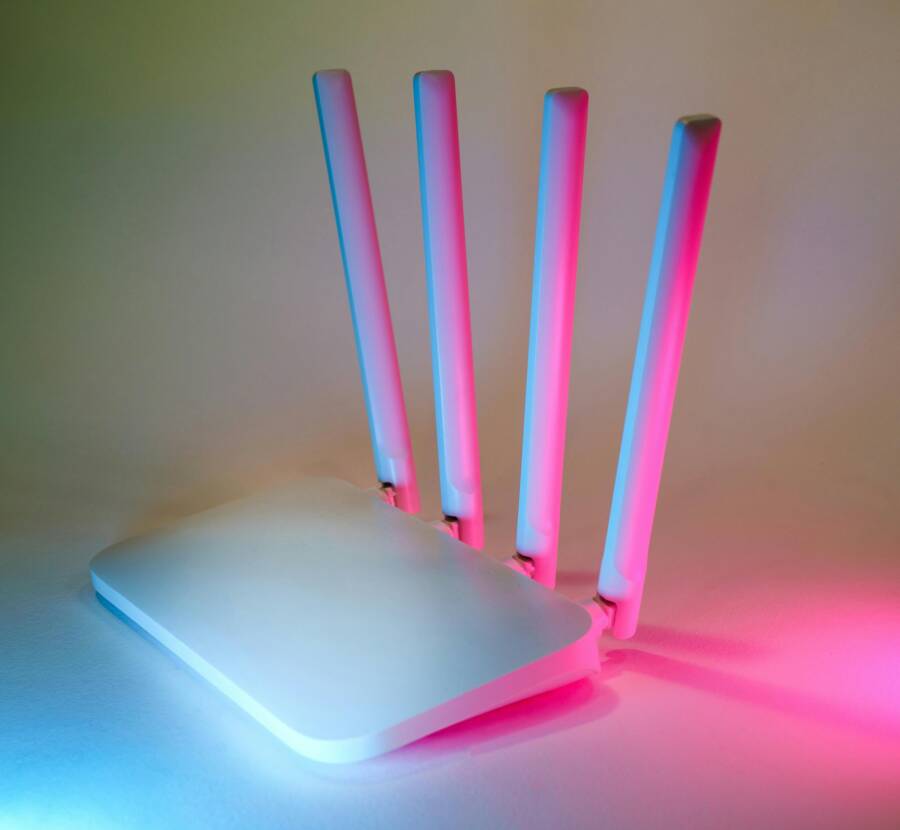
Images can illustrate how a well-placed booster expands coverage. A clean setup with a router and one or two extenders helps readers visualize the right layout.
Photo: Sleek white wireless router with four antennas emitting soft blue and pink light.
Photo by Jakub Zerdzicki
- Practical tip: start with one extender and test all critical actions from your phone. If you still see gaps, add another booster rather than oversaturating the network with devices that compete for the same channel.
If you want deeper context on network optimization and the role of repeaters, these resources are helpful:
- How many GHz should devices use for best range (Meter): https://www.meter.com/resources/how-many-ghz-wifi
- MakeUseOf’s guide to using a Wi-Fi analyzer for better throughput: https://makeuseof.com/how-use-wifi-analyzer-to-boost-wifi-connection
- Google Nest and Google Wifi restart and maintenance basics for a robust network: https://support.google.com/googlenest/answer/6272001?hl=en
Key takeaways
- Extenders improve reliability by filling coverage gaps; place them strategically.
- If one device lags, check whether it uses the best band and channel.
- Mesh networks often deliver the clearest path for a larger home.
Spot Problems in Apps and Automations
Even with a strong network, glitches in apps or automations can block a phone from controlling smart devices. This section helps you diagnose and fix these issues quickly. You’ll test routines, pause conflicting automations, and verify command flows so your commands reach devices as soon as you issue them.
- Review and pause routines. Routines can conflict or run simultaneously in ways that slow or block responses. Temporarily disable a few automations to see if the control flow improves. If a single routine is the problem, reconfigure or remove it.
- Check for overlapping automation logic. Multiple rules can try to set the same device at once, causing delays or misreports. Simplify where possible and test one change at a time.
- Confirm the control pathway for the phone. If you’re using a single app to manage many devices, ensure the app has the necessary permissions and isn’t blocked by a battery saver, data saver, or privacy setting.
- Validate compatibility across ecosystems. If you mix devices from different platforms (Google, Amazon, Apple), confirm each device supports the same standard, such as Matter, to avoid handshake issues.
For practical validation, perform a simple end-to-end test:
- Open the controlling app on your smartphone.
- Send a command to turn on a light, adjust a thermostat, and verify status in the app.
- Check voice assistant feedback by asking to perform a routine and listening for the proper responses.
If you notice delays or misreports, you may need to adjust how you manage apps and automations:
- Disable or reconfigure routines that run too frequently.
- Update apps to the latest versions to fix known integration issues.
- Ensure the phone is on the same Wi-Fi network as the devices it controls to avoid cross-network quirks.
Helpful resources to refine apps and automations:
- How to update Google Home app to ensure smooth device control: https://support.google.com/googlenest/answer/7653738?hl=en
- Update guidance for iPhone users managing HomeKit and Matter devices: https://support.apple.com/guide/iphone/update-ios-iph3e504502/ios
- Apple’s guidance on Matter and HomeKit compatibility: search within Apple’s HomeKit support for latest notes
Key takeaways
- Pause conflicting automations to isolate the trouble.
- Keep apps up to date to avoid known integration bugs.
- Test end-to-end control, not just device status, to verify a true fix.
Images can accompany this subsection to illustrate testing flows or a clean automation dashboard. If you include visuals, place them after the subsection header to reinforce the testing approach.
Photo: Sleek white wireless router with four antennas emitting soft blue and pink light.
Photo by Jakub Zerdzicki
- Real-world example: you disable a complex energy-saving routine, then re-run a simple scene to confirm the light, thermostat, and speaker all respond as expected. The result is a quicker, more predictable control path from your smartphone to every smart device.
External references for deeper context on app and automation management:
- Apple HomeKit accessories compatibility and Matter support (Apple)
- How to check if a smart device works with Alexa, Google Home, or Siri (GearBrain)
- Home Assistant community discussions on best practices for automation reliability
Key takeaways
- Isolate automation steps to quickly identify where delays originate.
- Keep ecosystems aligned by updating apps and firmware.
- Ensure the phone is on the same network as your devices to avoid cross-network friction.
Images and visual aids help readers quickly grasp the practical steps. Place images where readers will benefit most, such as near the testing sequences or the discussion of routine management.
Conclusion
Fixing a phone that won’t connect to smart home devices begins with a simple, repeatable sequence. Start with a quick restart of your phone, router, and each device in the right order, then test the connection before moving on. This order matters, and testing after each step confirms you’re on the right track.
Next, verify your Wi Fi setup. If devices rely on 2.4 GHz, switch to that band or create a dedicated 2.4 GHz network for smart gear, then re test. If signals stay weak, move closer to the router or add a mesh system to remove dead zones. After each network change, test a basic command to ensure the phone communicates reliably with lights, thermostats, and hubs.
Update time should be treated as maintenance. Install app updates on your phone and any smart home apps, then check for firmware updates on hubs and speakers. After updates, reboot and run a quick control test to confirm stability. If problems persist, re link accounts and re add devices one by one. This isolated approach helps identify where the issue lives.
If your setup uses multiple ecosystems or a large home, consider reducing complexity. Cut back on conflicting automations, and verify all devices share a compatible standard such as Matter. When you see consistent, immediate responses from your commands, you know the path between your smartphone and your smart home is solid.
To prevent future hiccups, adopt a lightweight routine: run a quick network check weekly, keep apps and OS up to date, and document any password or network name changes. A single smartphone tip for future: enable automatic firmware and app updates where safe, then test key controls after each update.
If you found this guide helpful, share your experiences in the comments. Your feedback helps others troubleshoot faster and stay in control of a smarter, more reliable home.