Focus modes on your phone can transform how you work, study, and rest. They silence distractions and let you choose exactly who can reach you and when. If you’re juggling tasks or trying to wind down, this guide will show you how to use Focus modes on both iPhone and Android.
In this quick intro, you’ll learn the essentials: what Focus modes do, how to set up presets like Do Not Disturb, Work, Sleep, and Driving, and how to tailor notifications to your needs. You’ll also see how automation helps you stay in the zone without manual tweaks, and how syncing works across devices so your rules travel with you.
Whether you’re drafting a report, studying, or enjoying family time, these settings cut down on interruptions and keep your smartphone from stealing your attention. By the end, you’ll have a practical plan for implementing Focus modes in daily life, with simple steps you can try today.
What Focus Modes Do
Focus Modes are like a personal on/off switch for notifications. They help you stay in the zone by silencing distractions, prioritizing the people and apps that matter, and sometimes showing a different home screen to match your current task. Think of them as tailored environments for your phone use. You can activate a preset for different parts of your day or create custom modes that fit your exact needs. On iPhone, Focus modes are built into the OS and can be scheduled or triggered by location and time. On Android, you’ll find Do Not Disturb and various Focus-like options under Digital Wellbeing and System settings. The goal is simple: fewer interruptions, more control, and a seamless transition from one activity to the next. For a quick overview, Apple’s guide explains how you can set up a Focus on iPhone, including choosing who can reach you and when, plus how to tailor notifications by app and contact. Android’s guidance covers silencing apps and choosing which interruptions slip through, so you can maintain momentum during tasks. Apple Focus setup guide.
Benefits for Sleep, Study, and Work
Focus Modes shine when you need a calm, predictable technology environment. They remove friction so you can start what you set out to do without fighting your notifications.
- Sleep: A quiet night leads to better rest. When you enable Sleep Focus, most alerts are paused, so your mind isn’t flicked awake by every ping. A simpler home screen with only essential apps helps you wind down and prepare for the next day.
- Study: Fewer interruptions means deeper concentration. A dedicated study mode blocks nonessential apps and notifications, letting you complete a task faster and with fewer context switches.
- Work: A focused work window keeps your momentum intact. With a custom work Focus, you keep work apps and important people reachable while blocking distractions like social media and entertainment apps.
In practice, you’ll notice practical outcomes: steadier focus during long tasks, quicker completion of projects, and calmer evenings when you close out the day. The key is to map each Focus mode to real-life routines so the settings align with your goals. If you’re unsure where to start, begin with Do Not Disturb and gradually add exceptions that truly matter. For iPhone users, you can tailor who can reach you during a Focus, making it easier to protect your time without missing urgent messages. For Android users, you can choose which apps to pause and which contacts can still get through, giving you a smoother balance between availability and focus. To see how these ideas translate into practical steps, you can consult official guidance on Android’s Modes and Do Not Disturb and Apple’s Focus setup. Limit interruptions with Android Modes and Do Not Disturb.
Concrete Examples to Get Started
- Do Not Disturb: The classic default that mutes most interruptions while you work or drive. You can allow calls from favorites or repeat callers, so you don’t miss a critical moment.
- Sleep: A bedtime routine that reduces screen time and quiets notifications. Your phone becomes a helper, not a distraction, as you prepare for sleep.
- Work: A focused window with essential people and apps allowed. This helps you tackle dense tasks like reports or planning without constant ping interruptions.
- Custom Modes: Create a mode for activities like reading, workouts, or creative work. Tie it to a calendar event or location so it turns on automatically.
A practical tip: tie Focus modes to your daily rhythm rather than relying on manual toggles every time. Automations can switch modes when you arrive at or leave certain locations, or at specific times of day. This makes Focus modes feel natural instead of burdensome. If you want a deeper dive into how Focus works on iPhone, Apple’s official setup guide is a reliable reference, especially for understanding how to pick who can reach you and how notifications are filtered. Set up a Focus on iPhone.
Setting up Focus Modes on Android
Android offers a flexible way to tailor interruptions to your day. With Focus-like modes, you can mute the noise during work, study, or sleep, while still allowing essential messages and apps to come through. This section walks you through creating and tweaking Focus Modes on Android, so you can reclaim your time without missing urgent moments.
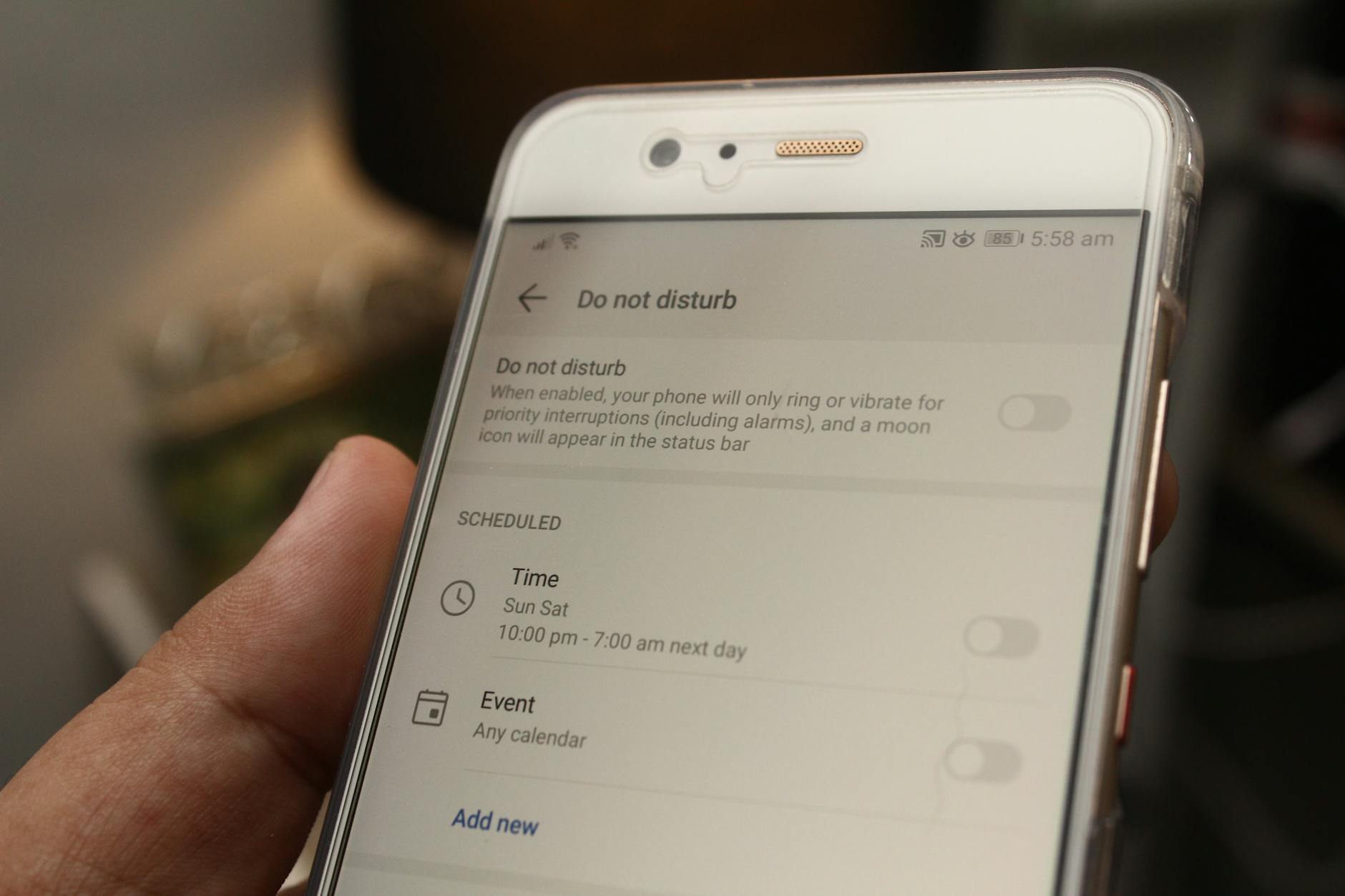 Photo by Daniel Moises Magulado
Create and tailor Focus Modes
Setting up a Focus Mode on Android starts with a simple path in Settings. Start by opening Settings and locating the section for Do Not Disturb or Modes and Routines. From there, you can create a new mode, give it a descriptive name, and define its behavior. A typical workflow looks like this:
- Create a new mode: Tap the option to add a new routine or mode, then name it something intuitive like Work, Study, or Sleep.
- Choose behavior: Decide whether the mode mutes everything by default or allows certain interruptions. You can set whether alarms continue to ring, which people can contact you, and which apps may notice you.
- Define per-mode rules: Specify different rules for each mode. For example, a Work mode might allow calls from teammates, while a Sleep mode blocks most notifications and dims the screen.
- Block or allow apps: Pick which apps can interrupt you while the mode is active. This is useful for essential tools like messaging apps or calendar apps, while pausing games and social media.
- Schedule or trigger automatically: Tie the mode to a schedule, location, or event so it turns on automatically. This reduces manual toggling and helps your phone stay in the right mode when you need it most.
If you’d like a deeper dive into Android’s modes and Do Not Disturb, you can consult official guidance on configuring these features. For a broad overview of how Digital Wellbeing and related features work on Android, see the Android Digital Wellbeing page. These resources explain how to set up interruptions and manage exceptions so you stay productive without losing touch with urgent messages. https://support.google.com/android/answer/9069335?hl=en
Managing apps and notifications
Your ability to control interruptions hinges on fine tuning which apps can break through in each Focus Mode. Start by selecting the apps that are essential for your current task. For example, in a Work mode you might allow calendar and messaging apps, while blocking games and social platforms. The goal is to minimize nonessential alerts while preserving access to critical tools.
- Choose app exceptions: Add only the apps you truly rely on during the mode. If an app isn’t necessary for your current activity, keep it silenced.
- Suppress other notifications: Turn off banners and notification sounds for nonessential apps so you’re not pulled away by every ping.
- Recurring tasks tips: For meetings or study blocks, create a dedicated mode that automatically expands alerts from your calendar and notes apps, while muting everything else.
When working on Android phones with different brands, the path can vary slightly. Samsung devices call the feature “Modes and Routines,” while Pixel and other Android devices might label it under “Do Not Disturb” or “Bedtime mode.” The core idea remains the same: you control who and what can interrupt you based on what you’re doing. For more precise steps on Samsung devices, you can consult Samsung’s support article on Digital Wellbeing and Modes and Routines. https://www.samsung.com/us/support/answer/ANS10001357/
Automation and quick access
Automation makes Focus Modes feel natural rather than manual chores. You don’t need to toggle settings every time you start a task. Try these practical approaches:
- Quick settings toggles: Add a dedicated button for Focus Modes in your Quick Settings panel. This lets you switch modes with a single tap.
- Home screen widgets: Use widgets that show which mode is active and let you switch quickly. A single tap can enable a new mode or turn everything off.
- Assistant voice commands: Use your assistant to switch modes with simple phrases like “Turn on Do Not Disturb for work” or “Enable Sleep mode.”
- Location and time triggers: Have a mode start when you arrive at the office, your home, or a library, and end when you leave or at a set time. This reduces friction and keeps your routine consistent.
In practice, quick access means you can maintain focus without breaking your stride. For more on Android’s Do Not Disturb and Modes options, consider the official Android Digital Wellbeing resources, which cover setup and tips for balancing attention and accessibility. https://www.android.com/digital-wellbeing/
Practical start points
If you’re new to Focus Modes on Android, begin with a simple setup and expand as you feel the benefits. A practical progression could be:
- Do Not Disturb with exceptions: Allow calls from favorites or scheduled events from your calendar.
- Sleep mode: Silence most notifications, dim the screen, and keep alarms active.
- Work mode: Permit essential apps and people while blocking distractors like games and social media.
- Study mode: Tailor app permissions to minimize tab-switching and interruptions.
As you gain comfort, add automations that respond to your calendar, location, or daily routine. This makes Focus Modes feel like a natural part of your day rather than a manual task. If you want more guidance on setting up Do Not Disturb with time-based schedules and app exceptions, a concise guide from a reputable source can help. https://support.google.com/android/answer/9069335?hl=en
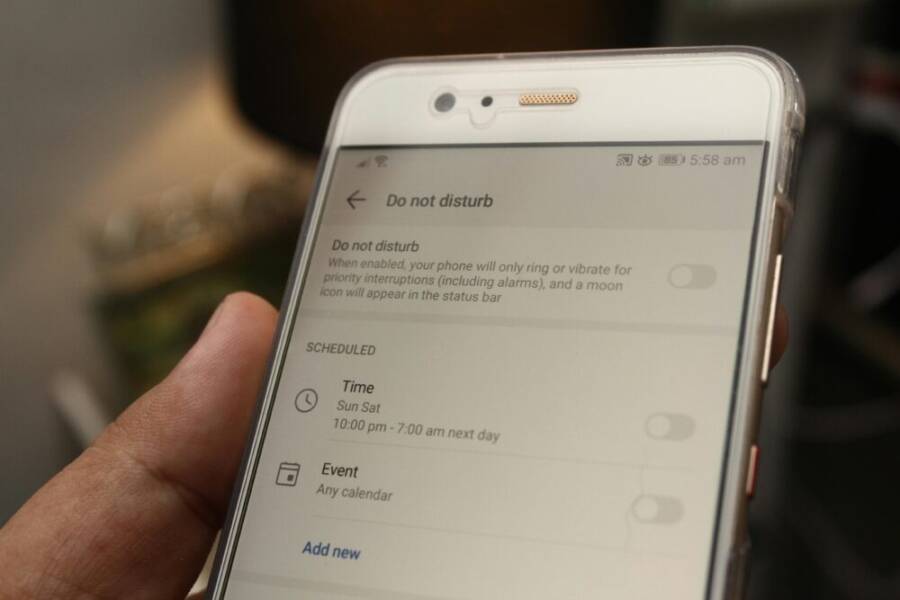
Images and examples help bring these concepts to life. The following photo demonstrates a typical Focus Mode setup screen on Android and helps visualize how you might configure per-mode rules:
Image: Close-up of a smartphone displaying ‘Do Not Disturb’ settings with active options Photo by Daniel Moises Magulado
Quick-start checklist for Android Focus Modes
- Create a dedicated mode for work, study, and sleep.
- Define per-mode rules for apps and contacts.
- Set up automatic triggers based on time or location.
- Add a quick access toggle to your Quick Settings.
- Test each mode for a day, then adjust based on results.
By configuring these modes thoughtfully, you’ll reduce mishits in your day and keep the most important tasks on track. If you’d like more targeted guidance for specific Android devices, the official support pages for Modes and Do Not Disturb provide device-specific steps and tips. https://support.google.com/android/answer/9069335?hl=en
What to do next
- Assess your typical days and identify the biggest sources of interruption.
- Create a simple Work or Study mode first, then expand to Sleep and other activities.
- Use automation to make the transitions feel seamless.
- Revisit and adjust your rules after a week to keep them effective.
Implementing Focus Modes on Android is a practical habit for anyone who wants better control over their attention. Start small, then let automation do the heavy lifting. The goal is smooth, predictable focus that fits into your daily rhythm rather than one more task to manage. For a broader view of Android’s focus tools and how they relate to your day, explore the Digital Wellbeing overview, which explains how to balance productivity with digital health. https://www.android.com/digital-wellbeing/
Best practices and shortcuts
When you start using Focus Modes, a practical approach beats a perfect initial setup. Begin with the built-in options, then layer in schedules, triggers, and gradual tweaks. The goal is to reduce interruptions while keeping the people and apps you rely on within reach. Think of Focus Modes as a smart filter for your smartphone that adapts to your day, not the other way around. Below are proven steps you can apply today.
Start with built in modes
Begin with the default Focus Modes your phone ships with. They’re designed to be reliable and easy to configure, which makes them ideal for quick wins and fewer setup errors. Using built-in modes lets you see what you actually need without overcomplicating things.
- iPhone users can explore the preset Do Not Disturb, Personal, Sleep, and Driving modes. These built-in options are a great way to understand how Focus rules affect alerts and screen behavior before you start tweaking more advanced settings. Apple provides a clear setup path that covers who can reach you and when, plus per-app notification controls. For a solid starting point, review the official setup guide: Set up a Focus on iPhone.
- Android users can start with Do Not Disturb and the basic Focus options under Digital Wellbeing and System settings. The built-in experiences give you a baseline for silencing nonessential interruptions while preserving access to critical alerts.
Why start here? It minimizes decision fatigue and helps you see tangible results quickly. You’ll gain a baseline you can improve on later, rather than risking a flawed, overly complex configuration from the start. If you want a deeper reference, Apple’s Focus setup guide is a reliable foundation, and Google’s Do Not Disturb guidance helps you understand the core concepts on Android.
Helpful references:
- Set up a Focus on iPhone
- Limit interruptions with Android Modes and Do Not Disturb
Use schedules and triggers
Simple, consistent schedules are the fastest path to reliable focus. Use time-based or location-based triggers to turn modes on and off without manual input. This keeps your phone quiet when you need it and responsive when you don’t.
- Work, study, and sleep: Create a predictable pattern with a dedicated Focus for each activity. A weekday work window can run from 9 am to 5 pm with only essential alerts allowed. A study window might run in the afternoon with minimal distractions, and Sleep Focus can start at your usual bedtime.
- Triggers that save time: Time-based rules are easy to manage and understand. Location-based triggers are powerful but require a little setup; they activate your Focus when you arrive at the office, library, or home, then switch off when you leave. This makes Focus modes feel automatic rather than a task you must remember.
- Cross-device consistency: When possible, enable syncing across devices so your rules travel with you. This ensures your phone behaves the same way, whether you’re at home or on the go.
As you apply schedules, you’ll notice fewer missed moments and fewer interruptions during critical tasks. For Android, Digital Wellbeing resources cover how to configure these triggers and manage exceptions. On iPhone, Focus can be scheduled or activated by location and time, with official guidance available to guide you through the setup.
External references:
- Set up a Focus on iPhone
- Limit interruptions with Modes & Do Not Disturb on Android
- Digital Wellbeing – Android
Test and adjust
Treat Focus Modes as an evolving tool rather than a one-and-done setup. Test them for a few days, then refine which apps and people are allowed through. Real-world use reveals gaps you don’t notice in theory.
- Start small: Pick one or two modes to test—such as Work and Sleep—and observe how often you need to override them. Note which contacts or apps feel essential and which causes you to miss important messages.
- Tweak gradually: Add or remove app exceptions, adjust contact permissions, and fine-tune schedules. The aim is a balance between reducing noise and staying reachable for critical moments.
- Prioritize practicality: The best Focus setup is one you actually use. If something feels burdensome, simplify it. You can always reintroduce complexities later.
If you want a deeper dive, Apple’s Focus setup guide explains how to manage who can reach you and how notifications are filtered, while Android’s Do Not Disturb and Modes resources show how to structure per-mode rules. Regular review helps keep your system aligned with daily routines.
External references:
- Set up a Focus on iPhone
- Limit interruptions with Android Modes and Do Not Disturb
Tips to maximize results:
- Use a single, simple starting point and grow from there.
- Tie automations to your calendar events, locations, or routine times for natural transitions.
- Keep a short, readable home screen layout for the most important apps during each focus window.
In the end, the most effective Focus setup acts like a seasoned assistant. It knows when to hush alerts and when to flash a notification from a trusted person. With small, deliberate adjustments, you’ll enjoy steadier focus, faster progress on tasks, and calmer evenings. For ongoing improvements and device-specific tips, consult the official Android Digital Wellbeing and Apple Focus resources, and explore relevant guides as your needs evolve.
External references:
- Digital Wellbeing – Android
- Set up a Focus on iPhone
Conclusion
Focus modes on iPhone and Android give you a simple way to reclaim time and attention without losing touch with what matters. On iPhone, start with Do Not Disturb and expand to personalized presets for work, sleep, and driving, then tailor who can reach you and when. On Android, set up Do Not Disturb or Modes and Routines, customize app and contact exceptions, and rely on automation to keep transitions smooth. Tying triggers to your daily rhythm turns your smartphone into a quiet ally rather than a constant distraction.
Try a minimal setup today: a Do Not Disturb mode for work, and a Sleep mode for evenings. See how automation and per‑mode rules change your focus in real life. Bookmark this guide for quick tweaks as your routine shifts, and share your results with others. Your best work and calmer evenings start with one small step.