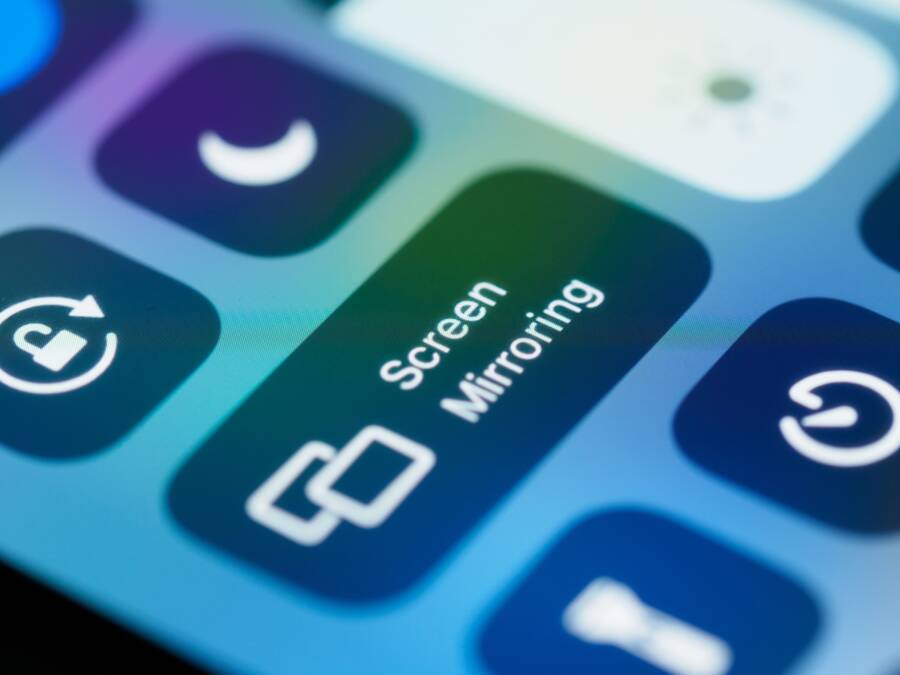
Customizing the Control Center or Quick Settings on your smartphone is the fastest way to save time and reduce daily frustration. This simple process transforms how you interact with your device by putting your most used tools right at your fingertips.
You no longer need to dig through buried menus to toggle your Wi-Fi, adjust brightness, or turn on your flashlight. By prioritizing the icons that actually matter to your routine, you turn your device into a more efficient personal assistant.
Follow these steps to rearrange your layout and reclaim those lost seconds throughout your day.
Why You Should Reorganize Your Quick Settings Menu
Your smartphone stores dozens of tools, but you likely only use a few of them daily. The Quick Settings menu acts as the control panel for your device. If this area is cluttered with icons you never touch, you waste precious seconds searching for the right button. Reorganizing this space allows you to prioritize the functions that keep your life moving.
The Benefits of a Personalized Layout
Default settings often include features that serve a general user base rather than your specific habits. You might leave your mobile hotspot or data saver toggle near the top, even if you rarely touch them. By moving your most used icons to the primary grid, you gain instant access to your essential controls. This adjustment changes your smartphone from a generic tool into a personalized assistant.
You save mental energy when you know exactly where a button sits. Your muscle memory eventually takes over, meaning you can toggle your flashlight, volume modes, or battery saver without even looking. A logical layout reduces the friction between having a need and satisfying it.
Organizing for Practical Efficiency
Group your settings by how often you need them to maximize your speed. Place high-frequency items like Wi-Fi, Bluetooth, and screen brightness in the first few spots. Keep secondary items, such as screen recording or focus modes, on the second page or bottom rows.
Consider these tips for a better arrangement:
- Put the most critical buttons in the top-left area, as your thumb naturally gravitates there first on many devices.
- Remove icons for features you never use to clear visual noise.
- Keep related settings, like sound and vibration toggles, next to each other for better flow.
Evaluating Your Workflow Needs
Look at your usage patterns during a typical day to identify your true priorities. If you often cast your screen to a television, move that icon to the front. People who frequent dark environments should keep their flashlight or night light mode accessible. You are the only person who knows which buttons provide value in your routine.
Testing your new layout is simple. Use your phone for a full day after making changes. If you find yourself swiping to the next page to find a button, move that icon to the main view. A well-organized smartphone control center adapts to your life, not the other way around. Keep refining your grid until every tap feels deliberate and fast.
How to Rearrange Shortcuts for Better Flow
Your control center is the command hub for your smartphone. When this menu matches your daily habits, your interactions become faster. You spend less time hunting for settings and more time using your device. By rearranging your shortcuts, you create a personalized interface that responds to your touch almost instantly.
Prioritizing Your Most Important Tools
You should place your top four most-used features in the top row. This area is the first place your eyes and fingers land when you open the menu. Because these spots are the easiest to reach, they should hold the icons you trigger every single day. Common choices include your Wi-Fi, Bluetooth, flashlight, and screen brightness controls.
Putting these tools in a fixed position helps you build muscle memory. After a few days, your thumb will move to the right spot without you needing to look at the screen. This repetitive physical action makes managing your smartphone feel intuitive. You stop thinking about where the button is and simply reach for it, which saves you precious seconds during a busy day.
Removing Clutter to Save Time
A crowded menu slows your brain down. Every extra icon you don’t use acts as visual noise that distracts you from your goal. If your control center is full of rarely used toggles, your eyes must scan more area to find the one item you need. Removing these unused icons simplifies your interface and makes your primary tools stand out.
Follow these simple rules to keep your menu clean:
- Drag unused icons into the inactive section of your settings menu.
- Group related features together so your brain recognizes the zone for connectivity or display settings.
- Audit your layout once a month to ensure it still matches your current habits.
When your interface is sparse and intentional, you eliminate the mental friction of searching. You can open your control center and toggle a setting in one fluid motion. Keeping only the essentials creates a fast and responsive experience on any modern smartphone. A cleaner workspace allows you to focus on the task rather than the tool.
Hidden Shortcuts and Advanced Control Settings
Your smartphone holds more power than the standard layout suggests. Most users stick to the default icons provided by the manufacturer, yet these rarely match personal habits. You can access deeper control panels or toggle specific settings without opening the main menu. Small adjustments here turn a basic device into a specialized tool tailored to your exact needs.
Adding Useful Functions You Did Not Know You Had
Many hidden tools live inside your edit menu, waiting for you to drag them into your active area. These functions save time because they bypass the slow process of searching through standard menus. Instead of opening your settings app to toggle complex features, you simply swipe down and tap once.
Consider adding these powerful toggles to your layout:
- Battery saver mode is vital for extending your charge during long days away from power outlets.
- Dark mode toggles help you adjust your screen contrast instantly when you move between bright sunlight and dim rooms.
- Hotspot controls allow you to share your connection with a laptop or tablet without navigating through network sub-menus.
- Screen recording captures important visual information or tutorials without requiring external software.
- Do not disturb modes offer a quick way to silence notifications during meetings or sleep periods.
Moving these buttons to your primary view provides immediate access to your most frequent tasks. You eliminate the lag caused by deep menu navigation. These toggles exist as direct switches, so they perform their job instantly. Using them from the control center keeps your workflow focused and fast.
Testing Your New Setup for Efficiency
Once you arrange your shortcuts, perform a field test. Use your smartphone as you normally would for one or two full days. Pay close attention to any moment where you feel hesitation or frustration. If you find yourself reaching for a button that is missing, you need to swap an existing icon for that one.
Efficiency relies on consistency. You want to reach for a specific area of the screen with total confidence. If a button remains in your way or feels awkward, move it to the second page of your settings. You might realize that some tools you thought were necessary actually clutter your workspace.
Keep refining your grid until your hand moves to the right spot without thought. Your goal is to make the interface transparent. When you don’t notice the tool, you focus entirely on the task at hand. Check your layout again after a week to see if your needs have shifted, as your smartphone setup should always adapt to your current daily rhythm.
Common Questions About Quick Settings Customization
Adjusting your control center settings often sparks curiosity about how deep these changes go. Most users want to improve their speed without breaking their phone features. These common questions address how to manage your layout effectively on your smartphone.
Can I reset my settings to the default layout?
You might worry about making a mistake while rearranging your menu. If your custom layout becomes confusing or you want to start fresh, resetting is straightforward. Every modern smartphone provides a built-in option to revert your icons.
Typically, you will find a menu icon at the top of the edit screen. Selecting this will show an option to reset or restore the layout. This action returns all toggles to their original positions. You do not lose any data or system functionality when you perform this reset. It simply cleans the slate so you can organize your shortcuts again.
Will changing my shortcuts drain my battery?
Some people fear that constant adjustments or the presence of many icons impacts battery health. The truth is that your shortcut arrangement has no direct effect on power consumption. Icons are merely visual gateways to existing system processes.
Whether a shortcut sits on your first page or a secondary screen, it consumes zero battery while inactive. You only use energy when you tap a button to trigger a feature. Feel free to arrange your menu based on your personal needs rather than power concerns. Your battery performance depends on background apps and screen brightness, not on your icon placement.
Are there limits to how many icons I can add?
Your device restricts the number of active icons to prevent overcrowding. Most smartphones allow a specific grid size, such as a 3×3 or 4×4 layout, for the primary view. You can drag more items into the hidden or inactive area, but these will not appear until you expand the menu or swipe to a second page.
If you find that your favorite tools do not fit, prioritize your list based on daily usage. Keep the most essential items in the top slots for instant access. Move lower-priority items like screen recording or flashlight toggles to the second page. This system keeps your workspace clear while ensuring all necessary functions remain reachable.
Why do some icons remain greyed out?
You might notice that certain buttons appear dimmed or unresponsive in your menu. This usually happens when a requirement for that feature is not met. For example, a mobile hotspot icon might stay greyed out if you are not connected to a cellular network.
Other reasons for inactive buttons include:
- You have enabled a conflicting mode, like Airplane mode, which shuts down wireless radios.
- The phone requires a specific permission that is currently disabled in your main settings.
- A system update is in progress, which temporarily locks certain hardware controls.
Check your main settings app if an icon refuses to work after repeated taps. Usually, a quick change in the core menu will restore functionality to your shortcut. Once the feature is active, the icon in your control center will light up and respond to your touch again.
Conclusion
A customized Control Center is the most effective way to make your smartphone feel faster and more responsive. You no longer need to accept a generic layout designed for the average user.
Take ten minutes today to rearrange your icons and remove unused features. You will quickly notice how much time you save when your most important tools are exactly where you expect them to be.