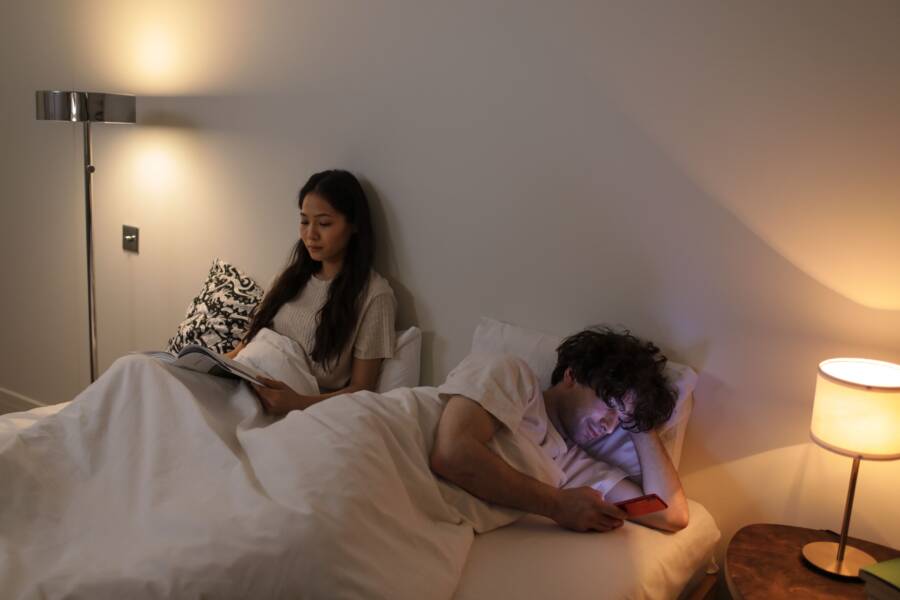
Exposure to high-intensity blue light at night causes eye strain and interferes with your sleep quality. Your smartphone display is often too bright for low-light environments, which forces your eyes to work harder than necessary.
You can fix this by adjusting your device settings to warmer colors and lower brightness levels. These simple changes help you read comfortably without keeping your brain awake.
This guide walks you through the steps to optimize your screen settings for better nighttime viewing.
Quick Fixes for Your iPhone Display Settings
You can adjust your smartphone display settings to make reading easier on your eyes after dark. Small tweaks to how your screen emits light prevent eye strain and keep your sleep schedule on track. These settings take only a few moments to configure in the iOS menus.
Turning on Night Shift for Warmer Colors
Night Shift changes the color temperature of your display. During the day, screens use cool blue light to maintain clarity. At night, that same blue light can suppress melatonin and make it harder to fall asleep. Night Shift shifts these colors to the warmer end of the spectrum, such as yellow or orange, to mimic natural sunset tones.
Follow these steps to activate Night Shift on your device:
- Open the Settings app on your smartphone.
- Select Display and Brightness.
- Tap the Night Shift option.
- Toggle on Scheduled to set specific hours.
- Choose a custom schedule or pick Sunset to Sunrise for automatic adjustments.
- Drag the Color Temperature slider toward the warmer end to suit your preference.
You can also access this setting through the Control Center. Swipe down from the top right corner of your screen. Press and hold the brightness slider icon. Tap the sun-and-moon icon at the bottom to toggle the feature on or off.
Using Dark Mode to Reduce Glare
Dark Mode changes your system interface from a light background with dark text to a dark background with light text. This setting significantly reduces the amount of light emitted by your screen. It is useful in low-light environments because it minimizes glare and makes your smartphone easier to view without harsh contrast.
Using this mode provides other benefits beyond comfort. OLED displays turn off individual pixels to render black colors, which consumes less power. As a result, you might see a boost in battery life when using your device at night.
You can enable Dark Mode using these methods:
- Settings app: Go to Settings, select Display and Brightness, and choose the Dark appearance option. You can set a schedule here to ensure the theme switches automatically at your preferred time.
- Control Center: Swipe down from the top right corner. Press and hold the brightness slider. Tap the Dark Mode icon at the bottom left to toggle it instantly.
Enabling these two settings transforms your nighttime reading experience. By warming the colors and darkening the background, you create a screen environment that respects your eyes and your sleep.
Optimizing Android Displays for Nighttime Use
Standard display settings often prove too bright for evening reading. Your smartphone emits high-energy blue light that can trick your brain into staying alert. Adjusting your settings helps reduce eye strain and supports your natural sleep patterns. Most Android devices include built-in tools to manage color temperature and interface brightness effectively.
Enabling Eye Comfort Shield or Blue Light Filter
Many Android devices feature a dedicated filter to suppress blue light emissions. This setting adjusts your screen temperature to warmer hues like amber or orange. These tones are much softer on your eyes during late-night scrolling. Activating this feature is a simple way to improve your comfort before bed.
- Open the Settings app on your smartphone.
- Tap the Display menu.
- Look for Eye Comfort Shield, Night Light, or Blue Light Filter.
- Toggle the switch to enable the mode.
- Select the Schedule option to have it turn on automatically at sunset.
- Adjust the color temperature slider to reach a warmth level that feels pleasant for your eyes.
You can often find a shortcut for this tool in the Quick Settings panel. Swipe down from the top of your screen twice to reveal the full menu. If you do not see the icon, tap the pencil or edit button to add the toggle to your layout. This allows you to enable the filter with a single tap whenever you start reading in a dark room.
Applying System-Wide Dark Theme
A system-wide dark theme changes your interface background from white to black. This shift prevents sudden flashes of bright light when you switch between apps. Most modern apps recognize this setting and adjust their own design automatically. This reduces the total amount of light hitting your eyes while you navigate your smartphone at night.
You can activate this look using the following steps:
- Open your Settings menu and choose Display.
- Locate the Dark Theme or Dark Mode option.
- Toggle the setting to turn it on immediately.
- Select the Schedule option if you prefer the theme to activate only after dark.
Using dark themes also helps preserve your battery life on devices with OLED screens. Because these displays turn off individual pixels to show black, they use significantly less power. Pairing this with a dimmed screen ensures your device remains comfortable for extended reading sessions. Your eyes will appreciate the lower contrast, and your phone will retain its charge for longer periods.
Advanced Adjustments for Better Readability
Even after you apply color temperature and brightness settings, you might struggle to read text on your smartphone screen. Small fonts or thin characters force you to lean closer, which creates unnecessary strain on your eyes. You can improve your reading comfort by modifying the text scale and weight directly in your display settings. These adjustments make content much easier to process, especially when you are tired.
Adjusting Text Size and Boldness
Most modern mobile operating systems include accessibility tools to customize how text appears on your screen. Increasing the font size prevents the need to squint, while making the text bold improves contrast against the background. You can usually find these options within your display or accessibility menus.
To increase the text size on your smartphone, follow these steps:
- Open your Settings app and look for the Display menu.
- Select the Text Size or Font Size option.
- Drag the slider to the right to enlarge the characters until they feel comfortable.
- Many devices also allow you to enable Bold Text if you prefer heavier character strokes.
- Apply these changes and return to your reading app to see if the text is now easier to scan.
Larger text benefits people who read for long periods at night. When the characters are bigger, your eyes do not have to work as hard to focus on each word. If you still find the text difficult to read, enabling Bold Text adds a slight weight to each letter. This makes the letters stand out more effectively, which creates a cleaner reading experience in dim lighting.
Using Lower Minimum Brightness Settings
Sometimes the default brightness slider does not go low enough for a dark bedroom. When your smartphone remains too bright even at its lowest setting, you can use additional tools to filter the intensity. These methods allow you to push the brightness beyond the software limit for a much softer glow.
For iPhone users, the Reduce White Point setting is a hidden gem for nighttime reading. This feature dims the brightest parts of your screen without changing the overall color balance.
- Open the Settings app and tap Accessibility.
- Select Display and Text Size.
- Toggle the Reduce White Point switch to the on position.
- Adjust the percentage slider to lower the intensity of the whites on your screen.
If you use an Android device, check for a Screen Dimmer app or an Extra Dim setting within the display panel. Many Android manufacturers include an Extra Dim shortcut in the Quick Settings menu. This functions similarly to the iOS feature by applying a darker overlay on top of your existing display. These settings are perfect for late-night sessions because they remove the harsh glare that often disrupts your ability to relax.
Habits to Protect Your Eyes While Using Your Smartphone
Maintaining healthy vision requires more than just adjusting display software. Your daily habits determine how much strain your eyes endure during long sessions. Using a smartphone for extended periods in dark rooms forces your eye muscles to focus intensely on small, illuminated targets. You can adopt simple behaviors to minimize fatigue and keep your vision comfortable throughout the evening.
Follow the 20-20-20 Rule
The 20-20-20 rule helps prevent digital eye strain by giving your eyes frequent breaks from screen focus. Every 20 minutes, stop looking at your device and shift your gaze to an object at least 20 feet away. Maintain this distance for 20 seconds before returning to your content. This simple cycle relaxes the focusing muscles in your eyes.
Consistent breaks prevent the tension that accumulates from staring at a fixed distance for hours. If you find it difficult to remember these intervals, set a repeating timer on another device or use a reminder app. Incorporating this habit into your nightly routine keeps your vision feeling fresh even after lengthy reading sessions.
Maintain Proper Viewing Distance
Holding your smartphone too close to your face increases the effort your eyes require to maintain sharp focus. Aim for a distance of at least 16 to 20 inches from your eyes when reading. This distance reduces the convergence angle of your eyes and lowers the overall demand on your visual system.
You can check your posture by extending your arm and observing where your device sits. If your phone feels significantly closer than that distance, consciously move it away. Using a stand or a phone grip can help you maintain this spacing without tiring your arms. Proper positioning prevents the repetitive strain that often leads to headaches after late-night reading.
Use Adequate Ambient Lighting
Using a smartphone in total darkness creates a high-contrast environment that tires your eyes. The screen becomes a harsh light source against a pitch-black background, which forces your pupils to adjust constantly. You should keep a soft lamp or an overhead light on to balance the room brightness with your screen.
Soft, indirect lighting reduces the glare that bounces off your display. It also lowers the intensity of the light hitting your eyes compared to the surrounding darkness. Even a dim bedside lamp makes a significant difference in how much effort your eyes spend processing the screen content. By creating a more balanced visual environment, you help your eyes settle into a more relaxed state before you sleep.
Conclusion
Optimizing your display settings is a direct way to reduce eye strain when you use your smartphone at night. Combining tools like Night Shift or Eye Comfort Shield with manual brightness adjustments creates a screen environment that respects your natural sleep cycles.
You should also maintain healthy habits, such as keeping a proper distance from your device and using ambient lighting in your room. These small changes help your eyes stay comfortable and relaxed during evening reading sessions.
Consistent use of these display tools and healthy habits effectively minimizes long-term fatigue. You now have the knowledge to adjust your settings and protect your vision whenever you use your device after dark.