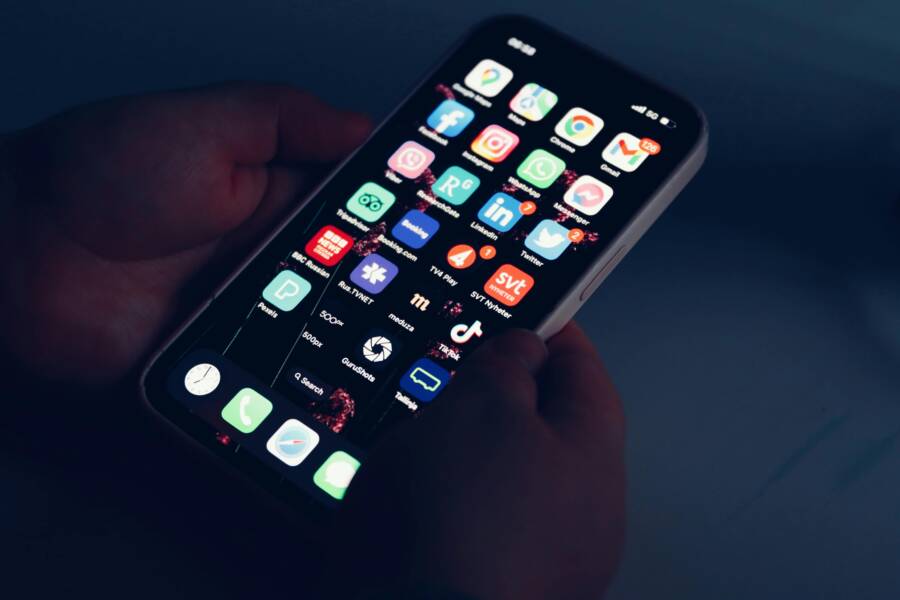
App folders are simply digital containers that hold your icons in one place. You don’t lose your apps when you group them together, as they stay installed on your smartphone and accessible whenever you need them.
Creating these groups helps you hide clutter while keeping your favorite tools within reach. Once you understand how these containers work, you can organize your home screen without worrying about missing software or broken shortcuts.
Why Your Smartphone Apps Seem to Vanish into Folders
Apps often disappear into folders because the operating system prioritizes a clean visual experience. When you group multiple icons into one container, your phone screen hides them behind a single cover icon. This behavior helps reduce visual clutter, yet it creates the illusion that your software is missing or deleted. You have not lost your data; you simply moved the access point.
The Mechanism of Folder Grouping
Your smartphone treats folders as specialized widgets that hold references to your apps. When you drag one icon onto another, the system generates a container and moves both items inside. The screen space occupied by two apps now shrinks to the size of one. Because your brain expects to see individual icons in their original spots, a folder creates a momentary disconnect. You are looking at a folder cover, but your mind is searching for the specific app logo you recognize.
Managing Visual Expectations
The folder cover often shows a tiny, distorted preview of the icons hidden within. If your screen is crowded, these previews become difficult to interpret at a glance. You might recognize the color or shape of an app, but the small scale makes it hard to identify. This contributes to the feeling that the apps are gone. You can mitigate this by limiting the number of apps in each folder. Keeping your most-used tools on the home screen while moving secondary ones into folders ensures you always see what you need.
Finding Apps Lost in Organization
When you cannot locate an app within a folder, use the built-in search feature on your device. Every modern smartphone includes a search bar or a swipe-down gesture that scans your entire library. Type the name of the app to see exactly which folder contains it. This bypasses the need to tap through each container manually.
You should consider naming your folders based on their purpose or the activity they serve. If a folder is labeled “Finance” or “Photography,” you will know where to look. Proper naming removes the guesswork and stops apps from feeling invisible. If you still struggle to find a tool, check your app library or the full list of installed software in your settings menu to confirm the icon is present.
Simple Steps to Create Folders and Keep Track of Your Apps
Organizing your apps into folders helps you clear clutter from your smartphone screen. You can group related software together to speed up your daily tasks. This process keeps your home screen tidy while ensuring every app remains within reach.
Dragging and Dropping Icons to Make Groups
You can start grouping your apps with a simple touch gesture. Hold your finger down on any app icon until it starts to wiggle or show a menu. Once the icon is ready to move, drag it directly over another icon you want to place in the same group.
Release your finger once the second icon highlights or shifts. Your smartphone creates a new folder that contains both apps automatically. You can add more icons to this group by repeating the drag and drop action. Simply move each extra app onto the folder cover to include it.
Most devices provide a preview of the folder contents so you can confirm which apps are inside. If you want to remove an app later, just open the folder, hold the icon, and drag it back to your home screen. This physical interaction makes managing your digital workspace fast and intuitive.
Naming Your Folders for Easy Identification
Labels function as an essential memory aid when you manage many applications. If you leave folders with generic titles, you might forget which container holds your specific tools. Giving each folder a clear, descriptive name ensures you never misplace an app again.
Think about the primary purpose of the apps you grouped together. For example, you can label a folder “Finance” for your banking and investment software. Use “Creative” or “Design” for photography and editing tools. These simple categories make navigation natural because your brain identifies the label faster than a set of tiny icons.
Follow these steps to rename your folders:
- Tap the folder once to open it.
- Select the text area near the top of the folder window.
- Type a descriptive name that relates to the contents.
- Tap outside the folder to save your changes.
Unique names remove the guesswork from your daily routine. You spend less time searching through random containers and more time using your apps. Consistent naming turns your smartphone home screen into a well-organized system tailored to your specific needs.
Hidden Places Where Your Apps Might Be Hiding
Modern software hides in plain sight when your screen becomes cluttered with folders. You do not lose your tools during the organization process; instead, they move into specific system containers. If you cannot spot an icon on your home screen, you can use these methods to recover your digital workspace. Every smartphone keeps a record of installed software, even when you remove the shortcut from your primary view.
Using the Search Bar to Locate Any App
Every modern smartphone includes a system-wide search tool designed to help you find buried files or software. You can trigger this function by swiping down from the center of your home screen. A search bar appears at the top of the display, waiting for your input. Once you type the name of the missing app, the system scans your phone and displays the results in real time.
This feature does more than just show you the app icon. It displays the specific folder name where the item resides. If your app is hidden inside a folder labeled “Tools,” the search result will clearly indicate that location. You can tap the result directly to open the software, or you can drag the icon back to your home screen if you need frequent access. This search bar acts as a bridge between your messy folders and your actual usage needs. It is the fastest way to confirm your software is still installed on the device.
Checking the App Library or Drawer
All installed software exists within a master index, regardless of whether you place it on your home screen or inside a folder. On many modern devices, this master index is called the App Library or the app drawer. You can usually access this full list by swiping to the final page of your home screen or by tapping a dedicated icon in your navigation bar.
The system automatically categorizes your apps into groups like social, utilities, or entertainment to keep the list tidy. You can browse these categories to find your missing icon if you know the general type of software it is. Think of this library as a warehouse for your digital tools. Even if you remove an app from your home screen to save space, the app remains safe in the library. You never delete an app just by removing it from the home screen folders. If you still cannot find your software, check the settings menu to view a complete list of every program running on your phone. This master list provides the definitive answer about what software is currently active.
Smart Tips for Maintaining an Organized Home Screen
Keeping your smartphone tidy saves time and reduces frustration during your daily routine. An organized screen means your most important apps stay visible, while secondary tools remain tucked away in logical groups. Small habits help you prevent future clutter and keep your device functional.
Group Related Apps by Usage Frequency
Your most frequently used apps deserve the most accessible spots on your home screen. Place these icons individually rather than burying them inside folders. You should reserve folders for utility apps, such as calculators, settings, or finance tools, that you need occasionally but not every hour. This layout ensures you reach your daily essentials with one tap.
Audit Your Folders Periodically
Folders often become junk drawers where unused apps accumulate over several months. Set a monthly reminder to check your folders and remove any software you no longer use. Deleting unused apps or moving them out of sight clarifies your screen and makes finding important tools easier. A clean screen reflects a more efficient workflow on your smartphone.
Maintain Consistent Naming Conventions
Clear labels help your brain recognize folders without relying on icon previews. Use short, descriptive names that indicate the folder content, such as “Social,” “Work,” or “Travel.” Avoid vague names or emoji-only labels that might confuse you later. Consistency across your home screen helps you build muscle memory, so you know exactly where to tap for specific tasks.
Prioritize One-Handed Reachability
Most people hold their smartphone with one hand, which makes the bottom half of the screen the most ergonomic area. Place your primary folders or frequently used apps in this bottom zone to avoid straining your thumb. You can move less essential folders to the top of the screen or secondary pages. This small physical adjustment makes navigating your phone much more comfortable throughout the day.
Use Widgets to Replace Full Folders
Widgets often provide a better alternative to folders for apps you check constantly. For instance, a calendar widget shows your schedule at a glance without forcing you to tap a folder first. Replacing folders with relevant widgets makes your home screen dynamic and keeps critical information in view. You can combine this approach with folders to maximize the utility of every page on your device.
Conclusion
Grouping your applications into folders is a safe, reversible process that helps you manage a cluttered smartphone. Moving icons into a container never deletes your data or removes the software from your device. You can always retrieve an app by searching your library or moving the shortcut back to your home screen.
Mastering this organization method provides you with a clean, efficient workspace. A tidy screen allows you to find your tools faster and focus on the tasks that matter. You now have the knowledge to group your icons with confidence while keeping your essential apps within reach.