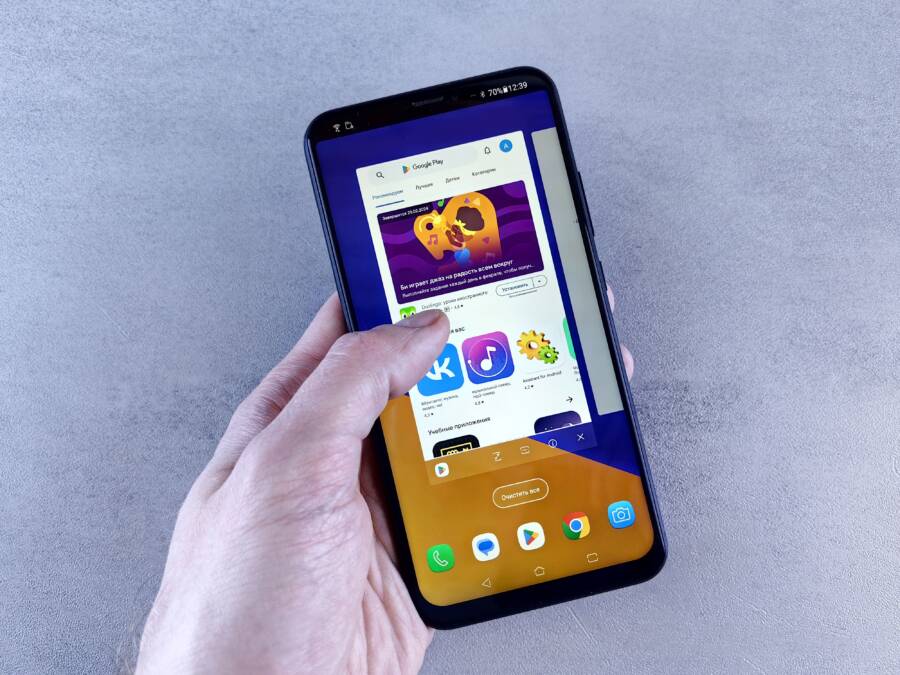
You can reclaim your personal time by creating a dedicated weekend home screen on your smartphone. This layout acts as a digital boundary that hides work apps and alerts during your time off.
Work stress often leaks into your rest because your phone is packed with constant reminders of tasks. By simplifying your interface, you force your brain to disconnect from professional obligations.
Follow these steps to build your custom setup and learn how to swap between your screens in seconds.
Designing Your Ideal Weekend Interface
Your smartphone setup often reflects your Monday through Friday mindset. When you keep work emails, task managers, and project boards on your primary screen, your brain remains in a professional state. You can break this habit by creating a distinct weekend interface. This custom layout acts as a barrier that keeps your time off separate from your responsibilities. You gain space to focus on hobbies, family, and rest by hiding the digital clutter.
Choosing Apps That Spark Joy and Rest
Select apps that encourage relaxation and personal growth for your weekend layout. Remove any icons that associate with your job, such as video conferencing tools or collaborative document editors. If you need to keep these apps on your device, hide them inside folders on a secondary page or move them to your app library. Replace those spots with icons for activities that actually recharge your energy.
Include categories that support your well-being:
- Fitness and health: Track your weekend runs, yoga sessions, or meditation habits with dedicated apps.
- Audiobooks and podcasts: Keep your favorite storytelling or educational audio apps within easy reach for downtime.
- Creative hobbies: Use tools for photography editing, journaling, or music production to fill your extra hours.
- Family messaging: Move communication apps that connect you with friends and relatives to the front to prioritize social time.
Visual Cues That Signal It Is Time to Unwind
The look of your smartphone significantly impacts your mood. A bright, professional background might look clean, but it often reminds you of office tasks. Switch to a calming wallpaper that features softer colors or nature scenes to change the atmosphere. High-contrast themes can increase alertness, so choose a minimalist design that settles your mind instead.
You can also update your icon packs to simplify your interface. Many launchers allow you to swap standard, colorful icons for monochrome or muted versions that feel less demanding. If your smartphone supports widget layouts, try adding a large, simple clock or a widget that displays a relaxing photo. Removing badges and notification dots from your home screen icons prevents the urge to check for updates. This subtle visual shift helps your brain recognize that you are officially off the clock.
Automating the Switch with Focus Modes
You can remove the manual effort of switching your home screen by using built-in automation features. Both iOS and Android provide tools that detect the time of day or your location to change your interface automatically. By setting a schedule, your smartphone shifts its configuration to a weekend-friendly layout without requiring any input from you.
Setting Up Your Weekend Focus Trigger
Focus modes act as a bridge between your work habits and your leisure time. You can create a specific mode that activates your weekend home screen automatically on Friday evening. Once this mode starts, the phone hides your work-related pages and displays only the apps you chose for your time off.
Follow these steps to configure this on your device:
- Open your settings and locate the Focus or Digital Wellbeing section.
- Select the option to create a new Focus mode or profile.
- Name this profile Weekend or Rest.
- Pick an icon and color that signals relaxation to you.
- Choose the home screens that appear when this mode is active.
- Set an automated schedule to trigger every Friday at your preferred end-of-work time.
- Configure the schedule to turn off automatically on Sunday night or Monday morning.
When these settings are active, your smartphone monitors the clock. It switches the interface the moment your weekend schedule begins. You no longer have to worry about manually hiding work apps before you head out for a hike or dinner.
Creating Shortcut Triggers for Instant Changes
Sometimes you finish your work early or need to extend your weekend vibe into a weekday evening. You can use shortcuts or widgets to override your automated schedule. A single tap on your primary screen can toggle your weekend interface on or off regardless of the time.
On iPhone, you can use the Shortcuts app to build a custom action. You can then add this shortcut as an icon to your home screen or assign it to a back-tap gesture. When you tap the back of your smartphone, the device instantly hides your work apps.
Android users can rely on custom launchers or the built-in modes and routines. Many devices allow you to place a toggle widget directly on the home screen. Tapping this widget forces the phone into your weekend profile immediately. This gives you total control when your plans change, ensuring your device supports your mood rather than dictating it.
Managing Notifications and Distractions
The most effective way to protect your weekend is to silence non-essential alerts before they reach your eyes. Constant pings from work apps act as magnets for your attention, pulling you back into tasks even when your smartphone is tucked away. You can reclaim your mental energy by creating a strict filter for incoming information during your time off.
Filtering Alerts for Total Peace
Focus modes provide granular control over which apps are allowed to grab your attention. Instead of silencing your device, you should configure your settings to let only vital personal messages through. This prevents the urgency of work notifications from interrupting your rest.
Follow these practices to refine your notification filters:
- Allow alerts only from close family members or specific emergency contacts.
- Disable badges for email clients and project management software entirely during your weekend hours.
- Turn off lock screen previews for work-related accounts to avoid seeing snippets of stress-inducing text.
- Use summary features to bundle low-priority notifications into a single delivery time, rather than letting them arrive throughout the day.
Your goal is to ensure your smartphone functions as a tool for relaxation instead of a constant source of demand. When you restrict notifications to essential personal connections, you remove the urge to monitor your device every few minutes.
Creating Barriers Between Work and Play
Physical distance from your phone helps, but you can also build digital barriers. If your work requires you to use the same smartphone for professional and personal tasks, you should place work-related icons deep inside folders or on hidden home screen pages. This extra step forces you to choose whether you really need to open a work app, rather than tapping it out of pure habit.
Many users find success by moving all professional messaging tools into a single folder named “Work” located on the final page of their device. By isolating these icons, you change the physical muscle memory required to access them. You stop seeing these apps as part of your daily routine and begin to view them as items you must intentionally seek out.
This separation reinforces the boundary you created with your weekend home screen. You become the owner of your time, choosing when to interact with work and when to remain disconnected. A quiet phone allows you to focus on your surroundings and the people with you, making your weekends feel longer and more restorative.
Common Questions About Weekend Smartphone Modes
Most people have questions about how these features affect their daily tech use. Setting up a dedicated weekend interface for your smartphone creates a clear boundary between labor and leisure. You might wonder if these changes require constant maintenance or if they break your established digital habits.
Does this feature drain my battery?
Some users worry that running extra modes or automated routines consumes too much power. Modern smartphones manage these background tasks efficiently. Automation features like Focus modes or Routines use minimal system resources because they switch settings rather than running a persistent application.
Your battery life remains stable because these modes trigger based on system events rather than heavy processing. You should notice no impact on your daily usage time. In fact, reducing screen interaction time by hiding work apps often helps you save battery throughout the day.
Will I miss urgent work messages?
The fear of missing a critical update is the primary reason people hesitate to limit notifications. You retain full control over your contact list within any Focus mode. You can create a whitelist that allows incoming calls and messages only from specific contacts.
This approach ensures that your employer or colleagues can still reach you during emergencies. You simply filter out non-urgent emails and project updates. Configure your settings to allow notifications from a few key individuals while silencing everything else. This provides peace of mind without creating a total blackout of information.
Do these settings sync across all my devices?
Most platforms now offer cross-device syncing for your notification preferences. If you use a tablet or a laptop along with your smartphone, your Focus mode settings often carry over to those devices. This creates a unified environment where you remain disconnected from work across your entire ecosystem.
Check your account settings to see if your devices are linked under the same user profile. When you activate your weekend mode on your phone, your watch or tablet typically updates its notification settings to match. This consistency prevents accidental distractions from popping up on your other screens while you try to relax.
Can I toggle this mode manually if my plans change?
Life on the weekend rarely follows a strict schedule. You might finish a project early or need to attend to a professional matter unexpectedly. You are not locked into your automated rules.
You can override your settings using a quick toggle in your control center or via a home screen widget. This allows you to exit your rest mode whenever you need to check a work account. Once you handle the task, you can reactivate your weekend profile to return to your offline state. Your smartphone exists to serve your needs, so you always retain the authority to bypass any pre-set schedule.
Conclusion
A weekend home screen creates a clear separation between your work life and personal time. By hiding professional apps and filtering notifications, you stop the constant cycle of checking for updates on your smartphone. You gain the mental space to relax and focus on activities that truly matter to you.
Start with one small change today by moving your most distracting work app into a folder on a secondary page. This simple action disrupts the muscle memory that keeps you tethered to professional tasks.
Taking control of your device settings helps you reclaim your time off. You no longer need to let a digital device dictate your mood or energy levels when you are supposed to be resting.