An old Android phone can help you sketch where your home Wi-Fi fades.
Keep it connected to the same network as you walk through the rooms.
Use a Wi-Fi analyzer to watch the signal reading, then write down where the reading and your real-world connection both change.
The result is a useful room-by-room map, not a precision floor plan.
The phone measures the signal where it is held, and Android can limit the app’s scans.
The goal is to spot repeatable weak areas and distinguish them from a one-time slow connection.
A simple map can show whether the trouble follows a wall, a hallway, or one corner where you actually use a laptop or television.
It also gives you concrete notes before you decide whether router placement or another change deserves attention.
Check that the old phone can scan your network
This workflow is for an Android phone that can still connect to your home Wi-Fi and run a compatible analyzer.
The WiFiAnalyzer project’s user manual describes signal readings and a time graph that tracks one network as you move.
Its official repository lists Android as the app’s platform.
If the old phone cannot run a compatible app, use its Wi-Fi status and normal browsing for room-by-room observations.
Phones do not all expose the same measurements.
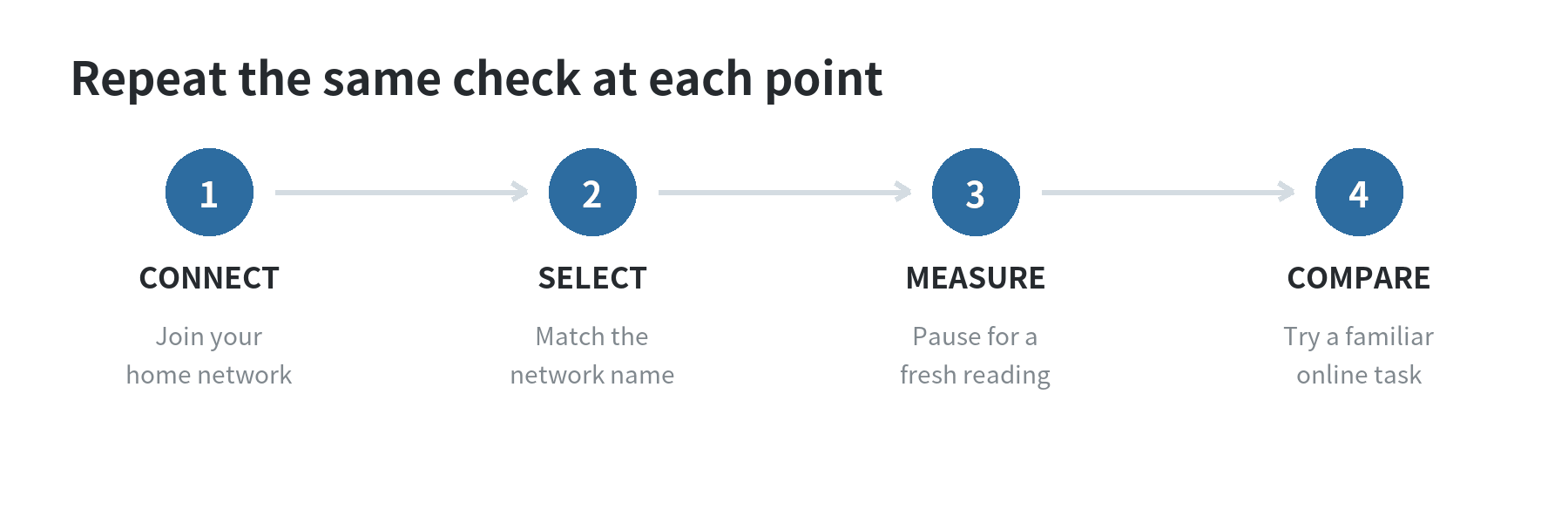
Connect the phone to your home network first.
In the analyzer, identify your network by its name (SSID), then filter or select it so a neighbor’s signal is not mistaken for yours.
If your router shows separate names for different Wi-Fi bands, record which one the old phone is connected to and keep it consistent during a pass.
If the network name is shared across bands, record that too; your map will be a household-use snapshot rather than a side-by-side band test.
Android Developers explains that Wi-Fi scans depend on device permissions and system conditions.
A scan request can be throttled or fail, and scan results can be older results if a fresh scan has not completed.
If the app’s reading stops changing, check that Wi-Fi is on and review the app’s requested permissions.
Wait for a new scan before marking a location.
Do not treat a frozen value as proof that the signal is steady.
Make a repeatable walking route
Draw a rough outline of the rooms where Wi-Fi matters.
Mark the router’s location, doors, major walls, stairs, and the places where you work or stream.
You do not need exact measurements.
A sketch that distinguishes the kitchen doorway from the far bedroom corner will be more useful than a polished plan with no test locations.
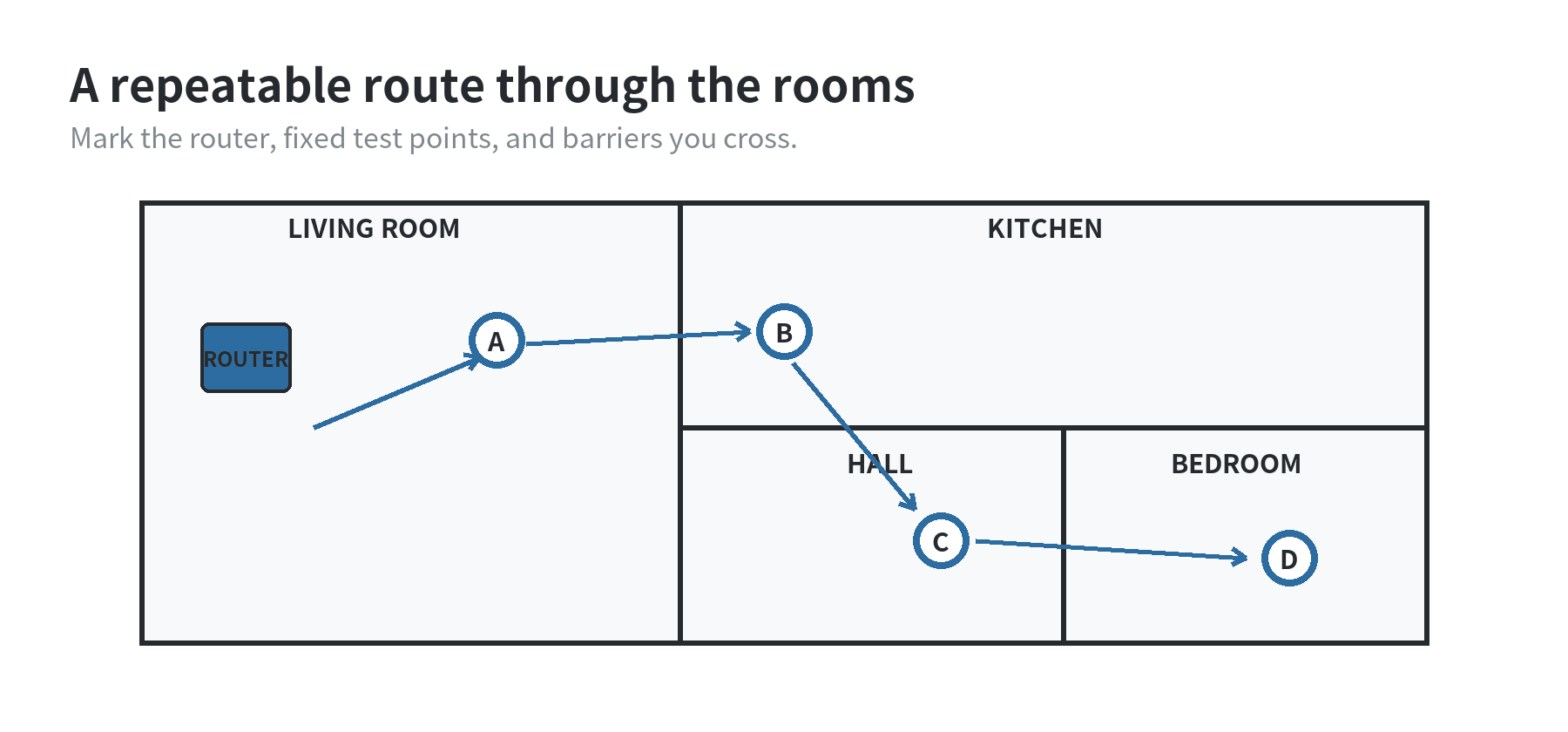
Choose a small set of fixed spots: beside the router, the center of a main room, a doorway, a room behind a wall, and the weakest-feeling place.
Hold the phone at about the same height and orientation each time, and pause in each spot until the analyzer refreshes.
Avoid standing directly against a wall or pressing the phone against your body; small changes in position can affect the reading.
Keep doors, large furniture, and household activity as consistent as you reasonably can.
Cisco’s Wireless RF Reference Guide explains that objects can reduce or reflect Wi-Fi signals.
The amount depends on the material and its characteristics.
That is why a result from a closed door or a person standing between the phone and router may differ from a clear-path reading.
Note unusual conditions instead of treating them as permanent features of the room.
Walk the same route once more if a spot looks dramatically different from nearby points.
You are looking for a pattern that repeats, not the lowest number you can capture.
For room-to-room drops, read the Wi-Fi movement guide.
Record the reading beside a real task
Android reports received Wi-Fi signal strength in dBm, and WiFiAnalyzer’s manual explains that values closer to zero represent stronger signal.
The exact number is less useful than the direction and consistency of the change across your own rooms.
Pair each reading with a basic task you care about: load a familiar webpage, play a short audio stream, or open a file on your local network.
Record whether it works promptly, hesitates, or disconnects.
| Spot | Sample reading | What happened | Note |
|---|---|---|---|
| Living room | -48 dBm | Page opened | Clear path to router |
| Hall doorway | -61 dBm | Page opened | One wall in between |
| Back bedroom | -74 dBm | Audio paused | Two walls and closed door |
| Desk corner | -72 dBm | Page opened slowly | Near a cabinet |
Illustrative readings only; your phone and home will produce different results.
Use a plain log with columns for room, exact spot, selected network, reading, task result, and conditions.
The sample readings above are not pass-or-fail limits.
Another phone, app, band, or router may show different values.
If the reading is weak but the task works, record that.
If the reading looks strong but the task fails, record that too; a signal meter alone does not explain every internet problem.
Turn the notes into a useful map
On your sketch, use one symbol for spots where the task worked and another for spots where it struggled.
Add a short note where the signal drops as you cross a particular wall, turn a corner, or move downstairs.
A gradual decline along a hallway points to a different pattern than one isolated bad desk location.
This map helps you decide what to inspect next without claiming that a single reading identifies the cause.
If a weak area lines up with a heavy wall or several barriers, try a second pass with the door open and note the difference.
If one corner struggles while nearby points do not, move the phone a few feet and repeat the task.
These checks do not guarantee a fix; they help separate a location pattern from a momentary scan or a single obstruction.
Keep mapping separate from troubleshooting.
For broader causes of interference, use the Wi-Fi interference troubleshooting guide.
If your map shows the problem is limited to one room, bring the marked locations and your notes to any next step you consider.
When the readings disagree with your experience
A phone’s analyzer reading is one clue.
The app can show signal levels.
Your connection also depends on scan freshness, which band the phone is using, network activity, and the task you tested.
The Android Developers Wi-Fi scanning overview notes that scan data may be stale or unavailable when a scan is throttled or unsuccessful.
Repeat the spot check before drawing a conclusion.
If the old phone reports a strong reading while another device struggles, map each device separately rather than averaging them together.
Device radios and antennas can differ, so use the old phone as a consistent reference for its own route.
Also note whether the affected device is connected to the same network name and band.
When the evidence points to a moving connection problem rather than a fixed weak area, compare it with the phone Wi-Fi disconnection checklist.
Save the sketch and log with a label such as “doors open.” Repeat the route if furniture, router position, or network setup changes.
A consistent record turns “Wi-Fi is bad in the back” into a specific observation: which spot, which device, which network, and what task failed.
FAQ
Can an old phone map Wi-Fi without a SIM card?
Yes, a SIM is not part of this Wi-Fi mapping method.
The phone needs working Wi-Fi and a compatible analyzer for signal details.
You can also record whether a webpage or stream loads at each marked spot.
Should I map every Wi-Fi band separately?
Map them separately when your network exposes different names for each band.
If the name is shared, note that the phone may switch bands as you walk.
The route is then a practical coverage sketch, not a controlled radio survey.
Why does the analyzer show a reading that does not match a slow webpage?
A signal reading describes the radio signal received by the phone, not the full path to a website.
A scan may also be stale or fail to refresh, as Android Developers documents, so repeat the scan and record the actual task result beside it.
Can I use this map to locate a neighbor’s Wi-Fi password or access point?
No.
The map is for observing signal coverage in your home network.
Do not try to access a network you do not own or have permission to use.