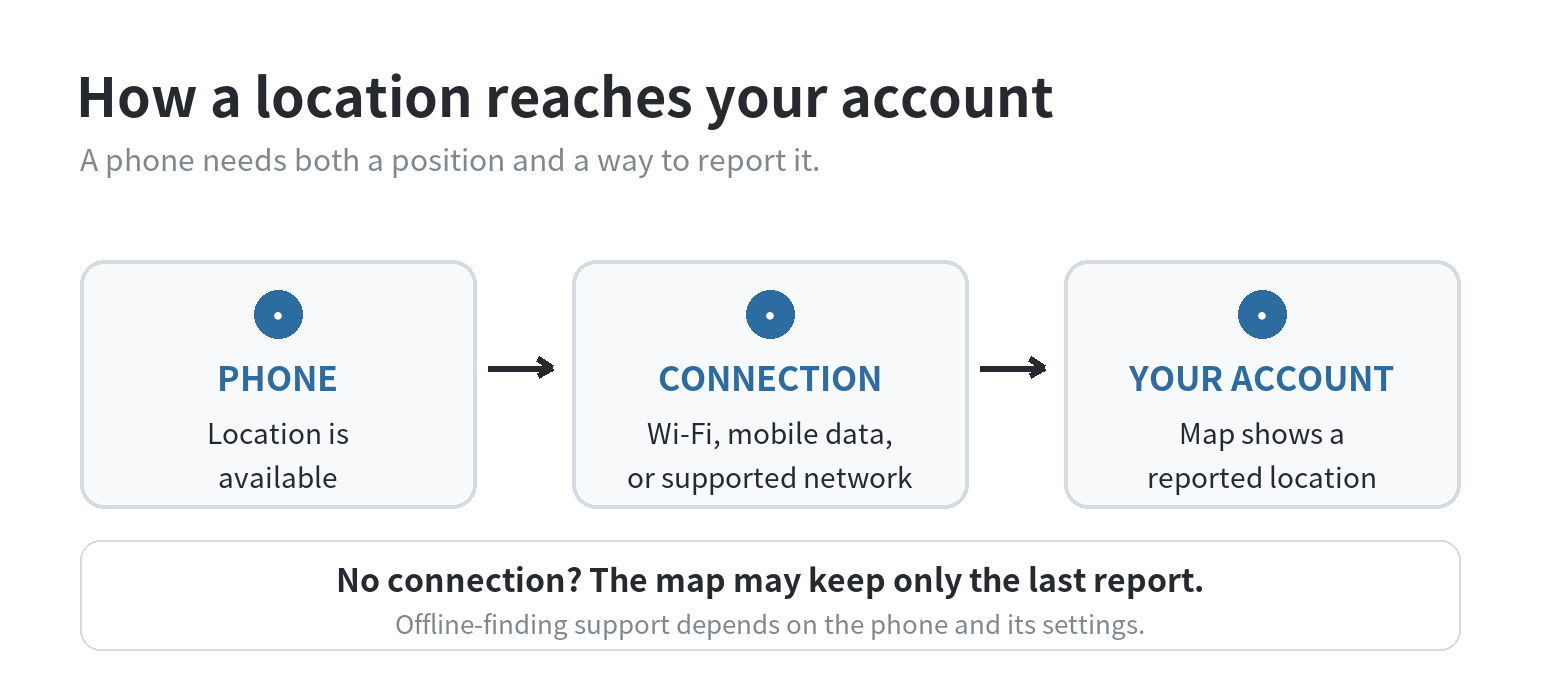
You can use an old phone to help find your own car or bag by setting it up as a device you can locate from your account. The phone needs power, location access, and a way to send or relay its position; a Wi-Fi-only phone will not keep reporting once it leaves Wi-Fi unless a supported offline-finding network can update it.
Use the phone only with your own belongings or vehicle. Do not use a hidden phone to monitor another person. If you need to know where someone is, ask them to share their location with you through a feature they control.
Pick the right kind of location setup
A phone’s built-in device-finding service is designed to help locate that phone when it is lost. It is a better fit for a bag or a parked car than a third-party “family tracker” app, because it keeps the task tied to the device you own and the account you control.
On Android, Google’s Find Hub can show a device on a map and may show its last known location. Google says the phone needs power, a Google Account, Find Hub enabled, and mobile data or Wi-Fi for remote locating; its network can also use encrypted recent locations and nearby Android devices in supported cases. On iPhone, Apple’s Find My must be turned on before the phone is lost. Apple says Find My can show a current or last known location, with offline finding depending on the device and Find My network settings. These setup details were checked on October 11, 2026.
For a phone that travels in a car, a live update generally needs a data connection. A cellular plan with data is one option; a working Wi-Fi connection is another. A GPS-equipped phone can estimate its position without cellular service, but GPS by itself does not send that position to your other device. Apple says a Wi-Fi-only iPhone uses Wi-Fi for Location Services when a network is available, and Google notes that some Wi-Fi-only Android devices do not include GPS. When the old phone is outside Wi-Fi and cannot connect through a supported offline-finding network, expect the map to stop updating.
Prepare the phone before you place it
Start with the device in your hand and connected to a charger. Confirm that its battery holds charge, the screen responds, and it can connect to Wi-Fi. If the phone restarts, shuts down, or only works while pressed against a cable, solve that reliability problem before relying on it as a locator.
Install available system and app updates, then set a screen lock you can still access. Keep the phone signed in to your own Apple or Google account. Do not leave another person’s account on a device that will sit in a vehicle or bag. Review the device name in your account so you can distinguish the spare phone from the phone you carry every day.
Check Location in the phone’s settings and turn on the relevant device-finding service. On Android, Google’s location settings explain that turning Location off can prevent apps and services from getting the device’s location. On iPhone, follow Apple’s Find My setup for that device. The settings names can differ by operating-system version, so use the help page for your specific version if the menu labels do not match.
Set up Android with Find Hub
On the old Android phone, sign in with the Google Account you intend to use to locate it. Open the device-finding settings and confirm Find Hub is on. Check that the phone appears in the list of devices tied to that account. Google’s Android Help page describes finding a lost device from another Android phone or from a browser after signing in.
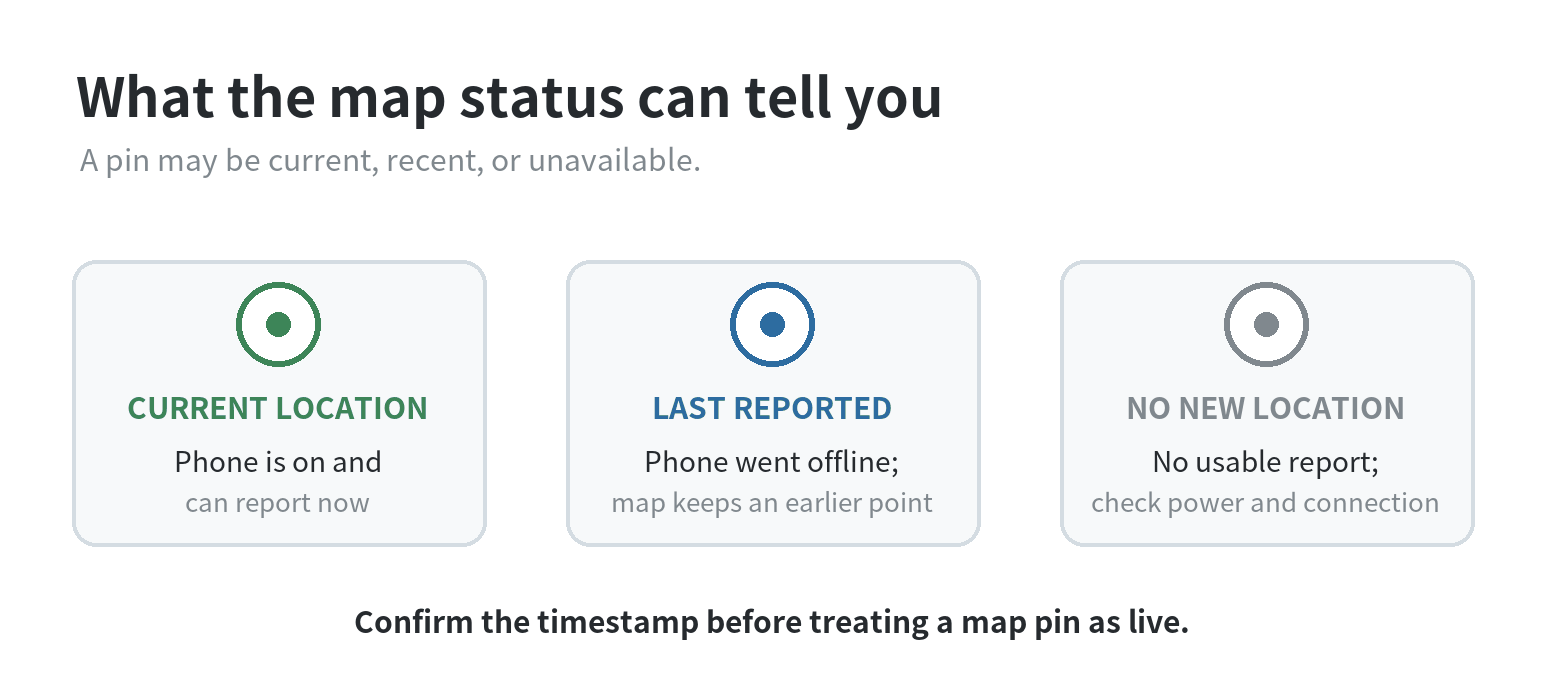
Test the path while the phone is still beside you: open Find Hub on your everyday phone or a browser, select the spare phone, and confirm that a location appears. If the map shows no location, check power, Location, account sign-in, Find Hub, and internet access before you move the phone. A successful check at home proves the account connection works there; it does not prove the phone will have signal in every garage, parking structure, or rural area.
Set up an iPhone with Find My
On the old iPhone, open Settings, select your name, then Find My. Turn on Find My iPhone and review the Find My network and Send Last Location options available on that model. Apple says Find My has to be enabled before the device is lost. From another Apple device signed into your account, open Find My and check that the spare appears under Devices.
Tap the spare phone in the Devices list and confirm that the map can locate it. Apple notes that an offline device may still show a location, but actions such as playing a sound wait until it reconnects. The location shown can therefore be the last report rather than the phone’s present position. Keep the spare on your account and test it again after changing accounts, resetting the phone, or changing location settings.
Match the connection to the job
| Where the phone stays | Connection to plan for | What to expect |
|---|---|---|
| Bag that stays near known Wi-Fi | Wi-Fi, location, power | It can report while it has a usable connection; check how the service handles offline locations. |
| Bag or vehicle that moves away from Wi-Fi | Mobile data, or a supported offline-finding network | Without either path, the map may show an older location or no location. |
| Phone left in a parked vehicle | Power plus a connection available at that parking spot | Test the exact parking location; enclosed structures can weaken location or network reception. |
Even with a connection, the map can show no location if the phone’s location setting, signal, or account setup prevents reporting. Google and Apple describe device-finding features for supported devices, but the old phone’s age, software, battery, network signal, and account settings still matter. If the device will be outside Wi-Fi, check whether its cellular plan includes data before treating it as a remote locator.
Place it securely and protect the account
For a bag, use a padded pocket that holds the phone in place and keeps its buttons from being pressed in transit. For your own car, choose a stable, accessible spot where the phone will not slide under a seat or interfere with driving controls. Avoid sealing it inside metal or placing it where the signal is consistently blocked. Do not conceal it in someone else’s property or use it to follow a person.
Use a screen lock and keep the account password private. Remove personal apps and information you do not need on a phone that will stay in a vehicle. Keep Find My or Find Hub access on your everyday device protected with its own screen lock and account security. Google’s location-sharing documentation explains that sharing another person’s live location is a separate feature with named recipients and controls; use that when a person has chosen to share with you.
Test the complete routine from where the phone will sit. Put it in the bag or vehicle, walk away with your everyday phone, and check whether the spare still appears. Then bring it back, charge it, and repeat after any major settings change. On a short test drive, check the map only after parking and see whether the pin updated after the car left Wi-Fi. If it only reports at home, treat it as a Wi-Fi locator rather than a travel-ready tracker. The site’s old-phone GPS setup guide covers offline navigation, which is a different use from remotely finding a device. For a broader checklist on keeping a spare phone prepared, see the old-phone emergency backup guide.
FAQ
Can an old phone show its location without a SIM card?
Yes, when it can use Wi-Fi or a supported offline-finding network. Google’s Find Hub instructions list Wi-Fi or mobile data for remote device actions. Without a reporting path, a GPS-equipped phone can determine a position on the device but may not send a fresh location to your account.
Will the map keep moving if the old phone is turned off?
No new location can come from a powered-off phone through its ordinary internet connection. Google and Apple describe last known or network-detected locations for supported devices, but the map may show an earlier report rather than a live position.
Can I use the old phone to follow someone who borrows my car?
Do not use a hidden phone to monitor a person. If you need to share locations, use a feature where the person chooses to share with you and can see or stop that sharing.
Last updated: 2026-10