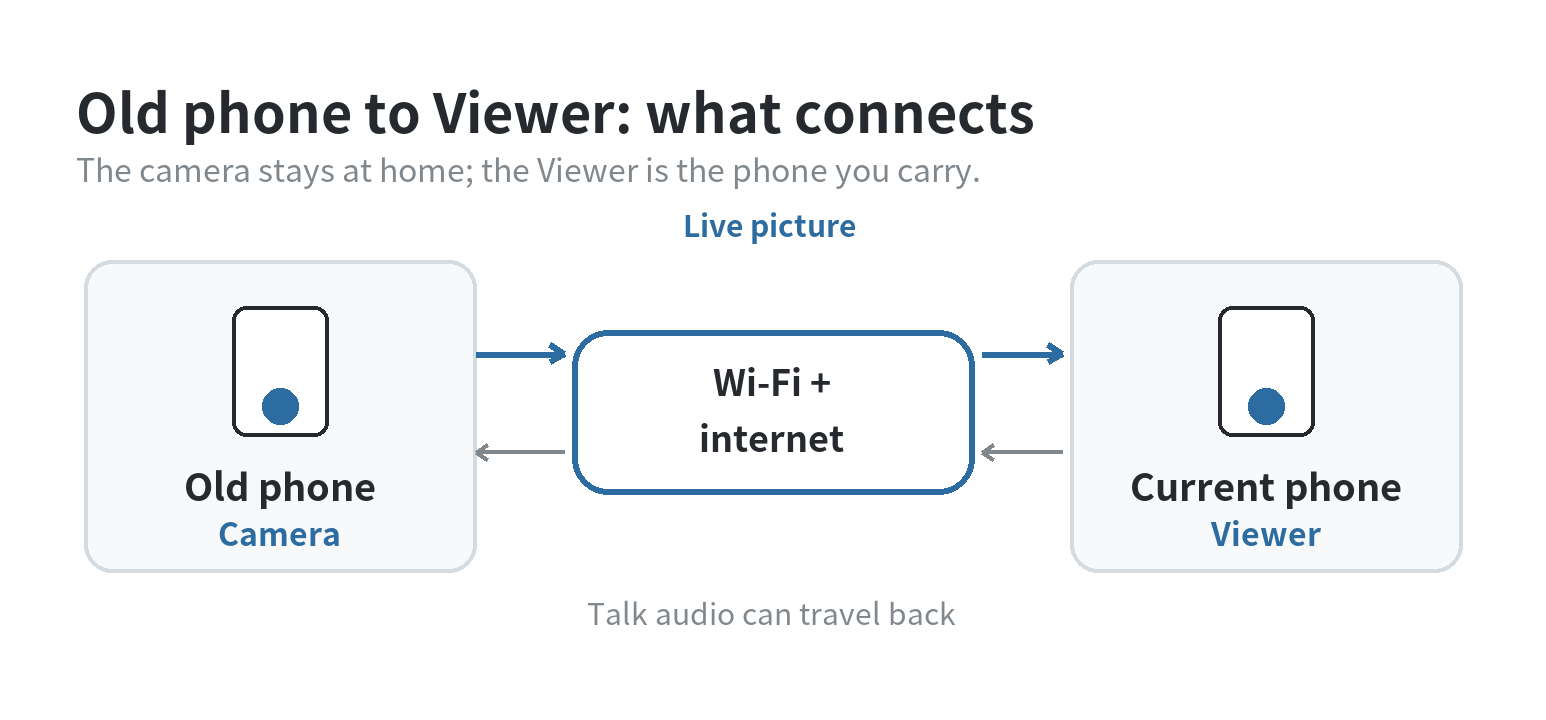
Yes—an old phone can work as a pet camera if its camera still functions, it can stay powered, and a camera app can connect it to the phone you carry.
Set the old phone to Camera, pair it with your current phone as Viewer, then test the live picture and audio while you are still at home.
The setup is for checking on your dog or cat; it is not a substitute for someone who can enter the home.
Check the old phone before setting it up
Charge it, open the built-in camera, and check that the lens produces a clear image. Test the speaker, microphone, and charging port before installing an app.
Next, connect the phone to your home Wi-Fi and open its app store. Check that the monitoring app still supports the phone’s operating system.
Confirm compatibility in the app’s current support notes. A Wi-Fi setup does not hinge on an active cellular plan.
The camera phone needs network access; remote viewing needs internet at both ends.
AlfredCamera’s setup and Live guides (checked October 11, 2026) specify network access for both devices and stable internet for live viewing.
Install the app you plan to use and grant camera and microphone access for video and sound.
Apple’s iPhone guide says permissions can be reviewed under Privacy & Security. Android’s Privacy Dashboard shows camera and microphone access.
Both guides were checked October 11, 2026.
Review guest or sharing controls before connecting another viewer.
Also check what the app saves and who can open the account.
Live viewing, motion clips, cloud storage, and shared access are separate options in some apps, not automatic parts of every setup.
Read the app’s current privacy and storage details, use a password you do not reuse elsewhere, and remove a viewer you no longer want connected.
The camera phone stays in your home, but the app still sends the live feed over its network connection.
AlfredCamera’s Live guide and WardenCam’s developer listing both describe remote viewing over internet (checked October 11, 2026).
Pair the old phone with the phone you carry
Choose a monitoring app that supports separate Camera and Viewer roles.
AlfredCamera’s setup guide and WardenCam’s developer listing (both checked October 11, 2026) describe this two-device arrangement.
Their instructions also include live viewing and talk/listen features.
Pairing steps differ, so follow the current in-app directions instead of expecting every app to use the same account or code.
- Install the same app on the spare phone and your current phone.
- On the spare, select the Camera role. On the phone you carry, select Viewer.
- Pair the devices using the app’s account or pairing method, then allow camera and microphone access on the spare phone.
- Open the live feed on the Viewer and confirm the picture and sound before choosing a permanent spot.
Leave the Camera app open as the app instructs.
AlfredCamera warns that pressing the power or home button on its Camera device may take that camera offline (checked October 11, 2026).
Screen-lock behavior differs by app and operating system, so verify it during your home test instead of assuming the phone will keep streaming after you leave.
Frame the places your pet actually uses
Start with one room and one useful view.
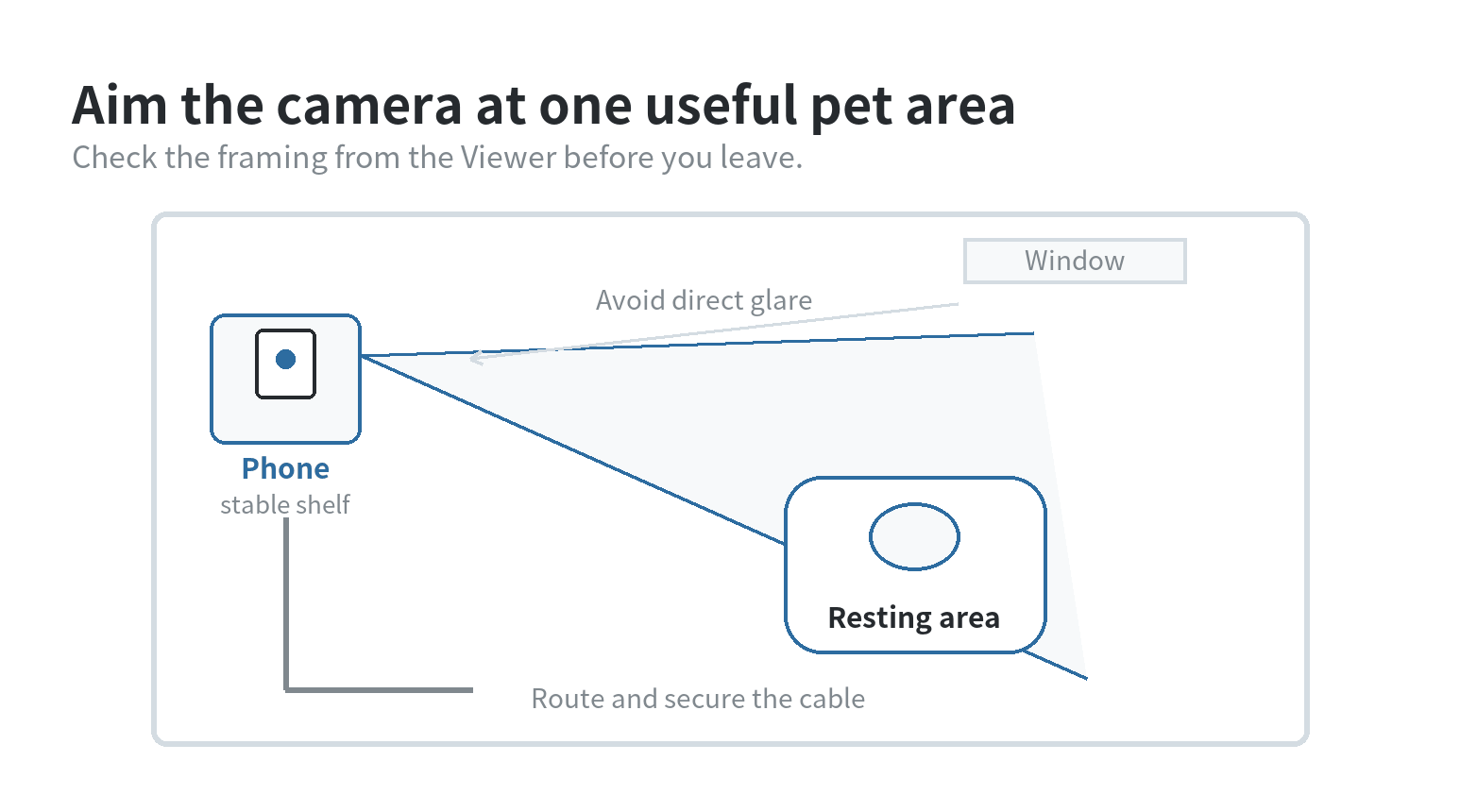
Set the phone on a stable shelf or stand, angle it toward a familiar resting area, and check that your pet can enter and leave the frame without being blocked by furniture.
A wider view can show more floor but make a pet look smaller; moving the phone closer can show detail while leaving more of the room out.
Keep the lens away from direct window glare and avoid pointing it at a bright window. Check the live image from the Viewer while standing where you expect to check in from.
If the image is dark, tilted, or mostly furniture, adjust the height or angle and look again.
The useful framing is the one that shows the area you want to check, not every corner of the home.
Keep the phone and its charging cable out of reach of paws, teeth, water bowls, and walkways. Do not balance it on a surface that moves when a pet jumps nearby.
If the phone must remain plugged in, route and secure the cable so it cannot become a loose loop.
Check the view in the lighting you expect when away. Daylight and lamps change the image; if your pet rests in a dim area, test it after dark.
If the app offers a night setting, verify that view from the Viewer before relying on it.
Test treats and two-way audio while you are home
While you are home, make a short check-in routine.
Put a familiar treat or toy in view during supervised practice, then see whether the camera angle lets you notice the activity.
Keep the treat where you can manage it; the phone cannot dispense food, and a camera view cannot tell you everything happening outside the frame.
If the app has talk audio, test it before relying on it.
AlfredCamera’s Talk instructions say the Camera device needs microphone permission (checked October 11, 2026).
When the Viewer speaks, its user cannot hear the Camera side at the same time.
Speak briefly from the Viewer and check the feed’s audio controls.
A dog or cat may respond, ignore the sound, or be out of range, so do not treat a two-way audio feature as a way to direct the pet remotely.
Check the battery during a live feed and make sure the charger stays connected.
Leave ventilation around the phone, then confirm the stream remains available after the screen dims.
Check battery or app settings for restrictions when the screen turns off; change only what the camera app needs and repeat the test.
If the phone becomes uncomfortably warm or the app closes, stop and check the device maker’s guidance. See our guides to phone battery drain and app permissions.
What to check before relying on the feed
A live feed lets you look at the camera’s field of view while both devices have the required internet connection.
It does not show rooms outside that frame, prove that the phone stayed connected between check-ins, or replace a person who can respond if something needs attention.
AlfredCamera’s Live guide lists talk, audio, and recording controls.
WardenCam’s developer listing describes motion alerts and cloud storage; both sources were checked October 11, 2026.
Check the current app details for separate storage and sharing controls.
Before leaving, test the camera from another room and over a different connection, such as your phone’s mobile data.
Confirm that you can reconnect and hear the room if needed. If the image freezes or the Camera phone drops offline, move it nearer the router or choose another setup.
A picture that works on the home network does not confirm remote access. Mobile data checks the second connection path.
If the feed fails, confirm that the Camera phone is online and check the app’s connection status before changing other settings.
FAQ
Can I check the camera over mobile data if the old phone has no SIM?
Yes, when the old phone is connected to home Wi-Fi and your Viewer phone has internet access. The old phone does not need a cellular plan for this Wi-Fi arrangement.
Can I listen to the room while using talk audio?
Not while speaking in AlfredCamera. Its Talk guide (checked October 11, 2026) says the Viewer cannot hear the Camera side while sending audio.
Enable the audio control after you finish speaking.
Can I disable camera and microphone access on the spare phone between check-ins?
Yes. Apple and Android let you review and change those permissions in system settings (checked October 11, 2026). The app cannot provide video or audio while access is off.
What should I review before giving someone else access to the pet feed?
Check the app’s guest, sharing, and account controls before connecting another viewer. Remove access for anyone who no longer needs it.
Last updated: 2026-10