Imagine a morning away from your wallet, your phone buzzing with urgent alerts, and you suddenly need a medical history or a permission letter right now. In that moment, having quick access to the right documents can calm the storm and save precious minutes. This guide shows you how to store those papers on your phone so you can act fast when it matters most.
What counts as emergency documents matters. Think medical records, insurance cards, a list of medications, allergy notes, and your copy of a government ID. If you travel, add travel insurance, emergency contacts, and a scanned passport page. You might also want copies of critical legal documents like power of attorney or a will. Keeping digital copies organized on your phone helps you respond to a sudden illness, a natural disaster, or a wallet misplacement with less stress and more clarity.
Storing documents on your phone is not about replacing paper. It’s about keeping a secure, portable backup that travels with you. A strong strategy uses three ideas: scanning or photographing what you need, storing copies in a trusted app or cloud service, and protecting access with solid security. When you combine these, you gain reliable access whether you’re offline in a remote area or rushing to a hospital. This is what we mean by secure mobile storage that actually works when you need it.
This article walks you through what to store, how to capture it, and how to access it quickly. You’ll learn simple steps to digitize documents, pick apps that fit your life, and set up quick access without exposing sensitive data. We’ll also cover how to keep copies up to date, how to back them up safely, and how to organize them for fast use in an crisis. By the end, you’ll have a practical system you can start today.
If you want peace of mind, start with a small setup. Create a folder for emergency documents on your phone, scan the essentials, and enable a secure lock. Add a 2FA option for extra protection and test access from a few different devices. With this approach, you gain confidence that when moments count, you can reach what you need in seconds, not minutes. This is the core of practical, reliable emergency planning for digital life. You’ll build a robust and accessible library of digital copies that supports your safety and your family’s well being.
Why Storing Important Documents on Your Phone Helps in Emergencies
Having critical papers at your fingertips can turn a frantic moment into a manageable one. Your smartphone becomes a portable vault, ready to unlock essential information when seconds matter. A well organized digital library cuts through chaos, helping you verify identity, access medical history, and communicate with responders without fumbling. Think of it as a digital safety net that travels with you, not a backup you hope to remember to grab.
What Counts as Important Documents in an Emergency
- IDs: Driver license, passport. These prove who you are and may be required to access services or travel quickly.
- Medical information: Allergies, medications, insurance card, police or hospital forms. Speed matters when doctors need to know your history or you can’t speak for yourself.
- Financial documents: Proof of insurance, bank contact details. Having these handy helps with claims, payments, or identity verification during chaos.
- Home and vehicle documents: Auto registration, insurance, lease. Quick access can streamline both emergency responses and shelter or housing needs.
- Critical contacts: Primary care doctor, family members, emergency services. Knowing who to call saves time and reduces stress.
Each item matters because it reduces friction in urgent moments. A driver may need an insurance card to prove coverage at a scene; a hospital might require a medical history to tailor treatment; and a trusted contact can guide responders if you’re unable to speak. Keeping these documents easily scannable or stored as secure copies on your phone speeds up every action you take in a crisis.
Documents to Guard and Access Quickly
- Core offline bundle: Keep a small, essential set of documents available offline in a clearly named folder. This ensures access even without internet.
- Clear labeling: Use simple, consistent names like “ID_Front.pdf” or “Medical_History.jpg” so you can spot them at a glance.
- Sensitive data caution: Avoid leaving plain text copies of passwords or fully typed financial details unprotected. Use encrypted notes or password-protected PDFs.
- Secure storage and an emergency vault: Use a secure, clearly named folder, plus a separate emergency vault in your preferred app or service. This creates a reliable failover if your main device is unavailable.
- Regular updates: Set a reminder to refresh copies after major life events or changes in policy.
Organizing this way keeps you prepared whether you’re at home, on the road, or helping a family member in a different city. If you want practical guidance on creating a robust digital filing system, you can explore trusted resources like the Office of Emergency Management’s advice on keeping documents safe, or professional guidance on secure digital storage strategies. Keep documents safe | Office of Emergency Management and How to organize your important papers before a disaster for solid, plain-language steps. For a broader view on backing up documents, see how Dropbox suggests building an emergency plan for your files. How to backup documents in an emergency – Dropbox.
In short, your phone can be a fast, reliable extension of your memory. The key is to choose what to keep, name it clearly, and protect it with sensible security. A ready set of documents on a smartphone helps you handle the unexpected with confidence.
Secure Ways to Store Documents on Your Phone
When emergencies hit, having quick access to your essential documents can make a tense moment feel more manageable. This section covers practical, secure strategies you can implement today. You’ll learn how to lock down your device, choose trusted vaults and encrypted cloud storage, and balance convenience with privacy. Think of your phone as a portable, shielded file cabinet that travels with you.
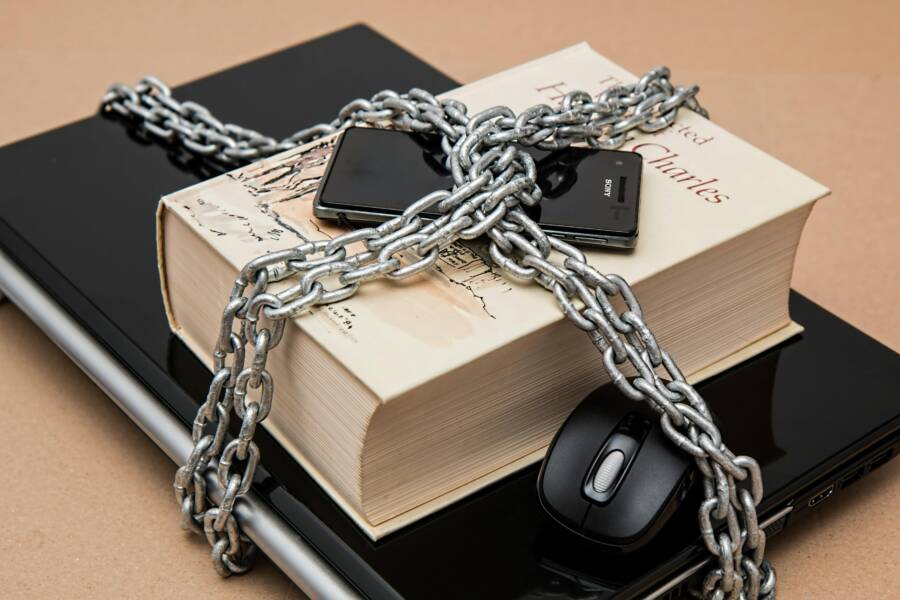
 Photo by Pixabay
Encrypt and Lock Down Your Phone
A strong screen lock is your first line of defense. On iPhone, use a unique passcode and enable biometric unlock such as Face ID or Touch ID when available. For Android, set a robust PIN or pattern and add fingerprint or face unlock if your device supports it. Always keep the OS up to date and turn on device encryption. Where possible, enable two-factor authentication on accounts that hold your documents. Practical steps:
- iPhone: Set a long, unique passcode; enable Face ID or Touch ID; ensure iCloud Keychain is on for password storage. Regularly check for iOS updates.
- Android: Go to Settings > Security > Screen lock to choose a secure option; enable biometric unlock; verify that device encryption is active after setup.
Security is stronger when you never share passcodes and you use a unique, hard to guess password for each service. Regularly review app permissions and install apps only from trusted sources. For added protection, enable two-step verification on your cloud and document apps. Keeping your device patched and guarded is a habit worth building. For official guidance on device security basics, see Apple’s guidance on biometric security and passcodes, and Google’s steps for setting screen locks on Android devices. Biometric security and Set screen lock on an Android device
Use Safe Vaults and Encrypted Cloud Storage
Your documents deserve a protected home inside apps or cloud storage. Look for vaults or encrypted folders within trusted apps, and choose cloud services that offer strong encryption. Options include password managers that store documents securely, or encrypted folders offered by reputable providers. When weighing choices, balance convenience and privacy. End-to-end encryption should be active whenever possible. Practical guidance:
- Consider a password manager that also stores documents, so you have secure access to sensitive files and login data in one place.
- Opt for cloud services that emphasize client-side or end-to-end encryption, reducing the risk of data exposure as it travels or rests in the cloud.
- Enable end-to-end encryption in apps you trust. If a provider offers zero-knowledge encryption, that’s a strong signal you’re protecting data from the provider itself.
Reality check: convenience can blur privacy. If you push a lot of data through a single vault, ensure that it supports device-level access controls and regular security audits. For further reading on reputable vaults and encrypted cloud options, explore these resources: 8 Best Password Managers (2025), Tested and Reviewed, The Best Android Password Managers, and End-to-End Encrypted Cloud Storage options. These guides help you weigh features like offline access, quick retrieval, and cross-device syncing.
If you want a more privacy-forward stance, look into services that advertise zero-knowledge or client-side encryption. They let you control the keys, not the provider. For a broader perspective on backup and encryption, you can review Dropbox’s emergency planning guidance and how to back up documents in an emergency. How to backup documents in an emergency – Dropbox
Images and real-world use help you visualize this. A secure vault inside your preferred app can house your medical history, insurance cards, and copies of government IDs. Sync your most critical files to a trusted cloud with encryption, and keep offline copies on your phone for when internet access is limited. With careful setup, your smartphone becomes a reliable ally in crisis situations. For practical steps on setting up a robust digital filing system, you can also consult Office of Emergency Management resources like “Keep documents safe” and “How to organize your important papers before a disaster.” Keep documents safe and How to organize your important papers before a disaster.
In short, secure storage on your phone is about choosing trusted vaults, enabling end-to-end encryption where possible, and keeping access tightly controlled. A well organized digital library is a practical edge when seconds count. Your smartphone can be a reliable, portable archive that helps you act with confidence during emergencies.
Practical Setup Steps for iPhone and Android
When you need quick access to important documents, a small, well organized setup on your smartphone can make a big difference. This section provides a concise, action‑oriented checklist for both iPhone and Android users. Follow the steps in order, then test access from a locked screen to ensure everything works when you’re in a hurry. A few deliberate security choices now save you time and stress later.
Step by Step on iPhone
- Set a strong passcode and enable Face ID or Touch ID so you can unlock quickly without exposing data.
- Turn on iCloud Drive or a trusted vault that supports encryption, and enable two‑factor authentication on your Apple ID. This creates a secure, accessible home for your documents across devices.
- Create a dedicated emergency folder in your Files app and label it clearly, such as “Emergency_Documents.”
- Scan or photograph essential papers and save them offline in that folder, so you can reach them without internet.
- Use Hide My Email or secure sharing where appropriate to minimize data exposure when sharing with others.
- Test access by locking the screen, then waking the device and opening the emergency folder to confirm fast retrieval. For further security guidance, see Apple’s resources on data protection and iCloud security: Store your data securely in iCloud and iCloud data security overview.
Step by Step on Android
- Set a robust lock screen and add biometric unlock (fingerprint or face) if available.
- Choose a secure cloud option with encryption and enable end‑to‑end or at least client‑side encryption where possible.
- Use a secure folder or vault app to house sensitive documents separately from the main file area.
- Create a labeled emergency folder and keep a core offline bundle ready for situations with no network.
- Store key documents offline in clearly named files so you can locate them at a glance.
- Run a quick access test from a locked screen to verify speed and reliability. For reference, consult Safe folder setup and Secure Folder options on Android, plus guidance on encrypted cloud storage.
Access Fast in an Emergency
Emergencies demand speed and clarity. By structuring your essential documents for quick retrieval and tying in native emergency features, you can share critical information with responders in seconds. The goal is a simple, portable digital library that stays current and secure, so you never waste valuable minutes searching.
Organizing for Quick Access
Organize your emergency documents with a clear, minimal structure that you can skim in a heartbeat. Create a top level folder named Emergency Documents and add subfolders for IDs, medical, finances, and property. Keep the most-used items in an offline album or secure folder so they stay accessible even without internet. Use consistent naming, like ID_Front.pdf, Medical_History.jpg, and Insurance_Card.png, so you can spot them at a glance. Avoid storing sensitive data in plain text and prefer encrypted notes or password-protected PDFs. Regularly update copies after life changes and policy updates. For practical guidance on secure organization, see resources like Keep documents safe from the Office of Emergency Management and how to organize important papers from FTC. https://www.phila.gov/departments/oem/ready-or-not/how-to-get-ready/prepare-for-an-emergency/keep-documents-safe/ and https://consumer.ftc.gov/how-organize-your-important-papers-disaster-strikes
A well labeled, compact system reduces confusion during stress. A quick scan should tell responders exactly where to find identification, medical details, and contact numbers. Consider keeping a small offline bundle in your phone’s gallery or a dedicated secure vault inside your preferred app. If you need deeper inspiration on organizing digital files for emergencies, explore how Drive users structure folders and naming conventions, then adapt those ideas to your phone. Examples include consistent naming and color-coded folders to speed visual searches. https://support.google.com/drive/answer/2375091?hl=en&co=GENIE.Platform%3DAndroid
For a practical edge, maintain a master list of the file names you keep and where they live. Review this list quarterly and after any major change in personal information. A simple checklist can prevent last minute chaos when you most need access. This approach helps your family and caregivers too, ensuring they can locate documents quickly if you’re unable to guide them.
Emergency Features and Contacts
Modern phones offer built‑in tools that bypass the unlock barrier while still protecting your data. Set up and test these features so you can share essential details in an emergency without delay. On iPhone, configure Medical ID to display critical health information from the lock screen. On Android, enable Emergency Info so responders can see key details even when the device is locked. You can also pin a link or a note to the lock screen for fast access to a trusted file or folder.
A short workflow to follow: build your Medical ID with allergies, medications, and emergency contacts on iPhone; set up a concise Emergency Info page on Android; and place a link to your Emergency Documents folder on your lock screen. This way, responders can reach life‑saving data without hunting through apps. For step by step guidance, see Apple’s Medical ID setup and Android emergency info guides, and PCMag’s tips on putting emergency info on your lock screen. https://support.apple.com/guide/iphone/set-up-and-view-your-medical-id-iph08022b192/ios and https://www.pcmag.com/how-to/how-to-add-emergency-info-to-your-phones-lock-screen
If you share your phone with a trusted person, consider adding a quick note to a secure area that you can reference together. Include a single, clear URL to your most critical document vault, then test the lock screen access from both a locked and unlocked state. The goal is to have a predictable, fast path to essential data. For broader context on medical ID usage and emergency access, explore ARF Medical ID tutorials and official Medical ID setup resources. https://allisonrosefoundation.org/arf-medical-id-tutorial/ and https://support.apple.com/guide/iphone/set-up-and-view-your-medical-id-iph08022b192/ios
Practical takeaway: configure emergency features now, keep your most critical files reachable from the lock screen, and routinely verify that you can access them with one or two taps. When seconds count, a well integrated system makes all the difference.
Best Practices, Pitfalls, and Maintenance
A solid approach to storing important documents on your phone blends smart security with practical habits. This section outlines best practices, common missteps to avoid, and steady maintenance routines that keep your digital emergency library reliable. By adopting these guidelines, you’ll move from a fragile setup to a robust system you can trust when time counts.
What to Avoid Storing Digitally
Keep highly sensitive items out of plain text or unencrypted formats. Avoid storing full Social Security numbers, complete card numbers, passwords, and private keys in easily readable files or notes. Even a quick screenshot or a saved text file can become a liability if your phone is lost or hacked. Instead, use encrypted vaults or reference numbers that minimize exposure. For example, store critical identifiers in encrypted PDFs or password-protected notes, and reference nonessential details with codes you can share only with trusted family members. If you must note a password, use a password manager that can securely store it alongside your documents. For broader safeguards, consider trusted resources on protecting personal data, like how to secure confidential information both online and offline. (Links: https://www.security.org/resources/guide-securing-confidential-data/, https://www.ftc.gov/business-guidance/resources/protecting-personal-information-guide-business)
- Why this matters: plain text leaks can turn a moment of vulnerability into a crisis. A single unlocked file could reveal multiple identifiers or access points.
- Safer alternatives: encrypted vaults, password managers with document storage, and short expiration codes or reference numbers with limited exposure. Regularly audit what you keep and where you store it.
In practice, you want a hierarchy of access. Use offline copies for essential items you need without internet, and keep the rest in encrypted cloud storage with strong access controls. This layered approach reduces risk while preserving speed when you need to respond quickly. For more on securing personal data, see trusted guidance on protecting privacy across platforms. (Links: https://www.security.org/resources/guide-securing-confidential-data/)
Regular Updates and Backups
A dependable emergency library stays current without becoming cluttered. Set up a simple maintenance routine that fits your life, then stick to it. Try these steps:
- Schedule monthly checks to verify document relevance and readability. Update items after major life events, policy changes, or new health information.
- Maintain at least two backups in different locations. Keep one offline on the phone or a secure local drive, and one in the cloud with strong encryption.
- After any update, test access from at least one device. You should be able to reach critical files in two taps or less.
This approach keeps your information accurate and accessible no matter what happens. For practical strategies on backing up documents, see sources that guide emergency planning and data protection. (Links: https://experience.dropbox.com/en-gb/resources/emergency-preparation, https://www.staysafeonline.org/resources/online-safety-and-privacy)
- Quick tip: maintain a master index of file names and locations. Review it quarterly and after any major change in personal information. It helps you locate items fast under stress.
By committing to regular updates and reliable backups, you ensure your digital files are not just present, but useful when you need them most. For broader backup guidance, consider Dropbox’s emergency planning resources and staying current with best practices for personal information protection. (Links: https://dropbox.com/resources/emergency-preparation, https://www.staysafeonline.org/backups)
Images and real-world use can illustrate the point. A well organized backup routine is like having a spare key hidden in a safe place. It reduces search time during an urgent moment and gives you confidence that you can reach what you need quickly. For more visual guidance on setting up a robust digital filing system, you can explore Office of Emergency Management resources on keeping documents safe. (Link: https://www.phila.gov/departments/oem/ready-or-not/how-to-get-ready/prepare-for-an-emergency/keep-documents-safe/)
Conclusion
Storing important documents on your phone gives you speed, clarity, and peace of mind during emergencies. A well organized digital library reduces chaos, helps responders understand your needs quickly, and keeps vital information accessible even when you have no internet.
The practical benefits are clear. You gain offline access, easier identity verification, and a portable backup you can trust. A secure setup protects sensitive data while staying easy to use on a smartphone. With a simple folder structure, labeled files, and encrypted storage, you keep control without slowing you down in a crisis.
To make this work, commit to a small, concrete routine this week. Start by digitizing your top three documents, move them into a dedicated vault, and test quick access on a locked phone. Use a password manager or encrypted cloud for long term safety, and keep your offline copies up to date after life changes. A short weekly check keeps gaps from creeping in.
If you follow these steps, you’ll build a reliable, fast library that travels with you. Choose one document to digitize today, set up a secure vault, and run a quick access test. Your smartphone becomes a real emergency ally.